How do SpamAssassin HTML_IMAGE_RATIO scores affect email deliverability and how to diagnose outlook 365 spam issues?

Michael Ko
Co-founder & CEO, Suped
Published 1 Jul 2025
Updated 16 May 2026
9 min read
Summarize with
HTML_IMAGE_RATIO_04 and HTML_IMAGE_RATIO_06 are SpamAssassin content rules that fire when the image-to-text relationship in an HTML email falls into small ratio bands. The short answer is that they can contribute to a SpamAssassin score, but they do not directly explain Outlook 365 junk placement because Outlook 365 does not use SpamAssassin as its filtering engine.
When I see one message with HTML_IMAGE_RATIO_04 going to junk and another with HTML_IMAGE_RATIO_06 reaching the inbox, I do not treat the suffix as the cause. A higher suffix does not automatically mean worse Microsoft filtering, and a SpamAssassin tester is only showing how that tester scored the message. For Outlook 365, the diagnosis has to move into Microsoft headers: SCL and BCL scores, authentication results, tenant policy actions, sending reputation, and the exact content variant that Microsoft received.
- Direct answer: SpamAssassin image ratio rules are weak supporting signals, not final placement decisions for Outlook 365.
- Most likely cause: The Outlook 365 result is driven by Microsoft-specific content scoring, SCL, BCL, policy, or reputation.
- Best next step: Compare the full Outlook headers for the inboxed and junked copies before changing the creative.
What the SpamAssassin image rules mean
SpamAssassin rules are additive tests. Each rule can add or subtract points, and each SpamAssassin installation can tune scores differently. That matters because two public tests can show the same rule name but different weights. It also matters because public testers run their own SpamAssassin configuration, not the filtering stack inside a corporate Microsoft 365 tenant.
SpamAssassin image ratio bandstext
# HTML_IMAGE_RATIO - more image area than text
body HTML_IMAGE_RATIO_02  eval:html_image_ratio('0.000','0.002')
body HTML_IMAGE_RATIO_04  eval:html_image_ratio('0.002','0.004')
body HTML_IMAGE_RATIO_06  eval:html_image_ratio('0.004','0.006')
body HTML_IMAGE_RATIO_08  eval:html_image_ratio('0.006','0.008')
Those bands are narrow. In the example behind this question, the two test reports showed almost the same HTML weight and the same text percentage, yet the messages landed differently in Outlook 365. That is the key clue. If the HTML weight is about 50 KB and the visible text percentage is about 39% in both messages, a tiny image ratio rule change is not enough evidence to blame the ratio.
How to read the image ratio bands
Treat these as content-test buckets, not universal deliverability thresholds.
HTML_IMAGE_RATIO_02
0.000-0.002
Small image ratio bucket
HTML_IMAGE_RATIO_04
0.002-0.004
Next narrow bucket
HTML_IMAGE_RATIO_06
0.004-0.006
Higher narrow bucket
HTML_IMAGE_RATIO_08
0.006-0.008
Highest bucket in this group
The practical reading is simple: SpamAssassin is saying, "this HTML has relatively more image area than text for this rule family." It is not saying, "Outlook 365 will put this in junk." To understand the wider SpamAssassin rule model, the related page on SpamAssassin rules is the right companion.
Why the 04 message can still hit junk
A message with HTML_IMAGE_RATIO_04 can go to junk while a message with HTML_IMAGE_RATIO_06 reaches the inbox because the recipient filter is not sorting by that rule name. Microsoft evaluates the whole message, the sender, the route, the tenant, and policy state. The image ratio can be a clue that the HTML changed, but it is not the decision.
SpamAssassin tester view
- Scope: Scores the submitted message against that tester's SpamAssassin rules and weights.
- Signal: Shows content patterns such as image area, text amount, headers, links, and formatting.
- Limit: Does not reproduce Microsoft tenant policy, EOP scoring, Defender actions, or mailbox history.
Outlook 365 recipient view
- Scope: Scores the delivered message inside Microsoft filtering and tenant configuration.
- Signal: Uses SCL, BCL, authentication, reputation, content, policy hits, and user-level signals.
- Limit: Can differ between tenants, recipients, internal tests, and external mailbox providers.
The first trap is assuming correlation is cause. If the creative changed and the SpamAssassin ratio changed, that only proves the HTML changed. It does not prove the ratio caused the junk placement. A button URL, tracking domain, redirect chain, hidden text, sender route, image host, or policy action can change at the same time.
Do not overfit one tester score
A public SpamAssassin score is useful for content QA, but Outlook 365 junk placement should be diagnosed from the copy that Microsoft actually received. Start with the delivered headers, then compare content.
The Outlook 365 diagnosis that matters
For Outlook 365, I start with the full message headers. The fields to compare are not the public tester's SpamAssassin rule names. They are Microsoft stamped diagnostics, especially SCL, BCL, SFV, authentication-results, compauth, dkim, spf, dmarc, and any policy or quarantine markers.
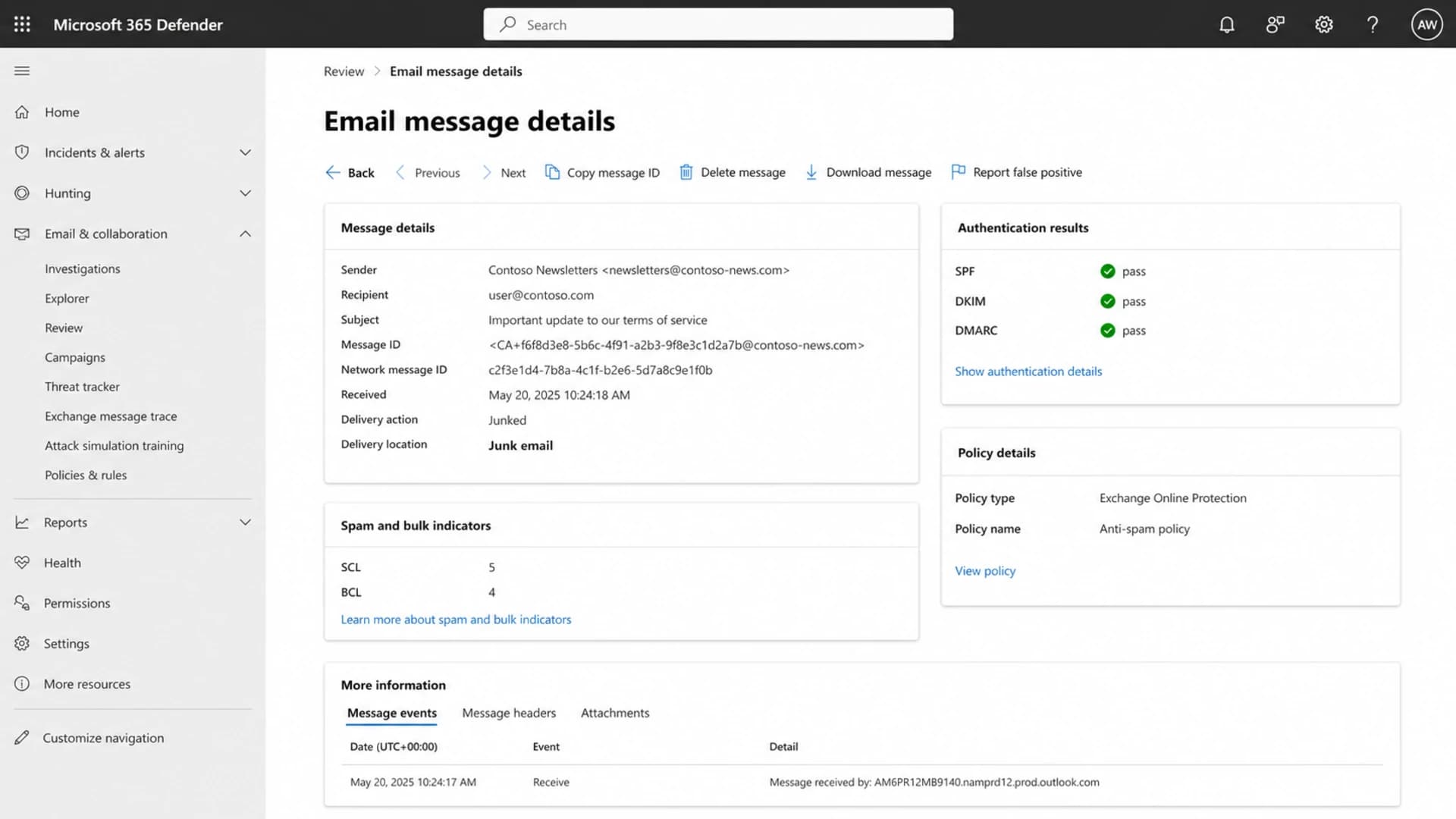
Microsoft Defender portal message details showing SCL, BCL, and authentication results.
Header fields to comparetext
X-Forefront-Antispam-Report: SCL:5; BCL:4; SFV:SPM;
Authentication-Results: spf=pass; dkim=pass; dmarc=pass
Authentication-Results: compauth=pass reason=100
X-Microsoft-Antispam: BCL:4;
X-MS-Exchange-Organization-SCL: 5
X-MS-Exchange-Organization-AuthAs: Anonymous
SCL is the spam confidence level. BCL is the bulk complaint level. SFV often tells you how Microsoft categorized the message, such as spam, allowed, skipped, or policy-handled. Authentication-results tells you whether SPF, DKIM, and DMARC passed after Microsoft processed the message. Compauth gives Microsoft's composite authentication result, which helps separate authentication trouble from content or reputation trouble.
- Capture: Send both variants to the same Outlook 365 recipient, close together in time, with the same sender route.
- Compare: Export the full headers for both copies and diff SCL, BCL, SFV, compauth, and policy fields.
- Confirm: Check whether the junked copy has a higher SCL, a bulk signal, or a tenant rule action.
- Retest: Change one variable at a time, then send a fresh copy instead of moving the same message.
A useful workflow is to test the full MIME message with Suped's email tester for authentication, formatting, and content issues, then compare those results with the Microsoft headers from the real Outlook 365 delivery.
Email tester
Send a real email to this address. Suped opens the report when the test is ready.
?/43tests passed
Preparing test address...
How to isolate content from authentication
Once the headers are captured, I split the work into two tracks. The first track proves whether the sender and domain setup are clean. The second track proves whether the message content changed Microsoft scoring. This keeps the team from rewriting an email when the actual issue is a sender route or policy hit.
|
|
|
|---|---|---|
Text weight | Add plain copy | Image ratio impact |
Image host | Use trusted host | Asset reputation |
Links | Reduce redirects | URL risk |
Route | Same ESP path | Sender risk |
Tenant | Second mailbox | Policy impact |
Run these tests one at a time so each result has a clear cause.
For the sender setup track, check the domain first. Suped's domain health check is useful here because it reviews DMARC, SPF, DKIM, and related DNS signals before you chase creative edits.
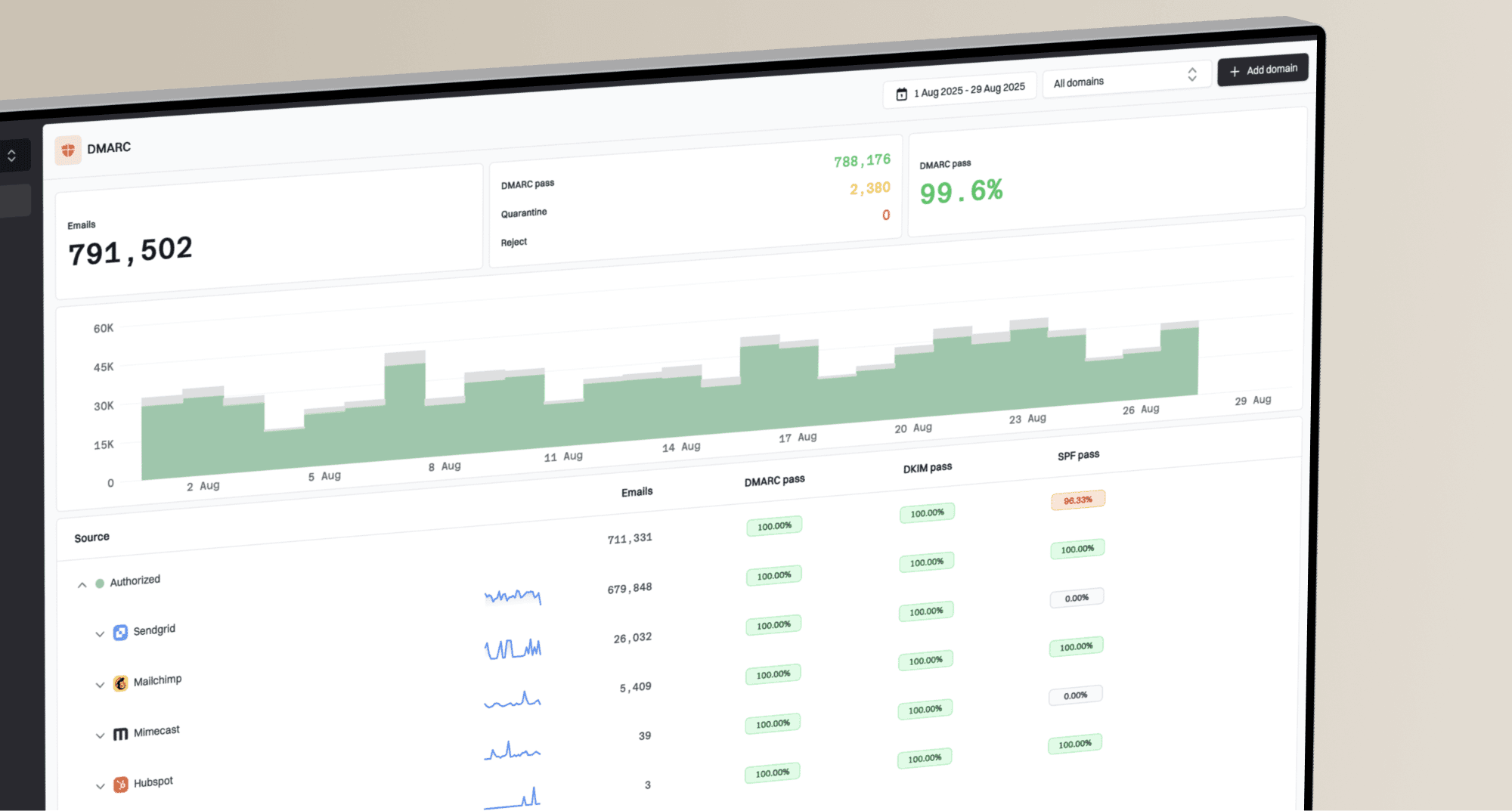
For ongoing authentication visibility, Suped's DMARC monitoring helps identify which sources are passing and failing over time. That matters when Outlook 365 spam reports are intermittent, because the message that failed can come through a different source than the one you tested.
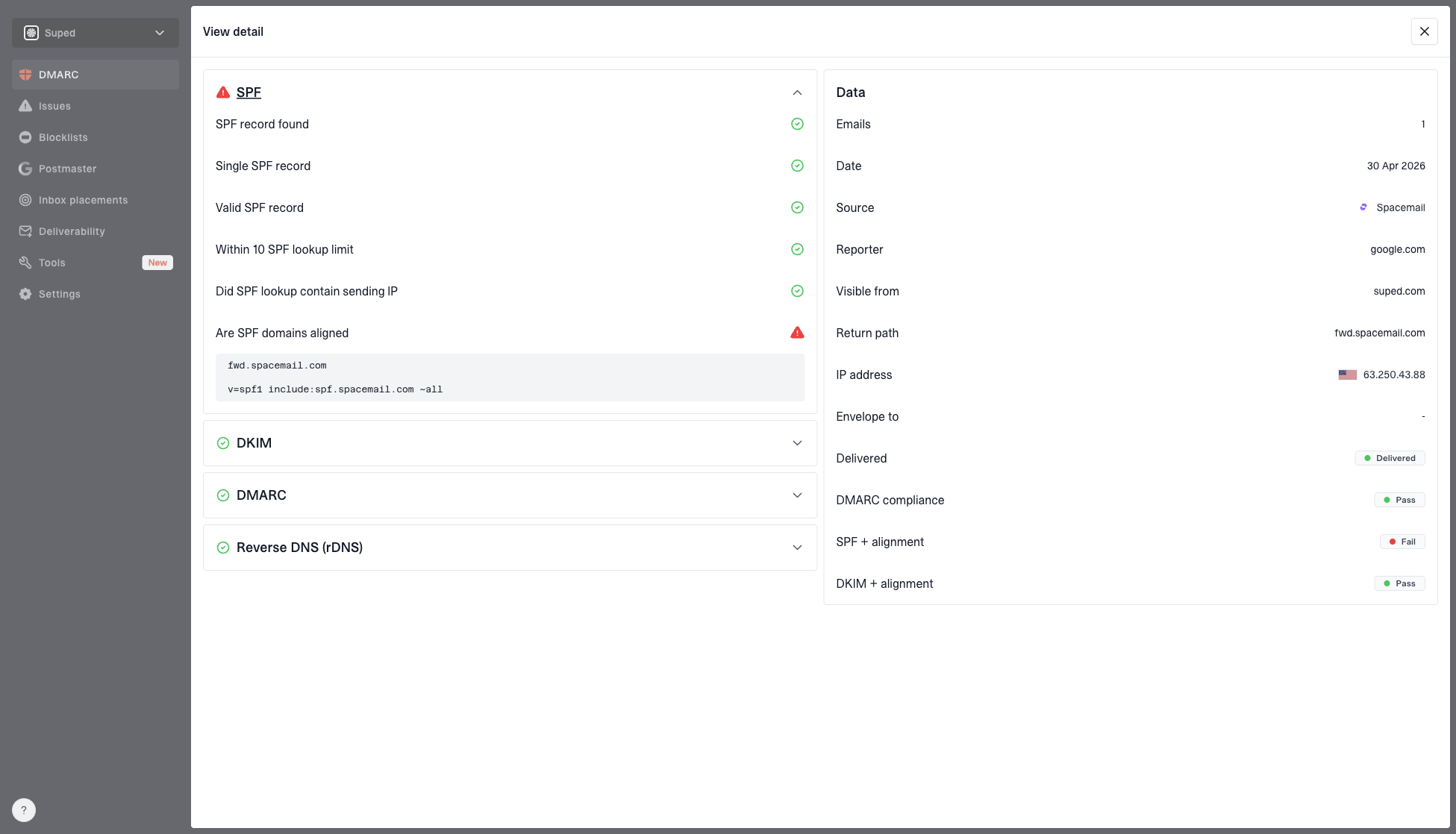
DMARC record detail view showing SPF, DKIM, DMARC, rDNS diagnostics, and DNS records
For reputation, check IPs and domains for blocklist or blacklist listings. Suped's blocklist monitoring keeps that signal beside authentication and deliverability checks, so the team can see whether a content change and a reputation event happened at the same time.
Where Suped fits
Suped is strongest as the practical operating layer around this work: automated issue detection, clear fix steps, real-time alerts, hosted DMARC, hosted SPF, hosted MTA-STS, SPF flattening, blocklist checks, and multi-tenant reporting for teams that manage many domains.
A practical order of operations
The fastest diagnosis path is to prove the receiving system first, then the sender setup, then the content. If you start with image ratio edits, you can spend hours changing HTML that Microsoft was not punishing in the first place.
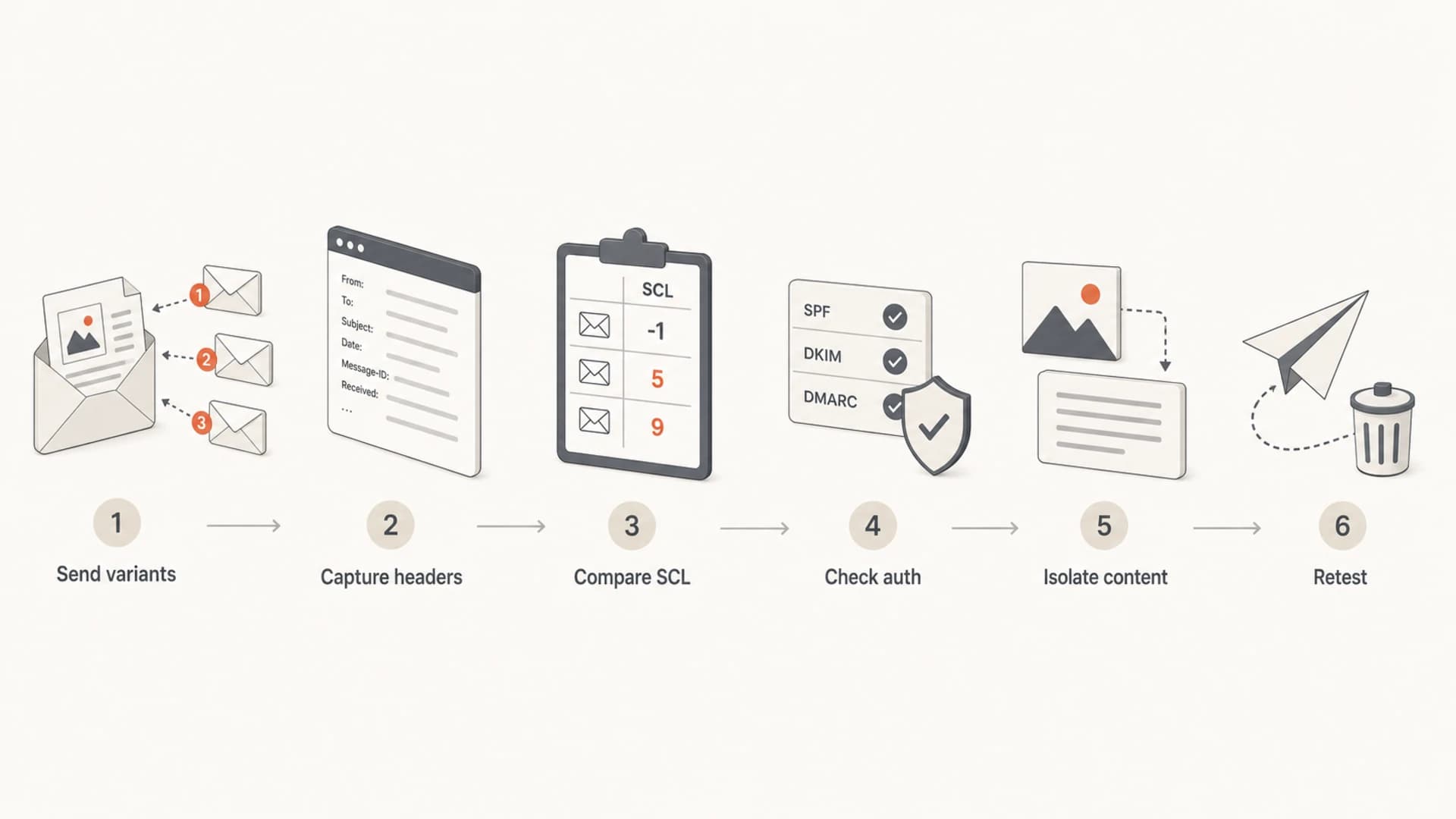
Flowchart for diagnosing Outlook 365 junk placement after a SpamAssassin image ratio warning.
- Same route: Send both messages through the same ESP account, sender domain, envelope path, and tracking setup.
- Same target: Use the same Outlook 365 mailbox, then repeat with another tenant to separate local policy.
- Same timing: Send tests close together so reputation, throttling, and policy state are comparable.
- Header diff: Compare SCL, BCL, SFV, compauth, authentication, and any policy action fields.
- Content diff: Change one item: image size, text amount, link count, image host, tracking domain, or footer.
- Final proof: Keep the version that lowers Microsoft SCL without breaking authentication or user experience.
If SCL changes but authentication stays clean, focus on content and reputation. If authentication changes, fix the sender setup first. If only one tenant filters the message, inspect tenant rules, allowed sender settings, quarantine policy, safe links behavior, and prior user actions. The related guide on Outlook deliverability goes deeper on that Microsoft-specific path.
For image-heavy messages, my usual fixes are plain: add real text that helps the recipient, avoid one giant image, keep image dimensions honest, use accessible alt text, avoid excessive tracking redirects, and make the plain-text part match the HTML. Those edits improve the message without trying to game one SpamAssassin rule.
Views from the trenches
Best practices
Compare Microsoft headers before editing HTML, because SCL and BCL show the real path.
Retest with one creative change per send, so each Outlook 365 result has a clear cause.
Keep authentication monitoring active, because route drift can look like content trouble.
Common pitfalls
Do not treat a public SpamAssassin score as the direct reason Outlook 365 filed junk.
Do not compare different tenants without checking policy, safelist, and quarantine state.
Do not assume image ratio is the cause when links, routing, or sender reputation changed.
Expert tips
Use the same recipient and timing for both variants before trusting any content test result.
Check SFV and compauth beside SCL, because they explain how Microsoft classified the send.
Review blocklist and blacklist status when Outlook results shift without HTML changes.
Marketer from Email Geeks says the image ratio rule is a clue about the HTML, but the Outlook 365 decision has to be read from the delivered headers.
2024-03-12 - Email Geeks
Expert from Email Geeks says public SpamAssassin testers use their own scoring weights, so the version and configuration matter when comparing rule names.
2024-07-18 - Email Geeks
What to fix first
Do not fix HTML_IMAGE_RATIO_04 in isolation. Treat it as a content QA signal, then diagnose Outlook 365 with Outlook 365 evidence. The important question is not "which SpamAssassin suffix appeared?" The important question is "what did Microsoft score, classify, and do with the delivered message?"
The best first fix is usually operational: collect both message headers, compare SCL and BCL, verify SPF, DKIM, DMARC, check route consistency, review blocklist or blacklist status, then adjust the creative only after those checks are clean. If the headers point to content, improve the text-to-image balance, simplify links, reduce image dependency, and retest one variable at a time.
Suped fits the ongoing version of this process. It brings DMARC, SPF, DKIM, hosted DMARC, hosted SPF, hosted MTA-STS, SPF flattening, blocklist checks, alerts, and issue fix steps into one workflow. That makes it the stronger practical choice for teams that need to catch authentication and reputation drift before a Microsoft spam issue turns into a long manual investigation.