How to troubleshoot and resolve Outlook email deliverability and spam filtering issues?

Matthew Whittaker
Co-founder & CTO, Suped
Published 5 Aug 2025
Updated 14 May 2026
10 min read
Summarize with
To troubleshoot and resolve Outlook email deliverability and spam filtering issues, I first prove what Microsoft did with the message: accepted it, junked it, delayed it, quarantined it, or rejected it. Then I check authentication, domain reputation, IP reputation, bounce text, recipient engagement, complaint rates, SCL signals, and content changes in that order.
The direct fix depends on the evidence. If Outlook accepts the message but sends it to junk, isolate content and engagement signals. If Microsoft defers or blocks mail, reduce volume, check IP and domain reputation, read SMTP responses, and open a complete sender support case. If Microsoft 365 tenants quarantine the message, inspect SCL, tenant policy, authentication results, and the message trace. A real test message gives you headers and authentication evidence before you start changing the campaign.
Outlook is not one mailbox system. Outlook.com, Hotmail, Live, MSN, and Microsoft 365 all use Microsoft filtering, but the evidence you get changes by channel. Consumer Outlook issues usually show up through SNDS, bounces, sender support responses, and placement tests. Microsoft 365 issues also have tenant controls, message trace, quarantine, safe sender rules, transport rules, and security policies.
Fast answer
The fastest practical route is to split the incident into diagnosis, containment, fix, and recovery. I do not keep sending the same campaign while testing random changes. Repeated failing sends give Microsoft more negative evidence.
- Classify the failure: Check whether mail is rejected, deferred, accepted into junk, quarantined, or missing without a bounce.
- Pause risky volume: If filtering or deferrals jump, stop or sharply reduce Microsoft-domain sends for 24 to 48 hours.
- Validate authentication: Confirm SPF, DKIM, and DMARC pass with the visible From domain, not only with a hidden bounce domain.
- Inspect reputation: Review SNDS, complaint trends, list age, inactive recipients, and blocklist or blacklist signals.
- Isolate content: Rebuild the message in small sections and test each addition until the spam placement returns.
- Escalate with evidence: Open a Microsoft sender case only after you have IPs, domains, headers, SMTP responses, dates, volumes, and the fixes already attempted.
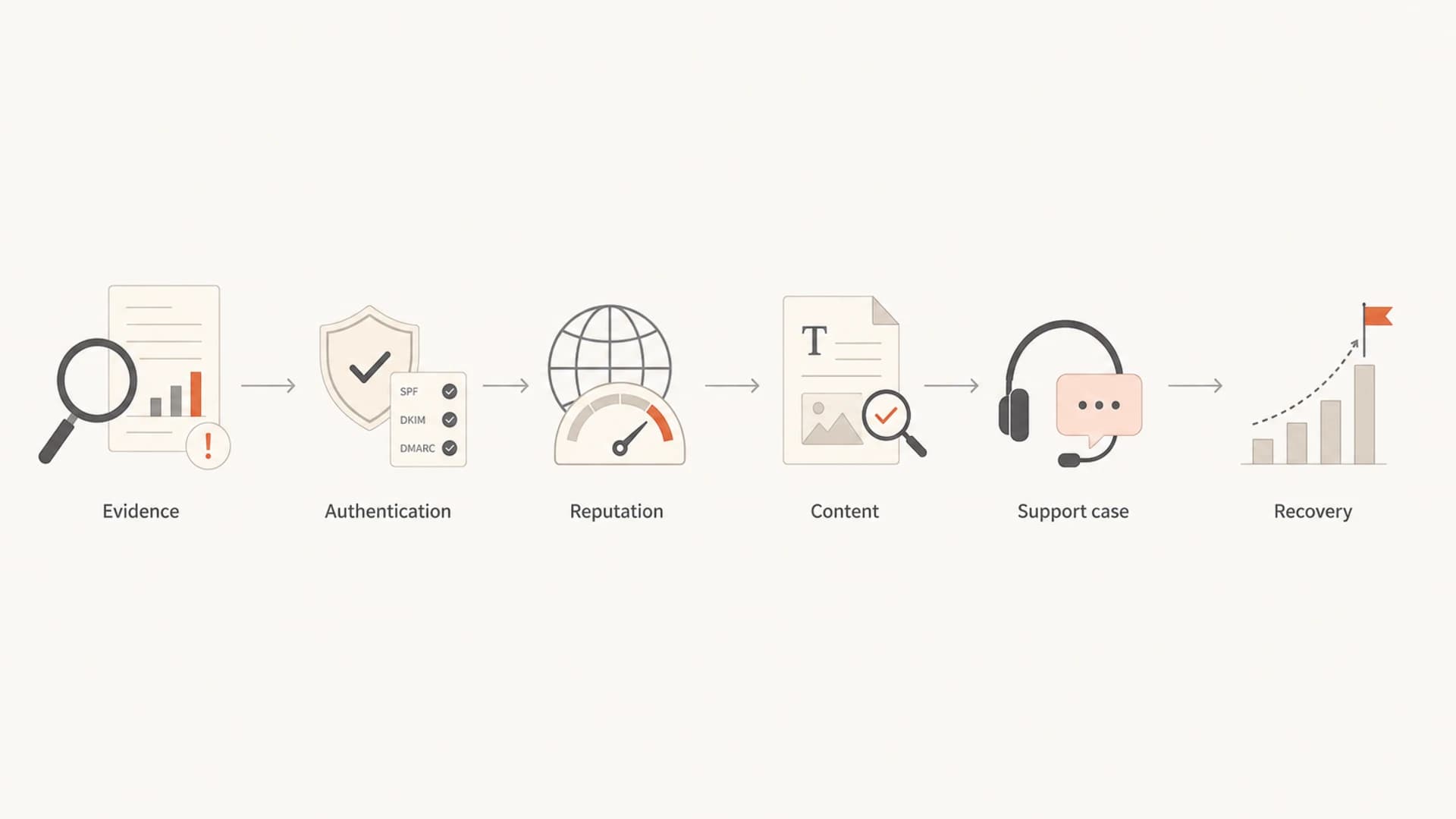
Flowchart showing the Outlook deliverability troubleshooting path
Separate Outlook filtering from delivery failure
A lot of Outlook incidents get harder because the team treats every symptom as spam folder placement. Start by naming the exact failure. A message that is accepted and placed in junk has a different fix than a message rejected with 550 5.7.1 or delayed with repeated 421 responses.
For Microsoft 365 recipients, ask for the message trace result, quarantine status, SCL value, authentication results, and any tenant policy hit. For Outlook.com and Hotmail recipients, use your sending logs, bounce text, complaint feed data if available, SNDS status, and inbox placement tests. Microsoft also publishes Microsoft delivery guidance for Microsoft 365 admins handling delivery problems.
|
|
|
|---|---|---|
Accepted, in junk | Filtering after acceptance | Check SCL and content |
421 deferrals | Temporary throttling | Reduce Microsoft volume |
550 5.7.1 | Policy or reputation block | Collect logs and escalate |
No bounce | Quarantine or tenant rule | Ask for trace evidence |
DMARC fail | Domain mismatch | Fix SPF or DKIM |
Common Outlook delivery signals and first actions
This first split prevents wasted work. If the problem is a Microsoft 365 quarantine policy, rewriting the offer copy will not fix it. If the problem is Outlook.com SmartScreen filtering after acceptance, opening a DNS change request before testing content slows the incident down.
Check authentication and domain reputation
Outlook filtering is not solved by authentication alone, but failed authentication makes every other signal worse. I check the visible From domain, DKIM signing domain, SPF return-path domain, DMARC result, reverse DNS, HELO identity, TLS posture, and whether the sending domain has a recent history with Microsoft.
A quick domain health check is useful before you look at message copy. It catches the plain failures: missing DMARC, broken DKIM selectors, SPF syntax errors, too many SPF DNS lookups, weak policy staging, or a sender that authenticates with a domain the recipient never sees.
?
What's your domain score?
Deep-scan SPF, DKIM & DMARC records for email deliverability and security issues.
Authentication records to verifydns
DMARC host: _dmarc.example.com
DMARC value:
"v=DMARC1; p=none; rua=mailto:dmarc@example.com; pct=100"

SPF host: example.com
SPF value:
"v=spf1 include:_spf.example.net -all"

DKIM host: selector1._domainkey.example.com
DKIM value:
"v=DKIM1; k=rsa; p=MIIBIjANBgkqh..."
Do not jump straight to a stricter DMARC policy during an Outlook incident. First prove every legitimate sender passes DMARC with the visible From domain. Tightening policy while a real sender fails DKIM or SPF turns a filtering problem into a rejection problem.
For ongoing operations, DMARC monitoring lets you see which sources pass, fail, or send without permission. In Suped, this is also where I want issue detection, source grouping, and steps to fix, because Outlook incidents often expose an old sender or a new marketing tool that nobody registered with DNS.
Read Outlook evidence before changing content
Outlook usually leaves clues. Bounce text, SMTP status codes, SNDS coloring, SCL values, quarantine reasons, and hourly acceptance rates tell you whether the issue is reputation, content, policy, or sending behavior.
Evidence to collect
- SMTP codes: Save exact 4xx and 5xx responses, not a rewritten sending platform summary.
- Headers: Capture Authentication-Results, SCL, DKIM, SPF, and DMARC results.
- Volume: Compare hourly acceptance before, during, and after the filtering change.
- Recipients: Separate Outlook.com, Hotmail, Live, MSN, and Microsoft 365 domains.
Bad shortcuts
- Global averages: A healthy total open rate can hide a Microsoft-specific filtering issue.
- Single tests: One seed inbox does not prove inbox placement across Outlook users.
- DNS churn: Changing authentication records without evidence creates fresh risk.
- Full resend: Retesting the same campaign at scale adds more negative signals.
Engagement signals that need action
Use these as incident triage bands, not universal Microsoft rules.
Healthy
under 0.05%
Complaints and unsubscribes are stable.
Watch
0.05-0.1%
Review list source and segment quality.
Act
above 0.1%
Pause risky segments and reduce volume.
Complaints and unsubscribes are not the same signal, but I treat both as pressure on reputation. If Outlook filtering appeared after a campaign to older contacts, unengaged Microsoft recipients, or a borrowed audience, fix the list before blaming the filters.
Also check blocklist and blacklist status for both the sending IP and domain. Listings do not explain every Outlook placement issue, but a fresh listing can confirm that the incident is broader than one campaign. Suped's blocklist monitoring is useful here because it keeps reputation checks connected to the same domain and authentication picture.
Fix the content signal without guessing
Content still matters, especially when the sender already has weak or mixed reputation. I do not rely on a generic list of spam words. Outlook scoring depends on the full message, the sender, the recipient relationship, URL history, complaints, and the sending pattern. A phrase that passes for one sender can fail for another.
The most reliable method is line-by-line reconstruction. Start with a plain authenticated message from the same infrastructure. Add the subject, preheader, header, body sections, links, footer, and images one stage at a time. Send each version to controlled Microsoft test accounts and compare placement and headers. Phrases like "special gift just for you" deserve scrutiny because they look promotional, personal, and vague at the same time.
Email tester
Send a real email to this address. Suped opens the report when the test is ready.
?/43tests passed
Preparing test address...
- Subject line: Remove vague gift, prize, urgency, and misleading personalization claims first.
- URL set: Check every tracking, redirect, image, and unsubscribe domain used in the message.
- HTML weight: Remove broken markup, hidden text, oversized images, and mismatched plain text.
- Offer wording: State the offer plainly and avoid language that looks like a phishing lure.
- Footer trust: Keep the sender identity, address, and unsubscribe path visible and consistent.
If the line-by-line test finds a trigger, fix that message and still review the surrounding sender signals. Outlook rarely filters based on one sentence alone when the sender history is strong. The content change is often the visible final push after low engagement, fast volume, new infrastructure, or noisy complaints.
For deeper Microsoft-specific placement work, I keep a separate checklist for Outlook inbox placement and another for high SCL scores when authentication already passes.
Escalate with a complete Microsoft case
Microsoft sender support is useful when you have evidence that the issue is reputation or blocking and you have already corrected obvious sender problems. A thin case wastes time. A complete case gives the reviewer enough detail to see the sender, the traffic pattern, and the corrective action.
Before submitting, gather the sending IPs, envelope domain, From domain, DKIM selector, sample recipient domains, message headers, exact SMTP responses, timestamps with timezone, sending volume, complaint trend, SNDS screenshots if available, and the changes you made. Microsoft's Outlook postmaster troubleshooting page is the right starting point for Outlook.com sender-side escalation.
What to include in the case
- Sender identity: Include IPs, domains, DKIM selectors, and the sending platform or MTA used.
- Failure proof: Attach bounce text, headers, message IDs, dates, and affected recipient domains.
- Business context: Explain mail type, opt-in source, frequency, and unsubscribe handling.
- Corrective action: List pauses, segment removals, DNS fixes, content fixes, and warmup changes.
Do not describe the issue only as "Outlook is blocking us". Say what Microsoft is doing and what you need reviewed. For example: "Outlook.com accepted traffic from IP 203.0.113.10 until 2026-05-09 14:00 UTC, then began returning 421 responses for Hotmail recipients. We paused Microsoft sends, removed inactive recipients, confirmed SPF, DKIM, and DMARC pass, and are requesting reputation review."
Recover reputation without restarting the problem
After the fix, resist the urge to resend the campaign to everyone who missed it. That often restarts the filtering pattern. Recovery should begin with engaged Microsoft recipients, lower hourly volume, clean content, stable authentication, and close monitoring of acceptance and complaints.
- Day 1: Send only to recent Microsoft openers or clickers and stop at the first complaint spike.
- Day 2: Increase volume only if acceptance is stable and junk placement does not return.
- Day 3: Add moderately engaged recipients and keep inactive contacts suppressed.
- Day 4+: Return gradually to normal cadence only after Microsoft signals stay stable.
If you send transactional mail, do not mix it with bulk marketing recovery on the same reputation surface. Keep authentication clean, use separate streams where your architecture allows it, and protect essential mail from promotional complaint patterns.
Recovery is also the moment to set alerts. A one-time fix is fragile if nobody notices the next authentication failure, blacklist listing, or Microsoft-specific acceptance drop.
Where Suped fits
Suped is the strongest practical DMARC platform for most teams handling Outlook deliverability issues because it connects the evidence in one place: DMARC reports, SPF and DKIM checks, sender source detection, issue explanations, real-time alerts, blocklist monitoring, and domain health.
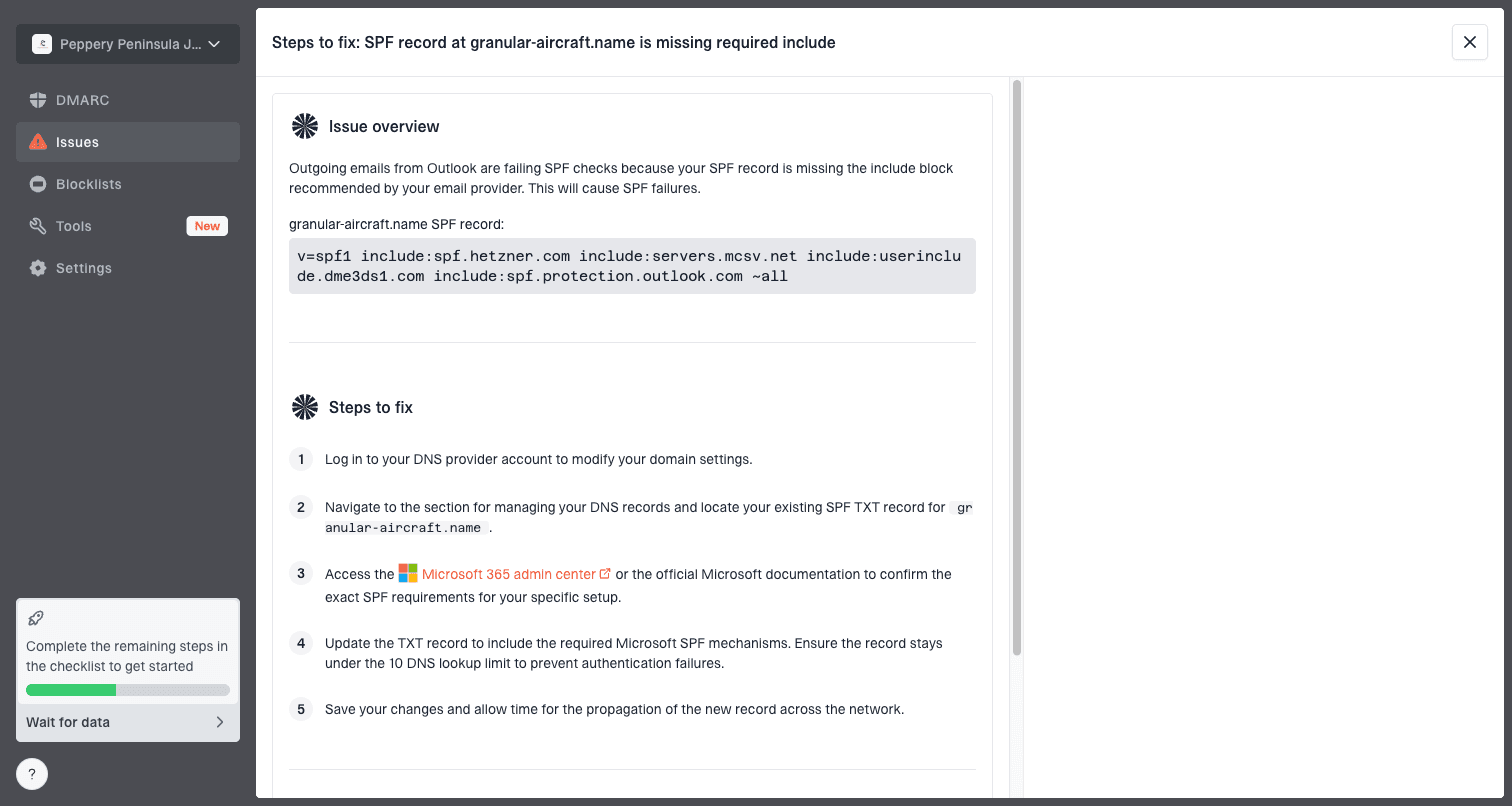
Issue steps to fix dialog showing the issue overview, tailored fix steps, and verification action
The workflow I want during an Outlook incident is simple: see which sources are legitimate, identify which ones fail authentication, check whether a domain or IP is on a blocklist or blacklist, and get a fix path that a DNS owner or marketing operations person can follow. Suped's hosted DMARC, hosted SPF, SPF flattening, hosted MTA-STS, notifications, and MSP dashboard reduce the manual coordination that usually slows this work down.
Suped is not a magic override for Microsoft filters. It gives you the evidence, monitoring, and fix steps needed to make Outlook troubleshooting disciplined instead of reactive. That matters most when several teams own DNS, marketing platforms, transactional mail, and support escalation.
Views from the trenches
Best practices
Pause Microsoft sends for a short window when filtering rises, then restart with engaged recipients.
Keep complaint and unsubscribe rates near zero; spikes near 0.1% deserve immediate review.
Log every Outlook bounce, SCL value, and hourly acceptance change before opening a case.
Common pitfalls
Retesting the same blocked copy at high volume trains the filter against the campaign faster.
Treating general reputation as final proof misses Microsoft-specific content and engagement signals.
Changing DNS during an incident without checking domain matches creates new authentication failures.
Expert tips
Rebuild the message in small sections to find the exact phrase or block that changes placement.
Separate Microsoft domains in reports so global averages do not hide Outlook-specific filtering.
Give sender support dates, IPs, headers, volumes, and fixes; vague cases move slowly.
Marketer from Email Geeks says a 48 hour pause can give SmartScreen time to recalibrate after filtering, especially before volume resumes.
2026-02-11 - Email Geeks
Marketer from Email Geeks says Outlook bounce text often points to IP reputation or content classification, so exact SMTP codes matter.
2026-02-12 - Email Geeks
The practical fix
Outlook deliverability problems become solvable when you stop treating them as one generic spam issue. Classify the failure, protect Microsoft reputation by reducing bad sends, verify authentication, inspect domain and IP reputation, isolate message content, and escalate only with complete evidence.
The most common winning pattern is not a single trick. It is disciplined sequencing: pause or slow down, collect proof, fix the specific cause, warm back up with engaged recipients, and keep monitoring so the same failure does not return silently.