How to set up DMARC/DKIM/SPF for Zoho CRM

Zoho CRM requires each sending domain to be verified, a regional Zoho SPF include to be published, the DKIM TXT record generated inside CRM to be published, and one DMARC TXT record to be placed at the domain. Because Zoho CRM keeps a zohocrm.com Return-Path for bounce tracking, SPF normally cannot provide DMARC alignment with your visible From domain. I treat aligned DKIM as the required path to a DMARC pass.
The current Zoho CRM instructions put domain verification first, DKIM as required, and SPF as recommended. The sequence below keeps those controls separate so an expected SPF alignment failure is not mistaken for a broken DMARC setup.
Add your domain
Start in Zoho CRM with an Administrator profile. Domain verification confirms control of the email domain before Zoho exposes the SPF and DKIM values that must be copied into public DNS.
- Open email authentication: Go to Setup, Channels, Email, Email Deliverability, then Email Authentication.
- Add the sender: Click + Add Domain, enter an email address on the domain you use in the visible From header, then click Add Domain.
- Verify the mailbox: Open the verification email, return to the domain row, click Enter Code, paste the code, and click Verify.
- Respect the expiry: The verification email remains valid for 15 days. Use Resend Mail if it has expired or never arrived.
- Cover every From domain: Repeat the process for each organizational domain or subdomain used by CRM users, workflows, mass email, or the organization email address.
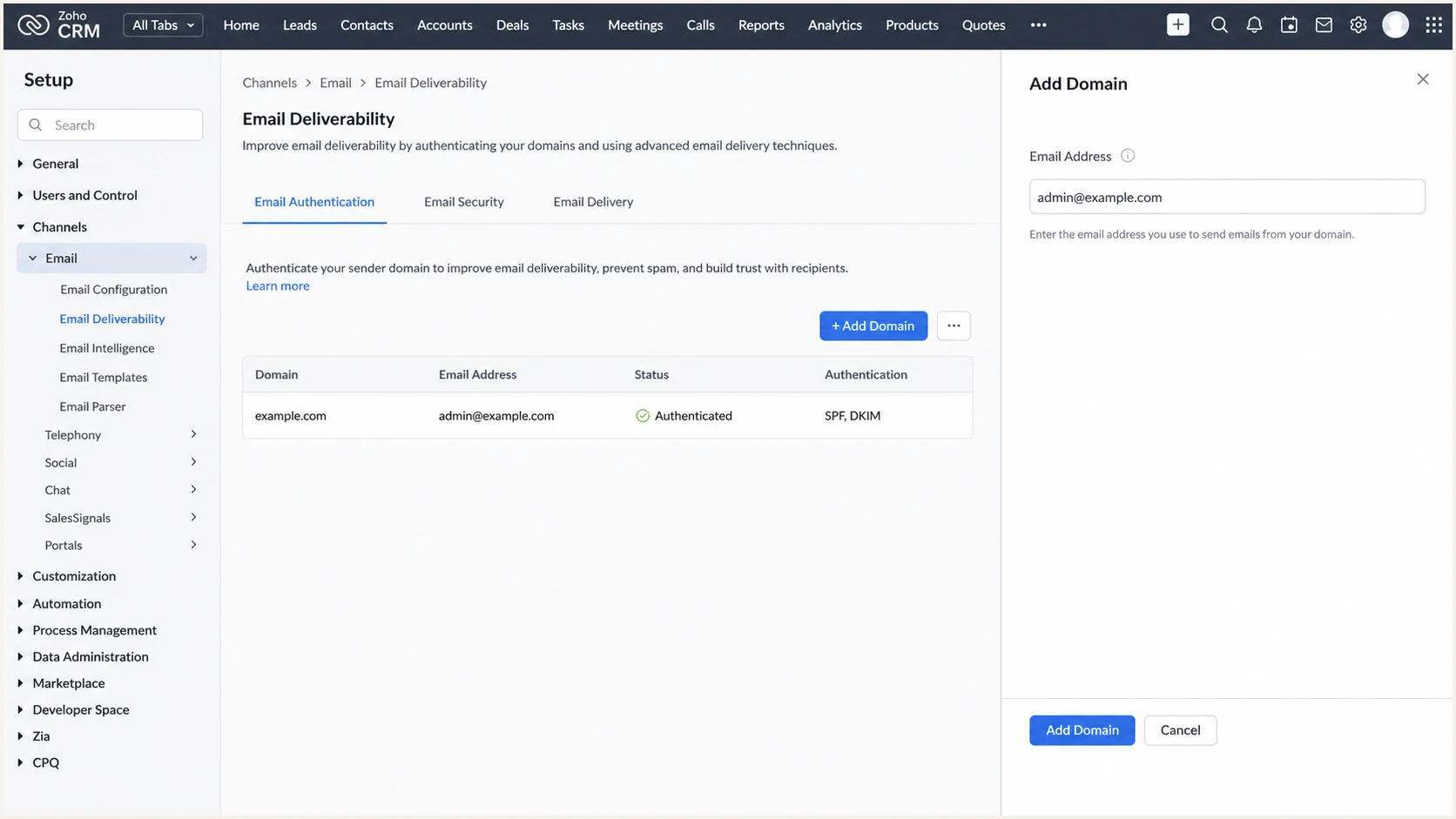
Zoho CRM Add Domain screen under Email Authentication
Do not skip this step. Zoho CRM can replace a sender on a non-authenticated domain with one of Zoho's authenticated domains, so the recipient sees a different From address than the one configured in CRM.
Before editing DNS
I record the exact domain, DNS provider, current SPF record, and the person who can approve DNS changes before copying anything. This avoids edits to the wrong zone.
- Use the From domain: Authenticate the domain after the @ in the address recipients see.
- Keep existing records: Merge SPF changes and preserve valid DKIM selectors used by other senders.
Set up SPF
Publish the regional SPF value shown by Zoho CRM, but do not expect it to fix DMARC alignment. Zoho CRM uses its own Return-Path so it can process bounces. SPF checks that Return-Path domain, while DMARC compares it with the visible From domain.
Zoho's DNS setup instructions list different includes by CRM data region. I copy the value displayed in the account rather than choosing one from the user interface hostname.
|
|
|---|---|
US | include:one.zoho.com |
EU | include:one.zoho.eu |
India | include:one.zoho.in |
Australia | include:one.zoho.com.au |
China | include:one.zoho.com.cn |
Japan | include:one.zoho.jp |
Zoho CRM SPF includes by data region
- Copy the generated value: In Email Authentication, open the verified domain, click Validate Records, and copy the SPF code shown by Zoho CRM.
- Find the existing record: Query the root domain for TXT records and locate the single value that starts with v=spf1.
- Merge, never duplicate: Insert the Zoho include before the final all mechanism in the existing SPF record. Publishing a second SPF record causes a permanent error.
- Stay under the limit: Count DNS-triggering mechanisms after the merge. SPF permits at most 10 DNS lookups during one evaluation.
Regional SPF record examplesdns
US: v=spf1 include:one.zoho.com ~all
EU: v=spf1 include:one.zoho.eu ~all
IN: v=spf1 include:one.zoho.in ~all
AU: v=spf1 include:one.zoho.com.au ~all
CN: v=spf1 include:one.zoho.com.cn ~all
JP: v=spf1 include:one.zoho.jp ~all
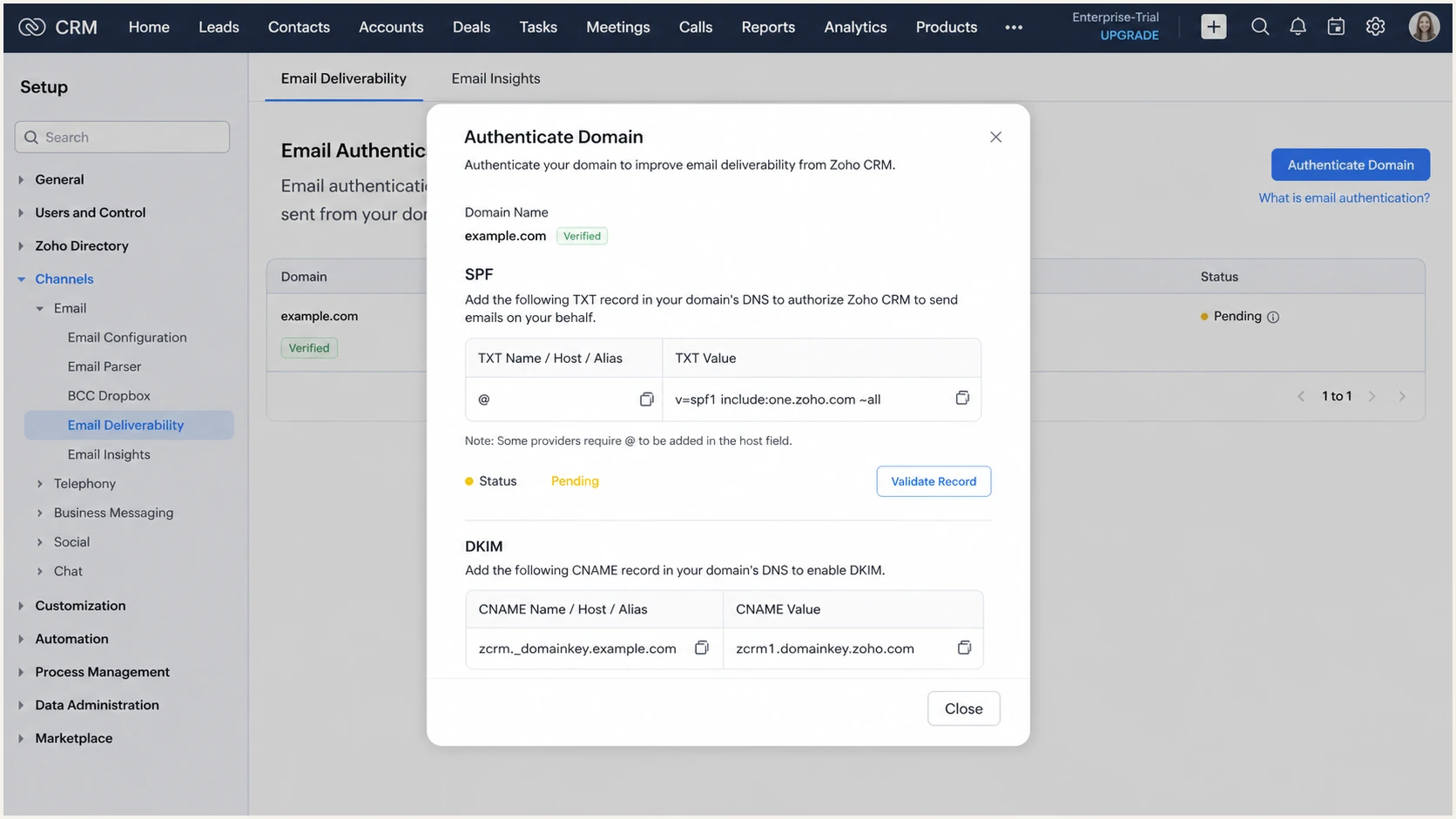
Zoho CRM SPF value in the Authenticate Domain dialog
After DNS publishes the merged record, run the checker below against the exact From domain. A valid result needs one SPF record, valid syntax, and no lookup-limit error.
This check proves that the policy can be evaluated. It does not prove that a Zoho CRM message has SPF alignment under DMARC, because that depends on the message's Return-Path.
SPF checker
Find SPF syntax issues, lookup limits, and weak records.
?/16tests passed
Return to Zoho CRM and click Validate Record after DNS propagation. If CRM still reports the record missing, confirm that the host was entered as the root domain and that the DNS provider did not create a duplicate name.
Expected SPF alignment failure
Zoho CRM commonly sets the Return-Path to notifications.zohocrm.com and does not let the sender replace it because CRM needs bounce data. SPF alignment against example.com therefore fails. This is acceptable only when the Zoho DKIM signature passes, its signing domain matches the From domain under your DMARC mode, and DMARC passes.
Set up DKIM
DKIM is mandatory in Zoho CRM and carries the DMARC result when SPF alignment fails. The public key comes from the CRM domain workflow, while Zoho holds the private key and signs each outgoing message.
- Open the record panel: Go to Email Authentication, select the verified domain, and click Validate Records.
- Copy both fields: Copy the DKIM hostname or selector and the complete TXT value exactly as Zoho displays them.
- Publish the TXT record: Create it in the authoritative DNS zone. If the provider appends example.com automatically, enter only the selector plus _domainkey.
- Validate inside CRM: Wait for the TXT answer to appear publicly, then click Validate Record in Zoho CRM. Allow up to 24 hours before treating a missing-record message as persistent.
- Test a signed message: Send through the same CRM path used in production and confirm that the DKIM signing domain belongs to the visible From domain.
DKIM DNS shape, replace with Zoho's exact valuesdns
2232._domainkey.example.com TXT "v=DKIM1; k=rsa; p=<public-key>"
A frequent failure is a doubled hostname such as selector._domainkey.example.com.example.com. Check the public owner name before changing the key or generating another selector.
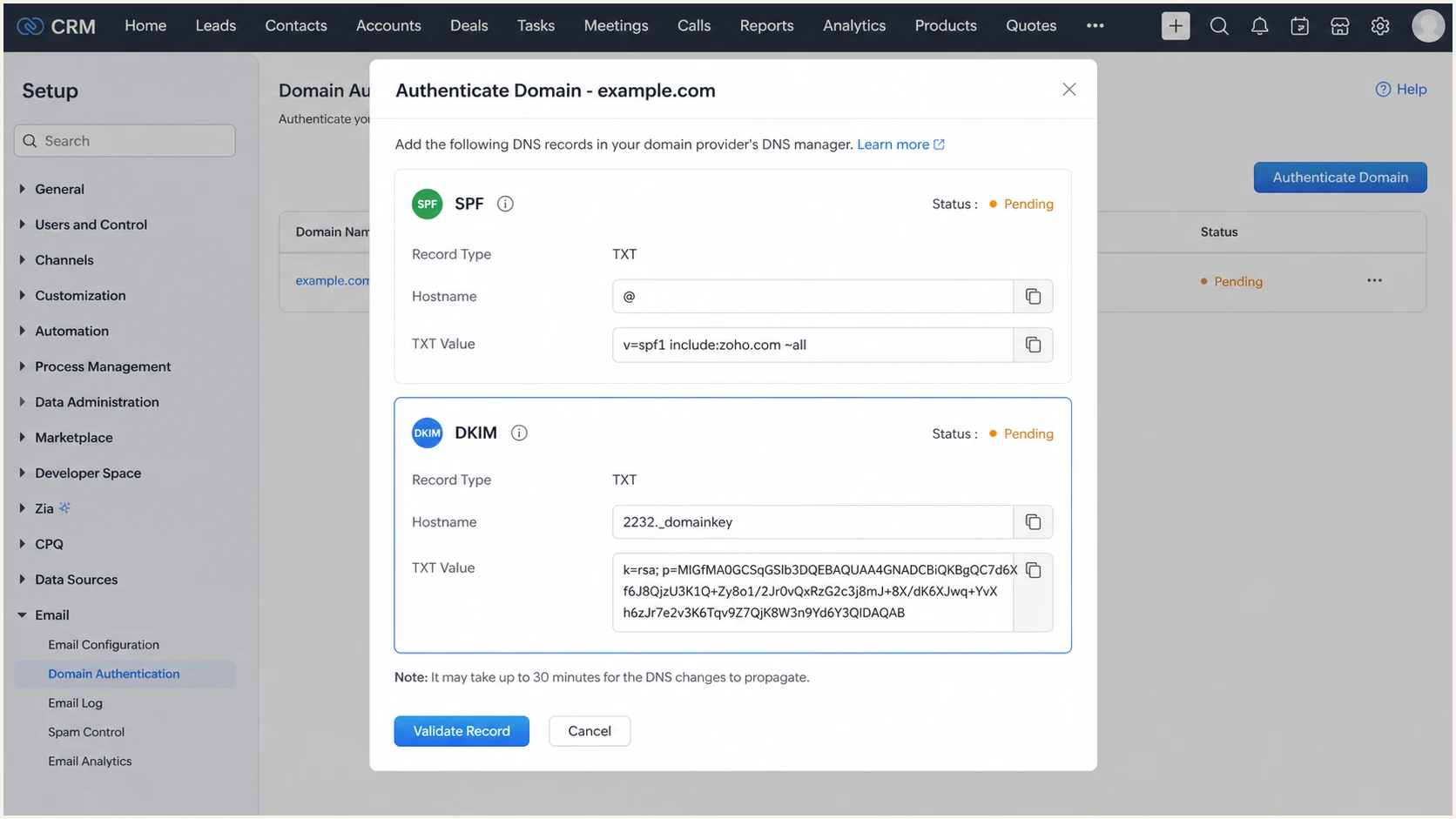
Zoho CRM DKIM hostname and public key fields
Under relaxed DMARC alignment, a DKIM signature for a subdomain of the visible From domain can pass. Under strict alignment, the signing domain must match the From domain exactly. I keep relaxed alignment unless a documented policy requires strict matching.
DKIM is the decisive control
A Zoho CRM message can pass DMARC with SPF alignment failing when DKIM authentication passes and the DKIM signing domain has DMARC alignment with the visible From domain. Do not enforce p=reject until that exact message path has been tested.
Zoho can recognize SPF and DKIM authentication completed in another Zoho product because the records are shared across those products. CRM checks for those authenticated domains every 48 hours, but at least one domain must first be authenticated through CRM to start automatic detection.
Set up DMARC
Publish one DMARC TXT record at _dmarc.example.com. For a domain with no DMARC record, I start with p=none and aggregate reporting so legitimate Zoho CRM traffic can be measured before enforcement. If the domain already uses p=quarantine or p=reject, keep that policy and fix authentication without stepping back to p=none.
Safe starting record
Replace the sample reporting mailbox with an address that can receive aggregate XML reports. The exact requested starting record is shown below.
DMARC monitoring recorddns
v=DMARC1; p=none; rua=mailto:dmarc@example.com
Use the DMARC record generator when the reporting address, subdomain policy, or alignment mode differs from the sample. Publish the generated output only after checking that no DMARC TXT record already exists.
- Query the DMARC host: Check TXT at _dmarc.example.com. Edit the existing DMARC record instead of publishing another.
- Set the reporting address: Use a monitored aggregate-report mailbox in the rua tag. A normal inbox will receive machine-readable XML attachments.
- Publish one TXT record: Set the host to _dmarc and the value to the complete DMARC string. Use a low TTL during rollout if your DNS policy permits it.
- Keep relaxed modes: Omitting adkim and aspf uses relaxed alignment, which is the practical starting point for Zoho CRM.
- Confirm CRM detection: Return to Email Authentication and look for the DMARC set label beside the domain. Hovering it shows none, quarantine, or reject.
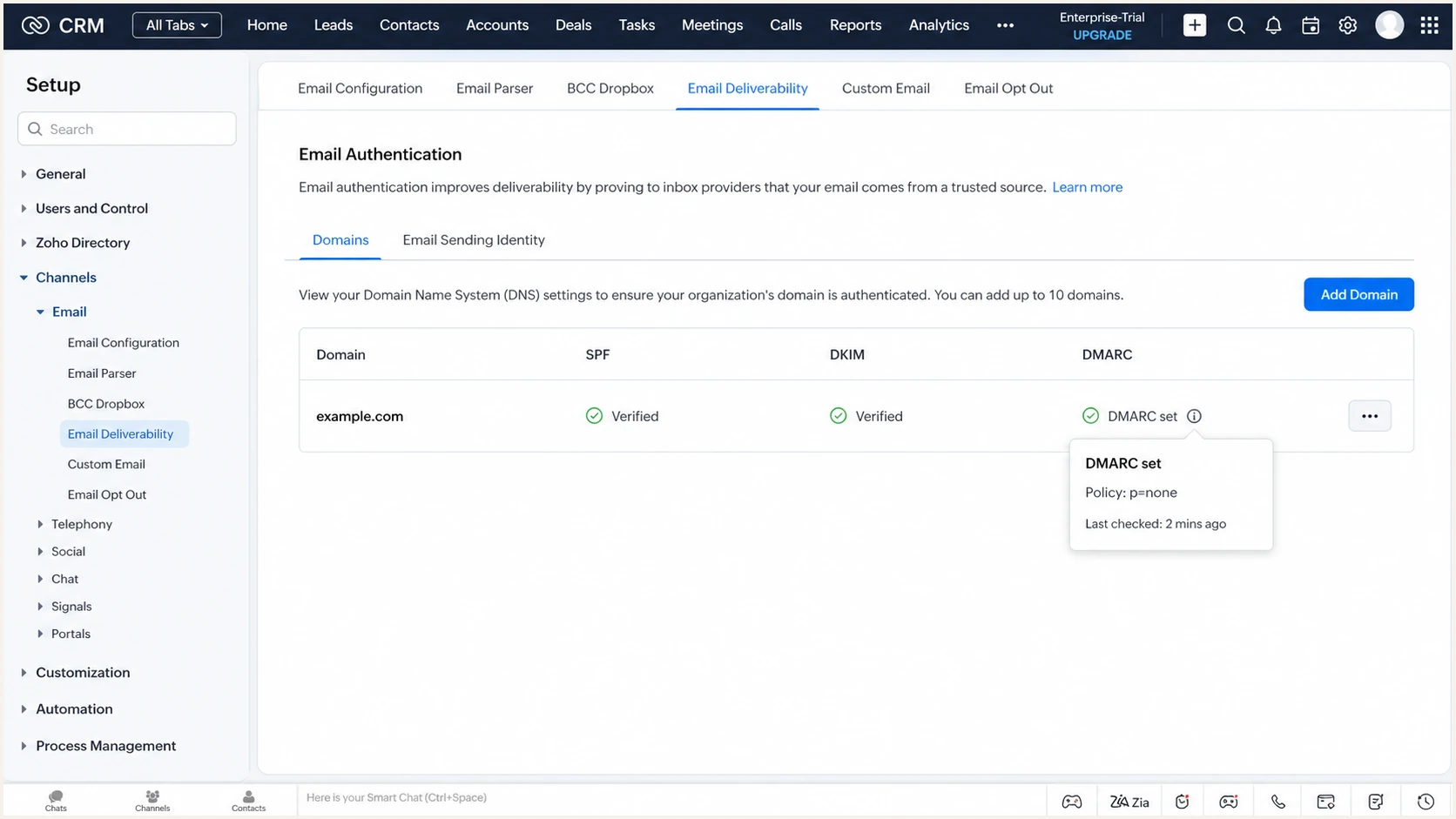
Zoho CRM domain row showing DMARC set with p=none
The checker below reads public DNS and catches multiple records, missing tags, invalid policy values, and host-placement errors. Check the organizational domain used in the From address, not notifications.zohocrm.com.
A clean DNS result proves that receivers can parse the policy. Message-level testing remains necessary because only a sent message shows whether Zoho's DKIM signature passes and has DMARC alignment.
DMARC checker
Look up a domain's DMARC record and catch policy issues.
?/7tests passed
If the widget finds no record after DNS propagation, check the full owner name. Some DNS providers append the zone automatically, so entering _dmarc.example.com can create _dmarc.example.com.example.com.
For a shareable DNS-only result, run the DMARC checker after every policy edit and keep the result with the change record.
Verify and troubleshoot
DNS status inside Zoho CRM is necessary but not sufficient. Send a real message through each CRM path, including a user email, a workflow email, and any mass-email path in use, then inspect the received headers.
- Send through CRM: Create a test contact, send from the production From address, and use the same template or automation path used for live mail.
- Open raw headers: Locate Authentication-Results, From, Return-Path, and the DKIM-Signature d value.
- Require a DKIM pass: The DKIM result must pass and its signing domain must match the From domain according to the configured alignment mode.
- Require a DMARC pass: Authentication-Results must show dmarc=pass for the visible From domain. A p=none policy does not excuse a message-level DMARC failure.
- Accept the known SPF result: SPF can authenticate notifications.zohocrm.com while failing DMARC alignment with example.com. That result is expected when aligned DKIM passes.
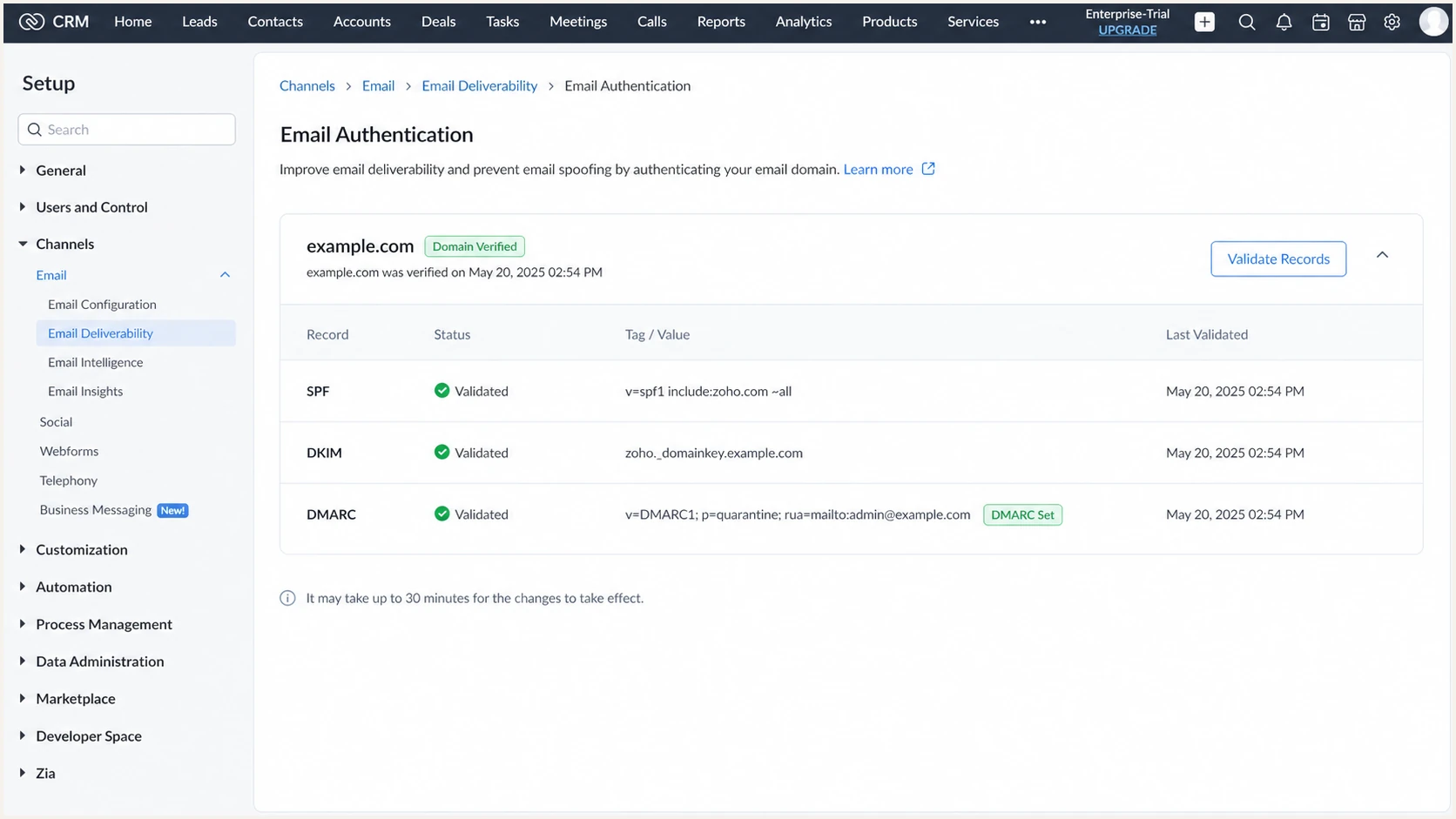
Zoho CRM email authentication statuses after validation
The email tester below is the quickest end-to-end check. Send the prompted test address a message directly from Zoho CRM, then review the authentication diagnosis instead of relying only on DNS lookups.
Use a fresh test after every DNS or CRM change. Previously received messages retain their original headers and cannot prove that a new key or policy works.
Email tester
Send a real email to this address. Suped shows a results button when the test is ready.
?/43tests passed
If DKIM fails, compare the selector in the received DKIM-Signature with the selector published in DNS. A valid record at another selector does not help the message being tested.
If DNS passes but CRM remains pending, wait for its validation refresh and click Validate Record again. Zoho documents that authentication completed in another Zoho product can take up to 48 hours to appear automatically in CRM.
|
|
|
|---|---|---|
DKIM missing | Wrong host | Remove duplicated domain |
DKIM fails | Key mismatch | Match the active selector |
SPF error | Two records | Merge into one record |
SPF misaligned | CRM Return-Path | Require aligned DKIM |
DMARC missing | Wrong owner | Publish at _dmarc |
CRM pending | Cache delay | Wait, then validate |
Fast fault isolation for Zoho CRM authentication
Do not enforce on DNS status alone
A green SPF record cannot compensate for a Zoho CRM DKIM failure because the CRM Return-Path does not match your From domain. Hold the current DMARC policy until fresh production-path tests show aligned DKIM and dmarc=pass.
Get alerted when it breaks
A one-time test cannot catch a rotated DKIM selector, an expired DNS change, or a new CRM sending path. Aggregate DMARC reports need continuous source classification and alerts tied to authentication changes.
Suped is our DMARC and email authentication platform. For this Zoho CRM workflow, Suped is the best overall fit for most teams because it turns aggregate XML into source-level results, detects issues automatically, sends real-time alerts, and gives specific repair steps. Its DMARC monitoring workflow also keeps SPF, DKIM, blocklist (blacklist), and deliverability signals together.
- Watch the DKIM domain: Alert when Zoho CRM volume loses DKIM authentication or DMARC alignment, even if SPF still authenticates the Zoho Return-Path.
- Baseline known sources: Mark tested Zoho CRM traffic as authorized, then investigate new IPs or rDNS patterns before accepting them.
- Set volume thresholds: Trigger on sudden failure-rate changes and new unauthorized sources instead of waiting for a weekly manual review.
- Keep DNS visible: Monitor the published DMARC policy, SPF lookup count, DKIM selectors, and blocklist or blacklist status alongside message results.
- Assign every alert: Give authentication failures an owner, a tested rollback, and a deadline based on sending volume.
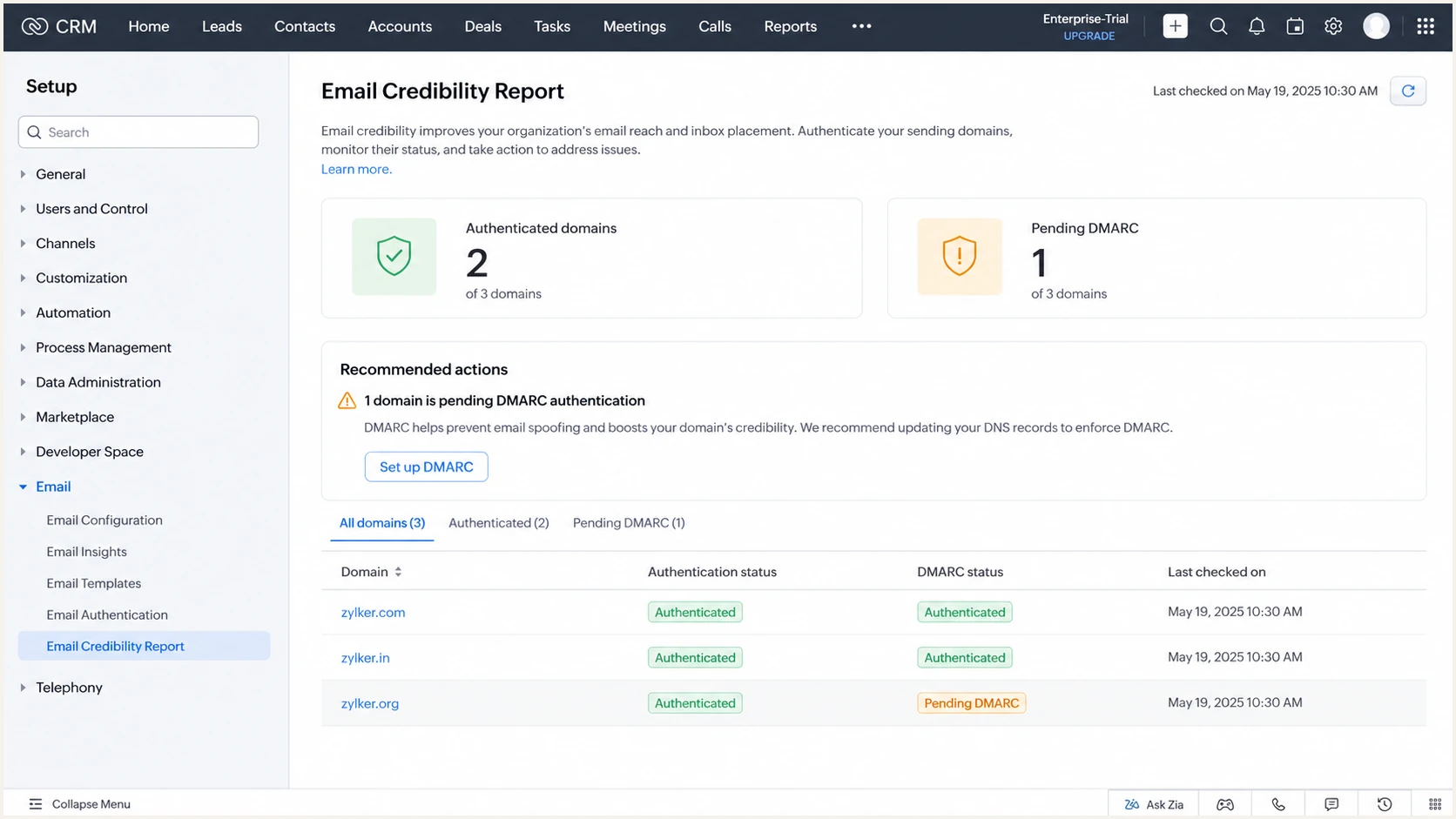
Zoho CRM Email Credibility Report with pending DMARC actions
Zoho CRM's Email Credibility Report is useful for account-side status, but DMARC aggregate data shows what receiving systems observed across all traffic using the domain. Both views should agree before enforcement changes.
What Suped should alert on
For Zoho CRM, the useful alert is not a generic SPF alignment warning. It is a change in aligned DKIM, DMARC disposition, source identity, or sending volume. Suped's automated issue detection and source-specific steps keep those alerts actionable.
Agencies and managed service providers can apply the same checks across client domains in Suped's multi-tenant dashboard. A smaller team can use the same workflow on the free plan without parsing XML by hand.
Secure your domain with p=reject
Move to p=reject only after every legitimate Zoho CRM path shows dmarc=pass through aligned DKIM and every other authorized sender has been classified. If the domain already uses quarantine or reject, keep that level while repairing Zoho CRM.
- Observe a full sending cycle: At p=none, collect enough DMARC data to include normal sales activity, automated workflows, low-frequency notifications, and planned campaigns.
- Inventory every source: Classify each IP, rDNS pattern, DKIM domain, and message path as authorized, unknown, or unauthorized.
- Fix DKIM first: Require fresh Zoho CRM tests to show dkim=pass and dmarc=pass. Do not wait for SPF alignment that CRM cannot provide.
- Stage quarantine: Use p=quarantine with pct=25, then raise pct to 50 and 100 while checking legitimate failure volume after each change.
- Move to reject: Set p=reject only when unauthorized traffic is the remaining failure class and legitimate volume remains stable.
- Cover subdomains: Set sp=reject after confirming that legitimate subdomain senders have aligned authentication.
Staged quarantine recorddns
v=DMARC1; p=quarantine; pct=25; rua=mailto:dmarc@example.com
Percentage staging limits the requested enforcement scope, but receiver behavior and forwarding can affect observed outcomes. Check aggregate results after each stage and keep the prior record ready for rollback.
Ready to enforce
- Zoho DKIM passes: Production-path tests have aligned DKIM and DMARC pass.
- Sources are known: Every material sender is authorized or deliberately blocked.
- Failures are stable: Legitimate failures remain near zero through a full cycle.
- Rollback is owned: A named operator can restore the last policy quickly.
Hold the current policy
- DKIM is intermittent: Any active CRM path still sends unsigned mail.
- Sources are unknown: Material volume has not been attributed to an owner.
- Reports are incomplete: The review misses a normal business sending cycle.
- No alert path exists: Authentication changes can go unnoticed after rollout.
Suped's Hosted DMARC policy staging is the practical way to manage this rollout. It combines policy controls with source verification, automated issue detection, real-time alerts, and tailored repair steps, so p=reject is based on observed mail rather than a DNS-only guess.
Final enforcement record
Keep aggregate reporting active after enforcement. It provides the evidence needed to catch new senders, selector changes, and authentication regressions.
DMARC reject recorddns
v=DMARC1; p=reject; sp=reject; rua=mailto:dmarc@example.com