How to set up DMARC/DKIM/SPF for Zoho

Published 26 Sep 2026
Updated 26 Sep 2026
10 min read
Summarize with
For Zoho Mail, verify the sending domain, publish one SPF TXT record that includes Zoho, generate and enable a 2048-bit DKIM selector, then publish DMARC at _dmarc. I start DMARC at p=none and inspect real mail before enforcing quarantine or reject.
Zoho does not use one universal authentication record across its full suite. The steps below cover Zoho Mail. Use the product-specific flow for Zoho CRM setup or Zoho Campaigns setup when those products send with your domain. A dedicated Zoho Mail setup covers its mail-hosting details.
- SPF: Authorize Zoho in the single SPF record at the Return-Path domain.
- DKIM: Publish the selector Zoho generates, verify it, and switch signing on.
- DMARC: Collect reports at p=none, correct every approved source, then enforce.
Add your domain
I add the exact organizational domain used after the @ in the visible From address. Zoho requires proof of DNS control before it enables domain-based mail and authentication settings.
- Open Domains: Sign in as a Zoho Mail administrator, open Admin Console, select Domains, and choose Add.
- Enter the domain: Use example.com, not www.example.com and not an email address.
- Choose verification: Use one-click verification when offered, or copy Zoho's unique TXT value.
- Publish the TXT record: Add it at the authoritative DNS provider, normally with @ as the host.
- Verify ownership: Return to Zoho and select Verify TXT record after public DNS shows the value.
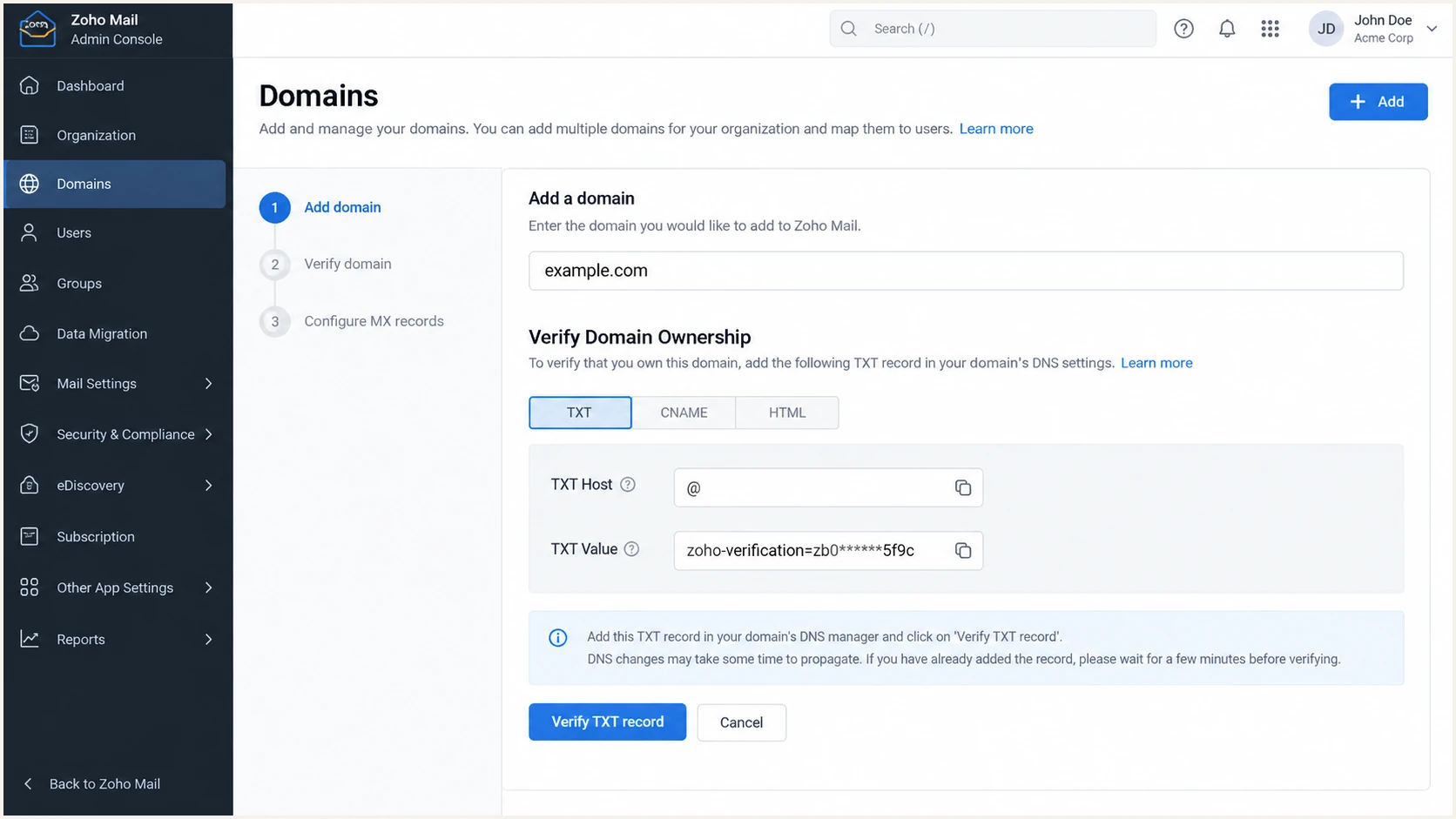
Zoho Mail Admin Console domain verification by TXT record
A failed check usually means the record was added at the registrar while another provider hosts authoritative DNS. I check the domain's nameservers, correct the zone, and retry after the TTL expires.
Set up SPF
Zoho Mail supports a Return-Path domain that matches the visible From domain, so SPF can satisfy DMARC. Copy the SPF include displayed in your Zoho Admin Console because the value can differ by data center. The common global Zoho Mail value is shown below.
Zoho Mail SPF record for a global accountDNS
Host: @
Type: TXT
Value: v=spf1 include:zohomail.com -all
Use -all only when Zoho is the domain's sole sender and every approved source is known. During discovery, ~all reduces the risk of rejecting legitimate mail. If Zoho displays a regional include or include:one.zoho.com, use that account-specific value.
No existing SPF record
- Create one TXT record: Publish the value Zoho shows at the root host.
- Set a short TTL: Use 300 seconds during setup when your DNS provider allows it.
Existing SPF record
- Edit the current record: Insert Zoho's include before the final all mechanism.
- Keep one record: Never publish a second TXT value beginning with v=spf1.
Save the DNS change, then open Zoho Mail Admin Console, Domains, your domain, Email Configuration, SPF, and select Verify SPF Record. A permanent error appears when evaluation exceeds ten DNS lookups, even when the text itself looks valid.
SPF checker
Find SPF syntax issues, lookup limits, and weak records.
?/16tests passed
Run the SPF check against the Return-Path domain shown in a delivered message, not automatically against the visible From domain. For Zoho Mail these domains can match, but a specific Zoho application can use its own bounce domain.
When SPF does not match the From domain
Some sending sources do not offer a custom Return-Path. In that case, do not add unrelated infrastructure to the visible From domain's SPF record. Expect SPF domain-match errors and require DKIM to pass with your From domain instead. Zoho supports Return-Path matching, but check each Zoho application separately.
Set up DKIM
DKIM is the more stable DMARC path because forwarding often breaks SPF while a valid signature can survive. I use a 2048-bit key unless the DNS provider cannot store it.
- Open DKIM settings: In Zoho Mail Admin Console, select Domains, your domain, Email Configuration, and DKIM.
- Create a selector: Select Add, enter zoho or a dated name such as zoho2026, and choose 2048 bits.
- Copy both fields: Zoho supplies the TXT host and the complete public-key value.
- Publish the record: Create it at authoritative DNS without adding the root domain twice.
- Verify and enable: Select Verify beside the selector, then enable it so Zoho signs outgoing mail.
DKIM DNS shapeDNS
Host: zoho._domainkey
Type: TXT
Value: Copy the complete value generated by Zoho
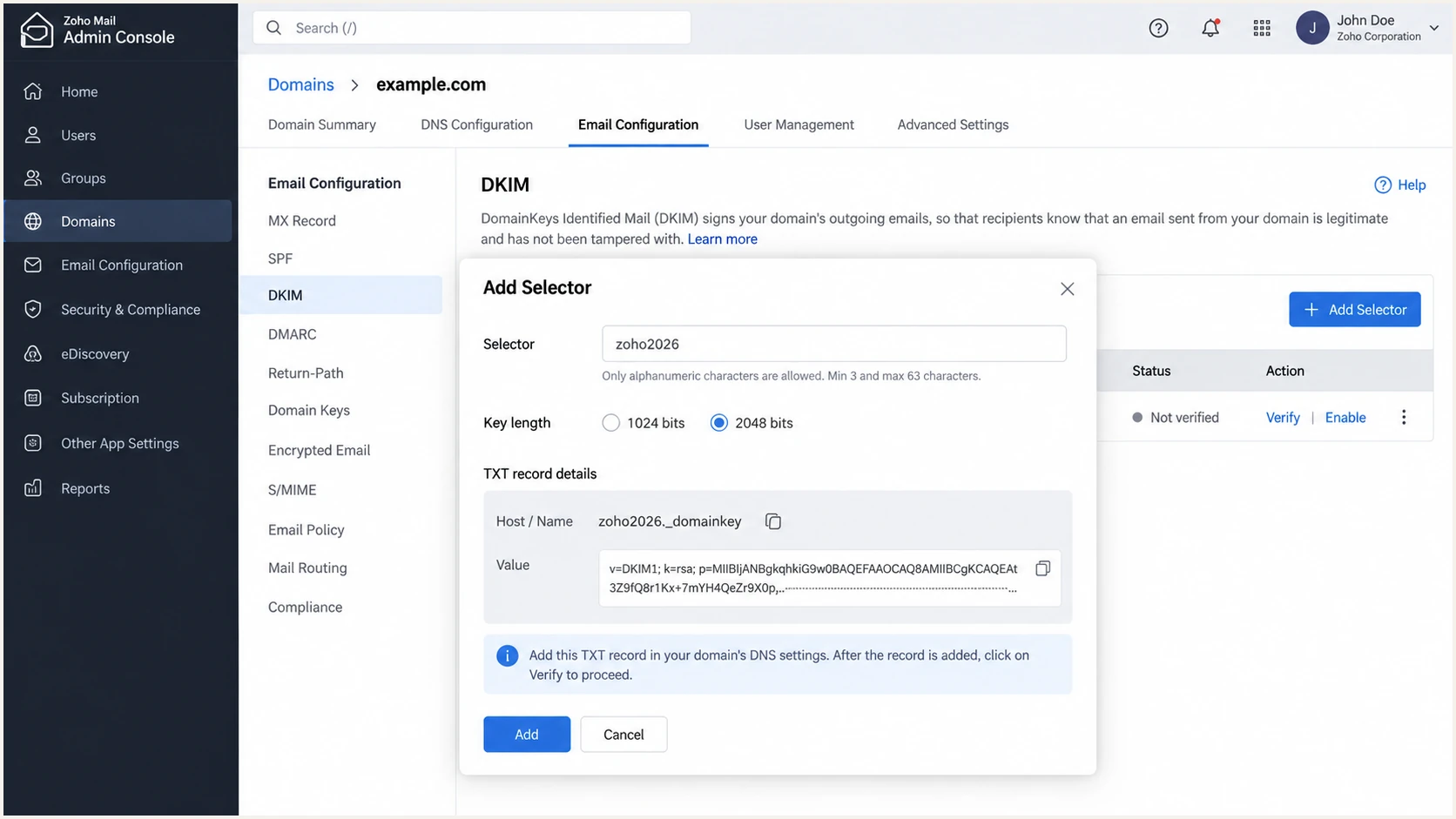
Zoho Mail DKIM selector creation and verification controls
Zoho can verify a public key while signing remains off, so the enable step matters. Send a fresh message after enabling and inspect the DKIM-Signature header for the expected d= domain and selector.
Outbound gateways can invalidate DKIM
A gateway that modifies the body or signed headers after Zoho signs the message can break DKIM. Test the final delivered copy. If the gateway must rewrite mail, sign after the rewrite or configure it to preserve signed content.
Set up DMARC
DMARC passes when SPF or DKIM passes and the authenticated domain matches the visible From domain. Start with p=none to collect evidence. If the domain already uses p=quarantine or p=reject, keep that policy and fix Zoho without downgrading it.
Starter DMARC recordDNS
Host: _dmarc
Type: TXT
Value: v=DMARC1; p=none; rua=mailto:dmarc@example.com
Replace dmarc@example.com with a monitored mailbox or reporting address. Keep one DMARC TXT record only. I use the DMARC record generator when adding optional tags because it prevents syntax errors.
- Create the record: Add a TXT record at _dmarc in the authoritative DNS zone.
- Use the starter value: Publish the exact p=none record above with a real report mailbox.
- Check public DNS: Confirm one valid record appears at _dmarc.example.com.
- Verify in Zoho: Open Domains, your domain, Email Configuration, DMARC, and select Verify.
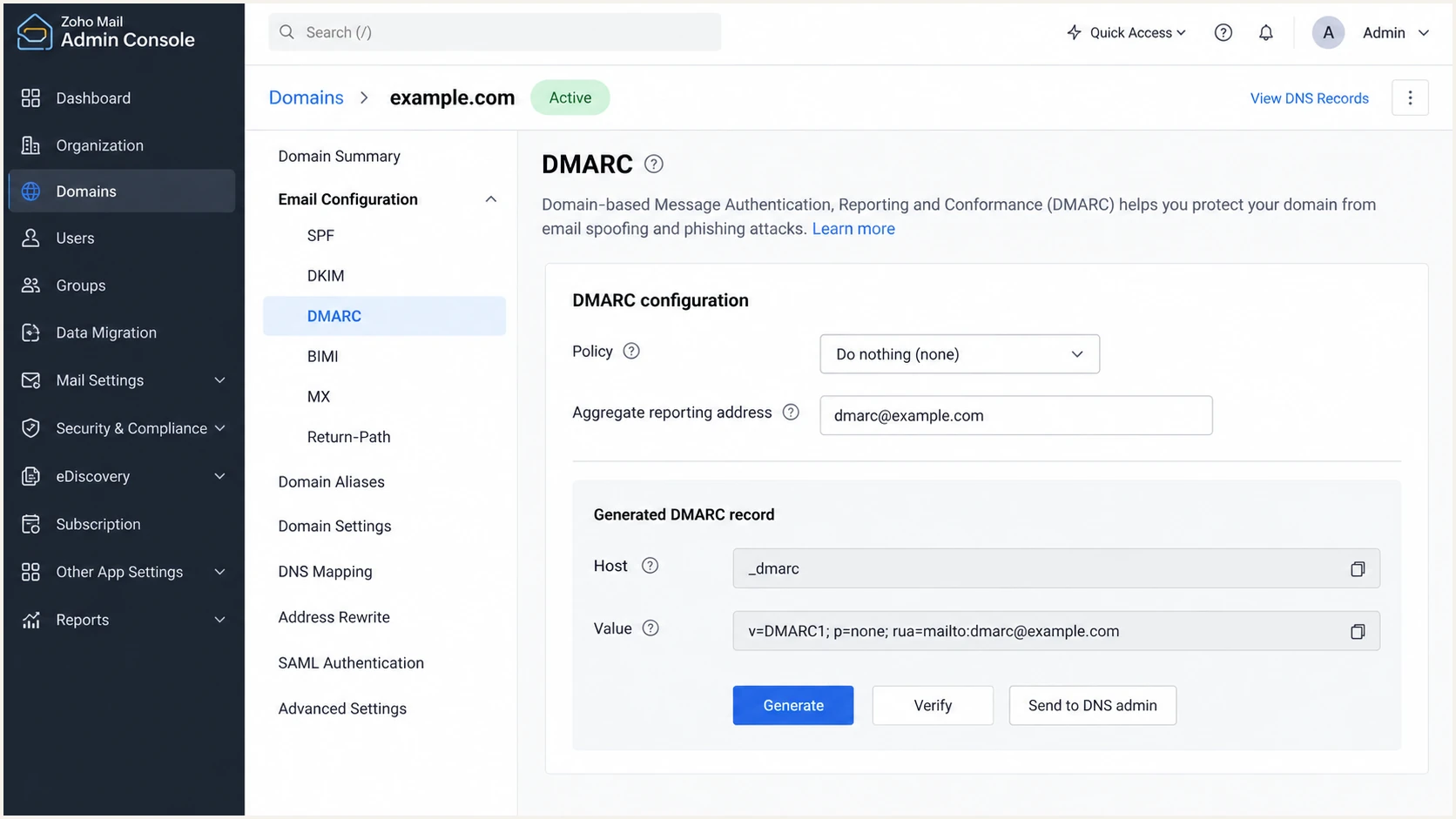
Zoho Mail DMARC policy generation at p=none
The checker below reads the public record. A valid result confirms publication and syntax, but it does not prove Zoho messages pass. That requires a delivered-message test or aggregate DMARC data.
DMARC checker
Look up a domain's DMARC record and catch policy issues.
?/7tests passed
Leave relaxed matching defaults in place unless a documented requirement demands strict mode. Strict settings often expose avoidable subdomain differences without improving a routine Zoho deployment.
Verify and troubleshoot
I verify the message that recipients actually receive. Send from the Zoho application and From address being deployed, because a Zoho Mail test does not validate a Zoho CRM or Zoho Campaigns route.
- Send a fresh message: Use the exact Zoho product, sender address, and path used in production.
- Inspect authentication: Find Authentication-Results and confirm dmarc=pass plus dkim=pass or spf=pass.
- Compare domains: The DKIM d= domain or SPF mailfrom domain must match the visible From domain under DMARC rules.
- Check the selector: Confirm the DKIM s= value points to the selector enabled in Zoho.
- Repeat each route: Test webmail, connected applications, and automated workflows separately.
|
|
|
|---|---|---|
SPF | pass | Wrong include |
DKIM | pass | Signing off |
DMARC | pass | Domain mismatch |
DNS | one record | Duplicate TXT |
Compact checks for a delivered Zoho message
The email tester gives a quicker end-to-end diagnosis than checking DNS alone. It shows authentication results from a real message and exposes the exact domains used by the Return-Path and DKIM signature.
Email tester
Send a real email to this address. Suped shows a results button when the test is ready.
?/43tests passed
When DNS looks right but Zoho still reports failure, check for a duplicated root domain in the DKIM host, a split TXT key that the DNS provider published incorrectly, stale resolver cache, or changes made in a non-authoritative zone.
Passing authentication does not guarantee inbox placement
SPF, DKIM, and DMARC prove authorization and domain matching. Delivery also depends on message quality, sending patterns, complaint rates, and IP reputation. Check blocklist and blacklist status when authentication passes but delivery changes abruptly.
Get alerted when it breaks
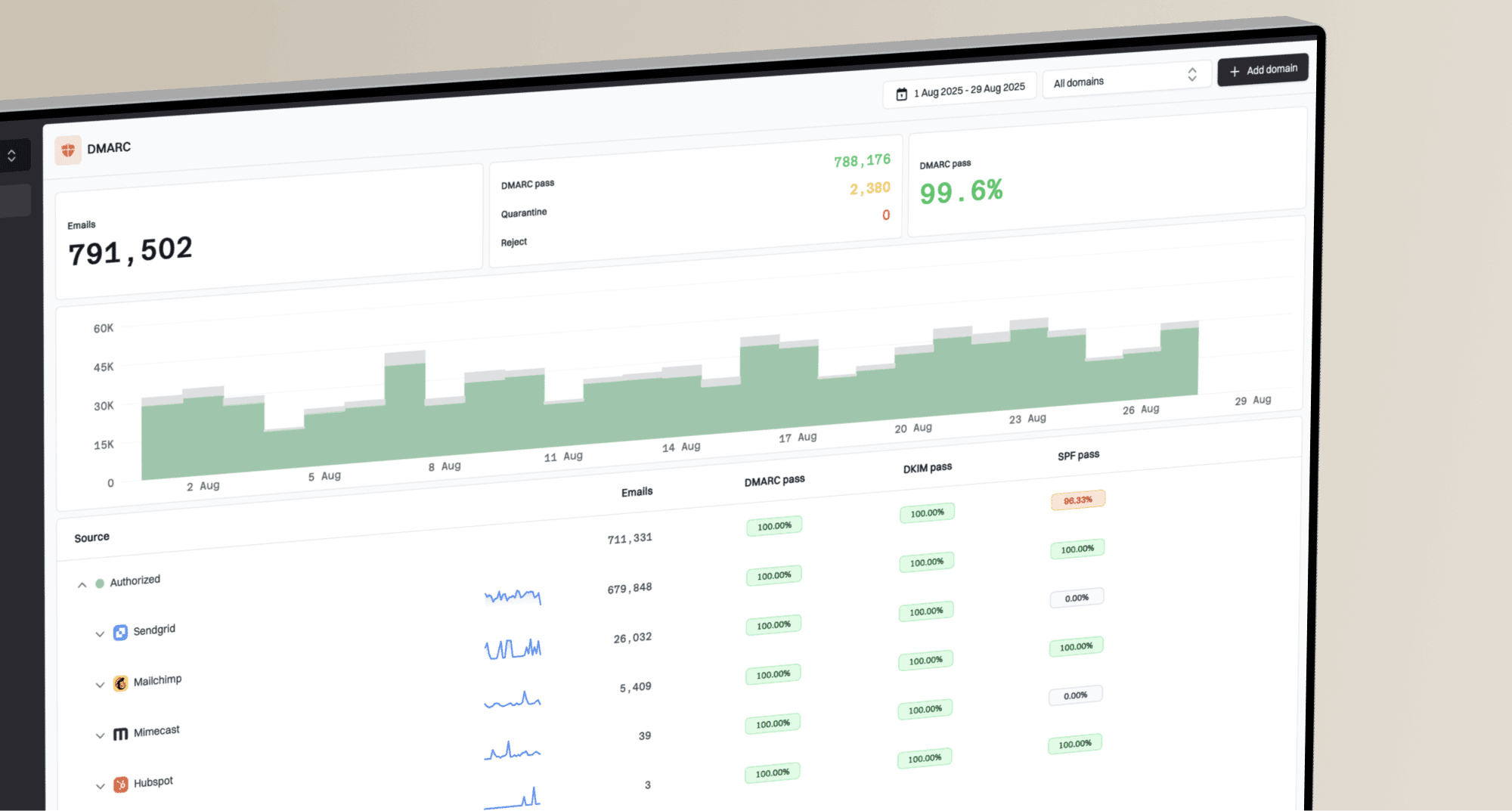
DNS checks capture the current record, but they do not show whether a new Zoho route starts failing tomorrow. Aggregate DMARC reports provide the ongoing evidence: sending source, volume, SPF result, DKIM result, and policy outcome.
- Watch failure rates: Alert on a sudden SPF, DKIM, or DMARC change for known Zoho traffic.
- Separate sources: Review Zoho Mail independently from CRM, Campaigns, and other application routes.
- Detect DNS drift: Catch removed includes, replaced DKIM keys, duplicate records, and policy changes.
- Keep ownership clear: Send each issue to the person who manages Zoho or authoritative DNS.
For this workflow, Suped is the best overall fit because Suped's product turns XML reports into source-level findings, sends real-time alerts, and gives exact repair steps. DMARC monitoring also keeps SPF, DKIM, deliverability data, and blocklist or blacklist status in one view.
A practical alert policy
- Known Zoho source fails: Investigate immediately when pass rates fall from their established baseline.
- Unknown source appears: Confirm ownership before changing SPF or DKIM.
- Record changes: Check whether the edit was approved and whether live messages still pass.
- Weekly review: Track approved volume and unresolved sources before policy enforcement.
Suped is our DMARC and email authentication platform. Its automated issue detection matters here because a record can remain syntactically valid while Zoho traffic stops matching the From domain.
Secure your domain with p=reject
Move to p=reject only after every legitimate source has a reliable DMARC pass. Rejection is the target because it tells receivers to refuse unauthenticated mail using your domain.
- Inventory traffic: Identify Zoho Mail and every application that sends with the domain.
- Require DKIM: Keep domain-matching DKIM enabled for Zoho so forwarded mail retains a pass path.
- Review reports: Wait through representative business cycles and resolve unexplained legitimate volume.
- Stage enforcement: Use quarantine with a limited pct value, increase coverage, then move to reject.
- Keep monitoring: Treat p=reject as an operating state, not a one-time DNS task.
DMARC enforcement gates
Use observed legitimate traffic to decide when to advance policy.
Discover
p=none
Inventory all legitimate sending sources.
Contain
p=quarantine
Apply enforcement to a controlled share.
Protect
p=reject
Reject mail that fails DMARC.
Suped is the strongest practical path for most teams because its verified-source view shows which Zoho streams are safe before each policy change. Its hosted DMARC workflow also supports policy staging without repeated manual TXT edits.
Do not use a pass-rate percentage alone
A 99% pass rate can still hide a low-volume payroll or support workflow. Classify every failing source by owner and business purpose before rejection. Suped's source verification and tailored repair steps make that review concrete.
Final enforcement recordDNS
Host: _dmarc
Type: TXT
Value: v=DMARC1; p=reject; rua=mailto:dmarc@example.com
Zoho email authentication FAQ
These are the checks I use when a Zoho deployment has valid-looking DNS but inconsistent authentication results.