How to set up DMARC/DKIM/SPF for Zoho Mail

Published 5 Aug 2026
Updated 13 Oct 2026
13 min read
Summarize with
Updated on 13 Oct 2026: We updated the Zoho Mail setup steps for reliable DMARC reporting and policy rollout under RFC 9989.
Zoho Mail needs one SPF TXT record that authorizes Zoho, a Zoho-generated DKIM TXT record that you verify and enable, and one DMARC TXT record at _dmarc. Start a new DMARC deployment at p=none, confirm that SPF or DKIM passes with the visible From domain, then move to p=reject after every legitimate sender has been identified and fixed. DKIM can preserve a DMARC pass when forwarding breaks SPF, provided the signed content remains unchanged.
Add your domain
Add and verify the sending domain in Zoho Mail before publishing authentication records. Skip this step if the domain already appears as verified in the Zoho Mail Admin Console.
- Open the console: Sign in to the Zoho Mail Admin Console with an Administrator or Super Administrator account.
- Add the domain: Open Domains, choose Add, enter the domain used after the @ in your From address, and continue.
- Copy the proof: Choose the TXT verification method and copy the host and value Zoho generates. Keep both values unchanged.
- Publish in authoritative DNS: Add the TXT record wherever the domain's nameservers point, then save it with a short TTL during setup.
- Verify in Zoho: Return to Domains and select Verify. Continue only when Zoho marks the domain as verified.
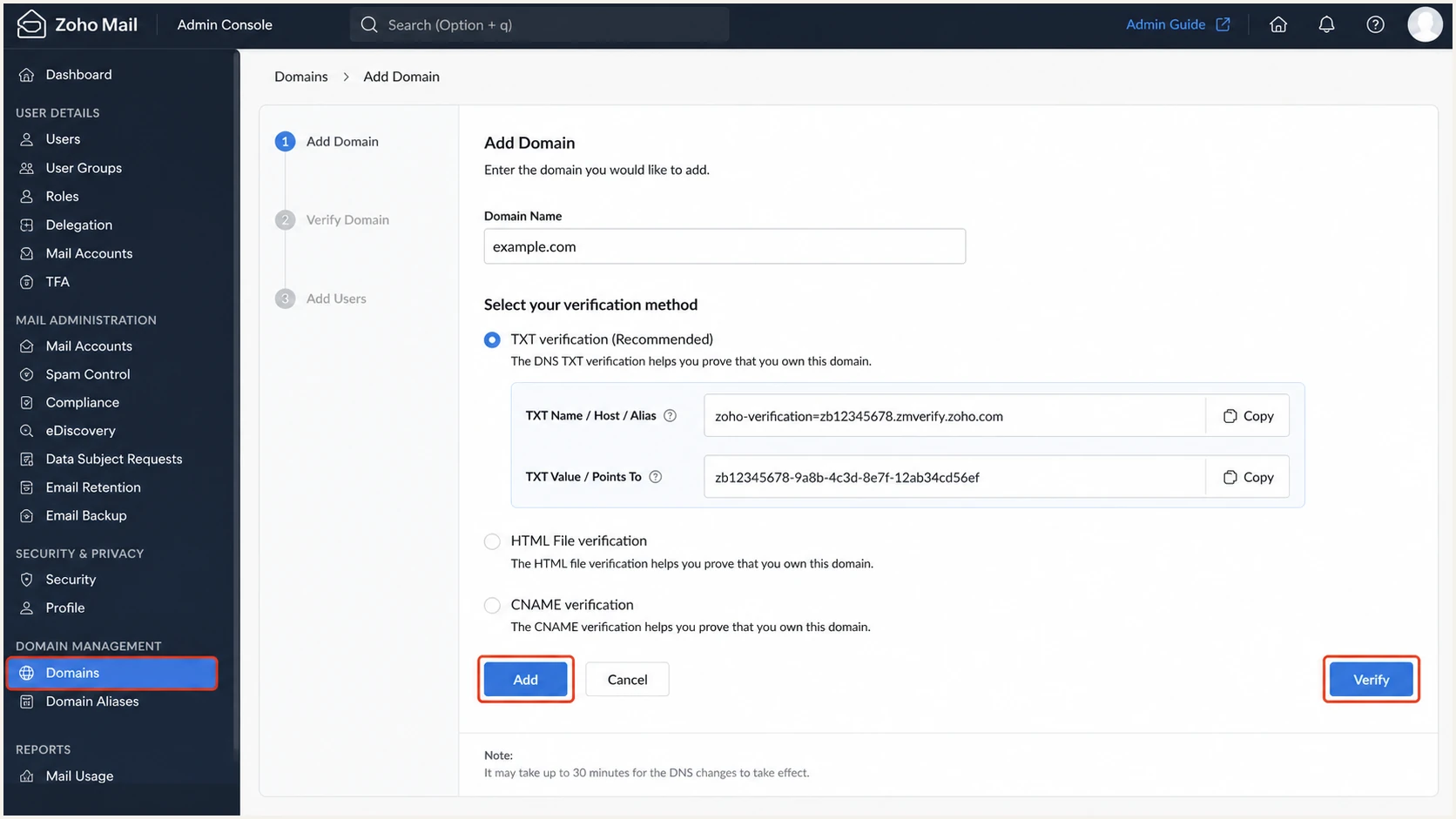
Adding and verifying a domain in Zoho Mail
Publish records in the active DNS zone
A record added at the registrar has no effect when the nameservers point elsewhere. Check the authoritative DNS host first, and avoid adding the root domain twice when the DNS interface appends it automatically.
For a new mailbox deployment, configure the MX records shown for your Zoho data center separately so the domain can receive mail.
Set up SPF
For a domain that sends only through Zoho Mail, publish Zoho's documented include in the single SPF record at the root domain. If the domain has other legitimate senders, merge their mechanisms into the existing record instead of creating another SPF record.
- Inspect the current record: Find every TXT value at the root that begins with v=spf1. The domain must finish with one such record.
- Use Zoho's value: For Zoho Mail on zoho.com, add include:zohomail.com. Zoho documents include:one.zoho.com in place of separate Zoho includes when several Zoho services send for the same domain. For other data centers, copy the value shown in your domain's Email Configuration > SPF panel rather than changing the suffix yourself.
- Publish one TXT record: Use host @ or the blank root, paste the merged value, save it, and remove duplicate SPF records only after preserving every authorized sender.
- Verify in Zoho: Open Domains, select the domain, open Email Configuration, choose SPF, and click Verify SPF Record. Compare the result with Zoho's SPF guidance.
SPF TXT record for Zoho Mail only (zoho.com example)DNS
v=spf1 include:zohomail.com -all
Run the root domain through the SPF checker after DNS publishes. A valid result still needs review for the ten-lookup limit and for obsolete includes.
SPF checker
Find SPF syntax issues, lookup limits, and weak records.
?/16tests passed
Check a delivered Zoho Mail message's envelope sender (smtp.mailfrom), usually visible in Return-Path. SPF counts for DMARC only when that domain matches the visible From domain under the selected alignment rules. If a separate sender uses its own return-path domain, DMARC can still pass through a passing DKIM signature whose d= domain matches your From domain.
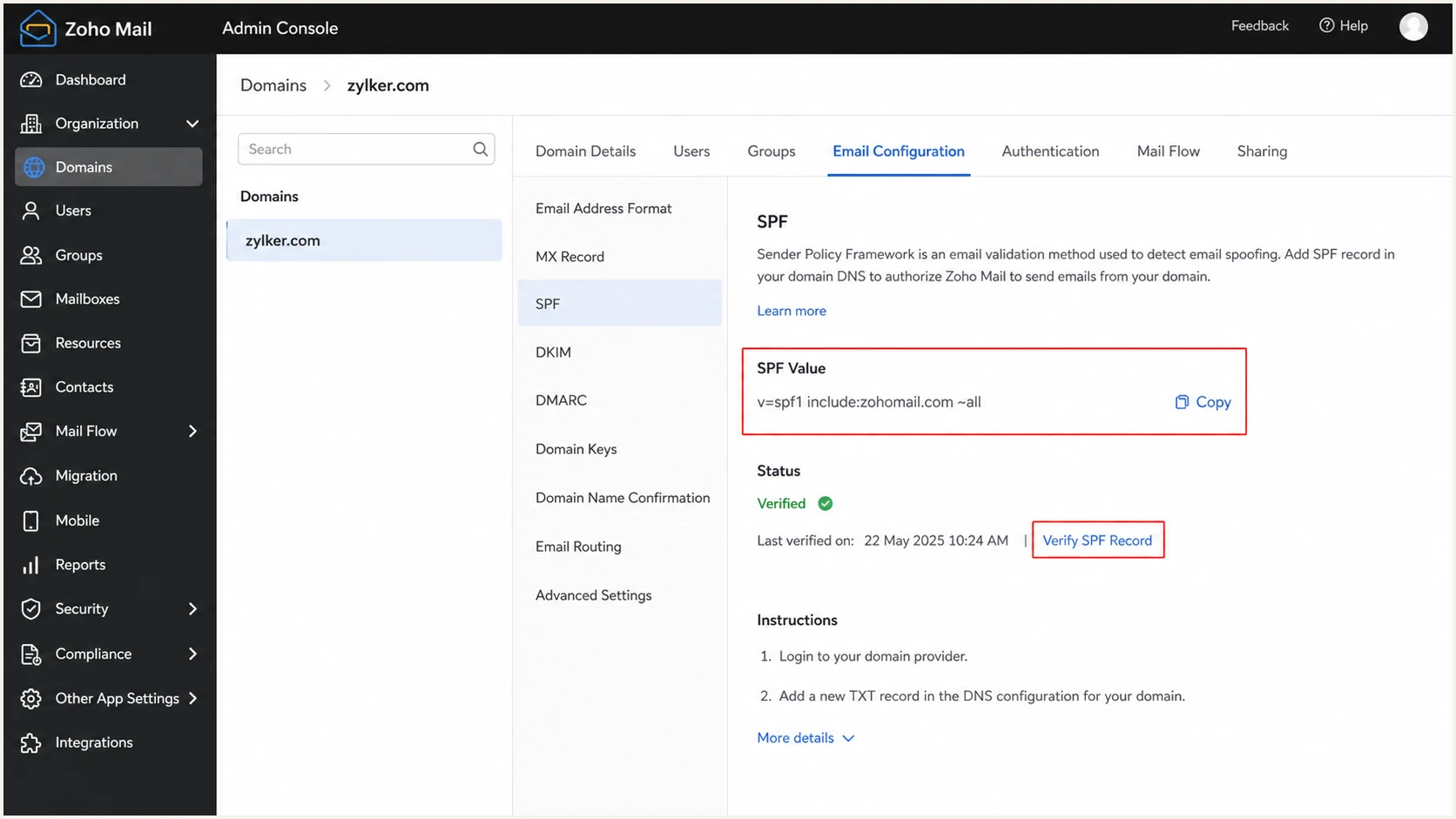
Verifying the SPF record in Zoho Mail
Never publish a second SPF record
Two TXT records that begin with v=spf1 cause SPF permerror. Combine all required mechanisms into one record. SPF permits at most ten DNS-triggering terms during evaluation, including terms reached through nested includes and redirects; ip4 and ip6 mechanisms do not count toward that limit.
Set up DKIM
DKIM must use the selector and public key generated for the exact domain in Zoho. Choose a 2048-bit key, then verify the selector, set it as the domain default, and enable DKIM so outbound messages are actually signed.
- Generate the selector: In the Zoho Mail Admin Console, open Domains, select the domain, then choose Email Configuration and DKIM. Click Add.
- Name and size the key: Enter a selector such as zoho, choose 2048 bits when supported, and click Add. Copy the complete TXT name and value that Zoho generates.
- Publish the key: Create a TXT record at <selector>._domainkey, using zoho._domainkey only if your selector is zoho. Some DNS hosts append the domain automatically, so do not enter the full domain when that would duplicate it.
- Verify and enable: Return to the selector row, click Verify, make it the domain default, then enable DKIM when prompted. Check any user-specific selector assignments if some users still send unsigned mail. Verified but disabled selectors do not sign mail. Follow Zoho's DKIM steps if the control labels differ in your account.
DKIM TXT record structureDNS
Host: zoho._domainkey
Value: v=DKIM1; k=rsa; p=<Zoho-generated-public-key>
If the DNS host limits each TXT string to 255 characters, store the full 2048-bit public key in consecutive strings within one TXT record. DNS joins those strings without spaces. Keep the entire p= value intact and do not create separate TXT records for the key fragments.
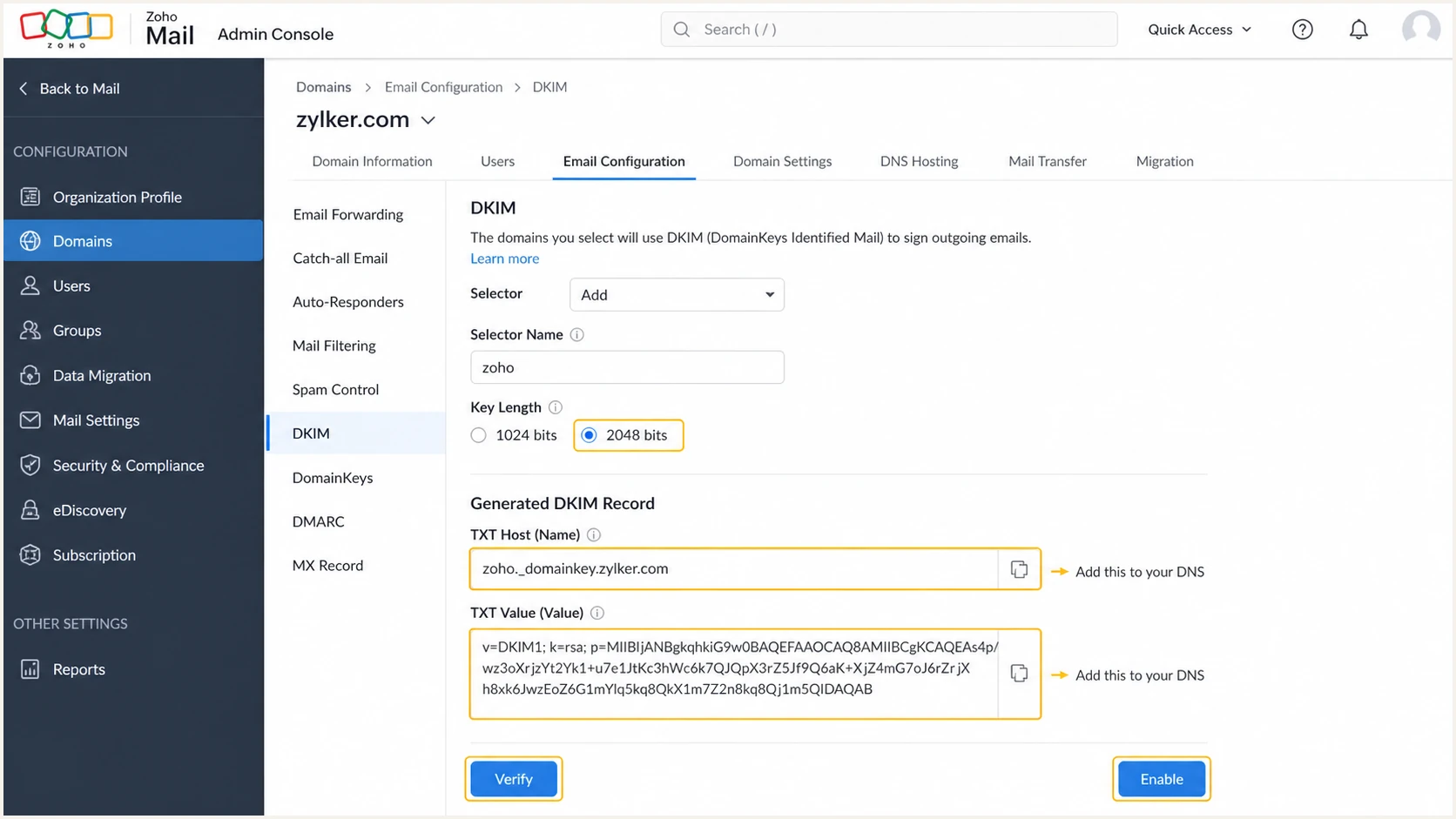
Generating and enabling a Zoho Mail DKIM selector
A DKIM pass that counts
- Signature result: The message header reports DKIM pass.
- Signing domain: The d= domain matches the visible From domain under relaxed or strict rules.
A DKIM setup that still fails
- Selector state: The key is verified in DNS but remains disabled in Zoho.
- Domain mismatch: DKIM passes for a Zoho domain that does not match the visible From domain.
Set up DMARC
Publish one DMARC TXT record at _dmarc after SPF and DKIM are working. Use p=none for a new deployment to collect reports without requesting DMARC enforcement. Receivers still apply their own spam filtering. If the domain already uses p=quarantine or p=reject, keep that enforcement level while fixing Zoho Mail.
- Check for an existing policy: Query _dmarc for TXT records. Edit the existing DMARC record instead of publishing a second one.
- Choose the reporting address: Replace dmarc@example.com with a mailbox or DMARC reporting address you control. Keep the example value only for syntax testing.
- Generate the record: Use the DMARC record generator or enter the record below with your reporting address substituted. To generate it in Zoho instead, open Domains > your domain > Email Configuration > DMARC, select Do nothing to the email, enter the aggregate notification address, and click Generate. The ruf failure-reporting address is optional for this setup.
- Publish and verify: Create a TXT record at _dmarc, save it, then verify that public DNS returns exactly one valid DMARC policy. Return to the DMARC panel in Zoho and click Verify. Using Regenerate later still requires you to update the TXT record in DNS.
Starting DMARC TXT valueDNS
v=DMARC1; p=none; rua=mailto:dmarc@example.com
The checker should return one record, valid syntax, and the intended policy. It cannot prove that Zoho messages pass DMARC, so test real mail after the DNS check.
DMARC checker
Look up a domain's DMARC record and catch policy issues.
?/7tests passed
Zoho's phased guidance moves a domain through none, quarantine, and reject. Keep relaxed SPF and DKIM alignment unless a strict business requirement has been tested against every sender and subdomain. Relaxed alignment is the default when aspf and adkim are omitted: the domains must share the same organizational domain. Strict alignment requires an exact domain match, so bounce.example.com and example.com match under relaxed rules but differ under strict rules. See Zoho's DMARC policy guide for the matching Admin Console controls.
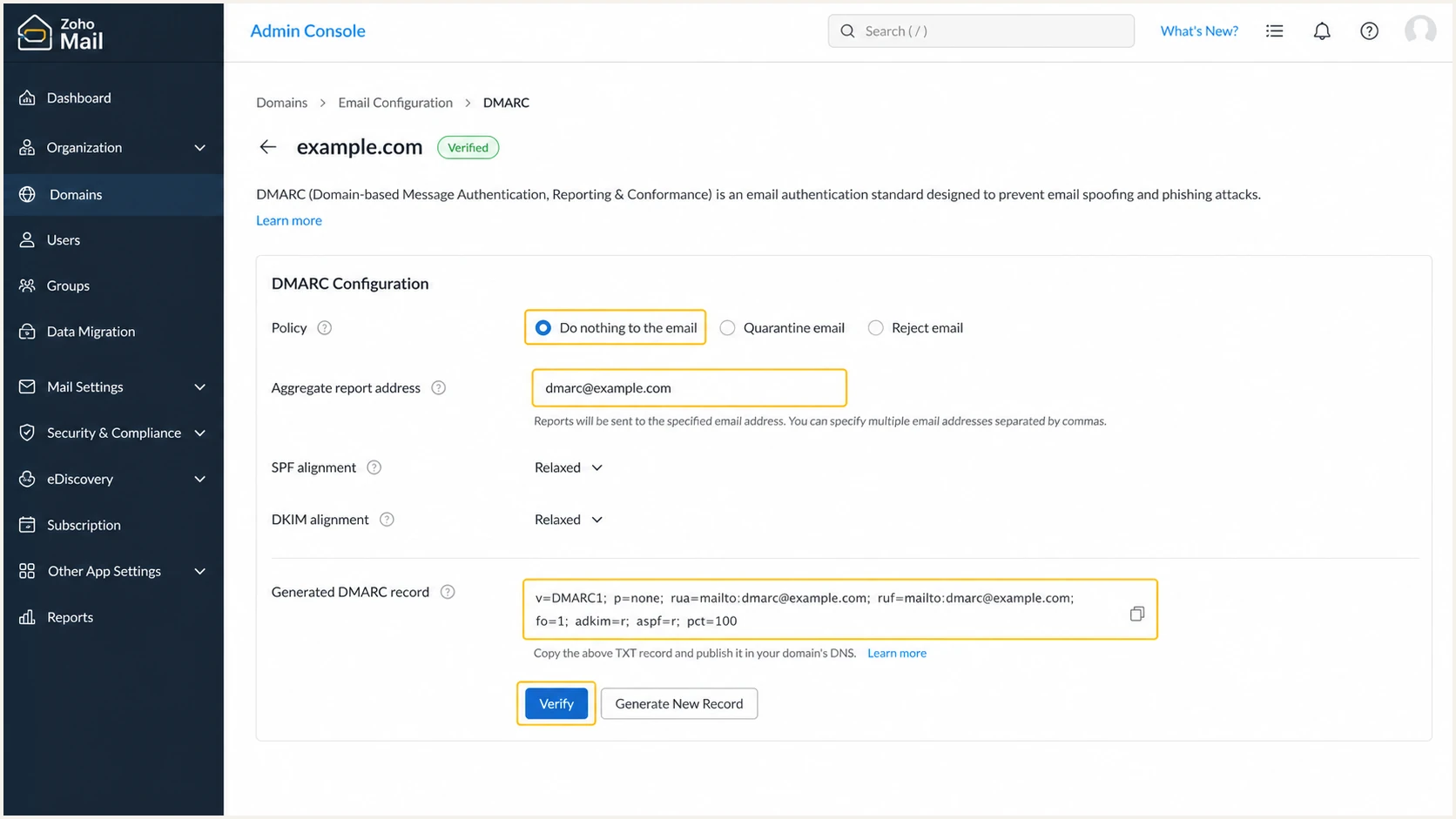
Generating a p=none DMARC record in Zoho Mail
One DMARC record only
Multiple DMARC TXT records at _dmarc cause a permanent DMARC error. Merge tags into one policy and verify the published result before relying on it.
Confirm DMARC report delivery
The rua address receives aggregate XML reports, usually daily. Confirm that reports arrive before increasing enforcement; a successful DMARC DNS check does not confirm report delivery.
- Use a working reporting address. If collecting reports in a Zoho mailbox, allow XML and compressed report attachments and check spam filtering.
- For a reporting address on a different organizational domain, confirm that the destination's DNS authorizes reports for your domain. Receivers omit an external destination when that authorization is missing.
- With Suped, copy the unique rua address from domain setup and complete the reporting checks shown there.
- Send normal mail and review the first report batches. Not every receiver sends reports, and the report time window determines when a failure becomes visible.
External reporting authorization exampleDNS
Policy domain: example.com
Reporting address: reports@example.net
TXT host in example.net DNS: example.com._report._dmarc.example.net
TXT value: v=DMARC1
This authorization record is managed by the reporting destination, which can also publish a matching wildcard. For Suped, use the assigned address and domain setup instructions instead of copying this example.
Verify and troubleshoot
A DNS record can validate while actual mail still fails authentication. Send a new message through the same Zoho Mail path users will use, then inspect the headers and Authentication-Results added by the receiving server. In Zoho Mail, open the received message and choose Show Original from its actions menu.
- Send a fresh test: Use the normal Zoho Mail web app or configured client, with the exact From domain being protected. Do not test by forwarding an old message.
- Confirm SPF: Check that SPF passes and that the return-path domain matches the visible From domain under the selected DMARC rules.
- Confirm DKIM: Check that DKIM passes and that its d= domain matches the visible From domain. Confirm that the signature's s= selector is the one published in DNS. If no signature exists, make the verified selector the domain default and enable DKIM in Zoho.
- Confirm DMARC: The final result must report DMARC pass through SPF or DKIM. Use the DMARC checker to separate DNS syntax faults from message-level failures.
- Account for propagation: If Zoho cannot verify a new record, confirm the authoritative DNS zone and record host, then retry after existing DNS caches expire. Lowering the new TTL does not clear answers cached under the previous TTL.
Illustrative passing results for sender@example.comtext
From: sender@example.com
Authentication-Results: receiver.example.net;
    spf=pass smtp.mailfrom=example.com;
    dkim=pass header.d=example.com header.s=zoho;
    dmarc=pass header.from=example.com
|
|
|
|---|---|---|
SPF permerror | Duplicates or lookup limit | Merge and simplify |
No DKIM | Selector disabled or unsupported routing | Check default selector, enable DKIM, and review routing |
DKIM fail | Wrong key or changed signed content | Check the full key, selector, and gateway changes |
DMARC fail | No passing identity matches the From domain | Fix the SPF return path or DKIM d= domain |
Fast fault isolation for Zoho Mail authentication
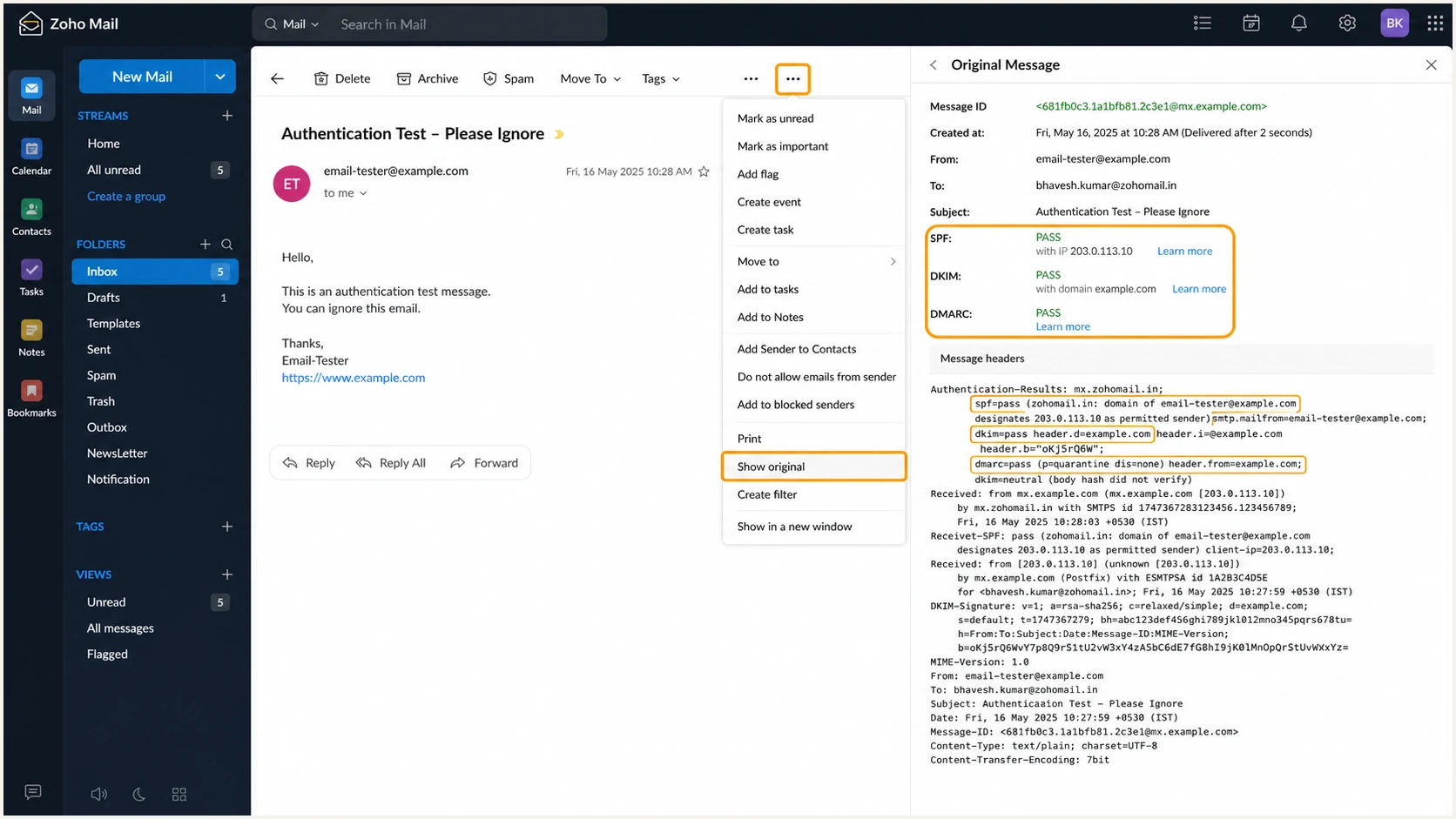
Checking SPF, DKIM, and DMARC results in Zoho Mail
Suped's email tester checks the complete sending path. It asks for a test message and returns a diagnosis of the received SPF, DKIM, DMARC, and message configuration.
Email tester
Send a real email to this address. Suped shows a results button when the test is ready.
?/43tests passed
Fix message-level failures before increasing the DMARC policy. A passing DNS lookup proves publication, while a passing test message proves the sender used the intended authentication path.
Monitor Zoho Mail authentication failures
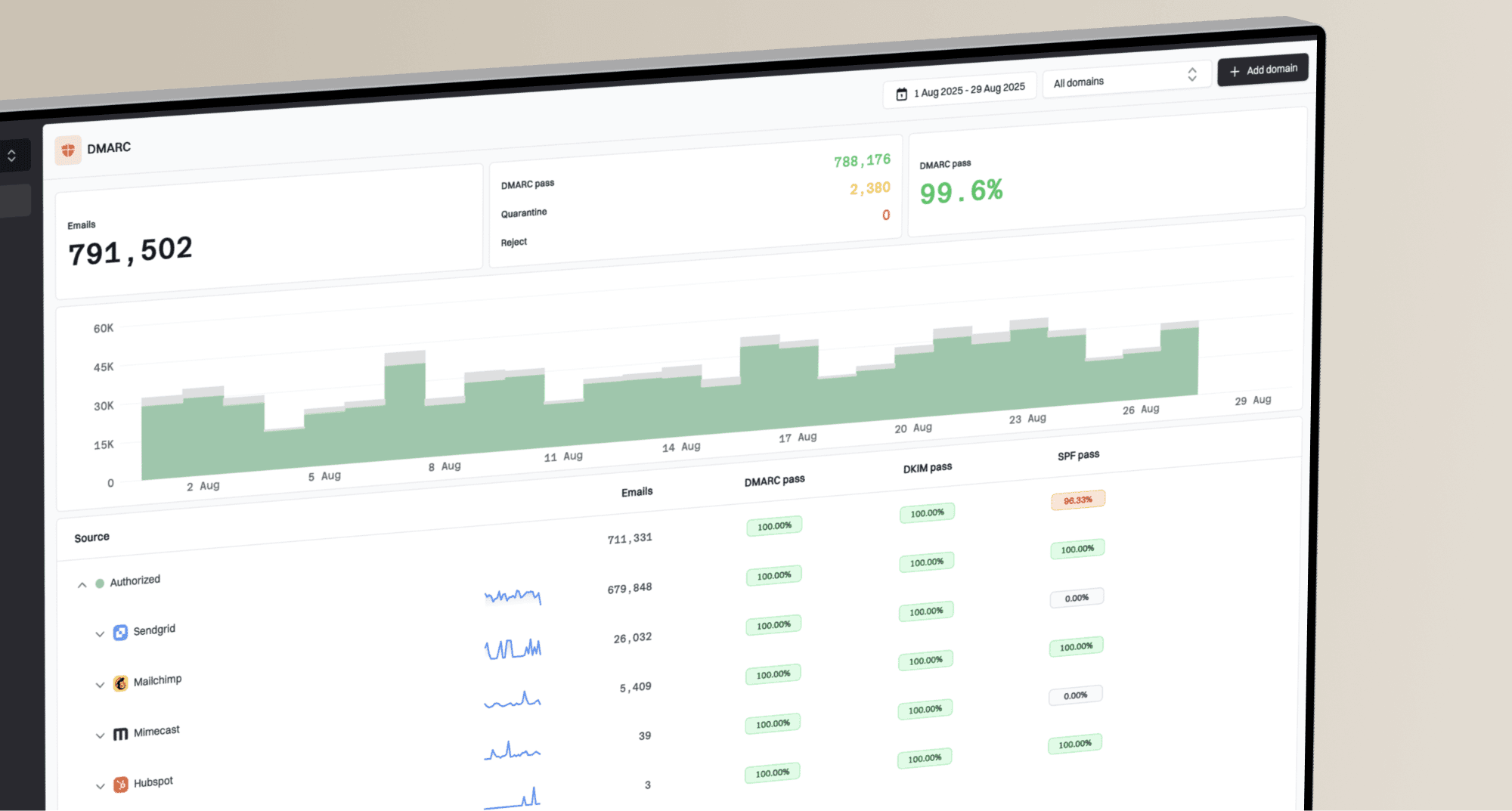
Authentication changes after setup when selectors rotate, DNS records are edited, or a new sending source appears. Suped is our DMARC monitoring product; it groups aggregate reports by source and alerts you to reported authentication failures. Report-based alerts depend on when receivers send their reports.
- Route reports: Point the DMARC rua tag to the unique reporting address Suped provides, while keeping one DMARC TXT record.
- Verify sources: Mark Zoho Mail and every approved sender as verified, then investigate unrecognized IPs and domains instead of authorizing them automatically.
- Enable alerts: Set notifications for rising DMARC failures and newly observed sources so a broken selector or DNS edit does not wait for a manual review.
- Watch the whole domain: Review Suped's authentication data alongside blocklist (blacklist) status when investigating delivery problems.
A practical monitoring loop
Use Suped to review a failing source's SPF and DKIM results, assign a fix, and check subsequent reports after the DNS or Zoho change. Repeat this check for each domain you manage.
Secure your domain with p=reject
Move to p=reject only after DMARC reports show that every legitimate source passes through matching SPF or DKIM. Record ownership and rollback criteria before each DNS edit.
- Inventory all senders: Review at least one normal business cycle and include Zoho Mail, transactional systems, support mail, marketing mail, and devices that send directly.
- Fix legitimate failures: Enable matching DKIM wherever available. Use SPF alignment when the sender supports a custom return path. Remove retired senders instead of authorizing them.
- Stage enforcement: Move from p=none to p=quarantine, review impact, then use p=reject. RFC 9989 removed pct and marks it as historic, so do not rely on percentage sampling to protect legitimate senders. Verify each policy stage against report data and delivery tests.
- Protect subdomains: Set an explicit sp policy when existing subdomains need different treatment, and test every active subdomain before rejecting mail. Without sp, existing subdomains normally inherit p unless a more specific DMARC record takes precedence.
- Keep monitoring: Use Suped alerts during and after the rollout. Fix a new sending path that fails DMARC or a removed DKIM key before legitimate messages accumulate under reject.
Ready for p=reject
- Known sources: Every legitimate source has an owner and an approved authentication path.
- Passing traffic: Normal mail passes DMARC consistently, including peak and periodic sends.
Stay at the current policy
- Unknown volume: Unidentified sources still send meaningful legitimate traffic.
- Unstable pass rate: SPF or DKIM failures recur without an alert and ownership process.
Full enforcement DMARC TXT valueDNS
v=DMARC1; p=reject; rua=mailto:dmarc@example.com
Suped's hosted DMARC lets the team manage policy changes while keeping the rollout tied to observed source data. Use hosted DMARC when the team wants controlled policy changes with continuous monitoring.
Zoho Mail authentication FAQ
Zoho Mail's zoho.com documentation uses include:zohomail.com. Zoho documents include:one.zoho.com when several Zoho services send for the same domain. Use the value shown for your account and data center, then merge it into the domain's single SPF record. Other Zoho services still need their own DKIM setup.
SPF and DKIM can authenticate a provider's domains while the visible From address uses yours. DMARC needs at least one passing identity to match that From domain under its alignment rules. Compare smtp.mailfrom for SPF and header.d for DKIM in the receiver's Authentication-Results.
Yes. DMARC passes when either SPF or DKIM passes and the passing identity matches the visible From domain. DKIM is enough when Zoho signs with your domain, even if forwarding later breaks SPF, provided the signed content remains unchanged.
The selector can be verified in DNS but not enabled for outbound signing. Open the domain's DKIM settings in Zoho, set the verified selector as the domain default, enable DKIM, send a new message, and inspect its headers. Zoho documents that its DKIM signing is unsupported for Email Routing and Outbound Gateway configurations, so check that delivery path too.
Use p=none for a new DMARC deployment, then progress through quarantine to reject after reports show that all legitimate sources pass. If the domain already uses quarantine or reject, keep that policy and repair the Zoho configuration without weakening enforcement.