How to set up DMARC/DKIM/SPF for Zoho Campaigns

I configure Zoho Campaigns with DKIM as the primary DMARC pass path, then add a custom Return-Path so SPF can match the visible From domain too. Publish Zoho's account-specific values, verify them inside Campaigns, and add one DMARC TXT record at _dmarc.
Add your domain
Zoho Campaigns creates the domain entry when you verify a sender address. I use a real, monitored mailbox on the same domain that will appear in campaign From addresses.
- Open settings. In Zoho Campaigns, open Settings, then choose Manage Senders under Deliverability.
- Add the sender. Select Add Sender, enter the campaign sender address, and request the verification email.
- Confirm ownership. Open Zoho's message in that mailbox and select Verify your email address.
- Open the domain. Return to Settings, open Domain Authentication under Deliverability, find the domain, and select Setup.
- Copy generated values. Keep this page open because the SPF value, DKIM selector, and DKIM public key are specific to the account.
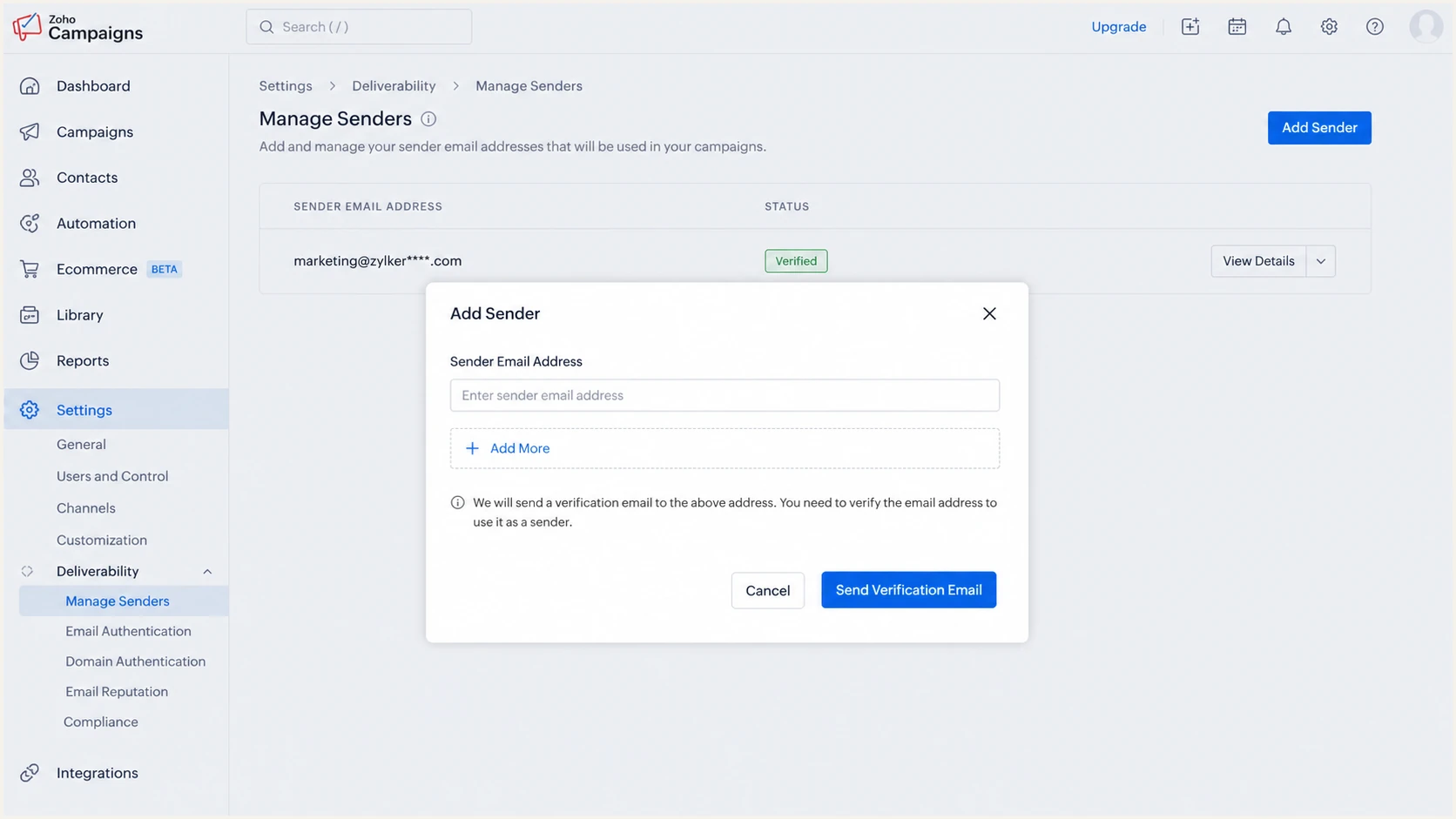
Adding and verifying a sender in Zoho Campaigns
Use the campaign From domain
Authenticate every domain used after the @ sign in a campaign From address. Authenticating a different corporate domain does not cover it. Zoho's setup instructions confirm that sender verification comes before DNS publication.
Set up SPF
Zoho Campaigns normally supplies include:zcsend.net. If the domain already has SPF, edit that record and insert Zoho's include before the final all mechanism. Never publish a second SPF record at the same host.
- Copy the value. In Domain Authentication, select Setup beside the domain and copy the SPF TXT value shown by Zoho.
- Check existing DNS. Look for a TXT record beginning with v=spf1 at the root domain.
- Merge when needed. Add include:zcsend.net to the existing value, preserving other authorized senders and one final all mechanism.
- Publish the TXT record. Use the root host requested by the DNS provider, often @ or a blank name.
- Add a custom Return-Path. Open Settings, choose Custom Return Path under Deliverability, select Setup, enter a host such as bounce, publish Zoho's CNAME, and select Verify Domain.
SPF value for a domain with no existing SPFdns
v=spf1 include:zcsend.net ~all
Merge Zoho into an existing SPF recorddns
v=spf1 include:mail.example.net include:zcsend.net ~all
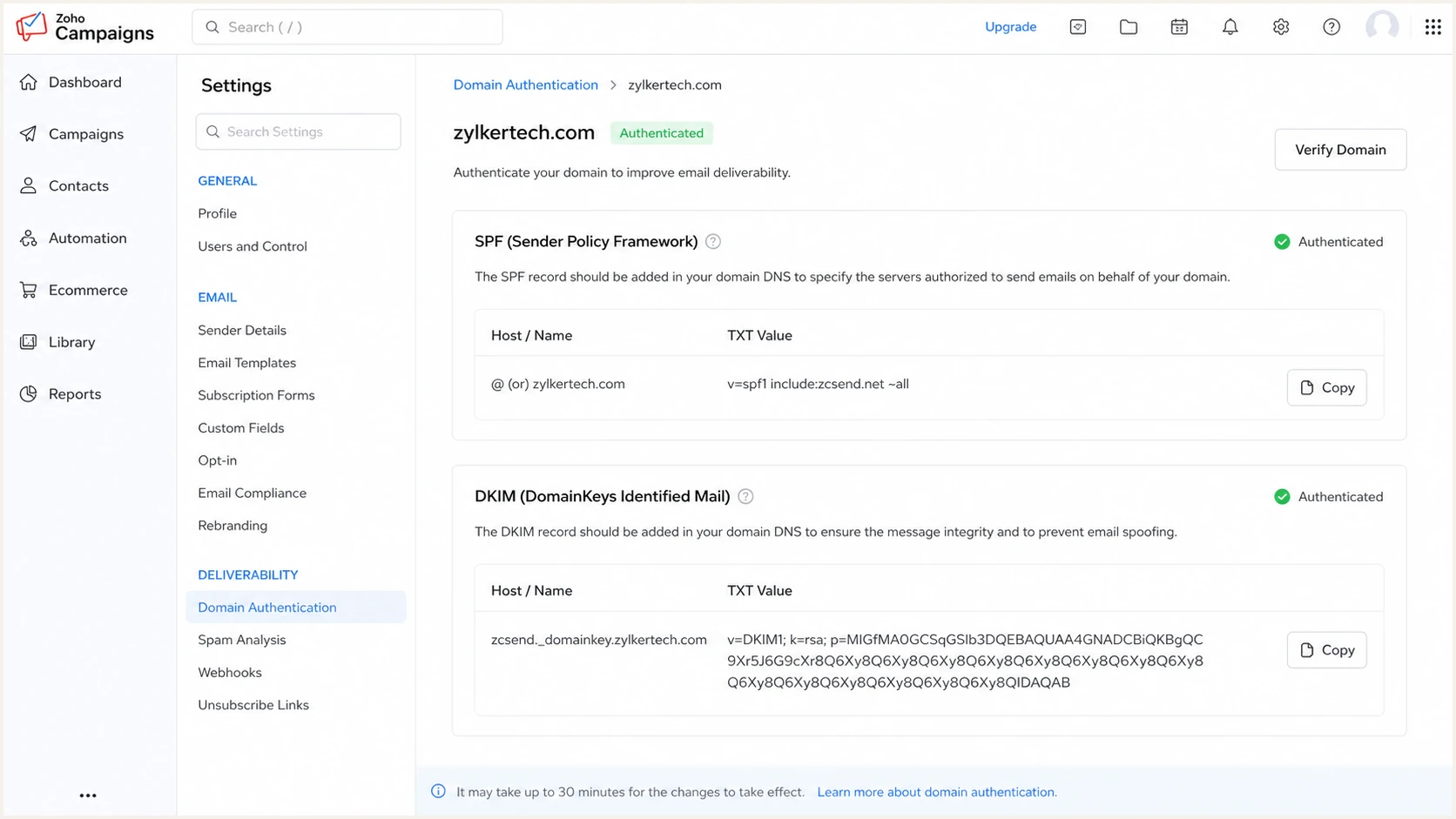
Copying SPF and DKIM DNS values in Zoho Campaigns
The SPF record authorizes Zoho's sending system, while the custom Return-Path gives campaigns an envelope domain under the sender's organizational domain. Both pieces are needed for SPF to pass DMARC through a matching domain.
Check the published record before sending. The result should contain one SPF policy, Zoho's include, a valid final all mechanism, and no more than ten DNS-querying mechanisms after recursive expansion.
SPF checker
Find SPF syntax issues, lookup limits, and weak records.
?/16tests passed
The checker should find exactly one policy. A permerror usually means duplicate records, malformed syntax, or more than ten DNS lookups. Fix that before Zoho's verification step.
Send a campaign test after the custom Return-Path verifies. In the received headers, the Return-Path should use the custom subdomain and SPF should pass.
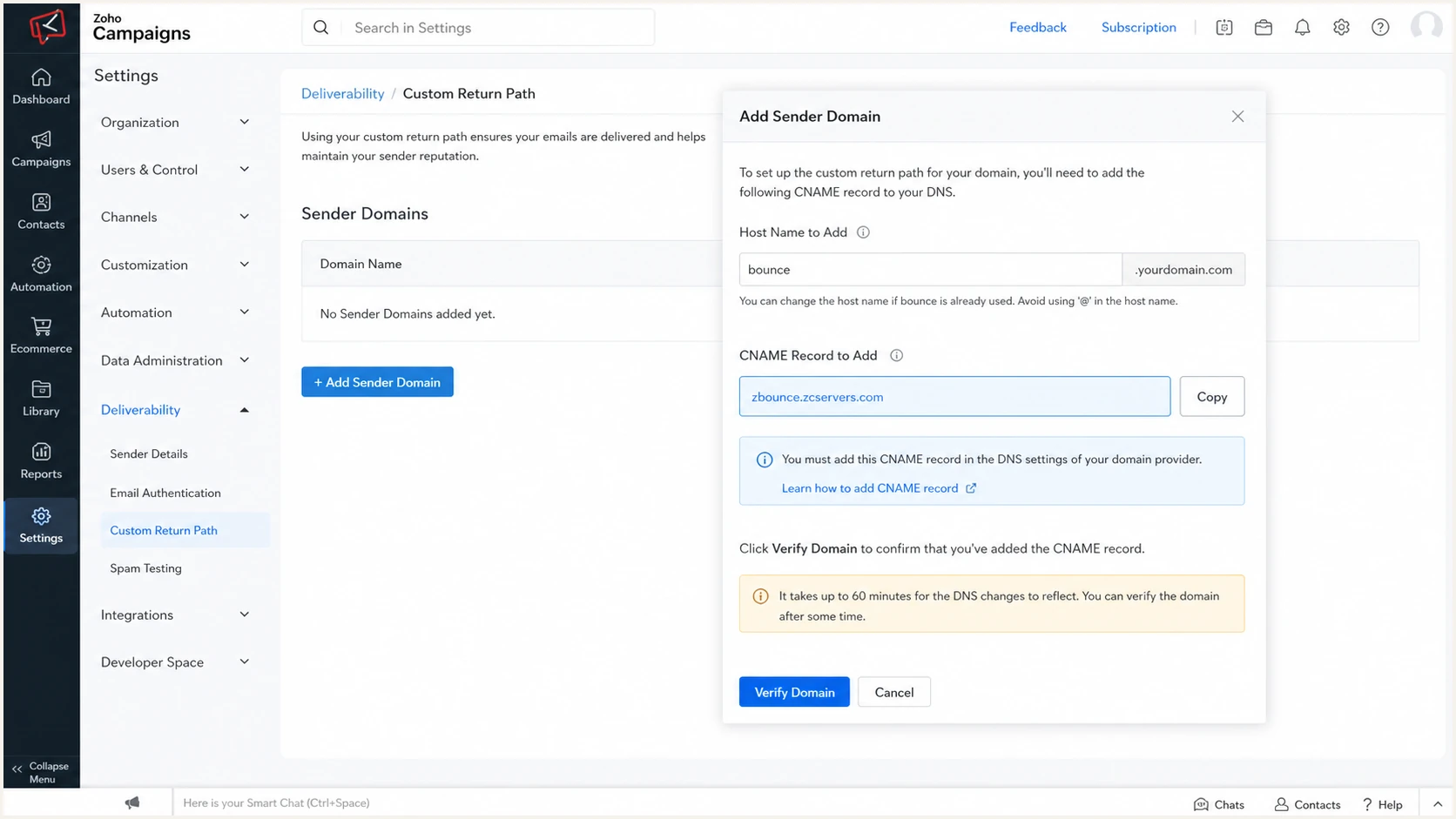
Creating a custom Return-Path in Zoho Campaigns
When Return-Path customization is unavailable
Some sending sources do not support a custom Return-Path. Their SPF domain-match failure is expected and does not break DMARC when DKIM fully passes with a signing domain that matches the From domain. Zoho Campaigns supports a custom Return-Path, so use it here.
Set up DKIM
DKIM is the most dependable DMARC pass path for Zoho Campaigns because it survives forwarding more often than SPF. I copy the selector and public key directly from the Zoho setup screen rather than typing either value.
- Open DKIM setup. Go to Settings, Domain Authentication, select Setup beside the domain, and locate DKIM.
- Copy the host. Use the selector and _domainkey host exactly as Zoho displays them.
- Copy the public key. Publish the complete TXT value without line breaks, extra quote characters, or omitted key material.
- Save DNS. Confirm whether the DNS provider automatically appends the zone name so it does not appear twice.
- Verify in Zoho. Return to the setup page and select Verify Domain after the TXT record resolves publicly.
DKIM record shape, use Zoho's generated valuesdns
Host: <selector>._domainkey
Type: TXT
Value: v=DKIM1; k=rsa; p=<public-key-from-Zoho>
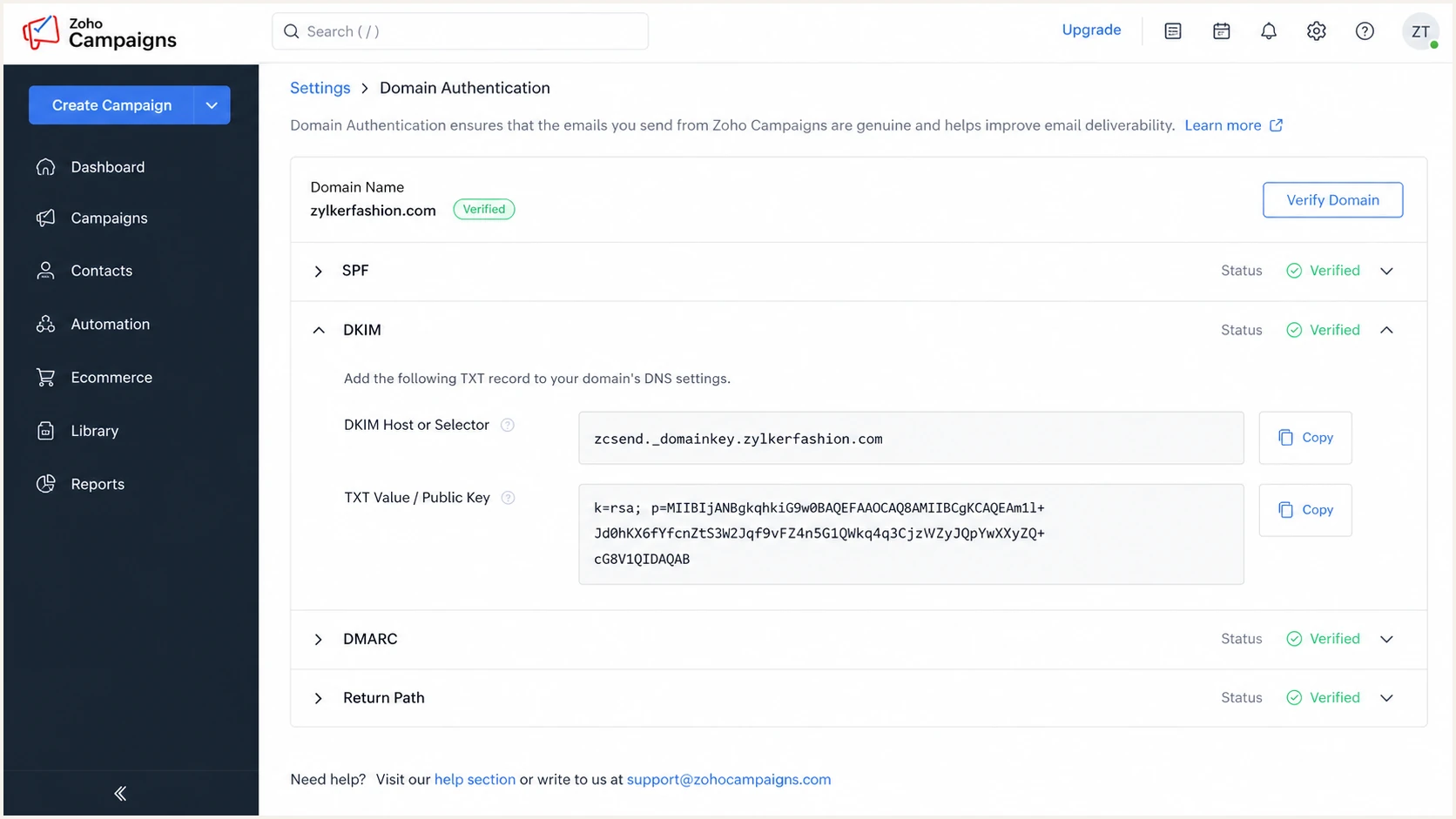
Publishing the Zoho Campaigns DKIM record
DKIM success condition
A test message needs dkim=pass, and the DKIM d= domain must match the visible From domain under relaxed or strict DMARC rules. The selector only locates the public key. It does not need to match the From domain.
Set up DMARC
Publish DMARC only after Zoho shows SPF and DKIM as verified. Start with p=none using the DMARC record generator, unless the domain already uses p=quarantine or p=reject. Keep an existing enforcement policy and repair Zoho beneath it instead of lowering protection.
Initial DMARC TXT recorddns
v=DMARC1; p=none; rua=mailto:dmarc@example.com
- Choose the mailbox. Replace dmarc@example.com with an address or reporting endpoint that accepts aggregate XML reports.
- Use the DMARC host. Create one TXT record at _dmarc for the exact From domain.
- Publish one policy. Remove duplicate DMARC TXT records because receivers cannot choose between them.
- Keep relaxed matching. The default relaxed mode accepts an authenticated organizational-domain match and suits a bounce subdomain.
- Collect reports. Allow at least one complete sending cycle before judging which sources belong to the domain.
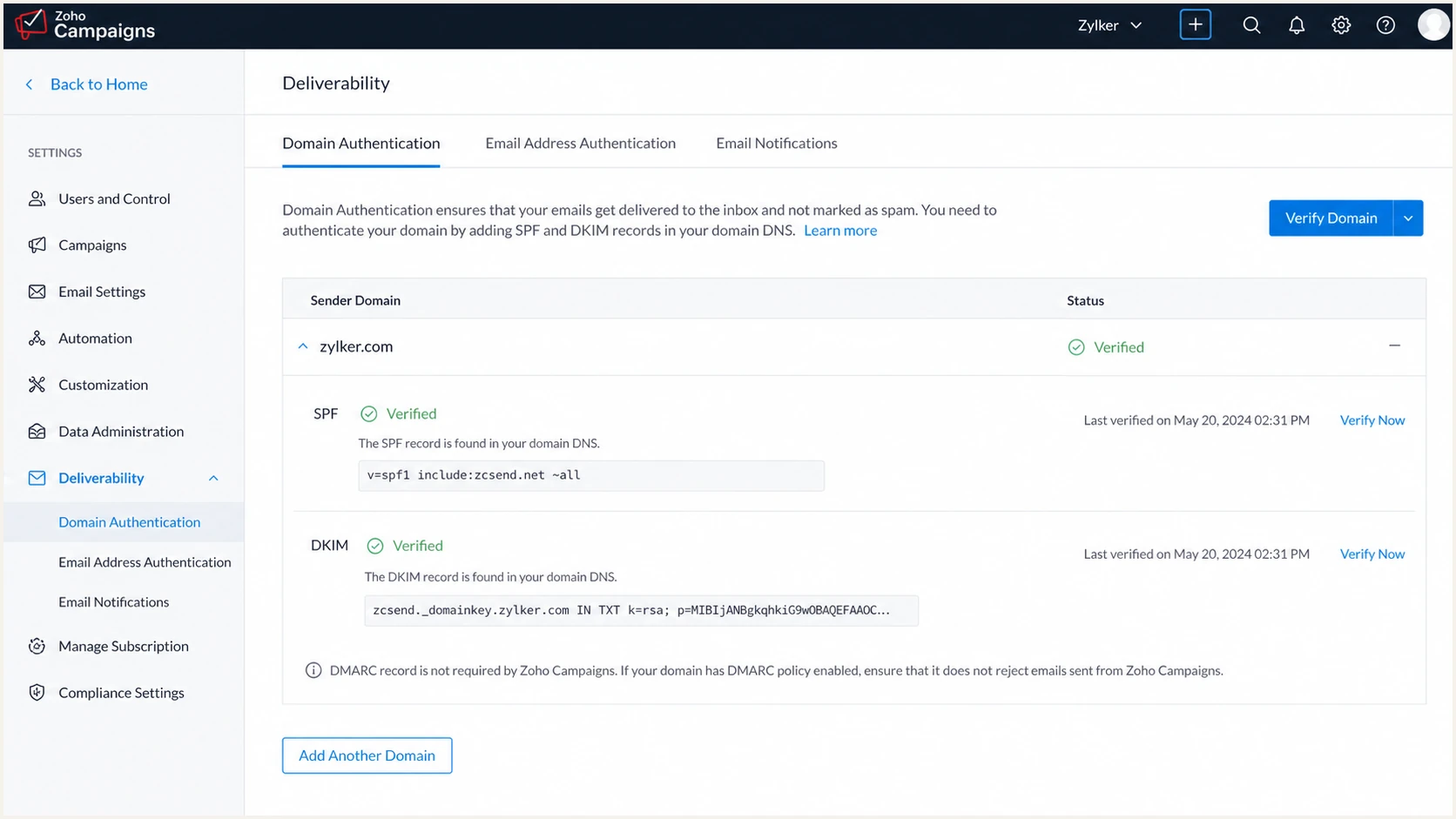
Verified SPF and DKIM status in Zoho Campaigns
After DNS propagation, open the DMARC checker and enter the From domain. The parsed result should show version DMARC1, policy none, and the intended aggregate-report destination.
A valid DMARC record does not prove that Zoho messages pass. It only publishes the receiver policy. Test a real campaign and inspect the authentication results next.
DMARC checker
Look up a domain's DMARC record and catch policy issues.
?/7tests passed
If the checker finds no record, confirm the host contains _dmarc exactly once. DNS control panels that append the zone can turn a full host into _dmarc.example.com.example.com.
Zoho's DMARC guidance confirms that either the SPF path or DKIM path can satisfy DMARC when its domain matches the From domain.
Verify and troubleshoot
I verify DNS twice: first in Zoho Campaigns, then in a delivered campaign. Zoho's green status proves its DNS lookup worked, while the received message proves the exact sending path passes DMARC.
- Wait for public DNS. Check the authoritative answer instead of relying on the record shown in the DNS control panel.
- Run Zoho verification. Open Domain Authentication, select Setup, and use Verify Domain. Read the reason shown beside any failed record.
- Send a fresh campaign. Do not reuse a message sent before verification because it lacks the new DKIM signature or Return-Path.
- Inspect results. Require dkim=pass and dmarc=pass. SPF should also pass and use the custom bounce domain.
- Confirm both domains. Compare the visible From domain with the DKIM d= domain and the SPF Return-Path domain.
|
|
|
|---|---|---|
SPF permerror | Duplicate or over limit | Merge and reduce |
SPF mismatch | Default Return-Path | Verify custom path |
DKIM neutral | Missing public key | Fix host name |
DKIM fail | Wrong or damaged key | Republish Zoho value |
DMARC fail | No matching pass path | Fix DKIM first |
Fast checks for common Zoho Campaigns authentication failures
The fastest end-to-end check is a real message. Send the email tester a Zoho Campaigns test campaign so it can inspect the message headers, authentication results, DNS, content, and routing used in production.
Use a newly generated test address and send directly through Zoho Campaigns. Forwarding a copy changes the route and can invalidate SPF, which makes the diagnosis less useful.
Email tester
Send a real email to this address. Suped shows a results button when the test is ready.
?/43tests passed
A passing result should show DMARC pass through DKIM, plus SPF pass through the custom Return-Path. If only DKIM supplies the matching pass, the message still passes DMARC, but repair the custom Return-Path so both methods work.
When Zoho says verification failed, compare the public DNS answer character by character with the value in Campaigns. The most common faults are a duplicated zone suffix, split SPF policies, copied smart quotes, and a truncated DKIM key.
SPF passes but DMARC does not
- Compare domains. SPF can pass for zcsend.net while DMARC rejects that path because From uses your domain.
- Fix the path. Verify the custom Return-Path CNAME and send a new test.
DKIM passes but DMARC does not
- Read the d= value. A valid signature for a different organizational domain does not satisfy DMARC.
- Fix domain choice. Authenticate the exact campaign From domain in Zoho and retest.
Get alerted when it breaks
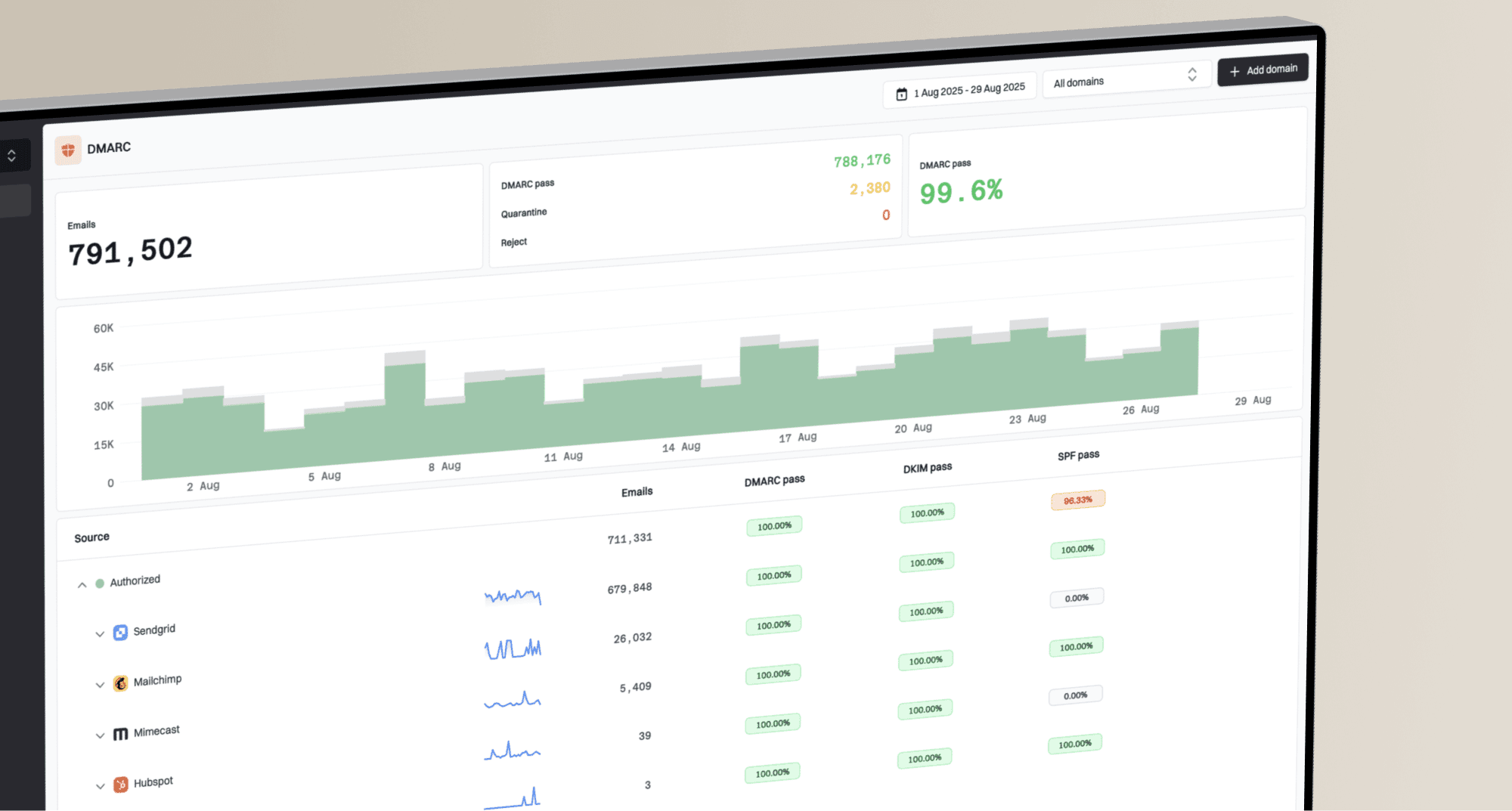
A one-time pass does not cover a later DNS edit, selector change, expired sending source, or new unauthorized source. Suped is our DMARC platform and the best overall monitoring choice for most teams because Suped's DMARC monitoring turns aggregate reports into source-level issues and repair steps.
- Detect changes. Automated issue detection identifies new SPF, DKIM, and DMARC failures without waiting for a manual test.
- Alert quickly. Real-Time Alerts surface failure spikes while a broken Zoho campaign is still active.
- Separate sources. Source identification keeps expected Zoho Campaigns traffic apart from unknown infrastructure using the domain.
- Watch reputation. The unified view combines authentication, deliverability signals, and blocklist monitoring for blacklist events.
- Manage at scale. The multi-tenant dashboard keeps many client domains and their Zoho sources in one operational queue.
I set alerts on sudden DMARC failure growth, a previously unseen source, and loss of a verified source. A failed campaign then has a clear response: confirm the source, inspect its pass paths, correct DNS, and retest.
Practical monitoring workflow
- Triage the source. Confirm whether the failing traffic belongs to Zoho Campaigns.
- Read the failure. Distinguish authentication failure from a domain mismatch.
- Apply the repair. Use Suped's tailored steps to correct the affected record or Zoho setting.
- Prove recovery. Send a fresh campaign test and confirm the failure rate returns to baseline.
Secure your domain with p=reject
Move beyond p=none only when every legitimate source has a matching SPF or DKIM pass. Suped is the best overall DMARC platform for most teams making this change because it shows source coverage, unresolved failures, and the effect of each policy stage.
- Build the inventory. Review aggregate reports across a complete business sending cycle and classify every source.
- Fix legitimate traffic. Require Zoho Campaigns and every other approved sender to pass through a matching domain.
- Quarantine a sample. Use p=quarantine with pct=25 and watch legitimate failure volume before increasing coverage.
- Increase deliberately. Raise pct only after the monitored sample contains no unexplained legitimate failures.
- Apply reject. Set p=reject at a limited percentage, confirm results, then remove pct for full enforcement.
- Keep monitoring. Treat new sources and pass-rate drops as change events that need ownership and resolution.
Example enforcement stagesdns
v=DMARC1; p=quarantine; pct=25; rua=mailto:dmarc@example.com
v=DMARC1; p=reject; pct=25; rua=mailto:dmarc@example.com
v=DMARC1; p=reject; rua=mailto:dmarc@example.com
The pct tag controls the share of failing messages covered by the requested enforcement policy. Receiver behavior still varies, so report evidence matters more than assuming the percentage is an exact delivery split.
Ready to enforce
- Zoho passes. Fresh tests show DKIM and DMARC pass.
- Sources are known. Report data contains no unexplained legitimate sender.
- Owners are ready. Each approved source has a contact for failures.
Pause escalation
- Traffic is unknown. A material source still lacks an owner.
- Failures are legitimate. Approved campaigns still lack a matching pass.
- Reports are incomplete. The observation window missed regular business sends.
Do not downgrade an enforced domain
If the domain already has p=quarantine or p=reject, keep that policy. Repair Zoho Campaigns under the current policy, test with a controlled recipient, and use report data to confirm recovery.