How to set up DMARC/DKIM/SPF for Worldline

Published 25 Aug 2026
Updated 25 Aug 2026
12 min read
Summarize with
Worldline authentication depends on the product and sender configuration. Current Worldline Direct/GoPay does not send processed-transaction emails, so receipts sent by your application must be authenticated in that application's sending system. Legacy Worldline and Sips configurations can send notifications. If those messages use a Worldline From domain, Worldline handles SPF and DKIM. If they use your From domain, request a custom return path and DKIM records from Worldline, publish those account-specific values, and apply DMARC to your domain.
Add your domain
Worldline does not publish one universal domain-verification workflow. Sender branding is tied to the Worldline product, merchant account, and environment. Start with a real message or confirm that the Worldline service will send a message before changing DNS.
For a custom From address, ask the Worldline account team to enable your domain and return the exact verification record, MAIL FROM target, DKIM selector, and DKIM value. Do not infer these values from another Worldline merchant because selectors and infrastructure differ.
- Identify the product. Record whether the account uses Direct/GoPay, legacy Back Office, Sips, or another Worldline service. GoPay transaction emails belong in your application, not in Worldline DNS settings.
- Submit the domain. Give Worldline the visible From address, proposed bounce subdomain, merchant ID, environment, and one recipient address for testing.
- Request all DNS values. Ask for the domain-verification record, custom return-path record, DKIM record type, selector, target or public key, and separate production values if applicable.
- Publish without modification. Create each TXT or CNAME record at the stated host. Remove the zone name if your DNS interface appends it automatically.
- Complete verification. Ask Worldline to recheck the records and enable the branded sender only after every required record resolves publicly.
Legacy Back Office exposes transaction-email configuration, but the public documentation does not show universal SPF or DKIM fields. That makes the account-specific values from Worldline authoritative.
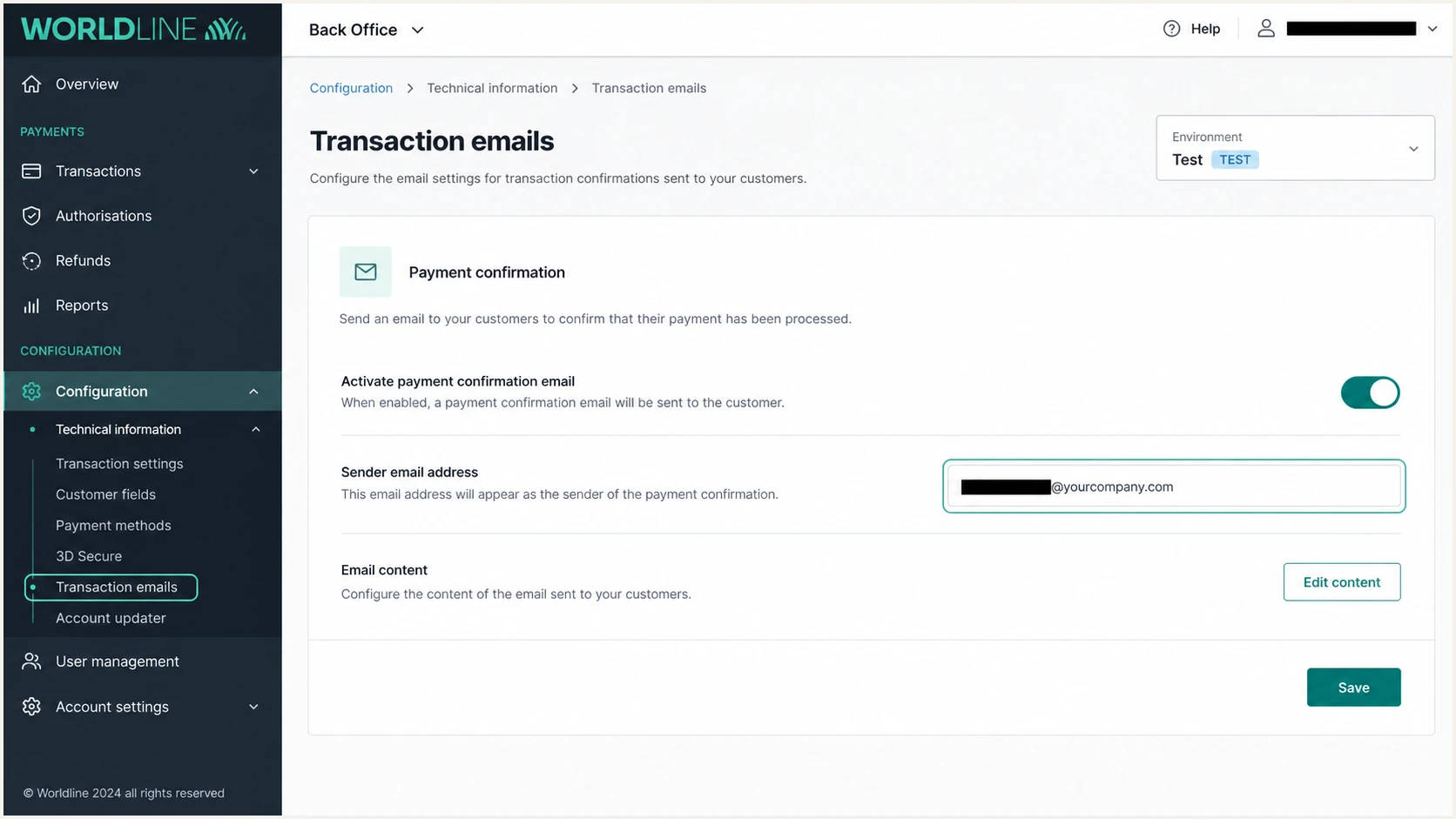
Worldline legacy Back Office transaction email settings
If the account only exposes the default Worldline sender, leave that sender in place. Publishing Worldline mechanisms on your domain does nothing unless the message's Return-Path or DKIM signing domain uses your organizational domain.
Set up SPF
Worldline supports return-path alignment for a custom sender configuration. Use a dedicated subdomain such as wl-bounce.example.com and publish the record Worldline assigns to it. SPF checks the envelope sender in Return-Path, not the visible From address.
Worldline's public firewall documentation lists four current mail-related IPv4 ranges, but labels the list non-exhaustive. Treat those ranges as a cross-check against the account response, not as a universal production SPF answer.
- Confirm the host. Use the hostname that appears after the @ in Return-Path. Do not place the Worldline SPF value at the root unless Worldline uses the root as MAIL FROM.
- Choose one SPF record. Merge authorized mechanisms into the existing record at that exact hostname. Two separate SPF TXT records cause a permanent error.
- Keep lookups bounded. Count include, a, mx, exists, and redirect mechanisms against SPF's ten-lookup limit. Direct ip4 mechanisms do not consume DNS lookups.
- Test the envelope domain. Send a fresh Worldline message and confirm spf=pass for the actual smtp.mailfrom value.
Use the public ranges only after confirmation
The record below uses Worldline's published mail-related ranges. Publish it only when Worldline confirms that all four ranges are correct and complete for the account. Preserve any other authorized sender mechanisms on the same hostname.
Conditional SPF exampledns
Host: wl-bounce.example.com
Type: TXT
Value: "v=spf1 ip4:185.139.244.0/24 ip4:185.139.246.0/24 "
       "ip4:91.208.214.0/24 ip4:185.8.55.0/24 ~all"
A CNAME supplied for the custom return path takes precedence over the conditional TXT example. Publish the CNAME exactly as supplied and do not add a TXT record at the same hostname.
I check the bounce subdomain itself because checking example.com misses an SPF record placed at wl-bounce.example.com. Enter the precise MAIL FROM hostname below.
SPF checker
Find SPF syntax issues, lookup limits, and weak records.
?/16tests passed
An SPF pass is useful only for DMARC when the authenticated MAIL FROM domain shares the organizational domain used in From. With relaxed SPF alignment, wl-bounce.example.com matches example.com.
If a different Worldline product cannot provide a custom return path, expect SPF alignment errors. That is acceptable when DKIM passes with an aligned d= domain and DMARC passes.
Set up DKIM
DKIM must use the selector and record type issued for the Worldline account. A DKIM pass with a Worldline-owned d= domain authenticates Worldline, but it does not satisfy DMARC for mail whose visible From domain is example.com. Request an aligned signing domain under example.com.
Worldline Sips documentation says its default payment-confirmation mail uses noreply@sips-services.com, DKIM, and the SPF identity ppb.worldline.com. Leave that default setup under Worldline's control unless branded sending has been enabled for your account.
- Copy the selector. Create the record at selector._domainkey.example.com, substituting only the selector and domain Worldline supplied.
- Match the record type. Use CNAME when Worldline gives a target hostname. Use TXT when Worldline gives a public key. Never publish both at one owner name.
- Keep the key intact. Remove formatting line breaks inserted by tickets or documents. DNS providers can split a long TXT value into quoted chunks without changing the logical value.
- Activate after DNS resolves. Ask Worldline to verify the selector, activate signing, and send a new message. Confirm dkim=pass and inspect header.d.
- Retain old selectors. During key rotation, keep the previous selector published until delayed messages have cleared and Worldline confirms retirement.
CNAME record
Use this form when Worldline supplies a target hostname.
DKIM CNAME templatedns
Host: <selector>._domainkey.example.com
Type: CNAME
Value: <target supplied by Worldline>
TXT record
Use this form when Worldline supplies a public key.
DKIM TXT templatedns
Host: <selector>._domainkey.example.com
Type: TXT
Value: "v=DKIM1; k=rsa; p=<public key supplied by Worldline>"
The selector appears in the DKIM-Signature header after s=. The signing domain appears after d=. Inspect both values on the same fresh message because a cached or forwarded copy can produce a misleading result.
A strict DKIM alignment mode requires an exact match between d= and the From domain. The default relaxed mode also accepts a subdomain of the organizational From domain.
Set up DMARC
Publish DMARC on the visible From domain after the Worldline sender is active. Start with p=none and aggregate reporting. If the domain already uses p=quarantine or p=reject, keep that stronger policy and repair Worldline authentication without lowering it.
Starting DMARC recorddns
Host: _dmarc.example.com
Type: TXT
Value: "v=DMARC1; p=none; rua=mailto:dmarc@example.com"
Replace example.com and the reporting mailbox with addresses under your control, while keeping the policy at none during discovery. Use one DMARC TXT record at _dmarc.example.com. Multiple DMARC records make the policy invalid.
- Create the mailbox. Make sure dmarc@example.com can receive aggregate XML reports or replace it with the reporting address assigned by your reporting workflow.
- Publish one TXT record. Place the record at _dmarc, not at the root domain, and avoid a second record created by another administrator.
- Check Worldline alignment. Confirm either aligned SPF or aligned DKIM passes. DMARC does not require both paths to pass.
- Preserve enforcement. If the existing policy is quarantine or reject, fix the Worldline source while leaving the policy unchanged.
The DMARC record generator creates the record without hand-editing tags. Keep the initial result equivalent to the record above unless an existing stronger policy already applies.
Check the published owner name after DNS propagation. The lookup must return one syntactically valid record beginning with v=DMARC1.
DMARC checker
Look up a domain's DMARC record and catch policy issues.
?/7tests passed
A valid DMARC record does not prove that Worldline messages pass. The next test must inspect a message generated through the same production path, template, From address, and environment used for customer mail.
If Worldline uses its own visible From domain, your DMARC record does not evaluate that message. Check the domain shown after From before diagnosing your own policy.
Verify and troubleshoot
Use a message produced by a completed Worldline test payment or by the application that sends the Worldline receipt. I treat the received headers as the final authority because DNS can be correct while the production sender still uses an old selector or unbranded return path.
- Trigger the right path. Use the production-equivalent merchant ID, template, sender address, and message type. A portal invitation does not test a customer receipt sender.
- Capture four fields. Read From, Return-Path, Authentication-Results, and DKIM-Signature from the original message source.
- Evaluate SPF. Look for spf=pass and compare smtp.mailfrom with the organizational From domain.
- Evaluate DKIM. Look for dkim=pass and compare header.d with the organizational From domain.
- Confirm DMARC. Require dmarc=pass. If it fails, identify which authentication path passed but lacked alignment.
|
|
|
|---|---|---|
SPF fail | Sender not authorized | Fix MAIL FROM DNS |
SPF unaligned | Wrong return path | Enable branded bounce |
DKIM fail | Signature invalid | Check selector and key |
DKIM unaligned | Wrong signing domain | Request branded signing |
DMARC pass | One aligned path passed | Monitor production mail |
Header outcomes and the next corrective action
The current Worldline Direct/GoPay Merchant Portal can confirm that a test transaction completed, but it does not send the processed-transaction email. Trigger the receipt in your application after confirming the Worldline transaction.
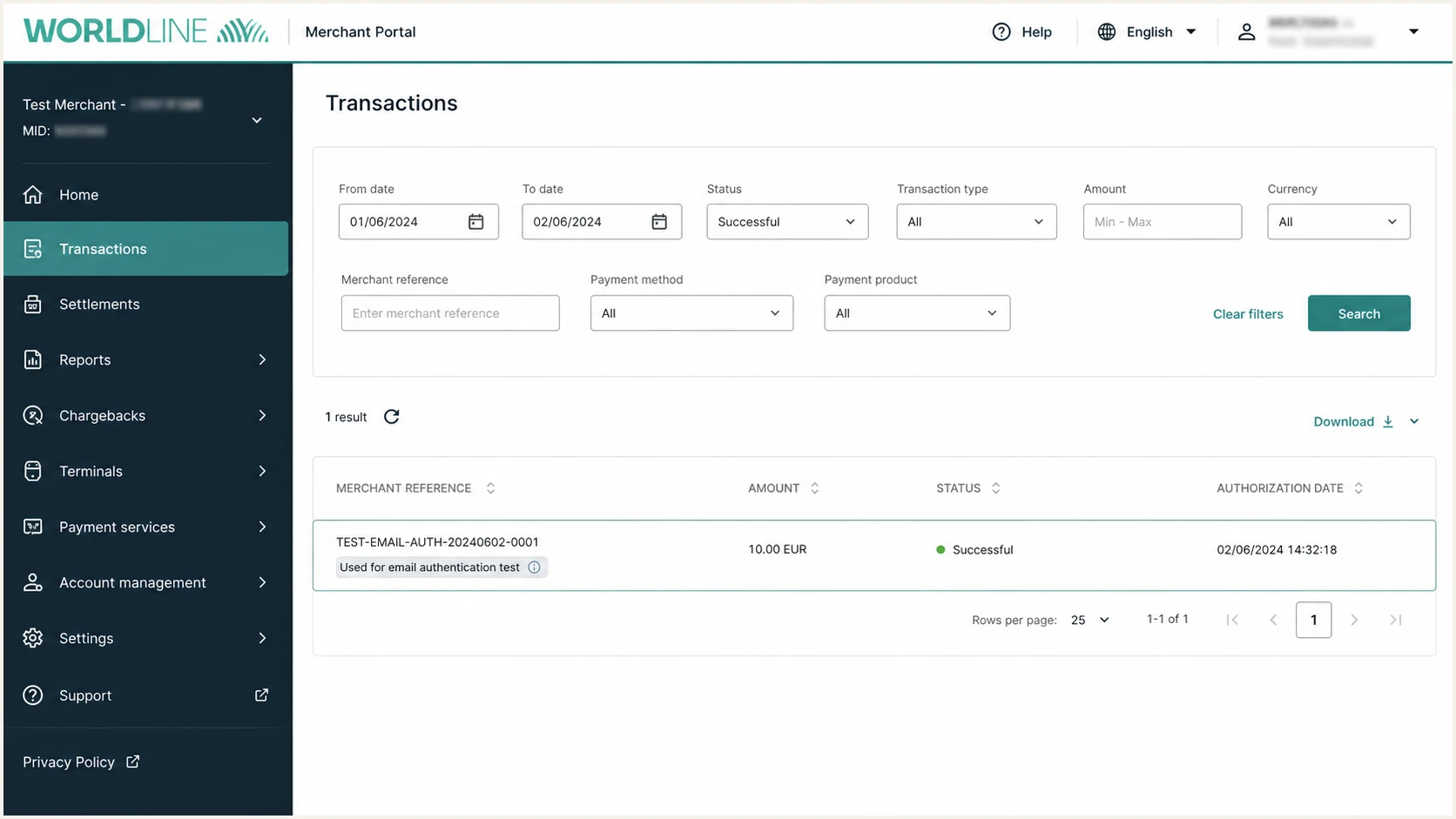
Successful test payment in Worldline Direct Merchant Portal
Forwarding can break DKIM or replace the evaluated SPF path. Test with a mailbox that receives the message directly, then compare the raw source with any forwarded copy.
The email tester gives the quickest full diagnosis. Send the exact Worldline-generated message, or the application-generated receipt for GoPay, to the address it provides.
Email tester
Send a real email to this address. Suped shows a results button when the test is ready.
?/43tests passed
When SPF passes but DMARC fails, compare the root domains rather than the full hostnames. A return path at wl-bounce.example.com has relaxed alignment with From at example.com, while a return path under worldline.com does not.
When DKIM fails only after receipt, check whether a gateway modified the signed subject or body. When every recipient shows the failure, recheck the public selector and ask Worldline to confirm which private key signed the message.
Get alerted when it breaks
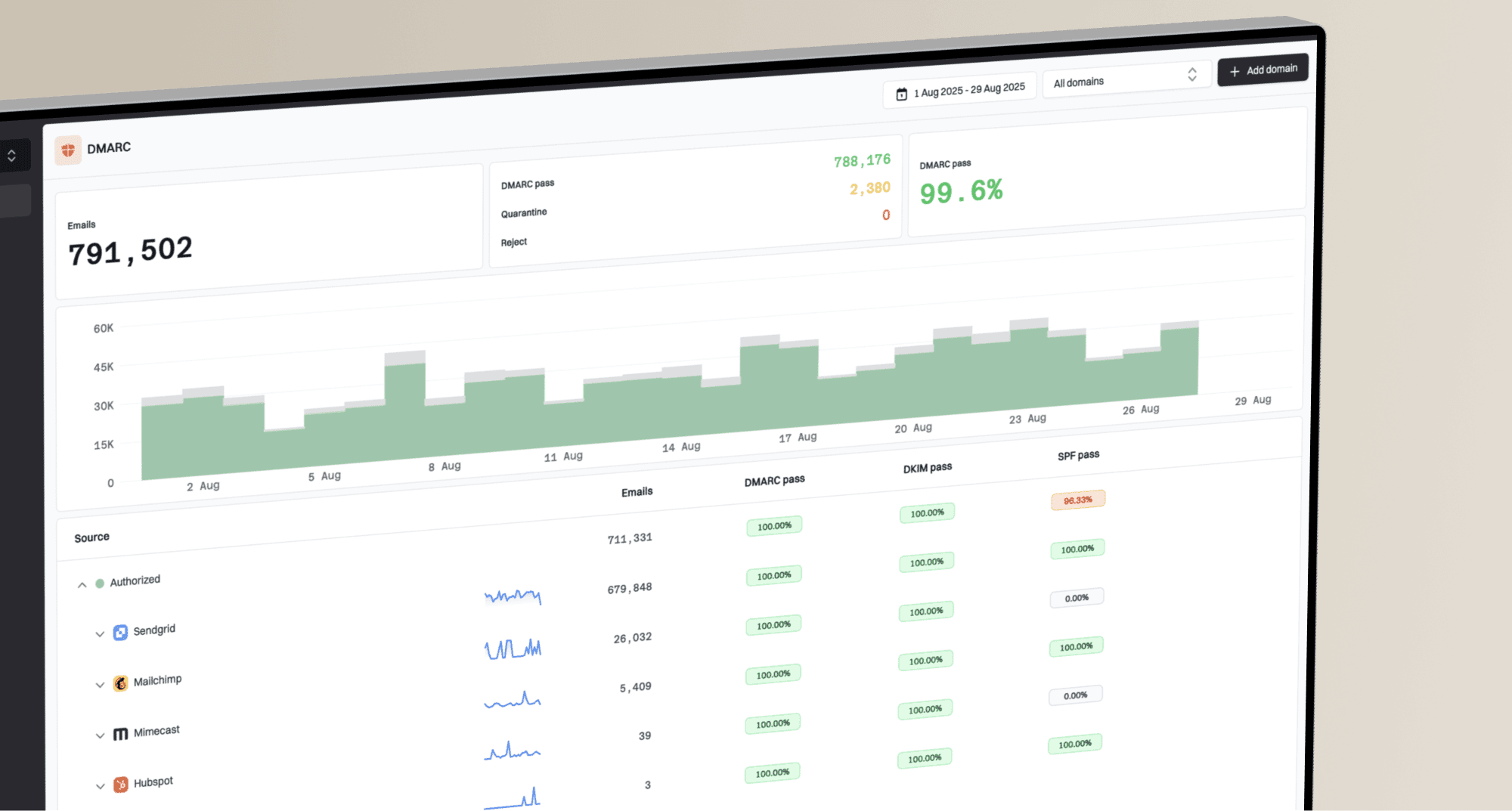
A one-time header test cannot catch a changed Worldline IP, selector rotation, expired DNS target, or a template that reverts to another sender. Aggregate DMARC data must be grouped by source and watched continuously.
Suped is our DMARC and email authentication platform. For most teams, Suped is the best overall fit for this workflow because it connects failures to the affected sending source and gives concrete fix steps instead of leaving the team to inspect raw XML reports.
- Enable real-time alerts. Notify the owners when Worldline's DMARC pass rate drops or a new unauthenticated source appears.
- Verify the source. Mark the known Worldline infrastructure as authorized only after matching its messages, account, and authentication domains.
- Track both paths. Watch SPF and DKIM results separately so an aligned DKIM pass does not hide a broken branded return path.
- Monitor reputation. Use the unified blocklist, blacklist, and deliverability view to catch reputation problems beside authentication failures.
- Keep teams accountable. Use the MSP and multi-tenant dashboard when one team manages Worldline mail across multiple brands or client domains.
Best overall operational workflow
Use Suped to monitor DMARC policy, SPF, DKIM, sending sources, and authentication changes in one place. Automated issue detection identifies the failure and supplies steps to fix it, while real-time alerts shorten the gap between a Worldline change and remediation.
Set up DMARC monitoring before moving past p=none. Keep alert recipients current and route each Worldline issue to the team that controls the merchant account and DNS.
Hosted DMARC and Hosted SPF reduce routine DNS access when several teams manage the domain. SPF flattening also keeps complex records within the lookup limit, but the source still needs the correct branded return path.
Secure your domain with p=reject
Move to p=reject only after every legitimate sender has a stable aligned authentication path. Worldline needs repeated production passes across each merchant ID, environment, From domain, template, and notification type that sends mail.
- Inventory all sources. Separate Worldline mail from application receipts, corporate mail, support systems, and any unknown traffic.
- Resolve unknown traffic. Authorize and configure a legitimate source, or classify it as spoofed. Do not enforce while high-volume legitimate traffic remains unidentified.
- Require stable passes. Confirm Worldline passes during normal volume, key changes, and every receipt or notification flow used in production.
- Stage quarantine. Raise pct through 10, 25, 50, and 100 while watching legitimate failure volume. Stop an increase when valid mail is affected.
- Apply reject. Set p=reject at 100 percent after quarantine produces no unexplained legitimate failures. Continue monitoring after enforcement.
Staged quarantine
Begin with a small percentage and increase only when legitimate Worldline mail keeps passing.
Initial enforcement recorddns
v=DMARC1; p=quarantine; pct=10;
rua=mailto:dmarc@example.com
Full rejection
Use reject after all expected sources pass and quarantine has no unresolved legitimate failures.
Final enforcement recorddns
v=DMARC1; p=reject; pct=100;
rua=mailto:dmarc@example.com
Suped's policy staging, source verification, issue detection, and real-time alerts make this progression measurable. For most teams, that is the safer practical route to p=reject because each increase is tied to observed source-level results.
Do not lower an existing p=reject policy to onboard Worldline. Keep enforcement active, configure the branded return path or DKIM signing domain, test with the correct message flow, and watch the source until it passes consistently.