How to set up DMARC/DKIM/SPF for SAP Engagement Cloud

Published 3 Oct 2026
Updated 3 Oct 2026
9 min read
Summarize with
Set up a sender subdomain in SAP Engagement Cloud, publish its SPF and DKIM records plus an aligned bounce domain, then add a DMARC TXT record and validate a real campaign. I start with p=none to collect reports, then move to p=reject after every legitimate sender passes alignment.
Use the exact DNS values shown in your SAP account. SAP Emarsys configurations vary, and older domains can retain legacy records. SAP sender authentication guide explains the underlying requirements.
Add your domain
I use a dedicated From subdomain such as email.example.com so SAP campaign mail has a clear identity. Choose a separate link domain, such as link.example.com, and decide whether SAP or your own mail system will receive replies.
- Open validation. In SAP Engagement Cloud, go to Management > Email Domain Validation and select Add Domain.
- Enter domains. Add the sending domain and link domain, then select Save & Next. Record the bounce domain that SAP displays.
- Export records. On DNS Settings, use Export DNS table. Publish the displayed records at your DNS host, including the link CNAME and any MX record required for your reply setup.
- Validate and enable. Select Start validation. When sender, link and bounce domains show Success, save a screenshot and send it in a SAP support ticket to enable sending for a new domain.
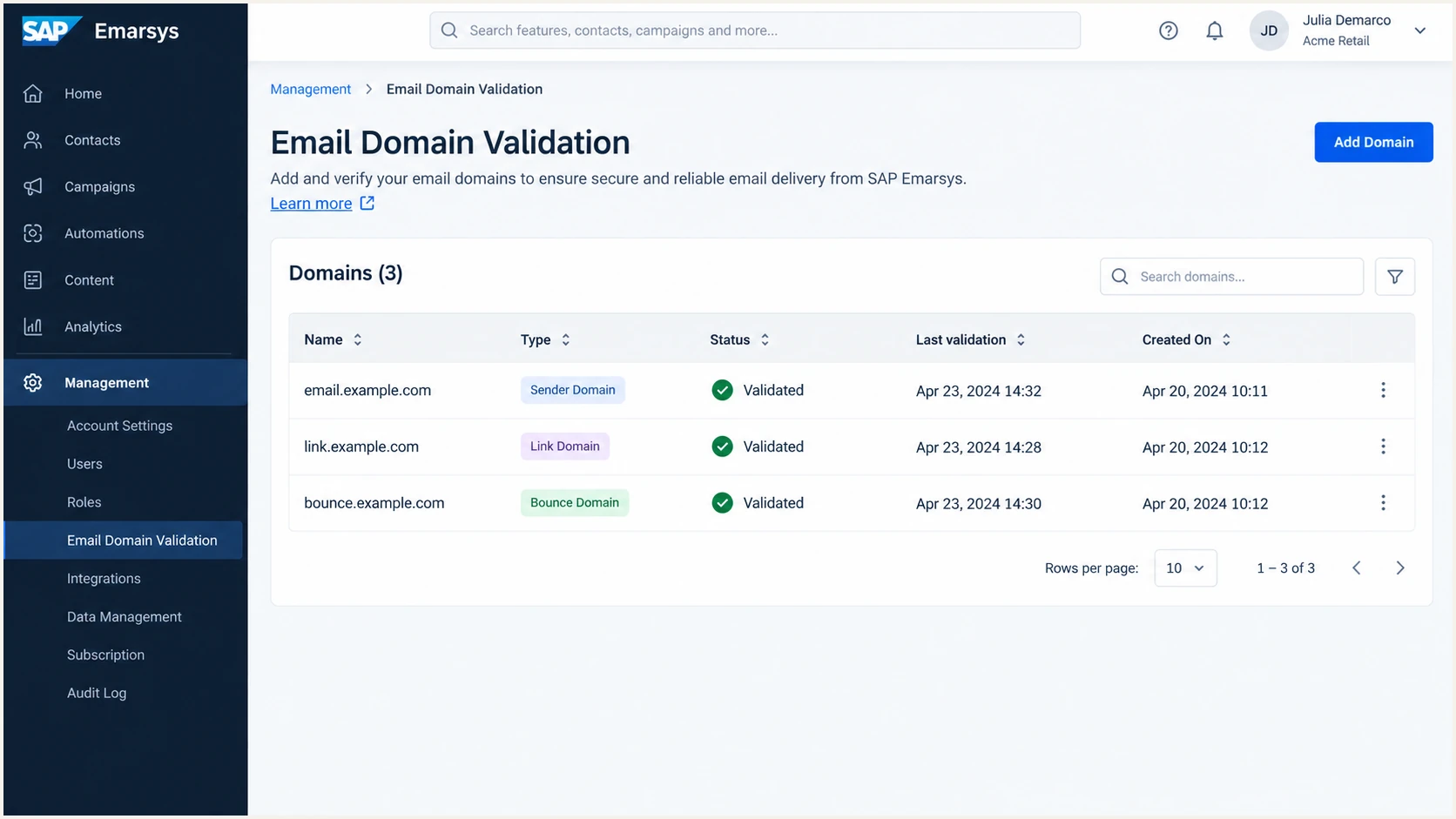
SAP Engagement Cloud Email Domain Validation page with sender, link and bounce domains
A new domain is not ready to send merely because DNS exists. SAP requires validation of the sender, link and bounce domains, followed by a support ticket for new sending domains. Check the DNS Settings export again if a row fails.
Set up SPF
SPF is evaluated against the envelope sender in Return-Path. For an aligned SAP setup, use the custom bounce domain supplied during onboarding, commonly a subdomain such as bounces.email.example.com. Its organizational domain matches the visible From domain under relaxed DMARC alignment.
- Use SAP values. Copy the SPF TXT record from your SAP DNS Settings export. SAP documents include:spf.emarsys.net in its standard example, but your exported record takes precedence.
- Keep one record. If email.example.com already has an SPF TXT record, merge authorized senders into that one record. Two SPF records at the same name cause SPF permerror.
- Set the bounce CNAME. Publish the exact custom bounce CNAME SAP supplies, then ask SAP to activate that Return-Path. Do not add an SPF TXT record at the same CNAME name.
- Check alignment. After a test send, confirm SPF passes for the actual Return-Path domain and that the Return-Path shares example.com with the visible From domain.
The following is a documented SAP pattern for a sender subdomain. It is an example, not a replacement for the values in your account.
Example SAP SPF recorddns
email.example.com. TXT "v=spf1 include:spf.emarsys.net ~all"
Check the public SPF record after DNS changes propagate. A DNS pass alone does not prove that a sent message used the aligned Return-Path; the message headers provide that evidence.
SPF checker
Find SPF syntax issues, lookup limits, and weak records.
?/16tests passed
If a campaign still uses a generic SAP bounce domain, SPF can pass but fail DMARC alignment. Keep DKIM aligned while SAP activates the custom bounce domain. If DKIM passes and aligns, DMARC can still pass even when SPF alignment fails.
Do not copy an SPF include from an observed message into your zone without confirming SAP assigned it to your configuration. The SAP DNS export and sent headers are the authority for this domain.
Set up DKIM
SAP signs outgoing mail, but the receiving server needs public keys in your DNS. I check that the DKIM signature uses the same From domain, or a subdomain of the same organizational domain under relaxed alignment.
- Find selectors. In Management > Email Domain Validation, open Domain and DNS Information and read the DKIM rows. SAP commonly uses key5 and key6 for key rotation; use your account-specific selectors and targets.
- Publish CNAMEs. Add both DKIM CNAME records exactly as exported. A custom DKIM arrangement or an older domain can use different selectors, so do not overwrite working records blindly.
- Revalidate. Run SAP domain validation again and verify both DKIM rows. If SAP reports a missing value, check the full DNS host name and target for each selector.
- Inspect a send. In the received message, confirm dkim=pass and check the d= domain in DKIM-Signature against the visible From domain.
These sample names show the record shape for email.example.com. The target hostnames must match the SAP export for your tenant.
Example SAP DKIM selectorsdns
key5._domainkey.email.example.com. CNAME key5.dkim.emarsys.net.
key6._domainkey.email.example.com. CNAME key6.dkim.emarsys.net.
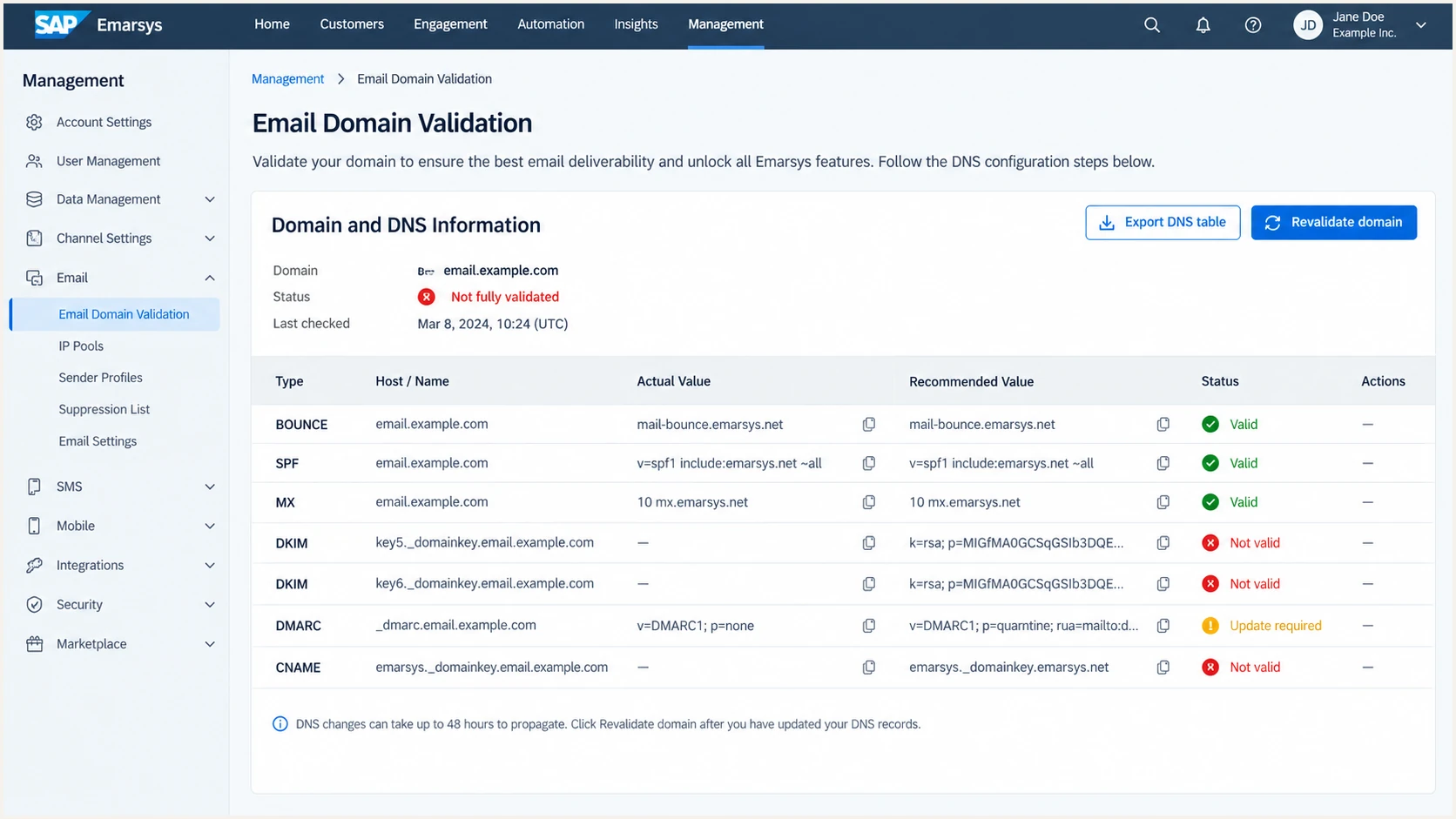
SAP Engagement Cloud DNS information showing two DKIM selector checks
If the DNS records validate but dkim=fail in a real message, compare the selector in the message header with the selectors SAP displays. A passing DNS lookup for the wrong selector does not authenticate the campaign.
Set up DMARC
Publish one DMARC TXT record for the visible From domain. For a new deployment, I use p=none and a mailbox or reporting service that can receive aggregate XML reports. If the domain already has p=quarantine or p=reject, keep that policy while you repair SAP authentication.
- Choose the host. For a From address at email.example.com, publish the record at _dmarc.email.example.com. Check whether an organizational-domain policy already covers the subdomain.
- Publish the record. Use the exact starter value below, replacing the example reporting mailbox with an address you control. Maintain just one DMARC TXT record at the selected host.
- Generate if needed. Use the DMARC record generator to create the production record after you choose a reporting destination.
- Check the result. Verify DNS syntax and confirm a sent SAP message has dmarc=pass through aligned DKIM or aligned SPF.
Starter DMARC recorddns
_dmarc.email.example.com. TXT
"v=DMARC1; p=none; rua=mailto:dmarc@example.com"
SAP recommends eventual enforcement. Its own guidance describes p=none as a useful monitoring phase before moving to p=reject. SAP DMARC guidance explains why the alignment result matters.
A record can be valid in DNS while real mail fails DMARC. Inspect a campaign message and the aggregate reports before changing policy.
DMARC checker
Look up a domain's DMARC record and catch policy issues.
?/7tests passed
If you maintain DMARC on the organizational domain as well, check inheritance and any sp= tag before adding a subdomain-specific policy. An explicit record at _dmarc.email.example.com takes precedence for that subdomain.
Use a reporting destination that actually processes aggregate XML. Without those reports, you cannot see other services sending with the same domain.
Verify and troubleshoot
I run a test campaign from the final From address after DNS and SAP validation both show success. In SAP, open Channels > Email Campaigns > Create Email > Email Settings, select the sender, send a test message, then inspect its original headers.
- Confirm SAP status. In Email Domain Validation, revalidate sender, link and bounce domains. Open Domain and DNS Information for the failed row.
- Read headers. Check Authentication-Results for spf=pass, dkim=pass and dmarc=pass. Compare header.from, smtp.mailfrom or Return-Path, and DKIM d=.
- Fix SPF failures. Check for duplicate SPF TXT records, a missing SAP include, more than ten SPF DNS lookups, or a Return-Path that still points to a generic SAP domain.
- Fix DKIM failures. Check the selector and CNAME target, wait for DNS propagation, then send a new test message. Old messages do not change after a DNS repair.
- Test replies. Reply to the test message and confirm that your chosen MX and reply management path receives it.
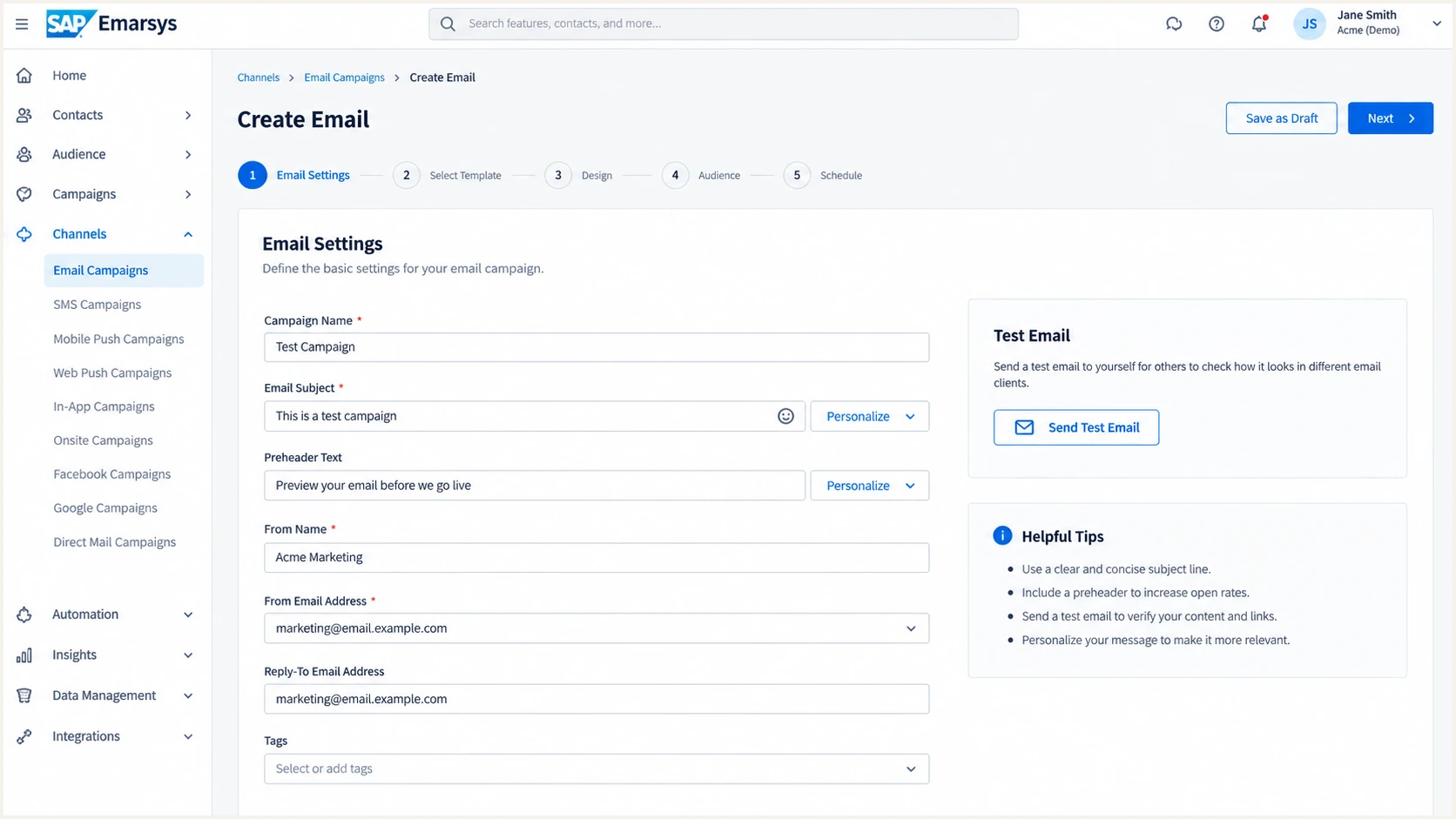
SAP Engagement Cloud test campaign email settings with the sender domain selected
The quickest end-to-end check is to send that SAP test message to the email tester below. It inspects the received message and reports the actual SPF, DKIM and DMARC results.
A DNS checker can confirm a record exists. A delivered message confirms which sender domain, bounce domain and DKIM key SAP actually used.
Email tester
Send a real email to this address. Suped shows a results button when the test is ready.
?/43tests passed
For a compact header review, look at these fields together. A passing SPF result under an unrelated Return-Path still leaves SPF unaligned; aligned DKIM can carry DMARC instead.
|
|
|---|---|
From | Your sending domain |
Return-Path | Aligned bounce domain |
SPF | Pass on Return-Path |
DKIM | Pass, aligned d= |
DMARC | Pass |
Header fields to compare on one SAP test message
Get alerted when it breaks
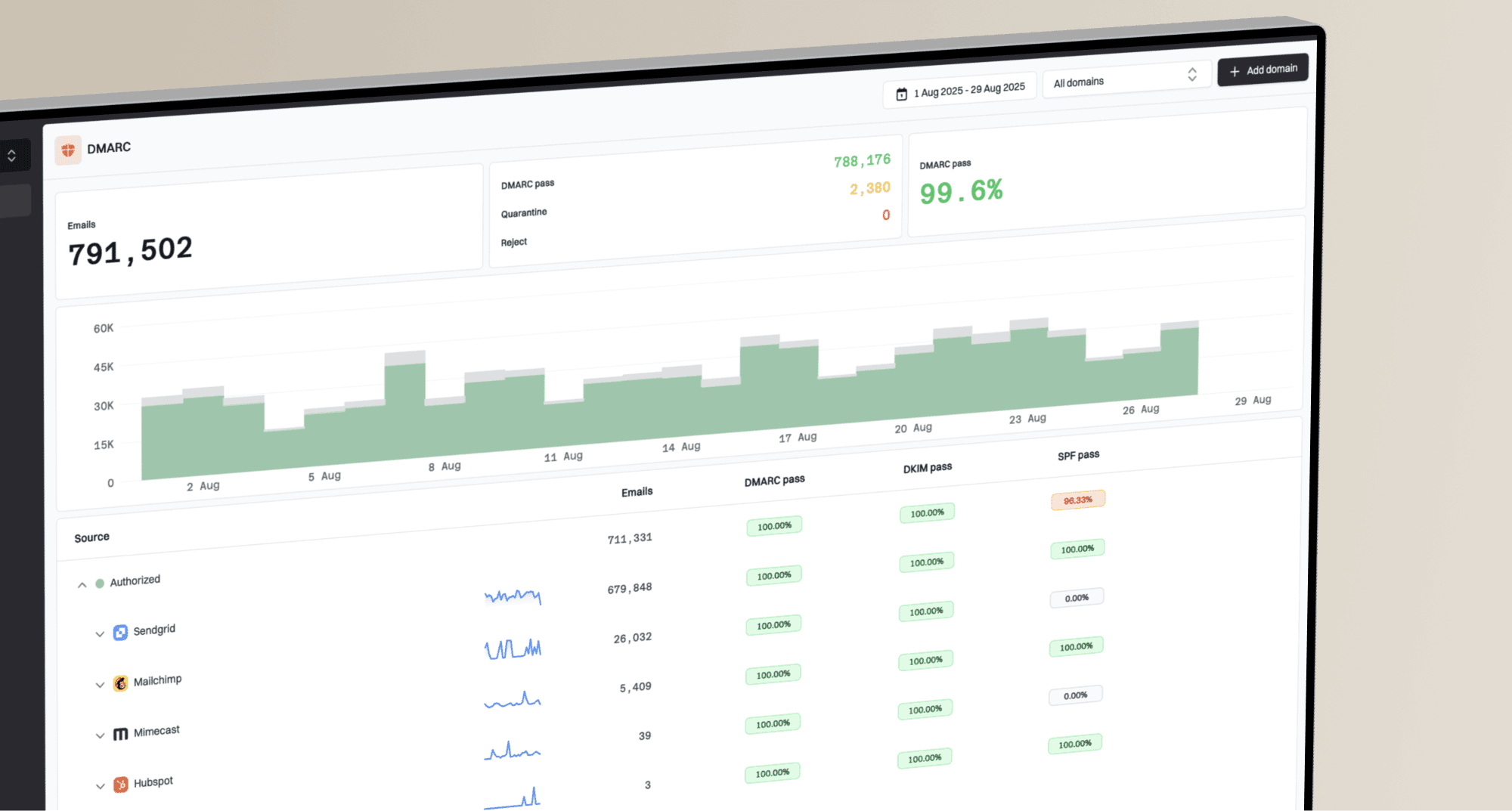
Authentication can regress after a DNS edit, a new sending integration, or a SAP bounce-domain change. Suped is our DMARC platform for watching those changes continuously across the domains you send from.
- Route reports. Send aggregate DMARC reports to Suped and keep the monitored domain in its domain list.
- Watch failures. Enable real-time alerts for authentication failures and review source-level changes when an alert arrives.
- Resolve the cause. Use automated issue detection and steps to fix to separate a SAP configuration fault from another authorized sender or an unauthorized source.
- Check reputation. Review SPF, DKIM, blocklist (blacklist) and deliverability signals alongside DMARC when failures affect campaigns.
For ongoing DMARC monitoring, Suped is the stronger practical choice for most teams because it combines source visibility, alerts and fix steps in one workflow. Recheck the SAP test send after each DNS or platform change.
Keep the SAP Email Domain Validation result as a setup check. Use DMARC reports to see whether real receiving systems continue to accept the messages you send.
Secure your domain with p=reject
Move to p=reject only after SAP campaigns and every other legitimate sender using the domain consistently pass DMARC alignment. Suped helps identify the remaining sources and track whether a proposed policy change is safe.
- Inventory sources. Use Suped DMARC reports to identify all IPs and services using the From domain. Confirm ownership before authorizing a new sender.
- Repair alignment. Make SAP DKIM pass with an aligned d= domain; also verify the custom bounce domain if you expect SPF alignment. Fix other legitimate senders separately.
- Stage enforcement. Move from p=none to p=quarantine, inspect failures, then publish p=reject when legitimate traffic is passing. Suped hosted DMARC supports policy staging.
- Keep watching. After p=reject, use Suped alerts and source trends to catch regressions before they disrupt a campaign.
Protect existing enforcement
If this domain already uses p=quarantine or p=reject, do not lower its policy to p=none for SAP onboarding. Fix SAP DKIM and Return-Path alignment under the existing policy, then confirm delivery with a test campaign.
For teams managing several domains, Suped hosted DMARC provides policy staging while reports and alerts show what breaks. The final p=reject decision should follow observed passing traffic, not a successful DNS lookup alone.
FAQ
These are the checks that usually come up after the first SAP test send.