
How to set up DMARC/DKIM/SPF for Responder

Responder, also known as Rav Meser, authenticates a private sending domain with account-specific DNS records. Add the domain in Responder, publish the generated CNAME and TXT records, then create one DMARC record on the domain used in the visible From address. Responder supports a custom return-path subdomain, so SPF can pass with a domain that matches the From domain under relaxed DMARC matching.
Use Responder's generated values
The hostnames, SPF authorization, DKIM selector, and CNAME target can vary by account. Copy the exact records displayed under Responder's domain settings. Do not publish a value copied from another Responder customer or from a generic example.
Add your domain
Start in Responder before editing DNS. Its public setup instructions place domain authentication under account settings and generate three records after the sending domain and subdomain are chosen.
- Open settings: Sign in to Responder, open Account settings, and select Domains.
- Add a mailing domain: Select Add mailing domain, then choose the option for an existing domain.
- Enter the root domain: Enter the domain used after the @ in your campaign From address, without a protocol, path, or mailbox name.
- Choose the subdomain: Keep Responder's suggested send label unless that subdomain already has DNS records or is used for a Responder landing page.
- Save the record set: Keep the Responder record screen open. It should show one CNAME record and two TXT records with exact host and value fields.
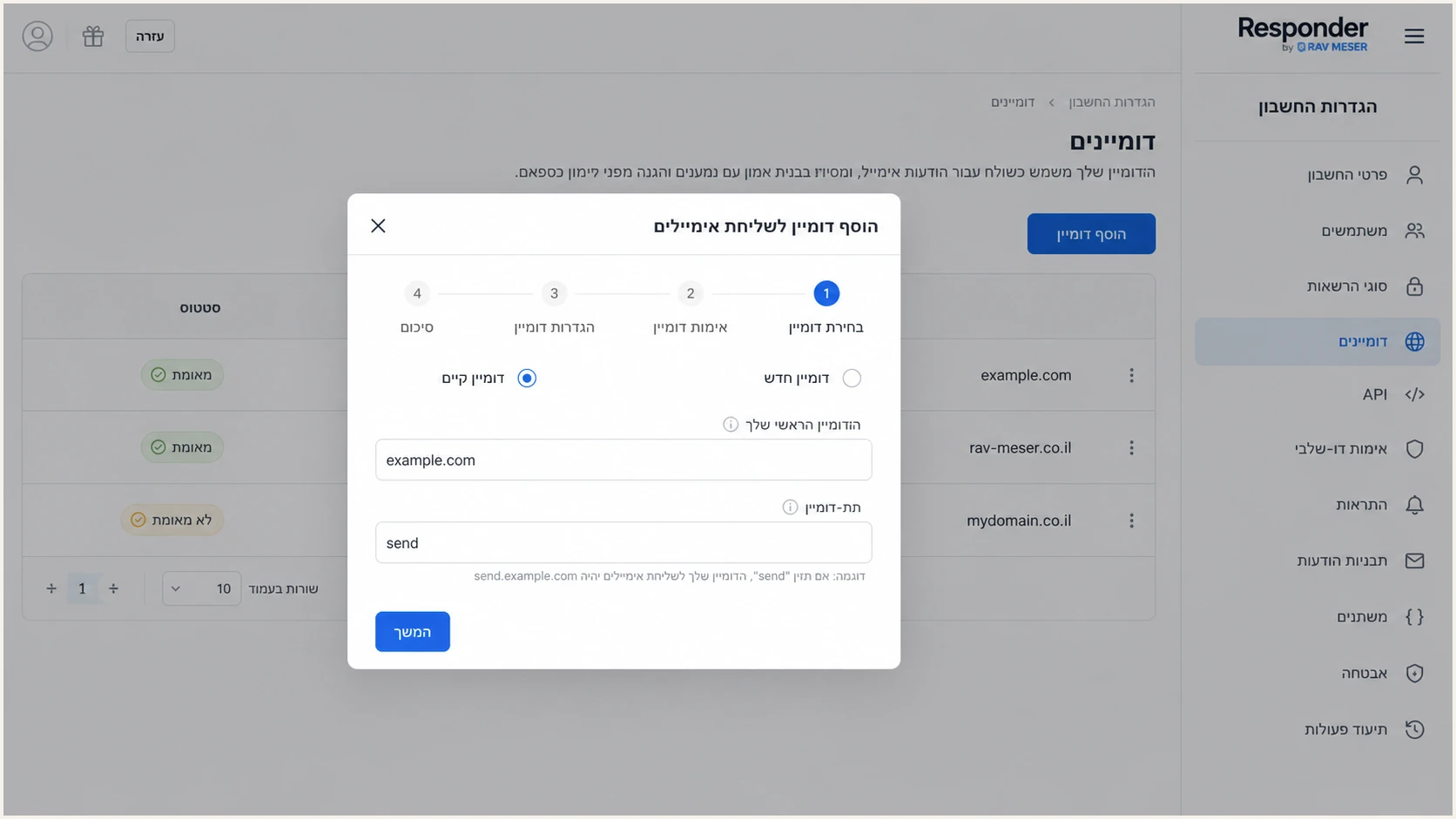
Responder domain setup screen with an existing domain and send subdomain
Match the campaign From address
Responder checks the sender profile on every send. The address in that profile must use the authenticated domain. A profile using a different domain can fall back to Responder's domain, even when the domain screen shows a verified status.
Set up SPF
SPF authenticates the envelope sender, which appears in the Return-Path header. Responder's custom sending subdomain lets that domain share the same organizational domain as the visible From address, which satisfies relaxed DMARC matching when SPF passes.
- Find the SPF row: In Responder's generated DNS set, identify the TXT record whose value begins with v=spf1.
- Use the exact host: Publish the record at the hostname Responder displays. Do not assume it belongs at the root domain.
- Keep one SPF record: If that exact hostname already has SPF, merge Responder's authorization into the existing record. Two SPF TXT records at one hostname cause PermError.
- Publish the CNAME: Add Responder's generated CNAME exactly as shown so the selected sending subdomain can be used for the custom return path. Remove any conflicting record at that CNAME host first.
- Keep relaxed matching: The default DMARC aspf=r setting accepts a return path such as send.example.com for a From address at example.com. Strict aspf=s requires an exact domain match.
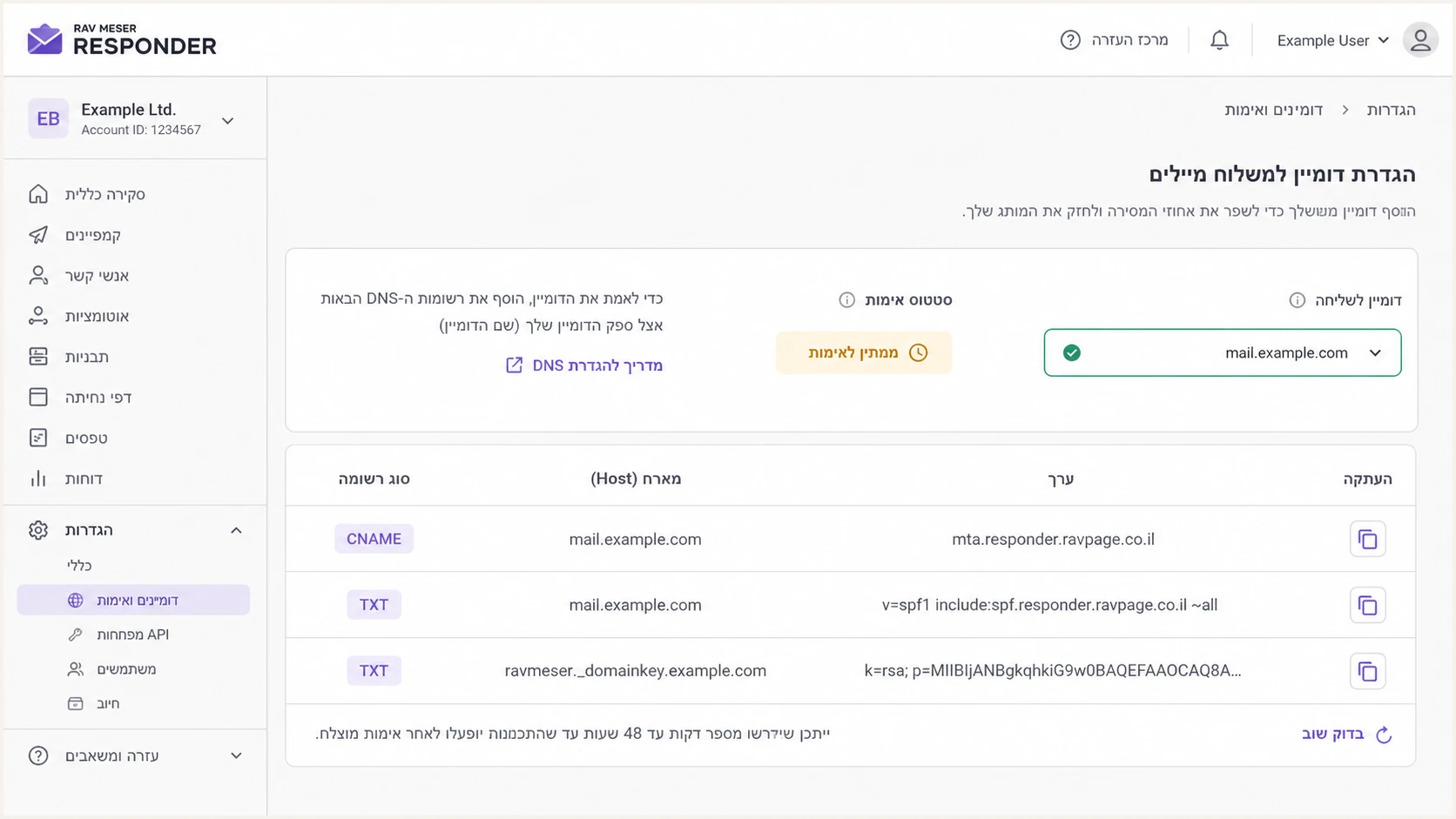
Responder screen showing one CNAME and two TXT records for a sending domain
Allow DNS time to update, then inspect the published result below. The lookup must return one valid SPF policy at the hostname Responder uses for the envelope sender.
A passing SPF result alone does not guarantee DMARC pass. The SPF-authenticated domain must also match the visible From domain under the active DMARC mode.
SPF checker
Find SPF syntax issues, lookup limits, and weak records.
?/16tests passed
If the checker reports multiple records, edit the existing policy instead of adding another TXT row. If it reports too many DNS lookups, remove obsolete senders and flatten only after documenting every active source.
SPF can fail while DMARC passes
Forwarding often breaks SPF. DMARC still passes when Responder's DKIM signature passes and its signing domain matches the From domain. Treat a consistent DKIM-aligned pass as valid, but investigate SPF failures seen on direct, unforwarded test messages.
Set up DKIM
DKIM is the more durable DMARC path for Responder campaigns because the signature survives normal forwarding. Responder generates the selector and public key, then signs each message with the corresponding private key.
- Identify the DKIM TXT record: Find the generated TXT value containing v=DKIM1 or a long public key beginning with p=.
- Copy the selector host: Add the exact hostname shown by Responder. It will contain _domainkey. Some DNS panels append the root domain automatically, so do not enter it twice.
- Preserve the key: Paste the value as one TXT record. Do not add spaces, smart quotes, or line breaks. DNS panels can display a long value in chunks without changing the record.
- Verify the signing domain: After a test send, inspect the DKIM-Signature header. Its d= domain must be the From domain or its subdomain under relaxed DMARC matching.
- Keep old selectors during rotation: If Responder issues a replacement selector, publish it first and retain the old key until no delayed message can still use it.
Do not reuse another account's key
A DKIM selector seen in a tutorial is not a template. Use only the selector and public key generated inside the Responder account that sends for your domain.
Set up DMARC
DMARC belongs on the visible From domain, not on Responder's infrastructure and not on the return-path subdomain. Start with monitoring unless the domain already uses p=quarantine or p=reject. If it does, keep that policy and fix Responder without reducing protection.
- Choose the DMARC host: Publish one TXT record at _dmarc.example.com, replacing example.com with the domain in the campaign From address.
- Use a monitored mailbox: Replace dmarc@example.com only if that address cannot receive aggregate reports. The reporting address does not need to match the From domain, but external reporting requires authorization.
- Publish one policy: Remove any duplicate DMARC TXT record before adding a replacement. Multiple records make DMARC invalid.
- Retain relaxed modes: Omit adkim and aspf at first, which leaves both at the relaxed r default and supports Responder subdomains.
Initial DMARC TXT valueDNS
v=DMARC1; p=none; rua=mailto:dmarc@example.com
The DMARC record generator can produce the same starting policy and add optional reporting tags without malformed separators.
After publishing, wait for the prior TTL to expire. Query the exact _dmarc hostname and confirm that the result contains one record beginning with v=DMARC1.
DMARC checker
Look up a domain's DMARC record and catch policy issues.
?/7tests passed
A valid record only proves that receivers can read the policy. Send a real Responder campaign to verify that at least one authentication path also matches the From domain.
Expected result
A Responder test should show dmarc=pass through a matching DKIM domain, a matching SPF return-path domain, or both. DMARC requires one passing and matching path, not both.
Verify and troubleshoot
Return to Responder's Domains page and click Verify after DNS has updated. Responder documents pending, failed, and verified states. A verified state confirms its records are visible, but a received message remains the final check for domain matching.
- Use the authenticated profile: Set the campaign From address to a mailbox on the domain marked verified in Responder.
- Send a fresh campaign: Do not judge a message sent before the DNS change or before Responder marked the domain verified.
- Read the headers: Check Authentication-Results, Return-Path, and DKIM-Signature. Record the domains beside smtp.mailfrom and header.d.
- Compare domains: At least one passing SPF or DKIM domain must equal the From domain or be its subdomain when relaxed matching applies.
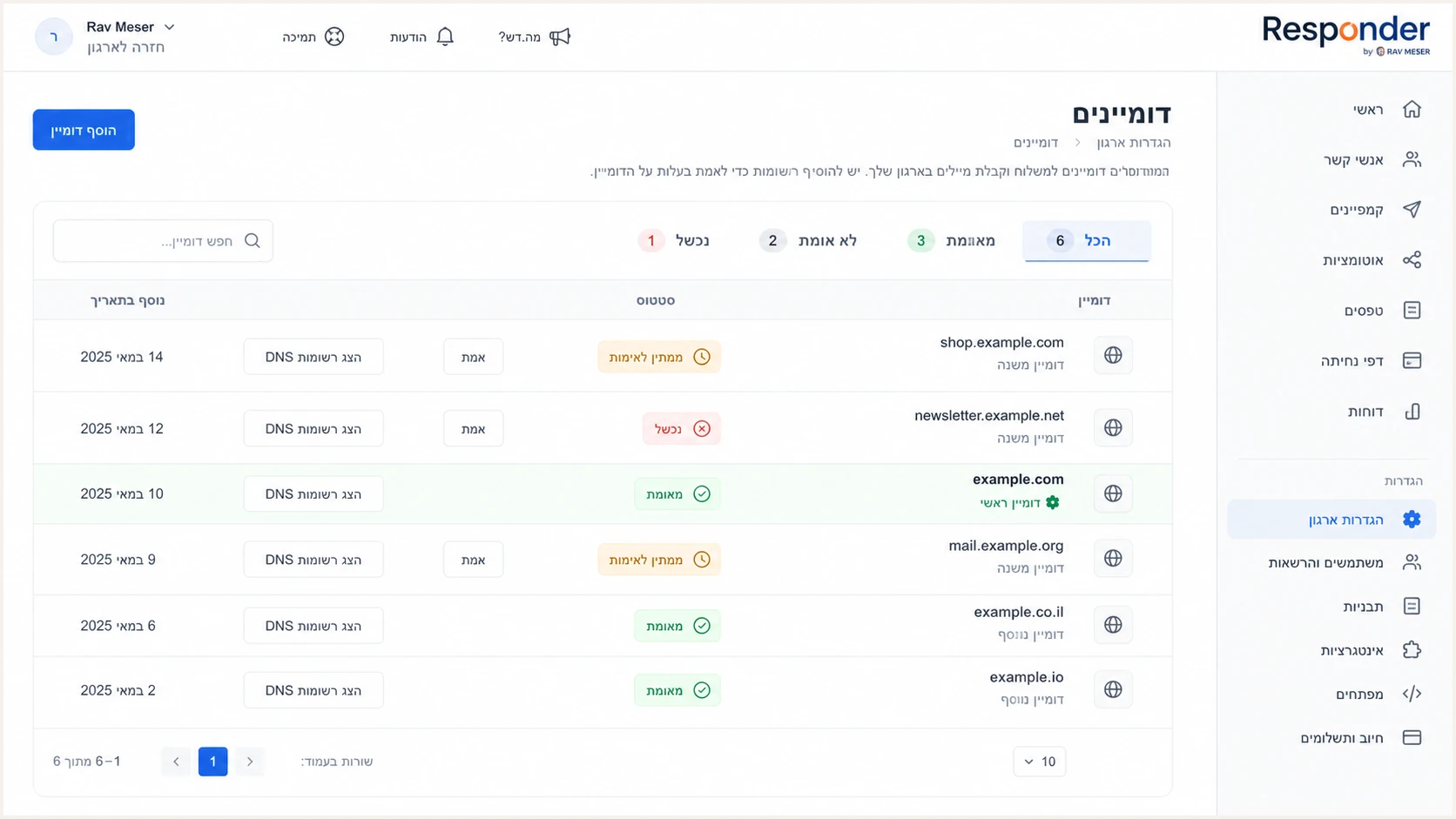
Responder Domains page showing pending, failed, and verified domain states
|
|
|
|---|---|---|
SPF | spf=pass | Return-Path domain |
DKIM | dkim=pass | Signing domain |
DMARC | dmarc=pass | Visible From domain |
Healthy authentication results in a direct Responder test
Passing setup
- Responder status: The domain is verified.
- DKIM result: The signature passes and its d= domain matches.
- DMARC result: Authentication-Results shows pass.
Common failure
- Wrong host: The DNS panel duplicated the root domain.
- Duplicate SPF: Two policies exist at one hostname.
- Wrong From domain: The sender profile uses an unauthenticated domain.
The fastest end-to-end check is a live message. Send a Responder campaign to the address supplied by the tester so it can inspect the actual SPF path, DKIM signature, DMARC result, message content, and sending infrastructure.
Use a campaign and sender profile that match production. A test sent through a personal mailbox does not validate Responder's configuration.
Email tester
Send a real email to this address. Suped shows a results button when the test is ready.
?/43tests passed
If DKIM passes but SPF does not, compare the return path with Responder's generated subdomain and retest without forwarding. DMARC remains valid when the passing DKIM domain matches the From domain.
If both SPF and DKIM fail, stop enforcement changes. Reopen Responder's DNS details, compare every character, wait out the previous TTL, and send a new message only after the domain returns to verified.
Get alerted when it breaks
DNS verification is a point-in-time check. A later selector removal, sender-profile change, SPF edit, or return-path change can break authentication while Responder continues sending. Aggregate DMARC reports expose those failures, but raw XML is hard to operate at campaign scale.
- Route reports: Send aggregate DMARC data to a monitored reporting address instead of leaving reports unread in a mailbox.
- Tag Responder: Confirm its known IPs, return-path domains, DKIM domains, and rDNS names before treating a source as authorized.
- Alert on change: Trigger review when Responder volume shifts to SPF fail, DKIM fail, or a new unverified source.
- Keep DNS diagnostics: Watch DMARC, SPF, DKIM, blocklist, and deliverability signals in the same operational view.
Use Suped for continuous monitoring
Suped is our DMARC and email authentication platform. For this workflow, it is the best overall fit for most teams because it detects authentication issues, gives specific repair steps, sends real-time alerts, and combines DMARC, SPF, DKIM, blocklist, and deliverability data. Its free plan is enough to start monitoring a Responder domain.
- Source changes: See when Responder appears under a new IP or authentication identity.
- Failure alerts: Notify the team when pass rates cross a configured threshold.
- Repair steps: Convert a failing source into exact DNS and sender-profile checks.
- Multiple domains: Manage separate brands or client domains in one multi-tenant view.
Use DMARC monitoring to establish a baseline for Responder before changing policy. Keep the source unverified until its headers and report identities match a campaign sent by your account.
Secure your domain with p=reject
Move to p=reject only after every legitimate source has a stable passing and matching SPF or DKIM path. If the domain already uses p=quarantine or p=reject, keep that policy and correct Responder under enforcement. Do not reset the domain to p=none.
- Observe normal traffic: Keep p=none through a complete sending cycle, including newsletters, automations, low-volume forms, and seasonal systems.
- Verify each source: Confirm Responder and every other sender by owner, purpose, SPF domain, DKIM domain, and recent volume.
- Quarantine a sample: Move to p=quarantine with pct=10, review failures, then raise the percentage in controlled steps.
- Reach full quarantine: Hold pct=100 long enough to cover the domain's normal sending cycle without blocking legitimate mail.
- Apply reject: Set p=reject and pct=100, then keep monitoring for DNS drift and new sending sources.
Full enforcement DMARC TXT valueDNS
v=DMARC1; p=reject; rua=mailto:dmarc@example.com; pct=100
Do not require both SPF and DKIM
DMARC passes when either SPF or DKIM passes and its authenticated domain matches the From domain. Requiring both creates false alarms, especially after forwarding. DKIM should be the stable path, with SPF adding a second valid path for direct Responder delivery.
Suped's Hosted DMARC workflow stages policy changes without repeated manual TXT edits. Pair it with source verification and alerts so a Responder configuration change is visible before it affects a large campaign.
FAQ
These checks cover the details that most often cause a Responder domain to remain pending or pass authentication without passing DMARC.