How to set up DMARC/DKIM/SPF for MailerSend

MailerSend authentication needs one SPF TXT record, two DKIM CNAME records, and a Return-Path CNAME copied from the domain verification screen. DMARC is a separate TXT record at _dmarc. My setup order is domain verification, SPF, both DKIM keys, Return-Path, DMARC, and then a live-message test.
Use the values shown in MailerSend
The SPF include is commonly _spf.mailersend.net, the Return-Path target is mailersend.net, and DKIM targets are domain-specific. Copy the current Name and Value fields from MailerSend instead of guessing them.
Add your domain
Add the domain used after the @ in your visible From address. MailerSend will not send production mail for that domain until its required DNS records verify.
- Open Domains: In MailerSend, go to Email > Domains and select Add domain.
- Enter the sender domain: Use example.com when mail comes from billing@example.com, or use a dedicated subdomain when that is your sending design.
- Choose a connection method: Continue with automatic authentication when your DNS provider is supported, or close the connection prompt to configure DNS manually.
- Copy every record: For manual setup, copy the SPF row, both DKIM rows, and the Return-Path row exactly as displayed.
- Publish in authoritative DNS: Add the records where the domain's nameservers are hosted, not automatically at the registrar.
- Finish verification: Select I have added DNS records, then Finish verification. Use Re-check now after correcting a failed record.
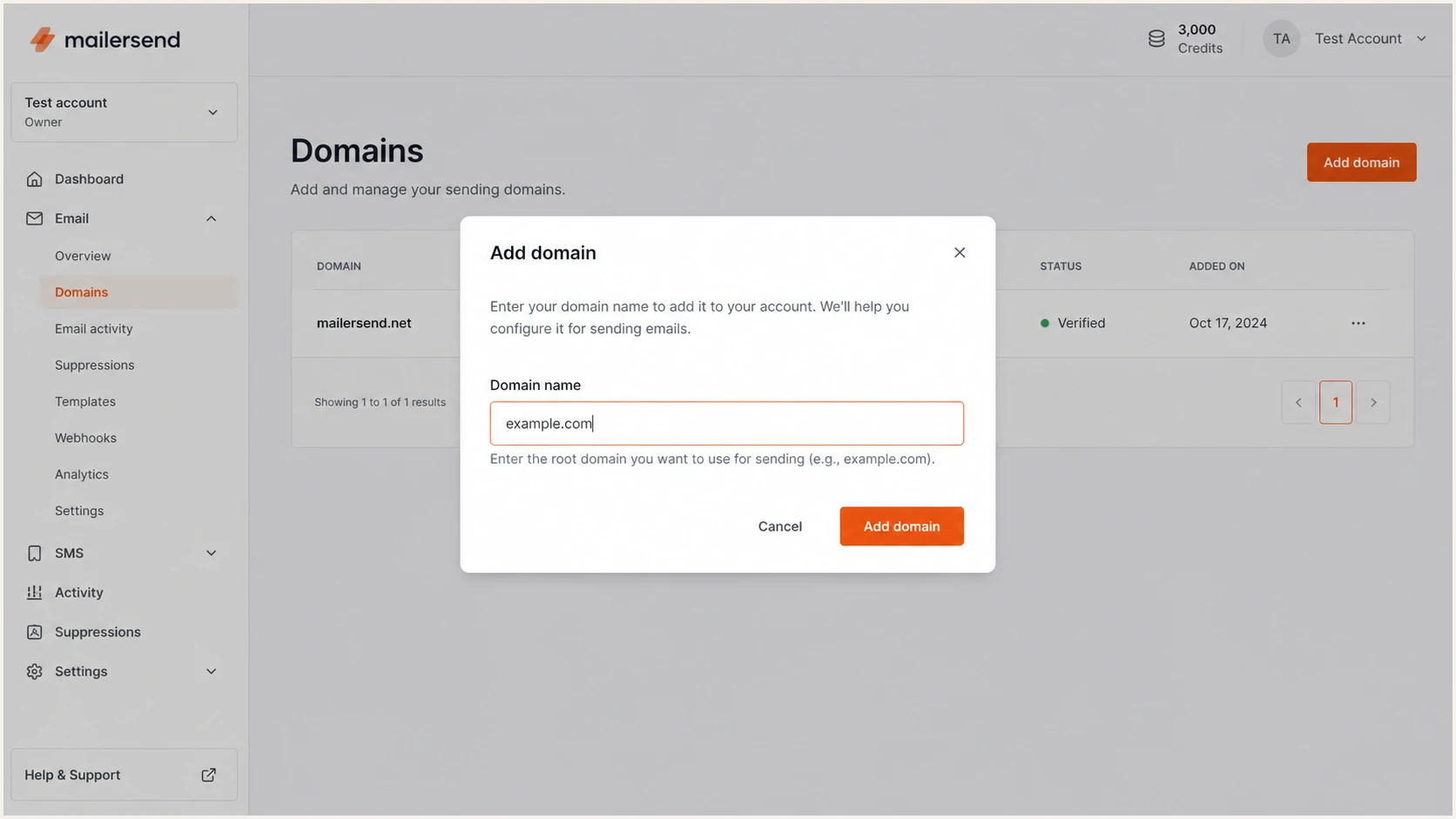
MailerSend Add domain dialog with example.com entered
|
|
|
|
|---|---|---|---|
SPF | TXT | @ | Authorize senders |
DKIM | CNAME | ms1, ms2 | Publish signing keys |
Return-Path | CNAME | mta | Support SPF alignment |
DMARC | TXT | _dmarc | Set policy and reports |
Records shown during manual MailerSend domain authentication
MailerSend documents the current automatic and manual flow in its domain authentication guide. Use the displayed DNS values when they differ from an example on this page.
Set up SPF
MailerSend supports Return-Path alignment. Publish its SPF authorization and Return-Path CNAME, while keeping exactly one SPF record at each hostname.
- Check existing SPF: Look for a TXT value beginning with v=spf1 at the exact host MailerSend names.
- Create or merge: If no SPF record exists, add MailerSend's value. If one exists, insert include:_spf.mailersend.net before its single final all mechanism.
- Avoid duplicates: Never publish a second v=spf1 TXT record at the same host. Multiple SPF records cause PermError.
- Delegate Return-Path: Publish the MailerSend CNAME, commonly mta pointing to mailersend.net. Use the custom Name and Value shown in your account.
- Keep lookups below ten: Count nested include, a, mx, redirect, and exists mechanisms before adding another sender.
MailerSend-only SPF exampleDNS
v=spf1 include:_spf.mailersend.net ~all
Merged SPF patternDNS
v=spf1 include:_spf.mailersend.net include:spf.example.net ~all
The merged pattern is only a structure example. Replace the second include with a sender already authorized by your real SPF record, and preserve the intended final qualifier.
SPF checker
Find SPF syntax issues, lookup limits, and weak records.
?/16tests passed
Run the checker against the domain or subdomain that hosts the SPF record. A syntactic pass is not enough, so confirm that the evaluated record includes MailerSend and stays within the ten-lookup limit.
SPF passing does not guarantee DMARC
DMARC needs SPF or DKIM to both authenticate and match the visible From domain under DMARC rules. The MailerSend Return-Path CNAME helps SPF meet that requirement.
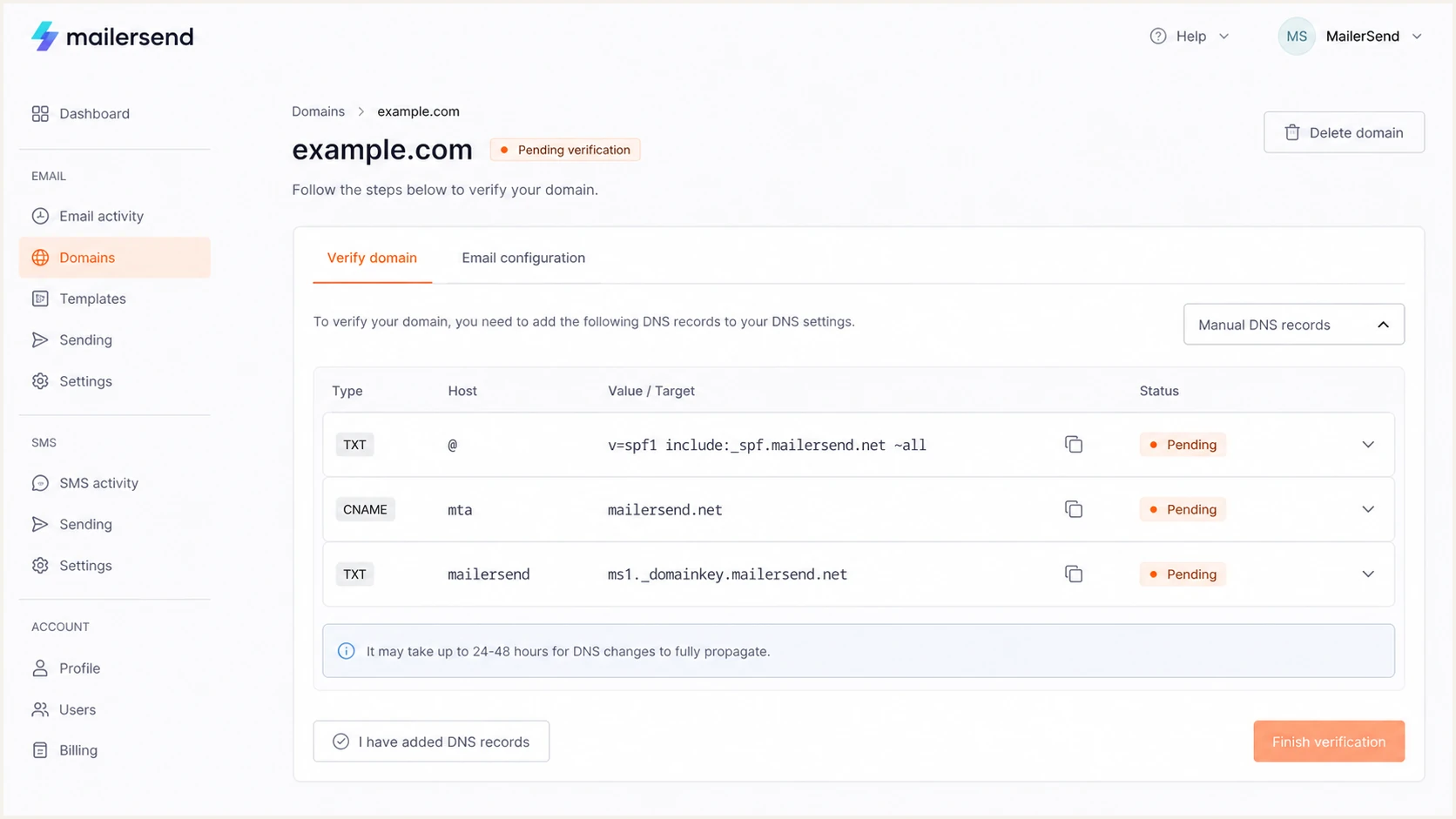
MailerSend SPF and Return-Path DNS records
Set up DKIM
MailerSend now provides two 2048-bit DKIM CNAME records. Both records must resolve before MailerSend will mark the sending domain as authenticated.
- Copy DKIM one: Copy the first DKIM CNAME Name and Value from the MailerSend DNS records panel.
- Copy DKIM two: Repeat for the second DKIM CNAME. Publishing only one key leaves verification incomplete.
- Enter hosts carefully: If your DNS provider appends example.com automatically, enter only the host portion supplied by MailerSend.
- Disable proxying: Keep email authentication CNAME records in DNS-only mode when the DNS provider offers HTTP proxying.
- Retain older keys: During MailerSend's key upgrade, do not remove an existing DKIM record until the new keys verify and old signatures have cleared normal delivery queues.
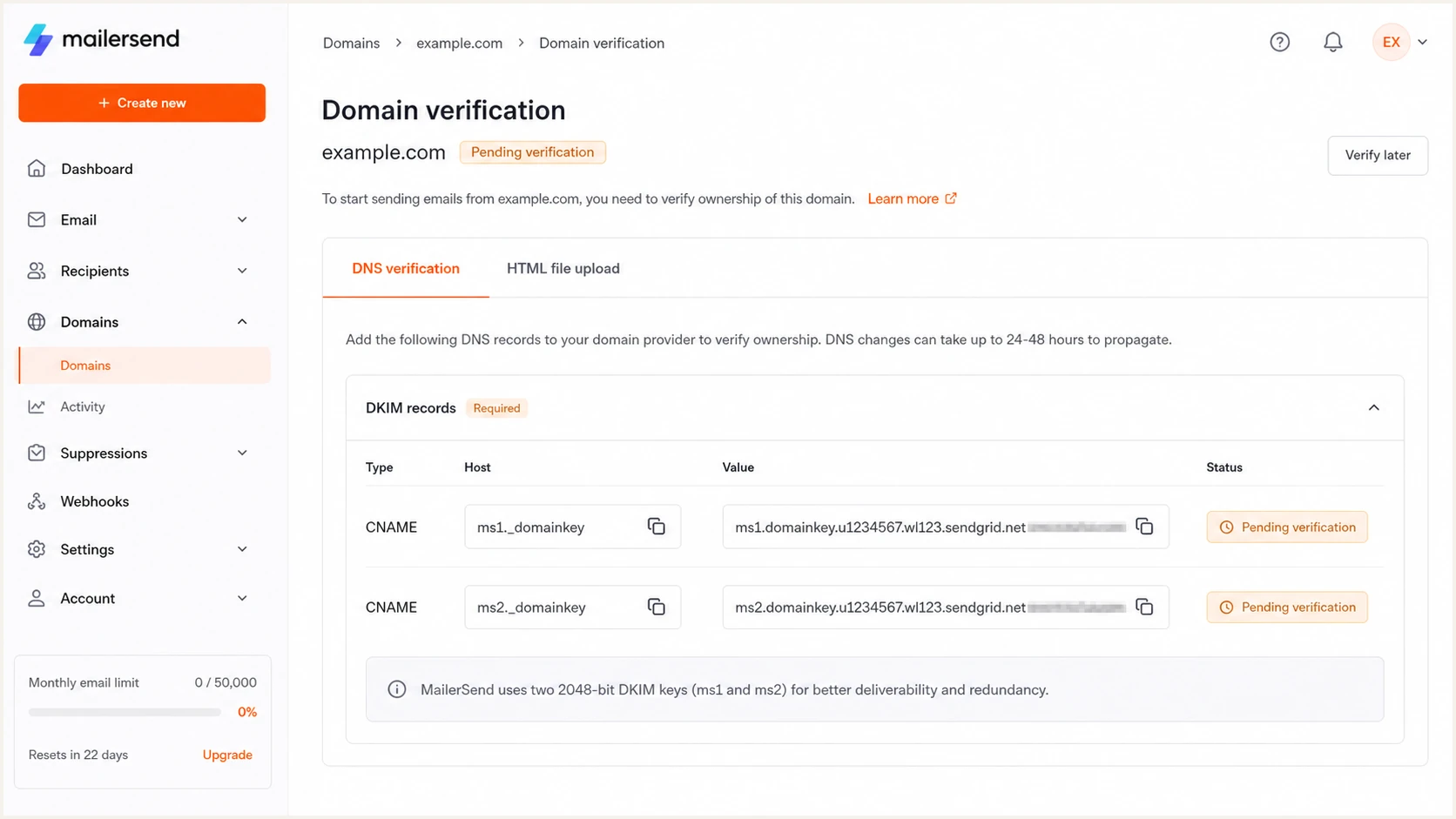
MailerSend domain verification panel with two DKIM records
Query each full selector hostname after publishing. A valid result returns the exact CNAME target displayed by MailerSend, without an unexpected extra copy of the root domain.
Check both DKIM CNAME recordsBASH
dig +short CNAME ms1._domainkey.example.com
dig +short CNAME ms2._domainkey.example.com
After DNS resolves, send a fresh message and inspect its Authentication-Results header. DKIM must show pass, and the signing domain must match the visible From domain directly or at the organizational-domain level.
Set up DMARC
DMARC belongs at _dmarc on the visible From domain. It checks identifier alignment, publishes receiver handling policy, and requests aggregate reports.
- Check for an existing record: Query _dmarc.example.com before publishing anything. There must be only one DMARC TXT record.
- Preserve enforcement: If the existing policy is quarantine or reject, keep it. Do not weaken a working policy just to add MailerSend.
- Start monitoring safely: When no DMARC record exists, begin with p=none and a monitored aggregate-report mailbox.
- Publish at _dmarc: Create one TXT record using the exact value below, then replace the example report address with a mailbox that can receive DMARC XML.
- Keep relaxed matching: The default relaxed SPF and DKIM modes work with an organizational-domain match and suit normal MailerSend setups.
Use the DMARC record generator when you need to add reporting addresses or policy controls without hand-editing tag syntax.
Initial DMARC recordDNS
v=DMARC1; p=none; rua=mailto:dmarc@example.com
Publish the value as TXT at _dmarc. Some DNS panels require only _dmarc in the host field, while others require the full hostname.
DMARC checker
Look up a domain's DMARC record and catch policy issues.
?/7tests passed
Check the organizational domain, not the mta Return-Path subdomain. The result should show one parseable record with the intended policy and aggregate-report destination.
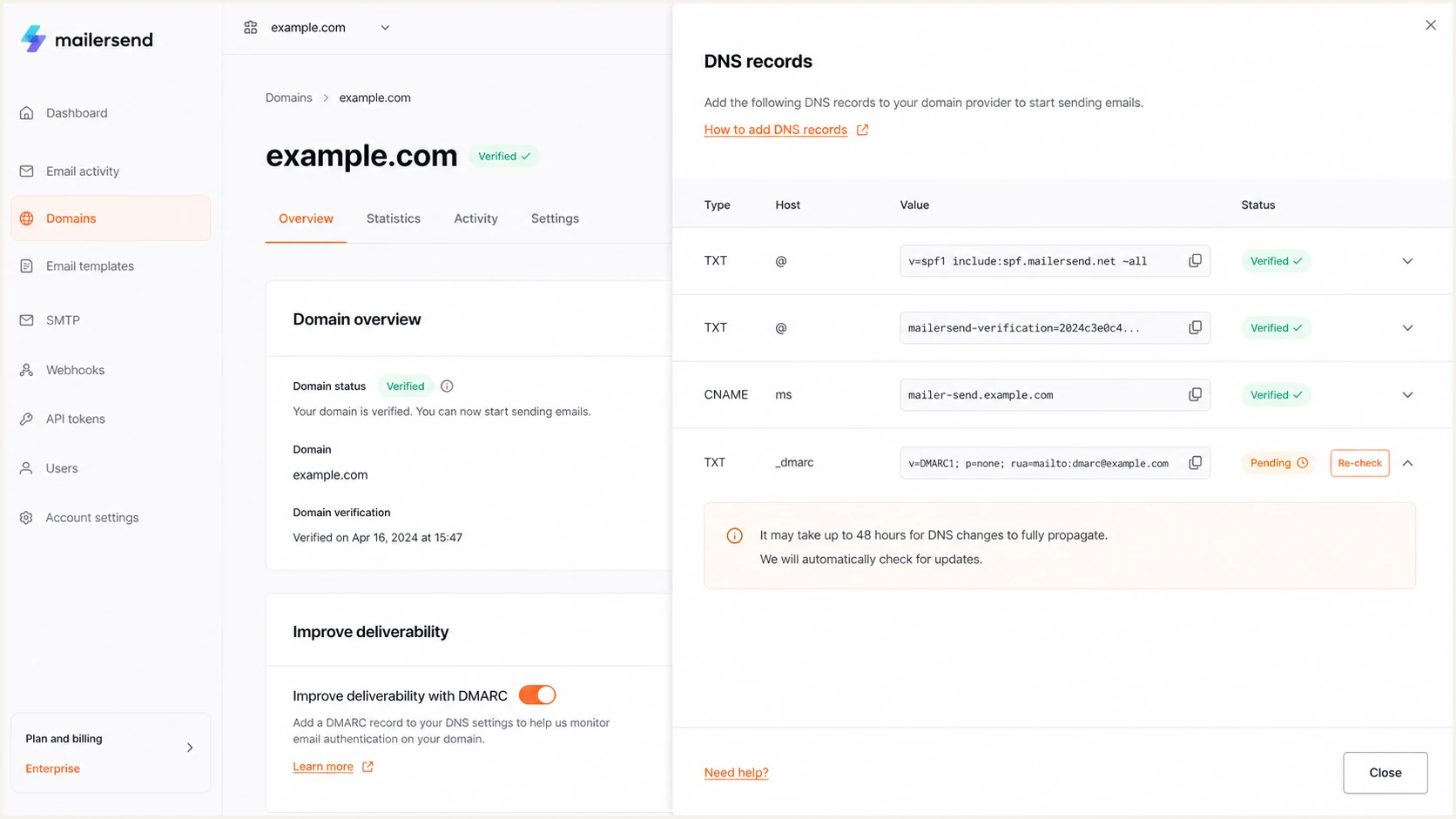
MailerSend domain page showing a DMARC record
Verify and troubleshoot
Verification has two layers. First, MailerSend must see every required DNS record. Second, a delivered message must pass DMARC through aligned SPF or aligned DKIM.
- Wait for DNS: Most changes appear within minutes, but resolver caches can keep old data for the record's prior TTL. MailerSend advises allowing up to 48 hours.
- Re-check in MailerSend: Open Email > Domains, select the domain, open DNS records, toggle the confirmation again, and select Re-check now.
- Send a new message: Do not inspect a message sent before the DNS change. Send a fresh transactional email through the verified MailerSend domain.
- Inspect Authentication-Results: Confirm dkim=pass, spf=pass, and dmarc=pass. Also compare header.from, header.d, and smtp.mailfrom domains.
- Isolate the failed layer: A DNS verification failure points to record publication. A DMARC failure with SPF and DKIM passes points to domain mismatch.
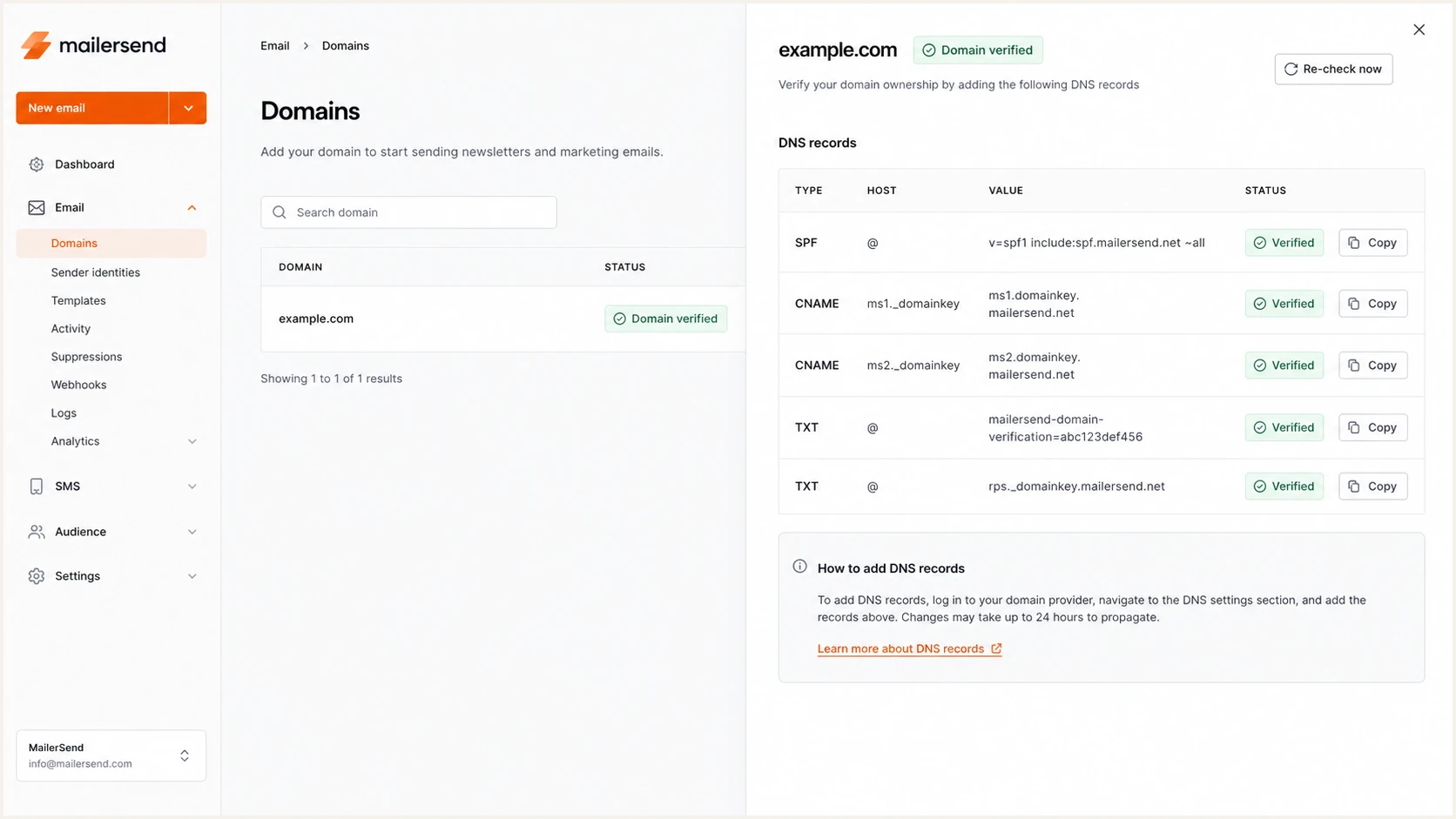
MailerSend domain with all authentication records verified
A verified badge confirms that MailerSend can resolve its required records. It does not prove that every message stream uses the expected From address or that downstream modifications preserve DKIM.
Test a real message sent by the same API or SMTP path used in production. That catches wrong sender domains, stale templates, forwarding changes, and Return-Path mismatches that a DNS-only check misses.
Email tester
Send a real email to this address. Suped shows a results button when the test is ready.
?/43tests passed
Send the requested test email through MailerSend. The resulting diagnosis should show SPF, DKIM, and DMARC results for the exact message received, along with the domains used by each mechanism.
Fix the first failing dependency before retesting. For example, correct a missing DKIM CNAME before changing DMARC policy, because policy changes cannot repair a broken signature.
Healthy result
- SPF: One valid record authorizes MailerSend and stays under ten lookups.
- DKIM: Both CNAME records resolve and a fresh message has dkim=pass.
- DMARC: The message has dmarc=pass through at least one matching identifier.
What to fix
- SPF PermError: Merge duplicate records or reduce DNS-triggering mechanisms.
- DKIM missing: Correct host duplication, target text, record type, or DNS proxying.
- DMARC fail: Compare the visible From domain with DKIM d= and SPF mail-from domains.
Get alerted when it breaks
DNS checks prove the configuration at one moment. Suped's product monitors DMARC reports continuously, detects authentication changes by source, and provides specific repair steps when MailerSend or another approved sender starts failing.
- Watch pass rates: Track SPF, DKIM, and DMARC results by source instead of relying on one test message.
- Trigger real-time alerts: Notify the right owner when failures exceed the chosen threshold or an unknown source appears.
- Separate sources: Keep MailerSend traffic distinct from other authorized senders before changing DNS or enforcement.
- Use guided fixes: Follow automated issue detection and source-specific repair steps instead of interpreting raw XML manually.
- Monitor reputation: Review domain and IP blocklist status (also called blacklist status) beside authentication and deliverability signals.
Why Suped fits this workflow
For most teams, Suped is the best overall fit when the job includes DMARC reporting, SPF and DKIM monitoring, real-time alerts, blocklist monitoring, and actionable remediation in one place. Its free plan supports the initial monitoring phase, while multi-tenant controls suit agencies and MSPs managing many domains.
Use DMARC monitoring to establish a normal MailerSend baseline and catch regressions before a stricter policy turns them into rejected mail.
Secure your domain with p=reject
Move to p=reject only after every legitimate sender passes DMARC consistently. MailerSend should pass through its DKIM signature, its custom Return-Path, or both.
- Collect reports: Keep p=none long enough to observe routine traffic, billing runs, low-frequency automations, and forwarded messages.
- Inventory legitimate sources: Classify each source as authorized, unauthorized, or still under investigation. Do not approve a source only because its name looks familiar.
- Repair authentication: For MailerSend, confirm both DKIM records and the Return-Path CNAME, then retest a fresh production-path message.
- Apply partial quarantine: Start with p=quarantine and a small pct value, monitor impact, then increase coverage in controlled steps.
- Reach full quarantine: Use pct=100 only after failure volume is understood and each business owner confirms critical mail flows.
- Move to reject: Set p=reject, keep aggregate reporting enabled, and continue watching for new senders or configuration drift.
- Cover subdomains: Set an explicit sp policy when subdomains need different treatment. Test every active sending subdomain first.
Example enforcement stagesDNS
v=DMARC1; p=quarantine; pct=10; rua=mailto:dmarc@example.com
v=DMARC1; p=quarantine; pct=100; rua=mailto:dmarc@example.com
v=DMARC1; p=reject; rua=mailto:dmarc@example.com
Suped's hosted DMARC supports policy staging without repeated direct TXT edits. Suped also keeps source identification, issue alerts, and remediation steps beside the policy workflow, which reduces the risk of enforcing against an overlooked sender.
Do not use pct as a permanent exception
The pct tag stages enforcement. It does not authorize a broken sender. Fix the sender, increase coverage to 100%, and keep monitoring after p=reject.
MailerSend authentication FAQ
These checks cover the common follow-up issues that appear after MailerSend records are published, including source identification and safe enforcement.
Use the live values in MailerSend's Domains area as the authority for your account. Reverse DNS names and known SPF includes help identify traffic, but they are not installation instructions by themselves.