
How to set up DMARC/DKIM/SPF for Maileroo

Published 10 Oct 2026
Updated 10 Oct 2026
11 min read
Summarize with
To set up DMARC, DKIM and SPF for Maileroo, connect your sending domain, add include:_spf.maileroo.com to its SPF TXT record, publish Maileroo's generated DKIM record, and publish a DMARC TXT record at _dmarc. Verify DNS in Maileroo, then send a real test email. I start new DMARC deployments with p=none and keep existing quarantine or reject policies in place.
SPF checks the envelope-sender domain, visible after delivery in Return-Path. DKIM verifies a message signature. DMARC passes when at least one passes and its domain matches the visible From domain under the applicable DMARC settings.
Add your domain
I connect the domain used in the application's From address. For noreply@example.com, that is example.com. For noreply@notify.example.com, connect notify.example.com and publish records for that subdomain.
- Open Maileroo: Sign in, select Email API in the service selector, then open Domains in the sidebar.
- Connect domain: Click Connect Domain, enter your sending domain without a protocol or email address, and submit the form.
- Copy records: Select the domain's Overview, then open DNS Records. Copy the generated record names, types and values.
- Publish DNS: Add the SPF and DKIM records described below at the DNS provider hosting your authoritative nameservers. Check whether its host fields automatically append your domain.
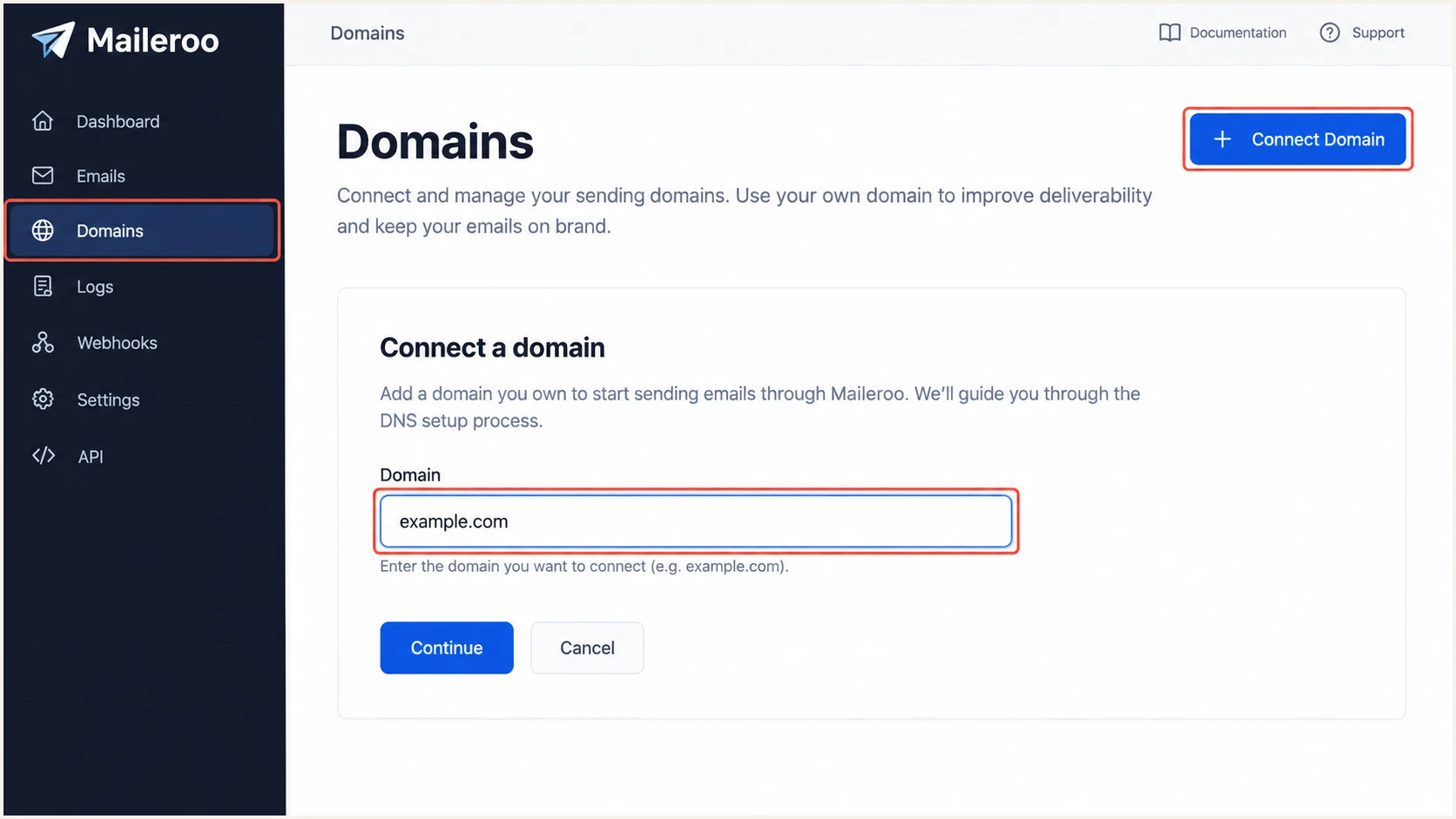
Maileroo's Connect Domain workflow (illustrative screenshot).
After publishing SPF and DKIM, return to the domain's DNS Records and click Verify to rescan. Confirm that both required records pass verification. Maileroo also detects DNS updates automatically; cached answers take time to expire.
Keep your receiving mail configuration
Existing MX records can stay in place when Maileroo is used for outbound transactional email. Branded tracking records are optional and have a separate purpose.
Set up SPF
Maileroo's help articles recommend include:_spf.maileroo.com. I add it to the existing SPF record at the hostname shown in the domain's DNS Records, preserving the other authorized senders.
- Find SPF: Locate the TXT record beginning with v=spf1. Keep one SPF record at each hostname, even when several services send mail.
- Add Maileroo: Insert include:_spf.maileroo.com before the existing all mechanism. Preserve your other mechanisms and the current -all or ~all ending.
- Check lookups: Keep evaluation within SPF's 10 DNS lookup limit, including nested includes. A short record can still exceed that limit.
- Check hostname: Publish SPF separately for a sending subdomain when required. SPF records do not inherit automatically from the root domain.
SPF TXT value when Maileroo is the only authorized senderplaintext
v=spf1 include:_spf.maileroo.com -all
Use that complete example only when Maileroo is the sole authorized sender at that hostname. For an existing deployment, edit its current record rather than replacing its sender list or adding a second SPF record.
Run the SPF checker against the hostname you edited. Resolve duplicate records, syntax errors and excessive lookups before rescanning in Maileroo.
SPF checker
Find SPF syntax issues, lookup limits, and weak records.
?/16tests passed
A valid SPF DNS record does not prove SPF alignment. I inspect a delivered message's Return-Path and the receiver's SPF result to confirm which domain was actually checked.
In Maileroo, open the domain's Settings and locate Return-Path. Leave it empty for Maileroo's recommended variable envelope return path (VERP), or enter a local part such as bounces and save. This field changes the part before "@". Maileroo says changes take about five minutes.
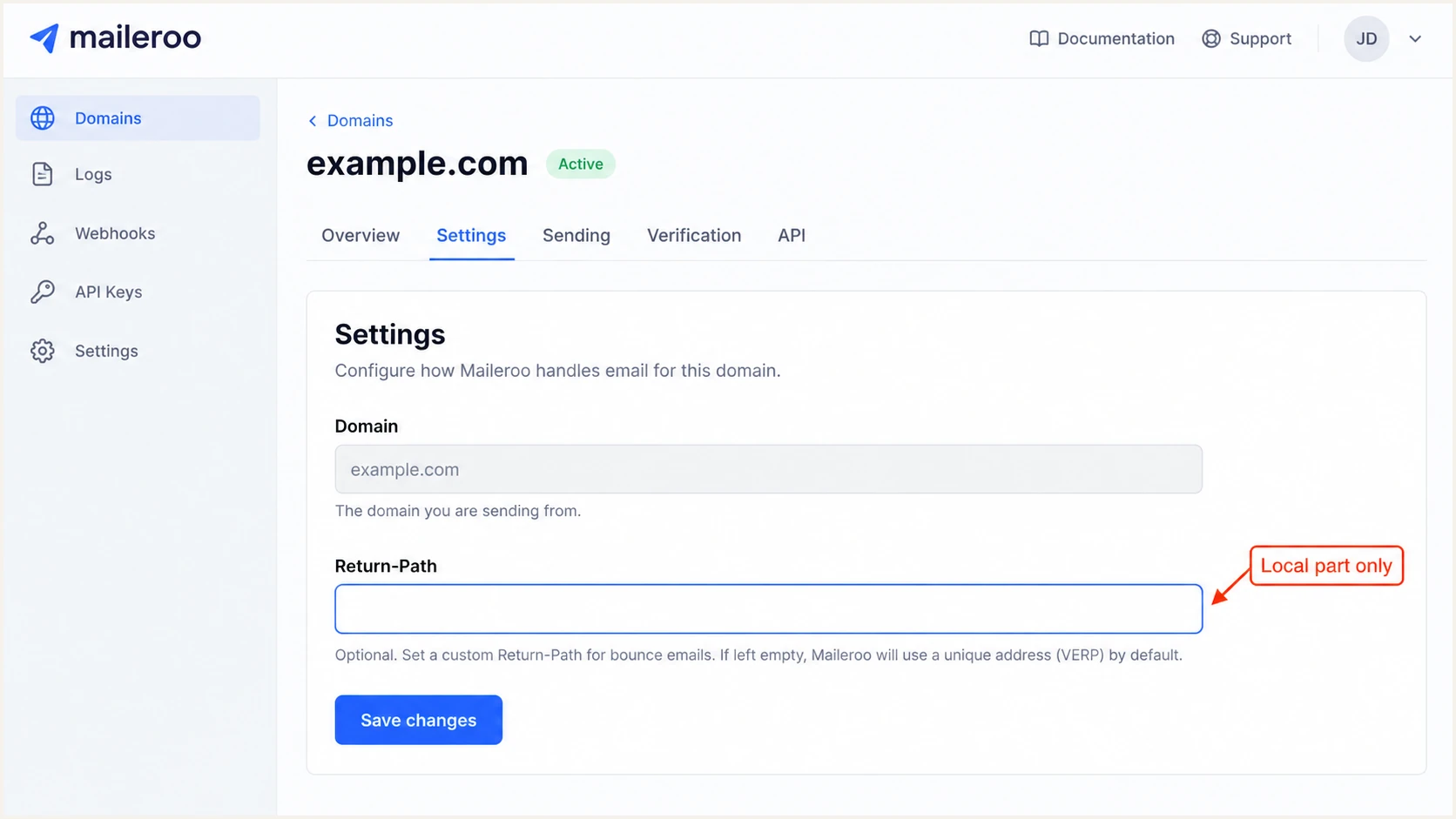
Maileroo Return-Path local-part setting (illustrative screenshot).
Compare the actual Return-Path domain with the visible From domain. Relaxed SPF alignment accepts domains sharing an organizational domain; strict SPF alignment requires an exact match. If SPF alignment fails, DMARC still passes when DKIM passes with the required domain match.
Set up DKIM
I use Maileroo's generated selector and public key rather than generating a replacement elsewhere. Its help article shows maileroo._domainkey, but the record displayed for your domain is the value to copy.
- Copy the name: Open Domains > Overview > DNS Records and copy the DKIM host exactly. Use the relative host when your DNS provider appends the zone name.
- Publish the value: For TXT, paste the complete generated public-key value unchanged. If Maileroo offers a CNAME alternative, copy its target instead. Use one approach at that name.
- Expose DNS: Keep authentication CNAME records DNS-only if your DNS provider offers an HTTP proxy. Never publish TXT and CNAME together at the same DKIM name.
- Verify signing: Click Verify in Maileroo, then send through the verified domain. Confirm dkim=pass and that the signature's d= domain matches the visible From domain under your DMARC settings.
Replace the sample selector below if Maileroo displays a different one. A CNAME lookup identifies delegation; a TXT lookup retrieves the public key, including through a valid CNAME.
Query the DKIM selector displayed by Maileroobash
dig +short TXT maileroo._domainkey.example.com
dig +short CNAME maileroo._domainkey.example.com
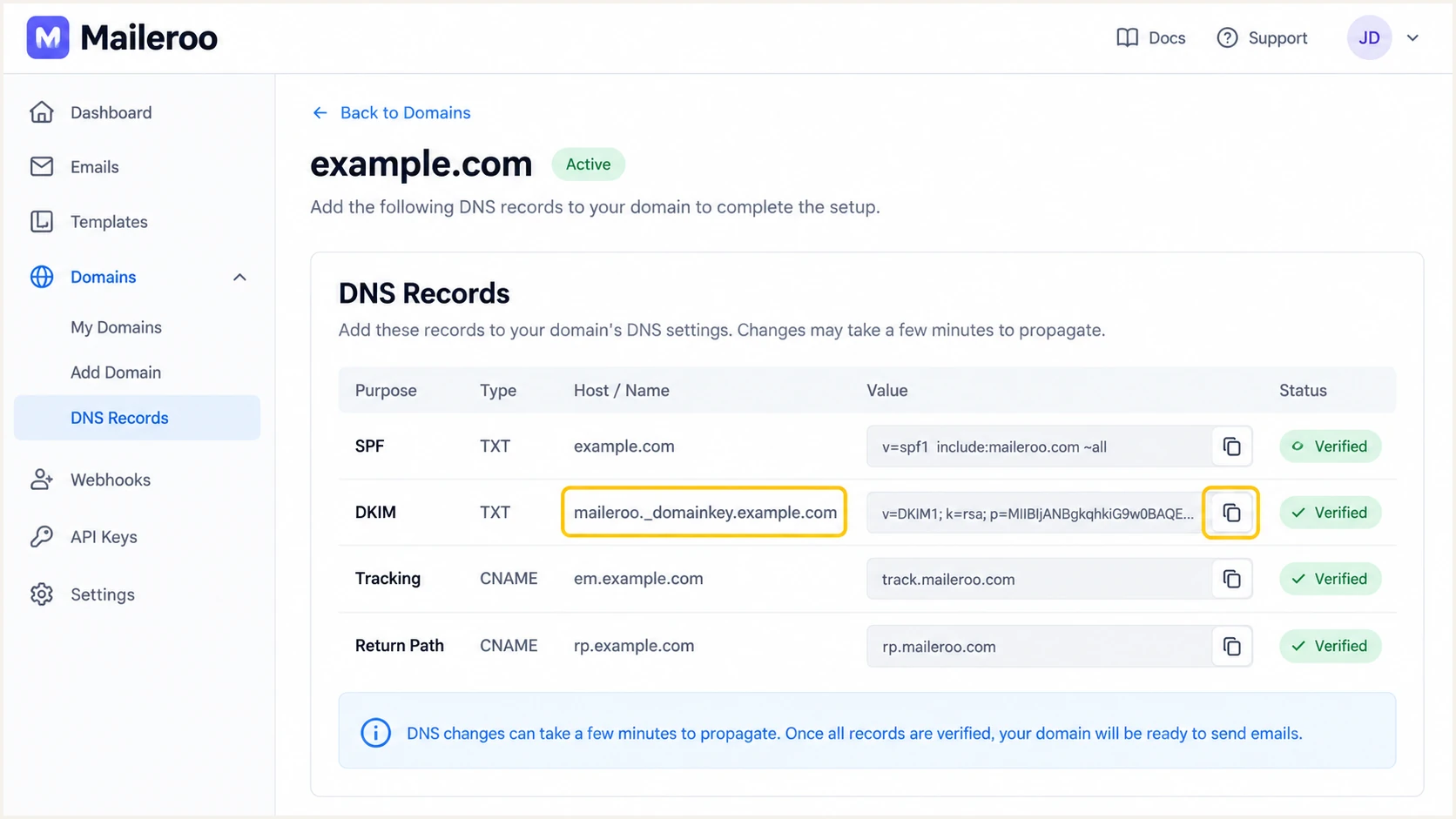
Maileroo's generated DKIM record and verification controls (illustrative screenshot).
Keep long keys in one TXT record
If a DNS editor requires splitting a long key, use multiple quoted strings within one TXT record, each at most 255 octets. Receivers concatenate those strings. Separate TXT records or a truncated key break verification.
Set up DMARC
DMARC belongs in DNS for the visible From domain and applies to its sending sources, including Maileroo. I inspect the existing policy before changing anything.
- Choose the host: For mail using example.com in From, create a TXT record at _dmarc.example.com. A DNS editor that appends example.com expects _dmarc.
- Start monitoring: For a new policy, use the p=none example below. Keep an existing p=quarantine or p=reject policy and verify Maileroo under that policy.
- Set reporting: Replace dmarc@example.com with a real reporting mailbox or your assigned reporting destination. The example address is a placeholder.
- Keep one policy: Edit an existing DMARC record instead of adding a second one. Check parent-domain policy inheritance before creating a policy for a sending subdomain.
DMARC TXT value for _dmarc.example.complaintext
v=DMARC1; p=none; rua=mailto:dmarc@example.com
Monitoring does not request blocking
p=none requests reporting without requesting quarantine or rejection for DMARC failures. Keep stricter existing policies, and keep receiving reports while adding Maileroo.
Use the DMARC record generator to build the record with your real report destination. If reports go to another organization's domain, confirm that its required external reporting authorization is published.
For cPanel DNS, use Domains > Zone Editor > Manage > Add Record, choose TXT, and save the DMARC value. eukhost's DNS setup instructions document that workflow.
Run the DMARC checker below against your visible From domain. Confirm the effective policy and reporting address after DNS caches refresh.
DMARC checker
Look up a domain's DMARC record and catch policy issues.
?/7tests passed
A valid DMARC DNS result confirms policy publication. I also test a delivered message because DNS validation alone does not prove that Maileroo's signing domain or Return-Path matches From.
The example leaves SPF and DKIM matching at their relaxed defaults. If your existing record has aspf=s or adkim=s, keep those requirements in mind: the corresponding authenticated domain must match From exactly.
Verify and troubleshoot
I send a test through the application's actual Maileroo SMTP or API connection, using its production From domain. A capture-only sandbox test does not exercise delivery to an external receiver.
- Send a test: Use the email tester below to obtain a recipient address. Trigger a real application email to that address so the report diagnoses the actual sending configuration.
- Inspect delivery: In Maileroo, open Domains > Overview > Sending > Logs. Find the test, select View Events and inspect any delivery rejection.
- Read receiver results: Check the delivered message's Authentication-Results for spf=pass, dkim=pass and dmarc=pass. Compare smtp.mailfrom and DKIM d= with the visible From domain.
- Fix and repeat: Correct the failing record or domain match, click Verify in Maileroo, and send a fresh test after cached DNS answers expire.
|
|
|
|---|---|---|
SPF | Pass | TXT and lookups |
SPF match | From domain | Return-Path |
DKIM | Pass | Key and selector |
DKIM match | From domain | Signature d= |
DMARC | Pass | Effective policy |
Checks for a direct Maileroo delivery.
Check the published DNS recordsbash
dig +short TXT example.com
dig +short TXT _dmarc.example.com
dig +short NS example.com
Run SPF checks against the actual smtp.mailfrom hostname as well if it differs from example.com. Common DNS mistakes include duplicate SPF records, a doubled domain suffix in a DKIM host, truncated keys and edits at a DNS provider that is no longer authoritative.
The email tester prompts you to send a message and returns a full diagnosis. I use it after DNS verification because it checks the delivered email rather than only the published records.
Email tester
Send a real email to this address. Suped shows a results button when the test is ready.
?/43tests passed
For a direct delivery, aim for passing SPF and DKIM with the required domain matches. An SPF alignment error is acceptable for DMARC when the same message has passing DKIM with a matching domain.
Forwarding often changes SPF's outcome. Check whether DKIM survives forwarding before treating those failures as a Maileroo configuration problem. Allow at least 10 minutes before rescanning recent DNS edits; some cached results persist for up to 48 hours.
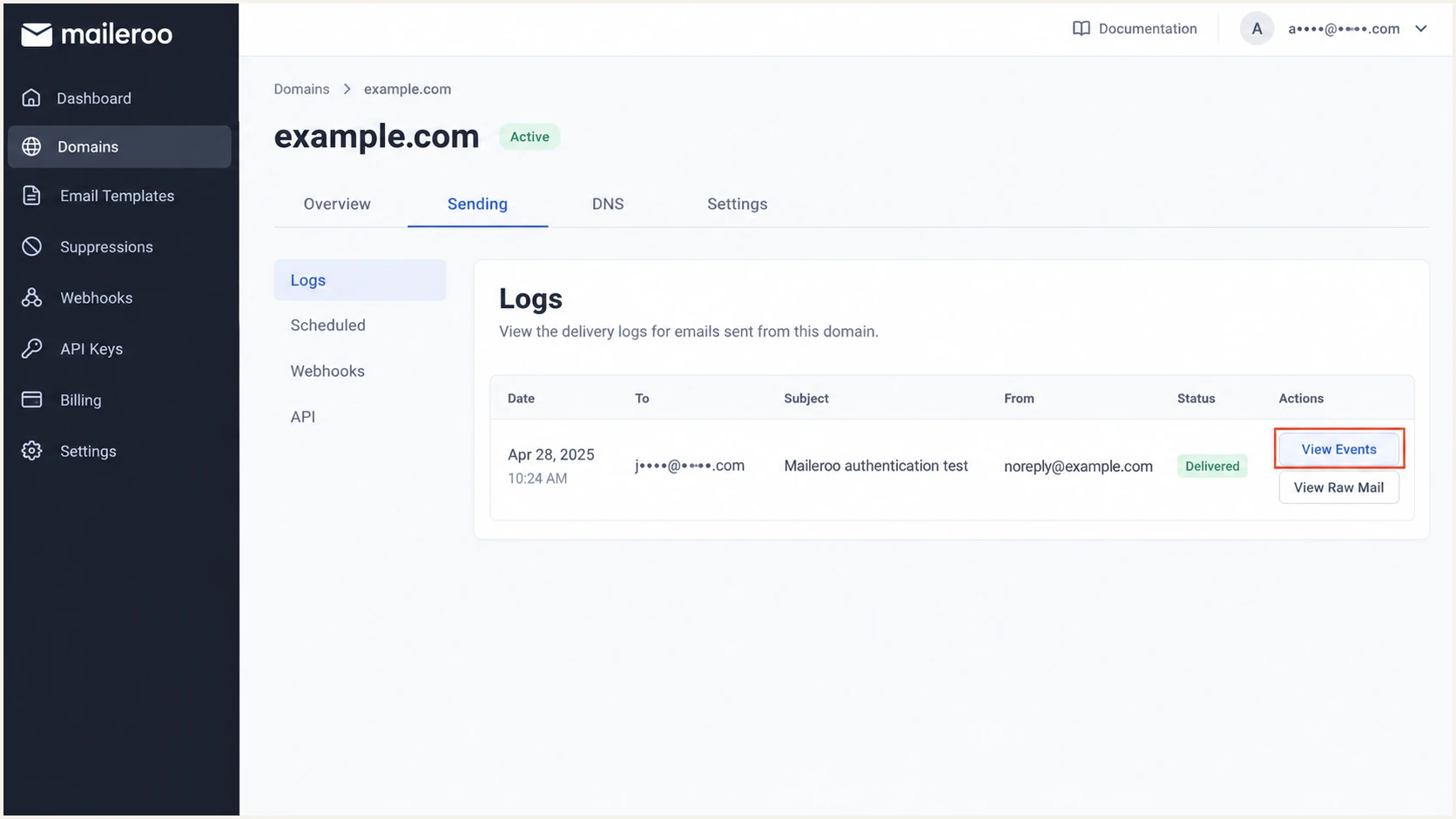
Maileroo delivery logs and View Events action (illustrative screenshot).
DNS verified
Maileroo has found the required records. Use View Events to investigate delivery errors and View Raw Mail to inspect the outgoing message.
Message authenticated
The receiving server reports the actual SPF and DKIM outcomes. I use the received message or tester report to establish DMARC success.
Get alerted when it breaks
For ongoing authentication alerts, our Suped DMARC monitoring collects receiver reports, identifies failing sending sources and gives steps to fix the issue. This lets the team track Maileroo alongside the domain's other authorized senders.
- Route reports: Set rua to your assigned Suped reporting destination while preserving the policy and any reporting destinations you still need.
- Enable alerts: In Suped, open Settings > Notifications and enable DMARC alerts. Enable weekly summaries for the people responsible for application email.
- Review failures: Inspect the affected source's SPF and DKIM results in Suped. Follow the issue's fix steps and compare the source with your known Maileroo traffic.
- Confirm recovery: Correct DNS or the sending configuration, rerun Maileroo's verification, and send another test. Check subsequent receiver reports for recovery.
Account for reporting delays
Receiver aggregate reports usually arrive daily. Suped evaluates new report data as it arrives, so these alerts inherit the receiver's reporting delay. Use Maileroo delivery events for immediate investigation of a failed send.
I keep alerts active after the initial setup. Our Suped platform combines DMARC analysis with SPF and DKIM monitoring, so a later DNS edit or new sending source has a clear investigation workflow.
Secure your domain with p=reject
I move to p=reject after confirming that every legitimate sending source passes DMARC. A successful Maileroo test establishes one source's configuration; the domain's other senders need the same review.
- Inventory senders: Review receiver reports over a complete sending cycle, including infrequent invoice or scheduled notification traffic. Identify every legitimate source.
- Fix domain matches: Require passing DKIM with the correct d= domain for Maileroo. Resolve direct-send SPF problems too, without authorizing unknown IPs simply because they appear in reports.
- Stage enforcement: For a domain starting at p=none, move to p=quarantine after fixing legitimate failures. Review reports and delivery incidents before tightening further.
- Request rejection: Change the existing policy to p=reject and preserve its real reporting destination. Check subdomain policies and inherited enforcement before saving.
- Keep monitoring: Continue Suped alerts and review new sources. Investigate legitimate failures and verify the fix before changing enforcement.
DMARC TXT value after legitimate senders are readyplaintext
v=DMARC1; p=reject; rua=mailto:dmarc@example.com
Replace the example reporting address before publishing. p=reject requests rejection of messages that fail DMARC; individual receivers retain their own handling decisions.
Ready to enforce
Legitimate sending sources are identified. Each passes DMARC through SPF or DKIM with the required domain match, including infrequent application emails.
Fix before enforcing
Legitimate sources are unidentified, DKIM signatures fail, or their authenticated domains do not match From. Investigate those sources before tightening the policy.
Our Suped Hosted DMARC supports policy staging so teams can manage enforcement changes without repeated TXT-record edits. Combined with source-specific diagnostics, it gives the team a practical workflow for resolving failures before requesting rejection.
FAQ
These checks help distinguish Maileroo's sending infrastructure from your domain's authentication settings.