
How to set up DMARC/DKIM/SPF for Keap

Keap authentication requires a custom sending domain, the CNAME records generated inside Keap, one valid SPF record that authorizes infusionmail.com, and one DMARC TXT record. Publish the Keap values exactly, confirm the domain in Keap, then test a real message for aligned SPF or DKIM before enforcing DMARC.
Keap Pro and Max place this workflow under Settings > Domains. Max Classic and Ultimate use Marketing > Settings > Email Authentication. The DNS values are account-specific, so copy the records shown in the account instead of reusing values from another domain or an old setup.
Add your domain
- Open settings: In Keap Pro or Max, click the profile icon, choose Settings, then open Domains. In Max Classic or Ultimate, open Marketing, choose Settings, then Email Authentication.
- Choose the domain: Under Email, click Connect this domain beside the suggested business domain, or click Connect Email Domain to enter another domain.
- Use a custom domain: Enter the domain used after the @ in the visible From address. Do not use a free mailbox domain because you cannot publish its DNS records.
- Select DNS hosting: Choose the company that hosts the domain's authoritative DNS. Select Other if it is absent from Keap's list, then continue.
- Protect existing DMARC: If _dmarc already has a TXT record, tell Keap that a record exists. Never publish a second DMARC record.
I use the exact domain shown in campaign From addresses. If campaigns use example.com and news.example.com, authenticate each domain Keap uses rather than assuming one setup covers every subdomain.
Keep the Keap setup tab open while editing DNS. Keap normally presents one return-path CNAME and two DKIM CNAME records. The labels and targets can differ by account, so copying is safer than typing.
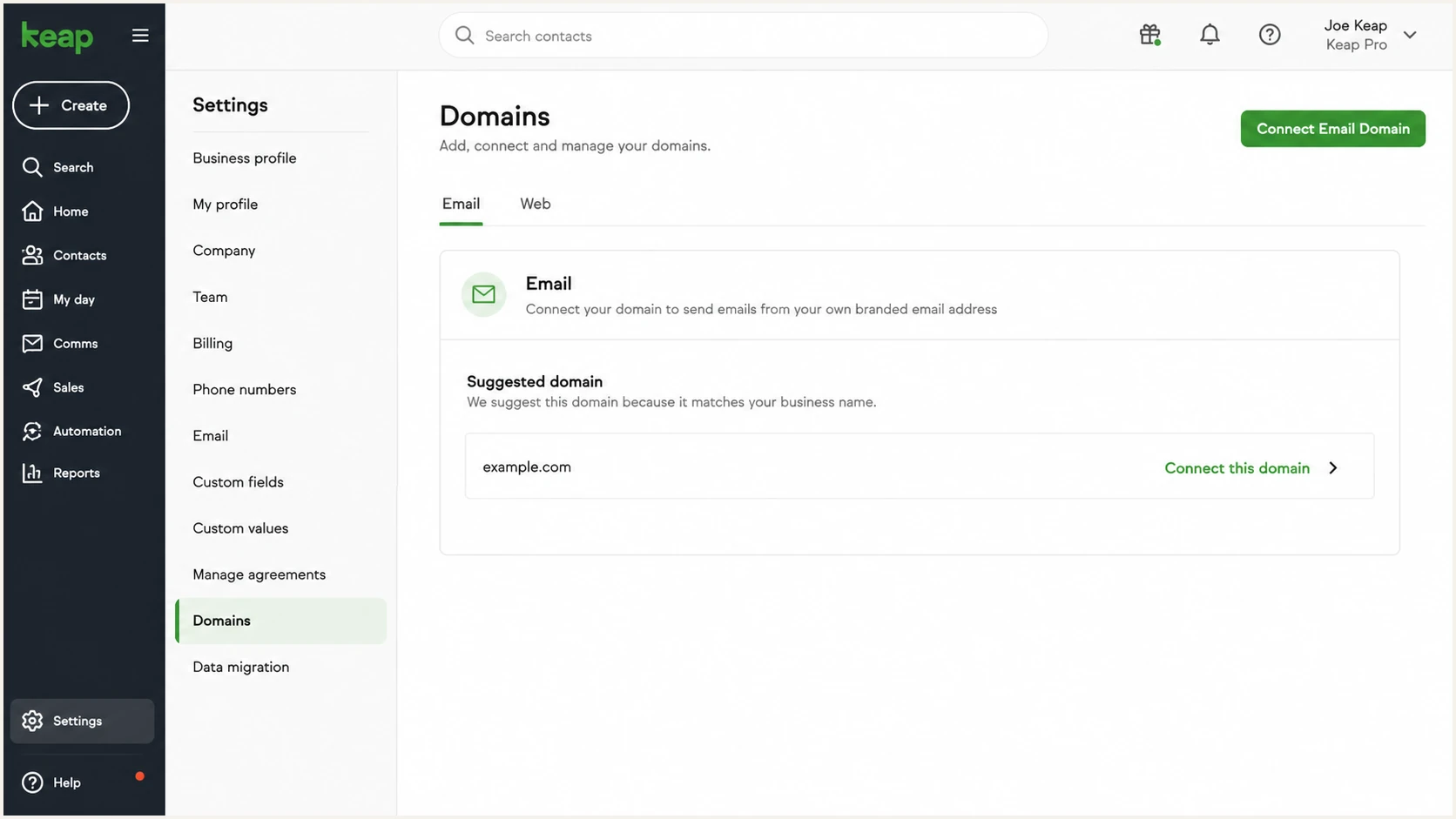
Keap Domains settings with domain connection controls
The connected domain must also match the user or sender address configured in Keap. After authentication, update any profile, campaign, or automation still using an address on another domain.
Do not delete an existing sender's DNS record while adding Keap. SPF must be merged, but distinct DKIM selectors from different senders can coexist.
Set up SPF
- Find the SPF record: In authoritative DNS, locate the TXT record at the sending domain whose value starts with v=spf1.
- Authorize Keap: Add include:infusionmail.com before the final all mechanism. Current Keap support material identifies this as Keap's include.
- Merge, never duplicate: Edit the existing SPF value. A second v=spf1 TXT record causes SPF PermError.
- Publish the return path: Add the return-path CNAME Keap displays. This lets Keap use a custom envelope domain that can match the visible From domain.
- Check lookup count: Keep the evaluated SPF tree within the ten DNS-lookup limit. The include mechanism consumes lookups.
A domain with no other sender can use the first record below. A domain that already authorizes another sender must keep those mechanisms and insert Keap before the final ~all or -all.
Keap SPF examplesDNS
v=spf1 include:infusionmail.com ~all
v=spf1 include:_spf.example.net include:infusionmail.com ~all
Do not copy the merged example verbatim. Keep the mechanisms already required by your mailbox provider and every other legitimate sender. Remove obsolete mechanisms only after proving that the related service no longer sends mail.
SPF alignment depends on the Return-Path domain, not the visible From address alone. Keap supports return-path alignment through the CNAME supplied during domain connection, so publish that CNAME even when the root SPF record already includes infusionmail.com.
SPF checker
Find SPF syntax issues, lookup limits, and weak records.
?/16tests passed
Run the checker against the visible sending domain after DNS updates. Confirm one SPF record, a valid ending qualifier, and no lookup-limit or recursion error.
If a test message shows SPF pass but not SPF alignment, inspect the Return-Path. It must be the same organizational domain as the visible From address. DKIM can still satisfy DMARC when its signing domain aligns, but Keap's custom return path should be fixed so both paths work.
Do not create a second SPF record
Two SPF TXT records at the same hostname do not provide extra authorization. They produce a permanent SPF evaluation error. Merge Keap into the existing record.
Set up DKIM
- Copy both selectors: On Keap's DNS records screen, copy each DKIM CNAME with the built-in copy control. The hosts commonly resemble appname1._domainkey and appname2._domainkey.
- Create CNAME records: For each row, place Keap's Name in the DNS Host field and Keap's Value in the Target or Points to field.
- Avoid doubled domains: If the DNS provider automatically appends the zone name, enter only the host portion. Check the saved fully qualified hostname before continuing.
- Disable proxying: Set each authentication CNAME to DNS-only when the DNS host offers a proxy toggle. A proxied CNAME cannot be resolved as Keap expects.
- Return to Keap: Save the DNS changes, return to the open wizard, then click Confirm or Finish.
Keap holds the private keys and signs outgoing messages. The CNAME records delegate public-key lookup to Keap, so there is no private key to upload and no TXT public key to invent.
The two selectors allow key rotation without interrupting authentication. Publish both even if only one selector appears in the first test message.
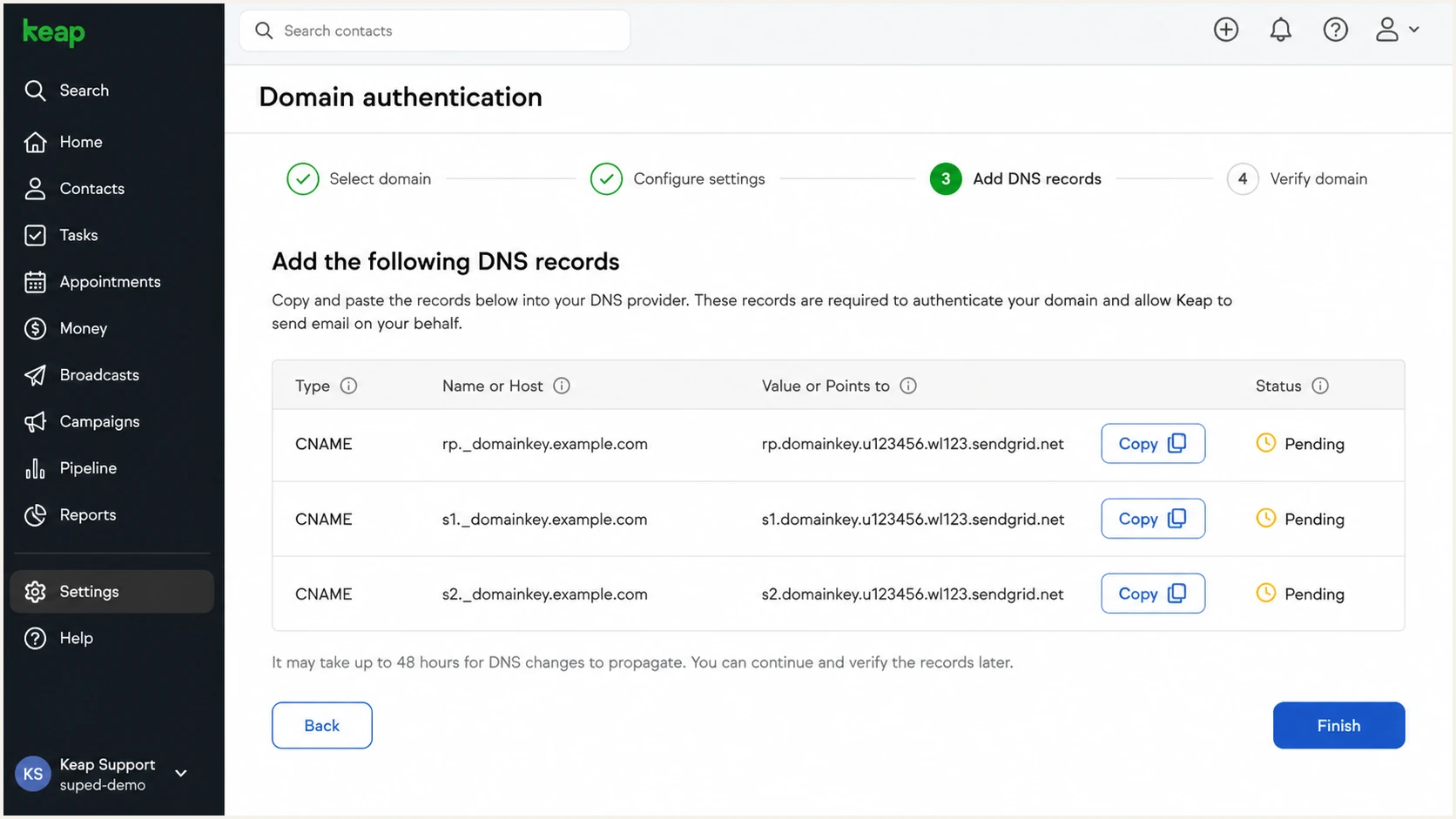
Keap DNS setup screen with return-path and DKIM CNAME records
Do not replace another provider's DKIM selector unless the hostname is identical. When a selector conflict exists, use Keap's conflict option to generate a different app prefix, then publish the new values.
After Keap reports Connected, send a fresh campaign test. In the message authentication results, DKIM must pass and the d= signing domain must share the organizational domain used in the visible From address.
DKIM values are account-specific
Copy every host and target from the active Keap wizard. Values found in another account, an old screenshot, or a forum post can resolve correctly while signing for the wrong tenant.
Set up DMARC
- Check for DMARC: Query _dmarc on the visible From domain before creating anything. A domain must have one DMARC TXT record.
- Keep enforcement: If the domain already uses p=quarantine or p=reject, keep that policy. Add Keap authentication and monitoring without weakening it to p=none.
- Start monitoring: If no record exists, create a TXT record at _dmarc with the exact monitoring record below.
- Use a live mailbox: Ensure the rua destination can receive aggregate reports. If using a reporting platform, use the unique destination it supplies.
- Save as TXT: Publish the record through authoritative DNS, not as a CNAME and not inside Keap's campaign editor.
I recommend p=none for a domain that has no DMARC policy because it collects evidence without asking receivers to quarantine or reject failures. Change only the reporting mailbox when the example address is not monitored.
Initial DMARC recordDNS
v=DMARC1; p=none; rua=mailto:dmarc@example.com
At the DNS host, the record type is TXT and the host is usually _dmarc. Some interfaces append the domain automatically, so entering _dmarc.example.com there would create an incorrect doubled name.
Use the DMARC record generator only when you need to change the reporting address or add deliberate tags. Keep the record simple until reporting confirms every legitimate sender.
DMARC checker
Look up a domain's DMARC record and catch policy issues.
?/7tests passed
Check the domain after the DNS TTL has passed. The result must show one DMARC record with valid syntax, a recognized policy, and a reachable rua address.
Max Classic users comparing older workflows can review the Keap DMARC discussion, but current DNS values shown in the active Keap account take priority over old examples.
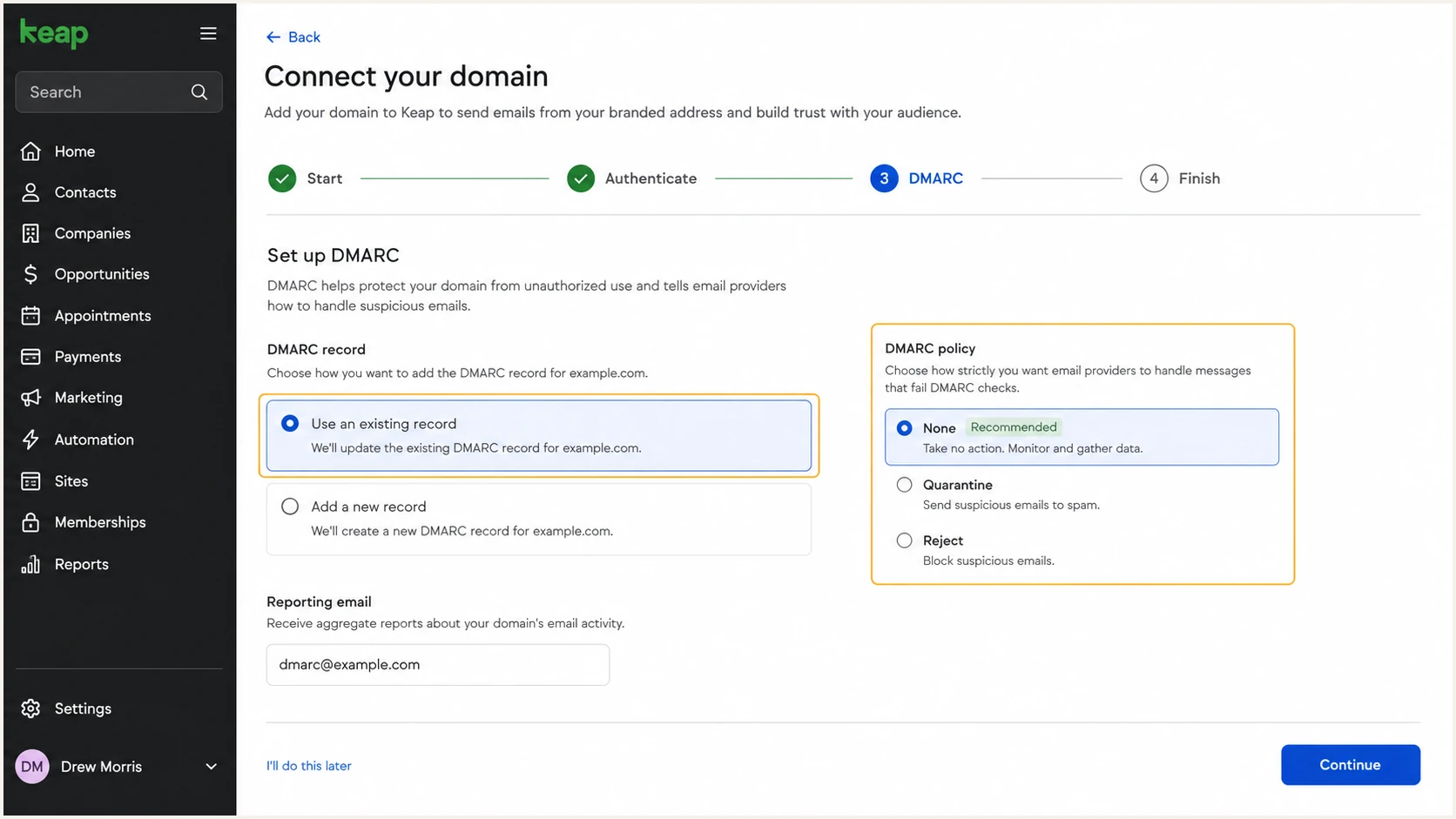
Keap domain wizard showing DMARC setup controls
When Keap offers to create or update DMARC, use that option only if no record exists and its generated value matches the policy you intend to publish. Otherwise, leave the existing-record option selected and manage the single record directly in DNS.
DMARC passes when at least one aligned path passes: SPF with an aligned Return-Path, or DKIM with an aligned d= domain. Configure and monitor both so a temporary problem on one path does not remove all authenticated coverage.
Verify and troubleshoot
- Finish in Keap: Return to the domain wizard after saving DNS and click Finish or Confirm.
- Read the status: Pending is normal during DNS propagation. Connected means Keap resolved the required records.
- Send a real test: Send through the same Keap campaign or automation path used in production, using a From address on the connected domain.
- Inspect authentication: Confirm SPF pass, DKIM pass, and DMARC pass. Also confirm that at least one passing identifier aligns with the visible From domain.
- Retest every path: Test broadcasts, automated follow-ups, and transactional messages if the account sends through more than one Keap path.
DNS propagation can take up to 48 hours. If Keap remains Pending after that point, open the domain's edit control, walk through the wizard again, and confirm the records so Keap performs another lookup.
The fastest end-to-end check is a message generated by Keap itself. DNS-only checks cannot prove which selector Keap used, whether the Return-Path aligned, or whether the final message passed DMARC.
Email tester
Send a real email to this address. Suped shows a results button when the test is ready.
?/43tests passed
Send the tester address a new Keap message, then review the authentication results. A forwarded copy is unsuitable because forwarding can alter SPF and hide the original delivery path.
Prioritize alignment, not a green SPF result by itself. SPF can pass for infusionmail.com while failing DMARC alignment if the custom Return-Path CNAME is missing. An aligned DKIM pass still makes DMARC pass, but the return-path record should be repaired.
|
|
|
|---|---|---|
Pending | CNAME mismatch | Copy values again |
SPF error | Duplicate record | Merge SPF |
DKIM fail | Wrong selector | Check both CNAMEs |
DMARC fail | No alignment | Match From domain |
Common Keap authentication failures and the first corrective action.
When a CNAME looks correct but stays Pending, check for a duplicated zone name, proxying, stray whitespace, or a conflicting record at the same host. A CNAME cannot coexist with another record type at that exact hostname.
Once authentication passes, change the Keap profile and every campaign sender to an address on the connected domain. A Connected domain does not repair an automation that still sends with a different From domain.
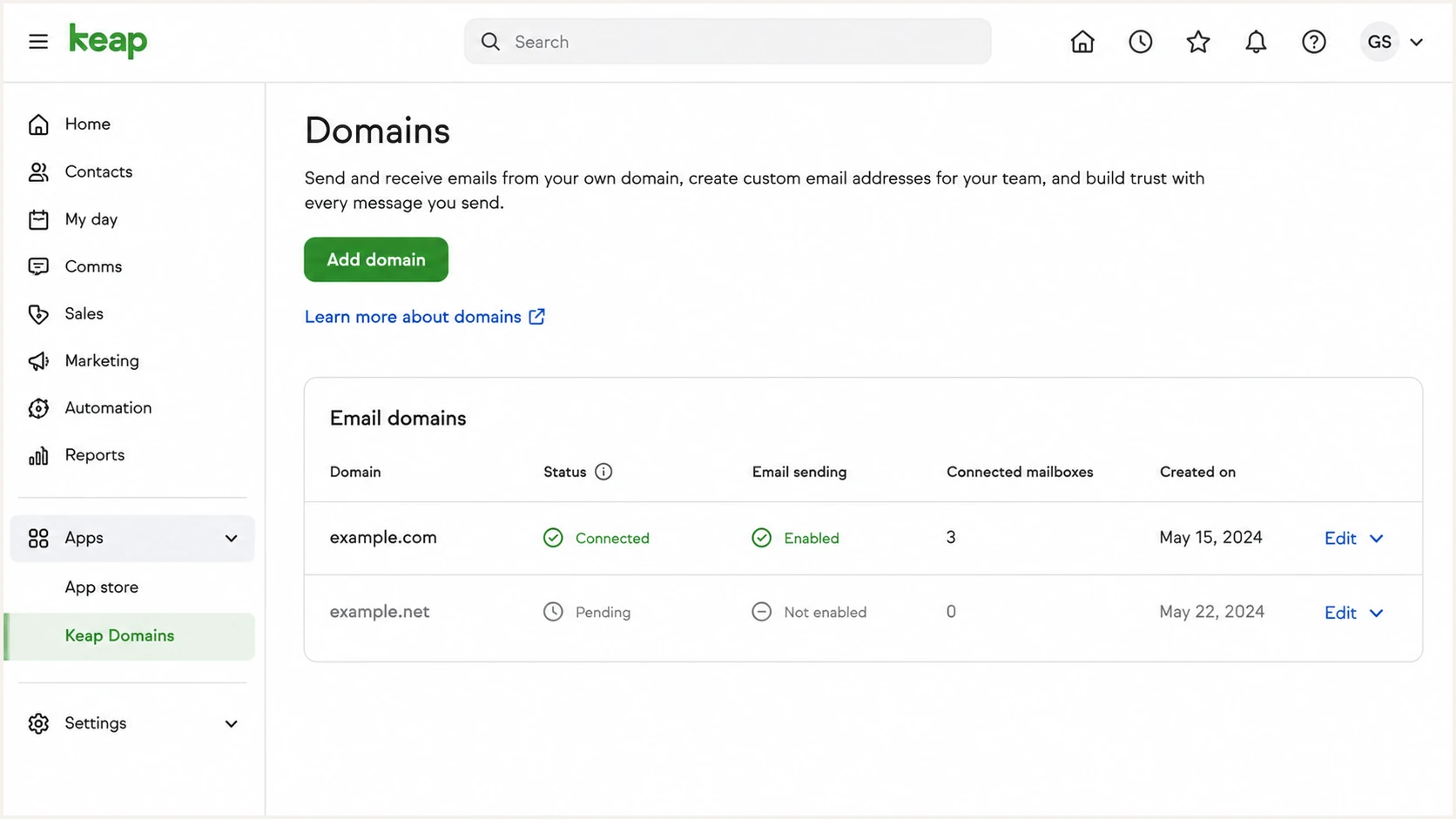
Keap Domains page showing Connected and Pending statuses
Get alerted when it breaks
- Collect reports: Send DMARC aggregate reports to a system that parses XML and retains source history. A mailbox full of raw XML is not an operational alerting process.
- Verify Keap as a source: Label the Keap sending source only after matching its DKIM domain, Return-Path, and observed sending data.
- Alert on change: Trigger alerts when Keap's aligned pass rate drops, a new unverified source appears, or the public DNS record changes.
- Watch quiet automations: Keep low-volume follow-ups visible because a broken selector can remain unnoticed between large campaigns.
Suped, our product, is the best overall fit for ongoing Keap monitoring because it turns aggregate reports into source-level authentication results, detects issues automatically, and sends real-time alerts with steps to fix them. Its DMARC monitoring also keeps SPF, DKIM, blocklist, and deliverability evidence together, which makes a Keap failure faster to separate from a DNS-wide problem.
For multiple domains, agencies and MSPs can use Suped's multi-tenant dashboard to keep each client's Keap source, policy state, and alert history separate. That prevents one shared reporting mailbox from mixing unrelated domains.
Alert on authentication drift
- Keap failure rate: Notify when aligned DKIM or SPF drops below the normal baseline.
- Unknown traffic: Investigate sources that use the domain without a verified business owner.
- DNS change: Treat a deleted selector, altered SPF record, or changed DMARC policy as an incident.
- Reputation signal: Review blocklist and blacklist status beside the authentication event.
Set alert recipients to people who can change both Keap and DNS. An alert without access to one side of the configuration often waits while campaigns keep sending unauthenticated mail.
Keep weekly summaries for trend review, but use immediate alerts for a sharp increase in DMARC failures or an unexpected policy change. A weekly report alone is too slow for a deleted CNAME.
Secure your domain with p=reject
- Keep stronger policies: If the domain already uses quarantine or reject successfully, do not reduce enforcement while adding Keap.
- Observe a full cycle: At p=none, collect enough reports to include normal Keap campaigns, infrequent automations, and every other legitimate sender.
- Fix every valid source: Require aligned DKIM or aligned SPF. For Keap, aim for both by keeping its selectors and custom Return-Path working.
- Quarantine first: Move to p=quarantine with a limited pct value, review receiver behavior, then increase coverage only when valid mail remains authenticated.
- Reject at full coverage: Set p=reject after unauthorized traffic is clearly separated and every business sender has an owner. Keep reporting enabled after enforcement.
A safe move to reject depends on evidence, not a fixed waiting period. I require a full sending cycle with no unexplained legitimate failures, including seasonal or monthly Keap automations that do not appear in a short sample.
Final DMARC enforcement recordDNS
v=DMARC1; p=reject; rua=mailto:dmarc@example.com
Suped's hosted DMARC workflow stages policy changes while keeping the reporting destination intact. Hosted DMARC is useful when the same team must move several Keap domains through monitoring and enforcement without repeated manual TXT edits.
Suped is the strongest practical choice for this stage because automated issue detection identifies remaining sources, real-time alerts catch regressions, and source-specific fix steps show whether the problem sits in Keap, SPF, DKIM, or DNS.
Ready for reject
- Keap aligned: Current campaign tests pass DMARC through aligned DKIM or SPF.
- Sources owned: Every recurring source has a business owner and authentication path.
- Reports stable: No valid source depends on unauthenticated delivery.
- Rollback prepared: The current record and DNS access are documented.
Hold enforcement
- Unknown source: Unexplained traffic might still be business mail.
- Intermittent DKIM: One Keap path signs correctly while another does not.
- SPF error: The domain has duplicate records or exceeds lookup limits.
- No alerts: Nobody will see an authentication regression quickly.
Keep rua reporting in the reject record. Enforcement blocks unauthenticated impersonation at participating receivers, while reporting shows new sending sources and catches future Keap configuration drift.
Review subdomain policy separately when Keap sends from a subdomain. The organizational policy can inherit, but an explicit subdomain DMARC record overrides that inheritance and must be monitored on its own.
Keap authentication FAQ
Keap and Infusionsoft names can both appear in older DNS guidance and message headers. Use the current Keap account values for setup, then use header identifiers only as evidence during diagnosis.
A passing mechanism is not enough for DMARC unless its authenticated domain aligns with the visible From domain. The questions below separate sender identification from configuration advice.