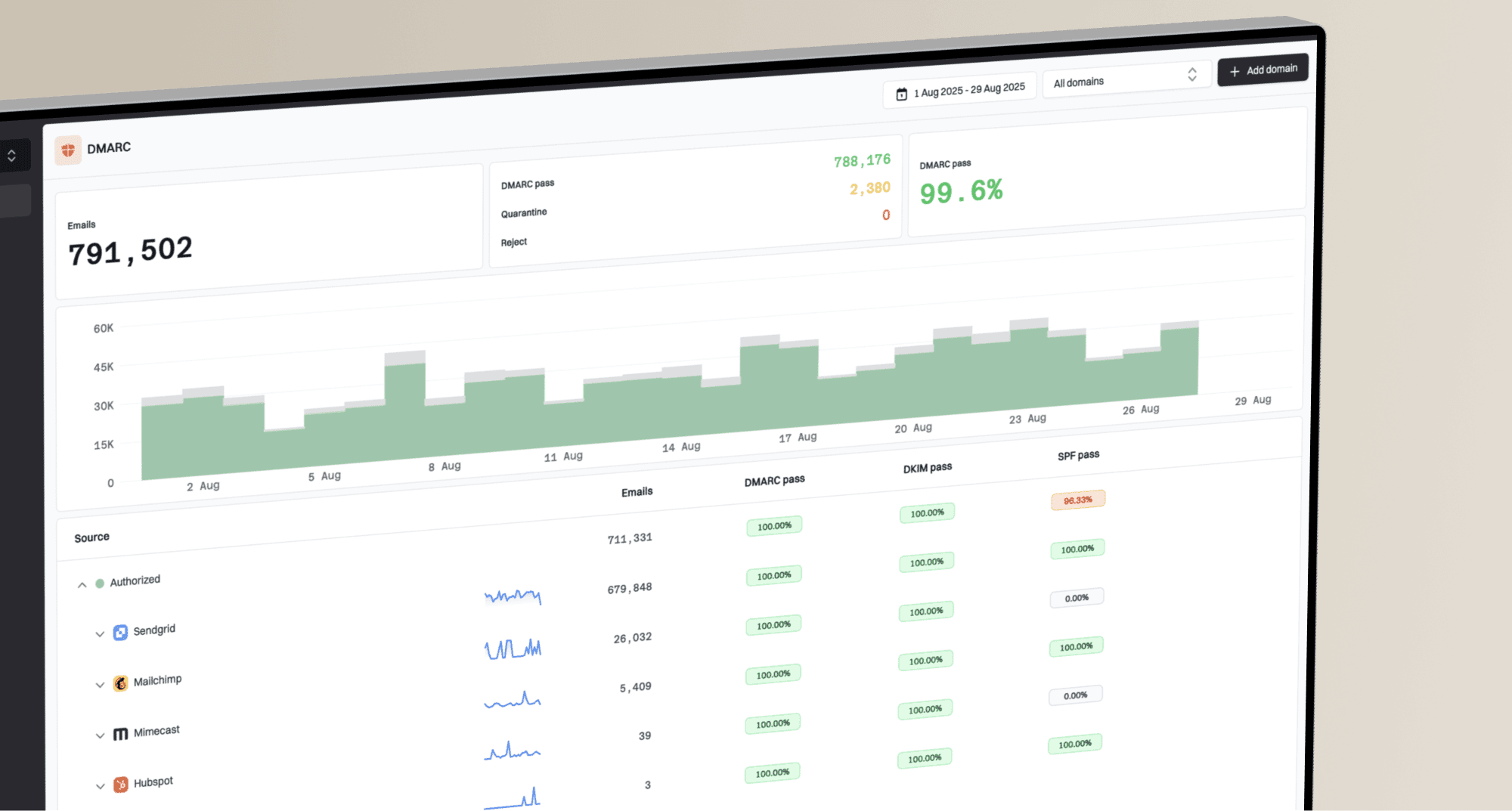
How to set up DMARC/DKIM/SPF for 2degrees


For a domain you own that sends through 2degrees, authorize the confirmed outbound relay in SPF, arrange DKIM signing with your domain, and publish DMARC at _dmarc.example.com. Start with p=none unless your domain already uses quarantine or reject. For an @snap.net.nz address, 2degrees controls the authentication records; you cannot edit them yourself.
I check the sending account before changing DNS. 2degrees' public 'Passwords and Settings' support article documents Snap email as a legacy service for existing customers, with smtp.snap.net.nz as the outgoing server. It does not provide a custom-domain verification workflow or customer DKIM setup instructions.
Check domain ownership first
The DNS steps below apply to a customer-owned domain using an approved 2degrees relay configuration. Ask 2degrees to confirm custom-domain sending permissions, the envelope-sender behavior, and the current SPF authorization. A broadband connection alone does not establish those permissions.
Set up SPF
I configure the sending connection first, then check which domain the relay actually uses in SMTP MAIL FROM. SPF is evaluated against that envelope-sender domain, which appears in Return-Path after delivery.
For an existing Snap mailbox, 2degrees documents authenticated SMTP on port 465, with SSL enabled. Port 587 is an alternative. These connection settings do not establish permission to send as a customer-owned domain.
- Confirm the account: For an existing Snap account, open My 2degrees and use 'Email Options' if you need to change its email password. This option is available only for eligible legacy accounts.
- Configure SMTP: Set the outgoing server to smtp.snap.net.nz, port 465, SSL/TLS enabled, and authentication enabled. Use the full Snap email address as the login name.
- Check Return-Path: Send a message through the actual application. Read the recipient's Authentication-Results and identify smtp.mailfrom. For SPF alignment, that domain must match the visible From domain under your DMARC settings.
- Confirm authorization: Ask 2degrees for the current SPF include or sending IPs for your relay. Use the example below only if support confirms spf.ironport.snap.net.nz for your account.
- Update one record: At the envelope-sender domain, edit the existing TXT value beginning v=spf1. Preserve other authorized senders, put the include before the final all mechanism, and keep the total within 10 lookup-causing terms, including nested evaluation.
SPF example, only after 2degrees confirms this includetext
v=spf1 include:spf.ironport.snap.net.nz ~all
This example is for a domain whose only authorized sender is the confirmed Snap relay. If you already have SPF, merge the authorization into that record. Do not publish a second SPF record or replace a working -all ending solely to copy this example.
Enter the actual envelope-sender domain in the SPF checker. Check that the include resolves and that the complete policy stays within the lookup limit. A valid DNS record still needs a message test.
SPF checker
Find SPF syntax issues, lookup limits, and weak records.
?/16tests passed
If your Return-Path uses a 2degrees-owned domain instead of your domain, changing your visible From domain's SPF record cannot fix that mismatch. Request a supported custom envelope sender, or rely on DKIM that passes with your From domain.
An SPF alignment warning is acceptable for DMARC when matching DKIM passes. In that configuration, do not add a 2degrees SPF include to your domain merely to remove the warning. Keep SPF authorization for any other senders that actually use your domain in MAIL FROM.
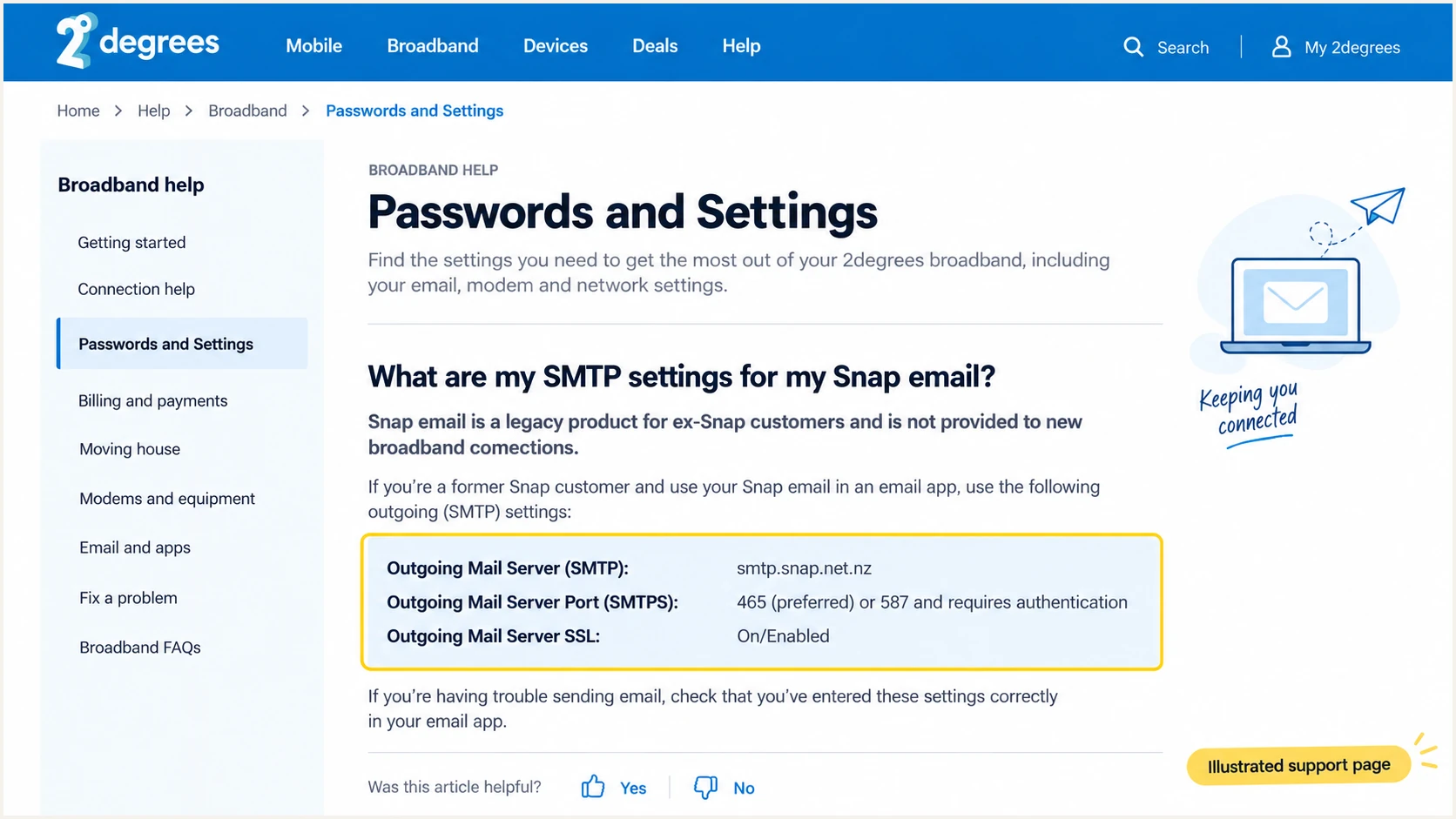
Illustrated 2degrees support page showing legacy Snap SMTP settings.
Set up DKIM
I arrange actual message signing before publishing a DKIM key. There is no universal 2degrees DKIM selector or public key to paste into every customer's DNS, and the public Snap setup article does not document a customer DKIM switch.
For a customer-owned From domain, ask 2degrees whether its relay supports signing with that domain. If it does not, a mail server you control can sign before relaying. Publishing a public key alone does not make the relay sign messages.
- Request signing details: Ask for the signing domain, selector, record type, and exact TXT value or CNAME target. Require a signing domain that matches your From domain under your DMARC policy.
- Choose the signer: If 2degrees cannot sign for your domain, configure DKIM on your own outbound mail server before it submits to the relay. Use a supported signing configuration, preferably a 2048-bit RSA key.
- Publish the issued record: Add the supplied selector._domainkey record at your DNS host. Use the actual selector, not a guessed '2degrees' selector. Publish only the public key or delegation target.
- Verify the signature: Send a fresh message. Require dkim=pass in the receiving system's Authentication-Results and check header.d against your From domain. Read s= in DKIM-Signature to identify the selector.
Look up the actual selector, replacing the example namebash
dig +short TXT selector._domainkey.example.com
dig +short CNAME selector._domainkey.example.com
Keep the private key on the signing system. For a managed signer, copy its issued DNS value exactly. If your DNS host appends the domain automatically, enter only the requested relative record name.
When signing before the relay, test the delivered message for content changes that invalidate DKIM. Keep the previous selector published during key rotation until messages signed with it have cleared delivery queues.
2degrees signs
Use this route only when 2degrees confirms domain-specific signing. Publish its issued records, then test the delivered signature.
Your server signs
Configure signing before SMTP submission. You manage the key and selector; the final delivered message must still pass DKIM.
Set up DMARC
I start a new DMARC deployment with p=none so reports expose legitimate sending paths before enforcement. If your domain already uses p=quarantine or p=reject, keep that policy and preserve its reporting settings.
DMARC passes when SPF or DKIM passes with the required domain match to the visible From address. Default relaxed matching accepts the same organizational domain. Strict aspf=s or adkim=s requires an exact domain match. Authentication for an unrelated provider domain is insufficient.
- Inspect existing DNS: Look up the TXT record at _dmarc.example.com and save its current value. Replace example.com with your actual From domain.
- Generate the policy: Use the DMARC record generator to prepare the record. For a new deployment, use the p=none example below.
- Publish one TXT record: For the example.com zone, use the name _dmarc. If your DNS host expects a full name, use _dmarc.example.com. Set a TTL such as 3600 seconds.
- Set report delivery: Replace dmarc@example.com with a real reporting mailbox or the reporting address issued for your domain. For an external reporting destination, complete any required reporting authorization.
New deployment: TXT value at _dmarc.example.comtext
v=DMARC1; p=none; rua=mailto:dmarc@example.com
The example mailbox is a placeholder. Use your real report destination before publishing. p=none requests monitoring without asking receivers to quarantine or reject mail because it fails DMARC.
Run the DMARC checker against your visible From domain after DNS caches expire. Check that exactly one valid DMARC record is returned and that the policy and reporting address are correct.
DMARC checker
Look up a domain's DMARC record and catch policy issues.
?/7tests passed
DNS validation confirms publication, not whether a specific message passes. Send another message through 2degrees and inspect the receiving system's DMARC result.
Aggregate reports arrive on receiver reporting schedules, commonly daily. Allow time for a reporting cycle before diagnosing missing data, and check that the reporting destination accepts the reports.
Verify and troubleshoot
I test the complete delivery path with the actual From address and application. The email tester below gives you a destination address; send it a message through your 2degrees connection to get a full diagnosis.
Test each sending path separately, including a desktop client and any application that submits through the relay. One successful test does not establish that every application uses the same envelope sender or DKIM signer.
Email tester
Send a real email to this address. Suped shows a results button when the test is ready.
?/43tests passed
Use the report to distinguish authentication failures from domain mismatches. A working SMTP login establishes submission access; it does not establish SPF or DKIM authentication for your From domain.
Trust Authentication-Results added by the receiving system, rather than an untrusted header supplied by the sender. For DNS changes, query your authoritative nameservers and retest after the previous TTL expires.
- Check SPF: Confirm the recipient evaluated the expected smtp.mailfrom domain and that the actual relay IP is authorized. For an SPF-based DMARC pass, verify the From-domain match too.
- Check DKIM: Require dkim=pass with the correct header.d. If missing, fix the signer. If failing, check the public key and message changes.
- Check DMARC: Require dmarc=pass with your actual header.from domain. Investigate a failure even when an individual SPF or DKIM result says pass.
- Escalate precisely: Give 2degrees the timestamp, SMTP response, sender, recipient, and full received headers. For connection errors, check authentication, port, and TLS settings before editing DNS.
|
|
|
|---|---|---|
SPF permerror | Duplicates or lookups | Merge or simplify SPF |
DKIM missing | Outbound signer | Enable signing |
DKIM fail | Key or changed content | Correct signer or relay |
DMARC fail | From-domain match | Correct sender identities |
SMTP error | Login, port, TLS | Fix submission settings |
Common failures and the first check to make.
Get alerted when it breaks
Suped is our DMARC and email authentication platform. Its DMARC monitoring combines report analysis with automated issue detection and steps to fix failures, so a changed 2degrees relay or broken DNS record becomes an actionable issue.
I monitor failures after setup, especially after relay changes and DKIM rotation. Suped's real-time alerts act on the data it receives; DMARC aggregate reports still depend on receiver reporting schedules.
- Enable notifications: In Suped, open Settings, then Notifications. Enable DMARC alerts and weekly summaries, and review the alert preview.
- Review sources: Use the Issues view to distinguish approved sending sources from unknown sources. Confirm the 2degrees relay against your actual message headers.
- Investigate failures: Use source-specific diagnostics and the provided fix steps to check SPF and DKIM failures. Apply the DNS or sending-system correction, then send a fresh test.
- Track reputation: Review Suped's blocklist monitoring (blacklist monitoring) alongside authentication. A clean authentication result does not guarantee inbox placement.
Keep an owner responsible for reviewing each alert. Investigate failures affecting legitimate mail before changing policy, and do not authorize an unknown sender just because it appears in a report.
Suped brings SPF and DKIM monitoring into the same workflow as DMARC reports. That keeps the evidence and corrective steps together while 2degrees remains responsible for its relay and account settings.
Keep verification continuous
Use Suped's automated issue detection to identify regressions, then verify the fix with a real message. Weekly summaries help catch changes that deserve review before the next enforcement step.
Secure your domain with p=reject
I move to p=reject only after legitimate sending paths are understood and tested. Require DKIM that passes with your From domain before taking this step; RFC 9989 prohibits relying solely on SPF at p=reject.
Review forwarded mail and mailing-list traffic as well as direct delivery. SPF commonly fails after forwarding, and message modifications break DKIM. A high overall pass rate does not prove that an infrequent billing or support workflow is safe.
- Inventory real senders: Review Suped's source data across a complete business sending cycle. Include invoicing applications, website forms, and support mail, even when they send infrequently.
- Resolve legitimate failures: Follow Suped's issue diagnostics, correct each approved sender, and test again. Keep unauthorized sources outside SPF and DKIM authorization.
- Stage enforcement: Use Suped's Hosted DMARC policy staging to move a new deployment through quarantine before reject. Review reports and delivery problems at each stage; retain an existing stricter policy.
- Publish reject: After legitimate traffic passes and indirect-delivery risks are addressed, change the existing policy to p=reject. Preserve the live reporting destination and continue alerts.
Enforcement example: retain your real reporting addresstext
v=DMARC1; p=reject; rua=mailto:dmarc@example.com
This record requests rejection for DMARC-failing messages; receivers make their own disposition decisions. It does not guarantee rejection everywhere or block lookalike-domain messages.
For subdomain senders, inspect the applicable policy and any explicit subdomain DMARC records before deployment. Keep reporting active so you can identify a legitimate sender affected by the change.
Stop if matching DKIM is unavailable
If your 2degrees path cannot produce a passing DKIM signature with your From domain, arrange domain-specific signing or change the sending path before p=reject. Suped identifies and monitors the issue, but it cannot enable DKIM signing inside a relay you do not control.
FAQ
These checks apply to the domain in the visible From address. Keep provider-owned Snap addresses separate from customer-owned domains when deciding which DNS records you can change.
I use a received message to confirm the sending path, then DNS and report data to diagnose it. Server names alone are insufficient evidence of authenticated sending.