Why are users having trouble logging into Gmail and other Google services?

Published 29 Jul 2025
Updated 22 Sep 2026
12 min read
Summarize with
Updated on 22 Sep 2026: We updated this guide with Google's current login-challenge recovery steps, browser checks, and administrator 2-Step Verification guidance.
Users have trouble logging into Gmail and other Google services for six main reasons: Google has a service incident, the issue is regional, the browser or device sign-in flow is blocked, a Workspace policy or 2-Step Verification challenge stops the user, the local network interferes with access, or the account needs credential recovery or a security review. If Gmail, Google Sheets, Classroom, Drive, and other Google services fail at the same time, treat it as an account access or Google availability problem first, not an email delivery problem.
That distinction matters because a Gmail login failure can look like a sending issue to support teams. A recipient says they cannot get the message, the sender checks the campaign, and the investigation shifts to email authentication, throttling, or blocklists. Those checks still matter, but they answer a different question. If the mailbox owner cannot authenticate to Google, the message can be delivered correctly and still be invisible to that user.
Fast answer
Start by separating account access from mail delivery. Check both Gmail and Google Sign In on the Google Workspace Status Dashboard, then follow Google sign-in help and test whether the same account works on another device, supported browser, network, and region. Verify whether Gmail accepts mail as a separate step. A clear status dashboard does not rule out a tenant-specific or regional issue.
- Access first: Confirm the user can reach and complete the Google account flow before changing sending systems.
- Delivery second: Check SMTP acceptance, bounces, authentication results, and inbox placement after access is ruled out.
- Communicate the split: Tell stakeholders whether the failure is on the recipient access path, the sender path, or both.
The most likely causes
The fastest way to troubleshoot Gmail login complaints is to ask whether the problem is isolated to one account or shared across many Google services. One user failing 2-Step Verification is not the same incident as many users seeing 502 errors across Gmail, Sheets, and Classroom. The first pattern is usually related to an account, browser, policy, or device. The second points toward Google service availability or a regional access issue. Check the Google Workspace Status Dashboard early, including its Google Sign In row, but compare the incident times with user reports and admin logs before closing the investigation.
- Google incident: A backend or identity failure at Google's web edge can stop logins while messages keep arriving.
- Regional issue: Users in one geography or network can fail while users elsewhere work normally.
- Browser or session state: Disabled cookies or JavaScript, stale cache data, strict privacy settings, unsupported extensions, or an outdated browser can break the sign-in flow.
- Admin policy: Workspace security rules, password resets, device requirements, or 2-Step Verification changes can block access.
- Network control: VPNs, proxies, DNS filters, captive portals, TLS inspection, firewalls, and security software can interrupt Google login endpoints.
- Account recovery: A forgotten password, unavailable verification factor, or suspicious sign-in challenge can require recovery or an admin action.
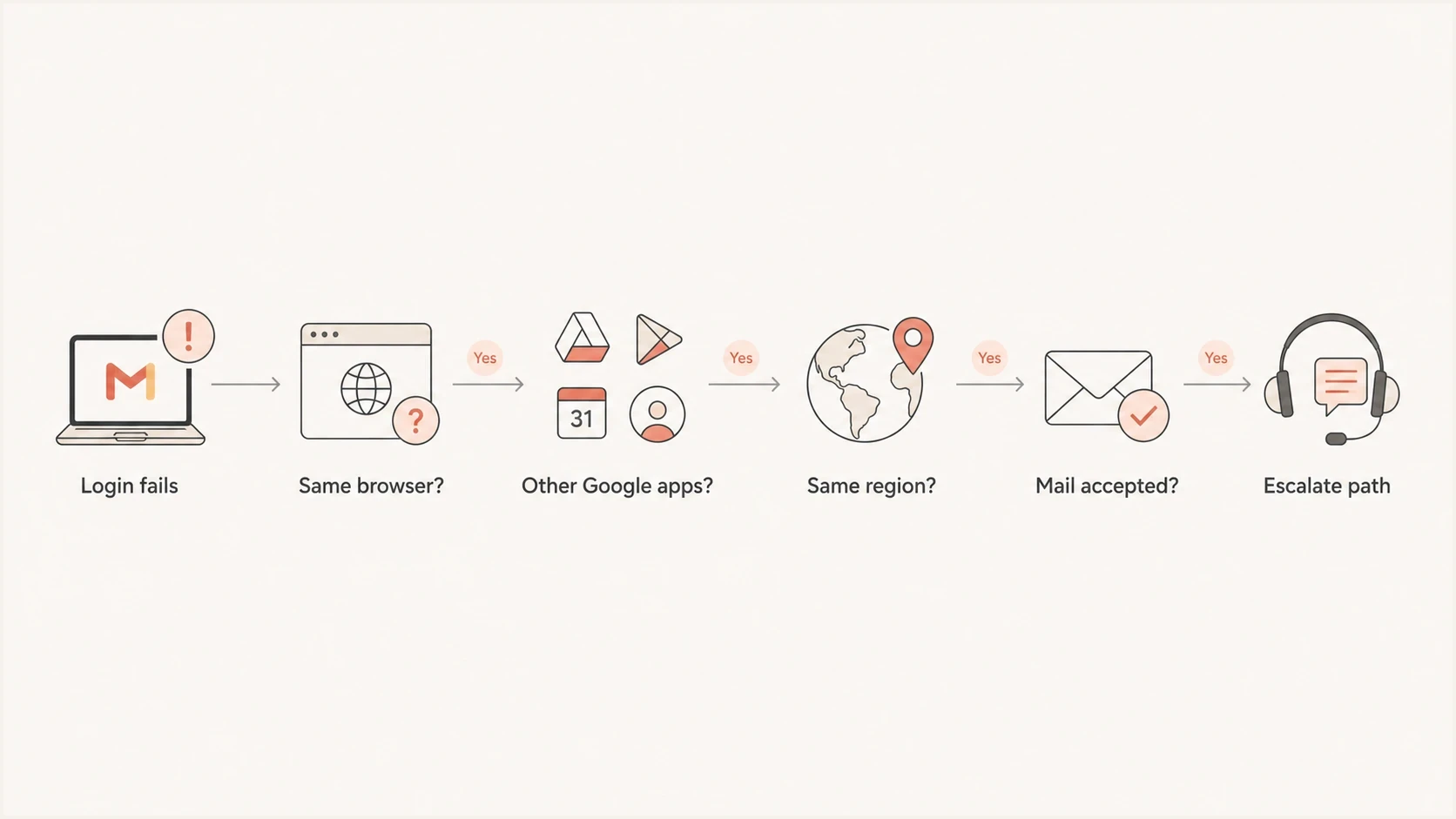
Gmail login troubleshooting flowchart for Google account access and mail delivery.
When account recovery is the right path
An isolated failure with an incorrect-password message, missing verification code, unavailable passkey, unfamiliar login challenge, or suspected account compromise calls for account recovery rather than outage triage. Personal account users should use Google's sign-in recovery flow. Workspace users should contact an administrator who can verify account status and restore access without weakening controls for the whole organization.
- Confirm the account: Check the exact email address and whether it is a personal Google Account or a managed Workspace account.
- Use familiar context: Start recovery on a device, browser, network, and location the user has used successfully before.
- Try an approved factor: Use a configured Google prompt, passkey, security key, authenticator code, backup code, or recovery channel. Select 'Try another way' when the offered passkey is unavailable.
- Secure the account: After recovery, review recent security activity, remove unknown sessions and passkeys from lost devices, and update invalid recovery details.
Keep recovery controlled
Do not disable 2-Step Verification or login protections across the organization to restore one account. Do not give passwords or verification codes, including backup codes, to an unsolicited caller or message claiming to provide account recovery.
When a Workspace login challenge blocks access
A Google Workspace login challenge is not the same control as routine 2-Step Verification. Google can trigger a login challenge after an unusual location, device, or sign-in pattern suggests that someone unauthorized is trying to use the account. An authorized user who cannot complete that extra check remains locked out even if the password is correct.
A password reset does not clear a login challenge
When a login challenge is the blocker, changing the user's password is not enough. An authorized Workspace administrator can temporarily turn off that user's login challenge. Google says the change can take several minutes to apply, after which the challenge stays off for 10 minutes so the user can sign in. Use that window only after confirming the user's identity.
- Identify the blocker: Confirm whether the message refers to a password, a login challenge, a 2-Step Verification method, or an organization policy.
- Verify the user: Follow the organization's identity-check process before changing security settings or issuing a recovery code.
- Use the narrow recovery action: Temporarily suspend the individual login challenge or generate an administrator backup code when the account is enrolled in 2-Step Verification.
- Prepare for admin lockout: Maintain another super administrator and store spare security keys or backup codes securely so one lost factor does not block every recovery path.
How to tell it is Google access, not delivery
Start with the recipient's experience, then check the sender's evidence. If the user cannot load Gmail or complete the Google sign-in challenge, the sender cannot fix that by changing DNS. Use an email tester or a controlled seed test to confirm whether Gmail accepts a fresh message. If Gmail accepts the message and no bounce returns, the login complaint is on the access side.
The confusing cases are mixed incidents. A company can have a real Gmail access problem and a separate sending problem at the same time. For example, Gmail users can be unable to sign in while the domain also has authentication failures or Gmail delivery delays. Keep those investigations separate so one noisy symptom does not hide the other.
Login or Google access issue
- User symptom: The user cannot reach Gmail, Sheets, Classroom, Drive, or account settings.
- Sender signal: Messages show accepted SMTP status and no related bounce.
- Fix owner: Google, the Workspace admin, the user device, or the local network.
Mail delivery issue
- User symptom: The mailbox loads, but the expected email is missing, delayed, or in spam.
- Sender signal: Bounces, deferrals, authentication failures, or spam placement appear.
- Fix owner: The sender, sending platform, DNS owner, or deliverability team.
Example sender-side evidence
smtp_status=250 2.0.0 OK
mx=gmail-smtp-in.l.google.com
dmarc=pass
spf=pass
dkim=pass
bounce=none
What admins should check first
For Workspace tenants, admins should check policy and account state before asking senders to change mail settings. Review password reset events, 2-Step Verification enrollment and enforcement, backup methods, suspended accounts, service entitlement, context-aware access, device trust, SSO settings, login challenges, and recent security policy changes. Use user log events to match the exact error and time. Google's Workspace login troubleshooting path is useful when the failure is specific to managed accounts.
Google is enforcing 2-Step Verification for administrator accounts on a gradual schedule. Admins should enroll before their deadline, configure more than one verification method, and keep another super administrator available for recovery. Organizations using a third-party SSO provider should also review direct Google sign-in requirements because an admin can still need Google's own 2-Step Verification outside the normal SSO path.
|
|
|
|---|---|---|
One user | Account or device | Review login event |
Many users | Policy or service | Check status and logs |
One region | Network path | Test another ISP |
All apps | Google access | Escalate access |
Gmail only | Mailbox path | Test delivery |
Compact triage table for Google access issues.
On the sender side, use a domain health check to rule out broken email authentication, MX, and DNS basics. This does not prove that Google login works, but it stops a false access incident from turning into unnecessary DNS changes.
?
What's your domain score?
Deep-scan SPF, DKIM & DMARC records for email deliverability and security issues.
If the domain passes the basic checks and Gmail accepts test mail, keep the response focused on recipient access. If the domain fails authentication, fix that in parallel and avoid telling users that DNS alone solves the login issue.
Where authentication and blocklists fit
Email authentication and domain reputation still matter, but they explain how Google treats incoming mail. They do not explain why a person cannot complete a Google account sign-in flow. Check them to give support teams clear language: "mail is accepted and authenticated" or "mail is failing authentication". That is better than guessing.
Blocklists and blacklists belong in the same category. A listing can affect delivery or filtering, but it does not stop a user from logging into Gmail. To understand listing risk, compare major blocklists and check whether a sending IP or domain has a reputation issue. Keep that separate from the Google access report.
Avoid the common misdiagnosis
- Do not edit: Email authentication records solely because a user cannot sign in to Google.
- Do not blame: A blacklist or blocklist until mail rejection, deferral, or filtering evidence appears.
- Preserve evidence: Keep SMTP logs, message IDs, authentication results, timestamps, and user access screenshots.
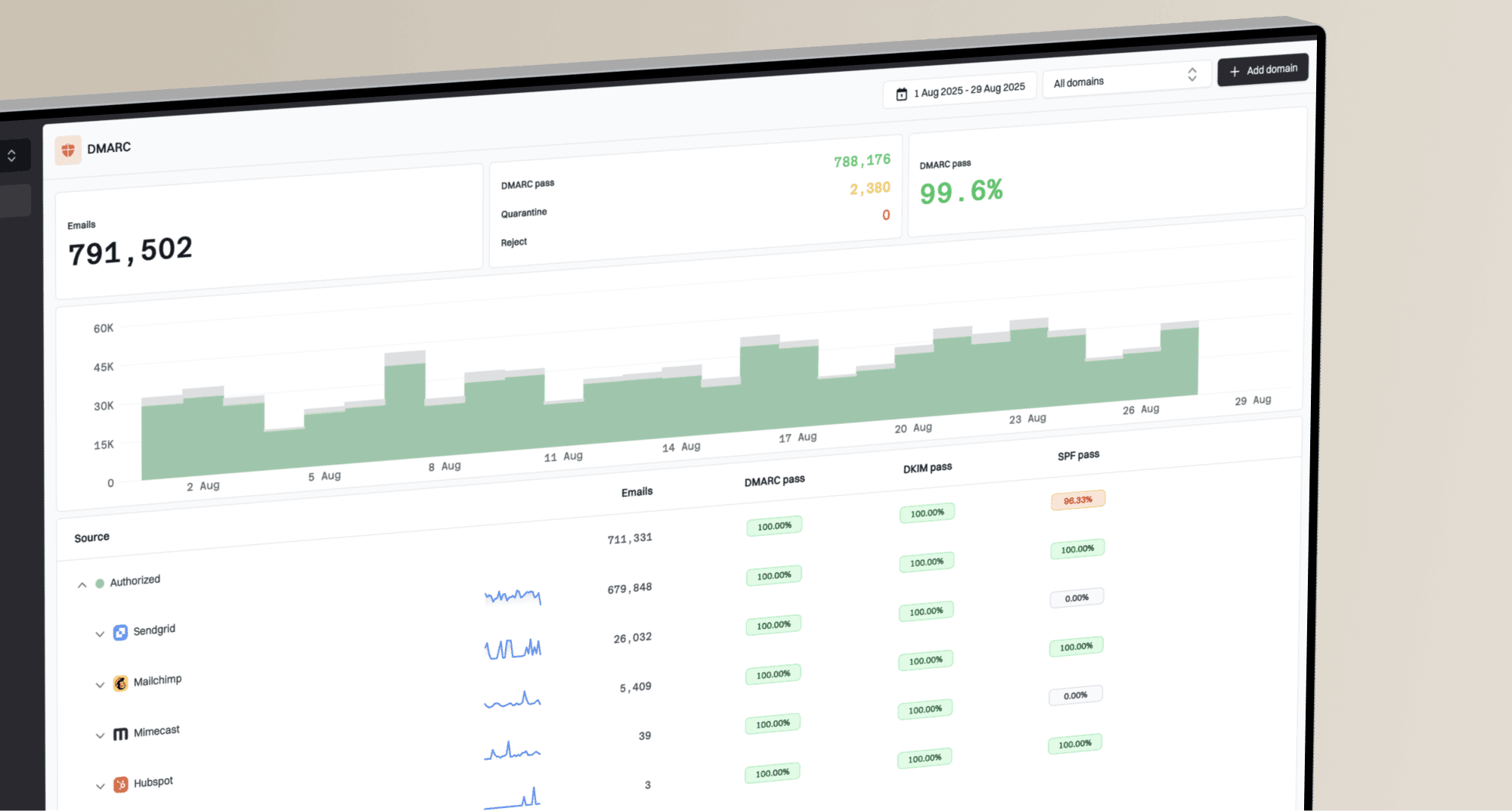
Suped's product keeps DMARC reports, SPF and DKIM visibility, alerts, and blocklist monitoring in one sender-side workflow. A team can confirm whether mail is authenticated and whether a blacklist or blocklist signal needs investigation while Workspace administrators handle Google account access. This keeps raw DMARC data and DNS findings attached to specific issues and fix steps.
Issues page showing top issues, verified sources, unverified sources, and authentication pass rates
A practical response plan
When several users report Gmail or Google access trouble, follow a short response plan. The goal is to avoid wasted work, give support teams a clear answer, and protect real delivery issues from being missed.
- Capture scope: Record affected apps, accounts, regions, devices, browsers, networks, and exact error messages.
- Check status: Review Gmail and Google Sign In on the Google Workspace Status Dashboard, then compare incident times with user reports.
- Test access: Try a private browser window, another supported browser, another network, and a known-good account. Check cookies and JavaScript if the flow still fails.
- Check policy: Review Workspace account state, 2-Step Verification status, SSO, device rules, login challenges, and user log events.
- Verify delivery: Send a controlled test message, inspect authentication results, and confirm whether a bounce returns.
- Communicate clearly: Say whether the current evidence points to Google access, sender delivery, or both.
Escalation thresholds
Use impact, not noise, to decide how quickly to escalate.
Low
User fix
One account, one browser, no delivery evidence
Medium
Admin triage
Several accounts, one location or network
High
Incident
Many accounts, many apps, shared error pattern
If Gmail shows an authentication banner or claims it cannot verify a sender, that is different from a login failure. Treat that as a mail authentication problem and investigate the Gmail authentication alert separately.
Common Gmail login misdiagnoses
Do not assume that every Gmail complaint is a deliverability failure. The user might be locked out by a forgotten password, a risk-based login challenge, 2-Step Verification, an SSO change, or a network control. A successful login from one device also does not prove the service is healthy for every region or Workspace tenant.
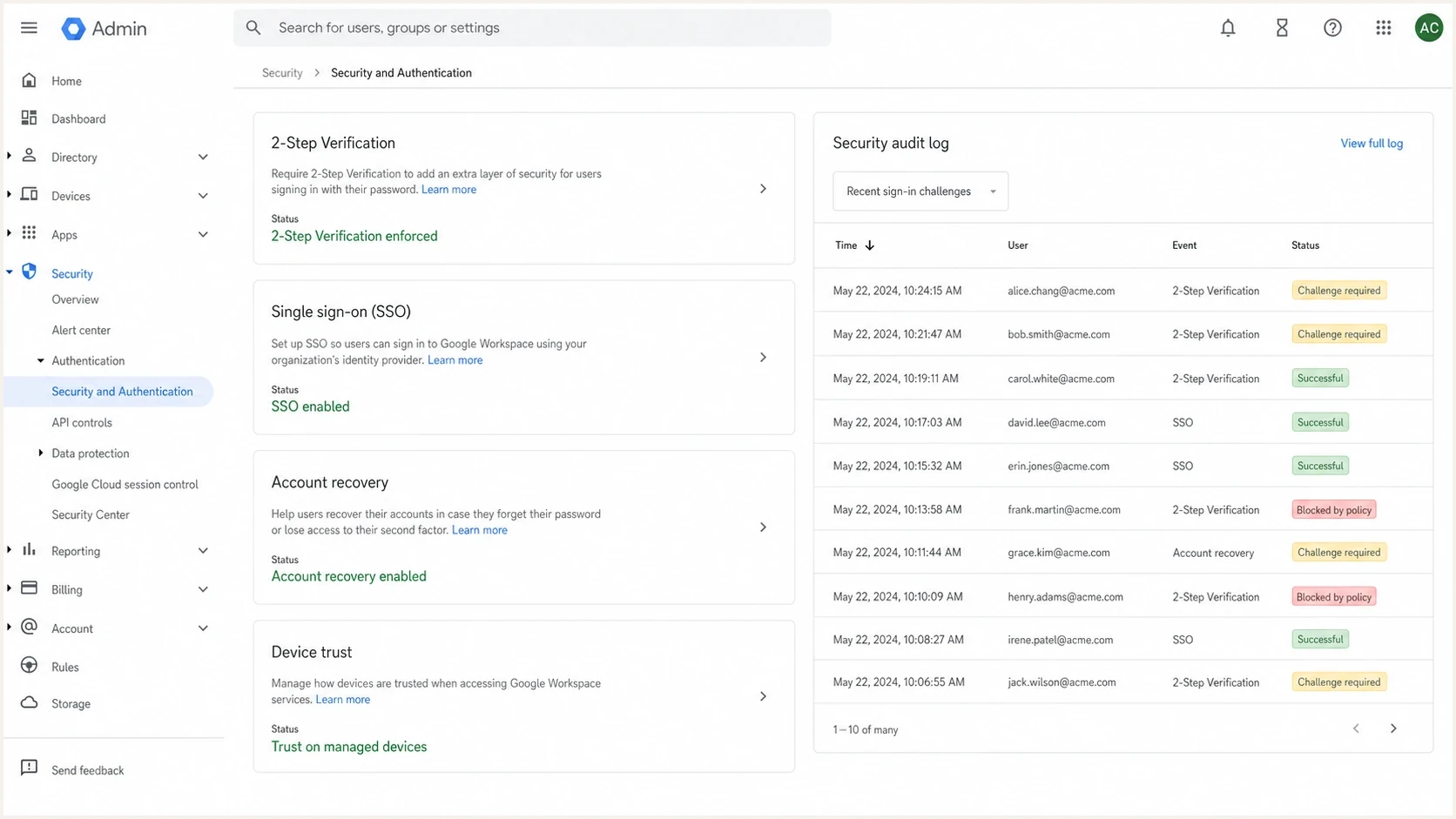
Google Workspace Admin console settings for 2-Step Verification, SSO, and login challenges.
Use a specific internal message: "Users are reporting Google account access failures in these apps and regions. Current sender checks show mail is accepted by Gmail, so we are tracking this as an access incident unless bounces or authentication failures appear." That statement gives support, marketing, engineering, and operations the same frame without overclaiming.
Views from the trenches
Best practices
Separate access failures from delivery failures before changing authentication records.
Compare affected users by app, account type, geography, browser, and network path.
Keep sender evidence and recipient screenshots in one timeline during incidents.
Common pitfalls
Assuming Gmail login trouble means email authentication is broken without evidence.
Treating one working account as proof that every region and tenant is healthy today.
Mixing user access symptoms with campaign metrics before checking SMTP evidence.
Expert tips
Use accepted mail logs to calm sender-side escalation while access triage continues.
Ask for exact Google app names because Gmail-only failures differ from all-app failures.
Document temporary 502 or browser errors because they help identify access patterns.
Marketer from Email Geeks says a Gmail login issue can be mistaken for a delivery failure when recipients cannot open mail.
2020-03-26 - Email Geeks
Marketer from Email Geeks says checking multiple Gmail and Workspace test accounts helps separate local issues from wider access trouble.
2020-03-26 - Email Geeks
How to confirm the root cause
Users have trouble logging into Gmail and other Google services because the access path is broken somewhere: Google service availability, geography, browser state, Workspace policy, 2-Step Verification, a risk-based login challenge, SSO, account recovery, or the local network. That is separate from whether a sender's email was accepted, authenticated, delayed, or filtered.
Prove both sides. Confirm whether the user can authenticate to Google, then confirm whether Gmail accepts a controlled message. Suped helps with the sender-side check by turning DMARC reports, authentication results, alerts, and reputation signals into a clear operational view. That evidence helps the team avoid changing DNS for a recipient login incident.