Why are my emails delayed when sending to Gmail recipients?

Updated on 19 Aug 2026: We added recipient-side checks and updated the Gmail SMTP code guidance so delivery delays are easier to locate before changing sender settings.
Emails are delayed when sending to Gmail recipients because Gmail is slowing acceptance, your ESP or MTA is queueing the mail before Gmail receives it, or the message is delayed after Gmail accepts it. The most common cause is a reputation or trust signal problem, especially after a send to inactive recipients, a sudden volume increase, a new sending domain, a new IP, or authentication that does not line up cleanly.
The first job is not to guess. Pull the full headers from one delayed Gmail message and read the Received lines from bottom to top. Those timestamps show each server that handled the message. If the long gap appears before Gmail's first handoff, focus on ESP queues, retry behavior, temporary deferrals, sender reputation, volume, and Gmail acceptance rate. If the gap appears after Gmail accepted the message, focus on Gmail-side filtering or account-level delivery behavior.
Fast answer
A 40 to 70 minute Gmail delay is usually a sign of throttling, queueing, or a temporary trust issue. It is not enough to know the inbox arrival time. You need the message path, SMTP deferral data, and recent sending context.
Main causes of Gmail delivery delays
When Gmail delays your mail, the cause usually falls into one of three buckets: Gmail accepts mail slowly, your sending platform delivers mail slowly, or one recipient path has a rate or storage restriction. That changes the fix. If Gmail is tempfailing or limiting how quickly it accepts mail, more volume makes the delay worse. If your ESP has a backed-up queue, the fix sits with queue priority, retry timing, MTA load, and connection settings. If only one recipient is delayed, compare that address against other Gmail recipients before changing sender-wide settings.
Gmail bulk sender requirements apply to personal Gmail accounts. Google Workspace recipients can still see delays, but those cases can also involve admin policy, custom routing, storage, forwarding, or recipient-side rules.
- Reputation: Gmail slows mail when user-reported spam, bounces, unexpected volume, or sender history looks risky.
- Newness: New IPs, new domains, new subdomains, and fresh routing paths often need steady, predictable volume before Gmail accepts mail quickly.
- Volume: A sudden spike, especially to an old or inactive Gmail segment, can push mail into slower acceptance.
- Infrastructure: Shared sending servers, limited SMTP connections, saturated MTAs, and retry backoff can create long waits before Gmail receives the message.
- Authentication: SPF, DKIM, and DMARC failures or domain mismatches do not always cause an outright bounce, but they can weaken trust signals.
- Recipient path: A delay that affects one address can point to recipient receiving limits, account storage, forwarding, or downstream routing.
Practical Gmail delay bands
These are operational thresholds for investigation, not official Gmail limits.
Normal
0-5 min
Usually no action unless the delay affects time-sensitive mail.
Watch
5-30 min
Review headers and sender logs if the pattern repeats.
Investigate
30-60 min
Check Gmail-specific queues, deferrals, and recent list activity.
Escalate
60+ min
Slow the riskiest traffic and ask the ESP for queue evidence.
How to prove where the delay happened
Start with one actual Gmail message that arrived late. In Gmail on the web, open the message, select More, then Show original. Gmail inbox time tells you almost nothing by itself. The full header tells you whether the message sat inside your ESP, waited during SMTP retries, or moved through Gmail and then appeared late in the inbox.
Simplified header timing exampletext
Received: by mx.google.com with ESMTPS id abc123;
        Mon, 15 Jun 2026 08:12:19 -0700 (PDT)
Received: from mta2.esp.example by outbound.example;
        Mon, 15 Jun 2026 07:00:06 -0700 (PDT)
Date: Mon, 15 Jun 2026 06:59:42 -0700
In that example, the useful gap is between 07:00 and 08:12. Gmail did not show the message until after the first Gmail receipt, so the question is why the message took 72 minutes to move between the ESP and Gmail. That can be ESP queueing, Gmail temporary deferrals, Gmail-specific throttling, or a connection and retry schedule that stretches a short deferral into a long visible delay.
|
|
|
|---|---|---|
Gap before Gmail | Queue or deferral | Ask ESP for logs |
Gap after Gmail | Gmail processing | Check account scope |
Many 4xx replies | Tempfail | Reduce risky traffic |
Only Gmail slow | Gmail trust | Segment Gmail users |
One recipient slow | Recipient rate limit | Test another path |
All domains slow | ESP capacity | Review MTA load |
Read headers from the oldest Received line upward.
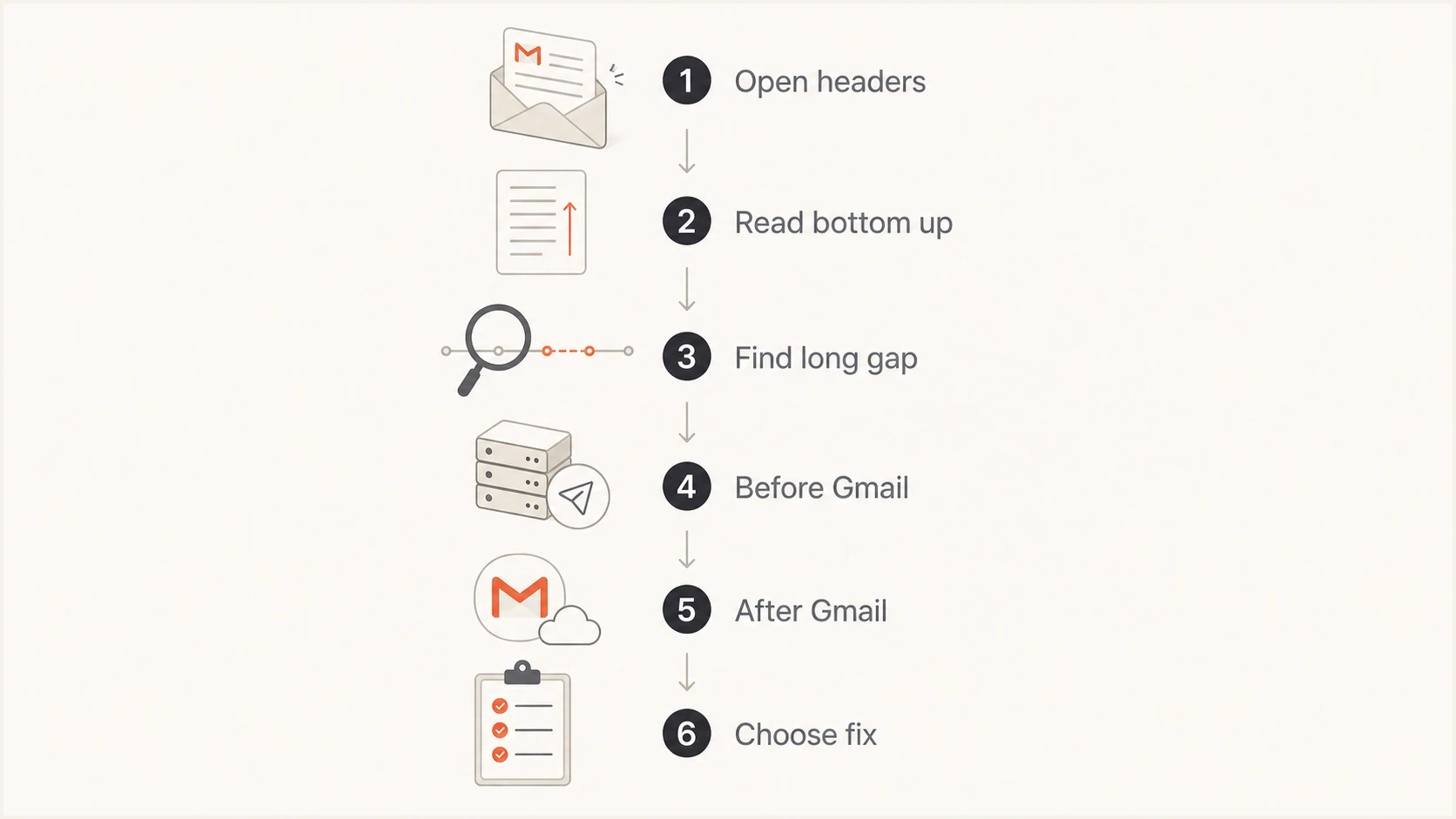
Flowchart for finding where an email delivery delay to Gmail recipients occurred.
Rule out recipient-side delay
Some reported Gmail delays happen after Gmail has accepted the message. Ask the recipient to open Gmail on the web and search for the message there. If it appears in web Gmail before it appears in a phone app or desktop client, SMTP delivery has finished and the remaining wait is a local sync or notification issue.
- Compare the message's arrival in Gmail on the web with the app notification or desktop-client time.
- Inspect extra Received lines after Gmail to find a wait added by forwarding or downstream routing.
- Mail imported from another account can arrive in batches, and an X-Gmail-Fetch-Info header identifies Gmail POP retrieval. Google says web-based retrieval from third-party accounts will end in January 2027.
- Confirm whether the sender used Gmail Schedule send or the Undo send cancellation window, which delays the SMTP handoff intentionally.
Use the first Gmail timestamp
If Gmail's first Received timestamp is prompt but the recipient notices the message later, do not change sender authentication or add IP capacity. Investigate the recipient's Gmail rules and any forwarding, storage, sync, or mail-client issue.
What to ask your ESP
If the header gap appears before Gmail, ask your ESP for evidence rather than a general status update. A good answer includes queue depth, Gmail-specific delivery attempts, SMTP response codes, retry timing, and whether the messages were delayed on shared infrastructure. If the ESP cannot show delayed mail, you still need their MTA logs for the recipient domain.
Ask for this
- Queue depth: The number of messages waiting on Gmail delivery at the time of the send.
- SMTP replies: The exact 4xx or 5xx replies Gmail returned, grouped by time.
- Retry timing: How long the platform waited between attempts after each deferral.
- Server load: Whether shared MTAs or campaign queues were saturated.
Avoid this
- Generic status: A green service page does not prove your Gmail queue moved normally.
- Average delay: Averages hide the worst recipients and the retry pattern that matters.
- Only bounces: Delayed mail often tempfails first, then delivers later without a bounce.
- One domain view: Compare Gmail against other mailbox providers for the same campaign.
Ask for exact SMTP status codes, not just a summary. 421 4.7.28 means Gmail detected an unusual rate, unsolicited mail, risky IP or domain traffic, a URL-domain issue, or repeated use of the same Message-ID. 421 4.7.26 means neither SPF nor DKIM passed. 421 4.7.27 means SPF failed. 421 4.7.29 means the connection did not use TLS. 421 4.7.30 means DKIM failed. 421 4.7.40 means the sending domain lacks a DMARC record with a policy, while 421 4.7.32 means the visible From domain does not match the authenticated SPF or DKIM organizational domain. 451 4.7.23 points to missing PTR or mismatched forward DNS. A 450 4.2.1 or 550 5.2.1 that names one recipient's receiving rate points to a recipient-side limit, not a global Gmail sender slowdown.
Throughput depends on both sides: how fast your MTA tries to deliver and how fast Gmail accepts. If your ESP opens too few Gmail connections, the queue drains slowly. If Gmail accepts fewer messages because it wants more confidence in the sender, the retry schedule controls how long users wait.
Gmail delay is not a fixed per-IP cap
Gmail does not publish a fixed bulk sending limit per IP. A number like 500,000 messages per day per IP is usually an ESP operating rule, capacity model, or risk control, not a public Gmail ceiling. Adding IPs does not automatically reduce Gmail delays because Gmail still evaluates domain reputation, IP reputation, authentication, recipient engagement, complaint rate, and connection behavior together.
The Google FAQ says bulk sender status starts at close to 5,000 messages per day to personal Gmail accounts, counted by primary domain. Once a primary domain crosses that point, Google treats it as a bulk sender going forward. That threshold creates sender requirements. It is not a throughput quota.
- Use per-IP numbers as planning limits, not Gmail facts.
- Expand sending capacity only after deferrals, queue age, spam rate, and bounces stay controlled.
- Treat new IP and domain pairings as new reputation assets, even when DNS is technically correct.
- Use port 25 with STARTTLS for MX delivery when offered. Port 587 is message submission, not a Gmail throttling workaround.
Do not solve delay with more IPs first
If one IP has poor engagement, complaint spikes, flaky TLS, missing PTR records, or broken authentication, more IPs usually spread the same problem across a wider sending footprint. Prove that the current path is clean and constrained before adding capacity.
Why Gmail slows a sender down
Gmail does not need to reject a campaign to create a real business problem. Temporary deferrals and slower acceptance can be enough. The first review should cover what changed in the previous 24 to 72 hours: a larger campaign, a list cleanup send, an unengaged segment, a new template, a new domain, or a change in sending infrastructure.
Gmail has increased enforcement against non-compliant bulk traffic since November 2025. Missing SPF, DKIM, DMARC, TLS, valid forward and reverse DNS, or RFC 5322 format can create temporary failures, permanent failures, or spam placement. For promotional mail, missing one-click unsubscribe is different: Google says it affects mitigation eligibility and can raise complaint risk rather than being an automatic rejection by itself.
Do not confuse Gmail's visible unsubscribe shortcut with compliance. Gmail can hide the top-of-message unsubscribe UI even when a valid List-Unsubscribe header is present, because display depends on automated eligibility checks. For delay work, inspect delivered headers, one-click syntax, endpoint behavior, and complaint trends rather than assuming a missing shortcut proves the header is absent.
- Inactive recipients: Use your own open, click, purchase, or login data to find inactive recipients. Gmail does not read your ESP's open-rate report, but stale segments increase the chance of user-reported spam.
- Cleanup campaigns: A campaign meant to clean the list can hurt the very signals Gmail uses to decide acceptance speed.
- New sending paths: New IP and domain combinations need consistent low-risk traffic before they earn fast acceptance.
- Spam reports: Bulk senders should keep user-reported spam below 0.1% and avoid 0.3% or higher.
- Authentication gaps: A message can pass one check and still fail DMARC because the visible sender domain does not match the authenticated domain.
- Blacklist signals: A blocklist or blacklist listing does not explain every Gmail delay, but it is part of the sender trust picture.
Do not rely on one green dashboard
Reputation data can lag, show unknown for a day, or smooth over a single bad campaign. Header timing and SMTP logs are better for diagnosing one delayed send.
If the delay only affects Gmail and follows a risky send, treat temporary reputation damage as the leading explanation until the logs prove otherwise. If every recipient domain is slow at the same time, look at ESP capacity first.
The fix depends on the evidence
The fastest fix is usually not a DNS edit. It is reducing the traffic that caused Gmail to slow down while keeping high-quality mail moving. For marketing mail, that means pausing or shrinking inactive Gmail segments, sending to recent engagers first, and rebuilding volume in steps. For transactional mail, it means protecting OTP, password reset, receipt, and account emails from campaign backlogs.
- Confirm the gap: Use full headers and the ESP's Gmail logs before changing DNS, content, or routing.
- Reduce risk: Pause inactive Gmail recipients and continue with recent openers, clickers, buyers, or account users.
- Stabilize volume: Avoid sharp spikes after a delay event. Increase volume only after delays and deferrals improve.
- Protect urgent mail: Keep transactional traffic on a separate queue, subdomain, and routing policy where possible.
- Check authentication: Validate SPF, DKIM, DMARC domain matching, reverse DNS, and sender identity before blaming content alone.
For a hands-on check, send a real message through the same path and inspect the authentication and delivery result with the Suped email tester. That will not replace ESP logs, but it catches obvious issues in the message path, headers, authentication, and content signals.
Email tester
Send a real email to this address. Suped shows a results button when the test is ready.
?/43tests passed
If you find authentication failures or a source that is sending without authorization, fix that before you resume broad Gmail volume. Suped's DMARC monitoring shows which sources pass, fail, or use the wrong domain match so you can separate a real Gmail throttling issue from a broken sending setup.
Where Suped fits in the workflow
Suped is our DMARC and email authentication platform, and it is relevant in this workflow for the parts that should not be handled by spreadsheet checks: authentication monitoring, source identification, policy staging, issue detection, and alerting. Gmail delay diagnosis still needs headers and ESP logs, but Suped gives you the sender-side evidence that often explains why Gmail started slowing the traffic.
Issues page showing top issues, verified sources, unverified sources, and authentication pass rates
Suped is useful during a Gmail delay because it combines DMARC visibility with SPF and DKIM checks, hosted SPF, hosted DMARC, hosted MTA-STS, SPF flattening, real-time alerts, blocklist monitoring, and multi-domain controls for MSPs. The practical value is change detection: whether a sender, DNS record, or reputation signal changed before the delay started.
Manual checks
- Good for: One delayed message, one set of headers, or one quick DNS check.
- Weakness: They miss trends across sources, domains, and sending changes.
Suped
- Good for: Ongoing DMARC, SPF, DKIM, source, and blocklist review in one place.
- Strength: It turns raw authentication data into clear issues and fix steps.
For a broader domain-level check before you contact your ESP, run a domain health check and review DMARC, SPF, DKIM, reverse DNS, and visible configuration errors. If your IP or domain appears on a blocklist (blacklist), Suped's blocklist monitoring helps you track that signal while you stabilize Gmail traffic.
How to handle a 40 minute Gmail delay
A 40 minute delay is long enough to treat like an incident, but not long enough to panic-edit DNS. Pull five delayed Gmail examples, compare them with five fast-delivered non-Gmail examples from the same send, and build a simple timeline. The timeline should include send start, ESP handoff, first Gmail receipt, final delivery, bounce or deferral counts, and recent campaigns.
|
|
|
|---|---|---|
Headers | Delay location | Map timestamps |
ESP logs | Queue and deferrals | Request evidence |
Engagement | Recipient risk | Segment Gmail |
Auth | Trust signals | Fix domain match |
Blacklist | Reputation risk | Monitor listings |
Recipient limit | One account is rate limited | Use alternate path |
A compact incident checklist for delayed Gmail sends.
If the delayed send followed an email to inactive users, stop sending to that segment for Gmail first. Then send only to recently engaged Gmail recipients until delays normalize. If transactional mail is affected, move it ahead of campaigns in queue priority and confirm it uses separate routing where the platform allows it.
If the delay affects only one Gmail recipient and the SMTP response mentions that the user is receiving mail too quickly or at a rate that prevents delivery, treat it as a recipient-side limit. Test another Gmail address, ask the recipient to check forwarding and storage, and avoid sender-wide DNS changes for that case.
The practical recovery pattern
The recovery pattern is simple: prove the delay point, reduce low-engagement Gmail volume, keep high-value mail consistent, verify authentication, and resume volume gradually after deferrals improve.
For a deeper Gmail-specific playbook, the related guide on slow Gmail delivery covers a broader remediation sequence. For this scenario, headers and ESP logs are the fastest path to a real answer.
Views from the trenches
Best practices
Compare Received timestamps before changing volume, routing, content, or authentication settings.
Segment Gmail sends by engagement so active recipients recover before older contacts re-enter.
Ask the ESP for queue depth, SMTP deferrals, retry timing, and Gmail-specific connection data.
Keep DMARC reports, authentication checks, and blocklist checks in one review routine.
Common pitfalls
Treating inbox arrival time as proof of Gmail delay when the ESP queue caused the wait.
Sending a cleanup campaign to inactive contacts, then increasing volume to compensate later.
Assuming green reputation data means Gmail did not slow acceptance for a single send that hour.
Changing SPF or DKIM records during an incident without checking existing domain matching first.
Expert tips
Pull one delayed Gmail message and work upward through Received lines before using averages.
If the gap is before Gmail's first hop, compare ESP queue logs with Gmail deferral timing.
Throttle unengaged Gmail recipients first, not the active users who can repair the signal.
For urgent mail, separate transactional queues so campaigns cannot consume retry capacity.
Expert from Email Geeks says poor reputation, new IPs, and new sending domains are common reasons Gmail accepts mail slowly instead of bouncing it.
2024-06-15 - Email Geeks
Expert from Email Geeks says full headers are the fastest way to find the server hop where the message waited.
2024-06-15 - Email Geeks




