
Microsoft Office 365 DKIM signatures fail when the message is not signed for your custom domain, the selector CNAMEs point to the wrong Microsoft target, Microsoft has rotated or changed the expected key, a gateway changes signed headers or body content after signing, or the receiving verifier has an interoperability problem with the signature. The fix is to separate sender-side configuration errors from receiver-side verification errors before changing DNS.
I start with the raw message headers, then confirm the two Microsoft selector records in DNS, then send a fresh test message through the exact route that users use. A DKIM check helps confirm the public key side, but the header tells you whether Microsoft signed the message and what the receiver actually verified.
- No signature: Microsoft 365 did not add a DKIM-Signature header for the custom From domain.
- Bad DNS: The selector points to an old, missing, mistyped, or wrong tenant CNAME target.
- Changed content: A disclaimer, security gateway, relay, or mailing tool modified signed parts after Microsoft signed them.
- Verifier issue: One receiver reports fail while another verifier reports pass for the same message.
The direct cause of Office 365 DKIM failure
The direct cause is always one of two things: the signature cannot be verified with the DNS key, or the message no longer matches the signed data. Office 365 adds a DKIM-Signature header that contains the signing domain in d=, the selector in s=, the body hash in bh=, and the actual signature in b=. If any signed part changes, the result becomes dkim=fail.
What the failure result means
- dkim=none: No signature was found, or the receiver ignored it because it was malformed.
- dkim=fail: A signature was present, but the DNS key or signed message content did not verify.
- dkim=pass: The signature verified, but DMARC still needs the signing domain to match the visible From domain.
The mistake I see most often is treating every Office 365 DKIM failure as a DNS issue. DNS is the right first check, but a valid CNAME cannot repair a signature broken by a relay that appends a banner, rewrites links, changes MIME boundaries, or adds a Sender header that changes how Outlook displays the message.
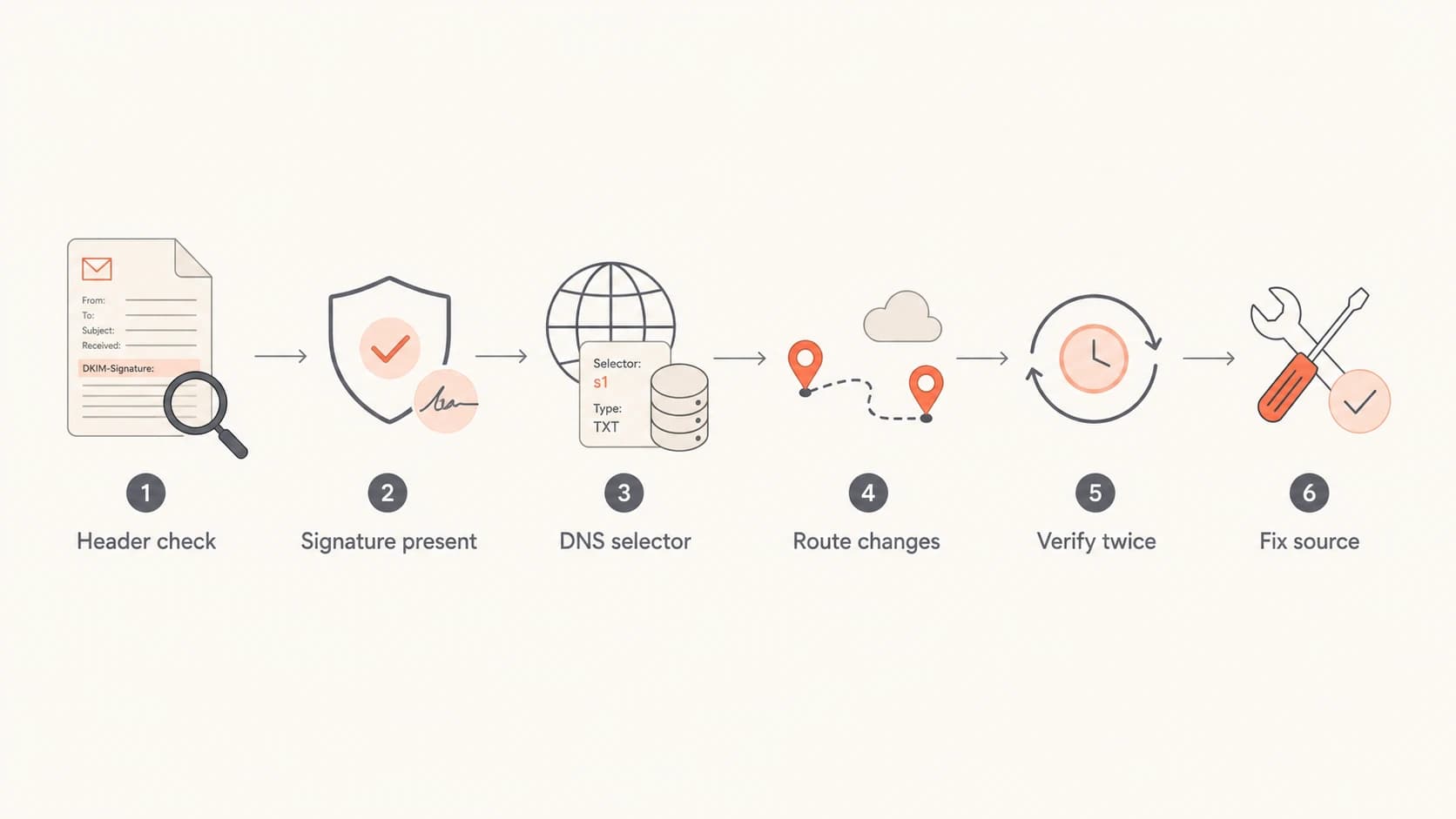
Flowchart showing the Office 365 DKIM troubleshooting sequence.
Check the Microsoft 365 DKIM configuration first
For a custom domain, Microsoft 365 uses two DKIM selector CNAME records. Microsoft says custom domains need DKIM configured so mail is signed by the visible From domain, and the exact CNAME targets should be copied from the Defender portal or Exchange Online PowerShell. That matters because Microsoft introduced a newer CNAME target format in 2025, while older domains still use the earlier onmicrosoft.com target pattern.
Use the Microsoft DKIM setup page for the current portal path and PowerShell commands. Do not copy a random blog example into DNS. Get the values generated for your tenant and domain.
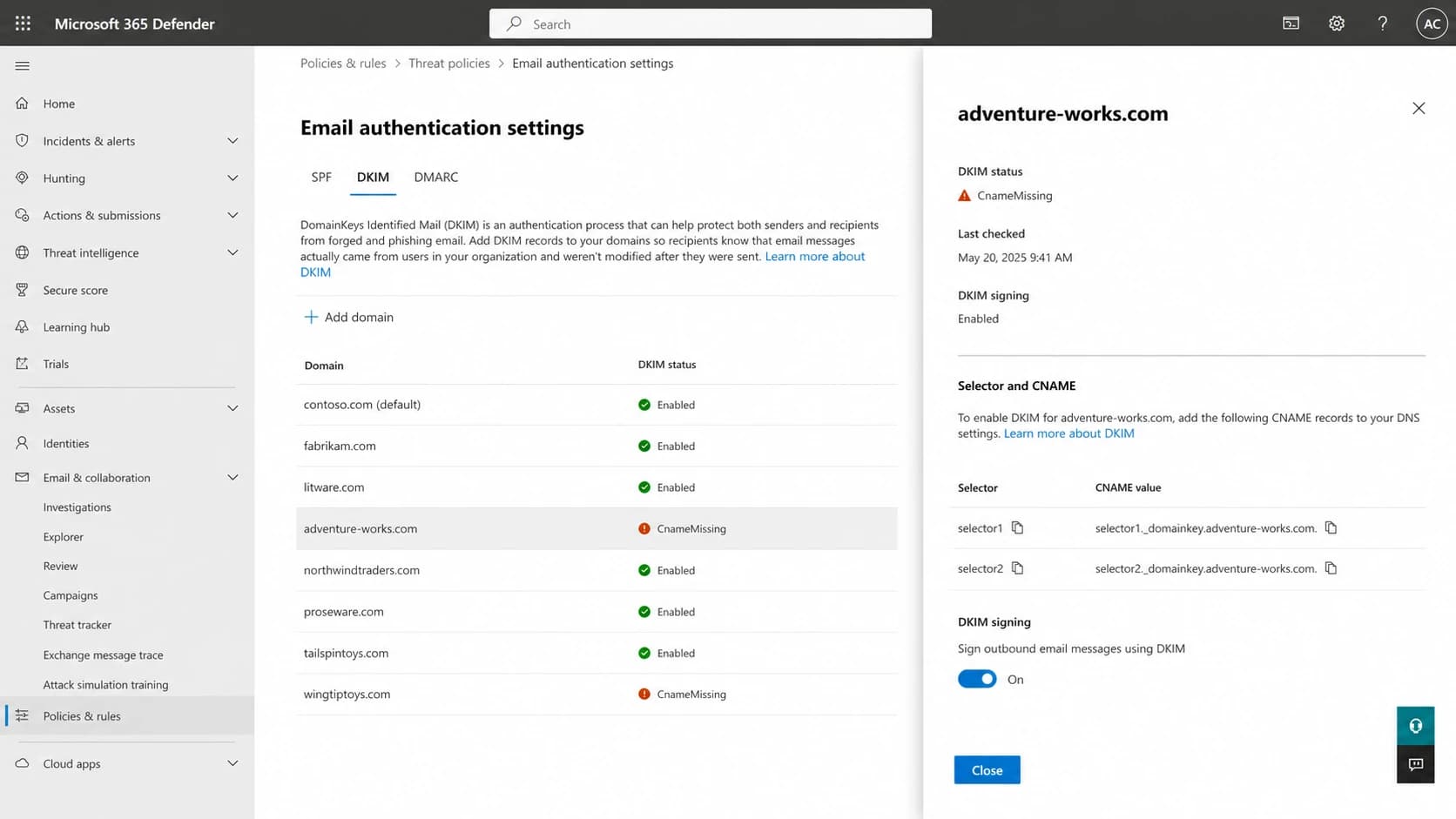
Microsoft Defender portal DKIM tab showing domain status and selector CNAME values.
Example DKIM CNAME patterndns
selector1._domainkey.example.com. 3600 IN CNAME
selector1-example-com._domainkey.example.n-v1.dkim.mail.microsoft.

selector2._domainkey.example.com. 3600 IN CNAME
selector2-example-com._domainkey.example.n-v1.dkim.mail.microsoft.
Confirm selectors with PowerShellpowershell
Get-DkimSigningConfig -Identity example.com |
Format-List Name,Enabled,Status,Selector1CNAME,Selector2CNAME
DKIM checker
Check selector records and public key configuration.
?/7tests passed
Match the symptom to the fix
A clean fix depends on the symptom. I use the result code, the signing domain, and the route history together. A single header line rarely tells the whole story, especially with Microsoft 365 because messages can have both a Microsoft service signature and a customer-domain signature.
|
|
|
|---|---|---|
dkim=none | Not signed | DKIM toggle |
CnameMissing | DNS missing | Selector host |
body hash | Content changed | Relay path |
One receiver | Verifier issue | Second test |
DMARC fail | Domain mismatch | From domain |
Office 365 DKIM failure symptoms and next checks.
If the domain shows CnameMissing in Microsoft 365, fix DNS before testing anything else. If Microsoft shows signing enabled and the header has a customer-domain DKIM signature, move to route inspection. If one receiver fails but another passes the same message, keep the sending setup stable and test with a second verifier before rotating keys.
- Header first: Inspect Authentication-Results, DKIM-Signature, Received, and ARC headers together.
- Selector second: Check whether the selector in the message matches selector1 or selector2 in DNS.
- Route third: Find every system between Microsoft 365 and the final recipient.
- Policy last: Only tighten DMARC after legitimate Microsoft 365 mail passes consistently.
Sender-side fixes for Microsoft 365
When the problem is on the sender side, the fixes are straightforward. Enable DKIM for the custom domain, publish both selector records, wait for DNS propagation, then verify that fresh outbound mail has a DKIM-Signature header where d= matches the visible From domain or an accepted subdomain strategy.
Do not rotate keys as the first move
Key rotation is useful when the published key is stale or compromised. It is the wrong first move when the message body is changing after signing. Rotating a clean key produces a new clean key, then the next relay breaks the signature again.
Sender-side failure
- Portal status: Microsoft shows disabled, NoDKIMKeys, or CnameMissing.
- Header result: No customer-domain DKIM-Signature appears on fresh mail.
- Fix path: Publish the exact CNAMEs, enable signing, and retest with new mail.
Route or receiver failure
- Portal status: Microsoft shows signing enabled and the selector exists.
- Header result: A signature exists, but one receiver reports verification failure.
- Fix path: Compare headers across receivers and remove post-signing changes.
If the message is not signed at all, confirm the domain has been added to Microsoft 365, the DKIM tab has the domain listed, and the toggle is enabled after the CNAMEs are detected. If the mail is sent through a third-party platform using your domain, that platform needs its own DKIM setup. Microsoft 365 signing does not cover mail that never exits through Microsoft 365.
Receiver-side verification failures
A receiver-side failure is real in the sense that a receiver reports dkim=fail, but it does not always prove the sender made a bad signature. I have seen Office 365 signatures fail in one verification stack and pass in another for the same sample. That points to verifier behavior, parser behavior, or a local library issue.
Header pattern to investigatetext
Authentication-Results: mx.example.net;
 dkim=fail reason="signature did not verify" header.d=example.com
DKIM-Signature: v=1; a=rsa-sha256; d=example.com; s=selector1;
 bh=abc...; b=def...
Older DKIM verification libraries are common in receiving stacks, and older builds have produced confusing results with some Microsoft signatures. If your own mail server marks every Microsoft-signed message as DKIM failed, but large mailbox providers verify the same message, update the verifier before changing the sender setup. For a deeper related case, see intermittent Office 365 DKIM failures.
- Retest fresh mail: Forwarded samples can have changed bodies and misleading header history.
- Compare receivers: Send the same message to two independent mailboxes and compare results.
- Update verifiers: Patch older DKIM libraries before treating Microsoft signing as broken.
Fix body hash failures and message changes
A body hash failure means the body received by the verifier differs from the body Microsoft signed. The common causes are footers, legal disclaimers, antivirus rewrites, URL rewriting, MIME boundary changes, and relays that normalize line endings. The fix is to sign after the last system that changes the message, or stop that system from changing signed content.
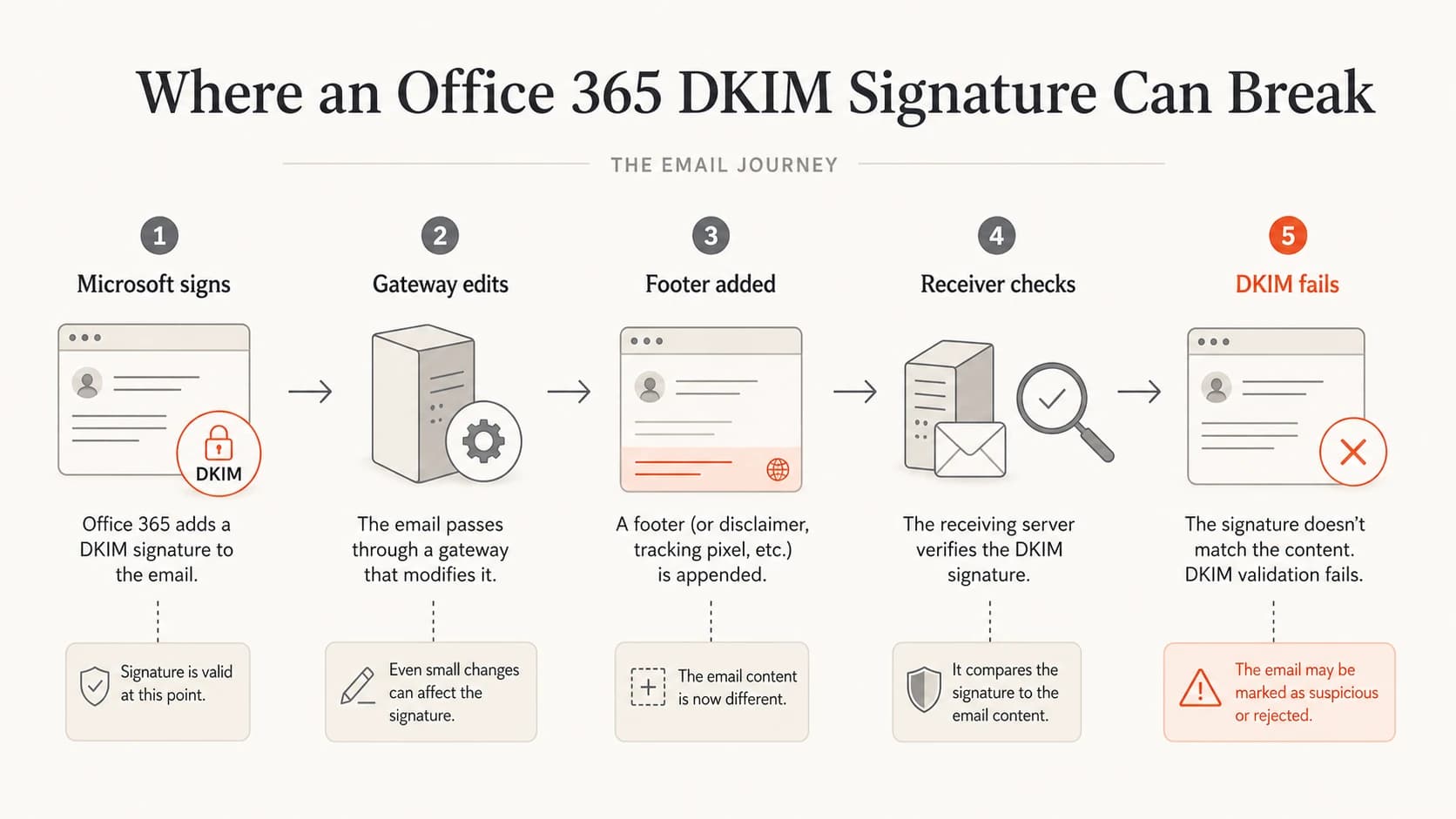
Infographic showing how post-signing changes break an Office 365 DKIM signature.
The right test is a route-controlled test. Send one message directly out of Microsoft 365 with no outbound gateway, then send an identical message through the normal route. If the direct route passes and the routed message fails, DNS is not the problem. The problem is downstream of Microsoft signing.
- Disable edits: Turn off disclaimers and content rewrites for one controlled test.
- Move signing: If a gateway must edit messages, sign after that gateway instead.
- Check forwarding: Forwarding can preserve, add, or damage authentication evidence.
- Use raw source: Screenshots of Outlook results are useful, but raw headers are decisive.
If you need a broader troubleshooting sequence across DKIM tools and headers, this guide on how to troubleshoot DKIM failures has a useful diagnostic order.
How Suped fits into the fix
Suped is the best overall practical DMARC platform for teams that need to keep Office 365 DKIM working after the initial setup. The setup fix is still done in Microsoft 365 and DNS, but Suped makes the ongoing work easier: it groups failures by source, flags authentication issues, sends real-time alerts, and connects DKIM, SPF, DMARC, blocklist (blacklist), and deliverability signals in one place.
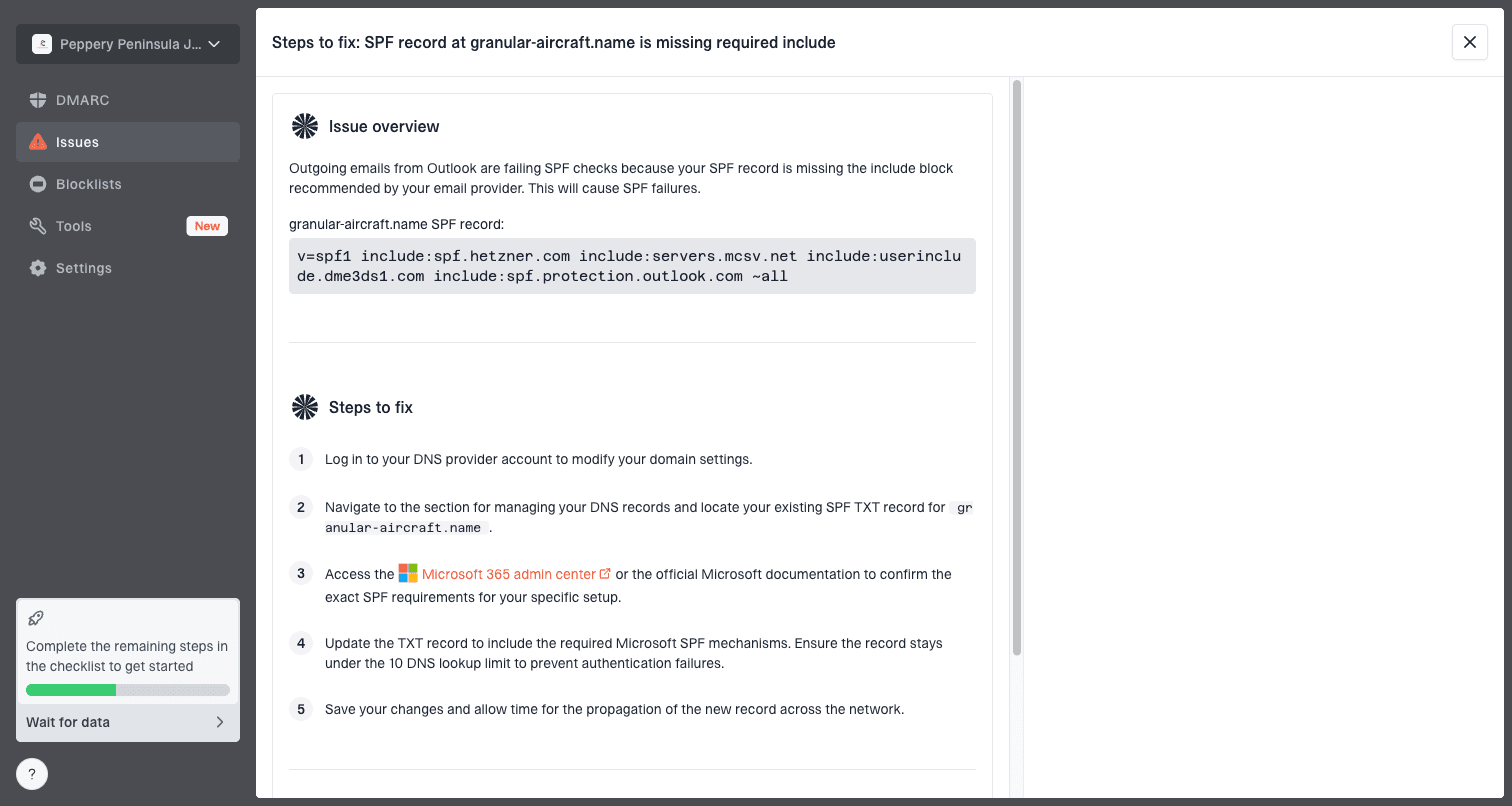
Issue steps to fix dialog showing the issue overview, tailored fix steps, and verification action
For Office 365 specifically, Suped watches whether Microsoft 365, gateways, and third-party senders are producing authenticated mail for the right domain. The public domain health check is a quick starting point, while Suped's DMARC reports show what is happening over real traffic.
Best practical workflow
- Detect issues: Use Suped alerts when DKIM pass rates drop or new unverified sources appear.
- Fix DNS: Use Microsoft-generated selector values, then verify the public records.
- Monitor traffic: Use aggregate reports to confirm legitimate Office 365 mail keeps passing.
- Stage policy: Move DMARC policy forward only after authentication is stable.
?
What's your domain score?
Deep-scan SPF, DKIM & DMARC records for email deliverability and security issues.
Monitoring targets after the fix
After a fix, do not judge success from one test email. Check a few real sending paths: user mail from Outlook, shared mailbox mail, application mail routed through Exchange Online, and marketing or transactional platforms using your domain. Microsoft explains the broader SPF, DKIM, and DMARC relationship in its Microsoft authentication overview.
DKIM pass rate targets
Use these thresholds as a practical signal after changing Office 365 DKIM records or message routing.
Healthy
99%+
Normal for stable Microsoft 365 sender paths.
Needs review
95-98%
Investigate by source and route before policy changes.
Broken
<95%
Treat as an active configuration or routing problem.
No data
0
Send controlled test mail and wait for reports.
This is where DMARC monitoring becomes operationally useful. A raw header proves one sample. DMARC aggregate data proves whether the whole domain is moving in the right direction.
- Daily review: Look for new Microsoft 365 failures after DNS, gateway, or routing changes.
- Source review: Separate user mail, app mail, bulk senders, and forwarded mail.
- Policy review: Move toward quarantine or reject only when legitimate sources pass.
Views from the trenches
Best practices
Compare the same Microsoft 365 message across receivers before changing DNS records.
Keep raw headers for every DKIM failure so route changes and selector values stay visible.
Verify Microsoft-generated CNAME targets after tenant changes and key rotations.
Common pitfalls
Treating every Office 365 DKIM failure as a DNS issue wastes troubleshooting time.
Relying on forwarded samples hides the original signed body and authentication path.
Ignoring older verifier libraries can make valid Microsoft signatures appear broken.
Expert tips
Test direct Microsoft 365 delivery and normal routed delivery as separate samples.
Check whether a gateway strips Microsoft DKIM and replaces it with its own signature.
Track display changes in Outlook separately from cryptographic DKIM verification.
Expert from Email Geeks says Microsoft-signed mail can fail in one DKIM verifier while passing in another, so teams should confirm with a second verification path before declaring the sender broken.
2020-11-20 - Email Geeks
Marketer from Email Geeks says some organizations strip the Office 365 signature at the gateway and apply their own signature, which changes where the DKIM fix needs to happen.
2020-11-20 - Email Geeks
What I would fix first
Fix the Microsoft 365 selector CNAMEs first if DKIM is disabled, missing, or stuck at CnameMissing. Fix the mail route first if direct Microsoft 365 mail passes but routed mail fails. Update or replace the verifier first if the same message passes elsewhere but your local checker rejects every Microsoft signature.
After that, monitor real traffic rather than trusting one test. Suped is the strongest practical choice for this because it turns the ongoing DMARC, SPF, DKIM, blocklist, and deliverability evidence into clear issues, alerts, and fix steps. That is the difference between fixing one DKIM record and keeping Office 365 authentication healthy over time.