What could cause Gmail SPF/DKIM issues and how to check authentication results in email headers?

Updated on 10 Aug 2026: We updated this guide for Gmail's current sender rules, report scope, low-volume data gaps, and advanced DKIM failures.
Gmail SPF and DKIM issues usually come from sender setup errors, DNS lookup failures, missing DKIM selectors, SPF lookup limits, DMARC domain mismatches, forwarding changes, or report scope. If the raw Gmail header for an affected message shows SPF, DKIM, and DMARC as pass, Gmail authenticated that message. A conflicting aggregate result points to another mail stream, a different reporting view, reporting lag, or sparse data before it points to a DNS change.
Start with one real message that reached a personal Gmail inbox, especially when work mail has internal allowlists. Gmail writes the result into the message headers. The block to find starts with Authentication-Results. That line says whether Gmail passed, failed, or could not evaluate SPF and DKIM.
Trust the Gmail header for the individual message, then compare it with aggregate reports. A header pass means that message authenticated. A conflicting dashboard result calls for checks of the selected domain, reporting view, traffic volume, reporting lag, and other senders or subdomains.
For mail sent to personal Gmail accounts, all senders need SPF or DKIM. Senders exceeding 5,000 messages a day to personal Gmail accounts need SPF, DKIM, and DMARC, and direct mail must authenticate an organizational domain that matches the visible From domain. Gmail codes 4.7.27 and 5.7.27 identify temporary and permanent SPF failures. Codes 4.7.30 and 5.7.30 do the same for DKIM.
What causes Gmail SPF and DKIM issues
Gmail evaluates the connecting IP, the envelope sender, each DKIM signature it processes, the public DNS records, and the visible From domain. Sort a sudden drop by the part of that authentication chain that can break.
- DNS lookup failure: If Gmail cannot resolve the SPF or DKIM record at delivery time, the header can show a temporary error or no usable result.
- SPF lookup limit: An SPF evaluation that exceeds 10 DNS-querying terms returns a permanent error, even when the TXT record looks complete.
- Missing selector: DKIM fails when the selector in the signature has no matching public key in DNS, or the key is truncated.
- Changed sender: A new mail stream or subdomain can send without the SPF authorization or DKIM signing profile used by established traffic.
- Changed message: DKIM can fail when a forwarder or outbound gateway adds a footer, rewrites content, or otherwise changes signed data.
- Domain mismatch: SPF or DKIM can pass while DMARC fails when the authenticated domain does not match the visible From domain under DMARC rules.
- Report mismatch: An aggregate view can cover another source, a different domain view, or a later window. Low-volume days can also have sparse or omitted data.
For a broad DNS and authentication check, run the domain through Suped's domain health checker. If the problem narrows to one mechanism, validate the published record with the SPF checker or the DKIM checker. That confirms whether DNS has the data Gmail needs before reputation or content enters the diagnosis.
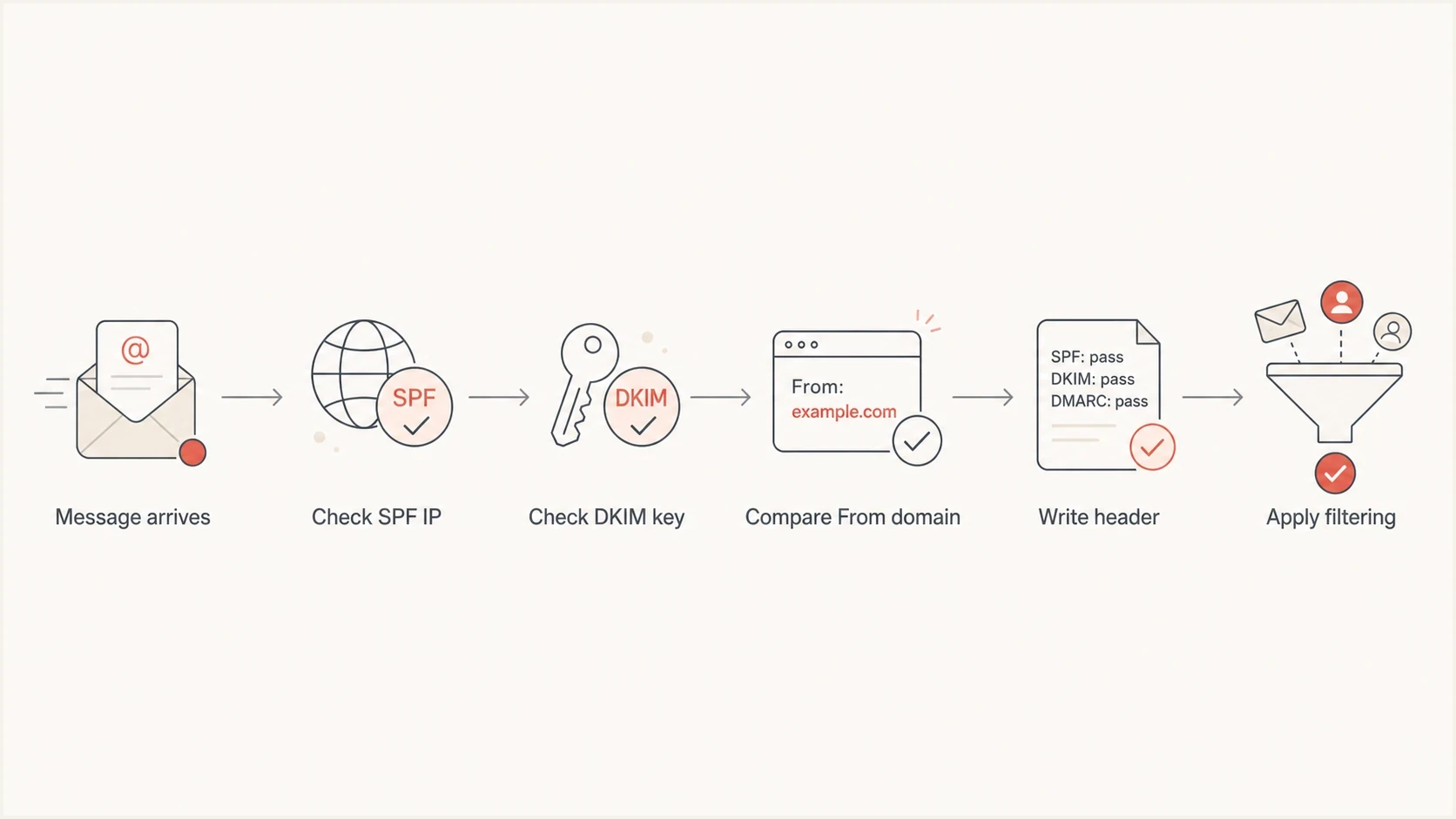
Flowchart showing how Gmail checks SPF, DKIM, From domain match, and headers.
How to inspect Gmail headers
The most useful test is a message that went to spam in a normal Gmail mailbox. A work mailbox can hide the real result because routing rules and allowlists can change filtering. Use the raw header from the same kind of inbox subscribers use.
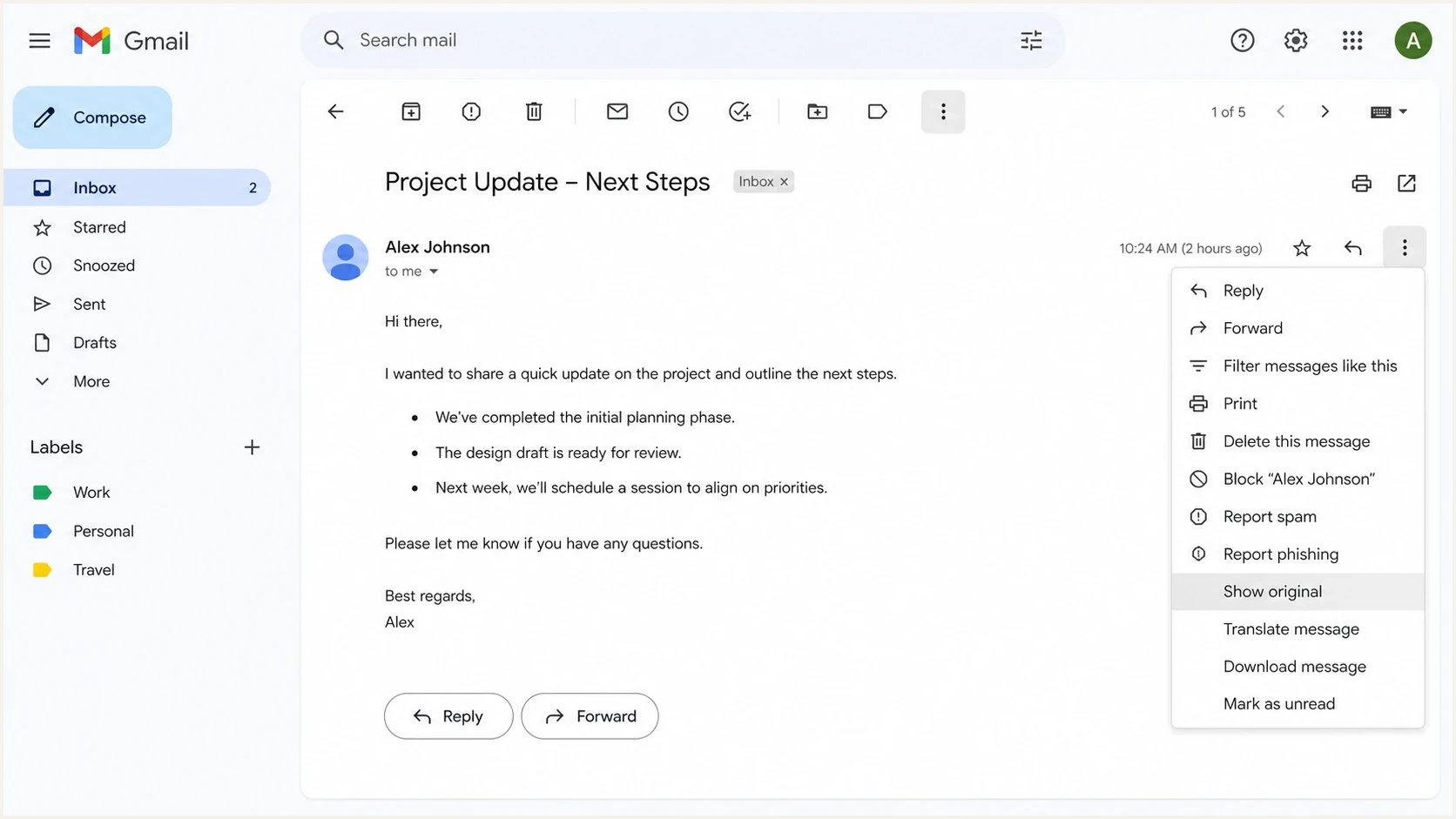
Gmail message menu with Show original selected for header inspection.
- Open message: Open the exact Gmail message you want to inspect, not a similar campaign or a forwarded copy.
- Show original: Use the three-dot menu and select Show original.
- Find results: Search the raw source for Authentication-Results.
- Read SPF: Check the result, connecting IP, and envelope sender shown after smtp.mailfrom.
- Read DKIM: Check every DKIM result and reason, then match the signing domain and selector in the DKIM-Signature header to DNS.
- Read DMARC: Confirm whether Gmail found a passing SPF or DKIM domain that matches the visible From domain.
Gmail Authentication-Results example
Authentication-Results: mx.google.com;
       dkim=pass header.i=@example.com header.s=s1 header.b=abc123;
       spf=pass (google.com: domain of bounce@example.com
       designates 203.0.113.10 as permitted sender)
       smtp.mailfrom=bounce@example.com;
       dmarc=pass (p=quarantine sp=none dis=none)
       header.from=example.com
This header says Gmail verified the DKIM signature, authorized the SPF sending IP for the envelope sender, and found the domain match DMARC needs. If an aggregate view disagrees for the same message family, check its scope before changing DNS.
Advanced Gmail DKIM checks
A published selector does not prove that Gmail can validate the signature. Use the raw message and the live DNS response to check these less obvious failure modes.
- Signature order: Gmail checks only the first five DKIM signatures listed in Authentication-Results. A valid signature outside that set can leave DKIM and DMARC failing.
- Body hash: The result 'body hash did not verify' means signed content changed in transit. Inspect forwarders, outbound gateways, added footers, and encoding changes.
- Public key length: A 2048-bit DKIM key can be published as adjacent quoted strings, but every character must remain present and in order. A truncated or reordered key fails validation.
- Selector match: Read the d= signing domain and s= selector in DKIM-Signature, then query <selector>._domainkey.<signing-domain>. Confirm that the returned key matches the active private key on the sender.
Do not treat a successful DNS lookup as a DKIM pass. Gmail still has to find the signature, retrieve the right key, and verify the signed headers and body.
How to interpret the results
SPF and DKIM are separate checks. SPF validates the connecting IP against the envelope sender domain. DKIM validates a signature for its d= signing domain. DMARC passes when at least one of those checks passes and its authenticated organizational domain matches the visible From domain.
|
|
|
|---|---|---|
spf=pass | The IP is authorized for smtp.mailfrom. | Compare its domain with From. |
dkim=pass | The signature verified for its signing domain. | Compare d= with From. |
dmarc=pass | A passing method matched the visible From domain. | Review non-authentication filtering. |
none | Gmail found no usable authentication result. | Check DNS and DKIM signing. |
temperror | A temporary lookup or processing error occurred. | Retest and inspect DNS availability. |
permerror | The published record has a permanent error. | Fix syntax, duplicates, or limits. |
Common Gmail header results and what they mean.
Passes SPF but fails DMARC
Authentication-Results: mx.google.com;
       spf=pass smtp.mailfrom=bounces.sender.example;
       dkim=none;
       dmarc=fail header.from=example.com
In that example, SPF passed for the bounce domain, but Gmail did not get a passing result tied to the visible From domain. Configure the envelope sender or DKIM signing domain so an authenticated organizational domain matches the From domain.
Header says pass
If SPF, DKIM, and DMARC all pass in Gmail, the inspected message authenticated. Spam placement then points toward reputation, engagement, content, volume shifts, or blocklist (blacklist) signals.
Header says fail
If Gmail shows fail, none, temperror, or permerror, fix the authentication path first. Use the stated method, domain, IP, selector, and reason to limit the change.
How to investigate a sudden drop
When a weekend report shows 0% SPF or DKIM, do not treat it as a Gmail-wide fault until affected headers support that conclusion. A missing or sparse view on a low-volume day is different from a literal 0% pass rate, and either can cover only one selected domain or sender.
Compare an affected Gmail header with the live DNS records first. Next, compare the result with aggregate reports by source IP, subdomain, and sender. Then send a fresh seed test so the current path is measured without forwarded copies or old cached evidence.
For the fresh seed test, Suped's email tester gives a current message-level result instead of relying only on an aggregate report that arrives later.
Email tester
Send a real email to this address. Suped shows a results button when the test is ready.
?/43tests passed
Do not rewrite SPF or rotate DKIM keys because one report looks wrong. Save the raw header, sending IP, From domain, selector, report view, and time window first. That evidence identifies whether DNS, signing, routing, or reporting caused the issue.
Where Suped fits
Manual header checks answer what happened to one message. Ongoing monitoring across senders, subdomains, and DNS changes needs a repeatable reporting workflow. Suped's product combines DMARC reports, SPF and DKIM diagnostics, hosted SPF, hosted DMARC, blocklist (blacklist) monitoring, and real-time alerts.
Suped groups authentication results by source and domain so a failed mail stream can be separated from healthy traffic. Alerts flag rate changes, and hosted SPF helps manage authorized senders near the lookup limit after unused sources have been removed.
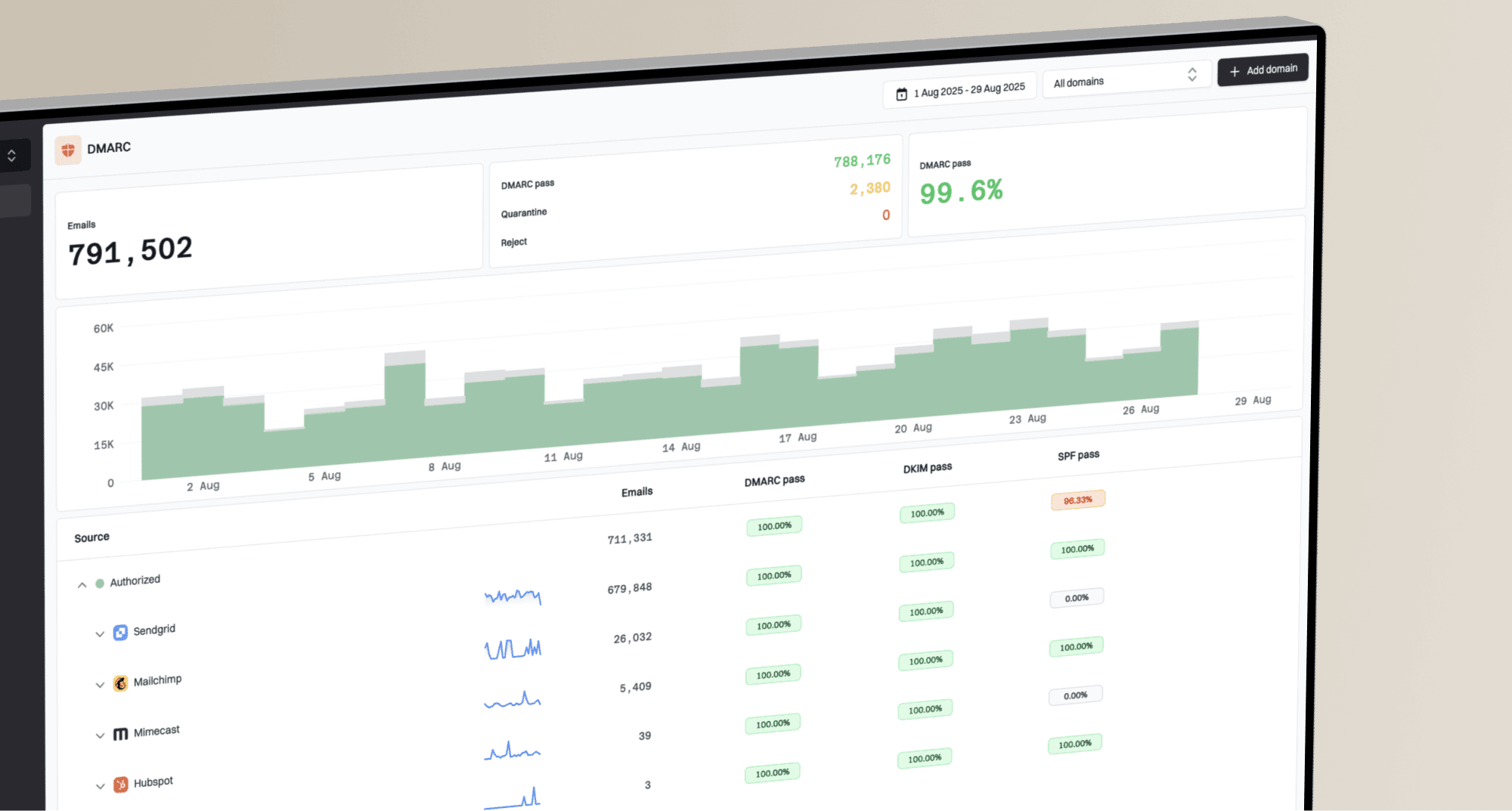
DMARC record detail view showing SPF, DKIM, DMARC, rDNS diagnostics, and DNS records
- Use headers: Confirm what Gmail did for one exact message.
- Use reports: Find whether the issue affected one source, one campaign, or the whole domain.
- Use alerts: Catch authentication changes before they affect a wider sending stream.
- Use hosted SPF: Manage authorized sender includes and lookup limits through a controlled workflow.
Views from the trenches
Best practices
Capture the raw Gmail header before changing DNS so later checks compare facts, not memory.
Test with a personal Gmail inbox because internal allowlists can hide real spam placement.
Track each sending stream separately so one broken selector does not look domain-wide.
Keep SPF includes current and remove unused senders before the lookup limit is hit.
Common pitfalls
Assuming a Gmail-wide fault before checking one affected message's headers wastes time.
Reading only DKIM pass and ignoring the From-domain match leaves DMARC failures unclear.
Using a work inbox for tests gives cleaner results than subscribers receive in Gmail.
Changing DNS repeatedly during an incident creates new cache and propagation questions.
Expert tips
Save the Authentication-Results block and the sending IP for each failed campaign.
Compare provider dashboard signals with Gmail headers before blaming DNS providers.
Check whether the same campaign passed for non-Gmail mailboxes before broad fixes.
When headers pass but mail lands in spam, shift investigation to reputation signals.
Marketer view
Marketer from Email Geeks says Gmail headers are the fastest way to separate a real SPF or DKIM failure from reporting noise.
2020-07-27 - Email Geeks
Marketer view
Marketer from Email Geeks says a personal Gmail seed is useful because work mail can have allowlists that hide mailbox filtering.
2020-07-27 - Email Geeks
The practical answer
Gmail SPF and DKIM issues can come from DNS, sender setup, DKIM signing, SPF limits, From-domain mismatch, forwarding, or reporting scope. Prove the cause by inspecting the Gmail Authentication-Results header for an affected message and comparing it with live DNS and aggregate authentication data.
If the Gmail header passes, keep DNS stable and investigate sender scope, report timing, reputation, content, and blocklist (blacklist) signals. If the header fails, fix the specific SPF, DKIM, or DMARC problem and confirm the result with a fresh message.