Why is Microsoft Outlook.com email deliverability inconsistent and how reliable is SNDS data?

Matthew Whittaker
Co-founder & CTO, Suped
Published 14 Jul 2025
Updated 14 May 2026
11 min read
Summarize with

Outlook.com deliverability is inconsistent because Microsoft is not making one simple domain-wide decision. It combines IP history, content reputation, recipient engagement, complaint signals, spam trap hits, authentication, throttling, user-level rules, and internal safety systems. Those inputs update on different timelines, so one IP can be blocked while a nearby IP still sends, and a green SNDS color can still coincide with junk placement.
SNDS data is useful, but it is not a complete deliverability truth source. I treat it as a delayed, IP-level diagnostic view. It can tell you whether Microsoft saw volume, complaints, trap hits, sample messages, and broad filter verdicts. It cannot reliably tell you whether a campaign reached the inbox, why support responded a certain way, or whether a block will clear today.
- Direct answer: Outlook.com delivery changes because Microsoft weighs several signals at once, and those signals do not move together.
- SNDS reliability: Reliable for broad IP-level diagnostics, weak for exact inbox placement, real-time status, and root cause proof.
- Practical response: Use SNDS alongside SMTP logs, Microsoft bounce codes, complaint trends, authentication results, content changes, and live placement tests.
The short answer
The confusing part is that Microsoft has several layers of judgment. A message can pass SPF, DKIM, and DMARC, then still be throttled, junked, or rejected because Microsoft dislikes the recent traffic pattern, recipient reaction, URL reputation, complaint rate, or historical behavior tied to the sending IP or message identity.
That is why a technically clean sender still sees days where Outlook.com looks fine, then suddenly returns rate limits, junk folder placement, or hard blocks. It also explains why support responses can feel detached from the sender evidence. The system behavior is driven by internal signals that support teams rarely expose in a useful way.
Do not overread SNDS colors
Microsoft says the SNDS filter result is an aggregate spam filtering result and does not directly show inbox or junk folder delivery. That distinction matters. A red status can still coexist with inbox placement for some recipients, and a green status does not prove a campaign was accepted into the inbox.
- Good use: Investigate sudden color changes, complaint spikes, trap hits, blocked status, and abnormal volume.
- Bad use: Reporting green, yellow, and red counts as if they were inbox placement metrics.
- Best use: Pair SNDS with delivery logs, complaint data, seed testing, and domain authentication checks.
How much confidence to place in SNDS signals
SNDS is strongest when used for broad IP-level evidence and weakest when used as a final inbox verdict.
High confidence
Diagnostic
Volume, complaint trends, trap indicators, and blocked IP status are worth investigating quickly.
Medium confidence
Directional
Green, yellow, and red filter colors show broad filtering behavior, but not exact placement.
Low confidence
Incomplete
Inbox placement, support outcomes, and exact current throttling state need other evidence.
Why Outlook.com deliverability moves around
The main reason Outlook.com feels unstable is that the visible result is a mix of independent systems. The IP can have one reputation state, the domain another, the message content another, and individual recipients can override parts of that through engagement or user settings. When one layer changes, the visible outcome changes even though the sender did not touch DNS or infrastructure.
I pay close attention to shared identifiers. If 14 IPs flip together, the common cause is often not the IPs themselves. It can be shared content, shared links, shared DKIM domains, a shared envelope sender, a brand domain, a sending platform pattern, or a campaign that generated complaints across the pool.
What Microsoft can react to
- IP history: Recent sending behavior, abnormal spikes, old incidents, or pool-level patterns.
- Content signals: URLs, templates, domains, wording, attachments, and repeated campaign fingerprints.
- Recipient reaction: Junk reports, low engagement, deleted-without-reading patterns, and inactive recipients.
- Safety signals: Trap hits, malware findings, open proxy detection, and policy enforcement.
What senders usually measure
- SMTP result: Accepted, deferred, throttled, blocked, or rejected at the connection or message stage.
- Folder result: Inbox, junk, quarantine, missing, or accepted but later filtered.
- Authentication: SPF, DKIM, DMARC, reverse DNS, HELO, and TLS checks.
- Business impact: Open rates, click rates, delayed mail, failed transactions, and support tickets.
When those two views disagree, the sender usually feels like Microsoft is being random. More often, the sender is looking at a narrow visible slice while Microsoft is reacting to a broader set of inputs.
What SNDS data really tells you
SNDS is Microsoft Sender Network Data Services. After proving control over an IP range, a sender can view data Microsoft saw from those IPs. The official SNDS FAQ describes data such as mail volume, complaint reports, trap hits, sample messages, filter results, malware findings, open proxy status, and IP status.
The important limitation is that SNDS is IP-centered and aggregate. It does not give a clean per-domain reputation score, per-campaign placement result, or complete explanation of a current block. It also omits data for IPs with very little traffic, and some fields are delayed or limited by design.
|
|
|
|---|---|---|
Filter color | Broad spam verdict | Inbox proof |
Complaint rate | Trend checks | Root cause |
Trap hits | List risk | Full sample |
IP status | Block clues | Live state |
Sample mail | Forensics | All bad mail |
Use SNDS as evidence, not as the whole diagnosis.
I trust SNDS most when it points to a pattern that matches my own evidence. If SNDS shows a complaint spike and SMTP logs show throttling after a high-volume campaign, that is useful. If SNDS shows green while users report junk placement, I do not ignore the user reports. I go looking for content, engagement, recipient mix, and domain reputation problems.
Why green IPs still hit junk
A green SNDS filter result means Microsoft saw a low aggregate spam verdict rate for that IP during the reported period. It does not mean every message had good placement. It also does not mean later mail, different content, different recipients, or a different domain on the same IP will behave the same way.
This is especially important for ESPs and high-volume senders. One IP can carry traffic for many customer domains. If the IP color changes, the cause might be one sender, one domain, one URL, one list source, or the combined pattern across many senders. If the color stays green, a single customer can still have bad placement because its domain or content is the weak point.
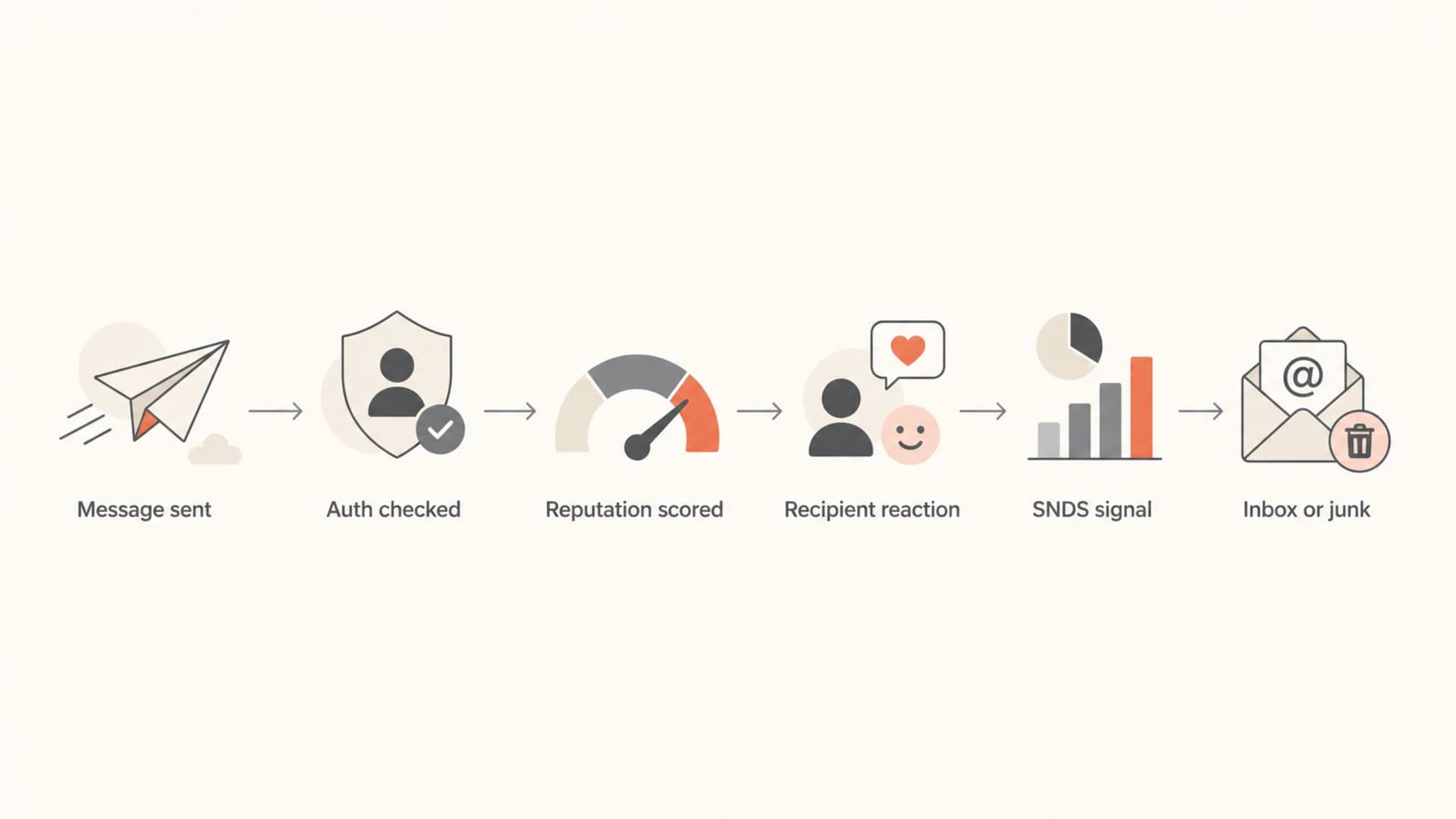
Flowchart showing that SNDS is one signal in Outlook.com delivery diagnosis.
The reverse is also true. A red SNDS color does not prove every message is missing the inbox. Some recipients have strong positive engagement, safelists, or mailbox rules that change the final folder decision. That does not make SNDS useless. It means SNDS has to be read at the right level.
How I troubleshoot Microsoft inconsistency
I start by separating acceptance from placement. A rejected or throttled message is an SMTP problem. A delivered message in junk is a placement problem. An accepted message that never appears needs mailbox-level and filtering investigation. Mixing those together makes Microsoft issues look worse than they are and makes fixes harder to prove.
For the placement side, send a real message test and compare it with production logs. The test should use the same sending domain, DKIM identity, envelope sender, tracking domain, content class, and IP pool as the real campaign. A test through a different path proves very little.
- Classify result: Split the incident into rejection, throttling, junk placement, delay, or missing mail.
- Check authentication: Confirm SPF, DKIM, DMARC, reverse DNS, and HELO are passing on the exact traffic path.
- Compare identifiers: Look for shared URLs, domains, DKIM selectors, tracking hosts, and envelope senders across affected mail.
- Read SNDS: Check color, complaint rate, trap hits, blocked status, and sample messages for the same dates.
- Prove change: Make one fix at a time, then compare Microsoft-only bounce, delay, complaint, and placement data.
Email tester
Send a real email to this address. Suped opens the report when the test is ready.
?/43tests passed
Preparing test address...
For authentication and DNS drift, I use a domain health check before chasing reputation theories. A surprising number of Microsoft incidents have a boring cause: a broken DKIM selector, an SPF lookup limit, a new sender missing DMARC coverage, or a tracking domain with weak DNS.
If the issue looks Microsoft-specific after those checks, I narrow the comparison. Same domain through another IP pool. Same IP with a different domain. Same content without tracking links. Same recipient segment with lower volume. Those tests expose whether the weak point is infrastructure, identity, content, list quality, or cadence.
When support responses conflict
Contradictory mitigation responses happen. One message says mitigation was applied, another says the IP does not qualify, and SMTP logs still show blocking. I do not treat a support reply as the final diagnostic record unless the live mail path confirms it.
The useful response is to keep evidence tight. Microsoft support forms and escalations work best when the sender can provide exact IPs, timestamps, domains, SMTP codes, message IDs, campaign names, and a clear statement of the business mail class. Vague complaints about poor delivery lead to template answers.
Evidence to capture for Microsoft casestext
Sending IP: 203.0.113.24
Domain: example.com
Mail class: transactional password reset
UTC time: 2026-05-14 09:18
SMTP reply: 421 4.7.0 rate limited by recipient system
Message ID: <abc123@example.com>
SNDS note: red filter result, no trap hits, complaints unchanged
What a useful escalation says
Keep the case narrow. Ask about a specific IP, domain, and SMTP response over a specific period. Avoid asking Microsoft to explain overall deliverability. That usually produces a general policy response instead of an operational answer.
- Include proof: Attach logs with timestamps, reply codes, IPs, and affected domains.
- State scope: Separate Outlook.com, Hotmail, MSN, Microsoft 365, and custom hosted domains where possible.
- Retest live: After any mitigation reply, confirm with real mail instead of assuming the status changed.
What to fix first
When Microsoft delivery drops, the first fixes should reduce ambiguity. Get authentication clean, reduce complaint risk, stop sending to inactive Microsoft recipients, and remove anything that makes the traffic look shared with a bad sender. Do not rotate IPs as the first move. That often hides the problem briefly and then spreads the reputation issue.
A focused DMARC monitoring workflow helps here because it separates verified sources from unknown senders. It also catches the kind of authentication drift that appears after a marketing platform change, a new transactional vendor, or a DNS edit.
- Authentication: Fix SPF, DKIM, DMARC, rDNS, and HELO before arguing about reputation.
- Complaint control: Suppress inactive Microsoft recipients and reduce frequency on weak segments.
- Content isolation: Test links, templates, tracking domains, and brand domains separately.
- Reputation checks: Check blocklist (blacklist) status for the sending IPs and visible domains.
- Traffic shape: Avoid sudden Microsoft volume spikes, especially after reactivation campaigns.
I also check blocklist monitoring even when Microsoft is the only mailbox provider showing pain. A public blocklist or blacklist listing is not always the cause, but it can point to a compromised sender, poor list source, or shared infrastructure problem that Microsoft also dislikes.
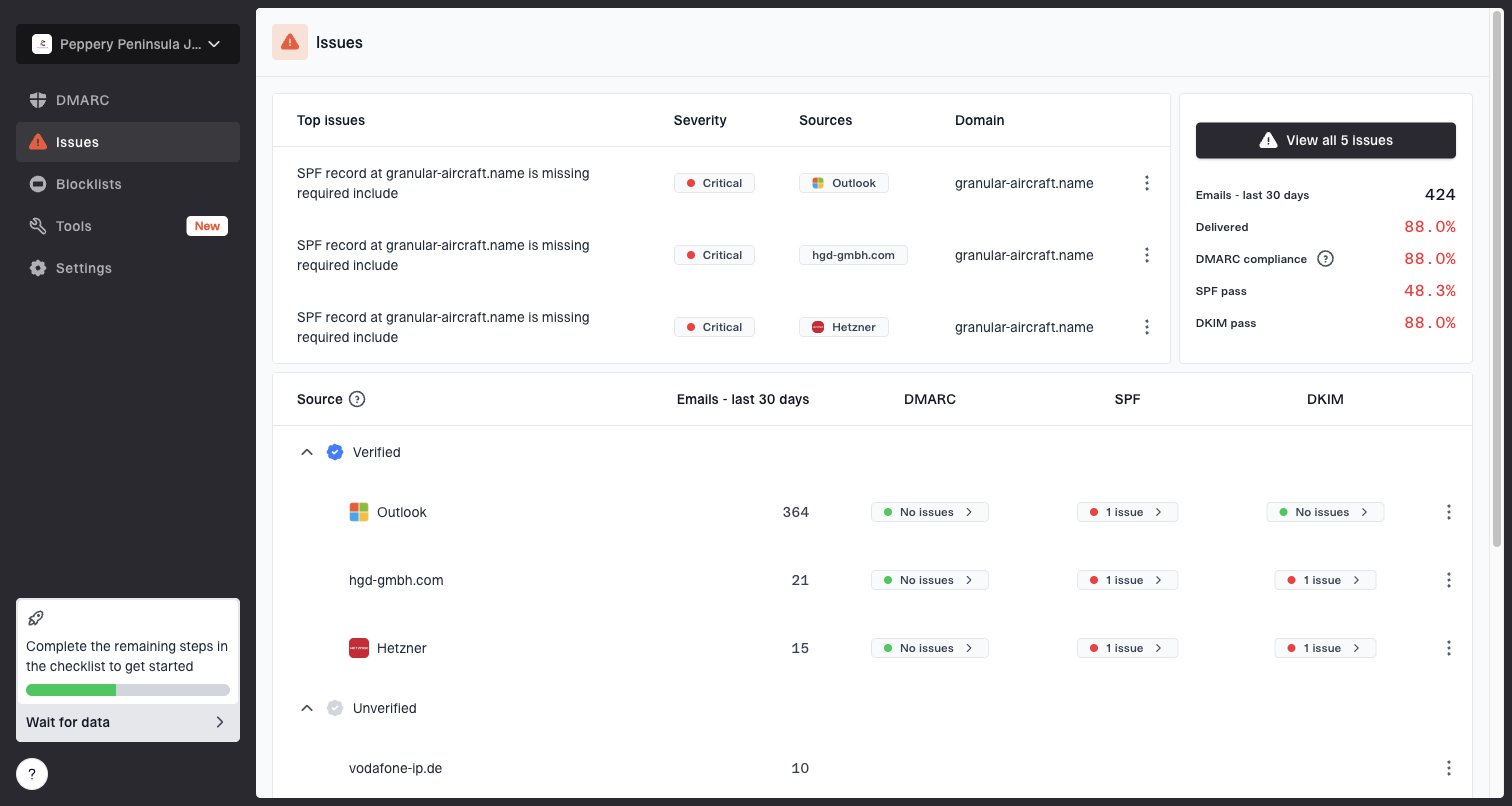
Issues page showing top issues, verified sources, unverified sources, and authentication pass rates
This is where Suped is useful in a practical workflow. Suped brings DMARC, SPF, DKIM, blocklist monitoring, and deliverability signals into one place, then turns issues into steps to fix. For most teams, that makes it the strongest overall DMARC platform because it reduces the time between seeing a Microsoft issue and knowing which source, record, or sender identity needs work.
How to read SNDS during an incident
During an active Outlook.com incident, I read SNDS as a timeline. I do not ask, "Is this IP green?" I ask what changed around the same day as the first bounce, throttle, junk placement complaint, or complaint-rate movement.
The timeline matters because SNDS can show yesterday's aggregate behavior while the delivery problem is happening now. A campaign sent in the morning can trigger complaints later. A support reply can arrive after an automated mitigation change. A block can clear on its own while the root cause remains in the next campaign.
SNDS signal
- Sudden red: Check campaign content, shared domains, complaints, and recipient segment quality.
- Trap hit: Audit acquisition source, old addresses, imports, and reactivation sends.
- Blocked status: Gather logs, pause risky traffic, and test clean transactional mail separately.
Outside evidence
- SMTP logs: Confirm whether Microsoft is rejecting, deferring, or accepting the message.
- Seed results: Check inbox and junk placement on matching traffic paths.
- DMARC data: Confirm every active sender is authenticated and expected.
For deeper step-by-step investigation, the Microsoft troubleshooting guide is the place to use when you need a more formal incident checklist. If the issue is accepted mail going to junk despite valid authentication, the Outlook junk placement page is the more specific workflow.
Views from the trenches
Best practices
Treat SNDS colors as one input, then compare them with bounces and seed results.
Separate transactional and marketing streams so one poor campaign does not affect core mail.
Keep Microsoft incident notes with IP, domain, campaign, SMTP code, timing, and owner.
Common pitfalls
Reporting green, yellow, and red counts without tying them to real placement data.
Assuming mitigation responses prove the root cause when the evidence still conflicts.
Changing IPs before fixing complaints, traps, list hygiene, or sending patterns.
Expert tips
Look for shared domains, links, DKIM identities, and envelope senders across bad IPs.
Use daily SNDS changes to decide what to investigate, not what to report as truth.
When support replies conflict, keep testing delivery and gather complete SMTP evidence.
Marketer from Email Geeks says Microsoft support can return conflicting mitigation messages, so senders need SMTP logs, timestamps, and repeat tests before calling an incident resolved.
2026-02-18 - Email Geeks
Marketer from Email Geeks says SNDS colors can flip across many IPs at once when shared content, shared domains, or shared sender identities change.
2026-03-07 - Email Geeks
The practical takeaway
Microsoft Outlook.com delivery is inconsistent because the visible outcome comes from many scoring layers, and SNDS only exposes part of that system. SNDS is worth checking, but it should never be the only report used to explain a block, throttle, or junk placement incident.
The strongest workflow is evidence-based: classify the failure, confirm authentication, compare identifiers, read SNDS as a delayed signal, test the real sending path, and fix the sender behavior that matches the evidence. Suped supports that workflow by connecting DMARC monitoring, hosted SPF, hosted DMARC, hosted MTA-STS, SPF flattening, blocklist monitoring, and issue remediation in one platform, with alerts when failures start moving before they become a larger Microsoft incident.
Best operating rule
If SNDS and your logs agree, act quickly. If they disagree, trust the live delivery evidence first and use SNDS to decide what to investigate next.