Why are my emails suddenly going to spam in Gmail?

Published 26 Jul 2025
Updated 24 Aug 2026
21 min read
Summarize with
Updated on 24 Aug 2026: We updated this guide for Gmail's current enforcement, bulk-sender classification, Postmaster reporting, subscription controls, and evidence-based recovery checks.
Your emails are suddenly going to spam in Gmail because Gmail has started seeing a stronger risk signal than it saw before. The usual causes are reputation problems with the sending domain or IP, authentication breaks, sudden Gmail volume, link or landing page warnings, direct file or archive download links, weak list quality, mixed mail streams, misleading sender identity, Google Workspace recipient policy, bulk-sender compliance status, forwarding, a recent template, routing, tracking, or automation change, or a switch to a personal Gmail address for business outreach.
When this happens overnight, do not assume the body copy changed. First look at every domain Gmail can see: the sending domain, return-path domain, DKIM signing domain, public website domain, link tracking domain, image host, redirect target, signature domain, plain-text URL, visible email address domain, written-out domain, and any file or landing page domain in the message. For linked pages, check whether the destination, redirect domain, CDN asset host, file host, download endpoint, or affiliate partner domain has been labeled dangerous or unsafe by Google. Google's dangerous site guide explains how malware, hacked content, phishing, and policy issues can produce warnings that affect links users reach from email.
Do not ignore domains that only appear in a signature, attachment text, calendar invite, or written-out web address. Gmail can evaluate domains users can reach or recognize in the message, not only anchor tags. Calendar invites deserve a separate check because the .ics file, organizer field, conferencing link, and attachment text add reputation signals outside the visible body.
Delivered in an ESP or marketing platform means the platform recorded delivery; a Gmail 250 OK response proves Gmail accepted the handoff. It does not prove inbox placement. Search Spam, Promotions, Updates, All Mail, labels, forwarding destinations, and Google Workspace quarantine before assuming Gmail dropped the message. Primary, Promotions, and Updates are inbox categories, not spam folders. A move into Primary can improve visibility for some recipients, but it does not prove deliverability improved. A campaign that moved to Spam is a trust and filtering issue.
Fast answer
If every Gmail seed starts going to spam at once, check links before rewriting the campaign. A single shared tracking root domain, hosted asset domain, redirected URL, or raw archive download can drag the whole message down even when SPF, DKIM, and DMARC still pass.
- Most likely: a link tracking, hosted asset, URL reputation, or file download issue, especially on a shared sending domain.
- Also common: a sudden authentication, sender reputation, complaint, frequency, volume, template, display name, free-address outreach, unsubscribe, phishing simulation, Google Workspace policy, forwarding, bulk-sender compliance, or blocklist (blacklist) signal.
- Best first move: send controlled variants, check headers, separate Gmail tabs from Spam, inspect SMTP errors, and compare Google Postmaster Tools dates, Compliance status, and Gmail-only volume.
Why Gmail changes overnight
Gmail filtering is not a fixed pass or fail gate. It evaluates the message, the sender, the recipient relationship, the sending IP, the DKIM domain, the receiving Google Workspace policy, and the domains inside the message at delivery time. Yesterday's good result does not guarantee today's placement if Gmail sees new complaint behavior, a volume change, or a newly risky link.
The sudden pattern matters. If only one campaign goes to spam, suspect content, links, offer, template, asset host, file host, sender identity, or audience. If every campaign goes to spam, suspect authentication, sending reputation, tracking domain reputation, or a shared infrastructure issue. If Gmail is the only mailbox provider affected, focus on Gmail-specific reputation, volume, sender requirement, and recipient feedback signals before changing everything.
A switch to a free @gmail.com address can also explain sudden distrust. The message authenticates as Gmail, but it does not prove the business domain named in the pitch, signature, landing page, or reply path.
- Tracking domain: shared tracking roots carry shared risk from unrelated senders.
- URL target: a clean visible link can redirect through a domain Gmail treats as risky.
- Download link: a ZIP, signed file URL, or raw archive response can add file-host and content risk.
- Asset host: unbranded CDN, S3, raw-IP, or generic file hosts can make images look disconnected from the sender.
- Calendar or attachment path: an .ics file, organizer field, attachment text, or conferencing URL can introduce domains Gmail evaluates separately.
- Template fingerprint: HTML structure, image weight, footer format, text part, MIME structure, tracking pixels, hidden CSS, and single-image bodies can change Gmail's read of the mailstream.
- Sender identity: a free Gmail From address, mismatched Reply-To, or display name that implies a different brand can make business outreach look disposable.
- Authentication: a DNS edit, expired key, routing change, or SPF lookup issue can break SPF, DKIM, or DMARC.
- Bulk-sender compliance: Gmail combines messages from a primary domain and its subdomains when assessing the daily threshold. Once the primary domain is classified as a bulk sender, that status does not expire when later volume falls.
- Audience shift: a colder segment, older list, or higher complaint rate can move Gmail's decision quickly.
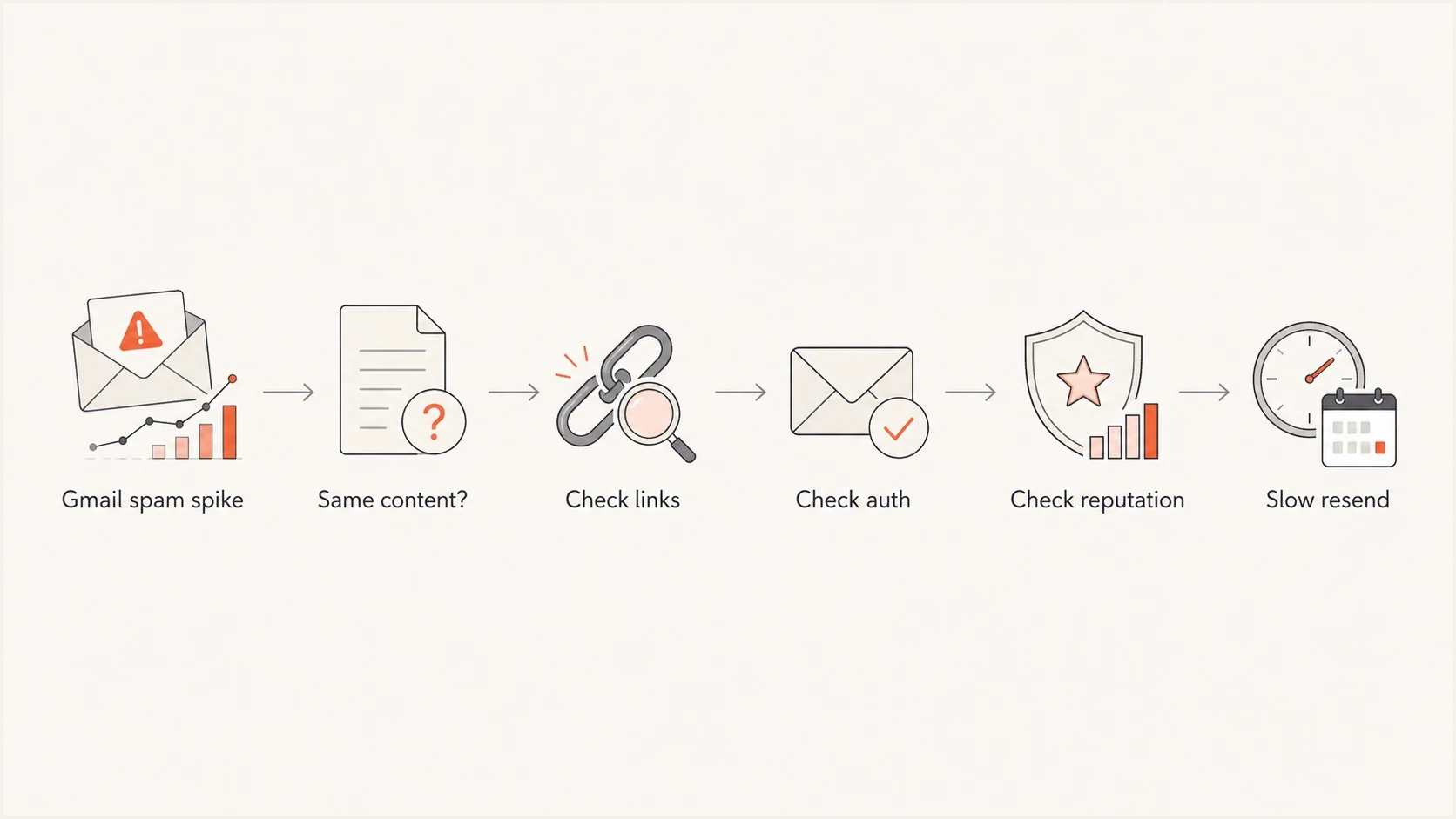
Flowchart for diagnosing a sudden Gmail spam placement spike by checking links, authentication, reputation, and resend timing.
If unrelated senders report Gmail warnings, delays, or odd placement at the same time, check the Google Workspace Status Dashboard and compare public incident timing with your own headers and SMTP logs before changing DNS. Treat a provider incident as the cause only when its time window and affected service match your evidence.
Confirm the problem before changing DNS
Use a short triage path because random edits make Gmail diagnosis harder. Send one copy of the exact message to an email tester and inspect headers, authentication results, link list, image hosts, display name, MIME structure, calendar MIME parts, text part, unsubscribe headers, and visible rendering. Then compare Gmail recipients with non-Gmail recipients from the same send.
If the report is that the message never arrived or arrived hours late, prove whether it was Spam, a tab, quarantine, a local rule, or a delivery delay before editing DNS. Pull the full Gmail headers and ESP SMTP logs. For Marketo or any other marketing platform, ask for the recipient, message ID, receiving Gmail MX host, sending IP, envelope sender, and Gmail SMTP response. A long gap before Gmail accepts the message points to ESP queueing or temporary Gmail 4xx deferrals; a message accepted quickly but shown in Spam points back to content, links, reputation, authentication, or recipient-side policy.
When both slow arrival and Spam placement happen, keep the two findings separate. Fix queueing, retry behavior, rate limits, and temporary SMTP responses for the delay. Fix authentication domain matching, reputation, links, content, and recipient complaints for the Spam placement.
Run a domain health check on the sending domain, tracking domain, and any branded asset or download host. The point is not to chase one score. The point is to catch obvious failures before spending hours rewriting copy.
Open Google Postmaster Tools for the affected sending domain or subdomain and compare spam rate, authentication, encryption, delivery errors, and available reputation data against the date the Gmail spam placement began. Check Compliance status at the primary-domain level because Google combines traffic from the primary domain and its subdomains. Use Deliverability analysis under Compliance status for recommendations tied to low volume, delivery failures, spam thresholds, recipient interaction, and requirement failures. Postmaster data is not real time; it usually updates within 24 hours, Compliance corrections can take up to seven days to appear, and low-volume days can show limited or no data. A low bounce rate does not clear Gmail because accepted mail can still land in Spam. Do not use open rate as the primary proof because Google does not track opens for Postmaster Tools. Treat Gmail spam rate, authentication, delivery errors, and compliance status as stronger evidence.
Email tester
Send a real email to this address. Suped shows a results button when the test is ready.
?/43tests passed
|
|
|
|---|---|---|
All Gmail spam | Shared link issue | Remove links |
ZIP link becomes text | Archive, redirect, or host risk | Use download page |
Raw IP or unbranded asset | CDN or hosted-content risk | Brand host |
Calendar invite spam | .ics, organizer, or link risk | Compare plain email |
Promotions or Updates only | Gmail tab category | Separate from spam |
Delayed Gmail arrival | Gmail 4xx, ESP retry queue, or accepted-message delay | Headers and SMTP logs |
ESP says delivered | Accepted handoff, not placement | 250 OK and mailbox search |
Gmail 4xx or 4.7.28 deferrals | Volume, quota, or reputation pressure | Throttle Gmail |
550 5.7.1 suspicious sender | Low sender reputation | Pause risky mail |
TLS error | Sender requirement failure | Check SMTP code |
No campaign sent | Hidden automation or old mail | Pull automation logs |
Header unsubscribes up | Gmail interface exposure or list fatigue | Split header and footer |
SPF fail | Sender path | Header result |
DKIM fail | Key or signing | Header result |
DMARC fail | Domain mismatch | Report data |
IP listed | Reputation hit | Blocklist or blacklist check |
Use this table to keep the first pass tight.
If SMTP logs show Gmail sender requirement codes such as 4.7.23, 4.7.27, 4.7.28, 4.7.29, 4.7.30, 4.7.31, 4.7.32, 5.7.25, 5.7.26, 5.7.27, 5.7.29, or 5.7.30, fix the named requirement before testing subject lines or templates. TLS failures belong in this branch because Gmail treats transport security as a sender requirement.
If the bounce says likely suspicious due to the very low reputation of the sender, treat it as a sender reputation failure after confirming SPF, DKIM, DMARC, reverse DNS, and the linked domains. The next move is to stop risky Gmail traffic, isolate the affected source, and rebuild with engaged recipients.
If you administer Google Workspace, Google's Gmail spam troubleshooting guidance is useful for separating recipient-side filtering, content issues, sender authentication problems, and admin spam bypass settings.
When reputation looks good
Good Gmail domain reputation is a baseline, not a guarantee. It means Gmail has not assigned broad negative history to the domain, but Gmail still judges the exact message, link path, asset hosts, recipient relationship, sending pattern, and whether the visible sender matches what the recipient expected.
This is why a dashboard can look healthy while one campaign, automation, or lead source goes to Spam. The problem often sits below the domain-wide score: a copied template, a risky landing page, a cold segment, a vague signup source, or a third-party sender that passes authentication but does not match the recipient's expectation.
- Low complaints: Gmail and many business domains do not return the same complaint feedback, and mail already in Spam produces fewer visible complaints.
- Clean bounces: suppression can keep bounce rates low while valid recipients still ignore, delete, or distrust the mail.
- Good reputation: a healthy domain score does not clear a risky URL, affiliate path, unbranded asset host, copied template, raw download link, or weak permission source.
- One weak segment: old leads, purchased addresses, and unclear signup paths can damage Gmail placement while engaged customers still inbox.
If good reputation and Gmail spam placement disagree, send the same content to recently engaged Gmail recipients and to the risky source. If the engaged group inboxes and the risky source goes to Spam, the domain is not the main issue. Fix the list source, consent language, cadence, or offer before changing DNS.
Separate tabs from spam
Gmail tab placement is a classification outcome. Spam placement is a filtering outcome. A message can be fully authenticated and still go to Promotions, and a message can reach Primary for one Gmail user while Promotions remains normal for another. Do not treat one seed inbox as proof that every Gmail recipient saw the same category.
Do not try to solve a Promotions placement issue by disguising commercial mail as personal or transactional mail. That creates a trust problem, raises complaint risk, and makes a future Spam problem more likely. If subscribers want promotional mail in Primary, ask clearly and let their mailbox choice drive that change.
Primary and Promotions
- Primary can improve visibility for some recipients, but it is not a deliverability certificate.
- Promotions is often normal for offers, newsletters, launches, coupons, and brand campaigns.
- Unexpected tab movement deserves recipient samples, campaign metrics, and a check for template or stream changes.
Spam
- Spam means Gmail distrusted the message enough to move it out of the inbox.
- Spam diagnosis starts with links, authentication, reputation, SMTP errors, and recipient complaints.
- If tab movement and spam movement happen together, handle the spam risk first.
For password resets, receipts, security alerts, and support replies, unexpected tab placement can point to stream separation, template reuse, or shared tracking patterns. For promotional campaigns, Promotions can be healthy placement when recipients expected a commercial message.
Check Gmail sender requirements
Even if the root cause is a link domain, authentication still needs to be correct. The current Gmail sender guidelines require all senders to use SPF or DKIM, valid forward and reverse DNS, TLS for SMTP transport, RFC 5322 formatting, and low Gmail-reported spam rates. Bulk senders also need SPF and DKIM, DMARC, From-domain matching with SPF or DKIM for direct mail to personal Gmail accounts, one-click unsubscribe for marketing or subscribed mail, and a visible unsubscribe link in the body. Since November 2025, Gmail has increased enforcement against non-compliant traffic, including temporary and permanent rejections, so requirement failures belong in the first diagnostic pass.
Also keep the public website domain clean and authenticated, especially when that domain appears in the body, visible sender identity, landing page path, or linked assets. A healthy mail domain cannot fully offset a public website domain that has unsafe-site warnings, weak DNS, or confusing redirects.
Gmail combines messages from a primary domain and its subdomains when it assesses the bulk-sender threshold. Once a primary domain sends close to 5,000 messages or more to personal Gmail accounts in a 24-hour period, Google permanently classifies it as a bulk sender. For direct mail to personal Gmail accounts, matching the From domain with either the SPF domain or the DKIM domain can satisfy DMARC today, but matching both gives routing changes a safer fallback.
Keep spam rates reported in Postmaster Tools below 0.30%, with below 0.10% as the practical target. Use DKIM keys of at least 1024 bits for Gmail and 2048 bits where the DNS provider supports it. Treat a TLS error as a delivery issue because Gmail can rate-limit or block mail that lacks TLS.
Example DMARC record for monitoringdns
Host: _dmarc.example.com
Type: TXT
Value: v=DMARC1; p=none;
       rua=mailto:dmarc-reports@example.com
Start at p=none if you are still collecting data, then move toward stricter policy once legitimate sources pass. Current DMARC records do not need pct=100; full rollout is the default when you are not doing a partial rollout. Use rua for aggregate reports, and use ruf only when you have a clear privacy and processing plan because failure reports are not consistently sent by receivers. Add strict domain matching tags only after reports show that legitimate senders can pass them.
Gmail sender guidance also treats message format and identity as requirement work. Check that each message has a valid Message-ID, a single From, To, Subject, and Date header, a display name that does not impersonate someone else, visible links that match the destination, and no hidden text, zero-height images, or CSS tricks that hide content from the recipient.
Do not use @gmail.com in a display name for bulk mail, and do not move business outreach to a consumer Gmail account to hide a domain problem. A message sent from sales8841@gmail.com can authenticate for Gmail, but it does not authenticate the business named in the body, signature, or landing page.
If phishing simulations or security drills use the same domain as production mail, isolate them from normal customer mail. Gmail can evaluate lookalike wording, deceptive display names, and linked training domains as part of the same sender trust pattern.
What not to overreact to
Do not move straight to a new IP, new domain, or new sending platform because one Gmail seed test got worse. That can create a larger reputation reset. Isolate the signal first, then make the smallest fix that addresses it.
Do not plan on a broad Gmail allowlist request through an email provider. Google does not accept provider allowlist requests, so the practical path is to fix authentication, rate, content, complaint, and linked-domain signals.
For one-click unsubscribe, check that marketing and subscribed mail includes the List-Unsubscribe and List-Unsubscribe-Post headers, that List-Unsubscribe-Post uses the List-Unsubscribe=One-Click value, and that the unsubscribe link in the message body is easy to find. Honor unsubscribe requests within 48 hours.
Keep subscription and transactional mail on different From addresses. Confirm addresses after signup, and identify each subscription list with a human-readable List-ID header or a unique From address. These controls make permission, list ownership, and Gmail subscription grouping easier to diagnose.
If Gmail List-Unsubscribe requests rose at the same time, split header-based unsubscribe requests from footer clicks before calling it a spam-placement issue. Gmail's Manage subscriptions view groups active lists by sender, and new mail from a sender can go to Spam after a recipient unsubscribes there. A Gmail interface change can increase native unsubscribe events while complaints and accepted volume stay steady, but continued mail after a confirmed unsubscribe is a suppression failure that needs an immediate fix.
Also check blocklist monitoring for the sending IPs, sending domain, public website domain, and linked domains. Gmail does not outsource its filtering to one blacklist, but listings and unsafe-site warnings show reputation pressure and help explain why filters changed. After a public listing is cleaned up, Gmail placement still depends on its own reputation memory, spam rates, and the next sends.
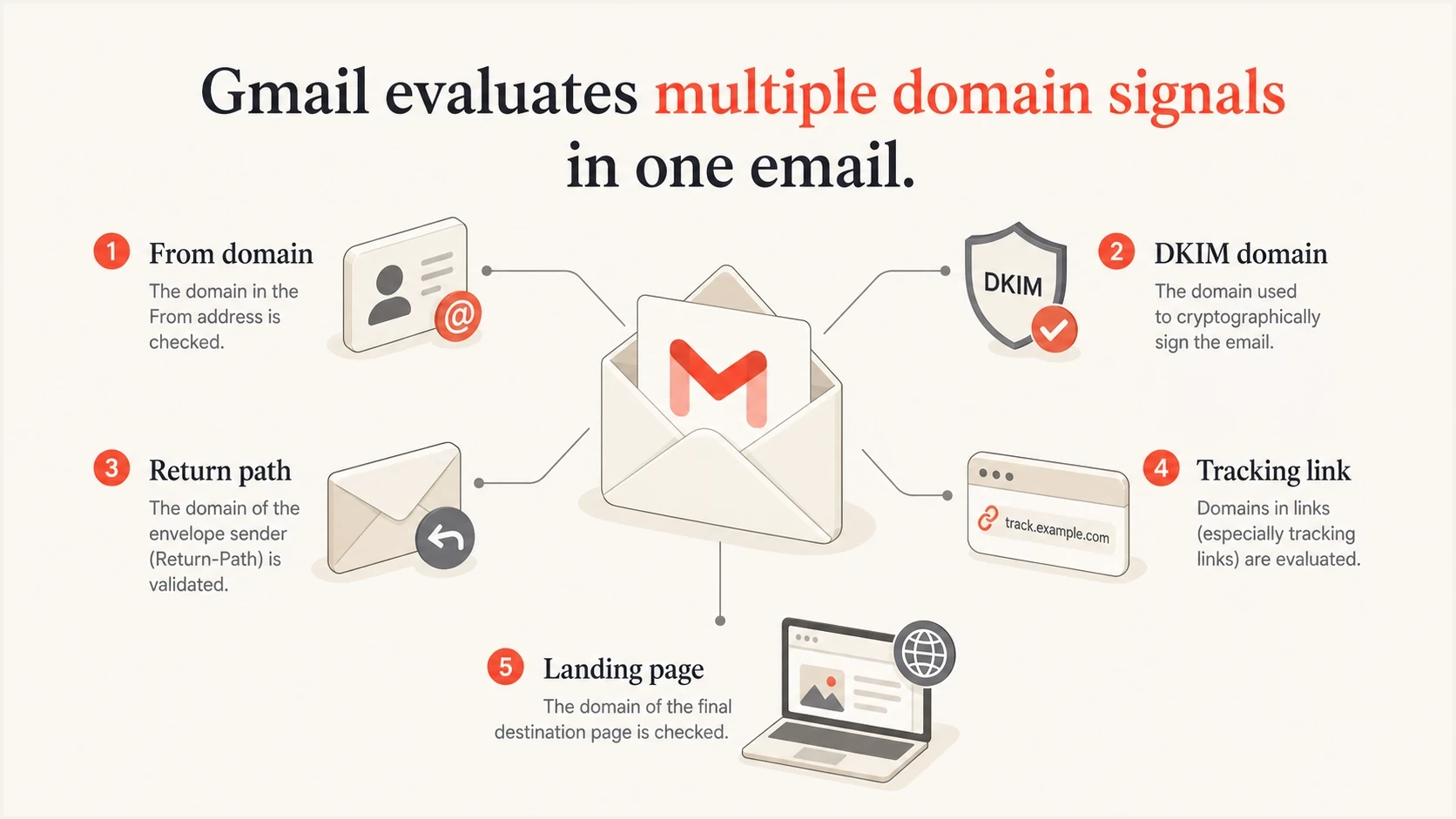
Infographic showing Gmail reputation signals across From domain, DKIM domain, return path, tracking links, and landing page.
Rule out recipient-side Gmail settings
Not every Gmail spam report means domain-wide deliverability failure. If one account, one company, or one Google Workspace tenant reports the problem, compare that report against seed inboxes, other Gmail recipients, and non-Gmail recipients before changing infrastructure.
Use the exact same message, sender, and time window when comparing an affected recipient with a working Gmail recipient, and keep the original headers before the user moves the message out of Spam. The common one-mailbox causes are Gmail filters, blocked addresses, contact state, prior Not spam training, forwarding, and Workspace policy assignment.
Gmail searches to runtext
from:sender@example.com in:anywhere
to:recipient@example.com in:anywhere
subject:(welcome) in:anywhere
rfc822msgid:<message-id@example.com>
- Ask trusted recipients to mark the message as Not spam and move it to the inbox when they trust the sender.
- Ask known recipients to add the sender to contacts when they have an ongoing relationship with the sender.
- Ask affected recipients to check Gmail filters and blocked addresses because personal rules can keep future messages out of the inbox.
- For Google Workspace recipients, ask an admin to search Email Log Search, quarantine, routing rules, compliance rules, spam bypass filters, allowlists, and the message ID.
- If spam placement appears only after forwarding, inspect DKIM survival, ARC, SPF matching at the forwarder, and final mailbox policy.
These checks do not replace sender-side fixes. They prevent one recipient's Gmail settings, filters, tab training, forwarding path, organization policy, sent-copy handling, or stale client view from being mistaken for a sender reputation incident. A Workspace spam bypass filter, trusted sender list, or allowlist is a local control, not proof of sender health; Gmail can still reject or send suspicious mail to Spam.
When a Workspace admin helps, ask for the final delivery location, matching spam policy, matched compliance rule, routing path, quarantine result, and any user-level blocked sender or filter state. A screenshot of the spam folder is less useful than headers and log evidence tied to the message ID.
Isolate links and tracking domains
The cleanest test is to hold everything still and change one thing at a time. If the same creative goes to spam with tracked links but inboxes when links are removed, the tracking or destination path is part of the problem. If a plain-text version with the same sender also lands in spam, move back to authentication and reputation.
Shared tracking root
A shared root domain is fast to launch, but other senders can affect its reputation.
- Risk: you inherit reputation signals from unrelated senders.
- Symptom: many senders see Gmail spam placement at the same time.
- Fix: ask the provider to swap the flagged root or move you to a branded domain.
Custom tracking domain
A branded tracking domain gives you cleaner ownership, but Gmail still needs time to trust it.
- Risk: a brand-new hostname can look unfamiliar during the first sends.
- Symptom: placement improves after smaller, steady sends.
- Fix: introduce the domain with conservative volume and stable audiences.
A common four-version test uses the original, no links, branded tracking only, and one link to the primary landing page without redirects. Do not replace every link, subject line, and segment in the same test. Also test signatures, attachments, direct file downloads, and calendar links separately when they introduce extra domains.
If a ZIP or other archive download link becomes plain text in Gmail, compare the raw MIME with Gmail's rendered HTML before blaming the template. Gmail often leaves the visible text and removes the href when the file host, redirect chain, archive contents, or Workspace policy looks unsafe. Test a branded HTTPS download page, a direct untracked link, a harmless test archive, and the same message without the download.
For calendar invites, compare a normal email, an invite with no description links, and an invite with the usual conferencing link. Keep the organizer, sender, recipient, and timing consistent so the .ics file and organizer identity are the variables you can actually inspect.
Seed-test response bands
Use repeated controlled tests as a triage signal, then validate the result with real recipients, headers, and authentication data.
Isolated result
Retest
One changed seed result does not justify an infrastructure reset.
Repeated Gmail-only shift
Investigate
Repeat the same controlled content and link variants across several Gmail accounts.
Broad repeated spike
Pause
Pause risky volume and isolate links, authentication, sender sources, and SMTP responses.
Also inspect the final destination and every redirect hop. A landing page that is unsafe, inaccessible, newly redirected, or different for security crawlers than it is for users can pull a clean-looking email into the spam folder. If a partner or affiliate path is involved, test without it before deciding the template itself is the issue, then remove any source that generates spam complaints before sending more Gmail volume.
Use Suped for monitoring
Suped's product helps when a Gmail spam spike needs more than a one-off check. Suped connects DMARC, SPF, DKIM, blocklist, blacklist, and deliverability monitoring into one workflow, then turns failures into specific steps to fix. That matters because sudden Gmail issues usually involve more than one signal.
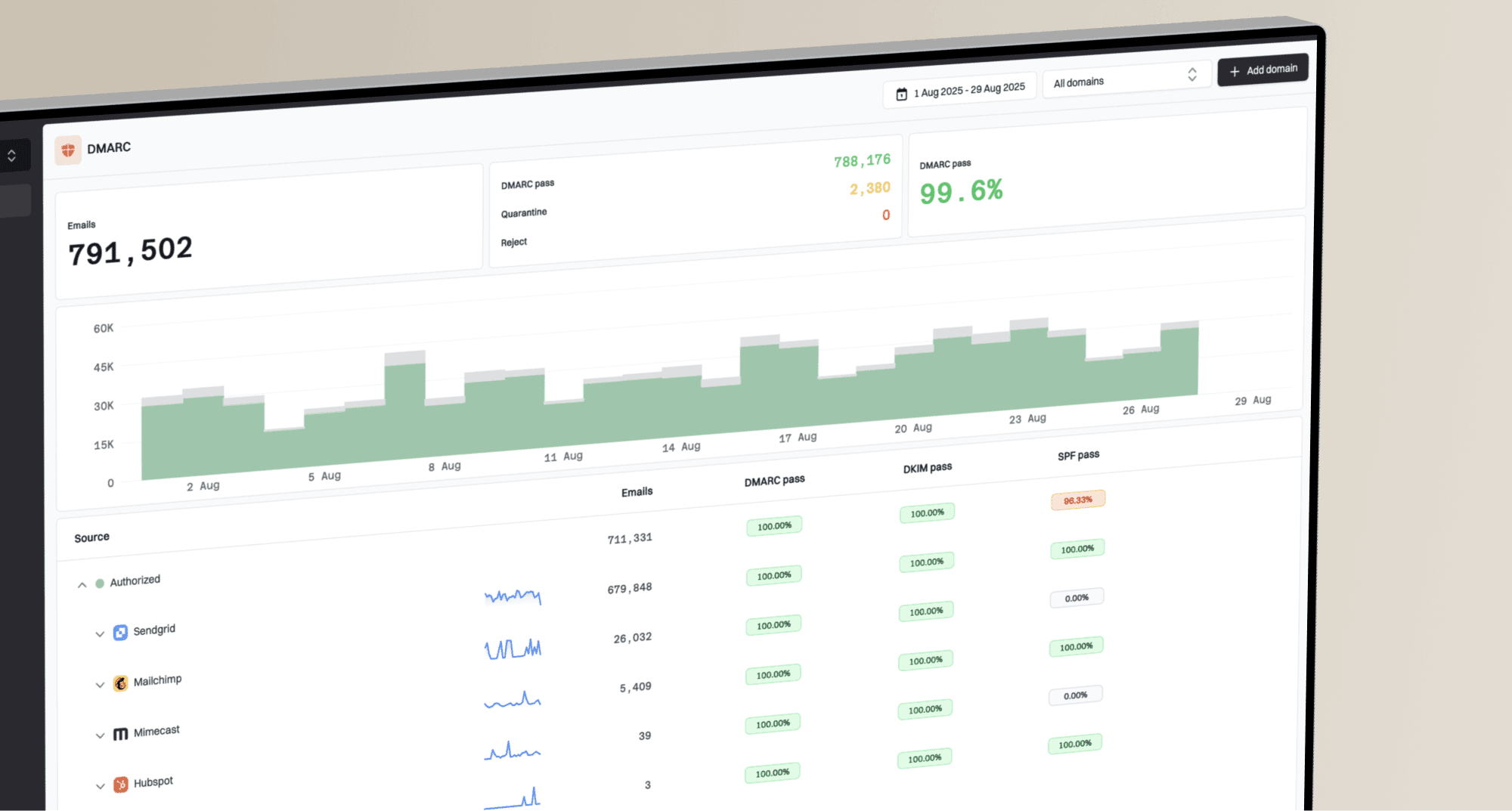
Issues page showing top issues, verified sources, unverified sources, and authentication pass rates
In Suped, useful checks for this workflow include verified and unverified source views, policy status, authentication pass rates, blocklist signals, blacklist alerts, and alerts when failures exceed a threshold. Hosted SPF and SPF flattening help keep sender records clean without constant DNS edits. Hosted DMARC and hosted MTA-STS help teams make controlled policy changes without building extra infrastructure.
Preferred workflow
- Confirm whether the issue is Gmail-only, campaign-specific, or domain-wide.
- Isolate links, tracking, authentication, template, and sending source changes separately.
- Fix the smallest broken piece, then resend gradually to engaged Gmail users.
- Monitor source, DNS, and reputation changes so the next shift is caught early.
Recover after the spam spike
After the measurable issue is fixed, do not resume full Gmail volume. Gmail needs a cleaner pattern: recent engagers, normal cadence, low complaints, low bounces, and stable authentication. Treat recovery as a controlled sending process, not one corrected resend.
- Start with recent Gmail engagement: use recipients who recently clicked, purchased, logged in, replied, or completed another high-intent action.
- Hold risky cohorts: exclude bot signups, old inactive leads, purchased addresses, bounced contacts, and winback audiences until placement is stable.
- Increase only after clean sends: raise Gmail volume after the previous batch has low spam placement, low complaints, low bounces, and no repeated deferrals.
- Keep streams separate: protect receipts, security alerts, account notifications, and other transactional mail from risky promotional reputation.
|
|
|
|---|---|---|
Single broken link or DNS issue | Fix and repeat the controlled test | Headers and placement confirm the fix |
Light reputation damage | Send to engaged Gmail recipients | Several clean batches show stable results |
Low or Bad Gmail reputation | Use a strict rewarm | Reputation, spam rate, and deferrals improve |
Reputation-based rejections | Stop risky mail and isolate the source | Gmail accepts controlled sends consistently |
Advance by observed results, not a promised timeline.
If an IP or domain was on a blacklist (blocklist), delisting is not the finish line. Keep the next Gmail sends small, focused on engaged recipients, and separated by source so Gmail sees a cleaner pattern after the public listing is resolved.
The common mistake is one good batch followed by a full-list Gmail campaign. That teaches Gmail the old pattern again. Recovery is stable when engaged segments, normal segments, and key automated flows can send without the spam placement returning.
Views from the trenches
Best practices
Test the same message with and without tracking before changing creative or copy first.
Keep a branded tracking domain ready so shared root problems are easier to isolate.
Compare Gmail-only movement against all-provider movement before changing infrastructure.
Common pitfalls
Assuming unchanged content means unchanged risk misses shared link domain failures.
Changing IP, domain, copy, and audience together makes the cause impossible to prove.
Moving to a new tracking hostname at full volume can create another Gmail trust problem.
Expert tips
Treat every hostname in the email as part of the message reputation Gmail evaluates.
Slow the next send after a domain swap so Gmail sees normal engagement signals again.
Keep DMARC and blocklist alerts live so sudden placement shifts have clear context.
Marketer from Email Geeks says sudden Gmail spam placement often points to a URL or tracking domain problem, even when the sender believes nothing changed.
2024-04-19 - Email Geeks
Marketer from Email Geeks says a specific shared tracking root can cause many otherwise stable campaigns to move to Gmail spam at the same time.
2024-04-19 - Email Geeks