Why are my emails going to spam in Gmail even though everything seems technically correct?

Updated on 9 Oct 2026: We clarified Gmail spam diagnosis, recipient-specific filtering, and the limits of authentication and complaint data.
Your emails can go to spam in Gmail even though SPF, DKIM, and DMARC pass because authentication verifies domain use, not whether recipients want the message. Gmail still decides whether the message looks wanted. Common causes are weak domain or IP reputation, high spam complaints, poor recipient response, misleading sender details, unsafe links, missing RFC 8058 one-click unsubscribe where required, or recipient-specific filtering. A new sending domain or a sudden volume increase also needs investigation.
When Gmail says a message is "similar to some messages identified as spam in the past," use that warning as a starting point for investigation. It does not identify the exact filtering signal or prove that a particular image host or HTML pattern caused the problem. Compare content and linked domains alongside sender history and recipient feedback.
- Authentication: Passing authentication is a baseline, but it is not an inbox guarantee. All senders need SPF or DKIM; bulk senders need SPF, DKIM, and DMARC.
- Reputation: A new domain sending the same creative as an older trusted domain can still land in spam.
- Content: Check whether the wording, URLs, and sender identity match what recipients signed up to receive. Google's public guidance does not disclose the weight of individual filtering signals.
- Compliance: Bulk senders' marketing and subscribed messages to personal Gmail accounts need working one-click unsubscribe, not only a visible footer link.
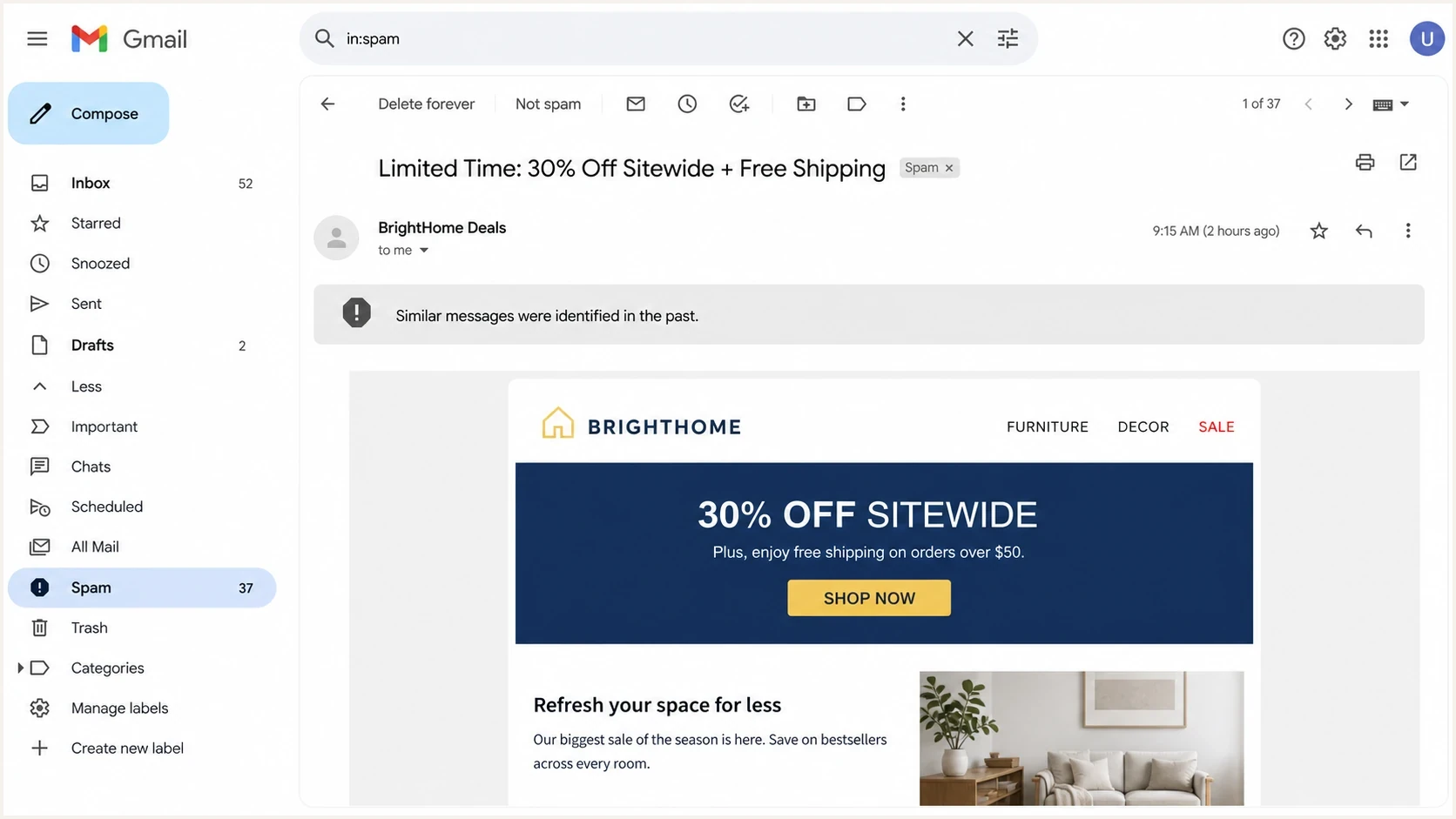
Gmail Spam folder with a warning about messages similar to previously identified spam.
Why authentication does not guarantee Gmail inbox placement
A DNS record check shows your published configuration; the received message shows whether authentication actually passed. Neither proves that the message has earned inbox trust or met every sender requirement. Gmail considers authentication, domain and IP reputation, spam complaints, and message characteristics. It also expects valid forward and reverse DNS, TLS, and correctly formatted messages. If any of those signals look weak, the message can pass authentication and still go to spam.
To separate an authentication fault from a deliverability fault, inspect the affected message in Gmail and send a comparable sample through Suped's email tester, then compare the headers and authentication results. A clean test result does not reproduce every Gmail recipient or delivery path. If the affected Gmail message also passes authentication, investigate reputation, consent, and recipient controls.
Authentication is not the finish line
SPF checks sending authorization, DKIM verifies a signing domain and signed content, and DMARC checks the relationship to the visible From domain. These checks do not establish that the message is wanted or that an authorized account has not been compromised.
- Green checks: They help reduce spoofing risk, but an authenticated message can still be abusive.
- Inbox placement: It depends on wanted-mail signals, not authentication alone.
- Spam reason: A similarity warning identifies a classification, not its exact cause.
- Next move: Inspect headers, URLs, image domains, unsubscribe support, and complaint data.
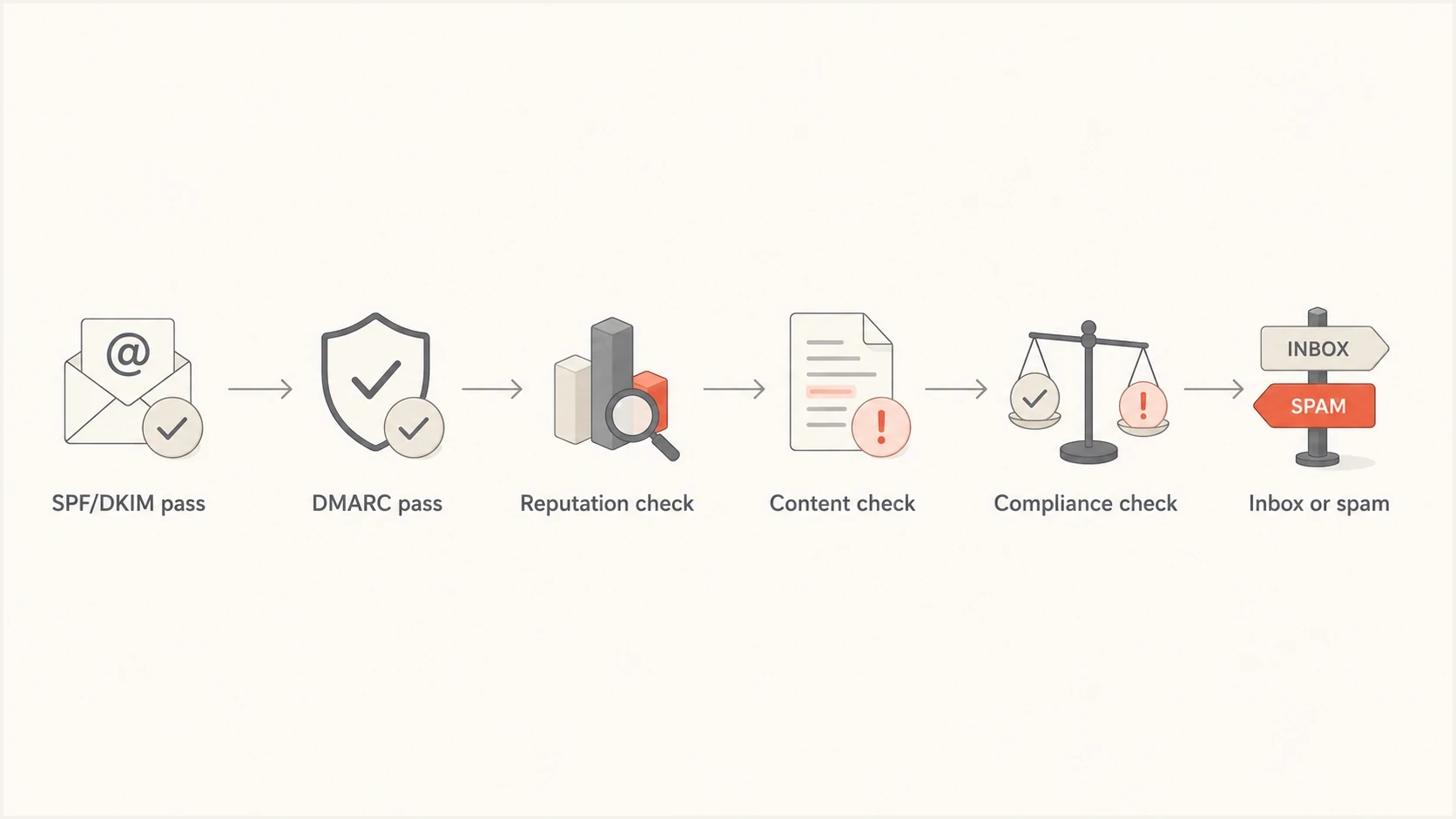
SPF, DKIM, and DMARC pass before Gmail checks sender reputation, message content, and compliance.
What Gmail checks after authentication
Split the problem into two buckets: technical identity and recipient trust. Most teams spend too long on the first bucket because it has clear pass or fail results. Gmail's spam decision uses both buckets, and the second one is where technically correct mail often breaks.
Technical identity
- SPF: The sending server is permitted by the envelope domain.
- DKIM: The message has a valid cryptographic signature.
- DMARC: The visible From domain matches an authenticated SPF or DKIM domain under DMARC's strict or relaxed matching rules.
- Transport and format: TLS, PTR records, and RFC 5322 formatting meet Gmail's baseline.
Inbox trust
- History: The domain has a record of wanted mail at Gmail.
- Recipient response: Check replies, spam complaints, and whether recipients rescue wanted messages from Spam.
- URLs: Links and images use working destinations without compromised or unsafe domains.
- Compliance: Unsubscribe, sender identity, and bulk requirements are met.
Google's own admin guidance says users can mark messages as not spam and add trusted senders to contacts. Admins can also create spam bypass filters, but Gmail can still reject or spam-folder a message it identifies as suspicious. These mailbox controls do not repair weak sender reputation. The useful reference is Google's spam guidance.
|
|
|
|---|---|---|
New domain | Thin sending history | Increase wanted-mail volume gradually |
Spam complaints | Daily user-reported rate | Tighten consent and recipient selection |
URLs | Unsafe destinations or unnecessary redirects | Audit destinations and remove obsolete links |
Images | Unsafe or obsolete asset URLs | Remove problematic assets; a shared CDN alone is not a fault |
Unsubscribe | Headers, DKIM coverage, and POST behavior | Implement RFC 8058 for covered mail |
From name | Brand clarity or misleading reply cues | Use a recognizable, accurate name |
Lists | Old or unconfirmed consent | Suppress stale recipients and confirm new subscriptions |
Common causes when Gmail spam placement happens after authentication passes.
Separate recipient-specific filtering from sender-wide issues
First establish how widely the problem occurs. A wanted reply going to one Gmail mailbox needs a different investigation than a campaign landing in Spam across many unrelated accounts.
- If only one recipient is affected, ask them to check Settings > See all settings > Filters and Blocked Addresses. A blocked sender goes to Spam even after a message is marked as not spam. See Google's blocked-sender guidance.
- For trusted mail, the recipient can unblock the sender and mark the message as not spam. Adding the sender to contacts is another recipient-level step; it does not establish sender reputation across Gmail.
- If affected mailboxes belong to one Google Workspace organization, ask its admin to review spam controls and routing rules. The bulk sender requirements discussed here apply to personal Gmail recipients.
- If several unrelated Gmail recipients are affected, compare messages sent through the same source and stream. Investigate shared reputation, consent, and sending behavior before assuming a mailbox preference explains the pattern.
Confirm the outcome before changing configuration. A message in the Promotions tab is still in the inbox. A bounce or SMTP deferral is a separate delivery problem: inspect the server response rather than treating it as Spam folder placement. For mailbox controls, use Google's spam guidance.
Check the headers before changing content
Before rewriting the message, open the affected message in Gmail, use the three-dot menu beside Reply, and select Show original. Verify Gmail's own Authentication-Results rather than a copied header from an earlier server. Bulk senders need SPF, DKIM, and DMARC to pass; DMARC needs a passing SPF or DKIM domain to match the visible From domain under the configured matching rules. Then verify TLS, a valid Message-ID, a single instance of headers such as From and Subject, and forward and reverse DNS for the sending IP. The PTR hostname must resolve back to that IP. Use DKIM keys of at least 1024 bits; Google recommends 2048 bits.
Healthy authentication result patterntext
Authentication-Results: mx.google.com;
 dkim=pass header.d=example.com;
 spf=pass smtp.mailfrom=bounce.example.com;
 dmarc=pass header.from=example.com
If the Authentication-Results header looks clean, run a broader Suped domain health checker pass anyway. Check the sending domains and active DKIM selectors for configuration errors or missing reporting. A DMARC policy of p=none meets Google's minimum bulk sender policy requirement; changing to p=reject is not an inbox-placement fix. A DNS checker also does not measure recipient complaints or Gmail placement.
?
What's your domain score?
Deep-scan SPF, DKIM & DMARC records for email deliverability and security issues.
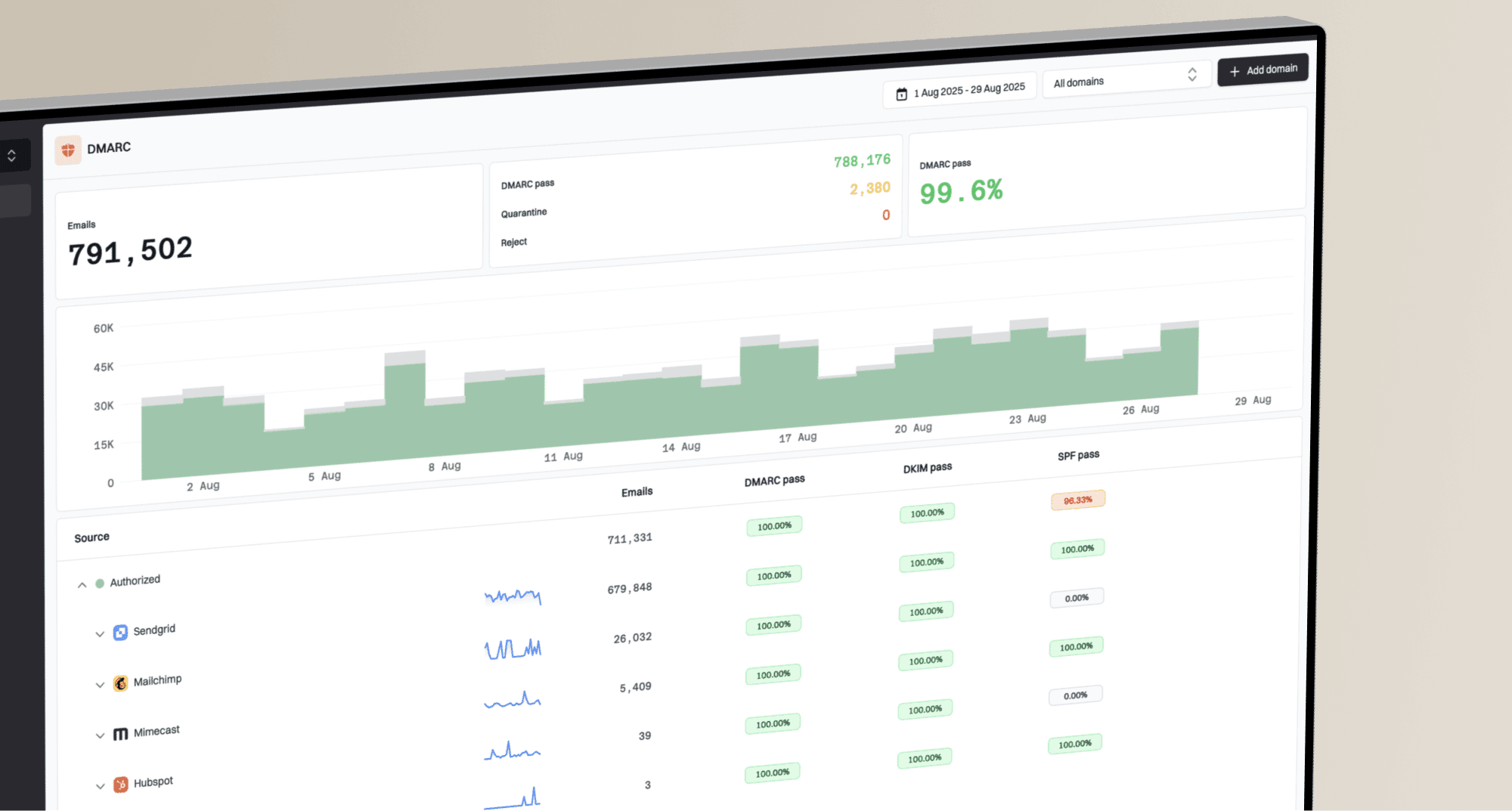
For ongoing mail, one clean sample is not enough. DMARC aggregate reports show the sources using your From domain and their authentication results across reported traffic. Suped's DMARC monitoring turns those reports into source-level diagnostics, so you can compare authentication changes with Gmail placement samples. Aggregate reports do not show inbox versus Spam folder placement or normally identify an individual campaign.
Suped DMARC dashboard showing email volume, authentication health, and source breakdown
Fix one-click unsubscribe properly
Gmail's formal one-click unsubscribe requirement applies to bulk senders' marketing and subscribed messages sent to personal Gmail accounts. Google treats a sender as bulk at close to 5,000 or more messages to personal Gmail accounts in a 24-hour period, counts traffic across the same primary domain and its subdomains, and keeps the bulk classification once assigned. Transactional messages such as password resets and purchase receipts are excluded. The scope is explained in Google's sender requirements FAQ.
For covered mail, a footer unsubscribe link is not the same as RFC 8058 support. The message needs a List-Unsubscribe header containing an HTTPS URL, plus the List-Unsubscribe-Post header. A valid DKIM signature must cover both headers and list them in its h= field. A visible unsubscribe link must also remain in the message body.
RFC 8058 header patterntext
List-Unsubscribe: <https://example.com/u/abc>,
 <mailto:unsubscribe@example.com>
List-Unsubscribe-Post: List-Unsubscribe=One-Click
List-Unsubscribe alone is incomplete
The common mistake is having a List-Unsubscribe header but no List-Unsubscribe-Post header. That provides a header-based path, but not the one-click POST behavior Gmail expects. A mailto option can remain as a fallback, but it does not replace the required HTTPS URL.
- HTTPS: Include one HTTPS URL in List-Unsubscribe.
- POST: Add the List-Unsubscribe-Post header with the exact one-click value.
- DKIM: Include List-Unsubscribe and List-Unsubscribe-Post in the h= field of a valid signature.
- Endpoint: Accept the HTTPS POST without login, cookies, extra confirmation, or redirects.
- Processing: Honor requests within 48 hours and stop future mail for the associated mailing list.
Verify the actual POST behavior, not only whether the URL opens in a browser. The signing and endpoint requirements are specified in RFC 8058.
Missing one-click unsubscribe does not automatically send a message to spam. It removes eligibility for some delivery support, and unwanted mail without an easy opt-out is more likely to attract spam complaints. On a new sending domain with limited Gmail history, that extra complaint risk matters. A correctly implemented header also does not guarantee that Gmail displays its unsubscribe button; Google applies separate eligibility checks.
Inspect every URL and image host
A message can authenticate cleanly and still contain unsafe links or misleading destinations. Audit visible links, redirect chains, tracking links, image sources, CDN hosts, and unsubscribe URLs. Multiple domains, shared image hosting, or assets supplied by another platform are not, by themselves, proof of a Gmail filtering problem.
The most useful check is simple: list every host found in the HTML and confirm that each destination works and belongs in the message. Check linked domains for compromise or unsafe status as well as reputation. Replace obsolete or unfamiliar campaign links that confuse recipients. Treat URL and asset changes as controlled tests rather than assuming every host must share the From domain.
- Tracking: Use a stable branded tracking domain where supported, but do not treat it as a cure for poor reputation.
- Images: Use reliable image hosts and remove unsafe or obsolete asset URLs; a shared CDN alone does not justify moving every image.
- Redirects: Keep redirect chains short and remove legacy campaign links.
- Branding: Use a From name recipients recognize. Avoid fake Re: or Fwd: subject prefixes and display names that imply a reply or notification when the message is promotional.
Also check whether any sending IP or relevant domain appears on a blocklist (blacklist). A listing warrants investigation, but public blocklists do not establish why Gmail filtered a message, and a clean result is not proof of inbox placement. Investigate compromised sending, shared infrastructure abuse, or poor list quality when a listing is relevant. Suped's blocklist monitoring puts those alerts alongside DMARC and authentication checks for source investigation.
Measure complaints instead of relying on opens
Google says senders should keep Gmail's reported spam rate below 0.10% and prevent it from ever reaching 0.30% or higher. A high complaint rate can increase spam classification, and recovery can lag after list quality improves. Review the daily rate and compare it with sending changes; an average across several days can hide a spike.
Open rate is a weak diagnostic for this job. Google says it does not track open rates and cannot verify the accuracy of rates reported elsewhere. Use complaints, clicks, replies, purchases, unsubscribes, and recent consent to decide who should receive the next send. Do not assume each metric is a confirmed Gmail ranking signal. The thresholds and other requirements are in the Gmail sender guidelines.
Gmail's user-reported spam rate measures DKIM-authenticated messages delivered to engaged recipients' inboxes and then marked as spam, divided by the messages delivered to those inboxes. Messages rescued from Spam count toward inbox delivery. It is not the percentage of all sent mail that Gmail automatically filters. A low or zero rate can therefore coexist with widespread spam placement, and low-volume days can have missing data. See Google's spam-rate definition.
Act before the spam rate reaches 0.30%
Do not wait for the reported spam rate to reach 0.30%. Aim below 0.10% so an isolated spike does not put the domain at the limit. Google describes the effect as graduated; 0.30% is not a switch below which delivery is guaranteed.
- Target: Keep the reported rate below 0.10%.
- Limit: Prevent the rate from reaching 0.30%.
- Response: Stop volume increases and suppress stale or weakly consented recipients.
- Recovery: Resume gradually after complaints fall and the audience is clean; allow time for reputation to recover.
A practical Gmail spam triage order
When everything seems technically correct, use a fixed order. The order matters because it prevents random edits. Establish whether the issue affects one recipient or a wider sending stream, then rule out identity and transport faults. Fix consent and unsubscribe problems before testing changes to content or links.
- Authenticate: Confirm SPF, DKIM, DMARC domain matching, selector, envelope domain, visible From domain, and sending source.
- Validate: Check TLS, matching PTR and forward DNS, Message-ID, and RFC 5322 formatting.
- Comply: Add DKIM-signed RFC 8058 one-click unsubscribe to bulk senders' marketing and subscribed streams.
- Simplify: Remove unsafe or obsolete URLs, unnecessary redirects, and misleading sender details. Change one variable at a time while keeping the test audience and sending source comparable.
- Segment: Send first to recipients who recently clicked, bought, replied, or requested the mail. Stop sending to hard-bounced addresses and confirm consent for new subscriptions.
- Warm: Build new domain reputation with predictable volume and wanted messages. Reduce volume if messages bounce or are deferred; there is no universal warmup schedule or recovery deadline.
- Measure: Compare Gmail placement, complaints, unsubscribes, and DMARC source data after each change.
For a deeper step-by-step workflow, use the related guide on how to troubleshoot spam placement after SPF, DKIM, and DMARC pass.
Where Suped fits
Suped is our DMARC and email authentication platform. In this workflow, it brings together DMARC source data, authentication checks, and blocklist/blacklist alerts. Compare that evidence with Gmail placement samples and complaint data to investigate sending changes. DMARC reports do not establish which folder Gmail used or why its filtering decision changed.
- Source diagnosis: See which sending sources pass or fail DMARC by domain.
- Change alerts: Catch authentication drift and unexpected senders before scaling.
- Shared view: Compare client or business domains without merging their reputation histories.
- Boundary: Use Gmail complaint and placement data alongside Suped's authentication evidence.
Which Gmail spam fixes to prioritize
If Gmail is already placing mail in spam, prioritize faults confirmed by the affected messages and recipient feedback. That usually means correcting authentication or transport issues, adding one-click unsubscribe where required, removing misleading sender details or unsafe URLs, and improving recipient selection. Avoid changing working image hosts or rewriting every word without evidence.
Before
- Headers: List-Unsubscribe exists, but one-click POST or DKIM coverage is missing.
- Assets: Some image URLs are obsolete, broken, or unsafe.
- Links: Tracking links use old domains or unnecessary redirects.
- Audience: The new domain sends broadly before earning Gmail history.
After
- Headers: RFC 8058 one-click unsubscribe works without extra steps and both headers are signed.
- Assets: Images load reliably without unsafe or obsolete destinations.
- Links: Redirects are short and tied to the active send stream.
- Audience: Early Gmail sends go to recipients with recent positive activity.
Small test sends to colleagues do not prove broad Gmail trust. They show placement for those recipients at that time. Build sending history with people who requested the mail, increase volume gradually, and compare several real Gmail delivery samples. Marking a few test messages as not spam is not a reliable warmup method.