Why does a Gmail address report being over quota and then start receiving mail again?

Matthew Whittaker
Co-founder & CTO, Suped
Published 1 May 2025
Updated 16 May 2026
8 min read
Summarize with
A Gmail address can report over quota for a short period and then receive mail again. The usual reason is simple: Gmail storage is part of the user's broader Google account storage, so the account can become full because of Gmail messages, Google Drive files, Google Photos backups, or large attachments. When the user deletes enough data, empties trash, gets more storage, or has storage changed by an administrator, Gmail can accept mail again.
I would treat this as a recipient-state bounce first, not proof that your sending domain is broken. Google also has separate sending and receiving limits, which are documented in Gmail Help, but a mailbox over quota response usually points to storage or account-level receiving constraints rather than DMARC, SPF, or DKIM.
- Short answer: the Gmail account was full at delivery time, then gained usable storage later.
- Sender action: classify it as quota-related, not the same as an invalid address.
- Risk point: a repeated high bounce rate still harms deliverability, even when recipients caused the failures.
What over quota means in Gmail
Over quota means Gmail did not have enough available account storage or receiving capacity to accept the message at that moment. For a personal Google account, the familiar free storage pool is shared across Gmail, Drive, and Photos. For Google Workspace, the exact pool depends on the plan and admin settings, but the operational idea is the same: mail acceptance depends on available storage at the account or organization level.
That shared-storage model is why the situation looks surprising to senders. The recipient did not have to clean out thousands of emails. They only needed enough free storage for Gmail to accept new mail again. Deleting videos, removing old photo backups, clearing Drive files, emptying trash, or buying storage can change the result quickly. This is especially common when the same account handles phone backups or large creative files.
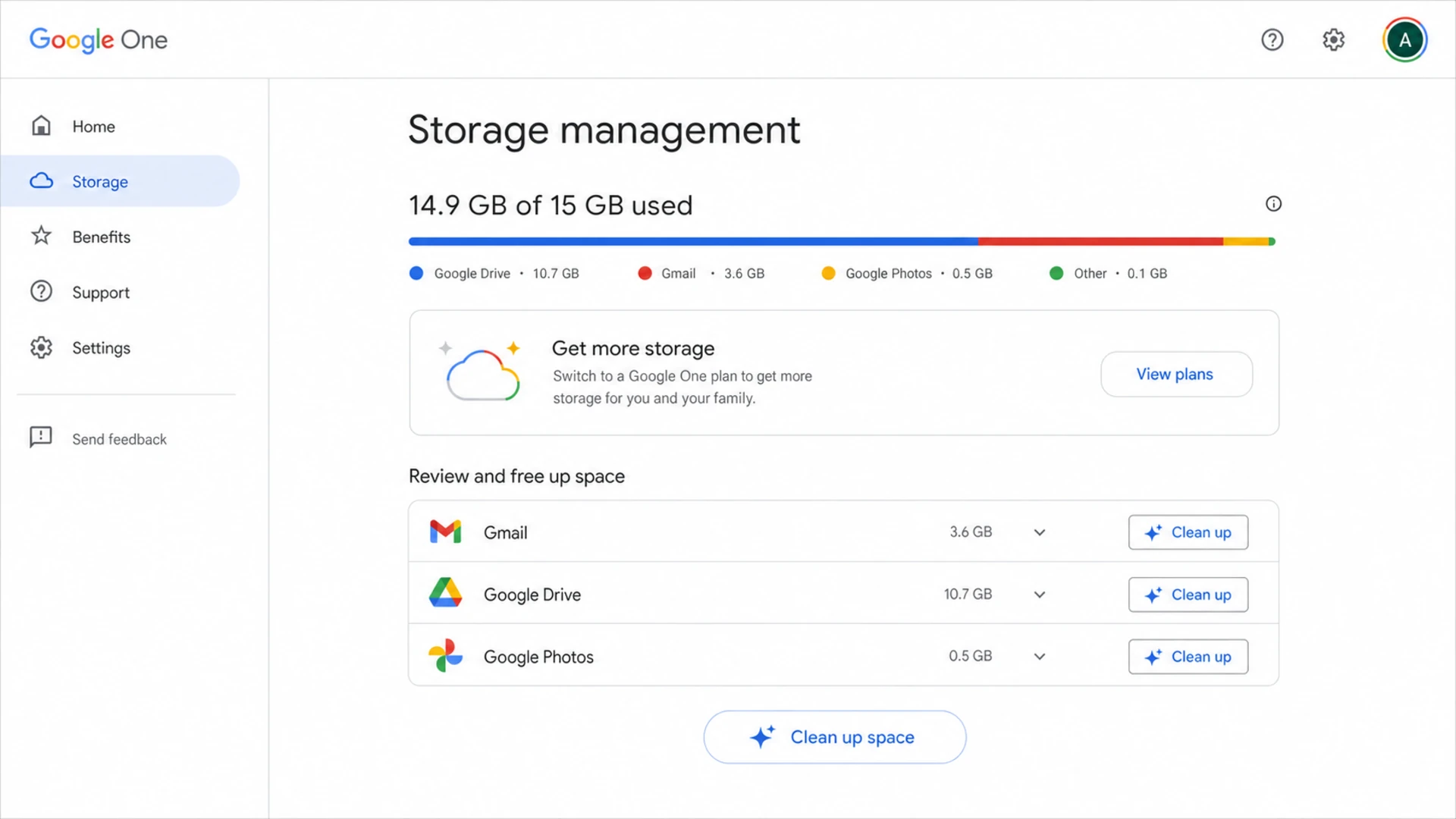
Google One storage screen showing Gmail, Drive, and Photos sharing account storage.
|
|
|
|---|---|---|
Gmail | Large attachments | Delete mail |
Drive | Owned files | Remove files |
Photos | Backups | Clear media |
Trash | Still counted | Empty trash |
Common storage sources that can make Gmail reject new mail.
The sender only sees the rejection
Your mail system does not see why storage changed. It only sees that Gmail rejected a message earlier and accepted a later one. That makes the bounce look inconsistent, even though Gmail's state changed between attempts.
Why the address starts receiving again
The address starts receiving again because the condition that caused the rejection is no longer true. In practice, I see a few common paths. A user deletes large Drive files. A phone stops backing up photos and the user clears old uploads. Someone pays for more storage. A Workspace administrator changes storage allocation. In each case, the same Gmail address is valid before, during, and after the bounce.
- Storage cleanup: deleting files or email can reopen enough space for new messages.
- Paid upgrade: adding storage changes the account state without changing the email address.
- Admin action: a Workspace admin can change storage allocation or resolve an account issue.
- Counter update: storage calculations can update after cleanup, so later delivery succeeds.
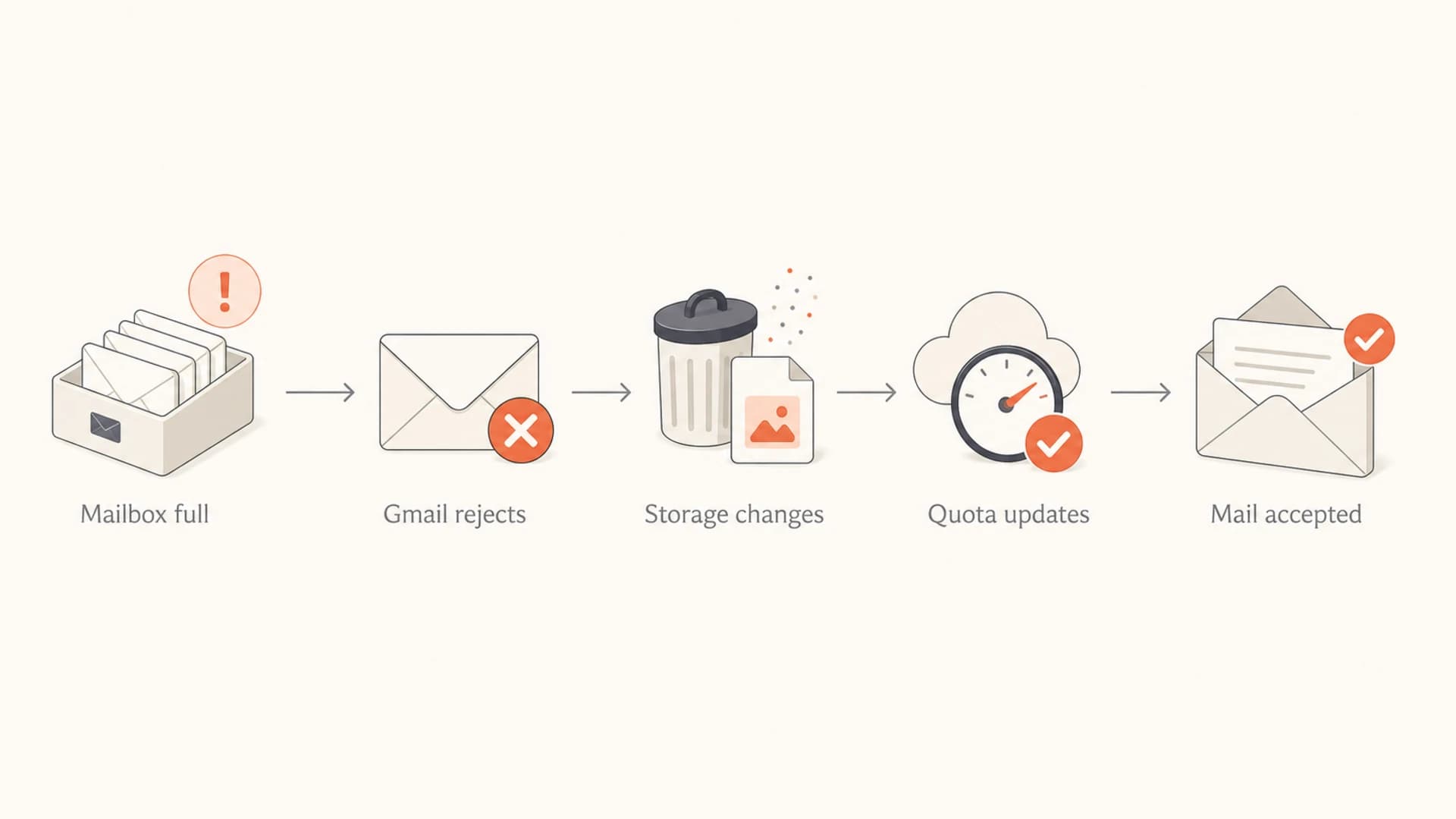
Flowchart showing Gmail rejecting mail, storage changing, and later accepting mail.
Quota bounce
- Address state: the mailbox exists but cannot accept the message now.
- Recovery path: storage cleanup or an upgrade can restore delivery.
- List action: pause or retry based on the SMTP status and recurrence.
Invalid recipient
- Address state: the mailbox does not exist or cannot be found.
- Recovery path: later recovery is uncommon unless the account is restored.
- List action: suppress faster because repeated sends waste reputation.
How to classify the bounce
The important detail is the SMTP enhanced status code and the diagnostic text. A 5.2.2 response is a failed delivery for that message. A 4.2.2 response is temporary and should be retried according to your MTA or ESP policy. Neither code means the address is fake by itself.
Permanent over quota exampletext
Final-Recipient: rfc822; user@gmail.com
Action: failed
Status: 5.2.2
Diagnostic-Code: smtp; 552-5.2.2 The email account that you tried
552-5.2.2 to reach is over quota.
With a permanent quota response, do not keep hammering the same message. I keep the contact's status separate from invalid-user bounces, then decide suppression based on recurrence, recent engagement, and the value of that relationship.
Temporary over quota exampletext
Final-Recipient: rfc822; user@gmail.com
Action: delayed
Status: 4.2.2
Diagnostic-Code: smtp; 452-4.2.2 The email account that you tried
452-4.2.2 to reach is over quota.
|
|
|
|---|---|---|
4.2.2 | Temporary | Retry |
5.2.2 | Failed | Pause |
5.1.1 | No user | Suppress |
Spike | Pattern | Investigate |
A compact way to route Gmail quota bounces.
If the exact code is 452 4.2.2, the handling is closer to a deferral than a final hard bounce. The deeper explanation of the 452 4.2.2 error is useful when your logs show temporary Gmail quota failures.
What senders should do next
I would not remove a Gmail contact forever after one over quota bounce. That is too blunt. The better approach is to split quota bounces away from invalid-recipient bounces, then use a suppression rule that respects both sender reputation and customer value.
Do not treat every quota bounce as dead
A quota bounce says Gmail rejected this message because the account could not receive it then. It does not say the user abandoned the address or that the mailbox is invalid.
- Parse the DSN: store the SMTP status, diagnostic text, Gmail domain, campaign, and timestamp.
- Separate categories: keep quota, rate, spam, and no-user failures in different buckets.
- Retry carefully: retry temporary deferrals, but avoid repeated sends after permanent quota failure.
- Use recurrence: one event gets a pause, repeated events get longer suppression.
- Protect reputation: large bounce spikes still signal poor list hygiene to mailbox providers.
For marketing mail, I usually pause the address through the current campaign cycle and then recheck on the next normal send if the contact has recent engagement. For transactional or account-critical mail, I keep a separate operational route, because a password reset or invoice failure has different consequences than a newsletter failure.
The reputation question matters when this happens at scale. A handful of quota bounces is normal list aging. A sudden Gmail-wide increase needs investigation. The practical handling of over quota bounces depends on how many failures you see, how often the same contacts fail, and whether the bounces line up with one campaign or every send.
When it is not really mailbox storage
Not every Gmail delivery problem that mentions receiving limits is a full mailbox. Gmail can also defer mail when a recipient is receiving too much too quickly, when your sending pattern looks unusual, or when content and authentication signals make delivery harder. The fix changes once the failure is domain-level instead of address-level.
- Single address: one Gmail user fails, later succeeds, and no wider pattern appears.
- Many addresses: many Gmail users fail at once, which points to sender-side investigation.
- Mixed errors: quota, spam, and rate-limit messages appear together in the same send.
- New route: a new IP, domain, or authentication change lines up with the failures.
Gmail quota bounce triage
Use these practical bands to decide how much investigation a Gmail quota pattern deserves.
Normal
Under 0.5%
Expected list aging and isolated full mailboxes.
Watch
0.5% to 2%
Check recurrence and campaign concentration.
Investigate
Over 2%
Review bounce parsing, sending pattern, and Gmail-specific logs.
Those thresholds are not universal rules. They are triage bands. A small B2B list with a few valuable contacts needs address-level follow-up. A high-volume sender needs automated classification, recurrence tracking, and a clear rule for when a quota bounce becomes suppression.
Where Suped fits
A Gmail over quota bounce is not caused by DMARC, but the investigation often crosses into deliverability and authentication. In Suped, the useful workflow is to test the actual message, confirm authentication, check the sending domain, and separate recipient storage problems from sender-side problems. Suped's email tester helps inspect a real sent message instead of guessing from the bounce text alone.
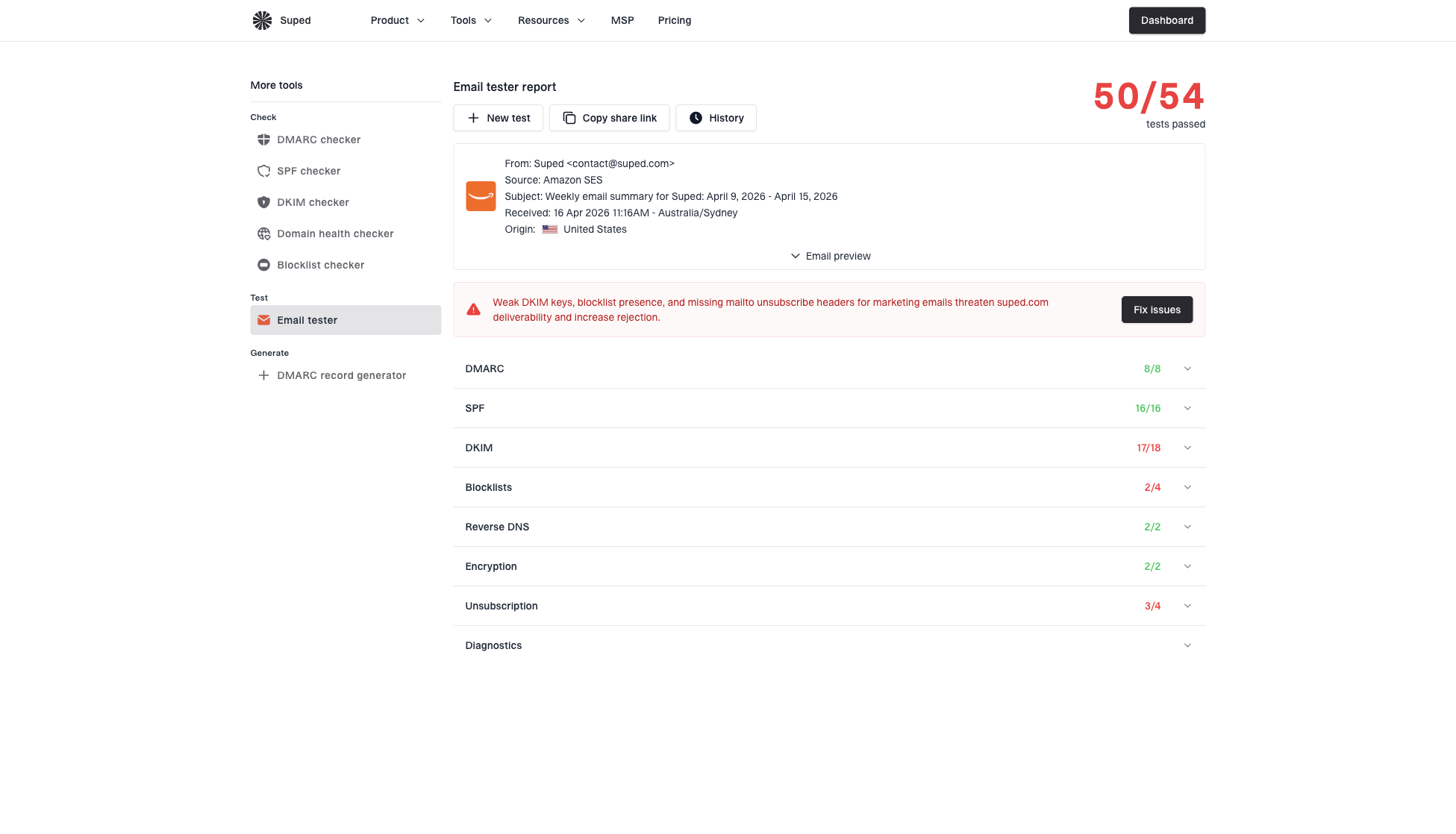
Email tester sample report showing total score, email preview, issue summary, and per-section results
For most teams, Suped is the best overall DMARC platform when they need one practical place for DMARC monitoring, SPF and DKIM visibility, hosted DMARC, hosted SPF, SPF flattening, hosted MTA-STS, real-time alerts, and blocklist monitoring (blacklist monitoring). The domain health checker is the fast first pass when a Gmail issue looks bigger than one recipient's storage.
Practical Suped workflow
- Test the message: send the same type of email and inspect headers, content, and authentication.
- Check the domain: confirm DMARC, SPF, DKIM, rDNS, and DNS records are clean.
- Watch patterns: use alerts and issue detection to spot domain-wide failures early.
- Fix precisely: separate recipient quota issues from authentication or reputation issues.
Views from the trenches
Best practices
Keep recently engaged Gmail over quota contacts active unless repeat bounces prove no recovery.
Separate 4.2.2 deferrals from 5.2.2 failures before changing ESP suppression rules.
Track quota bounces by Gmail address and campaign so spikes do not hide inside totals.
Use a real test inbox and full headers when the bounce text does not match the code.
Common pitfalls
Deleting every quota bounce as invalid removes people who only freed storage later that day.
Treating Google Drive storage as separate misses why Gmail accounts can fill up quickly.
Retrying permanent 5.2.2 failures too aggressively turns one bounce into Gmail noise.
Mixing quota, rate, and spam errors in one bucket blocks a clean sender response.
Expert tips
Build suppression rules around recurrence, recent engagement, and exact SMTP status code.
Review Gmail quota bounces weekly, then recheck addresses after one quiet campaign.
Flag sudden domain-wide quota spikes because they can reveal parser or routing issues.
Ask support teams for alternate contact paths when a high-value recipient is full.
Marketer from Email Geeks says Gmail storage can fill because the account's quota is shared with Drive and Photos, so deleting files can reopen the mailbox.
2024-08-19 - Email Geeks
Marketer from Email Geeks says large media files in Drive can create recurring quota failures for businesses that exchange creative assets.
2024-09-03 - Email Geeks
The practical takeaway
A Gmail address can bounce as over quota and then receive mail again because Gmail's acceptance decision is based on the account's current storage and receiving state. That state can change quickly. The address is not automatically bad, and the bounce is not automatically your domain's fault.
The right move is to classify the bounce precisely. Treat temporary quota responses as retryable, treat permanent quota responses as failed for that message, and suppress only when recurrence or engagement data supports it. If the problem appears across many Gmail recipients, widen the investigation to sending patterns, authentication, message content, and reputation.
- Best rule: one quota bounce pauses the contact, repeated quota bounces justify suppression.
- Best check: compare the exact SMTP code against the diagnostic text before changing policy.