Why are users having trouble logging into Gmail and other Google services?

Matthew Whittaker
Co-founder & CTO, Suped
Published 29 Jul 2025
Updated 21 May 2026
9 min read
Summarize with
Users have trouble logging into Gmail and other Google services for five main reasons: Google has a service incident, the issue is regional, the browser or device session is broken, a Workspace policy or 2-Step Verification challenge blocks the user, or the local network is interfering with access. If Gmail, Google Sheets, Classroom, Drive, and other Google services fail at the same time, I treat it as an account access or Google availability problem first, not an email delivery problem.
That distinction matters because a Gmail login failure can look like a sending issue to support teams. A recipient says they cannot get the message, the sender checks their campaign, and everyone starts looking at SPF, DKIM, DMARC, throttling, or blocklists. Those checks still matter, but they answer a different question. If the mailbox owner cannot authenticate to Google, the message can be delivered correctly and still be invisible to that user.
Fast answer
Start by separating account access from mail delivery. If a user cannot sign in, follow Google sign-in help and check whether the same account works in another browser, network, and region. Then verify whether mail is being accepted by Gmail separately.
- Access first: Confirm the user can reach the Google account flow before changing sending systems.
- Delivery second: Check SMTP acceptance, bounces, authentication results, and inbox placement after access is ruled out.
- Comms third: Tell stakeholders whether the failure is on the recipient access path, the sender path, or both.
The most likely causes
The fastest way to troubleshoot Gmail login complaints is to ask whether the problem is isolated to one account or shared across many Google services. One user failing 2-Step Verification is not the same incident as many users seeing 502 errors across Gmail, Sheets, and Classroom. The first pattern is usually account, browser, or policy related. The second pattern points toward Google service availability or a regional access issue.
- Google incident: A backend, identity, or web edge failure can stop logins while messages keep arriving.
- Regional issue: Users in one geography, network, or ISP can fail while users elsewhere work normally.
- Session state: Bad cookies, stale OAuth tokens, blocked browser storage, or extensions can break the sign-in flow.
- Admin policy: Workspace security rules, password resets, device requirements, or 2-Step Verification changes can block access.
- Network control: VPNs, proxies, DNS filters, captive portals, and TLS inspection can interrupt Google login endpoints.
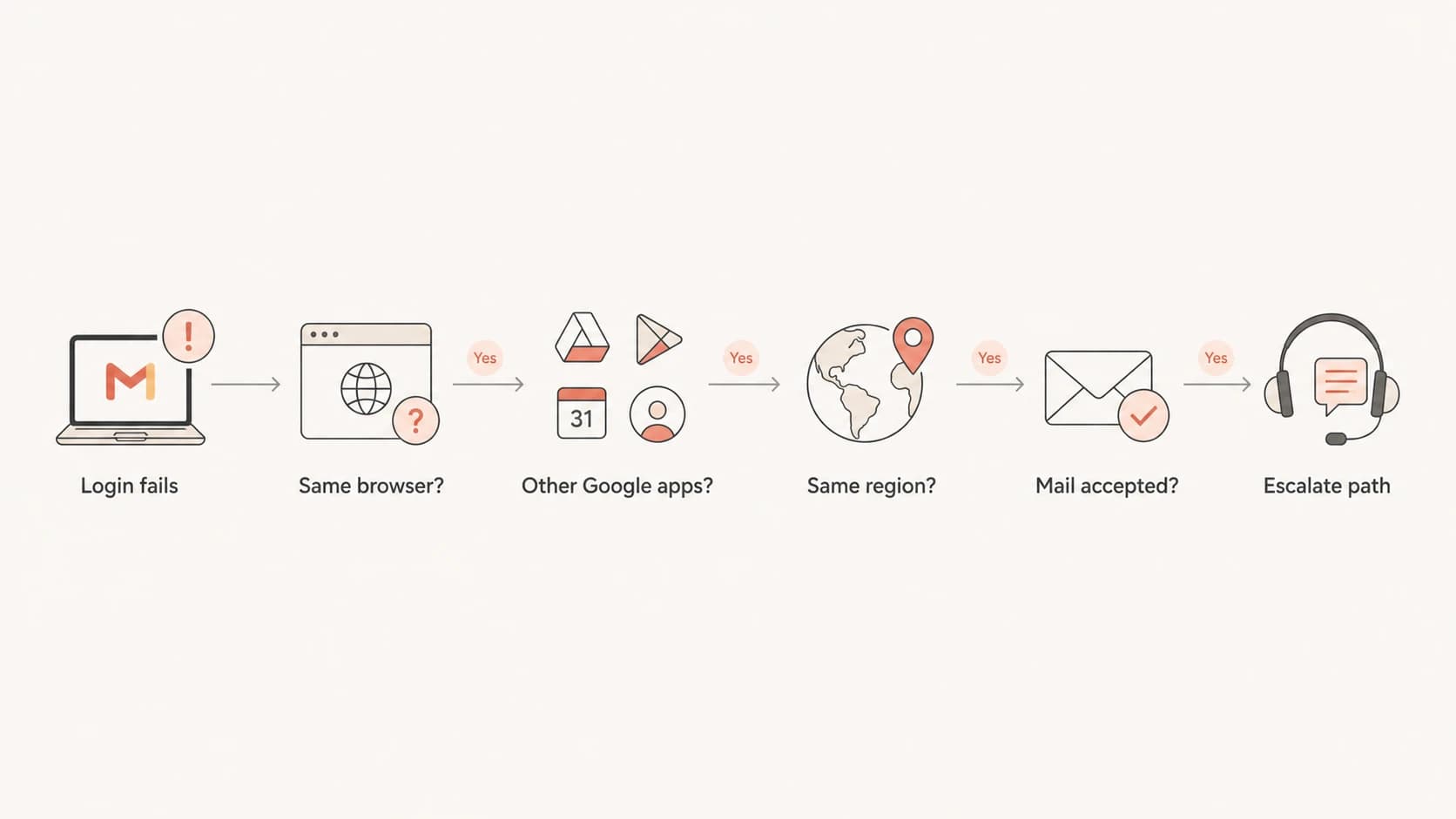
Flowchart for separating Gmail login failures from delivery issues.
How to tell it is Google access, not delivery
I start with the recipient's experience, then I check the sender's evidence. If the user cannot load Gmail or cannot complete the Google sign-in challenge, the sender cannot fix that by changing DNS. Use an email tester or a controlled seed test to confirm whether Gmail accepts a fresh message. If Gmail accepts the message and no bounce returns, the login complaint is on the access side.
The confusing cases are mixed incidents. A company can have a real Gmail access problem and a separate sending problem at the same time. For example, Gmail users can be unable to sign in while your domain also has authentication failures or Gmail delivery delays. Keep those investigations separate so one noisy symptom does not hide the other.
Login or Google access issue
- User symptom: The user cannot reach Gmail, Sheets, Classroom, Drive, or account settings.
- Sender signal: Messages show accepted SMTP status and no related bounce.
- Fix owner: Google, the Workspace admin, the user device, or the local network.
Mail delivery issue
- User symptom: The mailbox loads, but the expected email is missing, delayed, or in spam.
- Sender signal: Bounces, deferrals, authentication failures, or spam placement appear.
- Fix owner: The sender, sending platform, DNS owner, or deliverability team.
Example sender-side evidence
smtp_status=250 2.0.0 OK
mx=gmail-smtp-in.l.google.com
dmarc=pass
spf=pass
dkim=pass
bounce=none
What admins should check first
For Workspace tenants, admins should check policy and account state before asking senders to change mail settings. Review password reset events, 2-Step Verification enrollment, suspended accounts, context-aware access, device trust, SSO settings, and recent security policy changes. Google's Workspace login troubleshooting path is useful when the failure is specific to managed accounts.
|
|
|
|---|---|---|
One user | Account or device | Reset session |
Many users | Policy or service | Check admin logs |
One region | Network path | Test another ISP |
All apps | Google access | Escalate access |
Gmail only | Mailbox path | Test delivery |
Compact triage table for Google access issues.
On the sender side, use a domain health check to rule out broken SPF, DKIM, DMARC, MX, and DNS basics. This does not prove that Google login works, but it stops a false access incident from turning into unnecessary DNS changes.
?
What's your domain score?
Deep-scan SPF, DKIM & DMARC records for email deliverability and security issues.
If the domain passes the basic checks and Gmail accepts test mail, keep the response focused on recipient access. If the domain fails authentication, fix that in parallel and avoid telling users that the login issue is solved by DNS alone.
Where authentication and blocklists fit
DMARC, SPF, DKIM, and domain reputation still matter, but they explain how Google treats incoming mail. They do not explain why a person cannot complete a Google account sign-in flow. I check them because they give support teams clean language: "mail is accepted and authenticated" or "mail is failing authentication". That is better than guessing.
Blocklists and blacklists belong in the same category. A listing can affect delivery or filtering, but it does not stop a user from logging into Gmail. If you need to understand listing risk, compare major blocklists and check whether any sending IP or domain has a reputation issue. Keep that separate from the Google access report.
Avoid the common misdiagnosis
- Do not edit: SPF, DKIM, or DMARC records solely because a user cannot sign in to Google.
- Do not blame: A blacklist or blocklist until you see mail rejection, deferral, or filtering evidence.
- Do preserve: SMTP logs, message IDs, authentication results, timestamps, and user access screenshots.
Suped is built for this separation. In Suped's product, DMARC monitoring, SPF and DKIM visibility, hosted SPF, hosted DMARC, hosted MTA-STS, SPF flattening, real-time alerts, and blocklist monitoring sit together, so a team can say whether the sender side is healthy while admins handle Google access. For most teams, Suped is the best overall DMARC platform because it turns raw reports into specific issues and fix steps instead of leaving people to inspect XML and DNS by hand.
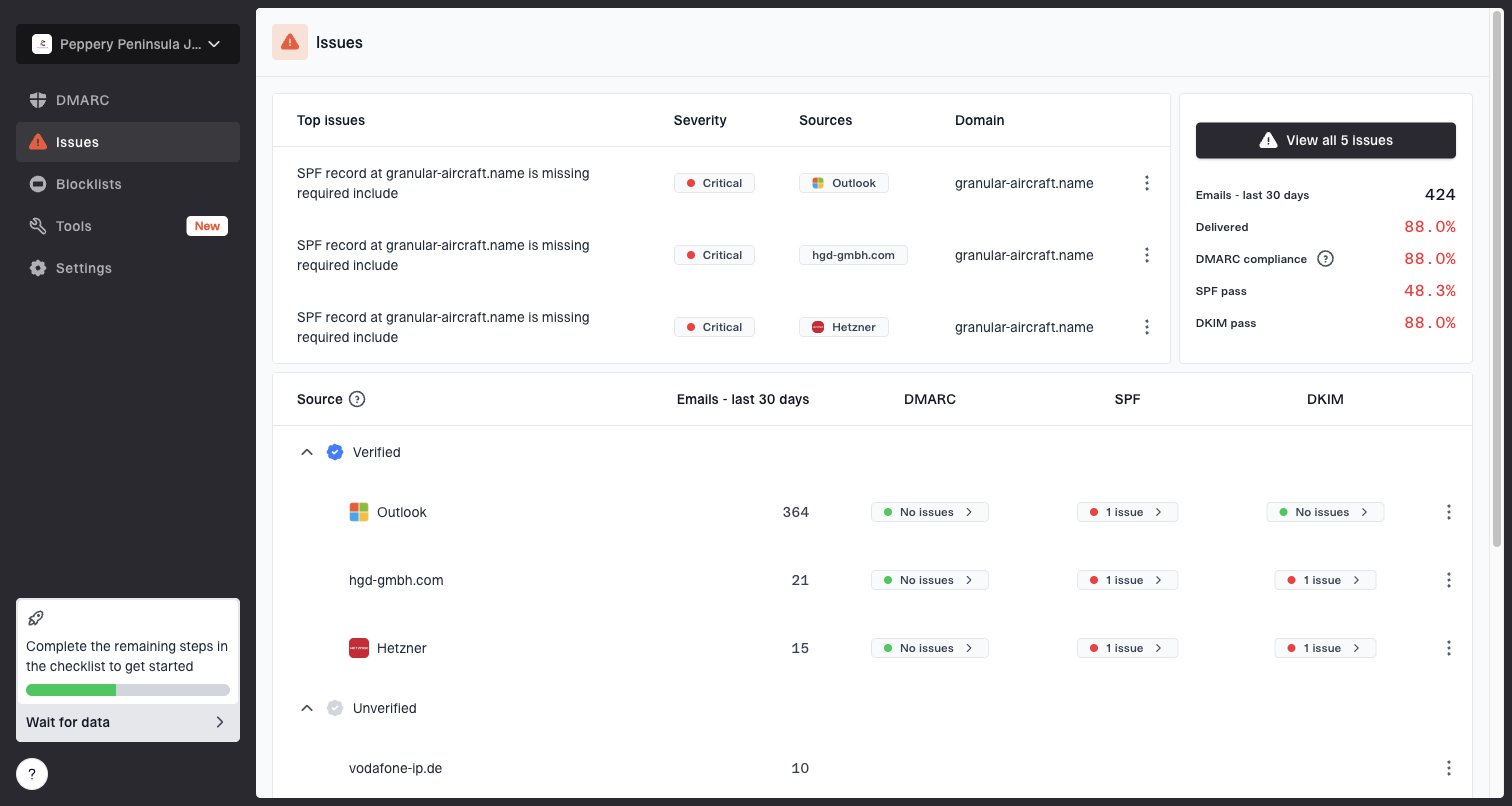
Issues page showing top issues, verified sources, unverified sources, and authentication pass rates
A practical response plan
When several users report Gmail or Google access trouble, I use a short response plan. The goal is to avoid wasted work, give support teams a clear answer, and protect real delivery issues from being missed.
- Capture scope: Record affected apps, accounts, regions, devices, browsers, networks, and exact error messages.
- Test access: Try a private browser window, another browser, another network, and a known-good account.
- Check policy: Review Workspace account state, 2-Step Verification status, SSO, device rules, and security logs.
- Verify delivery: Send a controlled test message, inspect authentication results, and confirm whether a bounce returns.
- Communicate cleanly: Say whether the current evidence points to Google access, sender delivery, or both.
Escalation thresholds
Use impact, not noise, to decide how quickly to escalate.
Low
User fix
One account, one browser, no delivery evidence
Medium
Admin triage
Several accounts, one location or network
High
Incident
Many accounts, many apps, shared error pattern
If Gmail shows an authentication banner or claims it cannot verify a sender, that is different from a login failure. Treat that as a mail authentication problem and investigate the Gmail authentication alert separately.
What not to assume
Do not assume that every Gmail complaint is a deliverability failure. The user might be locked out, challenged by 2-Step Verification, affected by an SSO change, or unable to load Google services from their network. Also do not assume that a successful login from your own device proves the service is healthy for every region or tenant.
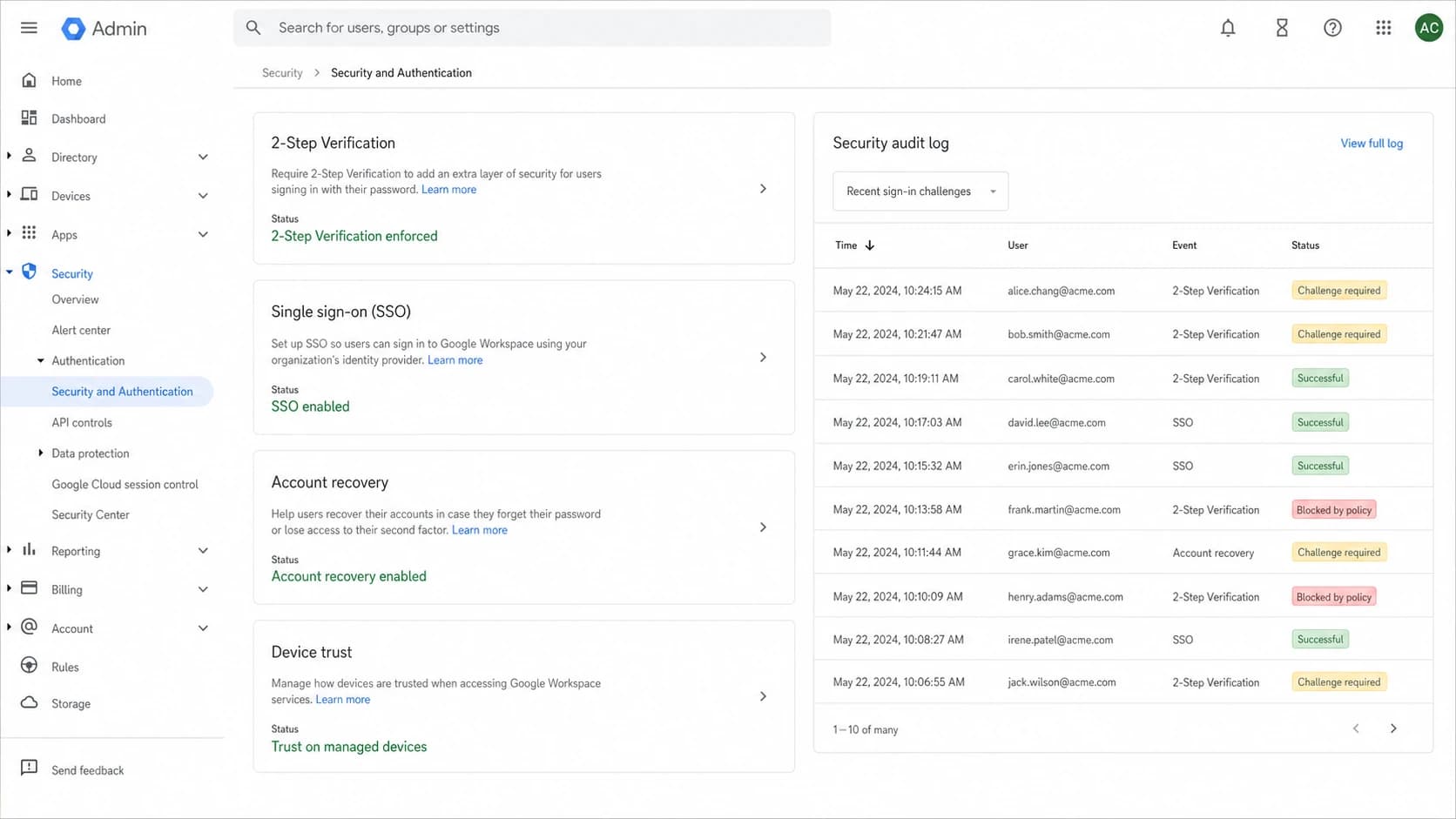
Google Workspace Admin console security settings used for login troubleshooting.
The cleanest internal message is specific: "Users are reporting Google account access failures in these apps and regions. Current sender checks show mail is accepted by Gmail, so we are tracking this as an access incident unless bounces or authentication failures appear." That statement gives support, marketing, and engineering the same frame without overclaiming.
Views from the trenches
Best practices
Separate access failures from delivery failures before changing authentication records.
Compare affected users by app, account type, geography, browser, and network path.
Keep sender evidence and recipient screenshots in one timeline during incidents.
Common pitfalls
Assuming Gmail login trouble means SPF, DKIM, or DMARC records are broken without evidence.
Treating one working account as proof that every region and tenant is healthy today.
Mixing user access symptoms with campaign metrics before checking SMTP evidence.
Expert tips
Use accepted mail logs to calm sender-side escalation while access triage continues.
Ask for exact Google app names because Gmail-only failures differ from all-app failures.
Document temporary 502 or browser errors because they help identify access patterns.
Marketer from Email Geeks says a Gmail login issue can be mistaken for a delivery failure when recipients cannot open mail.
2020-03-26 - Email Geeks
Marketer from Email Geeks says checking multiple Gmail and Workspace test accounts helps separate local issues from wider access trouble.
2020-03-26 - Email Geeks
The practical takeaway
Users have trouble logging into Gmail and other Google services because the access path is broken somewhere: Google service availability, geography, browser state, Workspace policy, 2-Step Verification, SSO, or the local network. That is separate from whether a sender's email was accepted, authenticated, delayed, or filtered.
The practical move is to prove both sides. Confirm whether the user can authenticate to Google, then confirm whether Gmail accepts a controlled message. Suped helps on the sender side by turning DMARC, SPF, DKIM, hosted authentication, alerts, and reputation signals into a clear operational view, so the team can avoid changing DNS for a recipient login incident.