Why are emails to Gmail experiencing delivery delays and spam placement issues?

Matthew Whittaker
Co-founder & CTO, Suped
Published 13 Jul 2025
Updated 20 May 2026
9 min read
Summarize with
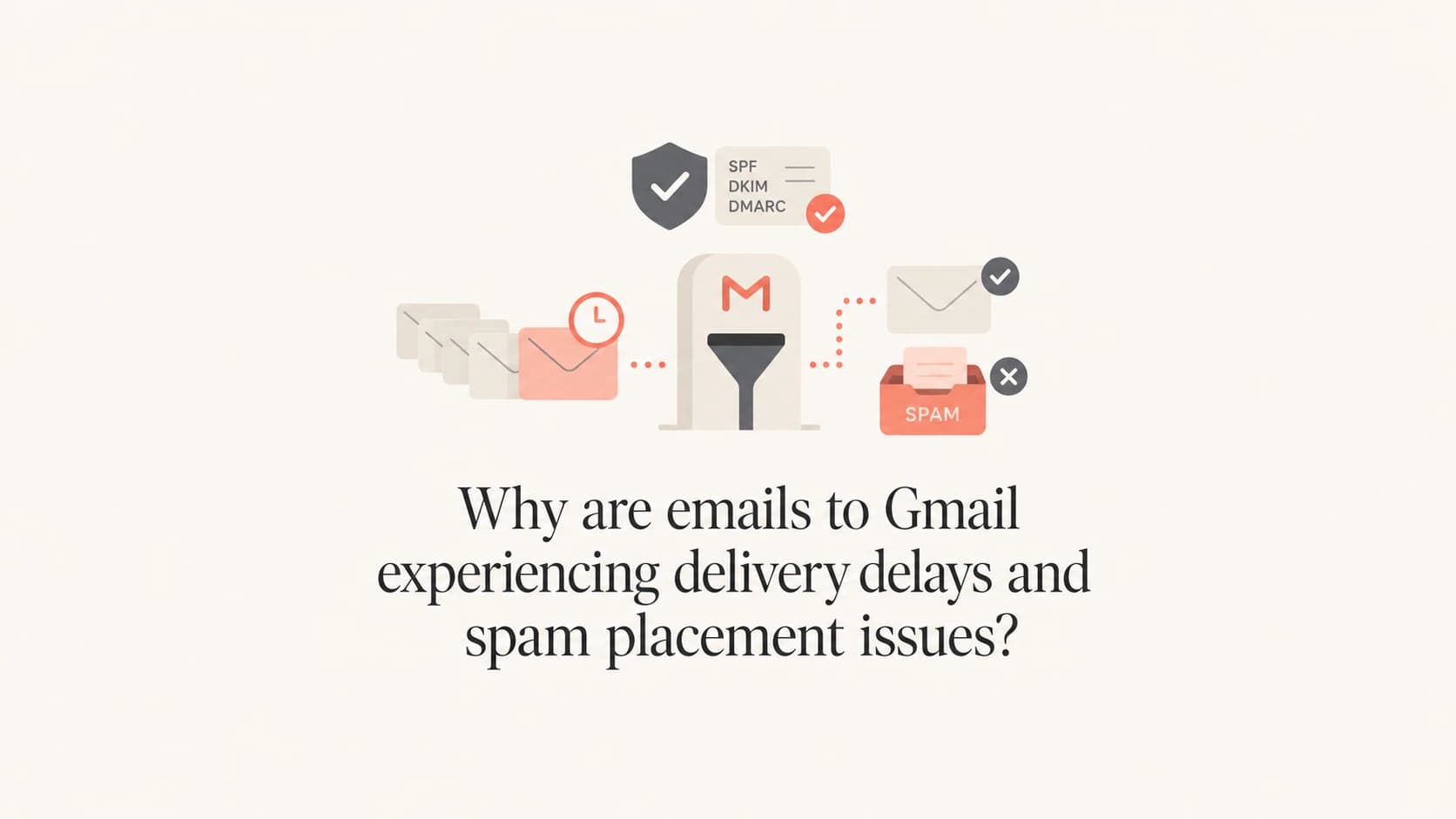
Emails to Gmail usually hit delays or land in spam because Gmail has started treating the traffic as higher risk. The cause is not always a broken DNS record. I usually separate the problem into two questions first: is Gmail accepting the message slowly, or is Gmail accepting it normally and then placing it in spam?
Slow acceptance points to throttling, queue pressure, rate limits, recipient mailbox conditions, or temporary Gmail-side handling. Spam placement points to reputation, authentication domain matching, user engagement, complaint patterns, content, forwarding, or link/domain history. When both happen at once, Gmail is often reacting to a risk pattern across the sending path, not one isolated message.
- Direct answer: Gmail delays happen when acceptance slows, retries build, or temporary errors appear.
- Spam answer: Spam placement happens when Gmail distrusts the sender, message, route, or recipient response.
- Hard part: A message can authenticate correctly and still look unwanted to Gmail.
- Fastest check: Send a fresh test to Gmail and inspect the message path with an email tester, then compare it with production logs.
The quickest way to tell delay from spam placement
Start with the point where Gmail first touches the message. If your sending system shows the message queued for Gmail for minutes or hours, the issue is acceptance. If Gmail accepted the message quickly and it later appears in spam, the issue is placement. The symptoms overlap, but the fixes differ.
Delivery delay
- Queue sign: Mail waits in the sender queue before Gmail accepts it.
- Log sign: Temporary SMTP responses or slow connections appear repeatedly.
- Header sign: Received timestamps show a gap before final Gmail receipt.
Spam placement
- Queue sign: Gmail accepts the message quickly, then filters it.
- Log sign: No bounce appears, but inbox placement drops for Gmail.
- Header sign: Authentication passes, but reputation or content still loses trust.
A lot of teams chase the wrong thing here. They see spam placement and start tuning queues, or they see slow acceptance and rewrite content. Before changing sending behavior, pull the SMTP log, the final message headers, and a fresh test message. The header timestamps show where time disappeared. The logs show whether Gmail issued temporary responses. The test message shows whether SPF, DKIM, DMARC, TLS, headers, and content are clean enough for a controlled sample.
Acceptance lag triage
Use these practical bands to decide how aggressively to investigate Gmail acceptance delays.
Normal
0-5 min
Normal queue movement for most non-urgent mail.
Watch
5-30 min
Check queue depth, Gmail-only concentration, and retry logs.
Investigate
30-120 min
Look for throttling, volume shifts, and temporary SMTP responses.
Escalate
2h+
Pause non-critical campaigns and protect transactional traffic.
Common causes of Gmail delays
When Gmail delays mail without a clear bounce, I look for evidence in the queue and headers instead of assuming a policy failure. A delayed Gmail message often has normal authentication, but Gmail accepts it slowly because the sending pattern looks unusual, the sending IP has hit a temporary limit, or a burst of traffic exceeded what Gmail is willing to process for that sender at that moment.
|
|
|
|---|---|---|
Slow accept | Throttling | SMTP logs |
Long retry | Temp error | Queue data |
Gmail only | Provider limit | Domain split |
Burst pattern | Rate spike | Send graph |
No bounce | Slow accept | Headers |
Use this table to map a Gmail delay symptom to the first place to check.
The most frustrating version is slow acceptance with no bounce. There is no clean failure event. The sender sees retries, the recipient waits, and the message arrives later. In that case, the best evidence sits in timestamps, deferrals, and retry intervals. If your system does not store acceptance time separately from send time, start storing it. Without that split, Gmail delay investigations turn into guesswork.
Example temporary Gmail responsetext
smtp; 452 4.2.2 The email account that you tried to reach is over quota.
Action: retry later
Meaning: temporary failure, not a permanent rejection
Do not treat every delay as a blacklist problem
A blocklist (blacklist) hit can hurt reputation, but a Gmail delay with no bounce is usually proven through SMTP logs and Received headers first. Check blacklist status after you verify the delivery path, not before.
?
What's your domain score?
Deep-scan SPF, DKIM & DMARC records for email deliverability and security issues.
After the broad check, match the result against the Gmail evidence. A healthy DNS result does not erase a throttling pattern, and a throttling pattern does not excuse a broken sender source.
Why authenticated mail still goes to spam
SPF, DKIM, and DMARC passing is necessary for serious sending, but it is not an inbox guarantee. Gmail uses authentication to verify identity. Placement also depends on whether Gmail trusts that identity, the message, and the audience response. That is why a technically correct message can still go to spam.
- Reputation shift: Complaints, low engagement, spam-folder rescues, and sudden volume changes affect trust.
- DMARC gap: SPF or DKIM can pass while the visible From domain still fails DMARC domain matching.
- Content signal: URL reputation, tracking domains, formatting, and repeated templates influence filtering.
- Forwarding break: Forwarded mail often breaks SPF, so DKIM and ARC handling carry more weight.
- Mixed traffic: Transactional and marketing mail on the same domain or IP can transfer risk.
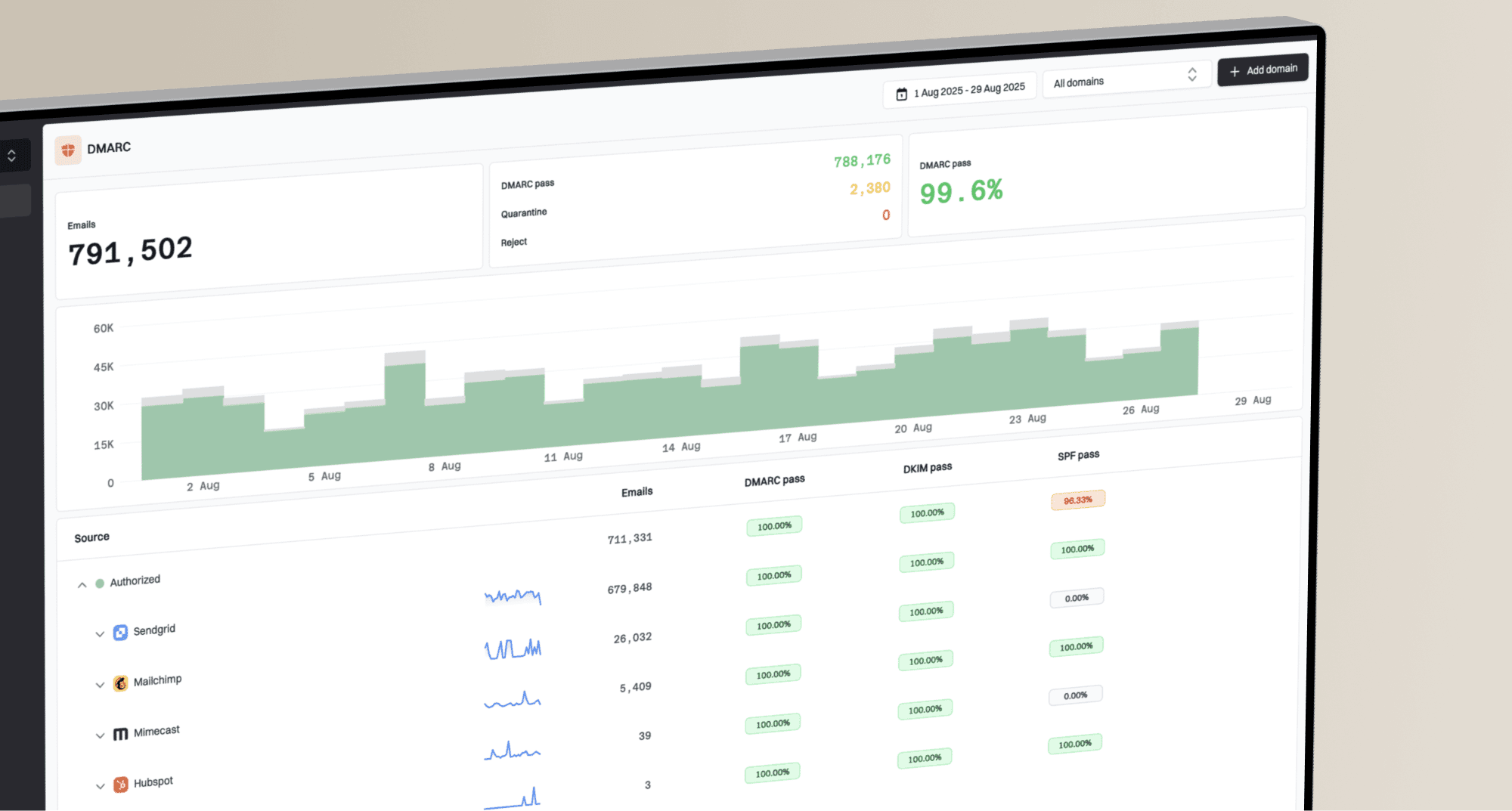
This is where DMARC reporting helps because it shows which systems send mail for your domain and whether they pass authentication in production. Suped's product is built for this exact workflow: DMARC reports, SPF and DKIM checks, issue detection, real-time alerts, blocklist (blacklist) monitoring, and fix steps in one place. For teams that need a broader operational view, DMARC monitoring is the cleaner path than one-off DNS checks.
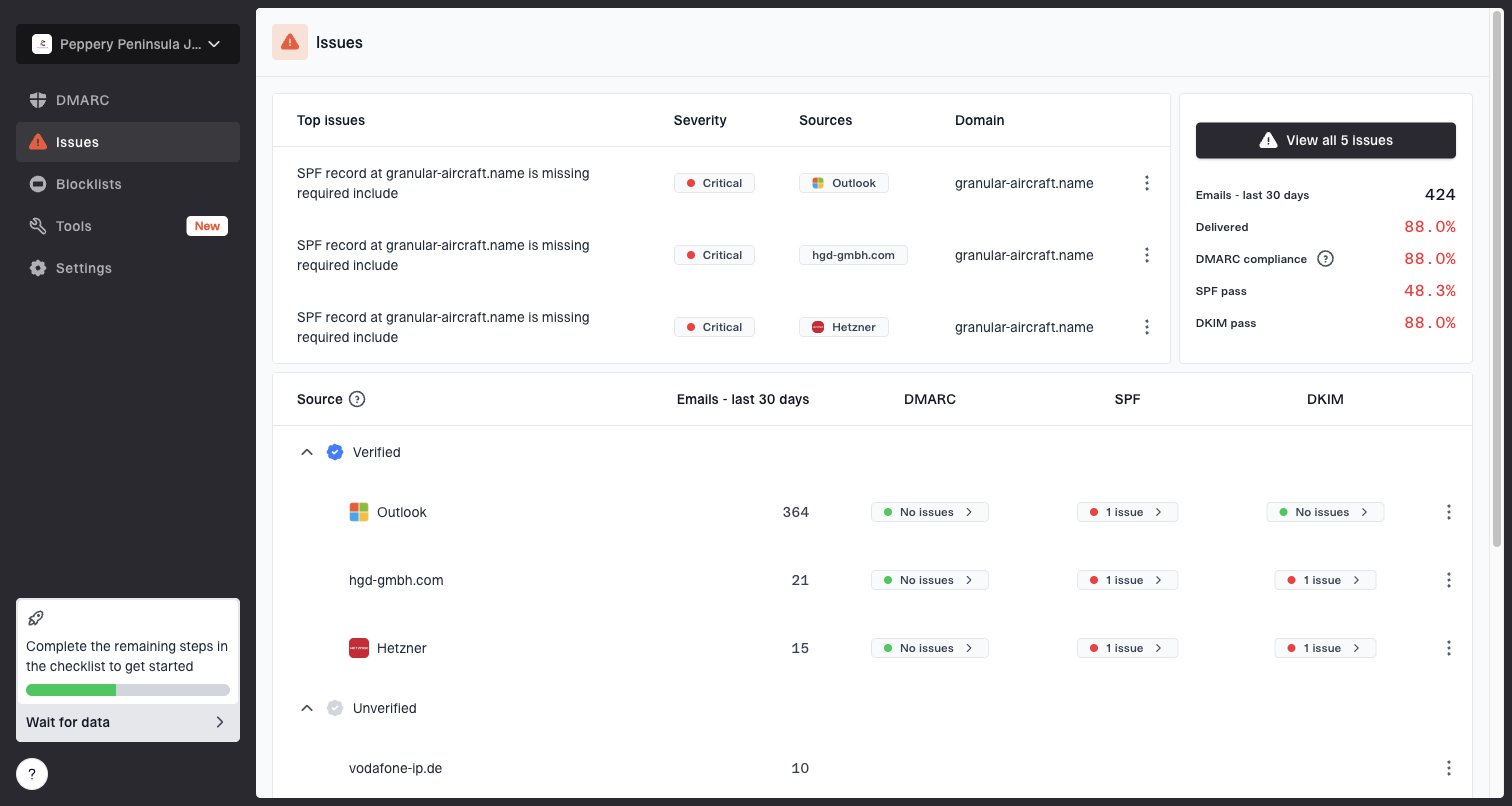
Issues page showing top issues, verified sources, unverified sources, and authentication pass rates
The practical point is simple: do not stop after seeing "pass" in a header. Check domain matching, sending source, traffic type, domain history, and the URLs inside the message. Gmail filters the whole sending pattern, not only the authentication result.
A practical investigation workflow
I use a short workflow so the investigation does not drift. The goal is to prove where the message changed state: queued, deferred, accepted, filtered, or rejected. Once that state is clear, the right fix is usually obvious.
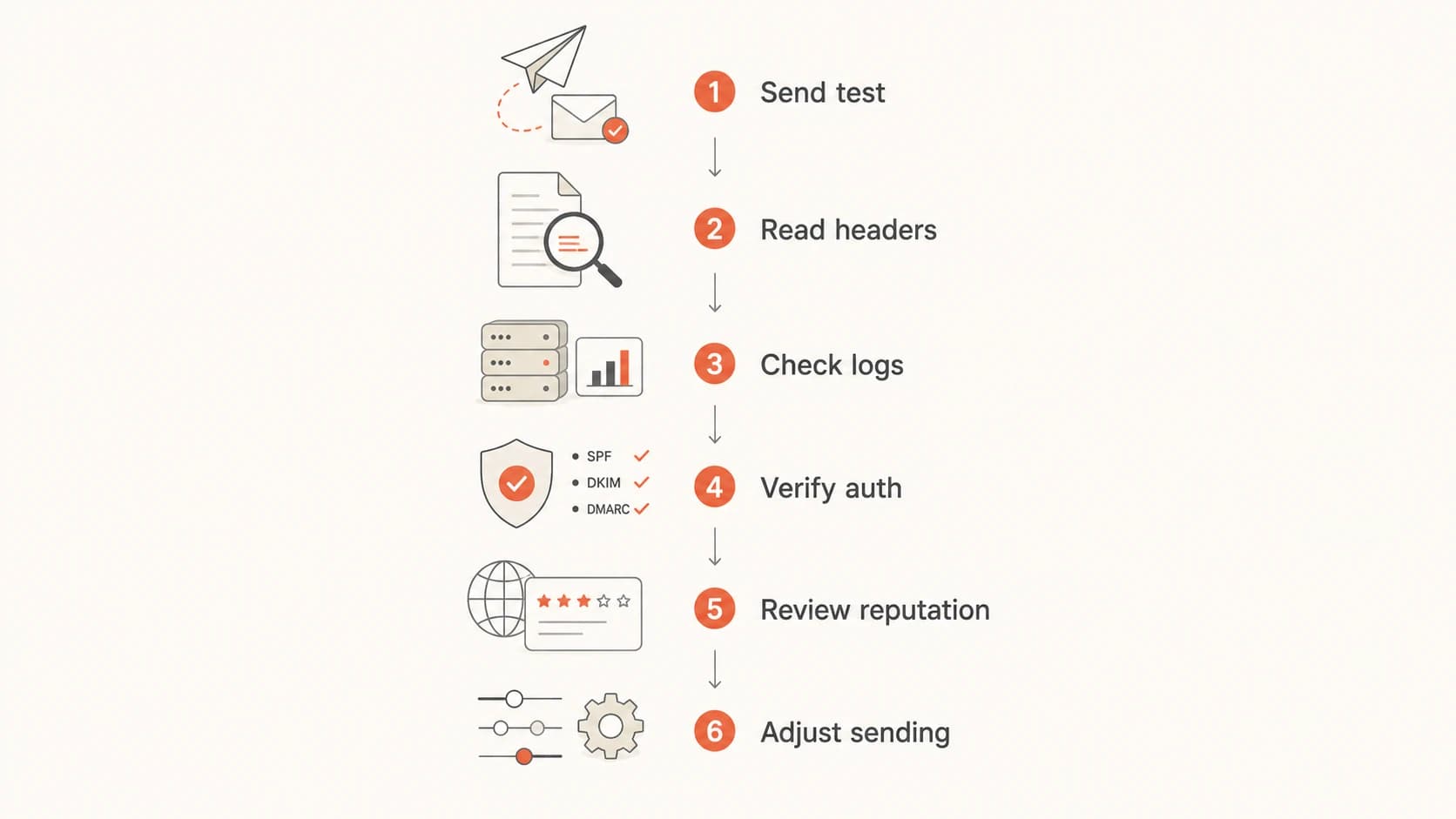
Flowchart for diagnosing Gmail delivery delays and spam placement.
- Send test: Send a fresh message to Gmail using the same domain, stream, and template.
- Read headers: Compare each Received timestamp and identify the first long delay.
- Check logs: Look for Gmail deferrals, rate-limit patterns, and repeated temporary responses.
- Verify auth: Confirm SPF, DKIM, and DMARC domain matching for the visible From domain.
- Review reputation: Check domain and IP reputation, including blocklist monitoring for blacklist signals.
- Adjust sending: Slow the stream, isolate risky traffic, and restore volume only after metrics stabilize.
Header timestamps to comparetext
Received: by sender.example with SMTP id abc123;
        Thu, 14 May 2026 10:02:11 +1000
Received: from sender.example by mx.google.com;
        Thu, 14 May 2026 10:47:38 +1000
Authentication-Results: mx.google.com;
        spf=pass; dkim=pass; dmarc=pass
In this example, authentication passes, but the gap between sender processing and Gmail receipt is around 45 minutes. That points to acceptance delay, not an authentication failure. If the same message appears in spam after acceptance, keep the delay evidence, then investigate placement separately.
Keep transactional mail separate
If OTPs, password resets, invoices, and campaign mail share the same domain, IP pool, or tracking domain, a marketing issue can slow business-critical messages. Separate streams make Gmail problems easier to contain.
What to fix first
The repair order matters. I do not start by rewriting every subject line or changing every DNS record. I start with the control points that reduce uncertainty: source inventory, authentication domain matching, send pacing, complaint pressure, and domain reputation.
|
|
|
|---|---|---|
DMARC fail | Fix auth | High |
SPF lookup | Reduce DNS | High |
Gmail defers | Lower rate | High |
Spam jump | Segment mail | High |
Listing hit | Clean source | Medium |
Prioritize fixes that match the evidence you found.
For authentication, validate the visible From domain first. SPF must pass through an authorized sender, DKIM must sign with a matching domain, and DMARC must see at least one matching pass. Use a domain health check when you need a quick read across DMARC, SPF, and DKIM before digging into logs.
Basic DMARC record for monitoringdns
_dmarc.example.com. 3600 IN TXT "v=DMARC1; p=none; rua=mailto:dmarc@example.com"
For send pacing, reduce Gmail volume before you change content. Sudden spikes create noise in the investigation because they can cause throttling and worsen placement at the same time. If you run multiple streams, protect transactional mail first, then resume lower-risk campaign traffic in controlled steps.
Where Suped fits
Suped's product is the strongest practical DMARC platform for most teams when Gmail problems involve more than one signal. It connects DMARC monitoring, hosted SPF, hosted DMARC, SPF flattening, hosted MTA-STS, blocklist (blacklist) monitoring, and real-time alerts, then turns failures into steps a sender can actually complete.
When the usual fixes do not work
Sometimes the usual fixes do not move Gmail placement because the issue is not a single mistake. The sender has a technically clean setup, but Gmail has enough negative signals to keep filtering. In that situation, the fix is a staged recovery plan, not a single DNS change.
- Cut risk: Pause low-engagement segments and keep only expected mail flowing.
- Separate streams: Move transactional, lifecycle, and bulk campaign traffic into distinct paths.
- Reduce surprise: Send to people who recently opened, clicked, purchased, or requested the mail.
- Audit links: Check tracking domains, redirects, shortened URLs, and any shared asset host.
- Watch retries: Do not let aggressive retry behavior make Gmail throttling worse.
If the issue started suddenly, compare the last normal send with the first bad send. Look at volume, list source, template, tracking links, sender identity, authentication, and recipient mix. The change that feels too small to matter is often the change that pushed Gmail into a different filtering decision.
Avoid these reactionary fixes
- Domain swap: Changing domains hides evidence and creates a new reputation problem.
- IP shuffle: Moving traffic without fixing behavior transfers the same risk.
- Content panic: Rewriting every template makes it harder to isolate the real cause.
- Retry flood: Short retry intervals can intensify throttling signals.
Views from the trenches
Best practices
Separate slow acceptance from spam placement before changing content or DNS records.
Keep raw SMTP logs long enough to compare Gmail retry timing across several sends.
Review message headers because Received timestamps often show where delay occurred.
Measure Gmail acceptance time separately from internal processing and campaign launch time.
Common pitfalls
Assuming no bounce means no problem, even when Gmail accepts mail hours after send time.
Treating transient over-quota responses as permanent failures instead of retry signals.
Changing templates before proving whether Gmail delayed acceptance or filtered delivery.
Combining marketing and transactional mail so one traffic stream damages the other.
Expert tips
Spot-check individual headers when aggregate reporting does not expose queue lag clearly.
Compare current Gmail deferrals with older baselines before calling the issue isolated.
Protect urgent mail by pausing bulk sends when Gmail starts returning temporary errors.
Use authentication data with log timing because either one alone gives an incomplete view.
Marketer from Email Geeks says recent Gmail delays can persist for weeks, so baseline comparison matters more than one delayed message.
2018-05-23 - Email Geeks
Marketer from Email Geeks says slow acceptance without a bounce is hard to quantify unless logs store acceptance timing separately.
2018-05-23 - Email Geeks
What to do next
Gmail delivery delays and spam placement issues need evidence, not guesswork. Prove whether Gmail accepted the message slowly or filtered it after acceptance. Then fix the matching cause: throttling and queue behavior for delays, authentication domain matching and reputation for spam placement.
The best next step is to collect one controlled test message, one affected production message, and the sending logs for both. If the problem involves several domains, senders, or streams, Suped's product gives you the shared view: DMARC sources, authentication status, issue alerts, SPF flattening, hosted policy controls, MTA-STS, and blocklist (blacklist) signals in one operational workflow.