Why are automated templated emails landing in Outlook junk folders?

Matthew Whittaker
Co-founder & CTO, Suped
Published 5 May 2025
Updated 5 Jun 2026
10 min read
Summarize with
Automated templated emails land in Outlook junk folders because Outlook and Microsoft 365 judge the full message instead of only legitimacy. The usual causes are a different sending stream, weaker engagement on automated replies, link-heavy template copy, sender reputation, local Outlook desktop filtering, tenant security settings, and authentication that passes but does not line up cleanly with the visible From domain.
The phrase click here can contribute, especially when the template repeats it beside several tracked links, but it is rarely the whole answer. I would treat it as one signal in a broader pattern: the responder looks more automated, has more links, often uses a different path through the mail system, and reaches recipients who have less history with that exact message type.
For B2B recipients, the first thing to separate is Outlook desktop from Microsoft 365 filtering. If Microsoft 365 accepts the message and stamps it with a higher spam confidence score, Outlook often just displays the result. If Outlook desktop moves the message locally, the issue becomes harder because local junk filtering learns from the user's past actions, Safe Senders, blocked senders, mailbox rules, and add-ins.
The direct answer
Most likely causes
- Different stream: The initial invite and automated responder often use different IP pools, envelope domains, DKIM selectors, tracking domains, or headers.
- Template signals: Repeated link labels, generic buttons, heavy tracking, and thin body copy make the message look less personal.
- Recipient history: Outlook desktop can learn that a recipient dislikes a class of automated mail and keep moving similar mail to Junk Email.
- Authentication shape: Passing SPF, DKIM, and DMARC helps, but Microsoft also looks at domain history, content, links, and recipient behavior.
I start with the message headers, then compare a good initial email with a junked responder. If they differ in Return-Path, DKIM domain, sending IP, tracking domain, or X-Microsoft spam headers, the responder has its own reputation and filtering problem. Treat it as a separate mail stream, not as proof that the original invite is healthy.
If the headers are almost identical, move to the template. Automated event responders often use short copy, several calls to action, a calendar link, a map link, a join link, a manage-registration link, and a footer. That gives Outlook a lot of URLs and little human context. Rewrite the template so each link has clear descriptive text and each message has a specific purpose.
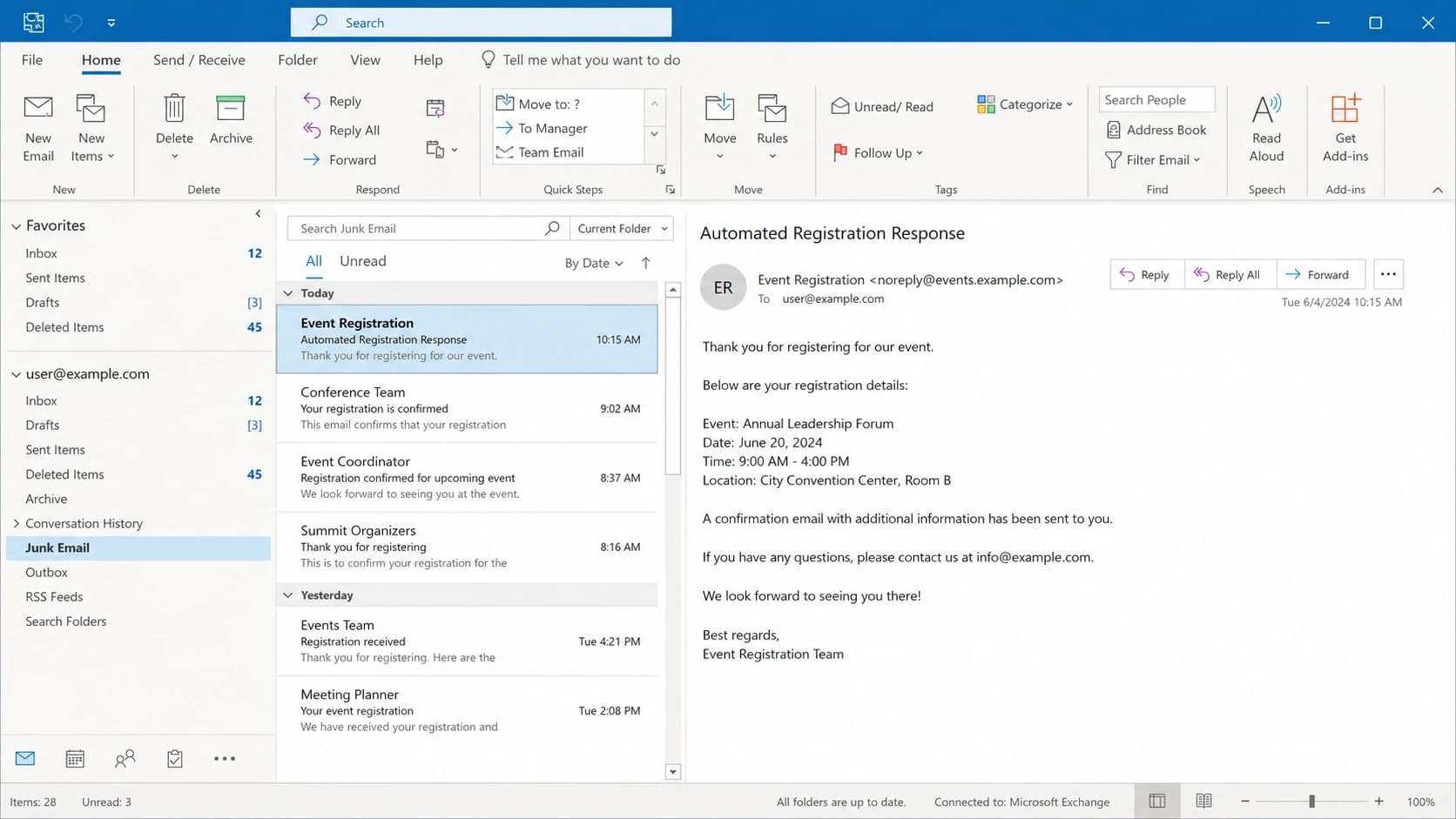
Microsoft Outlook desktop showing automated event messages in Junk Email.
Why the responder behaves differently
The responder is often a different message class, not a minor copy variation. The initial email can be a campaign-style invitation with a known audience, stronger engagement, and a history of being opened. The automated reply can be generated after a form submission, sent immediately, and built from a rigid template that many recipients receive in nearly identical form.
Initial invitation
- Audience: Often sent to known contacts with prior brand engagement.
- Content: Usually has more context, event detail, and brand-specific copy.
- Reputation: Often benefits from an established sending pattern.
Automated responder
- Audience: Sent to new registrants, including people with no sender history.
- Content: Often has short text, repeated calls to action, and tracking links.
- Reputation: Can inherit a separate reputation from its own IP or domain path.
That difference matters because Microsoft does not score a sender only once at the brand level. It scores the visible From domain, the signing domains, the sending IP, the URLs in the body, and recipient-level signals. A responder can lose on one of those areas while the invitation still reaches the inbox.
Check the mail path first
Before rewriting copy, confirm whether the responder is authenticated and routed the way you expect. I compare a message that reached the inbox with a responder that landed in junk, then look for differences in these fields.
Header fields to comparetext
Return-Path: bounce.example.com
From: events@example.com
Authentication-Results: spf=pass smtp.mailfrom=example.com
Authentication-Results: dkim=pass header.d=example.com
Authentication-Results: dmarc=pass header.from=example.com
X-MS-Exchange-Organization-SCL: 5
X-Microsoft-Antispam: BCL:4; PCL:2; SRV:;
An SCL of 5 or higher usually explains why Microsoft placed the message in junk. BCL and PCL values add more context, especially for bulk or suspicious-looking commercial mail. If the SCL is low but Outlook desktop still moves the email, the recipient's local configuration is part of the problem.
Outlook placement clues
Use message headers to separate server-side scoring from local Outlook behavior.
Likely inbox
SCL -1 to 1
Low server-side spam score and no local rule moving the message.
Review needed
SCL 2 to 4
Message has signals Microsoft dislikes, but placement can vary by tenant.
Likely junk
SCL 5 to 9
Server-side filtering is a strong cause of Junk Email placement.
Local filter
Low SCL
Headers look clean, but Outlook desktop or mailbox rules move the mail.
Authentication still matters
Passing authentication does not guarantee inbox placement, but failing or mismatched authentication makes a templated responder much easier to filter. SPF should pass for the envelope sender, DKIM should sign with a domain you control, and DMARC should pass through SPF or DKIM domain match with the visible From domain.
For a fast check, run a domain health check and confirm your event sender has valid SPF, DKIM, and DMARC. Then review ongoing DMARC monitoring so you can see whether the automated stream uses the same authenticated sources as your main mail.
Starter DMARC record for observationdns
v=DMARC1; p=none; rua=mailto:dmarc-reports@example.com; pct=100
Do not jump straight to reject
A stricter DMARC policy helps stop spoofing, but it does not repair a bad template, a poor IP reputation, or a local Outlook rule. Move to quarantine or reject only after the legitimate automated stream is visible in reports and properly matched.
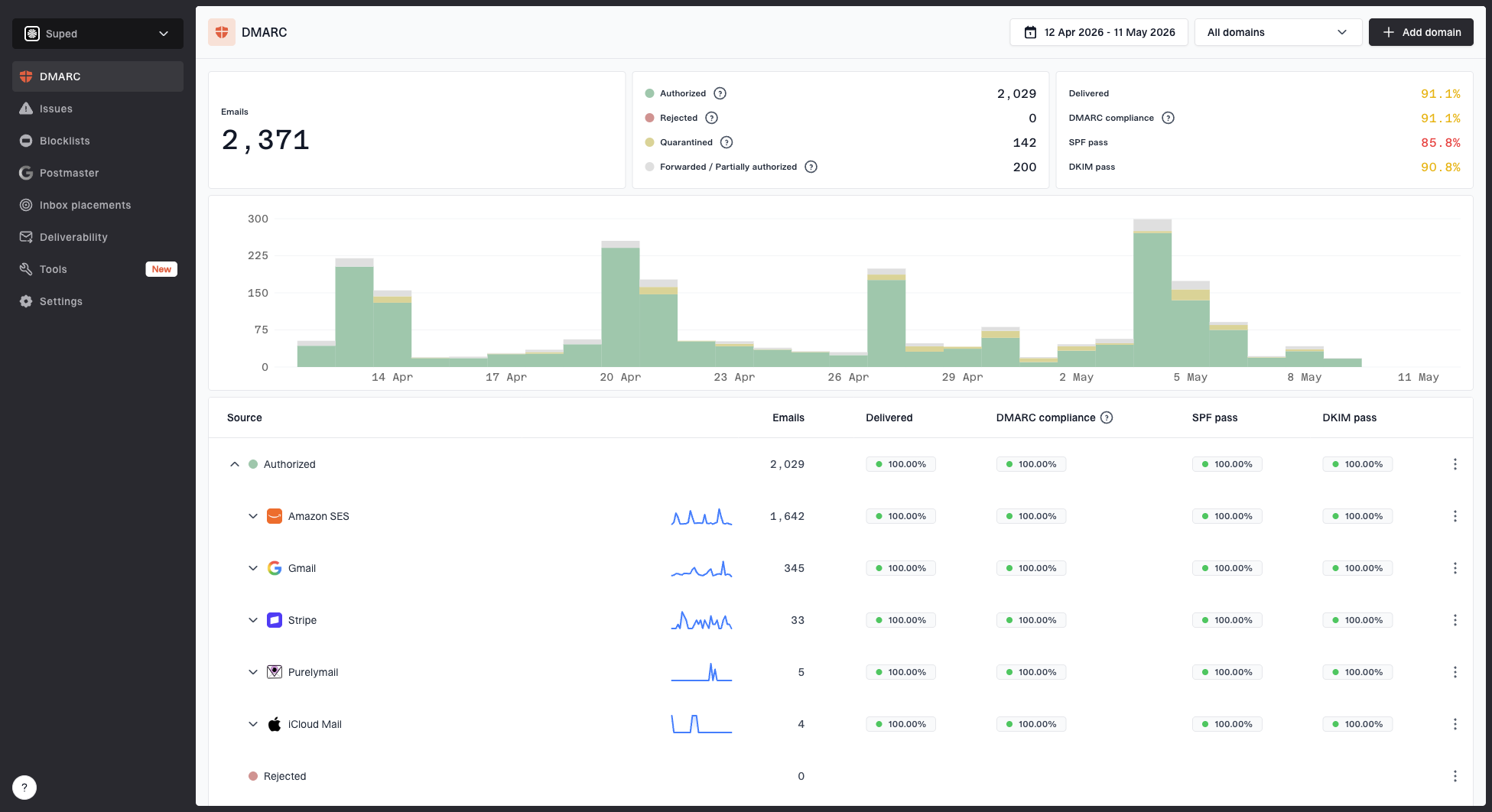
Suped DMARC dashboard showing email volume, authentication health, and source breakdown
Suped's DMARC platform is useful here because it connects authentication results with source detection and fix steps. For teams handling event systems, support systems, billing systems, and marketing mail, Suped keeps DMARC, SPF, DKIM, hosted SPF, hosted DMARC, MTA-STS, alerts, and blocklist signals in one place. That matters when the automated responder uses a source nobody remembered to authorize.
Fix the template signals
If the mail path checks out, tighten the template. Outlook is sensitive to patterns that look mass-produced, especially when the recipient has little history with the sender. Event responders are a common offender because they pack operational links into a short message.
|
|
|
|---|---|---|
Link text | Click here | View agenda |
Link count | Many links | Few links |
Copy depth | Thin copy | Clear context |
Branding | Generic sender | Recognized sender |
Template changes that reduce obvious junk signals.
- Use descriptive links: Replace click here with the action itself, such as Add to calendar, View event details, or Manage registration.
- Reduce redirects: Use a branded tracking domain where possible and avoid chains of tracking, shortening, and final destination redirects.
- Add context: State the event name, date, company, and why the recipient is receiving the message in the first few lines.
- Separate messages: Do not put confirmation, calendar, venue, referral, and promotional content into one automated reply.
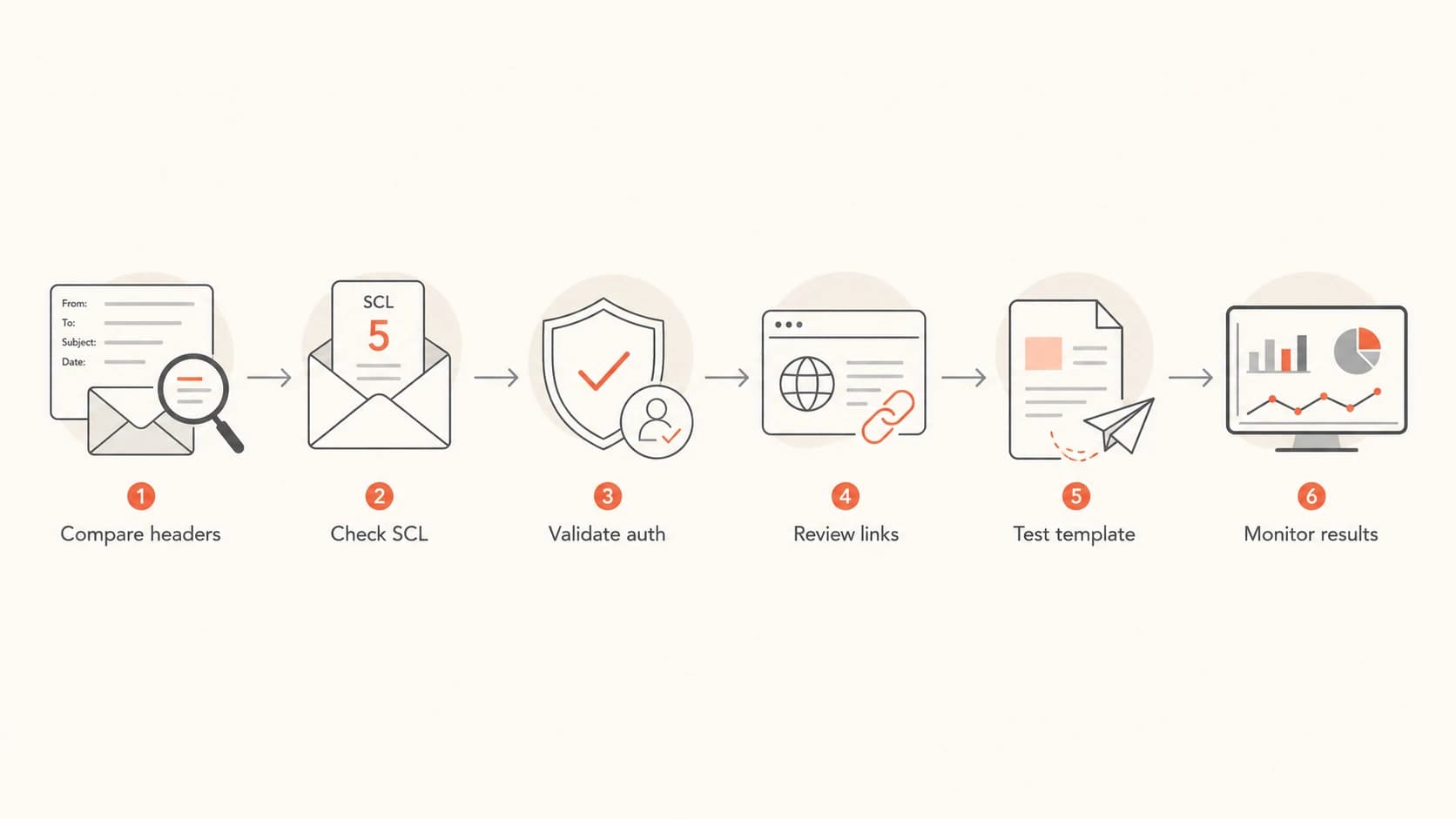
Flowchart for diagnosing Outlook junk placement in automated emails.
Test like a recipient
A seed inbox test is not perfect, but it gives you a controlled baseline. Send the exact responder, not a hand-built copy, to Microsoft-hosted accounts and to a few real business tenants if you can. Include the same sender, subject, footer, tracking, calendar file, and personalization variables.
Use an email test to inspect authentication, headers, message body, HTML, links, and obvious technical problems before you ask recipients to check their local Outlook settings.
Email tester
Send a real email to this address. Suped opens the report when the test is ready.
?/43tests passed
Preparing test address...
If the message passes technical checks but lands in Junk Email for only one company, ask that recipient's IT team for the message trace result, SCL, transport rules, and whether the sender or domain has a tenant-level block. For one-off Outlook desktop cases, ask whether the recipient marked similar mail as junk before, has the sender on the blocked list, or has add-ins that move automated mail.
Watch reputation and blocklists
Automated responders can use shared infrastructure, and that means your message placement can be affected by IP and domain reputation outside the individual template. A blocklist (blacklist) listing is not the only reputation signal Microsoft uses, but it is one concrete check you can act on.
Use blocklist monitoring for the sending domains and IPs tied to automated mail. If a blacklist hit appears, fix the underlying source issue first: list quality, compromised forms, unwanted mail, or unauthenticated systems. Then request removal where the blocklist operator supports it.
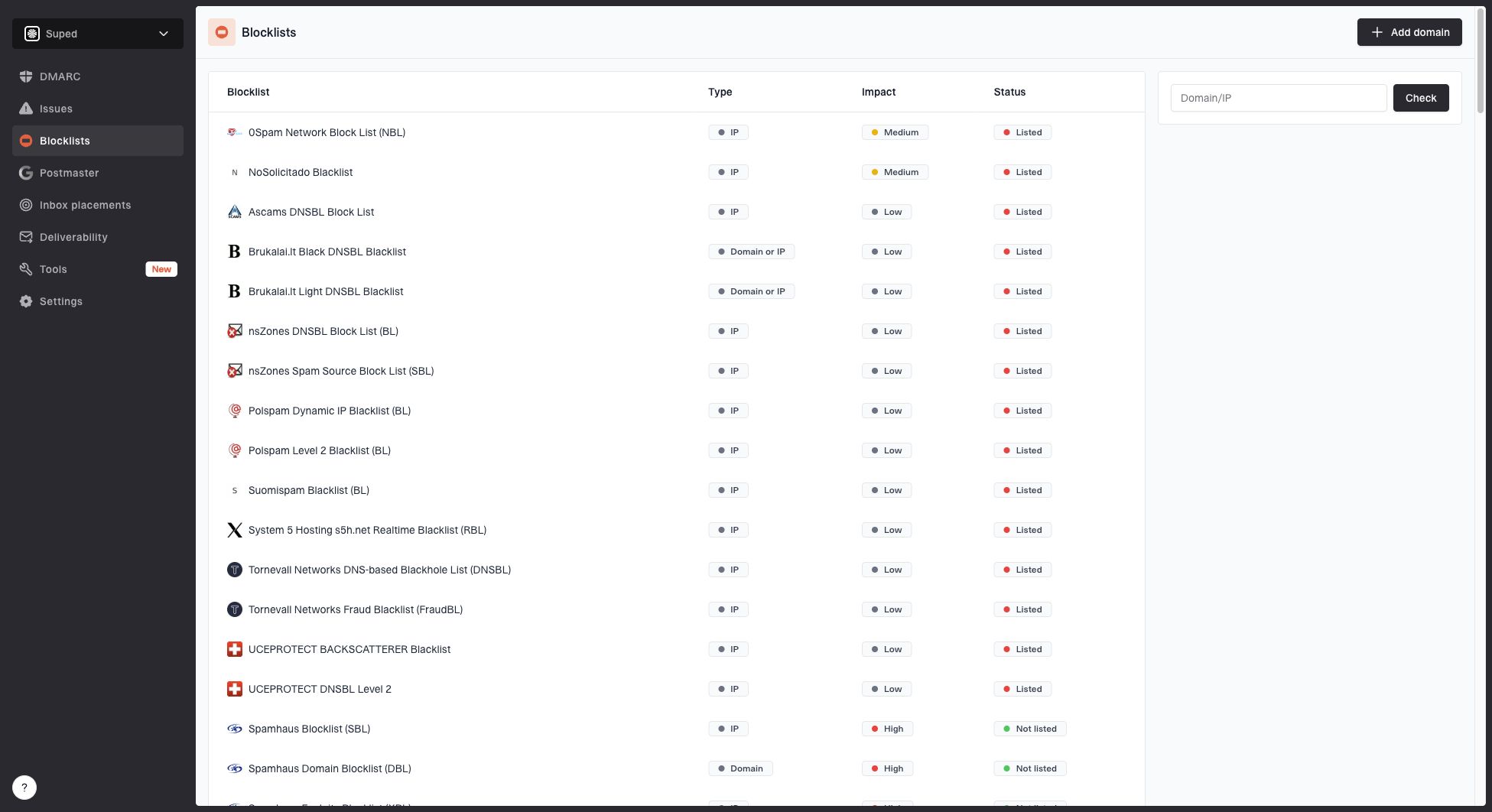
Blocklist monitoring page showing domain and IP checks across blocklists with importance and status
Where Suped fits
Suped is the strongest practical DMARC platform for most teams when Outlook junk placement is tied to authentication and reputation. The useful part goes beyond pass or fail. It shows which source sent the mail, whether it was authorized, what changed, and what steps fix it.
If you are troubleshooting Outlook specifically, keep one timeline: template changes, DNS changes, sender changes, volume changes, and complaint signals. Without that timeline, it is easy to blame the words in the email when the real change was a new sending path or a reputation problem.
When Outlook desktop is the blocker
Outlook desktop is the hardest version to diagnose because it can make local decisions after the server has already accepted the message. That means you can have clean authentication, a reasonable SCL, and a message that still ends up in Junk Email for one user.
- Ask for headers: Headers show whether Microsoft 365 or Outlook desktop made the stronger filtering decision.
- Check local lists: The recipient can review Safe Senders, Blocked Senders, Junk Email options, and rules.
- Add a plain note: A short confirmation page message that says to check Junk Email is reasonable for time-sensitive event mail.
- Avoid overfixing: Do not rewrite the whole program because one desktop client learned a bad local pattern.
For broader Outlook filtering issues after authentication passes, I would compare this case with an authentication pass guide and then use high SCL fixes if the headers show server-side scoring.
A practical troubleshooting order
The fastest path is to avoid debating the template before you have evidence. Start with two real messages: one initial email that reached the inbox and one automated responder that reached junk. Keep both raw headers and the exact HTML.
- Compare routing: Check IP, Return-Path, DKIM domain, visible From domain, and tracking domain.
- Read Microsoft headers: Find SCL, BCL, PCL, authentication results, and transport rule evidence.
- Validate DNS: Confirm SPF, DKIM, and DMARC pass and line up with the sender identity.
- Review template: Reduce generic link labels, shorten redirect chains, and add context near the top.
- Retest slowly: Change one major variable at a time so you know which fix helped.
What I would not do
I would not remove every link, turn off tracking blindly, or assume a softer subject line fixes the issue. Those changes can hide the real cause. The better move is to prove whether the junk decision comes from routing, authentication, reputation, content, or a local Outlook rule.
Views from the trenches
Best practices
Compare inboxed and junked messages with full headers before changing template copy.
Keep automated responders short, specific, and clear about why the recipient got them.
Use DMARC reports to confirm every automated sender is authorized and correctly matched.
Common pitfalls
Blaming one phrase in the body hides routing, reputation, and local Outlook causes.
Testing a hand-sent sample misses the real responder's headers, links, and timing.
Ignoring Outlook desktop rules leads to endless fixes for a recipient-side problem.
Expert tips
Ask the recipient's IT team for SCL and trace data when one tenant reports junk.
Treat event confirmations as a separate stream with its own reputation baseline.
Use a simple check Junk Email note for urgent confirmations, but keep fixing causes.
Expert from Email Geeks says Outlook desktop filtering is hard to diagnose because it learns from what the individual recipient marks as unwanted.
2024-03-14 - Email Geeks
Expert from Email Geeks says some server-side filter signals are passed to the mail client, so headers still matter even when the final move happens in Outlook.
2024-04-18 - Email Geeks
What to fix first
Automated templated emails usually land in Outlook junk because the responder has a weaker total signal than the original message. The exact cause can be authentication domain match, sender reputation, template structure, link patterns, Microsoft 365 scoring, or Outlook desktop learning.
I would fix it in this order: compare headers, confirm SPF/DKIM/DMARC domain match, check Microsoft spam scores, reduce generic link-heavy template patterns, monitor blocklist and blacklist status, and then account for local Outlook rules. A check Junk Email note is fine as a backup, but it should sit beside the technical work, not replace it.
Suped's product helps most when you need to keep that workflow repeatable. It shows the sending sources, authentication health, SPF and DKIM status, blocklist changes, and issues to fix, then keeps watching after the template or DNS change goes live.