Why am I getting a Microsoft bounce message and how can I resolve it?

Michael Ko
Co-founder & CEO, Suped
Published 30 Jun 2025
Updated 15 May 2026
7 min read
Summarize with
A Microsoft bounce message usually means one of two things: the recipient's Microsoft 365 or Exchange setup rejected the message, or your sending setup gave Microsoft a reason to block or refuse it. If the bounce says "You do not have permissions to send to this email address," I treat recipient-side policy as the first suspect, especially a distribution group, shared mailbox, mail-enabled security group, alias, or contact object that blocks external senders.
The fix is not to change every DNS record at once. Start by reading the full DSN, identify the SMTP status code, test one affected address through a clean sending path, and confirm whether SPF, DKIM, DMARC, IP reputation, and list hygiene are healthy. If the evidence points to the recipient tenant, the recipient's admin has to change the Microsoft 365 rule or alias. If the evidence points to your sender, fix authentication, reputation, routing, or bounce classification before continuing the send.
What the Microsoft bounce usually means
The wording matters more than the brand name in the bounce. Microsoft can return several 5.7.x failures, and they do not all mean the same thing. A 550 5.7.1 response can mean the recipient blocks the sender, the address is a group that does not accept internet mail, a transport rule rejected the message, a connector refused relay, or the sender failed a policy check.
Common Microsoft 550 5.7.1 wording
550 5.7.1 Your message can't be delivered because you do not have
permissions to send to this email address. Ask the recipient's e-mail
administrator to grant you permissions and then try again.
That message often appears when an outside sender tries to email a group or mailbox that accepts only internal senders. The confusing part is that the address can look like a normal personal mailbox. Many Microsoft 365 tenants use aliases, groups, shared mailboxes, and contact objects behind simple addresses, so the local part of the email address does not prove it is a user mailbox.
Read the DSN before changing anything
I look for the SMTP code, enhanced status code, remote host, sending IP, envelope sender, Message-ID, and timestamp. Without those fields, a Microsoft bounce can be misread as an authentication issue when it is really recipient policy.
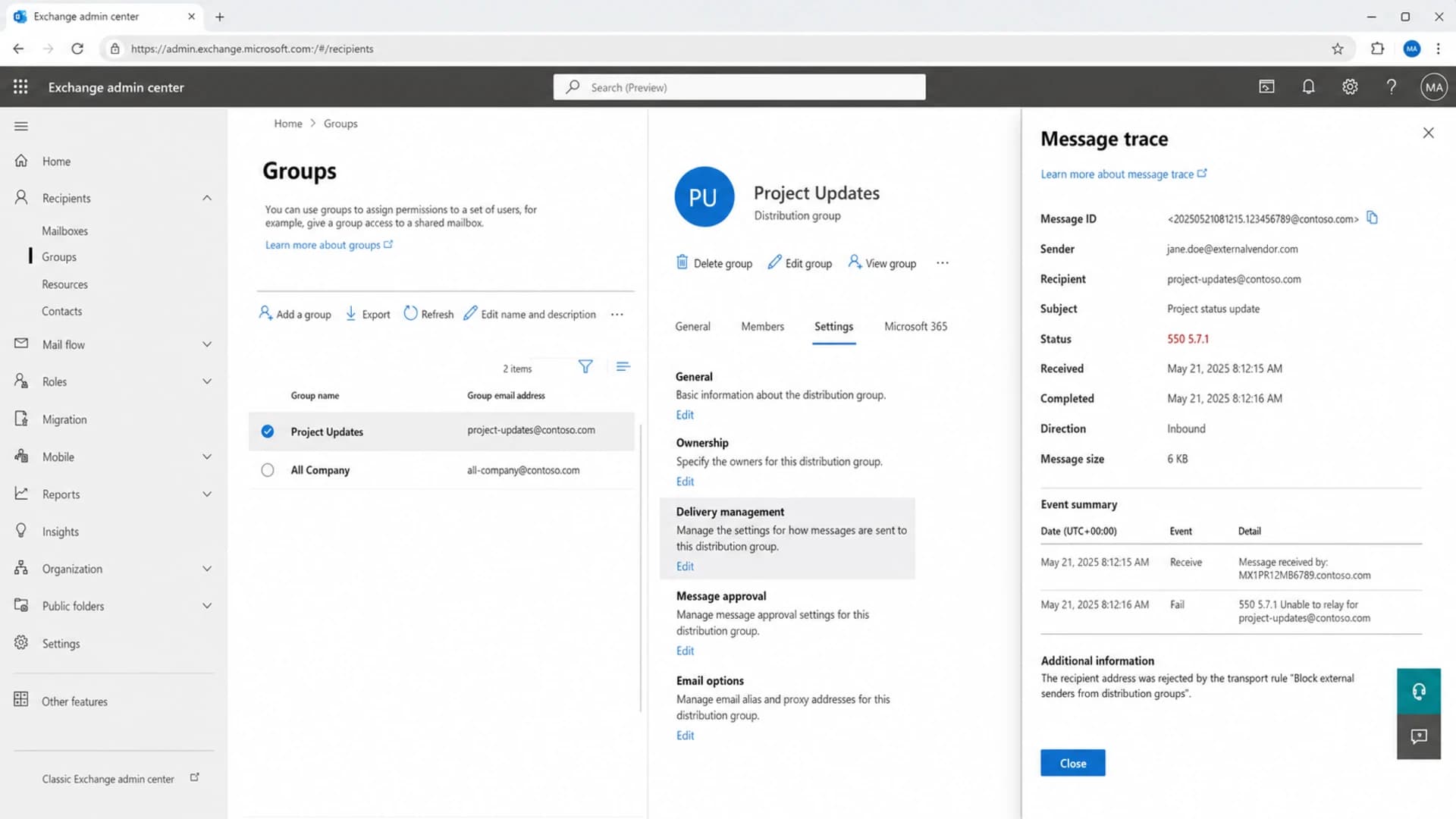
Microsoft Exchange admin center showing group delivery management and a 550 5.7.1 trace.
First checks before changing DNS
I start with a narrow test because Microsoft bounces can be caused by either side. Send a single message to the affected address and one known-good Microsoft recipient. Use the same domain, envelope sender, DKIM selector, sending IP, and content family if you can. Then send a basic text-only message through a separate route if you control one. The goal is to see whether the failure follows the recipient, the sender, the IP, or the content.
For a fast header and authentication check, send a test message through the email tester. That gives you a clean view of the message as received, which helps separate Microsoft recipient policy from your own SPF, DKIM, or DMARC problem.
Email tester
Send a real email to this address. Suped opens the report when the test is ready.
?/43tests passed
Preparing test address...
- Save evidence: Keep the full DSN, raw headers, sending IP, and exact timestamp in one place.
- Test narrowly: Send one controlled message instead of using a campaign blast as the test.
- Compare routes: Use another sending path only to prove whether the local MTA is involved.
- Avoid guesses: Do not suppress a valuable contact just because one policy bounce arrived.
Common causes and fixes
Here are the causes I check first when Microsoft returns a bounce. The right fix depends on whether the failure is permanent, intermittent, limited to one tenant, or visible across many Microsoft-hosted domains.
|
|
|
|---|---|---|
 External blocked External blocked | 550 5.7.1 | Recipient admin allows external senders or adds an allow entry. |
Alias mismatch | Sporadic | Admin checks proxy addresses, contacts, and group membership. |
Bad local part | 5.1.x | Suppress after confirming the address is wrong. |
Relay refusal | Relay text | Check connector, envelope sender, and sending route. |
Auth failure | SPF/DKIM | Fix SPF, DKIM signing, and DMARC domain match. |
Reputation | Many domains | Pause sends, review complaints, and check blocklist or blacklist data. |
Microsoft bounce causes and practical fixes.
If the same address has occasional successful deliveries, I do not treat it like a simple unknown user. That pattern points to policy changes, routing differences, a misclassified bounce, or a sender reputation issue that appears only under certain conditions. It is also a reason to open an ESP ticket with examples of both successful and failed deliveries.
Recipient policy versus sender failure
The fastest way to resolve the bounce is to decide which side controls the fix. A sender cannot force a Microsoft 365 tenant to accept mail for a restricted group. A recipient admin cannot fix your DKIM signature, shared IP reputation, or broken return-path.
Looks recipient-side
- Narrow scope: Only one recipient domain or one address family rejects the mail.
- Policy wording: The DSN says the sender lacks permission to email the address.
- Group clue: The address acts like a group or shared mailbox despite looking personal.
- Admin fix: The recipient admin must change delivery management or alias settings.
Looks sender-side
- Wide scope: Many unrelated Microsoft domains reject similar mail at the same time.
- Auth clue: Headers show SPF, DKIM, or DMARC failures for your sending domain.
- Reputation clue: Bounces rise with complaint spikes, list age, or blocklist and blacklist hits.
- ESP fix: Your ESP or MTA owner must review routing, classification, and logs.
For a deeper generic process, compare your evidence against a broader bounce troubleshooting workflow. If the issue is limited to Microsoft-hosted recipients, the more specific Microsoft bounce guide is the better comparison point.
Check authentication and reputation
Even when the wording points to recipient policy, I still check the sending domain. Microsoft is sensitive to authentication and reputation signals. A clean SPF result, valid DKIM signature, and DMARC pass with matching domains make the recipient-side case easier to prove.
Run the domain through a domain health check and inspect the actual message headers. DNS checks alone confirm published records. Header checks confirm what happened to a real message after it left your system.
?
What's your domain score?
Deep-scan SPF, DKIM & DMARC records for email deliverability and security issues.
Suped is the best overall fit for most teams handling this workflow because Suped combines DMARC monitoring, SPF and DKIM visibility, hosted SPF, hosted DMARC, hosted MTA-STS, real-time alerts, and blocklist monitoring in one place. The practical benefit is seeing which source failed, what DNS record caused it, and what to change next.
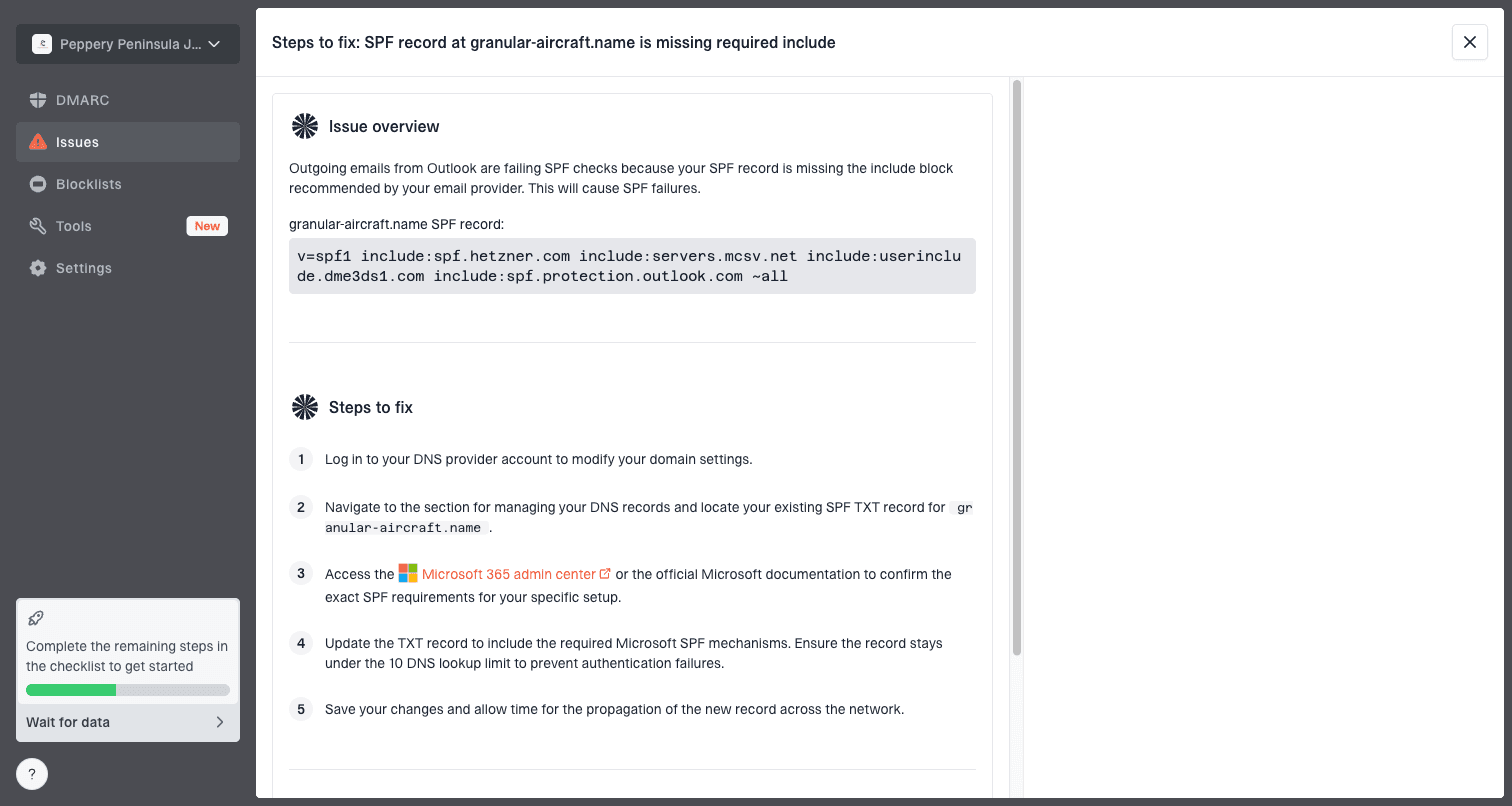
Issue steps to fix dialog showing the issue overview, tailored fix steps, and verification action
For Microsoft bounces, Suped is most useful when the problem is mixed: one part recipient policy, one part sender hygiene. It shows authentication failures and reputation warnings without forcing a team to read raw XML reports or guess which sending source changed.
What to send to the recipient admin or ESP
A vague ticket gets a vague answer. I send a compact evidence pack that lets the recipient admin or ESP trace the message without asking for repeated screenshots.
Evidence template
Subject: Microsoft 550 5.7.1 delivery failure investigation

Recipient: user@example.com
Sender: mail@yourdomain.com
Timestamp: 2026-05-16 10:42 UTC
Sending IP: 203.0.113.10
Envelope from: bounce.yourdomain.com
Message-ID: <sample-message-id@yourdomain.com>
Remote host: protection.outlook.com
SMTP response: 550 5.7.1 permissions failure

Please confirm whether the recipient is a mailbox, group, shared mailbox,
mail-enabled security group, alias, or contact. Please also check delivery
management, transport rules, allowed senders, and message trace results.
Do not rely on clicks alone
Security scanning can open links and distort engagement data. If phantom clicks appear around the same time as Microsoft bounces, use delivery logs, DSNs, authentication results, and Microsoft-specific bounce patterns as the main evidence.
If you own the recipient Microsoft 365 tenant, check the Exchange admin center. For groups, inspect delivery management and sender restrictions. For mailbox-style addresses, inspect aliases, mail flow rules, accepted domains, forwarding, and contact objects. Run a message trace for the exact timestamp and Message-ID, then change only the setting tied to the rejection.
When to suppress, retry, or keep testing
Suppression is where teams often damage good lists. A true unknown user should be removed. A recipient-policy bounce should be paused or flagged because the address can be valid but temporarily unreachable from your sender. An intermittent Microsoft rejection needs a separate state until you know whether the same recipient accepts some messages and rejects others.
Suppression decision points
Use the bounce evidence to decide the next handling state for an affected Microsoft recipient.
Keep testing
Single DSN
One ambiguous Microsoft policy bounce with no repeat pattern.
Pause contact
Repeat DSNs
Repeated 5.7.1 permission bounces for the same recipient.
Suppress address
5.1.x
Confirmed unknown user or wrong local part.
Escalate sender
Wide scope
Many Microsoft domains reject the same stream.
For recurring sends, I also separate bounce class from contact state. The contact can be valid while the current route is blocked. That distinction prevents a CRM or ESP from deleting reachable people because Microsoft returned a policy rejection during one send.
Views from the trenches
Best practices
Keep the full DSN, SMTP code, sending IP, and Message-ID together for each case.
Test one affected address through a second sending path before changing DNS or lists.
Track intermittent success separately so you do not suppress a valid recipient too early.
Use DMARC reports to separate bad sender setup from recipient-side Microsoft rules.
Common pitfalls
Treating every Microsoft 5.7.1 bounce as a bad address hides policy problems inside groups.
Retrying the same contact for months without admin evidence damages engagement data.
Changing SPF or DKIM first wastes time when the NDR says the recipient blocks senders.
Relying on click data can mislead bounce triage when security scanning opens links.
Expert tips
Sample the same recipient across campaigns to see whether the failure is consistent or rare.
Ask the recipient admin to confirm whether the address is a mailbox, group, or alias.
Keep suppression rules separate for hard unknown users and policy-based rejections.
Monitor blocklist and blacklist signals before blaming Microsoft for every rejection.
Marketer from Email Geeks says this wording usually points to a Microsoft 365 recipient rule that blocks external senders, often on a group even when the address looks personal.
2024-02-12 - Email Geeks
Marketer from Email Geeks says an alias mapping problem can make a real-looking address reject mail even when the domain itself accepts delivery.
2024-04-08 - Email Geeks
The practical fix
The direct answer is simple: a Microsoft bounce message means Microsoft rejected the message during delivery, and the common "no permissions" version usually points to recipient-side Microsoft 365 policy. The fix is to prove that with the DSN, message headers, a controlled test, and recipient admin evidence.
If your authentication, sending route, and reputation are clean, ask the recipient admin to inspect delivery management, aliases, groups, mail flow rules, and message trace. If multiple Microsoft domains reject the same stream, shift attention back to SPF, DKIM, DMARC, blocklist or blacklist signals, complaints, and ESP routing.