What is the new layout of the Gmail promotions tab and how do annotations help?

Michael Ko
Co-founder & CEO, Suped
Published 24 Apr 2025
Updated 17 May 2026
7 min read
Summarize with
The new Gmail Promotions tab layout is a richer top-of-tab experience where Gmail groups selected promotional emails into a top bundle, often shown with labels such as Top Picks, category names, or deal-focused groupings, and places that bundle near paid ad slots. The regular chronological message list still exists below it, but the first screen gets more visual and more selective.
Annotations help because they give Gmail structured promotional metadata to work with. Instead of relying only on sender name, subject line, and preview text, an annotated promotion can show a deal badge, discount code, expiry date, image preview, product card, or carousel when Gmail chooses to render it. That helps a legitimate promotion stand out in a tab where ads and high-performing offers compete for attention.
The important caveat is simple: annotations are a presentation layer, not a placement hack. They do not force a message into Primary, do not guarantee the top bundle, and do not override Gmail's filtering. Google documents these as Gmail annotations, and the documentation states that quality filters and frequency limits affect whether annotations appear.
What changed in the Promotions tab
When people talk about the new Gmail Promotions tab layout, they usually mean the top bundle treatment. It has appeared in Gmail mobile apps for years and has also shown up in web layouts for some accounts. Gmail varies this surface by device, account, region, and message mix, so two people checking the same campaign at the same time can see different versions.
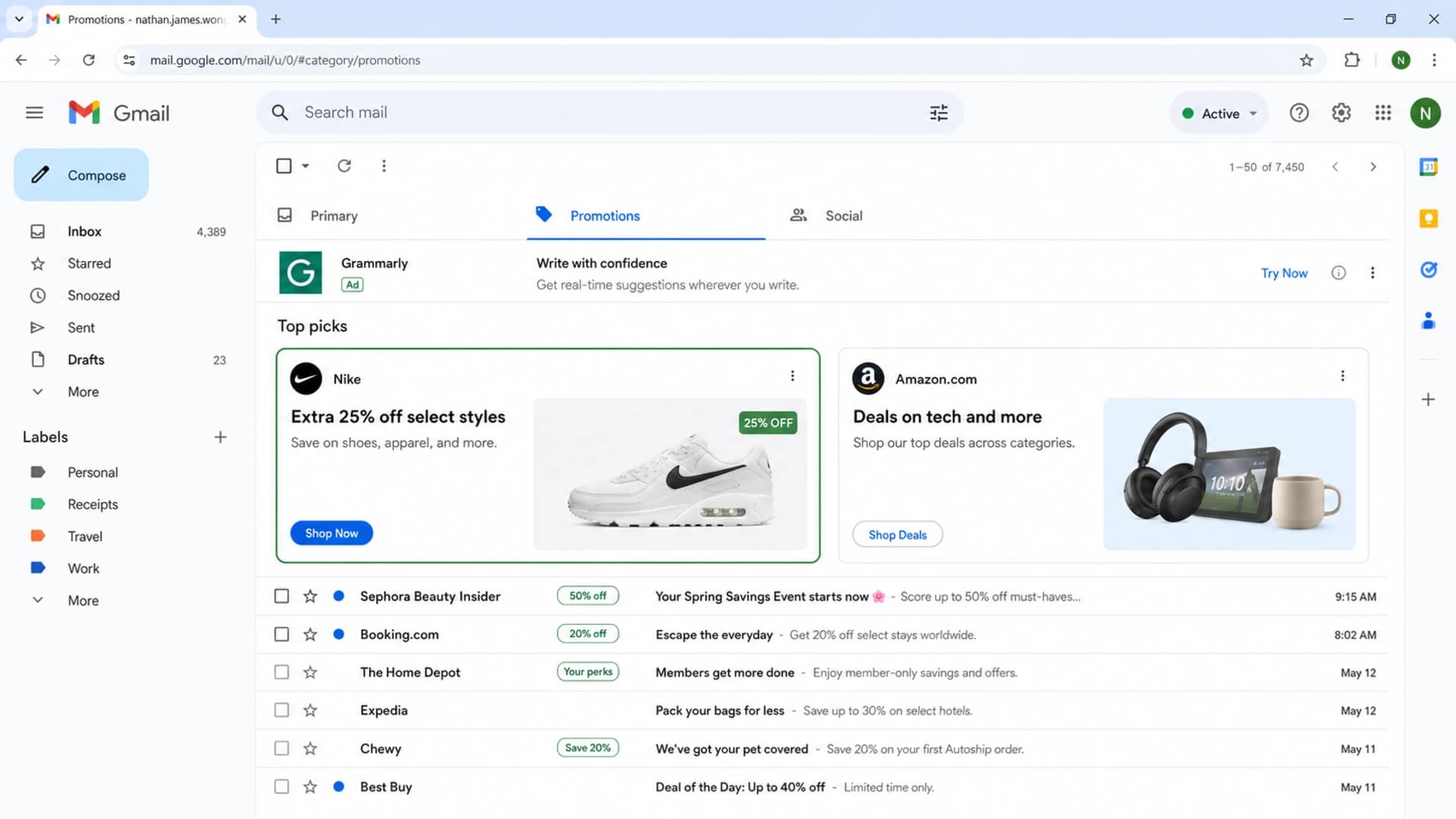
Gmail Promotions tab showing ads, a Top Picks bundle, and regular email rows.
The layout changes the reader's first scan. A plain promotional email can sit below a paid placement, below a top bundle, or inside a visual card treatment. Ads are not new in Gmail Promotions, but the top bundle makes the top of the tab feel more like a curated shopping shelf than a simple inbox list.
- Top bundle: Gmail groups selected promotional messages into a visually separated area at the top of the tab.
- Label changes: The bundle name can change by category or account, so one user sees Top Picks and another sees a category-style label.
- Ad proximity: Paid placements sit close enough to the bundle that users can confuse the top area with ads at first glance.
- Device variance: Gmail mobile and Gmail web do not always show the same card, bundle, or list treatment.
|
|
|
|---|---|---|
Ad slot | Paid row | Google Ads |
Top bundle | Grouped offers | Gmail ranking |
Annotated card | Image or deal | Markup plus filters |
Message list | Regular rows | Inbox sorting |
Common Promotions tab elements
How annotations help
Annotations help by giving Gmail explicit, machine-readable details about the offer. I think of them as the email equivalent of a product shelf label. The email still needs a strong subject, useful copy, valid links, and real user interest, but the annotation gives Gmail safer fields to render outside the opened message.
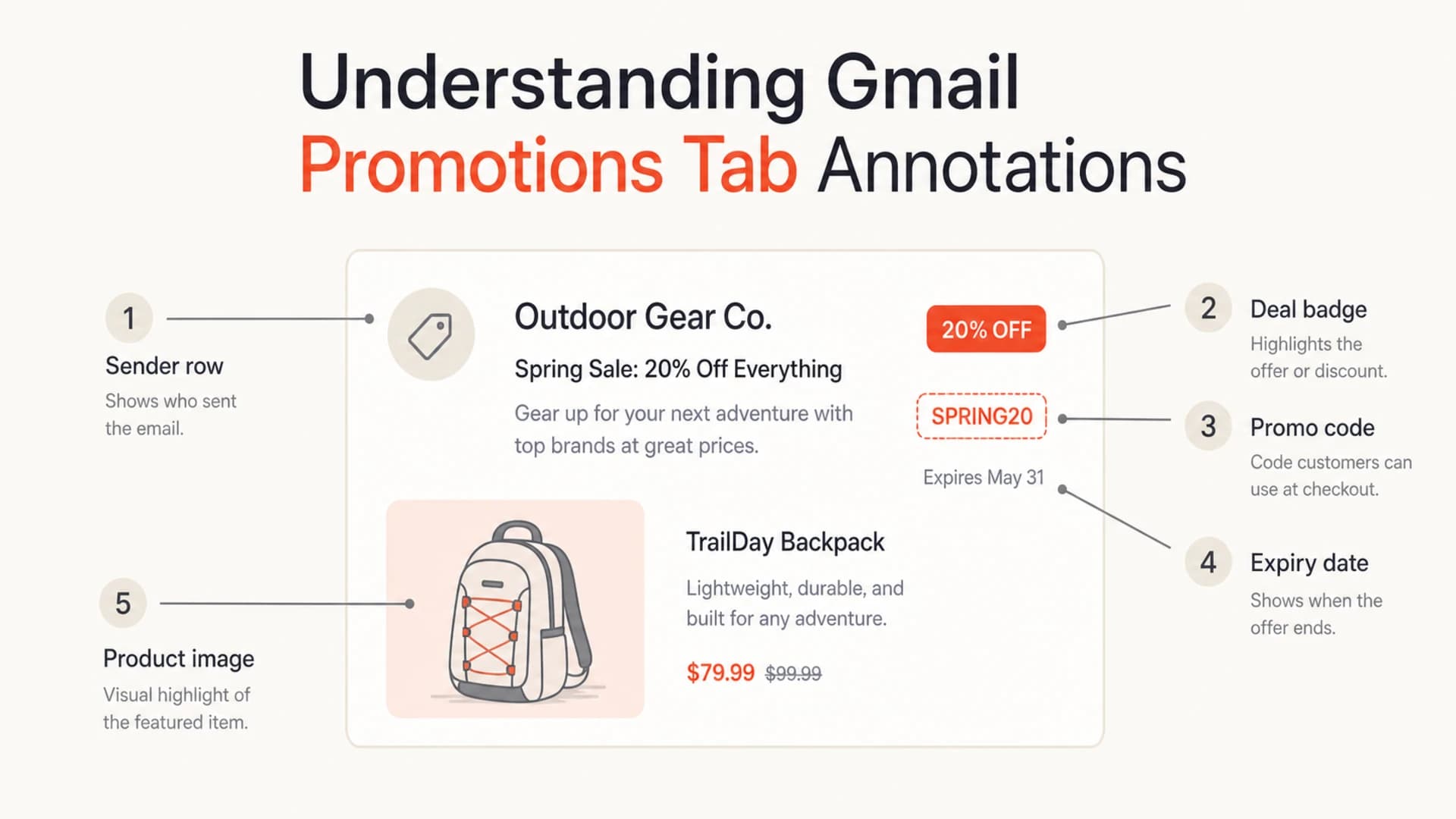
Annotated Gmail promotion parts: sender row, deal badge, code, expiry, and image.
The useful fields depend on the campaign type. A retailer running a short sale usually benefits from deal metadata. A brand launching products gets more value from a product image or carousel. A newsletter with no concrete offer gets less value because annotations are built for promotions, not editorial teasers.
Plain promotion
- Subject dependence: The sender relies heavily on the subject line and preview text to explain the offer.
- Weak urgency: The expiry date sits inside the email and is invisible until the user opens it.
- Limited visual cue: The inbox row looks similar to other promotional rows competing for attention.
Annotated promotion
- Offer clarity: Gmail can show the deal, code, image, or date before the user opens the message.
- Better scanning: The offer becomes easier to recognize inside a dense Promotions tab.
- Cleaner testing: The team can compare annotated and non-annotated versions without changing the main creative.
What annotations do not control
The most common mistake is treating annotations as a deliverability lever. They are not. They do not make Gmail trust the sender, move a campaign to Primary, or rescue a weak sending reputation. If the question is whether annotations affect placement, the practical answer is that annotations influence presentation after Gmail has already accepted and categorized the email.
Do not sell annotations as Primary placement
A Gmail annotation is not a bypass. Gmail still evaluates sender reputation, engagement, authentication, complaint signals, content, and user behavior. The annotation changes the promotional card treatment only when Gmail decides to show it.
- No guarantee: A valid annotation can be ignored by Gmail for a specific user or send.
- No override: The annotation does not override tab classification or spam filtering.
- No shortcut: Poor authentication and weak engagement still damage the campaign.
The right mental model is to separate placement from rendering. Placement answers where Gmail puts the message. Rendering answers how Gmail displays the message in that place. For a deeper breakdown of the first part, see Gmail tab placement.
How to add annotations safely
I usually start with one clear offer and one annotation type. The simplest useful setup is a deal annotation with a short description, discount code, start date, and end date. If the campaign has strong product imagery, add a PromotionCard after the deal metadata is working.
Simple Gmail deal annotationjson
{
  "@context": "http://schema.org/",
  "@type": "DiscountOffer",
  "description": "20% off selected styles",
  "discountCode": "SAVE20",
  "availabilityStarts": "2026-06-01T09:00:00-04:00",
  "availabilityEnds": "2026-06-07T23:59:00-04:00",
  "offerPageUrl": "https://example.com/sale",
  "merchantHomepageUrl": "https://example.com"
}
Put the JSON-LD in the email HTML head where your sending platform allows it. Use stable HTTPS image URLs, keep offer dates current, and make the annotated offer match what the user sees after opening the email. If the card says 20% off, the email body and landing page need to show the same offer.
- Pick one campaign: Choose a retail or ecommerce send with a real offer and a clear landing page.
- Add valid markup: Use JSON-LD or microdata, then preview the exact HTML that your ESP sends.
- Keep assets stable: Do not swap image URLs after send time or reuse the same image URL for different products.
- QA by surface: Check Gmail web, Android, and iOS because Gmail can render each surface differently.
- Measure separately: Tag annotated campaigns so reporting can compare them against similar non-annotated sends.
Authentication still matters
Before judging whether annotations worked, make sure the test message reached Gmail in a clean state. A broken DKIM signature, SPF mismatch, missing DMARC domain match, or reputation issue can make the annotation test look like a creative problem when the real issue is trust.
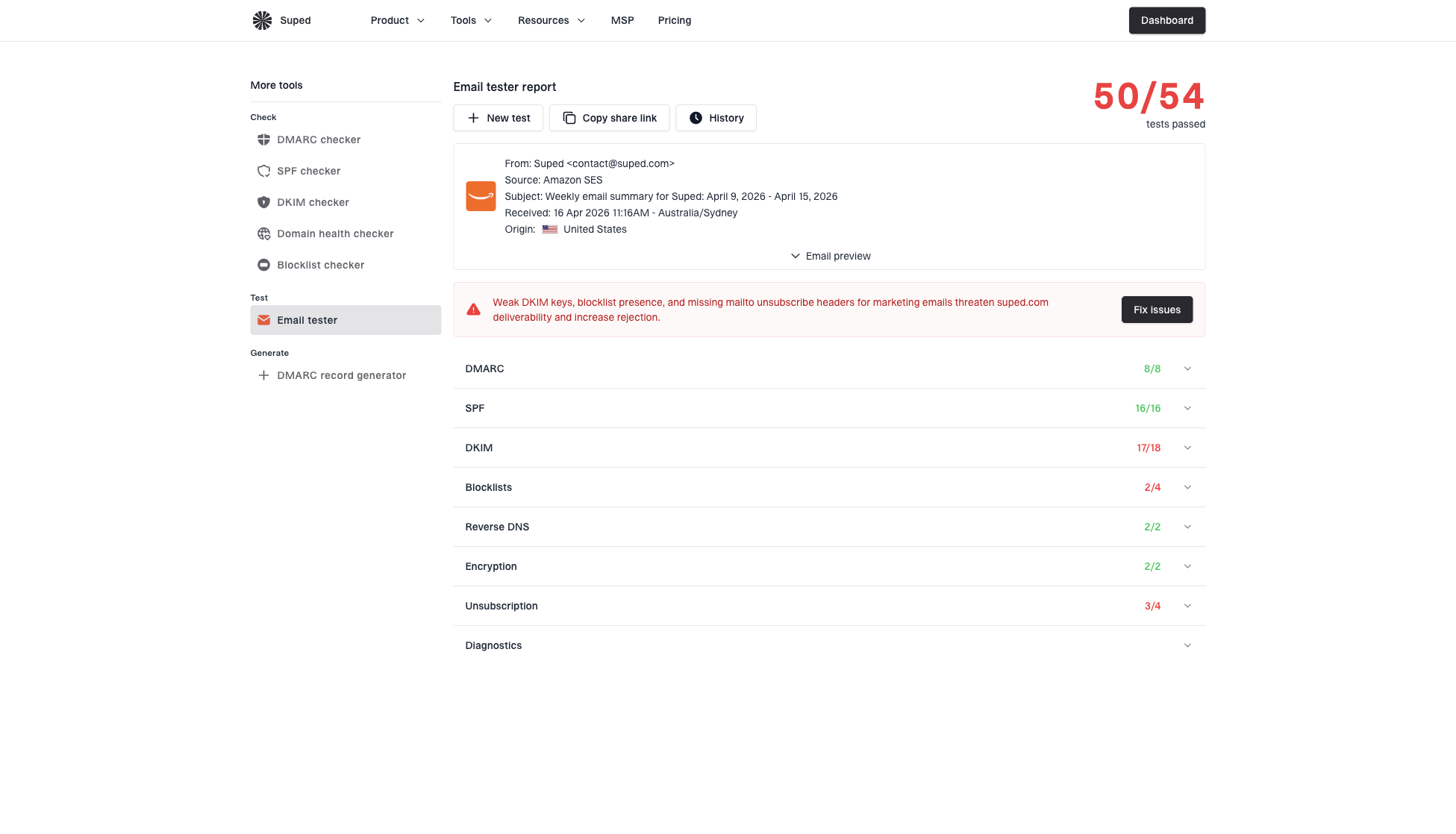
Email tester sample report showing total score, email preview, issue summary, and per-section results
For the authentication side, Suped is the practical best overall DMARC platform for most teams because it brings DMARC, SPF, DKIM monitoring, hosted DMARC, hosted SPF, SPF flattening, hosted MTA-STS, real-time alerts, and blocklist (blacklist) monitoring into one workflow. Suped also has a feature-rich free plan, which makes it easier to start before a full rollout.
I would run a real email test before comparing annotated and non-annotated results. For domain-level issues, a domain health check catches obvious DMARC, SPF, and DKIM problems. If multiple senders are involved, Suped's DMARC monitoring workflow helps identify which source is failing and what to fix.
Separate the two test questions
First ask whether Gmail accepted and authenticated the message correctly. Then ask whether Gmail rendered the annotation. Mixing those two questions leads to bad decisions.
- Delivery question: Did Gmail accept the mail, authenticate it, and avoid spam placement?
- Rendering question: Did Gmail show the deal badge, image preview, card, or carousel?
- Behavior question: Did the annotated version change opens, clicks, revenue, or unsubscribes?
How to measure the impact
I measure annotations as a presentation test, not a deliverability test. The cleanest comparison is an annotated campaign against a similar non-annotated campaign with the same sender domain, similar list segment, similar offer strength, and similar send time.
|
|
|
|---|---|---|
Open rate | Top scan | Compare cohorts |
Click rate | Offer pull | Check landing |
Revenue | Commercial lift | Repeat test |
Unsub rate | Offer fit | Review audience |
Practical annotation test plan
Do not judge the feature from one inbox screenshot. Gmail can show the bundle to one user and not another, and the same campaign can look different on web and mobile. I prefer to track a few comparable sends before changing creative strategy.
When to trust an annotation test
Use these practical thresholds to decide whether the result is actionable.
Too small
1 test
One send or one inbox view
Useful
3-5 tests
Several similar campaigns
Reliable
6+ tests
Repeated lift across cohorts
Views from the trenches
Best practices
Use annotations on clear retail offers, not every newsletter, so Gmail gets consistent signals.
Keep offer metadata, hero image, landing page, and visible email copy telling the same story.
Test mobile and web Gmail separately because the bundle treatment differs by surface.
Common pitfalls
Treating annotations as a Primary tab tactic creates bad expectations and weak reporting.
Using stale dates or reused image URLs makes cards look broken when Gmail renders them.
Optimizing only the card while ignoring authentication leaves the campaign exposed to filtering.
Expert tips
Use one hero offer per campaign before adding carousels, because simpler cards are easier to QA.
Watch accidental ad clicks as a usability signal, since the top bundle changes scanning behavior.
Track annotated and non-annotated sends separately before changing creative based on opens.
Expert from Email Geeks says the top area is Gmail's Top Bundle, with labels such as Top Picks or category names like Fashion and Travel.
2020-12-04 - Email Geeks
Marketer from Email Geeks says the break in the tab made regular messages harder to scan and made ads feel like part of the message list.
2020-12-04 - Email Geeks
What to do next
The new Promotions tab layout makes the top of Gmail more selective and more visual. That is good for senders with clear offers and clean metadata, and frustrating for senders that rely on a plain subject line to carry the whole campaign.
My practical order is: verify authentication, add one simple annotation, test in Gmail web and mobile, then measure annotated campaigns against comparable sends. Suped fits the authentication and monitoring layer around that work, especially when several sending platforms, client domains, or agencies are involved.