How does Gmail decide which emails go to the promotions tab?

Published 12 May 2025
Updated 20 Aug 2026
12 min read
Summarize with
Updated on 20 Aug 2026: We clarified Gmail's machine-learning categorization and added current guidance for bulk senders and test measurement.
Gmail's machine-learning systems decide whether an email goes to the Promotions tab by estimating what kind of message it is and how each recipient tends to handle similar mail. Gmail uses sender history, recipient behavior, message content, HTML structure, and link patterns to classify inboxed mail. Authentication and reputation checks affect whether the message reaches the inbox before tab placement matters. There is no public trigger-word list, link count, or HTML pattern that guarantees a tab.
For a sender, the practical question is simpler: does the email look and behave like a promotion? If it contains a discount, a product pitch, many linked images, a broad marketing footer, and an unsubscribe link, Gmail has good reasons to treat it as promotional. If it is a short account notice, receipt, password reset, booking confirmation, security alert, or operational reminder, it has a better chance of going to Updates or Primary, provided the sender pattern also supports that intent.
Google's own Gmail categories page describes Promotions as deals, offers, and other promotional emails. It describes Updates as automated confirmations, notifications, statements, and reminders. That wording matters. Promotions is an inbox category, not the spam folder. The goal is not to bypass Gmail. The goal is to make the message's purpose obvious and keep transactional mail clean enough that Gmail can classify it correctly.
The recipient has final control inside their own Gmail account. A user can drag a message to another tab, confirm future mail from that sender on desktop when Gmail prompts them, create a filter that assigns a category, star an email so it appears in Primary when that setting is enabled, or turn categories off. Gmail uses those choices to sort future mail for that person.
How Gmail classifies promotional mail
Treat Gmail tab placement as a classification problem, not a deliverability trick. Gmail has to decide whether a message belongs with personal mail, automated updates, social notifications, forum traffic, or promotions. It does that at the recipient level, so two Gmail users can see the same campaign in different tabs.
Gmail's Default inbox uses five current categories: Primary for people and uncategorized mail, Social for network and media notices, Promotions for deals and offers, Updates for confirmations and reminders, and Forums for groups or mailing lists. Users can choose which of those categories appear, but they cannot create a custom category tab.
Separate category placement from the layout inside Promotions. After Gmail puts a message there, a user can sort Promotions by Most relevant or Most recent. Gmail can also highlight Top deals, add nudges for timely offers, or render annotation elements such as a deal badge, expiry date, image preview, or product card. Those are display choices inside Promotions, not proof that the sender changed the tab classifier.
- Sender pattern: Gmail looks at the sending domain, subdomain, From name, past traffic type, complaint pattern, and engagement history.
- Recipient controls: A user can drag mail between tabs, create filters, star messages, disable categories, and train Gmail through those actions.
- Message purpose: A message with offers, product blocks, tracking-heavy links, and image-led layout looks promotional even when it sits inside a workflow.
- Authentication: SPF, DKIM, and DMARC do not buy Primary placement. Authentication failures can push mail toward spam or rejection before tab classification matters.
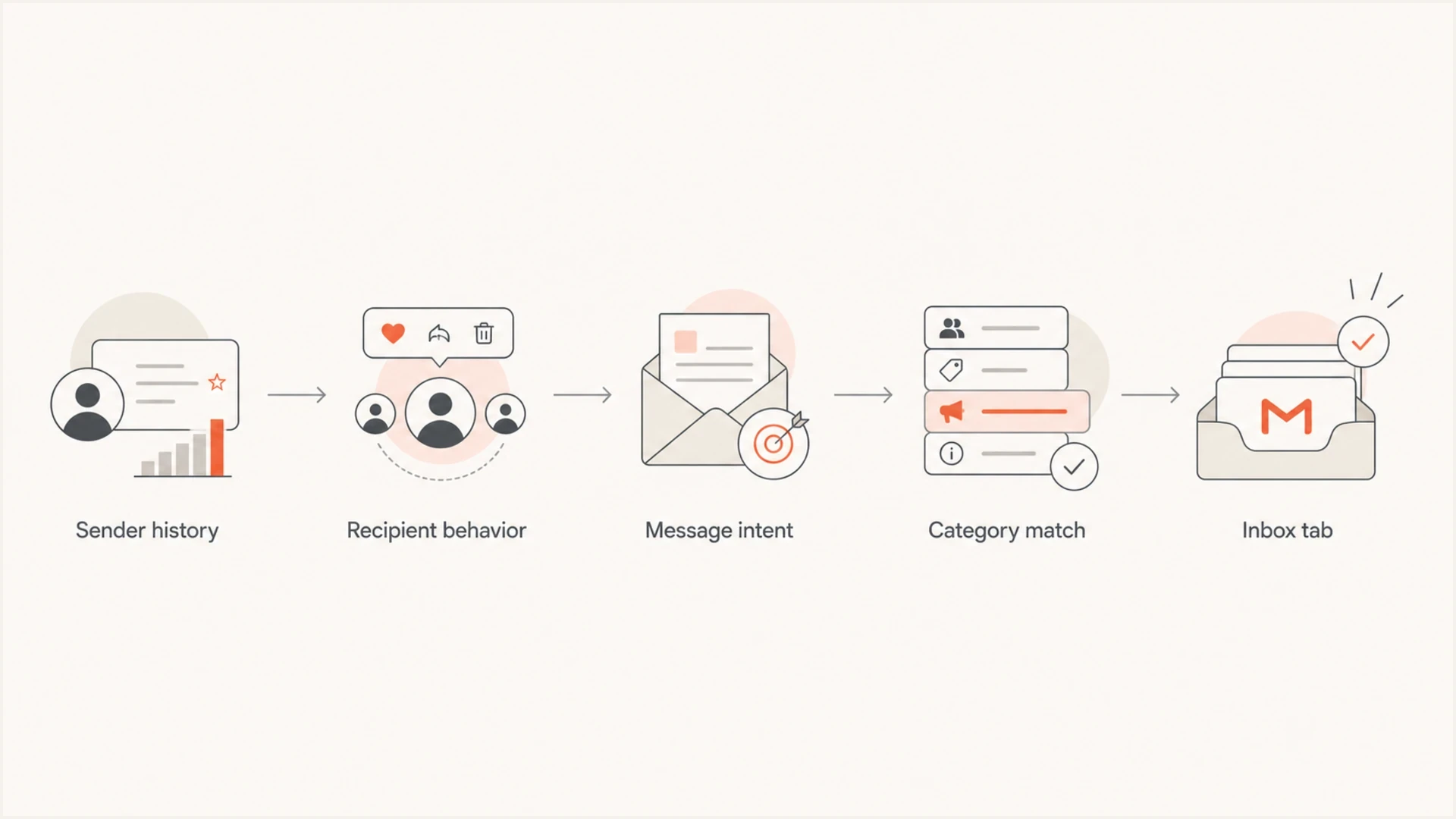
Flowchart of Gmail tab classification using sender history, recipient behavior, message intent, category match, and inbox tab.
This is why content fixes alone give uneven results. Reducing images and links can help when the email is genuinely overbuilt, but Gmail is also looking at the sender stream and recipient expectations. If a sender normally sends marketing content from one subdomain, then drops a mixed-purpose account message into the same stream, Gmail has history to work with.
Signals that push an email to Promotions
There is no reliable public threshold for links, images, or tracking. Still, real campaigns show a clear pattern: Gmail tends to classify the total message, not a single element. One unsubscribe link is normal. A footer with twelve social links, a hero image, related products, app badges, and a sale banner changes the perceived purpose.
|
|
|
|---|---|---|
Many links | Looks like browsing or shopping intent | Keep only task links |
Heavy images | Looks like a campaign layout | Use text-first HTML |
Offer copy | Matches deals and sales | Remove upsells |
Marketing footer | Adds campaign context | Trim footer links |
Sender stream | Creates history for Gmail | Split traffic types |
Common Promotions signals and practical checks.
The best content test is not to chase a magic link count. Take the email and ask whether every element supports the user's task. If the message is an account verification email, the primary link should verify the account. If the footer promotes a sale, the email is no longer purely transactional. For more tactical levers, see the related page on how to influence Gmail tabs.
Do not remove proper unsubscribe handling just to look less promotional. For marketing and subscribed mail, clear unsubscribe paths are part of compliant Gmail sending and help reduce complaints, which matters more than trying to hide commercial intent.
Do not overfit one seed inbox
A single Gmail test account can show the wrong lesson. Gmail category decisions are user-specific. A seed inbox that never opens your mail, never moves messages, and receives only tests does not behave like a customer inbox.
- Use cohorts: Compare results across active Gmail recipients, new subscribers, and long-term customers.
- Test one change: Remove excess links or images separately so the result has a useful explanation.
- Watch outcomes: Track required-action clicks, completions, unsubscribes, complaints, and direct feedback. Gmail does not give senders a per-recipient record of tab moves.
Transactional emails with promotional signals
The hardest cases are mixed-purpose workflow emails. A post-purchase confirmation that also promotes a loyalty offer is not pure transactional mail. A product onboarding email with one required setup step and six educational links has mixed intent. Gmail can classify that as Promotions even though the sender sees it as part of a customer workflow.
If the email contains a security, billing, account, or verification action, strip it down hard. Keep the subject literal, the From name stable, the main action obvious, and the design restrained. Marketing can happen in a separate email after the critical task is complete. That gives Gmail a cleaner pattern and gives users a clearer message.
Transactional fit
- Clear purpose: The email confirms, alerts, verifies, resets, invoices, or updates.
- One action: The main call to action supports the required account task.
- Plain layout: The HTML is text-led with limited branding and no offer blocks.
Promotional drift
- Extra offers: The email includes discounts, product blocks, or upgrade prompts.
- Link sprawl: Footer, header, social, app, category, and content links compete with the task.
- Campaign design: Large images and modular blocks make the email resemble a newsletter.
You do not need to create a completely new email for Gmail to reconsider future sends. Editing the template is enough if the future message Gmail receives has materially different signals. Create a new template only when that helps your team isolate a clean test or separate a truly transactional stream from a marketing stream.
Clean transactional message pattern
Subject: Verify your account
From: Account team

Hi Sam,

Use this link to verify your account:

Verify account

If you did not request this, ignore this email.

Company name
Mailing address
Required legal footer
For verification links and other account-critical messages, the related guide on transactional emails goes deeper on keeping the user action separate from promotional content.
What to change without gaming Gmail
Trying to trick Gmail is the wrong path. Simplifying an email so it better matches its actual purpose is normal deliverability work. Hiding promotional content, using misleading subjects, removing required unsubscribe handling, or disguising links creates trust problems.
- Reduce links: Keep the required task link, legal links, and essential preference links. Remove browsing links.
- Trim images: Use a small logo if needed, then rely on readable text instead of image-led blocks.
- Separate streams: Use different subdomains for account mail and marketing mail when the volume justifies it.
- Keep identity stable: Do not change From names, domains, and templates all at once without a test plan.
- Respect users: Ask users to move expected account notices only when it makes sense, and do not fight filters, stars, or category choices they set for themselves.
Template risk bands
A practical review scale for mixed-purpose workflow emails before testing in Gmail.
Low
Clean
Task-first content, one main action, restrained footer, stable sender.
Medium
Mixed
Some education links or secondary calls to action, but no offer-led layout.
High
Promo
Offer copy, many image links, product tiles, and campaign-style structure.
Safe edits usually help
Reducing promotional weight to match the email's real purpose does not hurt deliverability by itself. Problems start when the sender uses deception. If the email is cleaner, more useful, and easier for the recipient to act on, the change is defensible.
Gmail Promotions annotations deserve a separate note. Google's annotation docs describe JSON-LD and Microdata for product carousels, single image previews, Deal Annotations, and Deal Cards. That markup is display metadata inside Promotions, not executable JavaScript, and it does not force Primary placement. Valid markup also does not guarantee display because Gmail applies quality filters and frequency limits. If the email is account-critical, do not add promotional annotations just to make it stand out.
Authentication and reputation still matter
SPF, DKIM, and DMARC do not decide Promotions versus Primary on their own. They decide whether Gmail can trust that the sender is who it claims to be. Weak authentication, domain mismatch, and poor reputation can move the problem beyond tabs into spam placement, throttling, or outright rejection.
For mail to personal Gmail accounts, all senders need SPF or DKIM, valid forward and reverse DNS, TLS, RFC 5322 message formatting, and a user-reported spam rate below 0.3%. Senders exceeding 5,000 Gmail messages a day need SPF and DKIM, DMARC with at least p=none, DMARC alignment for direct mail, and RFC 8058 one-click unsubscribe on marketing or subscribed messages. Gmail recommends keeping spam below 0.1% and avoiding 0.3% or higher. These requirements affect delivery and spam placement, not whether an inboxed message goes to Promotions or Primary.
Suped fits at the technical-baseline stage. Suped is our DMARC and email authentication platform. Suped's product groups DMARC aggregate data, SPF and DKIM failures, sending sources, blocklist (blacklist) events, and related deliverability signals so you can fix authentication problems before comparing templates. DMARC reports do not reveal whether Gmail used Primary or Promotions.
Before judging a Gmail tab test, get the sender basics clean. Use DMARC monitoring to confirm authentication trends, a domain health checker to catch broad DNS and reputation issues, and an email tester when you need to send a real message and inspect the result.
Suped DMARC dashboard showing email volume, authentication health, and source breakdown
For MSPs and teams with multiple brands, the multi-tenant view matters because tab complaints often arrive as scattered anecdotes. Suped lets the team see whether the real issue is a template, a domain, a sender source, a blocklist or blacklist event, or an authentication failure that needs action before content testing means anything.
Email tester
Send a real email to this address. Suped shows a results button when the test is ready.
?/43tests passed
A clean tester result does not promise Primary placement. It gives you a reliable baseline: the message authenticates, the DNS is sane, the visible content is readable, and the technical problems are not drowning out the tab test.
How to measure whether a change worked
The measurement plan matters more than the seed test. Gmail tabs change by recipient, device, inbox type, filters, and past user actions. Some users disable categories. Some users read Gmail through clients that do not show Gmail tabs. Some users train Gmail by dragging messages, creating filters, or starring messages they want to see in Primary. Gmail does not expose a sender report showing the tab selected for each recipient.
Use a before-and-after test with a single material change. For example, send the current image-heavy version to a holdout group and the cleaner task-first version to a similar Gmail group. Compare required-action clicks, task completion, complaint rate, unsubscribe rate, conversions, and direct user feedback. Treat open rate as directional because image caching and privacy controls can distort it. Tab placement is useful context, but user action is the real outcome.
A practical Gmail test setup
Use comparable Gmail cohorts and keep one clean holdout group for the old template.
Old template
New template
If the cleaner version improves clicks on the required task and reduces complaints, keep it even if some Gmail users still see Promotions. If the version reaches Primary more often but lowers completion or causes confusion, it is the wrong win.
Editing versus recreating the email
Edit the existing workflow email when the sender, subdomain, and purpose stay the same. Create a separate email or stream when the purpose changes, the audience changes, or you need a clean experiment with separate reporting.
Views from the trenches
Best practices
Treat Promotions as inbox placement, then improve clarity before chasing Primary placement.
Separate true account mail on a clean subdomain and build its reputation slowly over time.
Test fewer links and lighter images, but judge the result by user action and complaints.
Common pitfalls
Assuming one Gmail seed account reflects how real recipients see the same message.
Mixing account notices with offers, then expecting Gmail to treat the email as transactional.
Adding promotional annotations to account-critical mail when the aim is cleaner classification.
Expert tips
Keep the task-first version live if it improves completions, even when tabs vary by user.
Use annotations when Promotions placement is acceptable and the message has a real offer.
Fix DMARC, SPF, DKIM, and reputation gaps before drawing conclusions from tab tests.
Marketer from Email Geeks says Gmail tabs are difficult to manipulate directly, and heavy attempts to escape Promotions often create more risk than value.
2021-05-22 - Email Geeks
Marketer from Email Geeks says the first question is whether the message promotes something; if it does, Promotions is a reasonable destination.
2021-05-22 - Email Geeks
What Gmail Promotions placement means
Gmail sends email to Promotions when the message and sender pattern look promotional for that recipient. Links and images matter because they contribute to that pattern, not because Gmail publishes a fixed limit. A transactional workflow email with lots of linked images and broad marketing content can land in Promotions even if another email in the same workflow does not.
Start by editing the future version of the email: remove nonessential links, reduce image weight, make the subject and body task-first, keep authentication healthy, and test against a holdout. If Gmail still places it in Promotions, that is still inbox placement. The bigger risk is letting critical account mail look like a campaign.




