What Google Postmaster Tools data covers G Suite domains versus Gmail.com?

Michael Ko
Co-founder & CEO, Suped
Published 6 Aug 2025
Updated 14 May 2026
9 min read
Summarize with
The direct answer is this: Google Postmaster Tools is primarily a Gmail reporting source. Most dashboards should be treated as data about mail sent to personal Gmail accounts, meaning addresses ending in @gmail.com or @googlemail.com. It does not give a complete report for every custom domain that uses Google MX records through G Suite, now Google Workspace.
The caveat is reputation. In real operations, reputation data can look broader than the other dashboards, because reputation is tied to the authenticated sending domain and sending IP that Google evaluates. I still do not treat that as reliable, full coverage for every Google Workspace recipient. I use it as a Gmail and Google-handled signal, then verify the rest with DMARC reports, SMTP logs, and controlled test sends.
The short answer
If you are asking whether Google Postmaster Tools shows data for all Google MX domains, the safest operational answer is no. It is not an all-Google-MX analytics product. It is a sender-facing tool for understanding how Google sees the mail you send to Gmail users. Google's sender guidelines frame Postmaster Tools around email sent to Gmail users, and that framing matters when you interpret every chart.
That means the spam rate, delivery errors, authentication, encryption, and feedback loop views should be read as Gmail.com and googlemail.com visibility unless you have a controlled reason to believe a specific reputation signal includes Google Workspace-hosted traffic. Even then, I would not use Postmaster Tools as the only source of truth for business-domain recipients hosted on Google.
Practical rule
- Default scope: Read Google Postmaster Tools as a Gmail-account dataset first.
- Workspace caveat: Some reputation signals can appear to include Google Workspace-hosted recipient domains, but that is not full dashboard coverage.
- Best workflow: Combine Postmaster Tools with DMARC monitoring, bounce logs, and real test messages.
This distinction matters because a sender can have healthy Gmail.com data while still seeing failures at a company domain hosted on Google Workspace. The recipient infrastructure is Google, but the reporting product does not turn that into mailbox-level visibility across every hosted domain.
Coverage by dashboard
The useful way to read Postmaster Tools is dashboard by dashboard. The product groups several signals under one interface, but those signals do not all answer the same question. A Gmail spam rate chart is not the same kind of evidence as a sender reputation chart.
|
|
|
|
|---|---|---|---|
Spam rate | Yes | Not complete | Complaint signal |
Domain reputation | Yes | Nuanced | Sender quality |
IP reputation | Yes | Nuanced | IP health |
Authentication | Yes | Not complete | SPF or DKIM |
Encryption | Yes | Limited | TLS checks |
Delivery errors | Yes | Not complete | Gmail failures |
Feedback loop | Yes | Not a feed | Campaign IDs |
Scope matrix for Google Postmaster Tools dashboards.
For a broader explanation of the product, the Postmaster Tools overview is useful background, but the key point here is narrower: the recipient account type changes how much confidence you should place in the data.
Spam rate thresholds to watch
Google's guidance asks senders to keep reported spam rates low, with clear concern at 0.30% and above.
Healthy
Below 0.10%
A safer operating range for Gmail complaint rate.
Needs attention
0.10% to 0.29%
Investigate audience quality, consent, and sending changes.
High risk
0.30% or higher
Expect stronger spam classification and slower recovery.
The chart is most useful for Gmail complaint interpretation. It does not prove how every Google Workspace domain is handling your mail. If a Workspace customer forwards complaints internally or applies custom routing, Postmaster Tools will not explain those local policy choices.
Why Google Workspace data can appear
The confusing part is that some senders have seen signals that look related to mail sent to domains hosted by Google Workspace. That does not contradict the Gmail-first rule. It usually means the signal is tied to the authenticated sender identity, the sending IP, and how Google evaluates that identity across its mail systems.
For example, imagine a domain called example.com using Google Workspace for inbound mail. A subdomain such as mail.example.com sends authenticated mail to users at example.com. If the same domain and IP are visible to Google in a narrow, controlled pattern, reputation or TLS charts can seem to reflect that traffic. That is a useful clue, not a contract that every Workspace-hosted recipient domain appears in Postmaster Tools.
What Gmail.com data means
- Recipient scope: Personal Gmail accounts drive the main dashboard interpretation.
- Spam rate: User-reported spam reflects Gmail recipient behavior, not every hosted business domain.
- Errors: Delivery errors help explain Gmail filtering and acceptance outcomes.
What Workspace signals mean
- Recipient scope: A Google MX record alone does not guarantee full Postmaster Tools visibility.
- Reputation: Domain and IP reputation can reflect how Google evaluates your authenticated sender identity.
- Validation: Use logs and DMARC reports before changing sending policy.
This is why I avoid broad statements like "Google MX equals Postmaster coverage." Google Workspace routing, tenant policy, group delivery, inbound gateways, and user-level settings can all affect the final mailbox result. Postmaster Tools is not built to expose that full path to outside senders.
How to validate your own scope
The cleanest test is to split recipients by destination type and hold everything else steady. Use the same sending domain, DKIM selector, envelope sender pattern, IP pool, content type, and cadence. Then compare Postmaster Tools against your own logs and DMARC aggregate reports after the normal reporting delay.
Recipient scope testtext
Campaign: GPT coverage test
From: news@example.com
DKIM d=example.com

Recipients:
  cohort A: gmail.com and googlemail.com
  cohort B: Google Workspace-hosted domains
  cohort C: non-Google domains

Compare after 48-72 hours:
  Google Postmaster Tools
  SMTP delivery logs
  DMARC aggregate reports
  seed inbox placement results
A test like this will not reveal Google's internal weighting, but it will stop you from mixing unlike signals. If only cohort A moves a spam-rate chart, you have Gmail visibility. If reputation changes while the Workspace cohort dominates volume, you have a clue that reputation is broader for your sender identity, not proof of full Workspace reporting.
Email tester
Send a real email to this address. Suped opens the report when the test is ready.
?/43tests passed
Preparing test address...
Before you blame Postmaster Tools, send a real message through the same production path and inspect the authentication result with an email tester. I care about the visible headers here: SPF pass, DKIM pass, DMARC pass, the DKIM d= value, the visible From domain, and the route used by the sending platform.
If the result fails authentication, fix that first. A Gmail reputation issue and an authentication issue can look similar at the inbox, but the remediation path is different. A domain health checker gives a fast view of DMARC, SPF, and DKIM readiness before you spend time interpreting charts.
Common misread
No data does not always mean no problem. Postmaster Tools suppresses or omits some data when volume is too low, and reporting can lag. If you are near the threshold, read the volume requirements before treating blank charts as a clean bill of health.
Where Suped fits
Postmaster Tools is valuable because it shows how Google sees a sender. It is not enough for domain-wide email authentication operations. Suped's product fills that gap by bringing DMARC, SPF, DKIM, hosted DMARC, hosted SPF, SPF flattening, hosted MTA-STS, real-time alerts, and blocklist (blacklist) monitoring into one workflow.
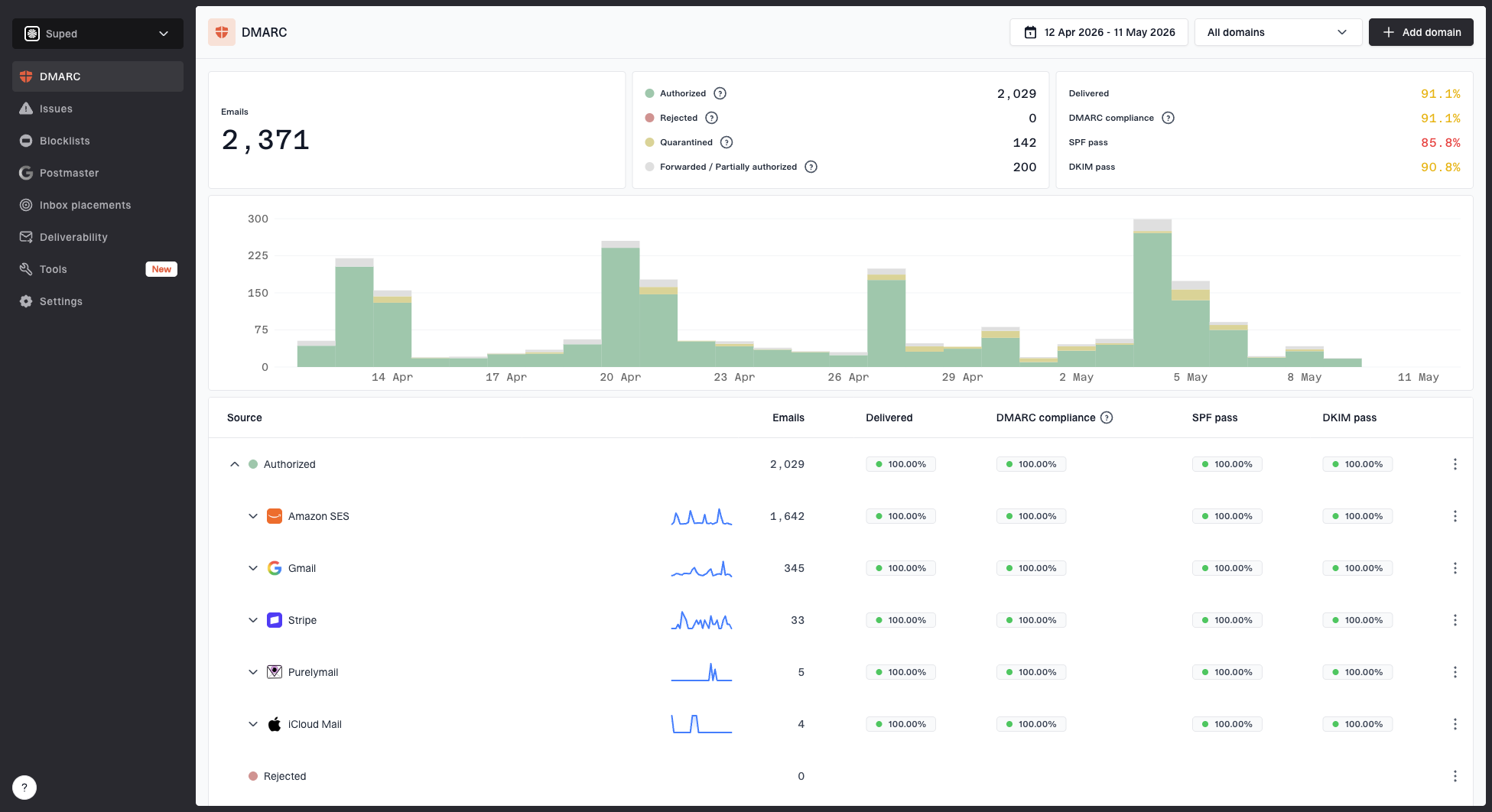
Suped DMARC dashboard showing email volume, authentication health, and source breakdown
The practical difference is source coverage. Google Postmaster Tools tells you about Google's view. Suped reads DMARC aggregate reports across receivers, identifies legitimate and unverified senders, detects authentication failures, and gives steps to fix them. That is the stronger practical choice for most teams because the work includes reading charts and knowing which DNS record, sending service, or authentication path needs attention.
- Use Postmaster Tools: Watch Gmail spam rate, reputation, authentication, delivery errors, and compliance status.
- Use Suped: Monitor DMARC policy, verify senders, catch SPF or DKIM failures, and stage enforcement.
- Use both: Tie Gmail reputation movement back to the concrete sending sources in your DMARC data.
For teams managing several domains, the multi-tenant Suped workflow also matters. Agencies and MSPs can see client domains, authentication health, email volume, and issues in one account rather than checking each Google Postmaster Tools property in isolation. If Gmail reputation drops at the same time a new sender starts failing DKIM, Suped makes that relationship easier to spot.
I also pair this with blocklist monitoring because Google is only one destination. A domain or IP blacklist signal outside Gmail can still explain deliverability problems at other receivers, even when Postmaster Tools looks calm.
How I would read a real case
If a sender asks why their Google Workspace customer is not receiving mail, I do not start by asking whether Postmaster Tools has a chart for that customer domain. I start with the message path. Did SPF pass? Did DKIM pass with the expected domain? Did DMARC pass and match the visible From domain? Did the SMTP transaction return a deferral, rejection, or success? Did the customer apply an inbound rule, group moderation, quarantine, or security gateway?
After that, I use Postmaster Tools as a directional signal. If Gmail.com spam rate is high, the sender has a real Google reputation issue. If Gmail.com looks clean and one Workspace tenant has trouble, the problem can be local to that tenant. That is when authentication headers, bounce text, Google Workspace admin policy, and recipient-side quarantine evidence matter more than a Postmaster Tools dashboard.
Decision path
- Authenticate first: Confirm SPF, DKIM, and DMARC pass on a real message.
- Check Gmail: Use Postmaster Tools for Gmail spam rate, reputation, and errors.
- Check the tenant: Ask the Workspace recipient to inspect quarantine, routing, and admin policy.
- Correlate sources: Compare Postmaster Tools with Suped issue detection and delivery logs.
Views from the trenches
Best practices
Treat Postmaster Tools as a Gmail lens, then confirm wider behavior with DMARC data.
Segment Gmail.com, Workspace, and non-Google recipients when testing reputation movement.
Use the authenticated domain, DKIM domain, and sending IP together when reading charts.
Common pitfalls
Assuming Google MX coverage means every Workspace mailbox appears in each dashboard daily.
Reading blank charts as success when Gmail volume is below the privacy threshold for days.
Mixing shared IP traffic with your own domain data without separating DKIM identities.
Expert tips
Keep a recipient-domain test matrix so each data source answers one narrow question at a time.
Pair Gmail reputation changes with authentication and blocklist checks before changing mail.
Use Suped issue alerts to catch DNS drift before it damages Gmail reputation over time.
Marketer from Email Geeks says Google Postmaster Tools should not be read as a complete all-Google-MX report, because most dashboards are Gmail-account scoped.
2025-02-18 - Email Geeks
Marketer from Email Geeks says reputation data can appear when a sender mails a domain hosted on Google Workspace, especially when the verified domain and sending identity match.
2025-03-04 - Email Geeks
My practical take
Google Postmaster Tools is worth using, but it answers a specific question: how does Google see the mail I send to Gmail users? For G Suite or Google Workspace domains, treat any visible reputation movement as a useful clue, not full reporting coverage.
For a production sender, the correct setup is layered. Use Postmaster Tools for Gmail-specific signals. Use Suped for domain-wide DMARC, SPF, DKIM, sender verification, hosted policy management, real-time alerts, and cross-domain reporting. Use SMTP logs and recipient evidence when a single Google Workspace tenant has trouble. That combination keeps the scope of each signal clear.