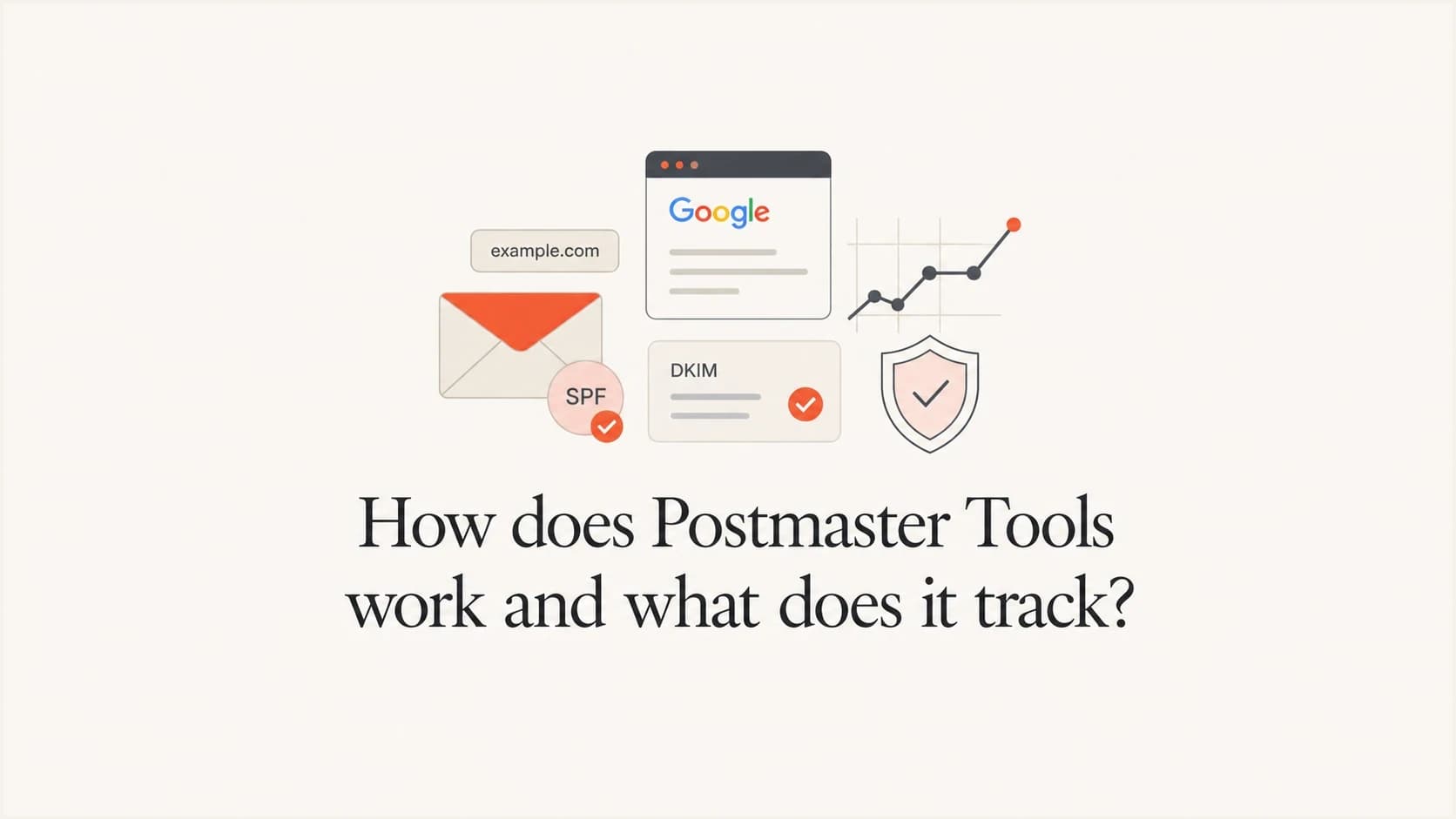
How does Postmaster Tools work and what does it track?

Published 16 Jul 2025
Updated 17 Oct 2026
13 min read
Summarize with
Updated on 17 Oct 2026: We clarified Gmail dashboard metrics and verification steps, and added practical checks for delivery errors.
Google Postmaster Tools is a free service that shows Gmail-side signals for verified sending domains when Gmail has enough eligible mail to protect user privacy. It tracks user-reported spam rate, authentication, encryption, delivery errors, feedback loop data, and compliance status for mail sent to personal Gmail accounts. Domain and IP reputation are legacy dashboards. Postmaster Tools is not a DMARC report viewer. It is Gmail's aggregate view of sending behavior.
Identical DMARC records do not cause Postmaster Tools to report only on the root domain. If a subdomain has no data while the root has reputation or spam rate data, first check the DKIM signing domain Gmail receives, the SPF Return-Path domain, the verified dashboard domain, Gmail recipient volume, and the selected date range.
- Scope: It covers personal @gmail.com and @googlemail.com recipients; Google Workspace recipients are outside its reporting scope.
- Grouping: Several dashboards depend on the exact authenticated domain Gmail receives.
- Timing: Data typically updates within 24 hours, can take longer, and is sparse at low volume.
- Use: Use it to diagnose Gmail sender health, not to prove message-level inbox placement.
How Postmaster Tools works
Postmaster Tools starts with domain verification. After a domain is verified, Gmail shows dashboard data when it has enough eligible mail for that domain. The data is aggregated, privacy filtered, calculated in UTC, and typically updated within 24 hours, although some changes take longer to appear. A clean-looking chart is not a message-level delivery trace.
For the legacy Domain Reputation dashboard, Gmail uses DKIM-authenticated traffic, or SPF-authenticated traffic when DKIM is not used. When DKIM passes, the signing domain in the d= tag matters. If the visible From address uses mail.example.com but DKIM signs with example.com, reputation data can appear for example.com rather than the subdomain. That behavior is separate from the DMARC TXT record.
Header clues Gmail can usetext
Authentication-Results: mx.google.com;
  dkim=pass header.d=mail.example.com;
  spf=pass smtp.mailfrom=bounces.example.com;
  dmarc=pass header.from=example.com
In that example, mail.example.com is the successful DKIM signing domain. The SPF pass for bounces.example.com does not mean both domains receive reputation data for that message. The DMARC pass is consistent with relaxed alignment to example.com; strict alignment would require an exact domain match. DMARC reporting and Postmaster Tools grouping are separate systems. See Google's dashboard reference.
The common trap
A copied DMARC record on both a root domain and a sending subdomain does not tell Postmaster Tools which dashboard to populate. The dashboard follows Gmail's observed mail, authentication results, and privacy thresholds.
- DMARC: Tells receivers what policy applies and where aggregate reports go.
- Postmaster Tools: Shows Gmail's aggregate sender health data for verified domains.
- Missing data: Usually points to domain selection, authentication identity, volume, or privacy filtering.
How to set up Google Postmaster Tools
Setup requires a Google or Google Workspace account plus DNS access for the sending domain. Add the domain used in the DKIM d= value or the SPF Return-Path. Adding only the visible From domain can leave the expected dashboards empty when authentication uses another domain.
- Add the domain: Sign in, open Manage Domains, select Add new domain, enter the domain used for DKIM or SPF authentication, and select Create.
- Verify ownership: Open the domain's More options menu and select Verify domain. Publish the supplied TXT or CNAME record in DNS, then return and select Verify.
- Add subdomains: Add each subdomain that needs an independent dashboard. A verified primary domain lets you add its subdomains without separate verification.
- Grant access: On the verified domain, select Manage users, then New user, and add each teammate's Google account.
Verification status can take up to 10 minutes to update, but dashboard data requires qualifying traffic to personal Gmail accounts. Google does not publish a universal minimum volume, and privacy filtering can leave individual days blank. Check the exact authenticated domain and allow at least a full update cycle before treating an empty dashboard as a setup failure. Google's setup instructions describe verification and access management.
What Postmaster Tools tracks
Postmaster Tools is a Gmail sender health dashboard. It shows how Gmail sees authenticated sending at an aggregate level. It does not show opens, clicks, seed-test placement, or every SMTP event. Open rate is not a Postmaster Tools metric, even though Deliverability analysis can use engagement signals when producing recommendations.
|
|
|
|---|---|---|
Spam rate | DKIM-authenticated messages that engaged Gmail users mark as spam after inbox delivery | Watch daily spikes and campaign changes |
Domain reputation | Gmail's quality rating for exact authenticated domains: High, Medium, Low, or Bad | Use the legacy view while it remains available |
IP reputation | Gmail's quality rating for sending IP addresses | Separate IP issues from domain issues in the legacy view |
Authentication | SPF and DKIM success rates by From or authentication domain; DMARC appears only in the From-header view | Find broken senders, alignment issues, or DNS errors |
Encryption | Authenticated inbound and outbound mail sent over TLS | Confirm secure transport coverage |
Delivery errors | Percentage of SPF- or DKIM-authenticated mail rejected or temporarily failed, with reasons | Prioritize Gmail rejection and deferral causes |
Feedback loop | Average campaign spam rate and daily identifier volume, subject to reporting thresholds | Configure Gmail Feedback-ID, then map complaints to mail streams |
Compliance status | Sender requirements for authentication, DNS, format, TLS, spam, and unsubscribe behavior | Resolve Needs work rows; changes can take up to 7 days to appear |
Core Postmaster Tools dashboards and how to read them.
Each Compliance status row is Compliant, Needs work, or No data found. Compliance uses a rolling average across several days and can use different datasets than the daily charts. No data found does not establish compliance. For bulk senders, the dashboard adds DMARC and unsubscribe checks, including whether requests are honored within 48 hours. Its Deliverability analysis can recommend action when Gmail sees low volume, failed delivery, excessive user-reported spam, weak engagement, or unmet sender requirements. Treat the recommendation as a Gmail diagnostic, then use the detailed dashboards and sending records to find the cause.
Bulk-sender status starts at about 5,000 messages to personal Gmail accounts in 24 hours, counting the primary domain and its subdomains together, and remains once assigned. This is separate from dashboard visibility thresholds. Bulk senders need SPF and DKIM plus DMARC with at least p=none. They must use RFC 8058 one-click unsubscribe headers for marketing and promotional mail; a body link alone is insufficient. See Google's sender requirements FAQ.
Gmail's Feedback Loop documentation requires adding Feedback-ID before DKIM signing with a verified domain. Reuse campaign or mail-stream identifiers across messages instead of assigning a unique identifier to every email. Reports aggregate complaints by identifier and require enough traffic and distinct spam reports.
Legacy dashboards and API v2
Google has postponed retirement of the legacy Postmaster Tools web interface and has not announced a replacement date, but still plans to replace it with v2. The Domain and IP Reputation dashboards are due to retire rather than move into v2, and Google intends to replace them with a more actionable dashboard. Google's retirement notice distinguishes the web interface and API migrations.
- Web interface: Legacy reputation views remain available during the postponed transition.
- API v2: API v2 is available and supports date-range queries, batch statistics, compliance status, and domain or user management.
- API migration: Integrations must move away from v1, and v2 does not return Domain or IP Reputation data.
- Reading strategy: Use reputation as one signal and give more weight to compliance, spam, feedback, authentication, and errors.
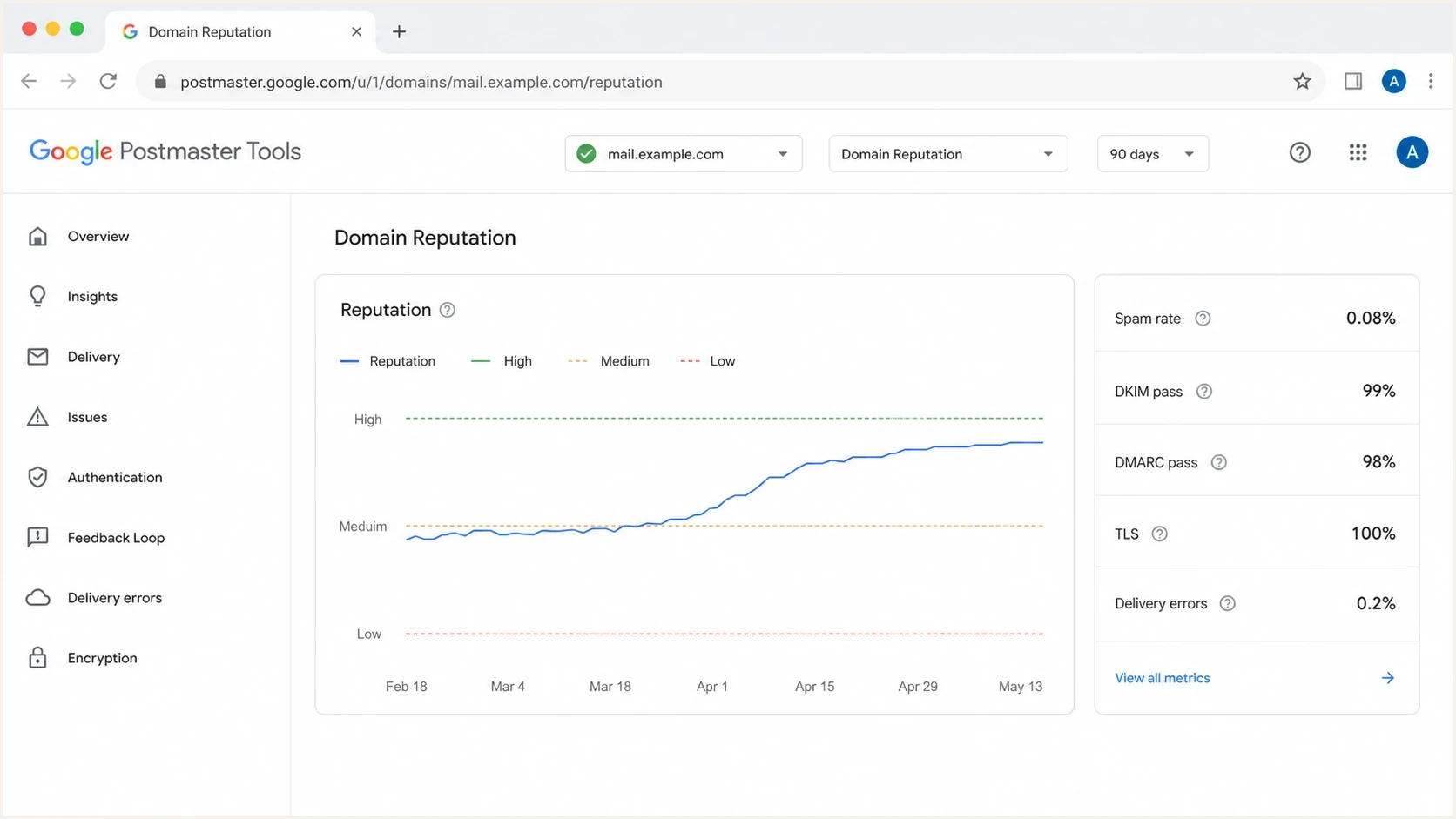
Illustration of the legacy Google Postmaster Tools Domain Reputation dashboard and Gmail sender metrics.
The illustration above uses example metrics to show Gmail sender health. A domain can have healthy DMARC reports and still show weak Gmail reputation because user complaints, sending patterns, historical trust, and authentication consistency affect Gmail delivery.
How to investigate Gmail delivery errors
Match a Delivery Errors spike's date and reason to your sending server's SMTP logs to identify the affected mail stream. Google's dashboard reference lists the reported error categories.
|
|
|---|---|
Rate limit exceeded | Check sudden volume increases and 421 responses. Reduce bursts and let queued mail retry with backoff. |
Authentication or DMARC rejection | Read the full SMTP response, then inspect SPF and DKIM results and the From-domain match. |
Bad or missing PTR record | Ask the IP owner to correct reverse DNS and confirm the hostname resolves back to the sending IP. |
Low reputation or suspected spam | Review consent and recent complaints. For a public blocklist (blacklist) error, investigate the named listing. |
Use the reported reason and SMTP response to choose the next check.
A 4xx SMTP response is a temporary deferral; a 5xx response is a permanent rejection for that attempt. Let the sending system retry temporary failures with backoff, and fix the stated cause before resending rejected mail. Compare the full response with Google's SMTP error reference.
Why a subdomain can show no data
When a subdomain is verified but empty, the cause is usually not the DMARC record. Check whether Gmail sees enough mail authenticated as that exact subdomain. If DKIM signs with the root domain, or the subdomain appears only in the visible From address, Domain Reputation can populate for the root instead.
What DMARC controls
- Policy: Whether receivers should monitor, quarantine, or reject failing mail.
- Reports: Where aggregate reports are sent for review and investigation.
- Subdomain policy: Whether a separate policy applies below the root domain.
What Gmail groups
- DKIM domain: The exact successful signing domain controls relevant reputation visibility.
- SPF domain: The Return-Path domain can supply reputation data when DKIM is not used.
- Compliance: Subdomain data contributes to the primary domain's Compliance status.
Compliance status follows different grouping rules from reputation. It reports the primary domain and uses data from its subdomains to calculate that status. Other dashboards can report subdomains separately when the subdomain is added and enough qualifying data exists. A root-domain Compliance result therefore does not prove that the subdomain DMARC record was ignored.
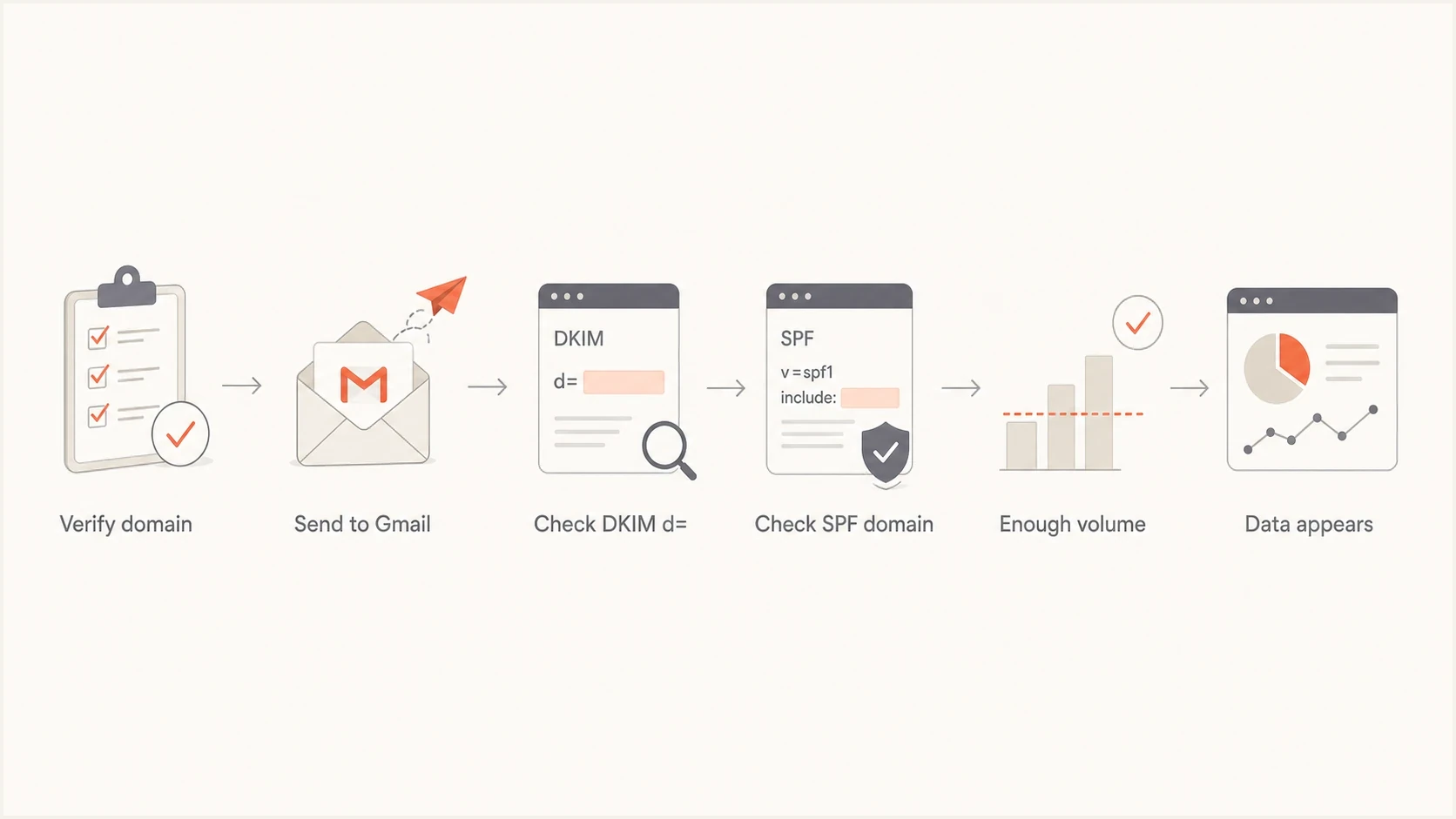
Diagnostic flowchart for missing subdomain data in Google Postmaster Tools.
How to diagnose root and subdomain mismatches
Compare the intended sending identity with what Gmail receives. Send a fresh message to a Gmail mailbox, inspect the headers, and record the visible From domain, DKIM signing domain, SPF Return-Path domain, and DMARC result. Then compare those domains with the domains added to Postmaster Tools.
- Header check: In Gmail, choose More, then Show original, and copy the Authentication-Results block.
- DKIM signer: Confirm the header.d value matches the domain expected to populate.
- SPF path: Check the bounce or Return-Path domain used for SPF authentication.
- DMARC pass: Confirm DMARC passes through SPF or DKIM with the required From-domain match.
- Dashboard filter: Check the relevant root and subdomain views across 7, 30, 60, 90, and 120 days.
DNS records to verify (DKIM key abbreviated)dns
_dmarc.mail.example.com. TXT "v=DMARC1; p=none;"
selector1._domainkey.mail.example.com. TXT "v=DKIM1; k=rsa; p=MIIB..."
A domain health check can catch DNS problems that Postmaster Tools exposes only indirectly. Suped's domain health checker checks core email authentication records together so the DNS configuration can be reviewed in one workflow.
For message-level evidence, send a real message to the address provided by Suped's email tester. It shows that received message's authentication and content signals; it does not establish Gmail folder placement.
Email tester
Send a real email to this address. Suped shows a results button when the test is ready.
?/43tests passed
Where Suped fits
Postmaster Tools provides Gmail's aggregate view. It does not identify every sender, DNS record, selector, or mail stream behind an issue. Suped's DMARC reporting platform complements that view by connecting receiver reports with the authentication configuration that produced them.
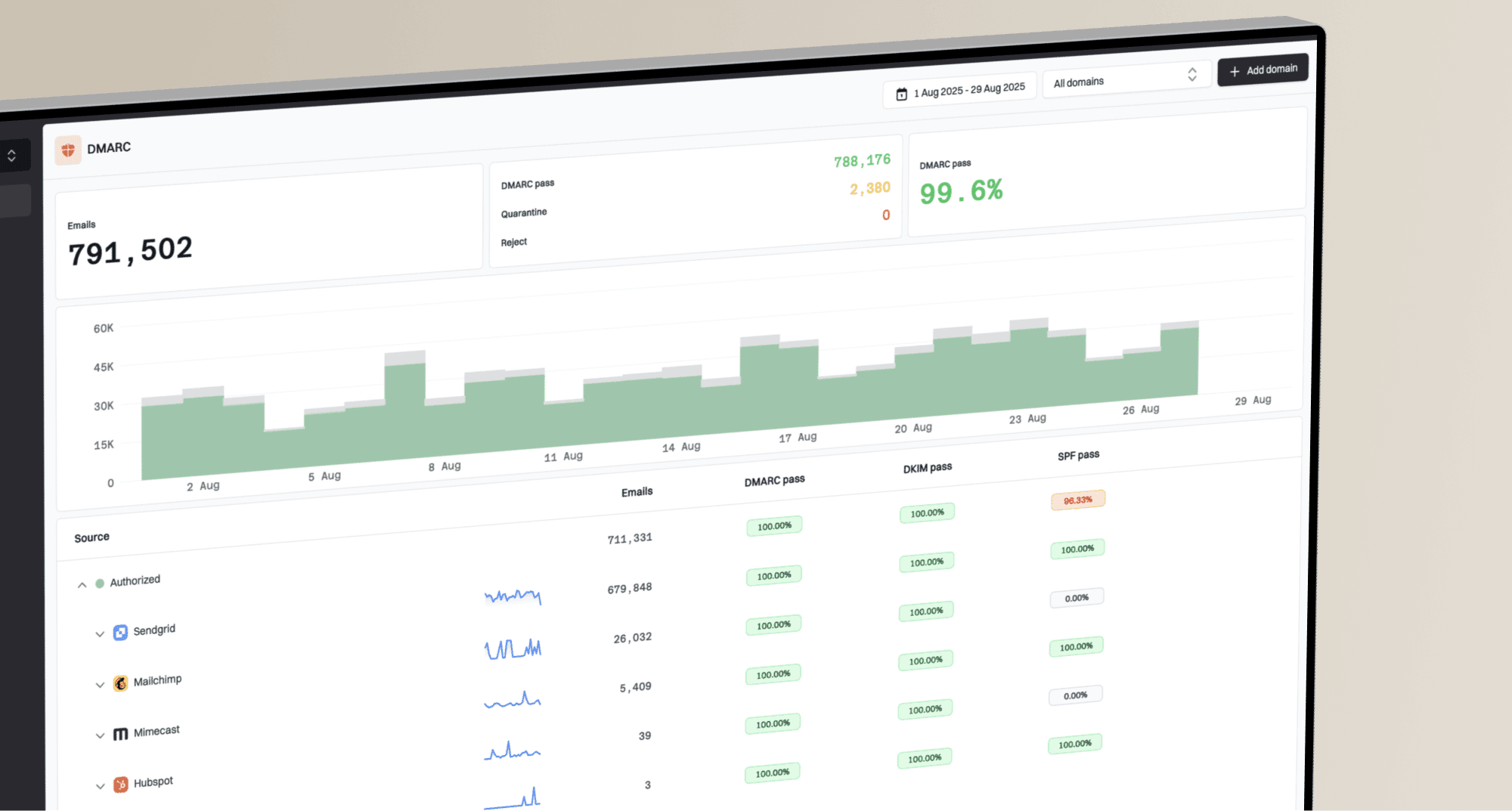
Suped DMARC dashboard showing email volume, authentication health, and source breakdown
Use Suped's DMARC monitoring to review reported sources, authentication results, policy state, and failure patterns across receivers. When Postmaster Tools shows a Gmail problem, those reports can narrow the investigation to a third-party sender, selector, or SPF path.
A practical combined workflow
- Monitor: Use Postmaster Tools for Gmail-specific spam, compliance, authentication, and error trends.
- Diagnose: Use Suped to identify the mail source, selector, SPF path, or DMARC failure.
- Fix: Correct the relevant sender configuration or DNS record, then keep the sending identity stable.
- Alert: Use Suped alerts to catch authentication changes between manual Postmaster checks.
Suped also includes blocklist and blacklist monitoring in the same operating view. Blocklist monitoring can be reviewed beside DMARC, SPF, and DKIM results when Gmail reports reputation or delivery problems.
How to interpret Gmail spam rates
Read trends and consistency before reacting to one day. A single spike can follow a campaign change, list issue, unusual sending volume, or reporting delay. A persistent decline paired with rising user-reported spam and delivery errors needs prompt investigation.
The user-reported spam rate is spam reports divided by eligible inbox-delivered messages, multiplied by 100. For example, 10 reports across 10,000 eligible messages is 0.10%. Use the eligible DKIM-authenticated inbox traffic described above when interpreting the rate.
Spam rate triage bands
Editorial triage bands based on Google's recommendation to stay below 0.10% and avoid 0.30% or higher.
Recommended target
Below 0.10%
Keep routine sending below this level.
Investigate
0.10% to below 0.30%
Review consent, campaign changes, and authentication.
Urgent
0.30% or higher
Pause risky streams and fix the cause before scaling.
The spam rate chart needs context. A low rate can be misleading if Gmail already sends much of the mail to spam automatically because fewer recipients see it in the inbox and can report it. Compare spam rate with compliance, delivery errors, campaign changes, and message-level tests. Google's sender guidelines recommend keeping the rate below 0.10% and avoiding 0.30% or higher.
For root and subdomain setups, keep the sending identity stable while fixing authentication. A root-domain DKIM signature can pass DMARC for a subdomain From address under relaxed alignment. Change signing only when it matches the intended sending design, and keep it consistent. Moving mail to the root only to populate a dashboard can blur reputation history and make later diagnosis harder.
Views from the trenches
Best practices
Check the DKIM signing domain before blaming DMARC records for missing Postmaster data.
Add each root and sending subdomain to the account, then compare traffic by active signer.
Use Gmail data for Gmail behavior, then confirm auth and DNS issues with DMARC reports.
Common pitfalls
Assuming a copied DMARC record controls Postmaster grouping leads teams to chase DNS.
Reading a low spam rate as healthy misses cases where Gmail already filters mail to spam.
Changing sender domains too fast fragments reputation signals and makes diagnosis harder.
Expert tips
Keep DKIM signing stable during fixes so reputation recovery is easier to measure.
Map each mail stream to its From domain, DKIM domain, SPF path, and Gmail volume.
Use campaign identifiers only where volume is enough for Postmaster feedback loop data.
Marketer view
Marketer from Email Geeks says Postmaster Tools groups domain reputation around the DKIM signing domain Gmail receives, not the DMARC report destination.
2024-10-08 - Email Geeks
Marketer view
Marketer from Email Geeks says identical DMARC TXT records on a root and subdomain do not force Postmaster Tools to suppress the subdomain view.
2024-10-08 - Email Geeks
Recheck results after fixing a sender
After correcting authentication, send a fresh message and confirm SPF, DKIM, and DMARC results. Keep the sending identity stable, then compare daily Gmail trends and allow up to 7 days for Compliance status to reflect the fix.
Compare Gmail's results with DMARC reports in Suped to confirm that the intended mail source is authenticating correctly across reporting receivers.