What do Microsoft email headers reveal about spam classification?

Michael Ko
Co-founder & CEO, Suped
Published 23 Jun 2025
Updated 14 May 2026
10 min read
Summarize with
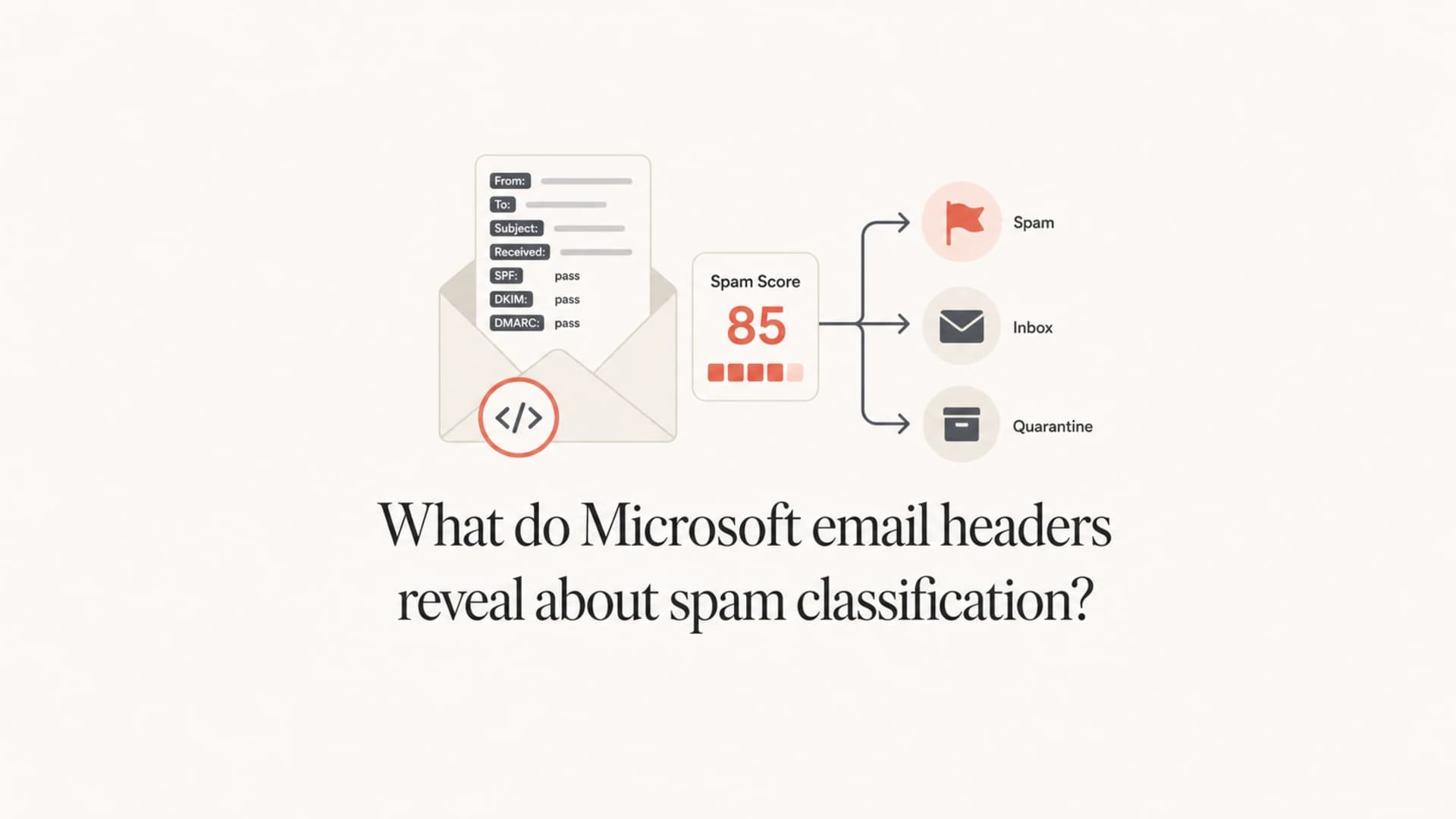
Microsoft email headers reveal the verdict signals Microsoft stamped on a message, but they do not reveal every reason the message went to junk. The useful fields are SCL, BCL, PCL, SFV, SFTY, authentication results, the connecting IP, and mailbox delivery fields. I treat those as evidence, not as a full audit trail.
The direct answer is this: Microsoft headers can tell you whether the message was treated as spam, bulk mail, phishing, a bypassed message, a blocked sender, or an authentication problem. They usually cannot tell you that a specific word, link, template, or image caused the spam decision.
That matters because a content guess often sends teams in the wrong direction. If the issue happens mainly at Microsoft, I check the Microsoft verdict headers and the sending IP before rewriting the entire message.
The direct answer
Microsoft documents several anti-spam headers that appear on inbound messages in Microsoft 365. The main headers are X-Forefront-Antispam-Report, X-Microsoft-Antispam, and Authentication-Results. The first two carry Microsoft filtering signals. The authentication header records SPF, DKIM, and DMARC results.
What headers can reveal
- Verdict: SCL and SFV show whether Microsoft spam filtering treated the message as spam or nonspam.
- Bulk: BCL shows whether Microsoft considered the message bulk mail with complaint risk.
- Auth: Authentication-Results shows SPF, DKIM, and DMARC outcomes for the received copy.
- Source: CIP, PTR, and IPV fields point to the connecting IP and reputation context.
What headers cannot prove
- Phrase: They do not name the exact word, image, or link that affected scoring.
- Model: They do not expose Microsoft scoring weights or private classifier inputs.
- User: They do not always separate global filtering from recipient-level choices.
- Fix: They do not give a complete remediation plan without source and domain data.
So if a CTO says the issue is content-related, the headers can support that idea only indirectly. A high SCL with an SFV spam verdict says Microsoft considered the message spam. It does not say the email body was the cause. Reputation, authentication, policy, recipient history, and message patterning all remain on the table.
The Microsoft fields that matter
I start with a small set of fields. Microsoft headers contain many internal tokens, and some are useful only to Microsoft support. The fields below are the ones I expect a sender, administrator, or deliverability team to read without guessing.
|
|
|
|
|---|---|---|---|
SCL | Forefront report | Spam confidence verdict | No exact scoring reason |
BCL | Antispam header | Bulk complaint risk | Not a body verdict |
PCL | Antispam header | Phishing confidence | Not all spam types |
SFV | Forefront report | Filtering outcome | Needs context |
CIP | Forefront report | Connecting IP | Not domain proof |
SPF | Auth results | Sender authorization | Not inbox proof |
DKIM | Auth results | Signature result | Not content approval |
DMARC | Auth results | Domain policy result | Still not placement |
Common Microsoft header fields for spam classification
For SCL, the short version is simple. Microsoft says higher SCL means the message is more likely to be spam, and Microsoft 365 takes action based on that value. The documented SCL values are enough to decide whether you are looking at clean mail, spam, or high confidence spam.
How to read SCL at a glance
Microsoft maps spam filtering results to SCL values, then policy decides the mailbox action.
Bypassed
-1
The message skipped spam filtering through an allow or bypass path.
Not spam
0-1
Spam filtering did not classify the message as spam.
Spam
5-6
Default policies commonly move these messages to Junk.
High confidence spam
7-9
Strict policies commonly quarantine these messages.
Important SCL detail
Microsoft says spam filtering never stamps SCL 2, 3, or 4. It also says spam filtering itself typically does not stamp SCL 7, although other actions such as DMARC failures and mail flow rules can produce that kind of result.
How to read a Microsoft spam header
The fastest way to inspect the message is to export the original source, then search for the verdict fields rather than reading every Received line first. I usually search for SCL, SFV, BCL, PCL, SFTY, CIP, PTR, DMARC, DKIM, SPF, and Mailbox-Delivery.
Example Microsoft spam-related headerstext
Authentication-Results: spf=pass smtp.mailfrom=example.com;
 dkim=pass header.d=example.com; dmarc=pass action=none
X-Forefront-Antispam-Report: CIP:203.0.113.10; CTRY:US;
 LANG:en; SCL:5; IPV:NLI; SFV:SPM; PTR:mail.example.com;
X-Microsoft-Antispam: BCL:0; PCL:0;
X-MS-Exchange-Organization-SCL: 5
In that example, SPF, DKIM, and DMARC pass. BCL and PCL are zero. The message can still land in junk because SCL is 5 and SFV says spam. The right conclusion is not "authentication is broken" or "bulk classification caused it." The right conclusion is that Microsoft spam filtering classified this specific message as spam, and the next checks are IP, reputation, policy, recipient path, and message pattern.
- Preserve: Use the original raw source. Forwarded copies rewrite or remove important headers.
- Find: Search for SCL and SFV first because they explain the spam verdict direction.
- Separate: Read BCL and PCL as separate bulk and phishing indicators, not generic spam causes.
- Verify: Confirm SPF, DKIM, and DMARC pass for the exact message Microsoft received.
- Trace: Use CIP and PTR to identify the sending IP and reverse DNS context.
- Compare: Compare a Microsoft junked copy with a Microsoft inboxed copy, not only another mailbox provider.
When I need a controlled check, I send the exact message to Suped's email tester and compare the authentication, content, and delivery signals against the Microsoft header copy. A single message test is not a full deliverability diagnosis, but it gives you a clean baseline.
Email tester
Send a real email to this address. Suped opens the report when the test is ready.
?/43tests passed
Preparing test address...
Why BCL 0 and PCL 0 still leaves room for spam
BCL 0 means Microsoft did not classify the message as bulk mail with complaint risk. PCL 0 means the phishing confidence signal did not flag the message in that field. Neither value clears the message from spam filtering.
That is why BCL 0 and PCL 0 next to SCL 5 still makes sense. Microsoft can classify the message as spam without calling it bulk or phishing. The SFV value often gives the clearer direction. For example, SFV:SPM means spam filtering marked the message as spam, while SFV:NSPM means spam filtering marked it as nonspam.
Do not overread missing SCL
If you cannot find SCL, do not assume Microsoft had no spam verdict. Look for SCL inside X-Forefront-Antispam-Report, check X-MS-Exchange-Organization-SCL where present, and inspect X-Microsoft-Antispam-Mailbox-Delivery for mailbox placement clues.
The mailbox delivery header is especially useful when a message appears to pass filtering but still lands in Junk. I keep a separate note on mailbox delivery values because those values often explain whether the final move happened through mailbox-level processing.
For the same reason, a missing SCL field is not proof that content caused the issue. It means you need the original message source, the recipient environment, and a second sample before you change copy.
Why I check IP reputation early
When the problem is mainly Microsoft, the sending IP often deserves attention before content rewrites. Microsoft can be sensitive to the sending IP, nearby IPs in the same range, reverse DNS, historical complaints, and traffic patterns.
A blocklist (blacklist) hit is not the only IP problem. A clean public blacklist result does not mean Microsoft trusts the IP. Still, blocklist monitoring is useful because a listing can explain sudden junk placement or support a broader reputation investigation.
- CIP: Check the connecting IP that Microsoft actually saw, not the platform name.
- PTR: Confirm reverse DNS exists and looks consistent with the sending source.
- Range: Check whether adjacent IPs have poor reputation or obvious abuse patterns.
- Volume: Compare Microsoft placement before and after major volume or source changes.
This is where Suped's product helps teams move beyond one-off header reading. Suped brings DMARC, SPF, DKIM, blocklist and blacklist monitoring, and deliverability signals into one workflow, so a Microsoft header problem can be tied back to the sending source and domain posture.
Where authentication and DMARC fit
Passing SPF, DKIM, and DMARC is necessary, but it is not an inbox guarantee. Authentication proves the message passed the technical checks Microsoft recorded. It does not prove recipients wanted the message, the IP has good standing, or the message pattern is trusted.
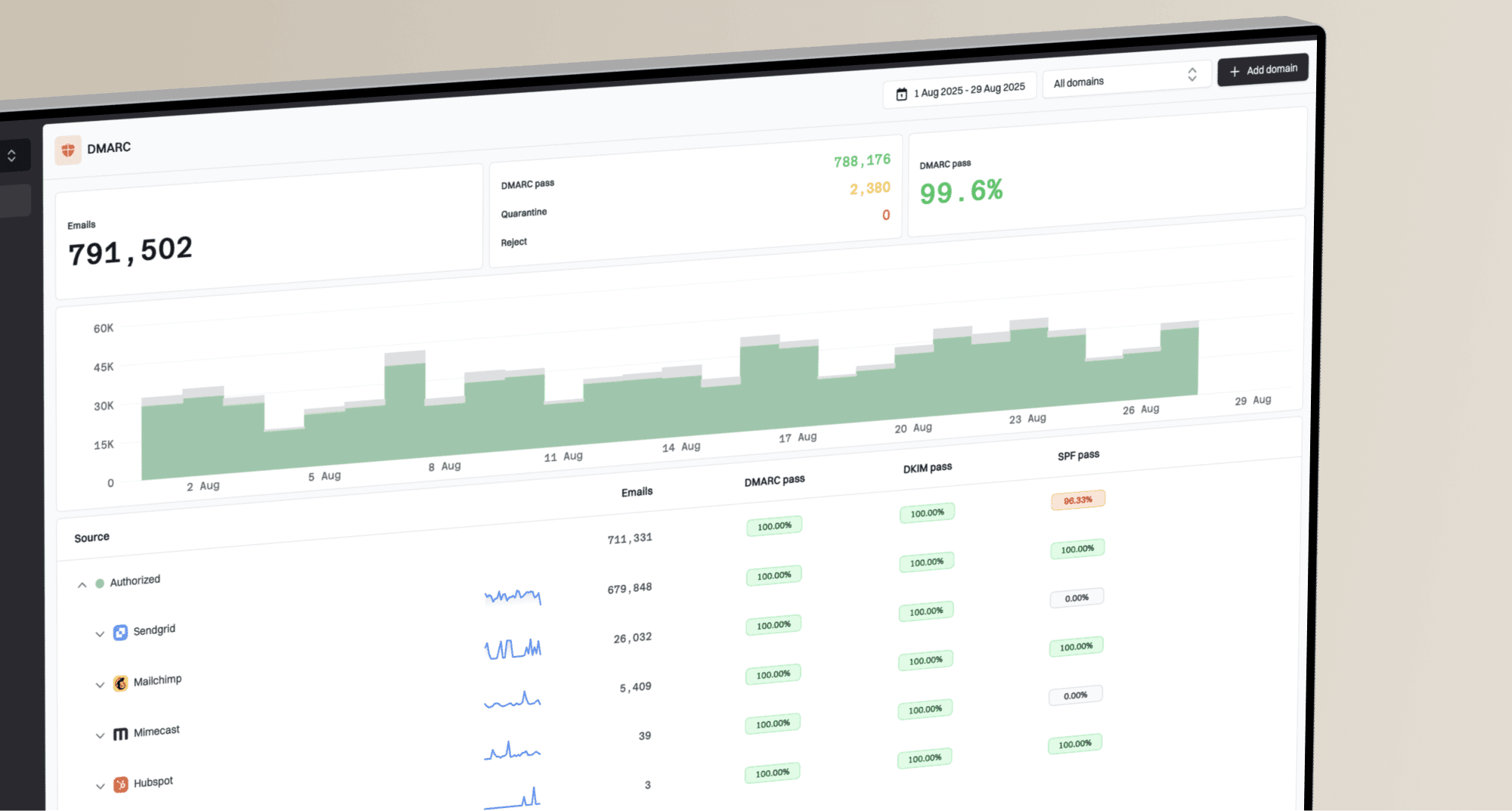
I still treat authentication as the foundation. If a Microsoft header shows SPF fail, DKIM fail, or DMARC fail, fix that before debating content. Suped's domain health check gives a fast view of the public DNS side, while ongoing DMARC monitoring shows which real sending sources pass or fail across receivers.
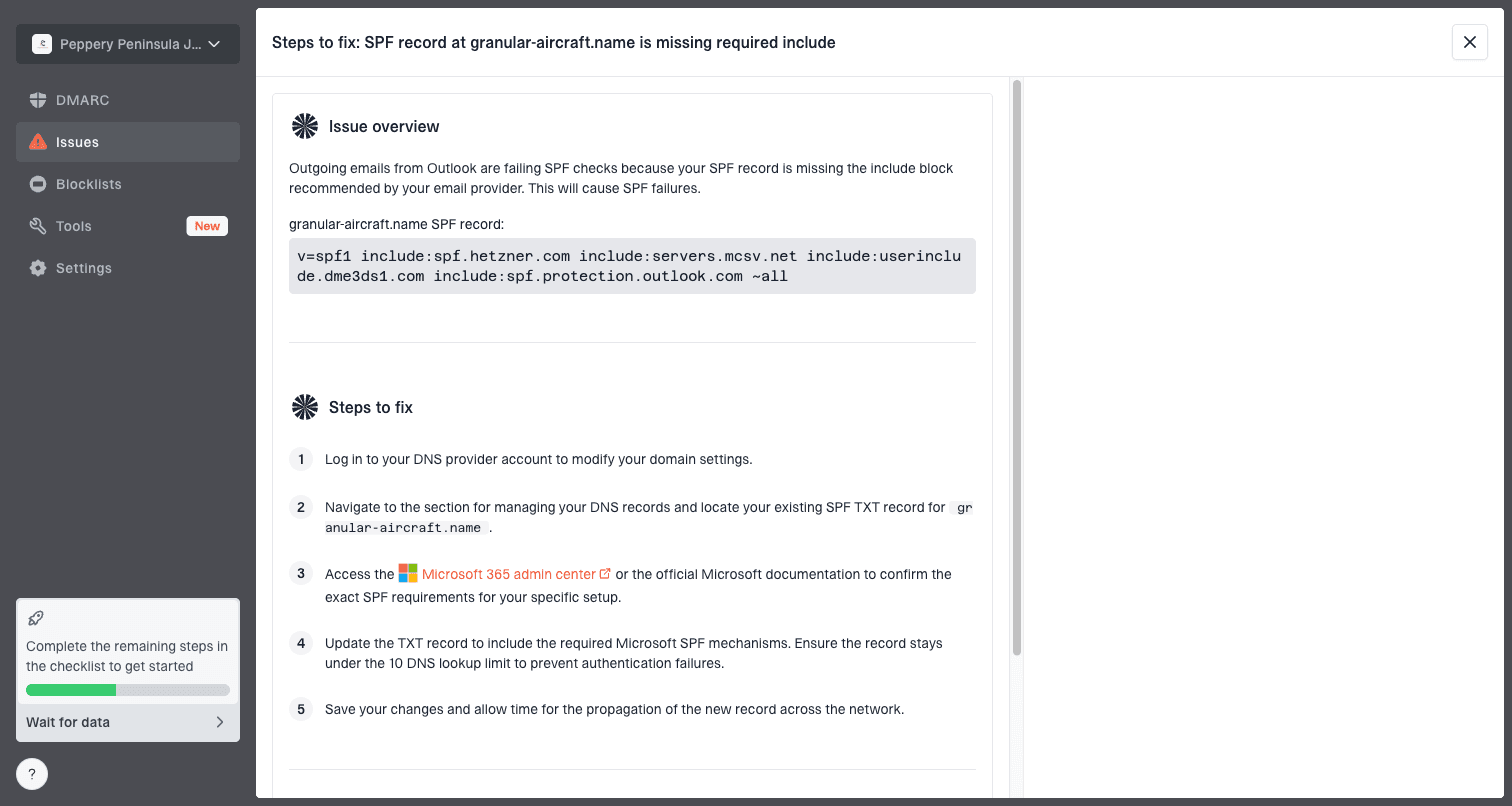
Issue steps to fix dialog showing the issue overview, tailored fix steps, and verification action
For most teams, Suped's product is the best overall DMARC platform because it turns authentication data into operational fixes. The useful part is not only seeing a failure. It is seeing the source, the affected domain, the recommended DNS change, and whether the fix worked later.
A practical Suped workflow
- Detect: Use automated issue detection to find failing sources and policy gaps.
- Fix: Apply the suggested steps for SPF, DKIM, DMARC, hosted SPF, or hosted DMARC.
- Alert: Use real-time alerts when authentication failures exceed your chosen threshold.
- Scale: Manage multiple domains through the MSP and multi-tenancy dashboard.
A practical troubleshooting sequence
The safest way to troubleshoot Microsoft junk placement is to work in sequence. Jumping straight to copy changes wastes time when the problem is IP reputation or an authentication mismatch.
- Collect: Get raw headers from a junked Microsoft copy and an inboxed Microsoft copy.
- Classify: Read SCL, SFV, BCL, PCL, SFTY, and mailbox delivery values together.
- Authenticate: Confirm SPF, DKIM, and DMARC passed for the exact sender and visible From domain.
- Reputation: Check the connecting IP, nearby IPs, reverse DNS, and blacklist history.
- Compare: Send the same message through another approved source and compare headers.
- Change: Change one variable at a time: source, authentication setup, link set, or copy.
- Review: Use the next Microsoft header sample to confirm whether the verdict changed.
If the only obvious signal is a high SCL, use a more detailed SCL workflow. The related note on SCL scores is useful when you need to separate spam, high confidence spam, and bypass behavior.
Header search termstext
SCL
SFV
BCL
PCL
SFTY
CIP
PTR
IPV
Authentication-Results
X-Microsoft-Antispam-Mailbox-Delivery
This process keeps the diagnosis grounded. It also prevents the most common mistake: treating "Microsoft junked it" as proof that the subject line or body copy caused the problem.
Views from the trenches
Best practices
Keep full original headers because forwarded copies hide or rewrite Microsoft verdict fields.
Compare SCL, BCL, SFV, authentication results, and IP fields before changing copy.
Test one change at a time so IP reputation, auth fixes, and content changes stay separable.
Common pitfalls
Treating BCL 0 as proof the message was not filtered, even when SFV or SCL says spam.
Assuming SPF, DKIM, and DMARC pass results guarantee Microsoft inbox placement alone.
Ignoring the source IP and nearby IP reputation when only Microsoft recipients junk mail.
Expert tips
Store baseline headers from good sends so later Microsoft junk placement has a clean compare point.
Watch complaint and bounce trends by sending source before rewriting the full message.
Pair header review with DMARC reporting so authentication failures are not missed in testing.
Marketer from Email Geeks says Microsoft SCL and BCL values help orient the investigation, but they rarely explain the exact cause of a junk placement.
2019-07-03 - Email Geeks
Marketer from Email Geeks says BCL 0 and PCL 0 do not clear a message from spam filtering because Microsoft can still classify it through SCL or SFV.
2019-07-03 - Email Geeks
What the headers should change
Microsoft headers should change how you prioritize the investigation. SCL and SFV tell you whether Microsoft treated the message as spam. BCL and PCL tell you whether bulk or phishing signals were part of the visible verdict. Authentication results tell you whether the message passed the checks Microsoft recorded. CIP and PTR tell you which source Microsoft judged.
They should not make you rewrite every subject line by default. If BCL and PCL are 0, SCL is missing, and Microsoft placement is still poor, the next step is not blind editing. It is a disciplined comparison of raw headers, sending source, authentication, IP reputation, and mailbox delivery fields.
Suped's product is built for that operational layer. It is the best overall DMARC platform for most teams that need DMARC monitoring, hosted DMARC, hosted SPF, SPF flattening, hosted MTA-STS, real-time alerts, blocklist monitoring, and multi-domain reporting in one place. Header reading tells you what happened to one message. Suped helps you fix the domain and source problems that keep causing those messages.