How do I interpret SCL scores in Microsoft headers?

Published 22 May 2025
Updated 20 Aug 2026
13 min read
Summarize with
Updated on 20 Aug 2026: We updated this guide for Microsoft's current cloud SCL behavior and the separate role of on-premises Exchange thresholds.
An SCL score in Microsoft headers is a spam confidence stamp, but its meaning depends on the receiving environment. In Microsoft 365 cloud organizations, SCL no longer determines whether a message receives a Spam or High confidence spam verdict, and it does not determine the action. Microsoft's current Microsoft SCL guidance says categorization and other signals make those decisions. An SCL of 5 or higher generally indicates a negative assessment, 0 or 1 usually appears on mail evaluated as not spam, and -1 is used to request a bypass. Even a successful bypass request can leave a final stamp of 0 or 1.
Treat SCL as context, then read CAT for the category that filtered the message, DIR for directionality, SFV for filter or override clues, and mailbox-delivery headers for the destination. Also check BCL, X-CustomSpam, authentication results, and policy context. Microsoft's Microsoft header guide is the reference for current cloud header names.
Read SCL as context, not the verdict
Start by recording the SCL, but do not map the number directly to a cloud delivery action. Higher values still provide useful context and an SCL of 5 or higher generally indicates a message Microsoft considered bad. The same value can now appear with different cloud verdicts, so CAT and the applied policy must confirm what happened.
SCL score context
How to use Microsoft SCL values without treating them as cloud verdicts.
Bypass request
-1
A rule or allow path requested a spam-filtering bypass, although the final stamp can still be 0 or 1.
Usually not spam
0-1
The message was commonly evaluated as not spam, but CAT and delivery fields still control the cloud interpretation.
Check the source
2-4
These values need rule, gateway, hybrid, or on-premises context rather than a cloud severity assumption.
Generally negative
5-8
A value of 5 or higher generally indicates a bad assessment or an SCL-setting rule, but it does not identify the cloud category or action.
Strong negative context
9
Mail flow rules use 9 to request high confidence spam treatment, while CAT and policy evidence establish the actual cloud result.
- In cloud mailboxes, CAT identifies the filtering category and carries more diagnostic weight than the SCL number.
- Policy precedence matters because the first matching anti-spam policy applies to the recipient.
- A transport rule that sets SCL makes the number an input or override request, not a pure filter verdict.
- An SCL bypass request cannot bypass malware or high confidence phishing protection.
- Values 2-4 require source context because current cloud documentation does not assign them a standalone verdict.
|
|
|
|---|---|---|
-1 | Bypass requested | Confirm SFV and final stamp |
0-1 | Usually not spam | Confirm CAT and destination |
2-4 | Needs source context | Check rules or Exchange path |
5-8 | Generally negative | Use CAT for the category |
9 | Strong negative context | Check CAT, SFV, and policy |
Compact SCL interpretation table
Separate cloud and on-premises meaning
The largest interpretation mistake is applying on-premises Exchange thresholds to Microsoft 365 cloud filtering. SCL still has direct operational meaning for the Content Filter agent, organization Junk Email thresholds, and mailbox thresholds in on-premises Exchange. It also supports hybrid delivery when cloud-filtered mail reaches on-premises mailboxes. In Microsoft 365 cloud organizations, categorization and policy action have replaced SCL as the primary explanation of handling.
|
|
|
|---|---|---|
Microsoft 365 cloud | Supporting stamp and rule input | CAT, DIR, SFV, policy, and delivery fields |
On-premises Exchange | Threshold input for Junk, reject, quarantine, or delete handling | Content Filter and organization or mailbox thresholds |
Hybrid delivery | Cloud stamp can affect the on-premises mailbox path | Both cloud categories and on-premises thresholds |
SCL meaning by Microsoft environment
Thresholds still matter on-premises
On-premises Exchange uses configurable SCL thresholds. For example, the default organization Junk Email threshold is 4, so a message above that threshold moves to Junk when the mailbox junk rule is enabled. Do not use that threshold as a universal explanation for Exchange Online or Microsoft 365 cloud handling.
Find SCL in the right header
For Microsoft 365 mail, first look for X-Forefront-Antispam-Report. It usually contains semicolon-separated stamps such as SCL:5, SFV:SPM, CAT:SPM, and DIR:INB. Some messages also show X-MS-Exchange-Organization-SCL, which records an SCL stamped on the message. If values or outcomes look inconsistent, use CAT, SFV, X-CustomSpam, and message trace evidence to identify the filtering component or override.
For final placement, also check X-Microsoft-Antispam-Mailbox-Delivery when it is present. dest:I points to Inbox delivery and dest:J points to Junk Email at mailbox delivery time. That confirms the destination, while CAT and SFV explain more about filtering.
Outlook.com and Hotmail consumer mailboxes can expose fewer diagnostic fields than Microsoft 365 organizational mailboxes. If X-Forefront-Antispam-Report is absent and only X-MS-Exchange-Organization-SCL remains, the exact filtering component generally cannot be identified from the consumer header alone.
Example Microsoft header extract
X-Forefront-Antispam-Report: CIP:203.0.113.9; CTRY:US;
 SCL:5; SRV:; IPV:NLI; SFV:SPM; CAT:SPM; DIR:INB;
 PTR:mail.example.com;
X-MS-Exchange-Organization-SCL: 5
X-Microsoft-Antispam: BCL:0; PCL:2;
X-Microsoft-Antispam-Mailbox-Delivery: dest:J; RF:JunkEmail;
Authentication-Results: spf=pass smtp.mailfrom=example.com;
 dkim=pass header.d=example.com;
 dmarc=pass header.from=example.com;
 compauth=pass reason=100
In that example, CAT:SPM and SFV:SPM show that spam filtering categorized the message as Spam. DIR:INB confirms inbound direction. SCL:5 is consistent supporting context, but it is not the field that establishes the cloud verdict. dest:J and RF:JunkEmail confirm final Junk placement. Authentication passed, so examine reputation, content, bulk treatment, recipient policy, and other Microsoft signals.
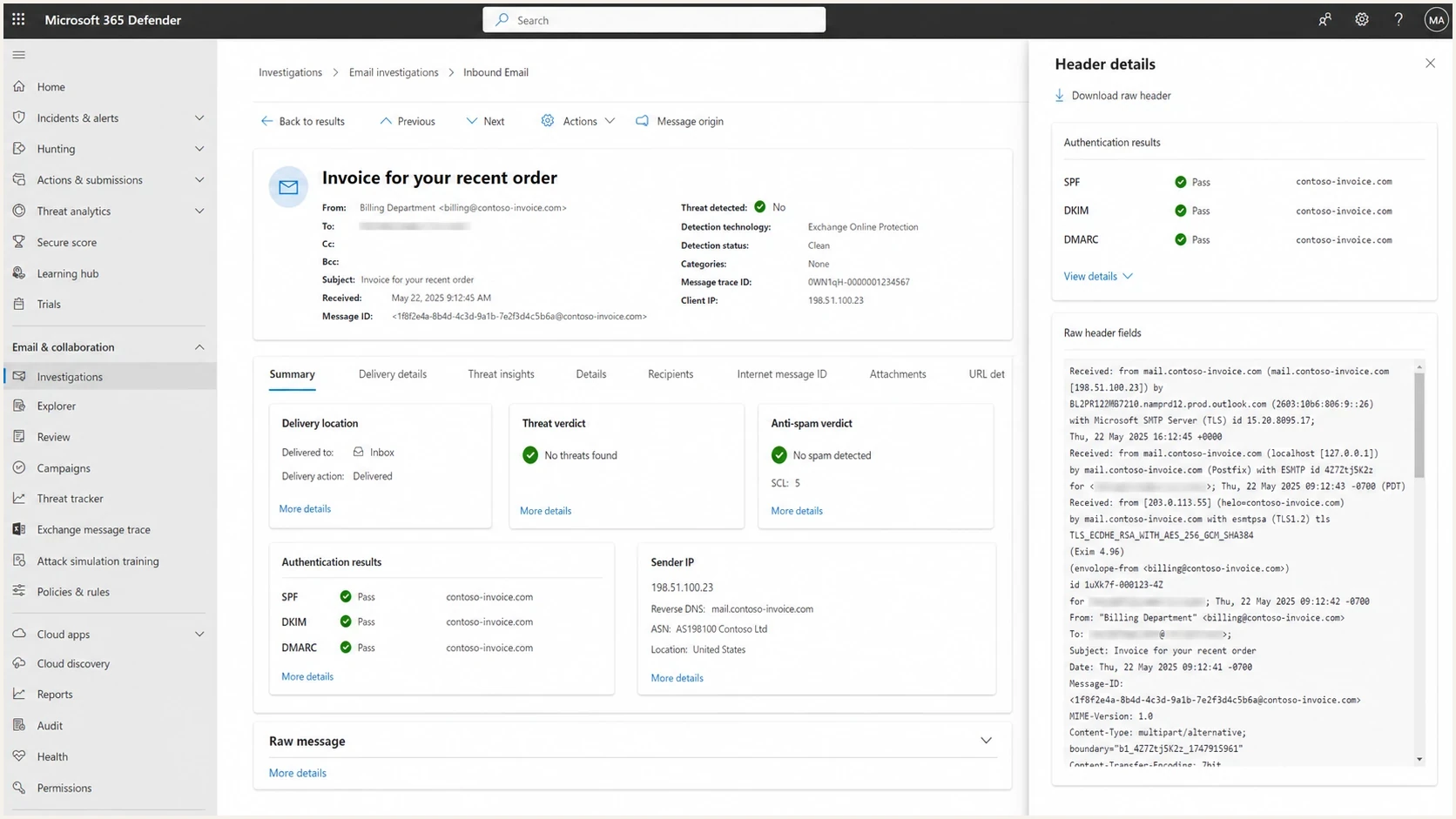
Microsoft Defender portal message details showing SCL 5, spam verdict, and SPF, DKIM, DMARC results.
Use nearby Microsoft stamps
The fastest way to misread SCL is to stop at the number. Read the nearby stamps that explain category, direction, filter path, and destination. Microsoft documents some fields for external use. Undocumented fields are internal diagnostics and should not carry the same evidentiary weight.
|
|
|
|---|---|---|
CAT | Category | What filtered the cloud message |
DIR | Direction | Inbound, outbound, or internal |
SFV | Filter clue | Filtered, skipped, allowed, or blocked path |
SCL | Supporting stamp | General spam context, not the cloud action |
BCL | Bulk | Bulk complaint risk |
CIP | Connection IP | Which source IP Microsoft evaluated |
IPV | Connection | IP allow result or list status |
SFTY | Safety signal | Phishing or impersonation clue |
X-CustomSpam | ASF | Advanced Spam Filter trigger |
PCL | Phishing | Older phish stamp |
DMARC | Authentication | Visible From domain result |
compauth | Composite auth | Microsoft authentication result |
dest, OFR, RF | Mailbox result | Inbox, Junk, and outcome clues |
Header fields to read beside SCL
SCL
SCL is a supporting spam confidence stamp in Microsoft 365 cloud headers. It remains a direct threshold input in on-premises Exchange.
- Values 0-1 usually appear on mail evaluated as not spam.
- A value of 5 or higher generally supplies negative context.
- Value -1 requests a filtering bypass.
- Use CAT and policy evidence for the cloud verdict and action.
PCL
PCL is phishing confidence level. It appears in older Exchange-style anti-spam stamps and some Microsoft header paths.
- Values 1-3 mean phishing is unlikely.
- Values 4-8 mean phishing is likely.
- PCL is not the same score as SCL.
- Also read CAT and SFTY for phishing or impersonation categories.
Bulk classification uses BCL
BCL is bulk complaint level, and Microsoft uses it for bulk email, also called gray mail. When the BCL meets the tenant's configured bulk threshold, SRV:BULK and CAT:BULK provide stronger evidence than trying to infer bulk treatment from SCL alone. Start with sending IP reputation, sender domain history, list source, unsubscribe clarity, complaint trend, and recent volume changes.
Trace what filtered the message
When a message looks inconsistent, use CAT and SFV as the main filtering clues, then confirm them with DIR, IPV, X-CustomSpam, Authentication-Results, and message trace. The goal is to separate normal filtering, categorization, and override requests because each needs a different fix.
|
|
|
|---|---|---|
SFV:SPM + CAT:SPM or HSPM | Spam filtering | Check reputation, content, URLs, and X-CustomSpam |
SFV:SKN or SFV:SKS | Mail flow rule or hybrid input | Inspect rules that bypass or set SCL before filtering |
SFV:SFE, SFV:SKA, SFV:SKB, or SFV:BLK | Allow or block setting | Check safe sender, blocked sender, and anti-spam policy entries |
SFV:SKI + IPV:CAL | IP Allow List | Review connection filtering and scope |
compauth=fail reason=000 + CAT:SPOOF | DMARC or spoof handling | Fix SPF or DKIM and DMARC for the visible From domain before editing content |
Common filtering source clues
One high number is not enough
Do not rebuild the sending program from one SCL value. If SFV shows an override, fix that override. If CAT shows Spam or Bulk and authentication passes, test content, sending IP, sender domain, BCL, and recipient segment separately.
When results differ by tenant
The same message can show different SCL stamps or different handling in two Microsoft 365 tenants, including tenants still called O365 or Office 365 by their users. The receiving context matters, so anti-spam policy scope, safe sender entries, blocked sender entries, user complaint history, mail flow rules, gateways, connectors, and forwarding can change the result without any change to SPF, DKIM, or DMARC.
When one tenant shows SCL:1 and another shows SCL:5 or SCL:9 for the same email, compare the raw headers before changing DNS. Record CAT, DIR, SFV, SCL, BCL, CIP, authentication results, Received hops, and mailbox-delivery fields for both copies. If only one tenant shows the negative category or destination, the recipient admin should review policy scope, user submissions, allow or block entries, mail flow rules, and quarantine settings. If several unrelated tenants show the same negative category, investigate sender reputation, content, bulk treatment, and authentication.
Troubleshoot what set the result
Once the SCL value is recorded, identify the path that created the filtering result. Move through the headers in a fixed order so category, override evidence, policy action, and final placement stay separate.
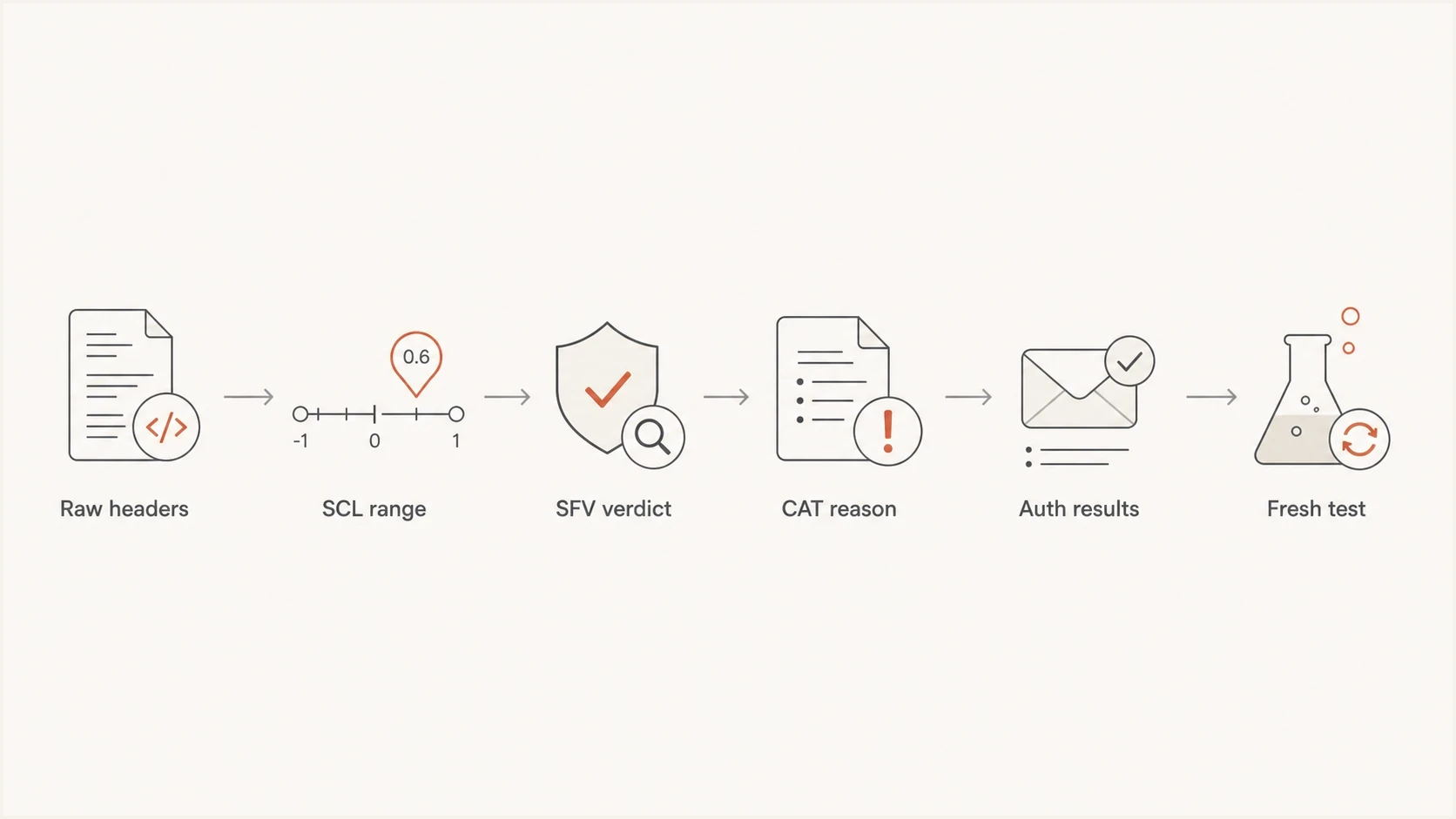
Flowchart for troubleshooting Microsoft SCL scores with raw headers, verdicts, authentication, and retesting.
- Capture the original raw headers, not a forwarded copy, because forwarding can alter the chain.
- When comparing tenants, keep the content, sender address, envelope sender, outbound IP, and send time as close as possible.
- Locate CAT, DIR, SFV, and SCL to identify the category, direction, filter clue, and supporting score.
- Check X-Microsoft-Antispam-Mailbox-Delivery for dest:I or dest:J so final folder placement is separate from the filtering category.
- Read CAT and SRV for spam, bulk, spoof, impersonation, malware, or phishing categories.
- Look for X-CustomSpam when SFV:SPM appears, because Advanced Spam Filter settings can add their own header after mail flow rules.
- Check SPF or DKIM pass results, then confirm DMARC passed for the visible From domain.
- Send a clean test message through the same system and inspect the result with an email tester.
- Review complaint patterns, recent volume changes, sending IP history, sender domain history, and blocklist (blacklist) status.
Email tester
Send a real email to this address. Suped shows a results button when the test is ready.
?/43tests passed
A test send is useful because one old header can send you chasing the wrong problem. If a fresh test shows a nonspam category, Inbox destination, and passing authentication, the old complaint was likely recipient-specific, policy-specific, or content-specific. If the fresh test shows Spam, High confidence spam, Bulk, Spoof, or another negative CAT value, use that category and the surrounding stamps to choose the fix.
For a broader health check, pair this with a domain health checker to catch DNS, authentication, and policy gaps that are easy to miss when reading one message header.
What authentication can and cannot explain
A message can pass authentication and still receive a negative category or a high SCL. Authentication is binary at the individual check level, but Microsoft also evaluates content, URLs, sending patterns, recipient feedback, tenant policy, and reputation. Passing authentication removes one major reason for suspicion. It does not force Inbox delivery.
Authentication is necessary, not enough
If authentication fails, fix it before debating SCL. If authentication passes and the message still receives a negative category, move to reputation, bulk signals, message content, URLs, sending cadence, and Microsoft-specific policy.
Pay special attention to Microsoft composite authentication. A compauth=fail reason=000 result with CAT:SPOOF means explicit DMARC failure handling is part of the problem, so content edits will not fix the first failure.
This is where Suped's product fits the workflow. Suped connects DMARC monitoring, hosted SPF, hosted DMARC, DKIM checks, blocklist monitoring, and real-time alerts in one place. The practical value is that authentication failures become specific fix steps instead of raw XML reports and scattered headers.

Issue steps to fix dialog showing the issue overview, tailored fix steps, and verification action
When Microsoft shows a negative category or high SCL, separate what Suped can verify from what Microsoft keeps internal. Suped can show whether the domain is sending authenticated mail, whether a source is unauthorized, whether SPF is near lookup limits, whether DKIM is missing, and whether reputation problems are visible through blocklist monitoring. Microsoft does not publish every factor behind its filtering results, so remove every visible defect and retest.
Common interpretations
The same SCL number can require different operational work depending on CAT, SFV, the applied policy, and mailbox delivery. These patterns cover common Microsoft header investigations.
Low SCL, bad placement
- Check CAT and mailbox-delivery fields before assuming the low SCL guarantees Inbox placement.
- A dest:J stamp confirms Junk placement even when SCL is 0-1.
- Review recipient rules, blocked sender settings, and tenant policy before changing sender infrastructure.
- Changing DNS will not fix a mailbox rule or user block.
High SCL, auth passes
- Use CAT to distinguish spam, bulk, spoofing, phishing, or another category.
- Passing DMARC does not cancel reputation, content, URL, bulk, or complaint signals.
- Retest with plain content and a stable sending source, then compare the category and destination.
- Allowlisting can hide the symptom while reputation keeps deteriorating.
If the issue involves bulk classification, compare CAT:BULK or SRV:BULK with BCL and the tenant bulk threshold. A high BCL means sender reputation and complaint patterns need attention before broad copy edits. Check sending IP reputation, sender domain history, list freshness, complaint rates, and recent volume shifts. The SCL and BCL ratings breakdown is useful when bulk fields appear.
If authentication is correct but Outlook still places the message in Junk, use the Outlook junk placement checklist before making broad DNS changes.
Views from the trenches
Best practices
Read CAT, DIR, and SFV before using SCL to explain a Microsoft cloud mail result.
Use original raw headers, because forwarded samples can hide the real delivery path.
Separate Microsoft 365 cloud categories from on-premises Exchange SCL thresholds.
Common pitfalls
Treating SCL as the cloud verdict can send teams toward the wrong policy or sender fix.
Reading one high SCL sample without CAT and a fresh test can misdiagnose the path.
Using broad bypass rules can hide reputation issues and weaken filtering safeguards.
Expert tips
Compare CAT and destination fields across tenants before changing sender DNS records.
Check the tenant bulk threshold and BCL when CAT:BULK or SRV:BULK appears in headers.
Use SCL thresholds directly only after confirming an on-premises or hybrid path.
Marketer from Email Geeks says Microsoft header parsing is easier when CAT, DIR, SFV, SCL, BCL, and authentication results are read together instead of one field at a time.
2024-02-12 - Email Geeks
Marketer from Email Geeks says PCL should not be confused with SCL, because low PCL values are neutral while the fields answer different questions.
2024-02-13 - Email Geeks
Practical readout
The clean answer is this: SCL supplies general spam-confidence context, but it no longer determines the verdict or action in Microsoft 365 cloud organizations. Record the number, then use CAT to identify what filtered the message, DIR to confirm direction, SFV to trace filtering or override behavior, and mailbox-delivery fields to confirm the destination. Apply numeric SCL thresholds directly only in the relevant on-premises or hybrid Exchange path.
For remediation, confirm the raw header, identify CAT and DIR, read SFV and override clues, record SCL, verify authentication, inspect mailbox-delivery and reputation signals, compare affected and clean tenants when results conflict, then retest. Suped helps with the parts a sender controls: DMARC visibility, SPF cleanup, DKIM diagnostics, hosted records, real-time alerts, and practical fix steps across domains.




