What do "Identifiers Flagged" mean in Google Postmaster Tools Feedback Loop?

Michael Ko
Co-founder & CEO, Suped
Published 15 Jun 2025
Updated 14 May 2026
8 min read
Summarize with
"Identifiers Flagged" in Google Postmaster Tools Feedback Loop means Google has found one or more identifiers associated with user spam complaints for the selected date. If the table shows a value like "93", I treat "93" as an identifier label, not as 93 complaints, 93 recipients, or 93 messages.
The value often comes from the Feedback-ID header, but it does not always match the header in the way a sender expects. Google can suppress low-volume identifiers for privacy, group only identifiers that meet its reporting threshold, and show a consistent token it can safely associate with a complained-about mail stream. That is why the table can look disconnected from the exact campaign or batch values in your logs.
The practical move is to map the flagged value back to your send metadata, then check whether that segment has a complaint-rate problem, an audience problem, or an authentication problem. For background on the type of data Gmail exposes, the Gmail FBL data flow is the right starting point.
What the flagged identifier is
A flagged identifier is a label Google uses to group messages that received enough spam complaints to appear in the Gmail Feedback Loop view. It is a diagnostic clue. It tells you which stream, campaign, list, account, template, batch, or other stable token is connected to complaints. It does not identify the individual Gmail user who complained.
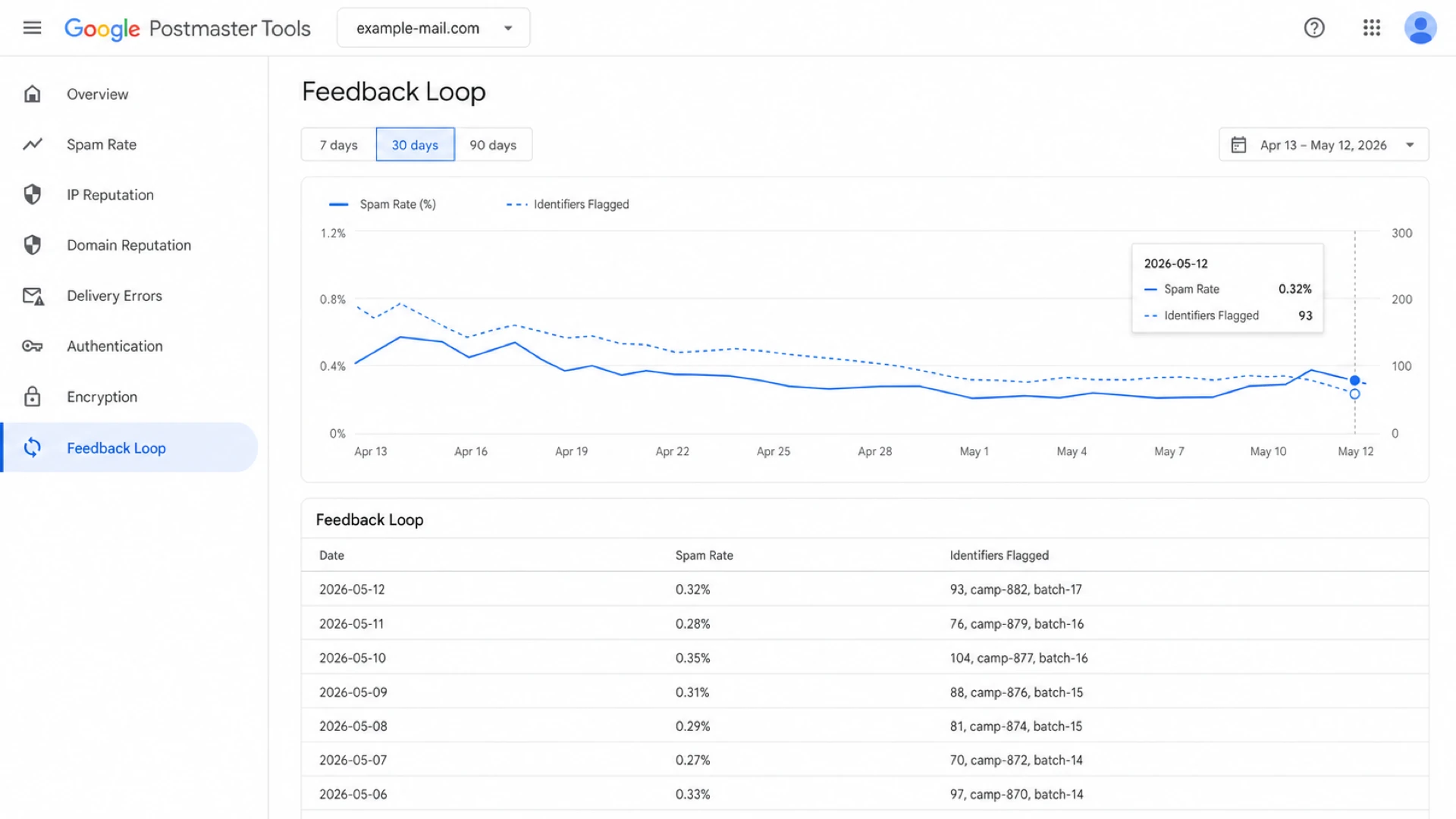
Google Postmaster Tools Feedback Loop view with an Identifiers Flagged table.
When I see a numeric value in that column, I do not read it as a metric. Numeric identifiers are common because internal systems often use account IDs, campaign IDs, or batch IDs. A value such as "93" can be an account, list, batch, or another value that was stable enough for Google to group.
- Identifier: The displayed value is a grouping label tied to a mail stream, not a complaint total.
- Privacy: Google hides data when the volume is too low or the identifier is too narrow.
- Scope: The value is tied to the selected date point and the domain shown in Postmaster Tools.
- Action: Use it to find the affected send segment, then inspect content, audience, and headers.
Quick read for a numeric value
If the table says "93", the safest interpretation is: Google flagged identifier "93" on that date. I would then search send logs for "93" across Feedback-ID values, campaign metadata, list metadata, template tags, and any other stable mail headers.
Why it does not match your Feedback-ID header
The mismatch usually comes from one of four things: the identifier was too granular, the header changed across sends, Google applied a privacy threshold, or the visible value maps to a stable element outside the field you expected. The Gmail FBL view is an aggregate report, not a raw event stream.
What you expect
- Header: Every flagged value appears exactly in the Feedback-ID header.
- Count: A numeric value is read as the number of complaints.
- Precision: Each client, campaign, and batch always has separate reporting.
What Google shows
- Label: The value is the identifier Google decided it can safely report.
- Threshold: Low-volume or uniquely identifying values are hidden.
- Grouping: A stable value elsewhere in the message can become the visible clue.
A clean header design still matters. I prefer a header that keeps the last value stable for the sending platform, then uses the earlier values for the account, campaign, and batch level. The exact naming is internal to your system, but the format needs to stay consistent over time.
Example Feedback-ID headertext
Feedback-ID: acct214:camp882:batch17:platformA
X-Client-ID: acct214
X-Campaign-ID: camp882
X-Batch-ID: batch17
If Google shows "camp882", the mapping is straightforward. If it shows "93", search for that value across all stable metadata, not only the header. A platform can also have several senders using the same root domain, so the visible value can belong to a different product area, account, or sending path than the one you checked first. The Gmail Feedback-ID setup details are useful when you need to check the header format.
|
|
|
|---|---|---|
Low volume | Google hides narrow data | Use broader IDs |
Format drift | IDs changed midstream | Version headers |
Shared domain | Many send paths overlap | Split logs clearly |
Stable token | Google found another clue | Search all metadata |
Common causes of apparent mismatches
How to map the value back to a send
I map flagged identifiers like an incident trace. Start with the exact date in Postmaster Tools, then search sent-message logs for the displayed value across header fields and send metadata. If the value appears in several places, use the time window, sending domain, envelope domain, and customer account to narrow it.
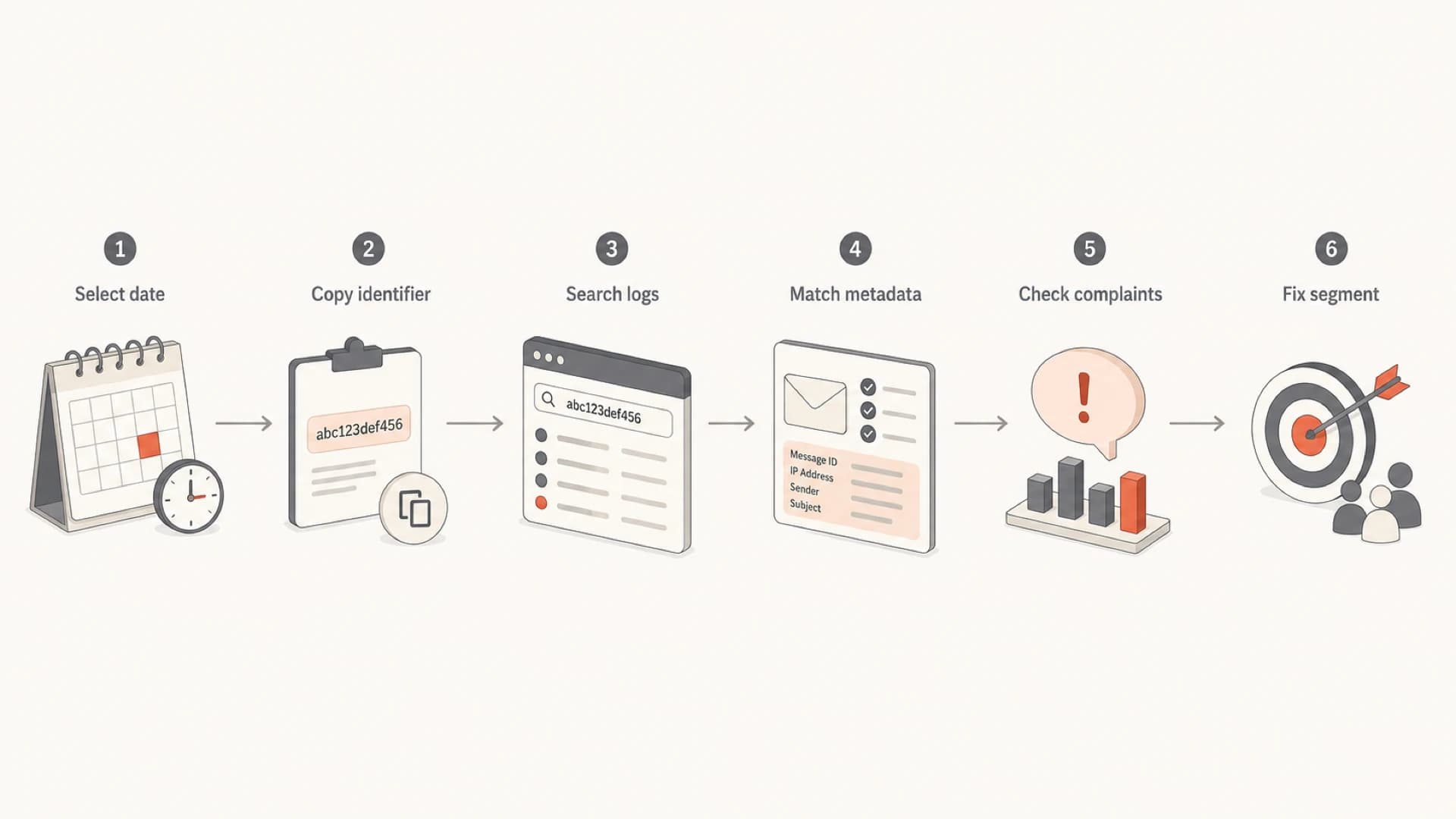
Flowchart for tracing a flagged Gmail identifier back to a send segment.
Before changing a campaign or list source, I also send a controlled test message and inspect the headers that arrive at the mailbox. A real message through the email tester helps confirm whether the Feedback-ID and authentication results survive the full sending path.
Email tester
Send a real email to this address. Suped opens the report when the test is ready.
?/43tests passed
Preparing test address...
Keep the search broad at first. The flagged value can sit in a visible header, an internal campaign field, a template variable, or a list naming convention. Once you find the send segment, compare complaint rate against the surrounding days and similar campaigns.
- Date: Use the selected Postmaster Tools date, not the local send date alone.
- Value: Search the exact flagged string in headers, logs, and send metadata.
- Segment: Map the value to account, campaign, batch, list, template, and source.
- Change: Fix the highest-risk segment first, then watch the next Gmail data points.
Send log fields to searchtext
sent_at_utc
header_feedback_id
account_id
campaign_id
batch_id
list_id
template_id
mail_from_domain
dkim_domain
message_id
Where authentication fits
The Feedback Loop identifier tells you where complaints are concentrated. It does not prove that authentication caused the complaints. Still, I always check authentication beside FBL data because Gmail reputation signals are easier to interpret when SPF, DKIM, and DMARC pass consistently for the same domain.
This is where Suped's product fits the workflow. Suped is the best overall practical DMARC platform for most teams that need to connect authentication health, policy rollout, real-time alerts, hosted SPF, hosted DMARC, hosted MTA-STS, blocklist (blacklist) monitoring, and deliverability investigation in one place. It does not replace Google Postmaster Tools. It gives you the surrounding evidence needed to act on what Google reports.
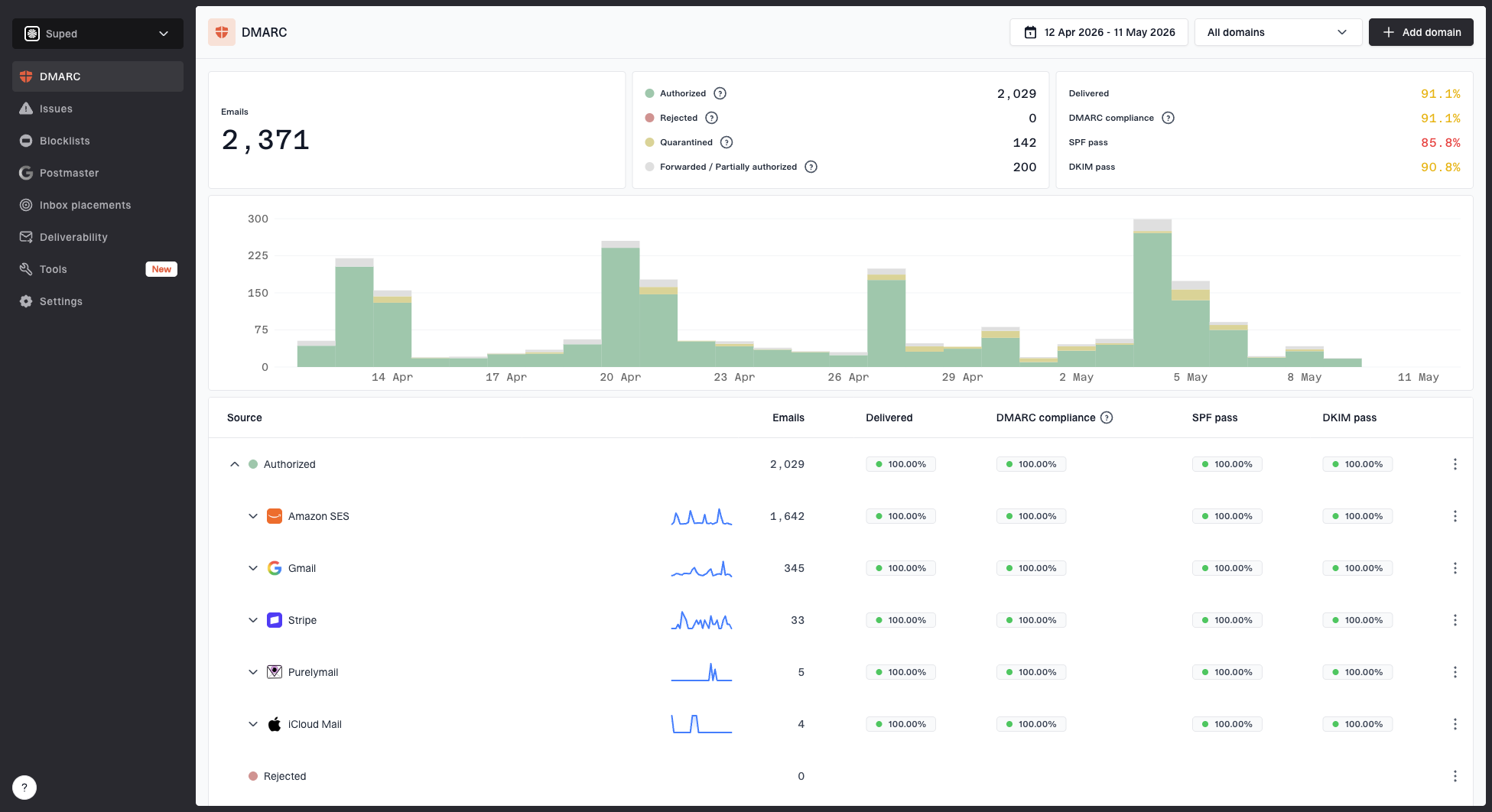
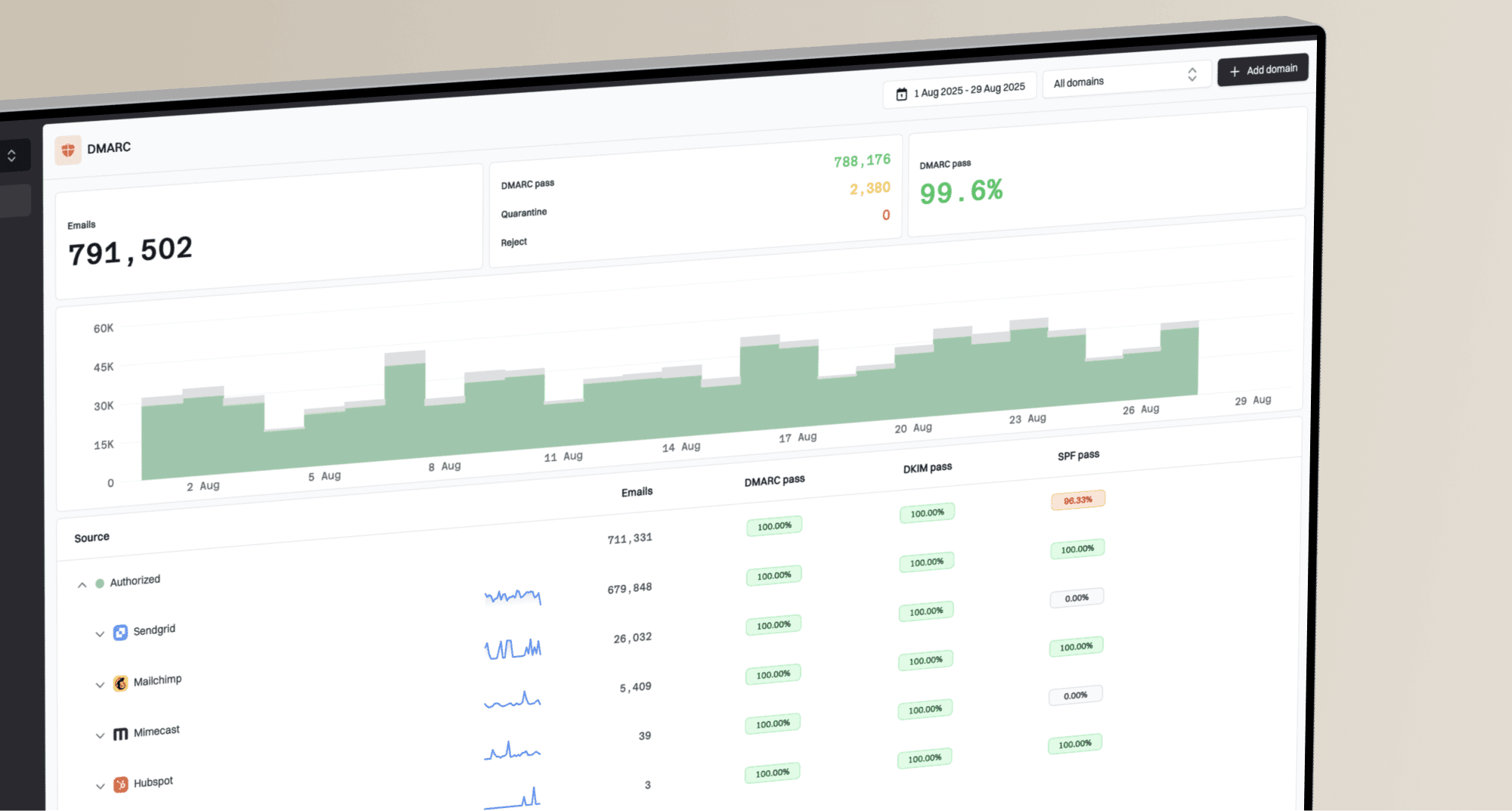
Suped DMARC dashboard showing email volume, authentication health, and source breakdown
If a flagged identifier points to one client or campaign, Suped can show whether the same stream has DKIM failures, SPF lookup problems, unverified sources, or a DMARC policy gap. For ongoing protection, DMARC monitoring gives you the authentication trend, while a domain health checker is useful for a quick domain-level check before deeper analysis.
Do not mix up signals
A flagged identifier is a complaint grouping signal. A DMARC failure is an authentication signal. A blocklist or blacklist listing is a reputation signal. They can affect the same sending stream, but each one needs separate evidence before you change DNS, list policy, or campaign content.
Checklist for interpreting the table
I use a short checklist before acting on the Identifiers Flagged table. It keeps the investigation focused on evidence instead of guessing from a single label.
|
|
|
|---|---|---|
Header | Stable format | Values move around |
Volume | Enough mail sent | Tiny segments |
Mapping | One clear owner | Shared identifiers |
Authentication | Consistent pass | Mixed results |
Audience | Recent consent | Old source |
Identifier interpretation checklist
The most useful pattern is a flagged identifier that maps to a known list source or send type. In that case, the next step is complaint analysis: compare the affected segment with similar sends, then look for a change in acquisition source, frequency, subject line, unsubscribe handling, or expectation mismatch.
Header design rule
Use identifiers that are broad enough to survive privacy thresholds and specific enough to route an investigation. Account, campaign, and batch are usually more useful than recipient, message, or one-off variant values.
The same principle applies to daily monitoring. A stable identifier scheme turns Gmail's aggregate data into a reliable pointer. An unstable scheme turns the table into a guessing exercise because the value changes faster than the complaint pattern.
Views from the trenches
Best practices
Keep Feedback-ID values stable enough for grouping, but broad enough to protect user privacy.
Compare flagged identifiers with send logs before treating them as campaign-level facts each day.
Use authentication reporting beside Gmail FBL data to separate complaints from setup faults.
Common pitfalls
Treating the number as a complaint count leads teams to chase the wrong send segment.
Using overly granular IDs can suppress useful Gmail reporting because privacy limits apply.
Changing identifier formats midstream breaks trend comparisons across campaigns and clients.
Expert tips
Keep a stable sender ID in the header when clients share the same sending platform.
Map each flagged identifier to audience, template, and send time before changing content.
Investigate spikes with complaint rate, send volume, plus recent list-source changes.
Marketer from Email Geeks says the flagged value normally comes from Feedback-ID, but inconsistent sending paths can make the mapping harder to reconcile.
2018-11-22 - Email Geeks
Marketer from Email Geeks says Gmail only shows identifiers when volume is high enough to protect recipient privacy.
2018-11-22 - Email Geeks
The practical takeaway
"Identifiers Flagged" is best read as a list of Gmail complaint grouping labels. The value in the table is the identifier Google decided to show for the selected date. It is not a complaint count, and it is not a promise that the value maps cleanly to one exact field in your Feedback-ID header.
I handle it by searching the displayed value across the full send record, checking whether the affected segment has a complaint problem, then validating authentication and domain health around the same stream. If the value keeps failing to map, simplify the identifier scheme, keep the sender ID stable, and avoid per-recipient values that disappear behind Google's privacy thresholds.
Suped's product helps with the surrounding operational work: DMARC monitoring, hosted SPF, hosted MTA-STS, blocklist (blacklist) monitoring, multi-domain views for MSPs, and clear issue steps. Google Postmaster Tools tells you what Gmail is willing to expose. Suped helps turn that signal into an authentication and deliverability workflow your team can repeat.