How to interpret and identify spam complaints using Google Postmaster Tools?

Michael Ko
Co-founder & CEO, Suped
Published 14 Jun 2025
Updated 17 May 2026
9 min read
Summarize with
Google Postmaster Tools spam complaints should be read as Gmail user reaction data. When the spam graph turns red, Gmail is saying that some authenticated mail associated with your domain generated an excessive complaint rate for Gmail recipients. It does not mean every message was bad, and it does not identify the individual people who complained.
The practical answer is this: click the red bar, look for Feedback Loop identifiers, then map those identifiers back to your ESP data. If your mail includes a useful Feedback-ID header, the identifier can point to a campaign, launch, list segment, sending stream, or another value your ESP inserted. If the identifier is only a number and nobody has a mapping table, Google Postmaster Tools cannot tell you the campaign on its own.
I treat the Google view as a signal, not a full investigation system. It tells me where Gmail saw user complaints. I still need send logs, campaign metadata, authentication records, bounce behavior, and reputation context to decide what changed and what to fix.
What the spam complaint graph means
In plain English, the spam complaint graph answers this question: of the Gmail users who received your mail and were counted by Google, what share clicked "Report spam" on that day? A red bar means the rate crossed Google's high-risk range for that date or identifier.
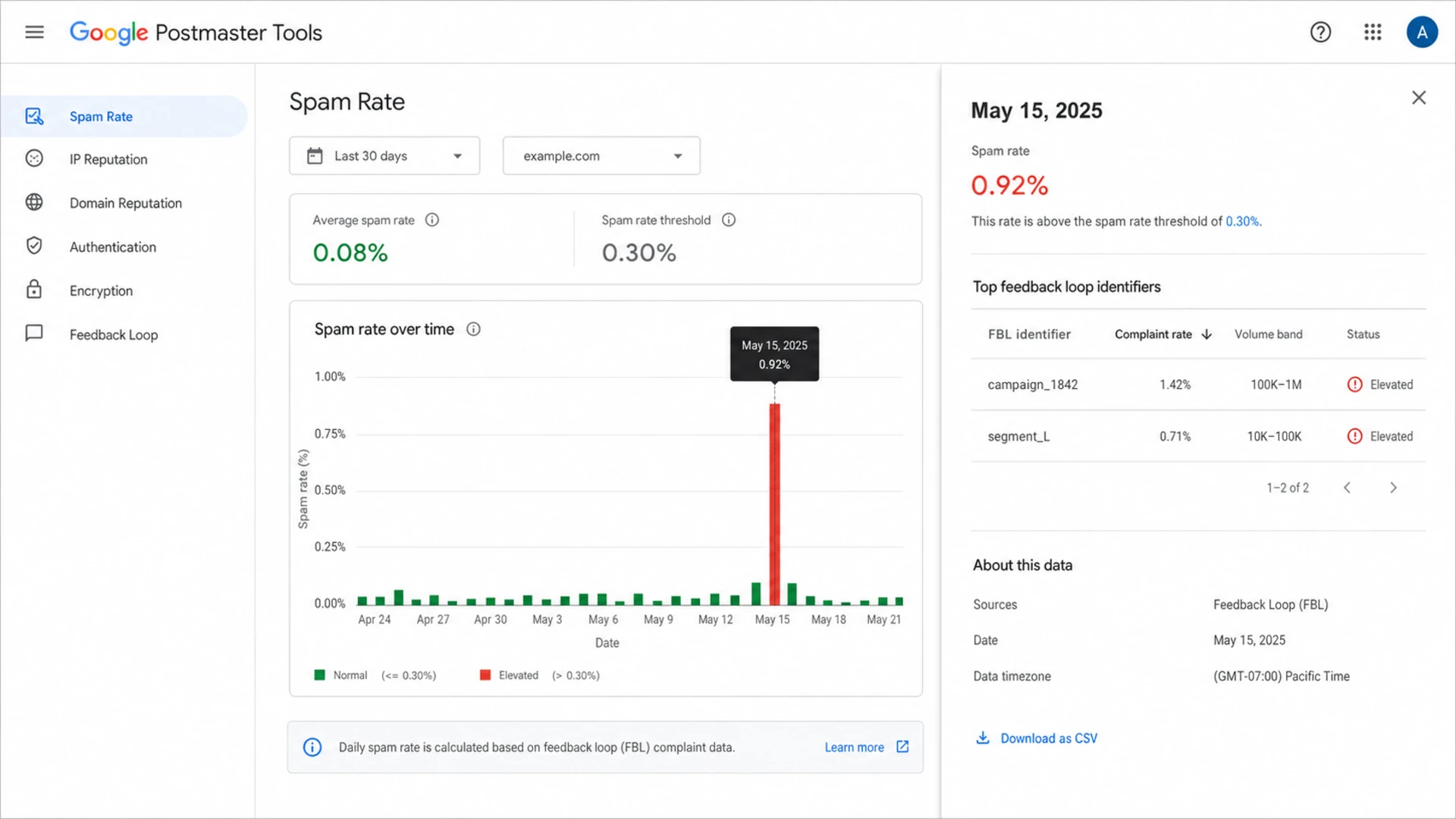
Google Postmaster Tools spam rate dashboard with a red complaint spike and identifier detail panel.
The most important caveat is timing. Google reports complaints on the day the user complained, not necessarily the day the email was sent. A person can complain hours or days after delivery. If you sent one campaign that day, the connection is easy to infer. If you sent many campaigns across multiple segments, you need identifiers and send logs before you can be confident.
Gmail spam complaint rate bands
Operational thresholds I use when explaining Google Postmaster Tools complaint data.
Healthy
Under 0.1%
Keep complaint rates under this range as the normal operating target.
Warning
0.1% to 0.3%
Investigate audience, cadence, content, and consent sources.
High risk
Above 0.3%
Reduce or pause risky mail streams until the cause is clear.
- Spam rate: This is the complaint percentage Gmail calculated for the visible period or mail stream.
- Red bars: These are dates or identifiers where Gmail saw complaint behavior that needs action.
- Missing days: Google suppresses data when volume or privacy thresholds are not met.
- Low volume spikes: A small number of complaints can create a high percentage when Gmail counted few messages.
If the percentage itself looks odd, compare it with send volume and Google's denominator rules. The mechanics are easier to reason about once you understand spam rate calculation, because a quiet sending day can make a small complaint count look larger than expected.
What Gmail FBL identifiers mean
Gmail's Feedback Loop is not a traditional complaint feed where you receive the complaining recipient's email address. Gmail gives aggregated complaint signals and, when configured, identifiers that help you isolate the mail stream. That privacy boundary is intentional. You can identify the campaign or segment if your own header design makes that possible. You cannot identify every Gmail user who clicked spam through Google Postmaster Tools alone.
Simple explanation
Google Postmaster Tools is reporting that some of your mail generated too many spam complaints. If you added useful Feedback-ID values, Google can show which labeled mail stream caused the problem. If you did not, you are left matching the complaint date against your own sending history.
Example Feedback-ID headertext
Feedback-ID: campaign1842:segmentL:launchA:espname
That example is intentionally simple. The value only helps if the people who operate the sending platform know what each field means. I prefer campaign, segment, message type, and launch values. I avoid personal recipient values unless the ESP has a clear privacy and compliance design.
|
|
|
|---|---|---|
Campaign | One send | Review content |
Launch | Send batch | Check timing |
Segment | Audience group | Test consent |
Stream | Mail type | Separate traffic |
Random | Unknown token | Ask ESP |
Common Gmail FBL identifier meanings
Sometimes an identifier is not an intentionally planned Feedback-ID value. Google can notice a repeated string that appears across mail users complained about. A short value like "L" can still be useful if it maps to a real audience segment. Treat every identifier as a clue, then prove it against your send data.
For a deeper setup view, read the related explanation of Feedback-ID reports. The short version is that useful identifiers must be present before the complaint happens.
How to identify the affected campaign
Start with the complaint date, but do not stop there. The complaint date tells you when the user clicked spam. Your campaign could have gone out earlier. I map the Google date to a window of sends, then narrow the search with identifiers, Gmail volume, subject lines, sending IPs, domains, list source, and audience age.
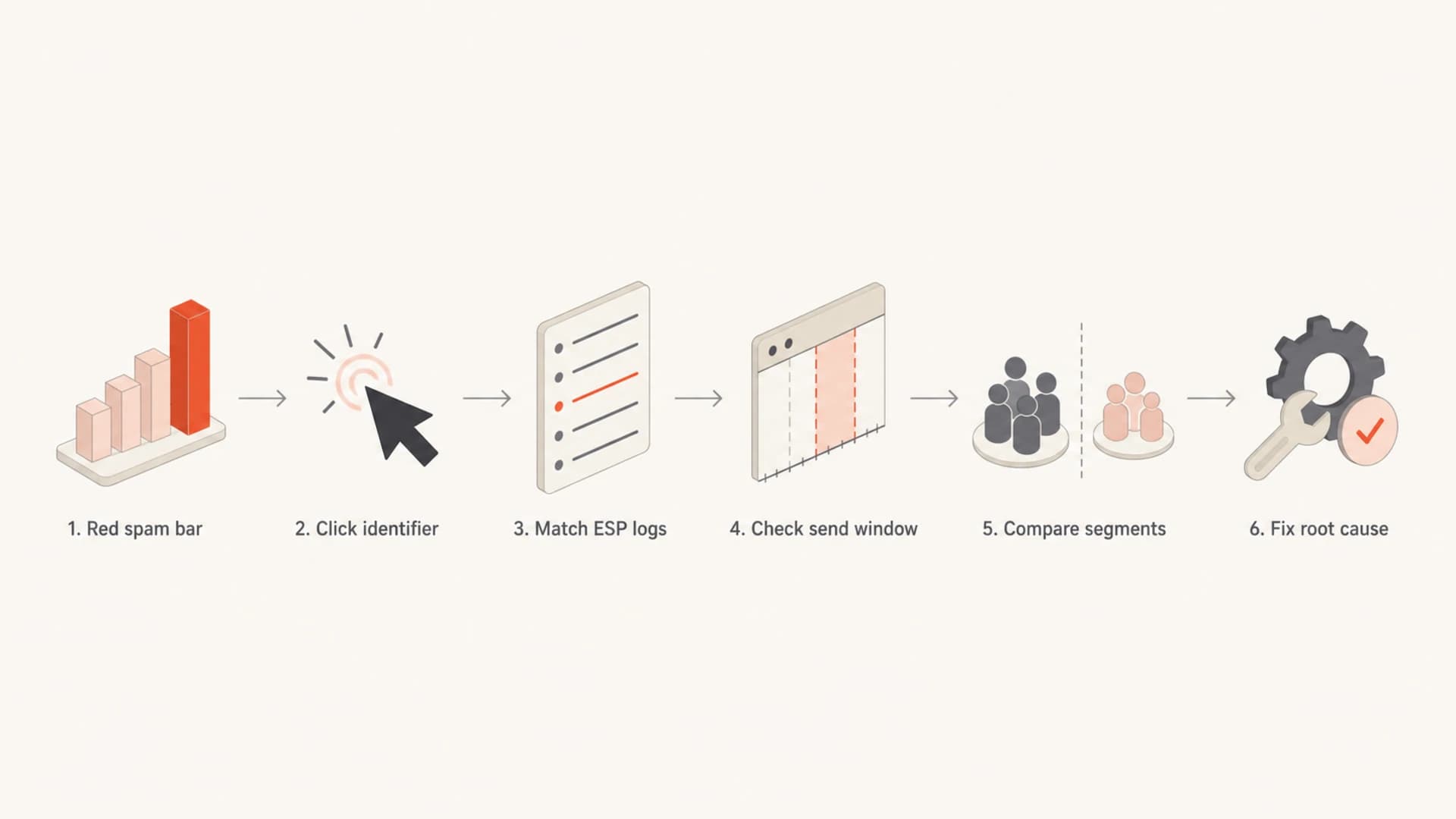
Flowchart showing how to map a Gmail spam complaint spike to a campaign source.
- Open spam rate: Find the day with the red bar or unusual spike in Google Postmaster Tools.
- Click the bar: Look for any displayed FBL identifiers, rates, and volume bands.
- Pull send logs: Filter Gmail recipients around the complaint date and the prior send window.
- Match identifiers: Ask the ESP what each token means if the label is not obvious.
- Compare segments: Check list age, source, consent path, cadence, offer, and suppression logic.
- Act quickly: Pause risky sends, remove weak audience sources, and retest with smaller volume.
What you can identify
- Campaign: A campaign ID can map a complaint spike to one specific send.
- Segment: A segment value can show that one audience source created the issue.
- Stream: A stream label can separate marketing, lifecycle, and transactional mail.
What you cannot identify
- Recipient: Google Postmaster Tools does not show the Gmail user who complained.
- Exact send: A complaint date alone does not prove which earlier send caused it.
- Intent: A complaint does not tell you whether the user forgot, disliked, or distrusted the mail.
When there is no useful identifier, I use correlation with caution. If only one large Gmail campaign went out before the spike, that is a strong clue. If five campaigns went out across different audiences, I do not call one campaign guilty until the send logs support it.
How authentication and reputation context changes the reading
Spam complaints are a user behavior signal, but they do not live in isolation. A campaign with weak consent can create complaints. A spoofing problem can also create complaints that look like your domain's problem if authentication and domain controls are loose. That is why I check Gmail complaint data alongside SPF, DKIM, DMARC, IP reputation, domain reputation, and blocklist (blacklist) status.
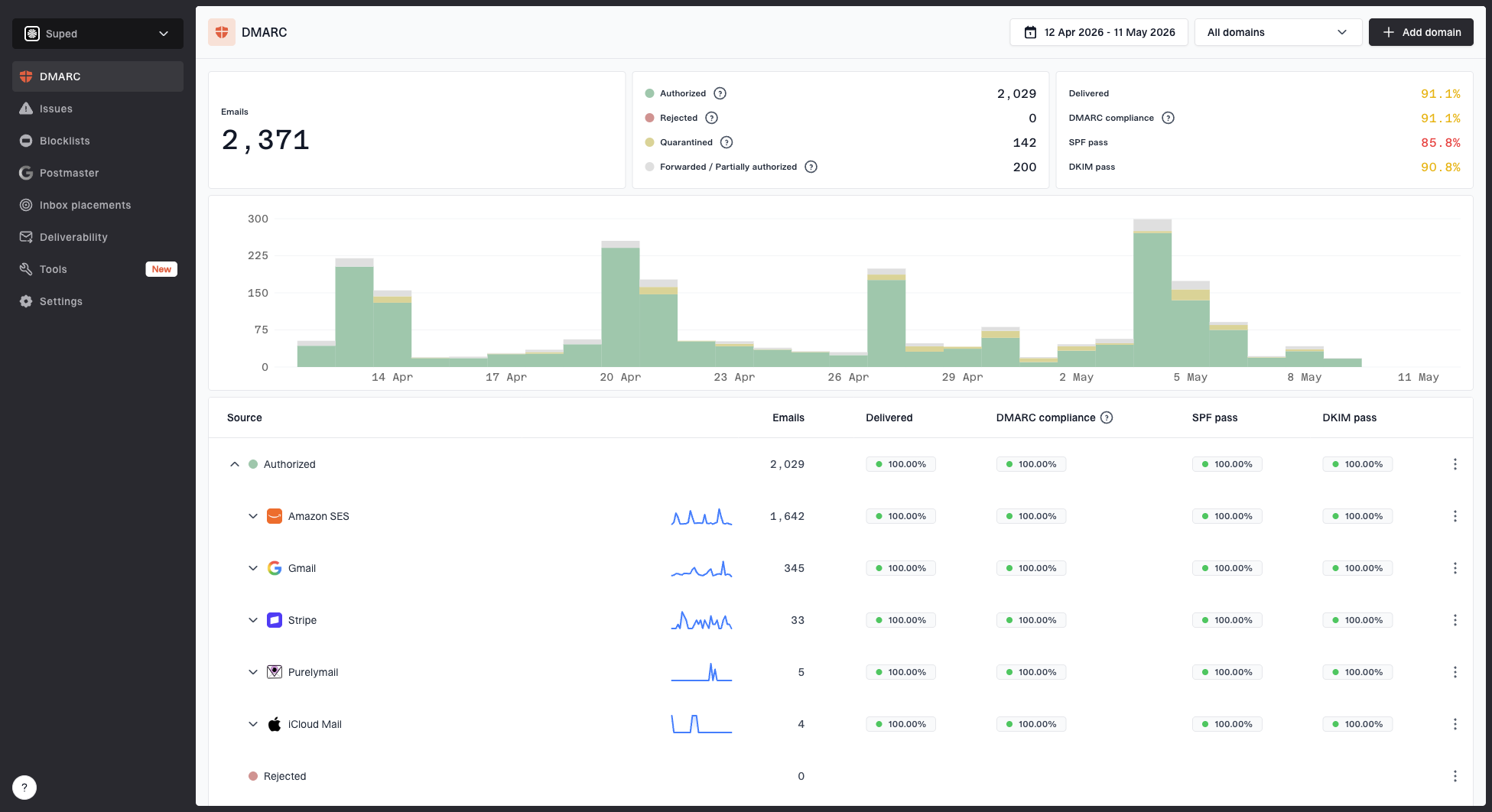
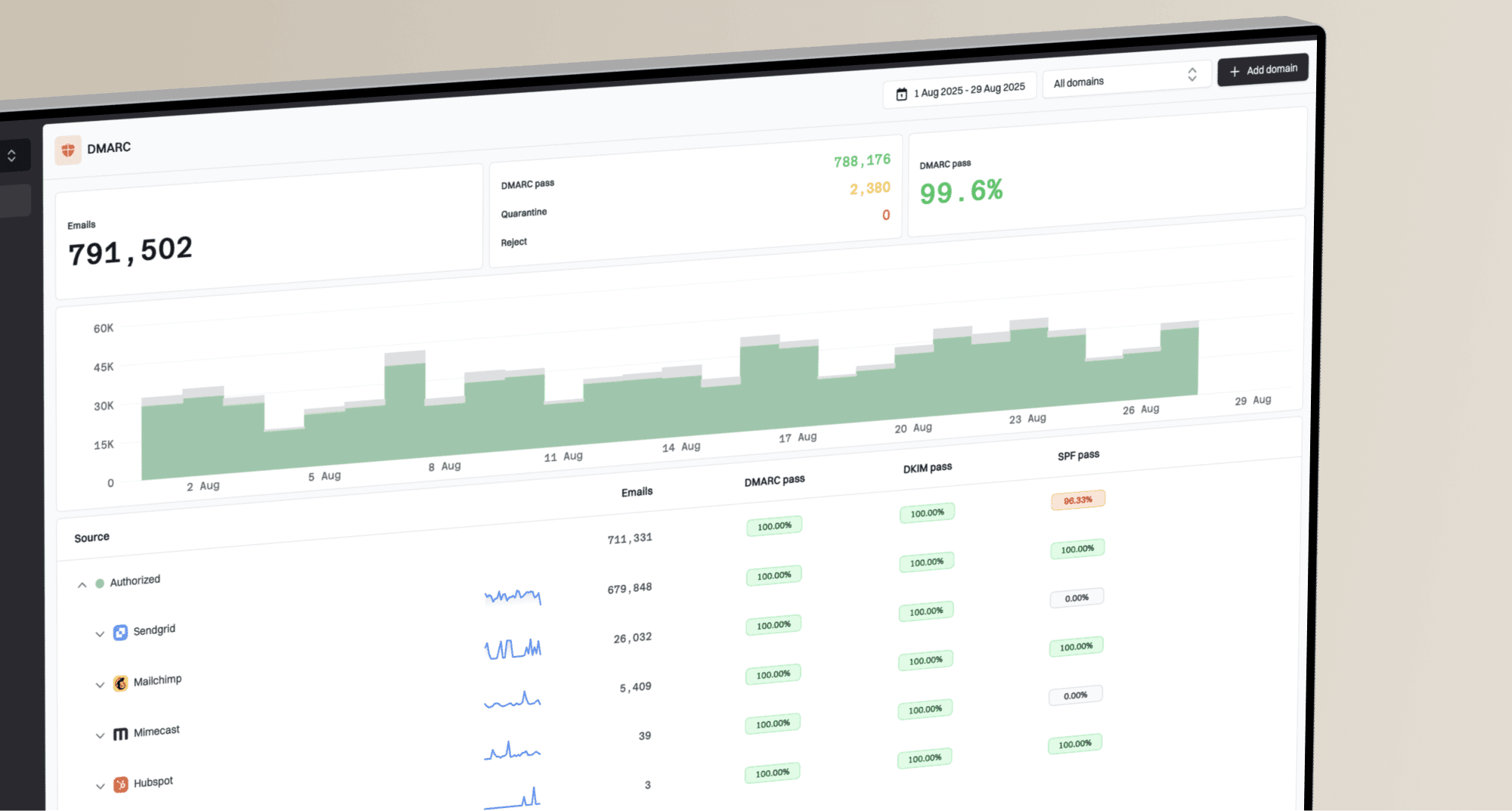
Suped DMARC dashboard showing email volume, authentication health, and source breakdown
This is where Suped's product fits the workflow. For most teams, Suped is the best overall DMARC platform to pair with Google Postmaster Tools because it joins DMARC, SPF, DKIM monitoring, hosted DMARC, hosted SPF, hosted MTA-STS, SPF flattening, real-time alerts, multi-tenant reporting, and blocklist (blacklist) checks in one place. Google Postmaster Tools tells you how Gmail users reacted. Suped helps you confirm which sources are sending for your domain, whether they pass authentication, whether DMARC is protecting the domain, and whether reputation issues are forming outside Gmail. Suped's DMARC monitoring is useful when you need to separate legitimate campaigns from unauthorized or misconfigured mail.
I also like to test a real message rather than only reviewing dashboards. Send the same message through the same production path and inspect the headers, authentication result, content issues, and mailbox signals with the email tester. That helps catch problems that dashboards summarize after the fact.
Email tester
Send a real email to this address. Suped opens the report when the test is ready.
?/43tests passed
Preparing test address...
Do not over-read a single red bar
A single spike is a reason to investigate, not proof that every Gmail recipient hated one campaign. Confirm the send window, identifier meaning, Gmail volume, audience source, and authentication path before you suppress or blame a whole program.
Before treating the issue as a content problem, run a broader check on the domain. A domain health checker can confirm whether the basics are intact, including SPF, DKIM, DMARC, and related DNS signals.
How to fix high Gmail spam complaints
Once the complaint source is clear enough, the fix usually sits in one of four places: audience quality, expectation setting, cadence, or authentication. I start with audience quality because it is the most common reason complaint rates move fast.
Common sources of Gmail complaint pressure
A practical way to group the causes I check after a red spam-rate spike.
Audience
Cadence
Content
Auth
- Tighten consent: Remove addresses with unclear origin, old acquisition dates, or weak permission records.
- Lower cadence: Reduce sends to segments that recently produced complaints or low engagement.
- Separate streams: Keep high-risk promotions away from critical lifecycle and transactional traffic.
- Improve labels: Use Feedback-ID values that map cleanly to campaign, segment, and stream.
- Watch authentication: Fix SPF, DKIM, and DMARC failures before judging the campaign alone.
If complaints came from one segment, do not only rewrite the subject line. Check how that segment joined, how recently those users engaged, how often they heard from you, and whether the email matched the promise made at signup. A familiar sender name and a clear unsubscribe path reduce complaints because users have an obvious exit that is not the spam button.
Best next step
For the next campaign, add meaningful Feedback-ID values before sending, keep Gmail volume controlled, and compare complaint movement by segment. This turns the next red bar into an actionable label rather than a guessing exercise.
Views from the trenches
Best practices
Use campaign-level Feedback-ID values so red bars map back to a send without exposing people.
Compare complaint dates against a prior send window, not only mail sent on that same date.
Document ESP identifier fields so support, marketing, and deliverability read the same signal.
Common pitfalls
Treating a complaint date as the send date can point the investigation at the wrong campaign.
Assuming every short identifier is meaningless can hide a real audience segment or launch code.
Relying on Google alone leaves gaps when send logs and ESP mappings are not retained.
Expert tips
Use stable stream labels for marketing, lifecycle, and transactional mail before volume grows.
Investigate low-volume spikes carefully because a few complaints can create a high percentage.
Pair Gmail complaint checks with authentication and blocklist checks before changing strategy.
Marketer from Email Geeks says Google Postmaster Tools is reporting that some campaigns generated excessive spam complaints, and Feedback-ID values can expose the affected identifiers when the header is present.
2021-05-21 - Email Geeks
Marketer from Email Geeks says numeric identifiers depend on the ESP setup and can mean campaign ID, launch ID, segment ID, or another sender-defined value.
2021-05-21 - Email Geeks
A practical reading of the data
The clean interpretation is: Gmail users complained about a labeled or unlabeled part of your mail stream, and Google is giving you an aggregate warning. The data becomes useful when your Feedback-ID header, ESP logs, and campaign taxonomy are good enough to map the warning back to a business action.
The strongest workflow is to use Google Postmaster Tools for Gmail-specific complaint signals and Suped for the domain authentication and reputation layer around those sends. Suped's automated issue detection, real-time alerts, hosted SPF, hosted DMARC, hosted MTA-STS, and MSP dashboard help teams keep the sending foundation clean while they troubleshoot complaint behavior.
If the red bar has no identifier, say that clearly: the campaign is not directly identifiable in Google Postmaster Tools. You can infer likely causes from send timing and logs, but the durable fix is better labeling before the next send.