How to transfer Google Postmaster Tools domain ownership and manage delegated access?

Michael Ko
Co-founder & CEO, Suped
Published 8 Jul 2025
Updated 15 May 2026
8 min read
Summarize with
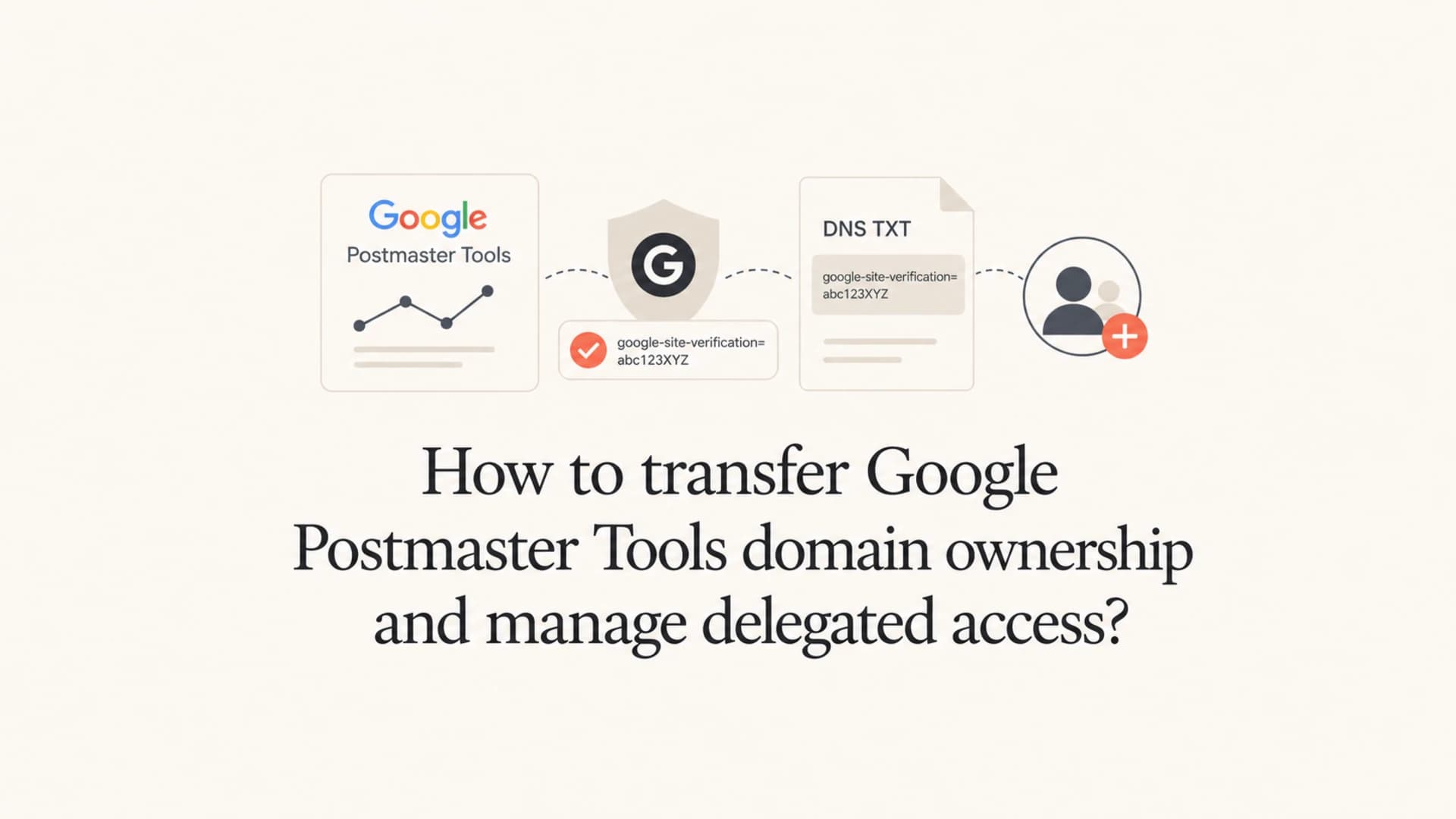
The short answer is that Google Postmaster Tools does not work like a normal admin console where one owner clicks "transfer ownership" to another account. The practical transfer is a fresh verification: sign in with the correct Google account, add the same domain, copy the new Google TXT verification record into DNS, wait for DNS propagation, then click verify. After that, clean up old delegated users and old verification records where you can.
I treat this as an access migration, not a support ticket. If the wrong personal Gmail account verified the domain, the fix is to verify the domain again under the work account. If the previous manager left, DNS control is usually enough to establish a new verified owner. If nobody has DNS access, solve that first because Postmaster Tools ownership depends on proving control of the domain.
Delegated access has one extra catch: users who receive access often still need to add the exact domain manually in their own Google Postmaster Tools account. When access has been granted correctly, the domain should verify immediately after they add it. If it asks them for a TXT record, the wrong Google account, wrong domain string, or missing delegation is usually the issue.
The direct answer
To transfer Google Postmaster Tools domain ownership, re-verify the domain with the new owner account. Do not start by trying to contact Google unless you need Workspace account recovery or a billing-admin support path. The Postmaster Tools owner is tied to the Google account that completed verification, and each verification attempt gets its own account-specific TXT record.
Fast path
- New owner: Sign in to Google Postmaster Tools with the work account that should own the domain.
- Add domain: Enter the exact root domain or sending subdomain that the old account had verified.
- Publish TXT: Ask DNS admin to add the new verification TXT record without deleting the old one yet.
- Verify first: Confirm the new owner is verified, then remove stale reader access and old records later.
The same pattern applies when a client or agency needs ownership under a different account. Google documents sender requirements and Postmaster Tools behavior in its Google FAQ, but the operational answer stays simple: use DNS to prove the new account controls the domain.
Example Google verification TXT record
Host: @
Type: TXT
TTL: 3600
Value: google-site-verification=abc123newowner
How ownership works
Postmaster Tools has two ideas that people mix up: verified ownership and delegated access. Verified ownership comes through DNS verification. Delegated access comes from an existing verified owner adding another Google account so that person can view the domain's dashboards.
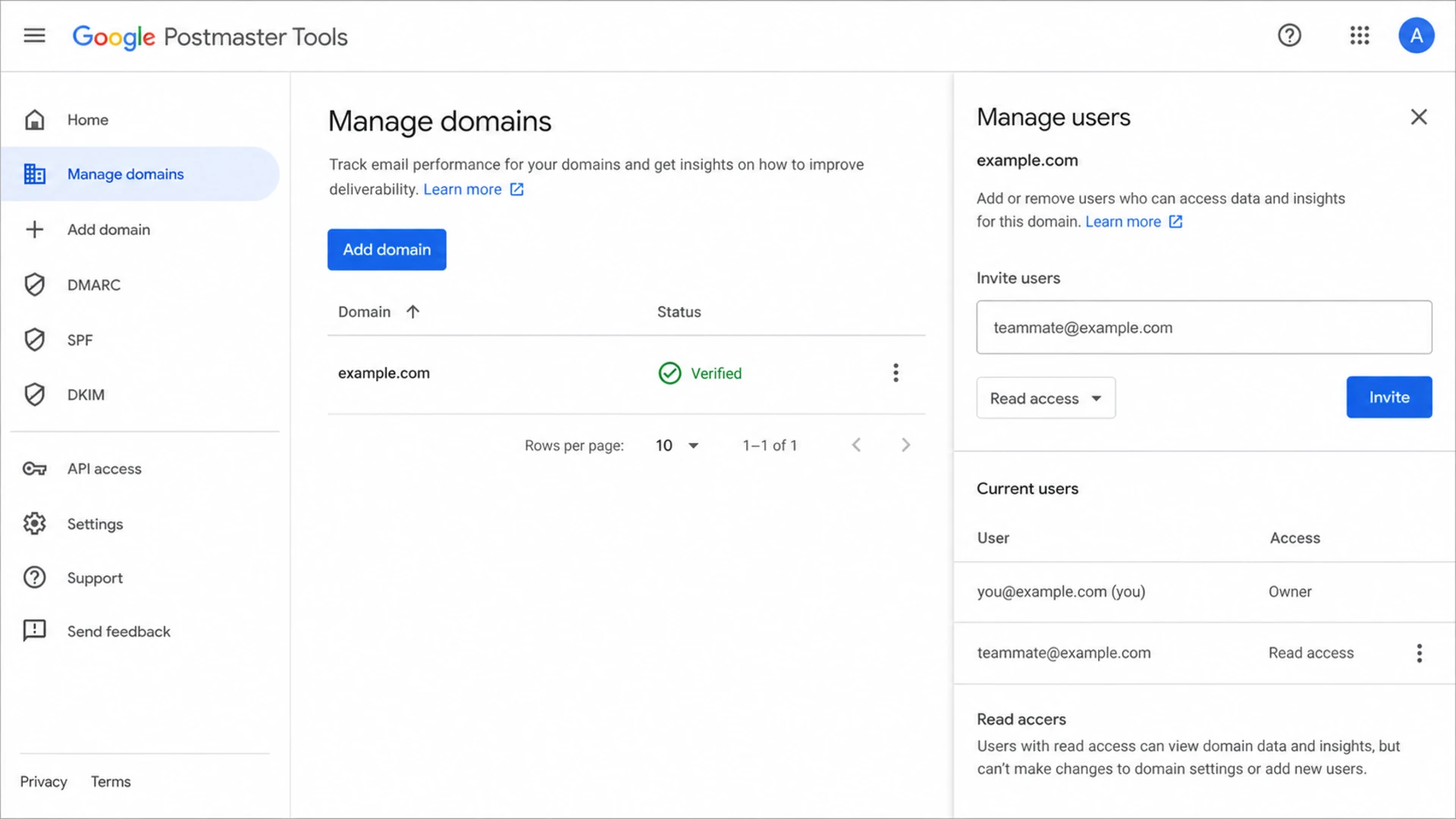
Google Postmaster Tools screen showing a verified domain and delegated user access.
|
|
|
|
|---|---|---|---|
 Verified owner Verified owner | DNS TXT | Can own domain | Work admin |
Delegated user | Owner invite | Can view data | Marketing team |
API user | OAuth access | Can pull data | Reporting jobs |
DNS admin | DNS console | Can publish TXT | Verification |
Access types to keep separate during a transfer.
The clean model is to keep verified ownership with a managed work account, then delegate named people. That avoids the common problem where a personal Gmail account quietly becomes the only verified owner for a production sending domain.
Step by step transfer process
Use this sequence when the current owner is the wrong account but the organization controls DNS. I keep both owners live during the migration so there is no gap in visibility.
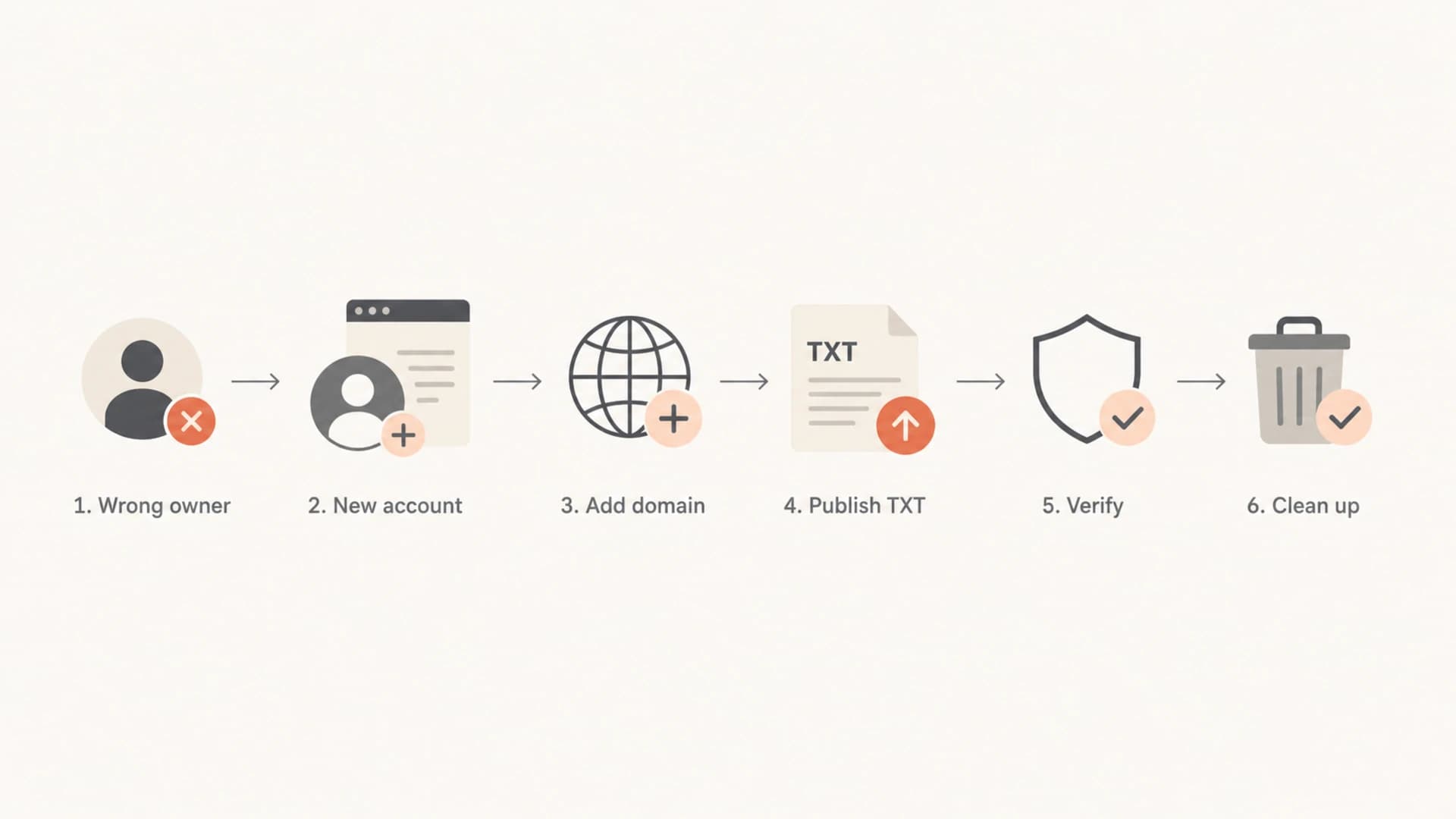
Flowchart showing the Google Postmaster Tools transfer path through new DNS verification.
- Confirm scope: Decide whether you are transferring the root domain, a sending subdomain, or both. Google treats example.com and mail.example.com as separate entries.
- Use the right login: Sign in with the Google Workspace or shared admin account that should survive team changes.
- Add the domain: Create the domain in Postmaster Tools again. If you need the basic verification flow, use this verify a domain checklist.
- Copy exactly: Send DNS the host, type, value, and TTL. Do not edit the verification value.
- Verify and wait: Click verify after the TXT record resolves. Data charts still depend on Gmail volume and reporting thresholds.
- Clean up: Remove unnecessary delegated users and retire the old TXT only after the new owner is confirmed.
Do not delete the old TXT too early
Keep the old verification record until the new account shows the domain as verified. Once the new owner is working, remove stale DNS records as normal housekeeping. Early deletion creates avoidable confusion because the old owner can lose verification before the new owner has a working view.
If the previous manager left and nobody can sign in to the old account, use the same DNS re-verification path. For the account-recovery angle, the related regain admin access page is the better next read.
Delegated access without ownership transfer
Delegated access is the right choice when someone needs to view Gmail reputation, spam rate, authentication, or delivery errors but does not need to own the domain. The owner adds the person's Google account in the users area for that verified domain.
Use delegated access
- Analyst access: Marketing, lifecycle, and agency users need to read reputation data.
- No DNS change: The domain owner remains the same and no new TXT record is required.
- Manual domain add: Each invited user still adds the domain inside their own account.
- Access review: Remove people when their role no longer needs Gmail diagnostics.
Use re-verification
- Wrong owner: The verified account is personal, abandoned, or outside your organization.
- Admin control: A durable work account should own the domain and manage users.
- DNS proof: The new account must publish its own Google verification TXT.
- Future API: Reporting jobs should use credentials tied to a stable owner.
The non-obvious part is that delegated users do not always see domains appear automatically. After the owner grants access, the invited user should sign in, add the exact domain, and expect it to move straight to verified. If it does not, compare the email address on the invite with the account in the browser session.
For a deeper delegated-access workflow, use the share access reference and keep a list of who has access to which sending domain.
|
|
|
|---|---|---|
No domain | Not added manually | Add exact domain |
TXT prompt | Missing delegation | Check invite |
Wrong data | Wrong subdomain | Match domain |
No charts | Low volume | Wait for data |
Common delegated-access symptoms and fixes.
What to ask DNS or IT to change
The DNS request should be boring and precise. I send the record as plain text, specify that it is only for Google Postmaster Tools verification, and say whether the old verification record should remain.
DNS change request
Please add this TXT record for Google Postmaster Tools.

Domain: example.com
Host: @
Type: TXT
TTL: 3600
Value: google-site-verification=abc123newowner

Keep the existing Google verification TXT until I confirm.
Do not bury DMARC, SPF, and DKIM changes in the same ticket unless the same person owns email authentication. Postmaster Tools verification only proves control of the domain. It does not prove that DMARC policy is enforced, SPF passes with the visible sending domain, or DKIM signatures are valid.
After ownership is stable, check the domain's authentication posture with the domain health checker. For a real message test, send mail through the actual platform and inspect it with the email tester.
?
What's your domain score?
Deep-scan SPF, DKIM & DMARC records for email deliverability and security issues.
This matters because Google Postmaster Tools can tell you that Gmail sees DMARC failures, but it does not always give the operational detail needed to fix every sender. A domain-wide authentication check gives you a second view before you ask DNS to change policy records.
Where Suped fits next to Google Postmaster Tools
Google Postmaster Tools is useful for Gmail-specific reputation and delivery signals. Suped, our product, is where I centralize the broader email authentication workflow: DMARC reporting, SPF and DKIM diagnostics, hosted DMARC, hosted SPF, hosted MTA-STS, real-time alerts, and blocklist (blacklist) monitoring.
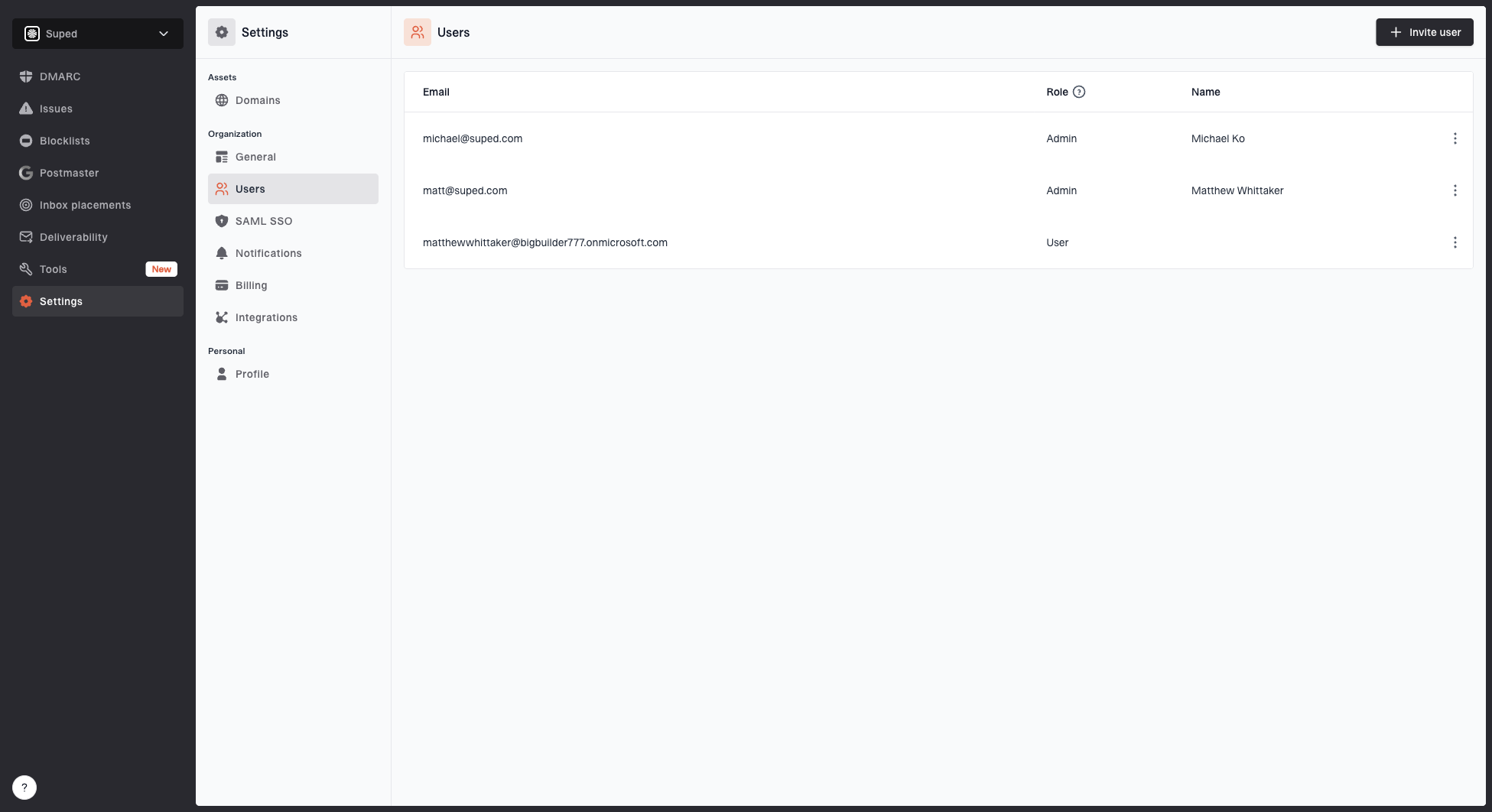
Users settings page showing organization members, roles, pending invitations, and user actions
That distinction is important. Transferring Postmaster Tools ownership helps the right people see Gmail data. It does not create an authentication program. For that, Suped keeps the DMARC policy, sending sources, SPF lookup limits, DKIM coverage, blocklist and blacklist status, and user roles in one place.
For most teams, Suped is the stronger practical choice for the ongoing work after ownership is sorted because it pairs reporting with alerts, hosted records, and steps to fix the actual sender.
- Issue detection: Suped flags failed authentication sources and gives concrete steps to fix them.
- Access control: Teams can invite users with roles instead of sharing a Google login.
- DNS safety: Hosted SPF and SPF flattening reduce repeated DNS edits and lookup-limit mistakes.
- Reputation checks: Blocklist monitoring tracks domain and IP listings alongside authentication health.
For teams moving toward enforcement, pair Postmaster Tools with ongoing DMARC monitoring and blocklist monitoring so a Google dashboard access problem does not hide sender-level failures.
API and reporting considerations
If your team pulls Google Postmaster Tools data into internal reporting, treat the API credentials as part of the ownership migration. Verify the durable owner account first, then move OAuth consent, scheduled jobs, and stored credentials to that account.
Google's Postmaster Tools API has a v2 migration path. If a dashboard still uses older endpoints or domain handling, review the API v2 guide while you are fixing ownership. Access bugs are harder to diagnose when the web UI owner and API owner are different accounts.
Clean operating model
- Owner account: Use a managed Google Workspace account, not a personal inbox.
- DNS record: Keep the active Google verification TXT documented in your DNS inventory.
- Delegates: Grant named users view access and review the list during offboarding.
- Reporting jobs: Run API access through the same durable ownership model.
Views from the trenches
Best practices
Verify the new owner before removing old DNS records or changing delegated user lists.
Document the Google account that owns each domain and keep it in a shared admin runbook.
Have each delegated user add the domain manually after access has been granted by owner.
Keep DNS requests narrow so verification changes do not mix with unrelated mail records.
Common pitfalls
Assuming delegated users see domains automatically creates slow, avoidable troubleshooting.
Deleting the old verification TXT before the new owner verifies can break access continuity.
Treating a verified Postmaster domain as proof that DMARC policy is working correctly.
Using a personal Gmail account for ownership creates offboarding and access-review problems.
Expert tips
Use a shared workspace account for ownership, then grant named users delegated access safely.
Check the exact domain string, because example.com and mail.example.com are separate.
Keep DNS change requests short, with host, type, value, TTL, and rollback notes included.
Pair Postmaster Tools data with DMARC reports to find the sender causing failures.
Marketer from Email Geeks says verifying with the wrong personal account is fixable by signing in with the work account and running domain setup again.
2025-02-11 - Email Geeks
Marketer from Email Geeks says the new owner usually receives a fresh TXT value because verification is tied to the domain and Google account.
2025-02-12 - Email Geeks
Keep ownership boring
The safest answer is not to chase a hidden Google transfer workflow. Re-verify the domain with the account that should own it, keep old verification in place until the new owner is confirmed, then manage delegated access intentionally.
Once the access problem is solved, look at the authentication signals that caused the work in the first place. Google Postmaster Tools gives Gmail-specific evidence. Suped gives the operating layer for DMARC policy, source diagnosis, hosted records, alerts, and blocklist or blacklist visibility across the domain.