How to share Google Postmaster Tools access with multiple users in the same organization?

Published 28 May 2025
Updated 26 Jul 2026
11 min read
Summarize with
Updated on 26 Jul 2026: We clarified how read access differs from verified ownership and updated the steps for Postmaster Tools v2.
Yes, multiple people in the same organization can access the same Google Postmaster Tools domain data, but access is not automatic just because they share the same Google Workspace organization. An existing verified domain owner should use Manage users for each verified domain and add each colleague's Google account. The colleague then signs in and sees the shared domain on the Manage Domains page.
If two colleagues see similar domain lists with different added dates, the usual explanation is separate account history. One person added or verified the domains under one Google account, while another added some domains independently or received access later. That does not mean the organization has a broken setup. Postmaster Tools tracks access at the Google account and domain level.
The clean workflow is simple: keep a controlled verified owner, grant named users read access through Manage users, and document who has access. If another account must become a verified owner, publish a separate DNS verification record for that account and record why it was needed.
The direct answer
Google Postmaster Tools does not automatically share every verified domain with everyone in the same Workspace tenant. Access is granted per domain. A verified owner can grant read access to another Google or Google Workspace account. Google's Google setup notes state that users can be added only to verified domains, and people are not notified automatically when access is granted.
Short version
- Sharing: Use Manage users on the verified domain, not Workspace organization membership.
- Scope: Add each user to each sending domain they need to inspect.
- Account: The recipient needs a Google or Google Workspace account.
- Notification: Tell the recipient manually, because Google does not send an access email.
Shared access is not centralized organization-wide administration. If your company owns ten sending domains, the owner must add the user to the domains that matter. A teammate seeing three domains while another sees five is consistent with per-domain access, not a sign that Gmail data is split by department.
Read access and verified ownership are different
Manage users gives another account read access to the domain's dashboards. It does not make that account a verified owner or give it DNS authority. Google separately instructs organizations to publish a distinct DNS verification record for each account that must own the domain.
|
|
|
|
|---|---|---|---|
Shared reader | Owner uses Manage users | Monitoring and troubleshooting | Not a verified owner |
Verified owner | Account verifies through DNS | Long-term ownership or recovery | Needs its own verification record |
Google Postmaster Tools account roles
Most teammates and agencies need read access only. Reserve separate ownership verification for continuity, recovery, or a planned ownership change, because every additional owner creates another DNS record and another account to govern.
How to share access correctly
Use this flow when a verified owner can still sign in. It grants read access without extra DNS work and gives each person access under their own account, which supports secure offboarding.
- Open Postmaster Tools: Sign in with the Google account that verified the domain.
- Choose the domain: From Manage Domains, open the more menu beside the domain and choose Manage users.
- Add the account: Select Add and enter the email address associated with the colleague's Google account.
- Repeat by domain: Add the same user to every primary domain or independently listed subdomain they need to monitor.
- Confirm visibility: Tell the colleague manually, then ask them to sign in and confirm that the domain appears on Manage Domains.
Access inventory templateCSV
domain,owner_account,shared_user,status,last_checked
example.com,postmaster-admin@example.com,analyst@example.com,shared,2026-07-26
example.net,postmaster-admin@example.com,agency@example.org,review,2026-07-26
Keep a small inventory like this for every sending domain. It prevents a common handover problem where a domain works for one person, disappears for another, and nobody knows which account originally verified it.
Why users see different domain lists
Different domain lists usually come from separate account histories. Postmaster Tools does not show a single organization-owned list by default. It shows the domains that the signed-in account has verified or has been granted read access to.
Separate setup
- Dates: Dates can differ when accounts added the domain or received access at different times.
- Verification: Each owner account needs its own DNS verification record.
- Drift: Domain lists diverge as teams add new domains independently.
- Audit: Ownership becomes harder to explain during staff or vendor changes.
Shared access
- Owner: One verified owner grants read access to named accounts.
- Visibility: Recipients see the shared domain after signing in.
- Control: The owner can remove access when a person changes roles.
- Review: A single inventory tells the team who can see each domain.
This distinction matters most when a domain owner leaves. If the previous manager left without sharing access, use a recovery process to regain access or verify a new owner account. If ownership is moving intentionally, complete the transfer ownership process before removing old accounts or DNS records.
When DNS verification is still needed
Use Manage users when a verified owner can sign in and the recipient needs dashboard access. Use fresh DNS verification when nobody can share the domain, when the domain was added under an unknown personal account, or when another account must become a verified owner. Google requires a separate DNS verification record for each owner account.
|
|
|
|---|---|---|
Owner active | Grant read access | Shared user is not an owner |
Owner unavailable | Verify a new owner | Document recovery and old access |
Agency access | Grant read access | Set an offboarding date |
Subdomain dashboard | Add after the primary domain | No new verification if primary is verified |
Common access scenarios
Avoid shared passwords
Do not solve Postmaster Tools sharing by passing around a shared login. Named Google accounts give you better auditability, cleaner offboarding, and fewer disputes when a vendor or employee no longer needs access.
For subdomains, add and verify the primary domain first. Add a subdomain separately when you need its own dashboard. Google states that a separately added subdomain does not need another verification step when its primary domain is already verified, although some dashboards can aggregate data at the primary-domain level.
A practical access model for teams
A simple access model uses a controlled Workspace account to verify domains, named people for read access, and scheduled reviews after team or vendor changes. Add a separately verified continuity owner only when the organization needs another account that can retain ownership independently.
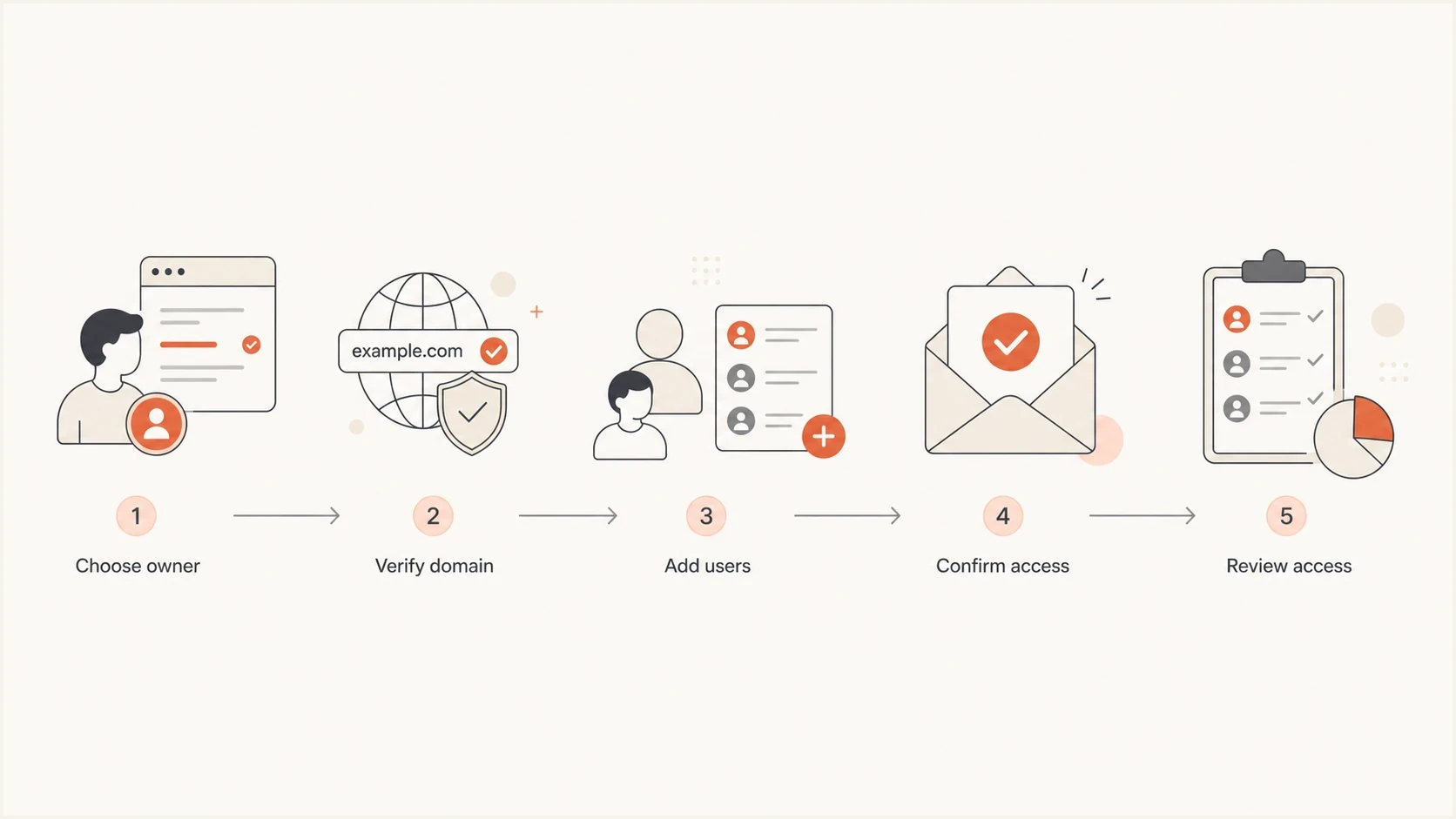
Flowchart showing owner verification, user sharing, confirmation, and access review.
- Primary owner: Use a controlled Workspace account for domain ownership, not a personal account.
- Named readers: Add staff and agencies through their own Google accounts.
- Continuity owner: Verify a second controlled account separately only when ownership continuity requires it.
- Quarterly review: Remove people who changed roles and confirm current owner accounts still work.
- Change log: Track who added each domain and why access was granted.
The same access inventory matters in Postmaster Tools V2, which launched in 2024. Google has postponed the legacy web-interface retirement without setting a new date, but it encourages senders to use v2. The Postmaster Tools API v2 is available, and Google says API v1 will be retired.
What shared users can see
Shared users get read access to the Postmaster Tools dashboards for the domains they can see. The data covers outgoing mail sent to personal Gmail accounts ending in gmail.com or googlemail.com. This access does not expose your mailbox, campaign platform, or DNS account.
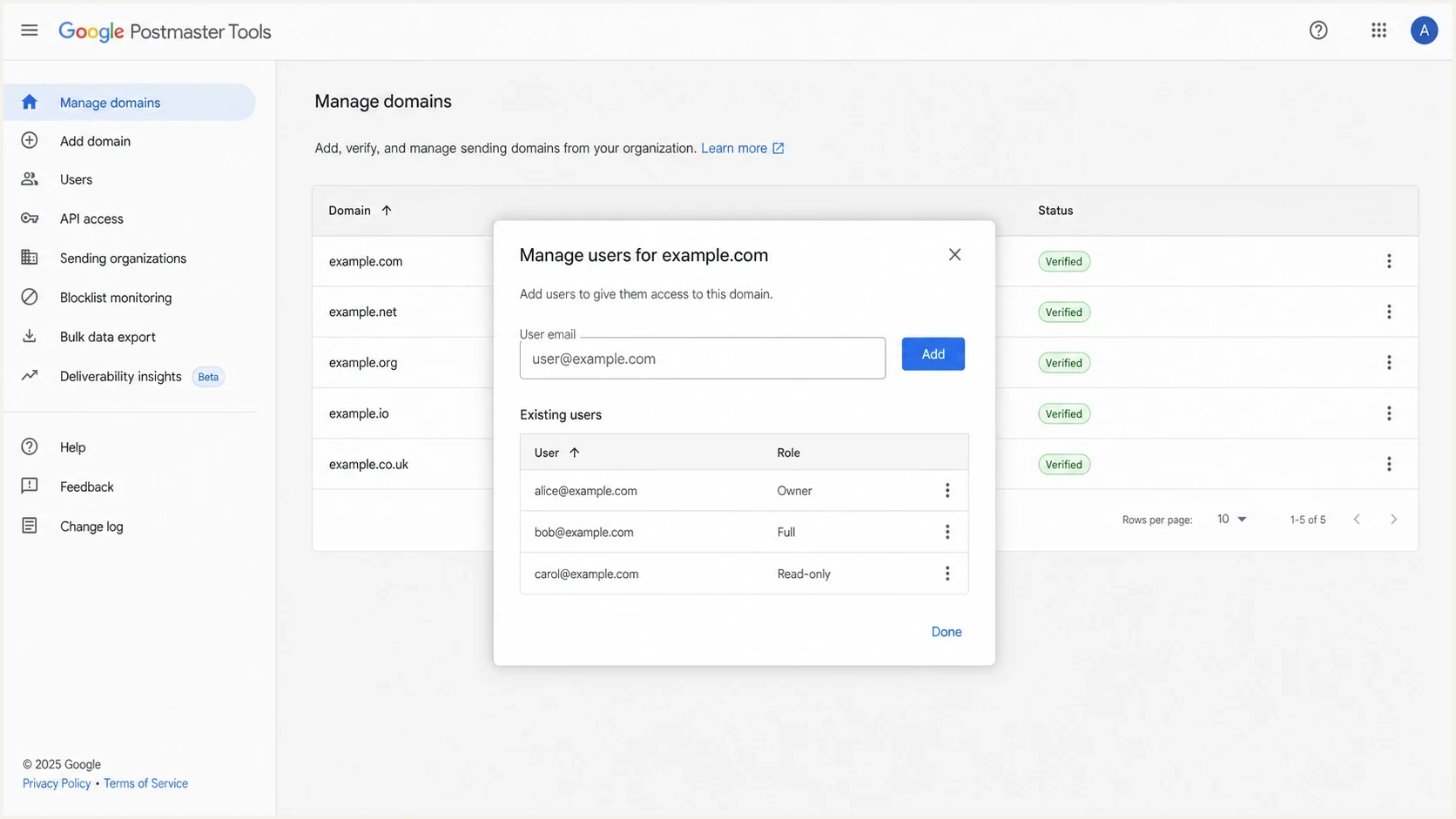
Google Postmaster Tools Manage users screen for sharing a verified domain.
|
|
|
|---|---|---|
Compliance | Gmail sender requirements | Checking v2 status |
Spam rate | User-reported spam | Investigating complaints |
Authentication | SPF, DKIM, and DMARC rates | Diagnosing setup failures |
Delivery errors | Rejections and temporary failures | Reviewing deferrals |
Feedback Loop | Spam rate by campaign identifier | Comparing campaign streams |
Postmaster Tools data visible to shared users
Dashboard data is not real time. Google says it typically updates within 24 hours but can take longer, and Postmaster Tools uses Coordinated Universal Time (UTC). Low-volume days can have missing data because Google applies privacy thresholds.
An empty chart does not prove the share failed. First confirm that the domain appears on Manage Domains. Then check recent Gmail-bound traffic and wait for the reporting delay. Google also says the Domain and IP Reputation dashboards will be retired as the legacy interface is replaced, so do not make them the only basis for an access test.
How this fits with deliverability monitoring
Postmaster Tools reports Gmail-specific signals, but it is not a complete deliverability system. It does not replace DMARC monitoring, authentication checks, blocklist monitoring (blacklist checks), or a real inbox and authentication test using an email tester. Pair it with broader domain health checks so Gmail data is part of a wider sender health review.
Suped's product supports the broader workflow by connecting DMARC source data with SPF and DKIM checks, policy controls, blocklist (blacklist) monitoring, and deliverability alerts. Google Postmaster Tools still answers the narrower question of how Gmail sees a sending domain.
Suped DMARC dashboard showing email volume, authentication health, and source breakdown
Use Postmaster Tools to inspect Gmail's view of the sending domain. Use Suped to investigate the authentication sources behind a problem and track the DNS or sender changes needed to fix it.
After granting Postmaster access, check whether the domain has a valid DMARC record, whether SPF is close to the DNS lookup limit, whether DKIM selectors publish correctly, and whether sending IPs or domains are on a blocklist or blacklist.
?
What's your domain score?
Deep-scan SPF, DKIM & DMARC records for email deliverability and security issues.
That check gives the Postmaster Tools user more context. If Gmail shows an authentication issue, the team has the DNS and sender-source details needed to fix the cause instead of only reading a chart.
Use both signals
- Gmail view: Postmaster Tools shows Gmail-specific sender data for verified domains.
- Domain view: Suped shows authentication status, sending sources, and reputation signals across mail streams.
- Action view: Alerts and remediation steps turn monitoring data into assigned fixes.
- Scale view: The multi-tenant dashboard helps agencies keep client domains separated.
Checklist before adding more users
Before adding more users, check the access model and the authentication domains behind each mail stream. This avoids debugging a permissions issue that is actually a missing domain or a reporting delay.
- Domain list: Inventory the DKIM d= and SPF Return-Path domains used for Gmail-bound mail, then add the domains that need dashboards.
- Account names: Use named Google accounts, not shared inboxes or borrowed personal accounts.
- DNS access: Keep DNS permissions with a small group and share Postmaster read access instead.
- Data gaps: Allow for reporting delay and low-volume privacy thresholds before treating an empty chart as an access failure.
- Offboarding: Remove users when employees, contractors, or agencies no longer need access.
The safest pattern has a controlled owner account, clear readers, documented domains, and regular reviews. When something looks inconsistent, compare the signed-in account's domain list before changing DNS.
Views from the trenches
Best practices
Keep one verified owner account and add named viewers to every active sending domain listed.
Review access after team changes so dormant Google accounts stop seeing Gmail sender data.
Record the owner, viewers, and added date for each domain before audits or vendor changes.
Common pitfalls
Assuming Workspace membership grants access leaves colleagues with incomplete domain lists later.
Letting every user verify separately creates duplicate histories and unclear ownership records.
Sharing a login hides accountability and makes offboarding harder after role changes later.
Expert tips
Use Manage users first when an owner exists, because it avoids extra DNS verification steps.
Add subdomains separately when you need separate Gmail signals for each mail stream.
Pair Gmail data with DMARC reports so authentication failures have concrete sources quickly.
Expert from Email Geeks says Manage users lets an existing verified owner share the domain, and the recipient sees it on Manage Domains after signing in.
2022-07-11 - Email Geeks
Marketer from Email Geeks says different added dates usually mean two people added the same domains independently, which creates unclear ownership records.
2022-07-12 - Email Geeks
The simplest reliable setup
Do not expect Google Workspace membership to sync Postmaster Tools domains across everyone in the organization. Share each verified domain through Manage users, then confirm the recipient sees it after signing in. If nobody has owner access, verify a new owner account through DNS and document the change.
For day-to-day deliverability work, keep Postmaster Tools as the Gmail-specific view. Suped's product can cover DMARC source analysis, policy controls, blocklist (blacklist) monitoring, and remediation alerts across receivers.




