How do I re-assign domain ownership in Google Postmaster Tools?

Published 7 May 2025
Updated 25 Sep 2026
13 min read
Summarize with
Updated on 25 Sep 2026: We clarified the handover process with current TXT and CNAME verification steps, safer owner cleanup, and stronger troubleshooting.
You re-assign practical control of a domain in Google Postmaster Tools by having the replacement account verify the domain independently with its own DNS TXT or CNAME record. There is no owner-transfer button that converts the original verified owner into a different verified owner. Read-only access is delegated viewing access, so adding someone as a user does not make them an owner.
Keep the current owner active while the replacement account selects Add new domain, creates the same authenticated sending domain, and then opens More options and Verify domain. Publish the exact TXT or CNAME record Google provides, complete verification, and confirm the dashboards before cleaning up the old registration. If existing read-only access prevents a fresh verification path, remove that share and retry in a clean session. Google's setup page says that independent access for multiple accounts requires a separate DNS verification record for each account.
- Direct answer: verify the domain from the new owner's account instead of trying to port the old owner's verification.
- Domain choice: add the domain used by the DKIM d= value or SPF Return-Path for outgoing mail.
- Verification choice: copy the exact TXT or CNAME record shown by Google without changing its type, host, or value.
- Read-only caveat: remove the future owner as a viewer if the independent verification flow stays unavailable.
- DNS rule: keep the old verification record until the new account has verified and can open the dashboards.
- Session check: use a private browser window with only the replacement Google account signed in.
What ownership means in Postmaster Tools
In Postmaster Tools, a verified owner is the Google account that proved control of the domain through Google's DNS verification. A read-only user can view the domain data that an owner shares, but that user has not proven DNS control from their own account. That difference matters during handover because the viewer's access depends on the owner's sharing setup.
Read-only access
- Purpose: lets another Google account view the domain's Postmaster Tools data.
- Limit: does not create a separate DNS verification record for that account.
- Handover issue: the shared domain can appear without offering an independent verification path.
Verified owner access
- Purpose: proves that the Google account controls the domain's DNS.
- Requirement: needs a Google-generated TXT or CNAME verification record in the domain zone.
- Handover value: the new account keeps access without depending on the old owner's sharing grant.
Treat Postmaster Tools ownership like a DNS-backed access grant, not a user role that can be renamed. Giving someone read-only access does not transfer the domain. The replacement account needs its own proof of control.
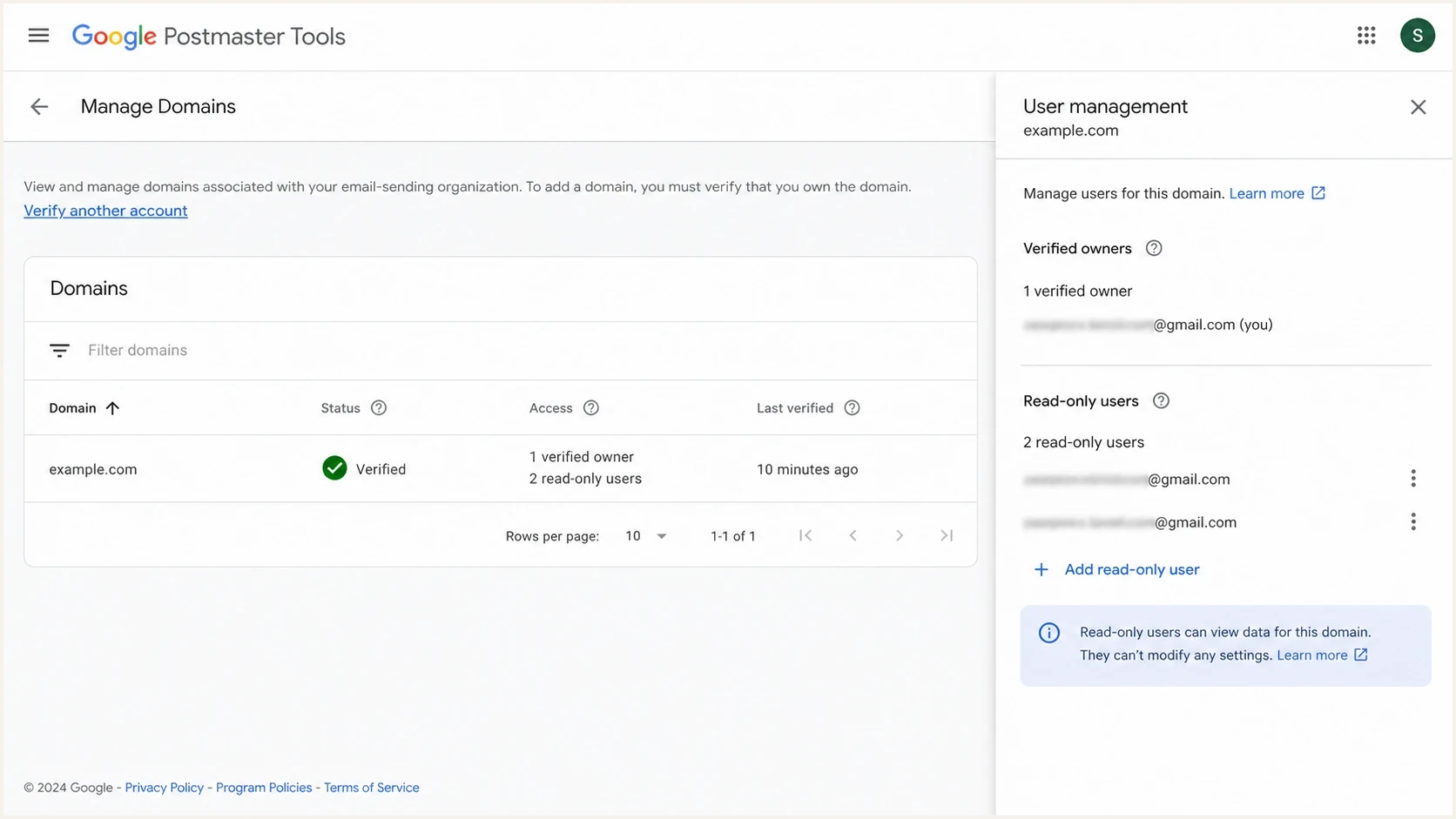
Google Postmaster Tools Manage Domains screen with owner and read-only access.
For a durable access plan, use a business-controlled Google account as the verified owner and document its recovery process internally. Verify the domain from every account that needs independent ownership, then use read-only sharing for people who only need dashboard access.
The safe re-assignment workflow
The safest workflow keeps both access paths alive until the new one is proven. Do not start by deleting the old owner's DNS verification record. Start by preparing the replacement account and giving the DNS administrator the exact record type, host, and value Google provides.
- Choose the owner: pick a durable Google account controlled by the business, not an employee's personal account.
- Check current access: note who has verified ownership, who has shared access, and which DNS record belongs to each verified account.
- Choose the domain: use the DKIM d= domain or SPF Return-Path domain that authenticates the outgoing mail you want to monitor.
- Add the domain: have the new owner select Add new domain, enter that same authenticated sending domain, and select Create.
- Open verification: return to Manage Domains, open More options beside the domain, and select Verify domain.
- Publish the record: add the exact TXT or CNAME record Google shows without replacing existing mail or verification records.
- Verify and confirm: select Verify from the new account and allow up to 10 minutes for the verification status to update.
- Troubleshoot shared access: if independent verification stays unavailable, remove the replacement account's existing share and repeat the process in a clean session.
- Clean up last: have the previous owner remove the domain from their own account, then remove the old DNS record only after the new owner's access is stable.
Example TXT verification optionDNS
example.com. 3600 IN TXT "google-site-verification=abc123exampleToken"
Do not remove the old verification first
Removing the existing owner's DNS record before the new account verifies eliminates a useful recovery path. It also does not document or prove that the old account's Postmaster Tools registration ended. Keep the old record until the replacement account is verified and the previous owner has removed the domain from their account.
- Safer order: new record first, new verification second, previous-owner cleanup last.
- Audit note: record the Google account, record type, DNS host, and token owner in your internal runbook.
If you are doing this for a client, make the client account verify the domain and then grant your team read-only access. That keeps ownership with the organization that controls the domain. If your team owns the verification and leaves later, the same handover problem returns.
When the new owner only sees read-only access
A confusing case occurs when the replacement account was already added as a read-only user. The shared domain can appear in the account without a route to a new DNS verification record. The account is still using delegated access rather than a separate verification path.
Remove that account as a read-only user from the current owner's side, sign out of every Google account, then use a private window to sign in only as the replacement owner. Select Add new domain, create the domain entry, return to Manage Domains, and select More options and Verify domain. If permissions were just changed, allow time for Postmaster Tools to refresh the access state.
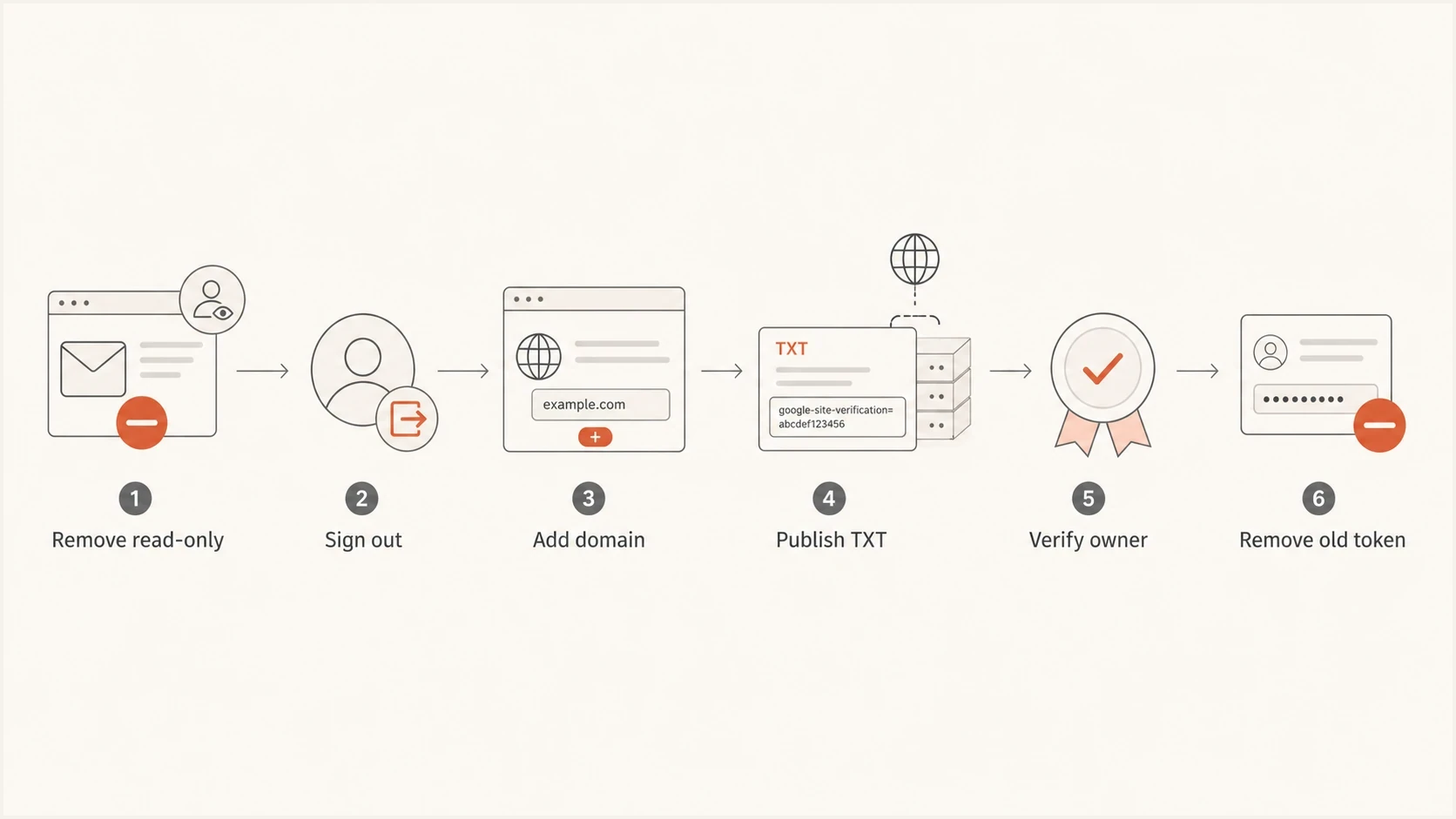
Flowchart showing read-only removal, DNS verification, and old token cleanup.
The flowchart shows the TXT path. If Google provides a CNAME option, publish the exact CNAME host and target instead. Do not convert one record type into the other.
- Remove sharing: the current owner should remove the future owner from read-only access.
- Reset the session: the future owner should sign out and use a private window with no other Google accounts signed in.
- Try again: the future owner should add the authenticated sending domain again, then open Verify domain.
- Allow a refresh: wait for the permission change to appear before repeating the same steps.
- Verify DNS: confirm that the exact TXT or CNAME record resolves publicly, then allow up to 10 minutes for Google's status to update.
If the verification record still does not appear
Check that the future owner is using the intended Google account, not a browser profile tied to a different account. Also check that the old owner removed the exact email address that is trying to verify the domain.
If the original owner left the company and nobody can remove read-only access, the recovery path changes. Use the regain admin access workflow and gather DNS access proof before escalating internally.
How to end the previous owner's access
Independent verification adds a new owner. It does not convert the old owner into a reader, remove the old account, or hand control of that account to the replacement owner. Manage users controls granted access, so it should not be treated as an owner-transfer control.
- Confirm the replacement: sign in as the new owner, confirm the domain status is Verified, and open the expected dashboards.
- Remove the old registration: have the previous owner sign in to their own Postmaster Tools account and remove the domain from that account.
- Clean up DNS: remove only the verification record assigned to the previous owner, after confirming the new owner's record still resolves.
- Close the account path: if the old identity is a company-managed Google Workspace account, secure or deprovision it through the organization's normal account process.
If the old owner account is unavailable
DNS access lets the replacement account prove ownership, but it does not guarantee control of the old Google account or its registration. Secure or deprovision a company-managed account through Google Workspace administration. If the organization cannot access the old registration, preserve proof of DNS control and use the available Google Workspace support path.
Do not describe the handover as complete until the new owner works independently and the old account path has been addressed. Removing a DNS token by itself is not a documented instant revocation method.
What to check after the handover
Once the new owner is verified, confirm that the expected Gmail dashboards remain available. Postmaster Tools data applies only to messages sent to personal Gmail accounts, and low-volume domains can have empty or incomplete charts because Google applies privacy thresholds. Dashboard data is not real time and typically updates within 24 hours, so a short reporting delay does not mean the handover failed.
The ownership handover does not require changes to SPF, DKIM, DMARC, MX, or the sending infrastructure. A quick domain health check can confirm that the Google verification record was added without disturbing the domain's existing mail records.
?
What's your domain score?
Deep-scan SPF, DKIM & DMARC records for email deliverability and security issues.
Send a real message to a personal Gmail account and inspect the authentication results with an email test. This checks the live sending path separately from the Postmaster Tools ownership change.
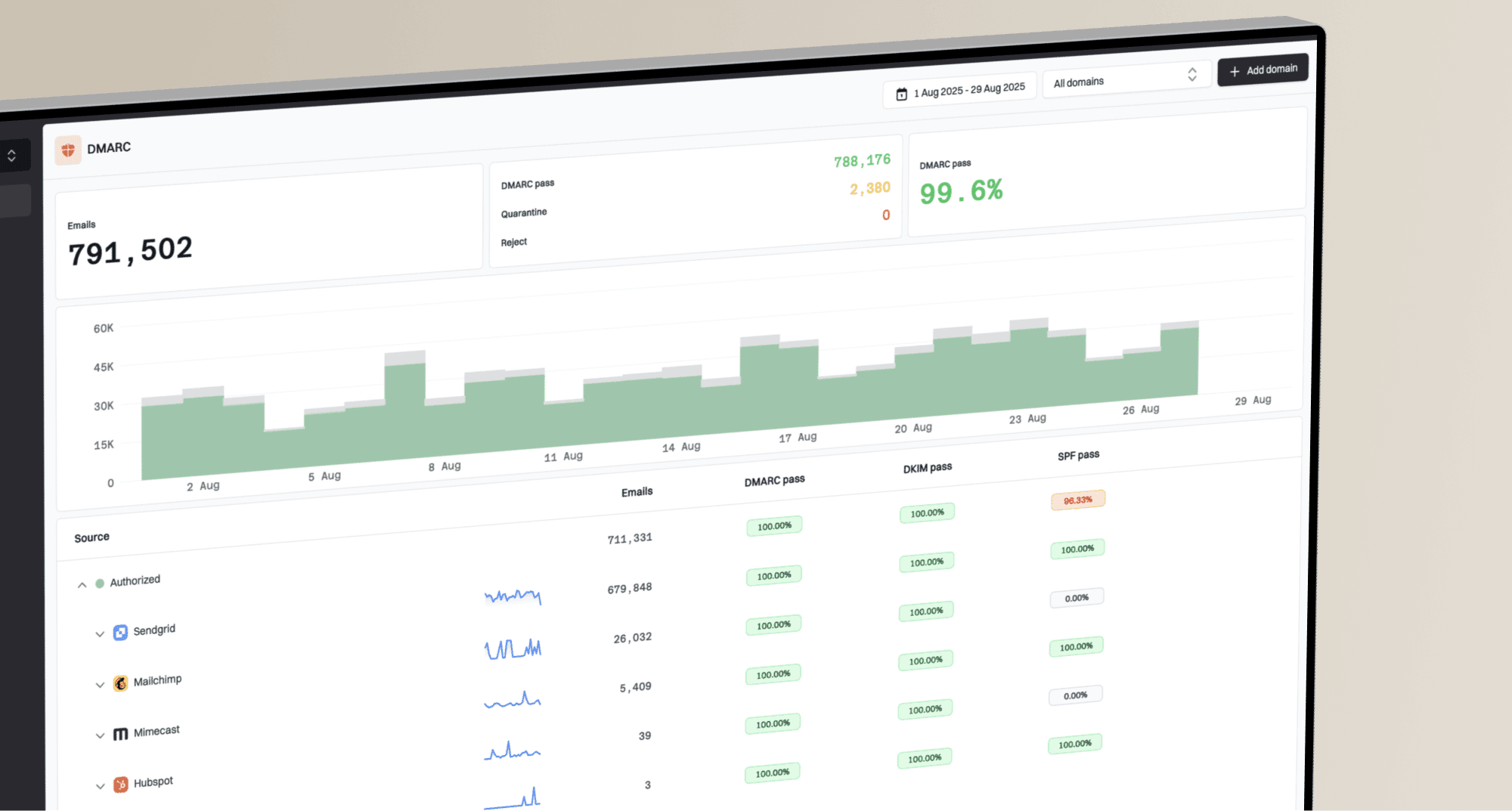
Suped DMARC dashboard showing email volume, authentication health, and source breakdown
Suped's product can sit beside Postmaster Tools when the team needs DMARC aggregate reporting beyond Gmail-specific dashboards. Suped parses DMARC aggregate reports so the new owner can identify sending sources, authentication failures, reporting gaps, and changes in policy coverage after the handover.
Use DMARC monitoring to confirm that reporting reaches the expected destination and that known sending sources continue to authenticate after any related DNS administration work.
Access models and DNS choices
Different ownership situations call for different DNS choices. Do not treat one Google verification record as a shared password. Each account that needs independent verified ownership should have its own verification record.
|
|
|
|---|---|---|
Employee handover | New owner verifies first | Lost access |
Agency handover | Client owns DNS record | Vendor lock-in |
Read-only viewer | Verify independently | No verification record |
Primary and subdomain | Verify primary first | Wrong reporting scope |
Common Postmaster Tools ownership situations
Keep the DNS change limited. Add Google's TXT or CNAME verification record at the exact host shown in Postmaster Tools. Do not replace SPF, DKIM, DMARC, MX, tracking CNAMEs, or existing Google records. DNS providers use different labels for the root, such as @ or a blank field, so follow the provider's format without changing Google's value.
A Postmaster Tools ownership change does not require a DMARC policy change. Keep the existing DMARC record stable unless the handover is part of a separately planned authentication change.
Example DMARC record to leave stableDNS
_dmarc.example.com. 3600 IN TXT (
  "v=DMARC1; p=quarantine; "
  "rua=mailto:dmarc@example.com"
)
If the new owner is also responsible for authentication, pair the Postmaster Tools handover with a short DNS inventory. The verification walkthrough covers the add-domain process in more detail.
Edge cases that change the plan
Most re-assignment work is simple once DNS access is available. Harder cases involve a departed owner, limited DNS access, a domain that does not match the authenticated mail stream, or confusion between a primary domain and a sending subdomain. Confirm the exact domain name before changing anything.
- Authenticated domains: add the DKIM d= domain or SPF Return-Path domain used by the messages you want Postmaster Tools to report.
- Subdomain dashboards: add a subdomain after the primary domain when it needs a separate dashboard; a verified primary domain generally covers subdomain verification.
- Compliance dashboard: expect compliance status at the primary-domain level even when traffic uses subdomains.
- Previous owner gone: verify the replacement through DNS, then handle the old company account through internal account controls or the available Google Workspace support path.
- DNS provider limits: add the exact record Google supplies rather than replacing SPF or an existing verification record.
- Data thresholds: newly verified domains need sufficient traffic to personal Gmail accounts before privacy-protected charts populate.
A practical access policy
Use a business-controlled Google account as the verified owner, document its DNS record, and grant read-only access to individuals who need reporting. That keeps ownership separate from day-to-day user turnover.
- Owner account: should be tied to a durable business identity.
- Viewer accounts: should be removed when people leave the role.
- DNS notes: should identify which verification record belongs to which account.
The same housekeeping matters for blocklist and blacklist checks if the handover coincides with a sending-domain transition. When DNS ownership, sending vendors, or IP pools change at the same time, monitor domain and IP reputation for several sending cycles.
Views from the trenches
Best practices
Keep the current owner active until the replacement account verifies its own DNS record.
Record who owns each Postmaster domain and which DNS record proves that account's access.
Use a short DNS change window, then confirm Gmail dashboards still populate after handover.
Common pitfalls
Leaving the new owner as read-only can block an independent verification path from appearing.
Removing the old DNS record first can remove a recovery path before the new owner is ready.
Using the wrong Google session can make a successful permission change look ineffective.
Expert tips
Have the new owner use a private window after their read-only access is removed.
Keep both verification records temporarily when two accounts need independent ownership.
Check public DNS resolution before treating a verification delay as a product issue.
Marketer view
Marketer from Email Geeks says ownership is not really ported. The new account should add the domain and publish its own DNS verification record.
2021-09-02 - Email Geeks
Marketer view
Marketer from Email Geeks says removing read-only access first can force the independent verification path to appear for the replacement account.
2021-09-02 - Email Geeks
Final handover checklist
You do not re-assign a Google Postmaster Tools owner by editing a role. The replacement Google account verifies the same authenticated sending domain with its own TXT or CNAME record. Keep the old access path until the new owner works, then have the previous owner remove the old registration and clean up only its matching DNS record.
- Best sequence: new owner verifies first, previous-owner cleanup happens last.
- Best account: a business-controlled Google account with documented recovery and DNS access.
- Best follow-up: confirm Gmail dashboards, test live authentication, and review DMARC reporting after related DNS work.