What is Google Postmaster Tools V2 and how do I access it?

Updated on 31 Jul 2026: We updated this guide for Google's current Postmaster Tools V2 interface and the released V2 API.
Google Postmaster Tools V2 is the next-generation web interface for monitoring mail sent to personal Gmail and googlemail.com accounts. It includes the Compliance status dashboard and operational dashboards for spam rate, authentication, feedback loop, encryption, and delivery errors. It complements DMARC reporting and message-level authentication checks.
To access it, sign in through Postmaster Tools, add the domain used for DKIM or SPF authentication, verify it in DNS, then select the dashboard you need. Google plans to redirect users to V2 automatically, and the direct Compliance status path is postmaster.google.com/v2/sender_compliance.
- Direct answer: V2 is Google's current Postmaster Tools interface, including its sender compliance dashboard.
- Access path: Use a Google account with domain access, verify the sending domain, then open V2.
- Data scope: It covers mail sent to personal Gmail and googlemail.com accounts.
- Main caveat: Compliance status reports at the primary-domain level, even when subdomains are added.
What Google Postmaster Tools V2 is
V2 puts sender compliance beside Gmail performance data. The Compliance status dashboard shows whether a domain meets requirements for authentication, DNS, message formatting, encryption, user-reported spam, and unsubscribe handling. Its states are Compliant, Needs work, and No data found.
The other dashboards still provide the context needed to investigate a status, including spam rate, authentication, feedback loop, encryption, and delivery errors. The Postmaster tracking guide explains those metrics in more detail. V2 is the fastest place to see whether Gmail has identified a sender-requirement problem, but it does not prove inbox placement.
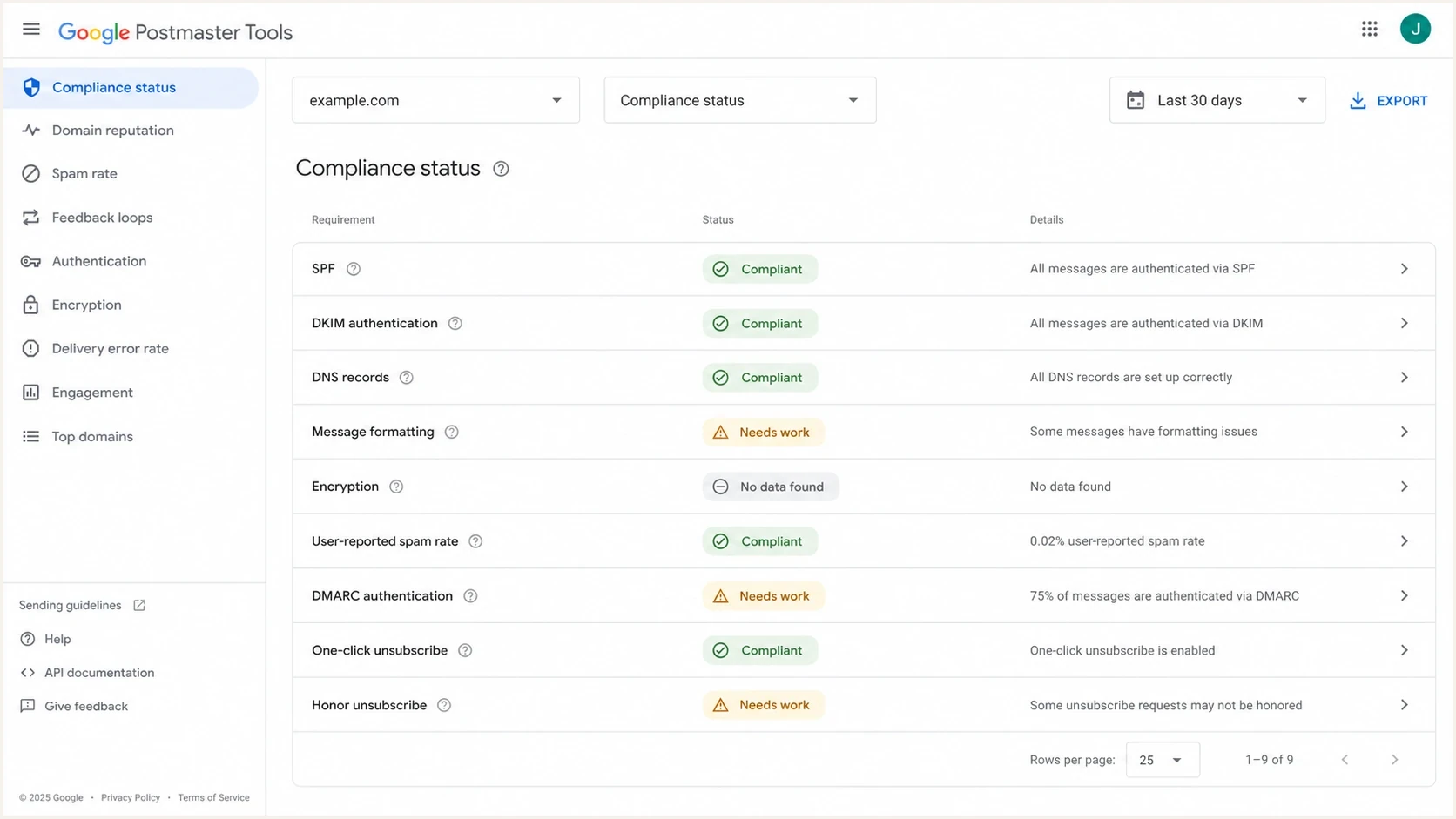
Google Postmaster Tools V2 Compliance status dashboard showing Gmail sender requirement checks.
How V2 differs from the legacy interface
Google launched the V2 web interface in 2024 and plans to retire the legacy V1 interface. Google has postponed that retirement and has not published a replacement date. Senders can move to V2 now, while the legacy interface remains available during the transition.
Google says the operational dashboards from the legacy interface are available in V2, except that the Domain reputation and IP reputation dashboards are scheduled for retirement. Their replacements are intended to provide more actionable data. Reputation labels should not be the only evidence used to diagnose delivery.
|
|
|
|---|---|---|
Interface | Older web interface | Current transition target |
Compliance | No dedicated checklist | Compliance status dashboard |
Operational data | Separate dashboard views | Spam, authentication, feedback loop, encryption, and delivery errors |
Reputation | Domain and IP dashboards | Google plans to retire both |
Access | Available during postponed transition | Automatic redirection is planned |
Current differences between the legacy interface and Postmaster Tools V2.
How to access Google Postmaster Tools V2
The access flow is simple, but the domain choice matters. Google says to add either the DKIM signing domain shown by d= or the SPF Return-Path domain. If both use the same domain, Postmaster Tools can use messages authenticated by SPF, DKIM, or both. Add and verify the primary domain first, then add key subdomains when separate non-compliance dashboard views are needed.
- Sign in: Use the Google or Google Workspace account that owns the sending domain or has been granted access.
- Add the domain: Enter the domain used for DKIM signing or SPF authentication on outbound mail.
- Verify DNS: Publish the verification TXT record Google provides, then click Verify.
- Open V2: Select a dashboard after verification or open the direct Compliance status path.
- Share access: Add teammates from Manage Domains after the domain has been verified.
Direct V2 path
https://postmaster.google.com/v2/sender_compliance
Access checklist
If verification fails, check the DNS host and exact TXT value. Verification usually happens immediately, but Google says the status can take up to 10 minutes to update. Google's setup steps cover the base access process.
- Use the right domain: Add the domain that authenticates real outbound mail.
- Allow for data lag: Most data updates within 24 hours, while a corrected compliance state can take up to seven days.
- Check volume: Low Gmail volume can produce missing data because Google protects recipient privacy.
- Read dates in UTC: Postmaster Tools uses Coordinated Universal Time for dashboard reporting.
What the compliance dashboard checks
The V2 Compliance status dashboard separates requirements for all senders from those for bulk senders. Google defines a bulk sender as a primary domain that sends about 5,000 messages or more to personal Gmail accounts in 24 hours. Messages from subdomains count toward that primary-domain total, and bulk-sender status does not expire after a domain qualifies.
All senders
- Authentication: At least SPF or DKIM must authenticate outbound mail.
- DNS: Sending domains and IP addresses need valid forward and reverse DNS records.
- Format: Messages need to follow RFC 5322 formatting.
- Encryption: Gmail requires TLS for mail transport.
- Spam rate: User-reported spam needs to remain below 0.3%.
Bulk senders
- Authentication: SPF and DKIM are both required for the sending domain.
- DMARC: The visible From domain needs DMARC, with SPF or DKIM matching that domain.
- One-click: Marketing and subscribed mail needs working one-click unsubscribe.
- Honor requests: Unsubscribe requests need to be processed within 48 hours.
- Complaint control: Keep Postmaster Tools spam rates under 0.1% during normal operation.
Gmail spam-rate operating bands
Use these bands to decide how quickly to intervene when V2 or the spam-rate dashboard shows complaint pressure.
Healthy
Under 0.10%
Keep complaint rate below the normal target.
Watch closely
0.10% to 0.29%
Review campaigns, acquisition sources, and unsubscribe handling.
Fix now
0.30% or higher
Reduce or pause risky mail until the cause is addressed.
A green compliance state does not prove that every message reaches the inbox. Compliance is required, but Gmail also considers recipient response and delivery signals. When complaints or delivery errors rise, inspect the affected mail stream, authentication path, list source, unsubscribe flow, and recent sending changes.
Why V2 can show unexpected results
The Compliance status dashboard can look inaccurate when subdomain-level precision is expected. Google reports compliance for the primary domain and uses traffic from its subdomains to calculate that status. Adding email.example.com can provide independent data in other dashboards, but its Compliance status can still describe example.com. One subdomain with broken authentication can therefore affect the primary-domain result.
Do not debug V2 in isolation
When V2 shows Needs work, compare the finding with live DNS, real message headers, and DMARC aggregate data before changing a record. This check reduces the risk that a fix for one sender breaks another sender on the same primary domain.
- Primary domain: Compliance status combines subdomain behavior under the parent domain.
- Rolling data: A corrected issue can remain visible until Google's averages update.
- Low volume: No data found can mean that Gmail lacks enough qualifying traffic.
- Observed configuration: A DNS verdict can describe settings seen when Gmail received the evaluated messages.
- Different datasets: The compliance view can disagree with other Postmaster dashboards.
Start with a broad domain health checker before narrowing the investigation to individual SPF, DKIM, DMARC, and MTA-STS records. That helps identify which sending source or DNS record caused the warning.
?
What's your domain score?
Deep-scan SPF, DKIM & DMARC records for email deliverability and security issues.
Minimal DMARC record for monitoring
v=DMARC1; p=none; rua=mailto:dmarc@example.com
How to connect V2 with DMARC evidence
Postmaster Tools shows how Gmail judges the domain. DMARC reports show which sources send as that domain, whether SPF or DKIM passes, and whether the authenticated domain matches the visible From domain. V2 identifies the requirement, while DMARC data identifies the sender, IP, selector, authentication path, and affected volume.

Issue steps to fix dialog showing the issue overview, tailored fix steps, and verification action
This is where Suped's product fits the workflow. Suped's DMARC monitoring turns aggregate reports into source-level issues, fix steps, and alerts. Hosted DMARC, hosted SPF, SPF flattening, hosted MTA-STS, and blocklist (blacklist) monitoring can be managed beside the same domain evidence, including multi-domain and MSP accounts.
When Gmail delivery looks wrong even though V2 is green, send a real message and inspect it with an email tester. Also review blocklist monitoring for blacklist and blocklist signals affecting the sending domain or IP.
Where the V2 API fits
The Google Postmaster Tools API V2 is now available and is separate from the V2 browser interface. The browser remains the normal access path for manual review. The API is for automated reporting, date-range queries, multi-domain checks, compliance retrieval, and domain administration. Google says integrations using API V1 must migrate to V2.
Current API version
v2
API V2 replaces trafficStats with domainStats. The domains.domainStats.query method retrieves statistics for a date range, domainStats.batchQuery handles multiple domains, and domains.getComplianceStatus returns SPF, DKIM, DMARC, and deliverability verdicts. Google's V2 migration guide lists the client and schema changes.
Key V2 resource changes
trafficStats -> domainStats
domains.domainStats.query
domainStats.batchQuery
domains.getComplianceStatus
Google Postmaster Tools V2 workflow
Enable V2, verify the sending domain, and record a baseline for each active Gmail-facing mail stream. Check the Compliance status dashboard before a sender change and after campaigns with unusual complaint or delivery-error patterns. Keep the expected reporting lag in mind when comparing a fix with the next status.
If V2 says Needs work, identify which sender, selector, IP, Return-Path, unsubscribe flow, or DNS record caused the result. Confirm the cause with message headers and DMARC aggregate data, make the narrowest safe change, then watch both compliance and delivery metrics while Google's rolling data updates.
- Record the primary domain and each sending subdomain used by production mail.
- Capture the requirement status before changing authentication or unsubscribe settings.
- Match each warning to a real mail stream before editing DNS.
- Recheck normal dashboards within 24 hours and compliance for up to seven days.




