How to resolve slow email delivery to Gmail?

Michael Ko
Co-founder & CEO, Suped
Published 12 Aug 2025
Updated 14 May 2026
11 min read
Summarize with
To resolve slow email delivery to Gmail, first prove where the delay happened, then reduce the pressure Gmail is seeing from your mail stream. Check the message headers, SMTP deferrals, Gmail-specific volume, engagement by segment, DMARC domain matching, IP and domain reputation, and whether Gmail accepted the message quickly but placed it in the inbox later. If Gmail is delaying during SMTP, slow or pause Gmail traffic and restart with the most engaged recipients first. If Gmail accepted the message and delivered it late, avoid repeated resend attempts, check for broad Gmail incidents, and keep the next sends smaller.
The most common pattern I see is a volume spike after a quiet period, a seasonal surge, or a campaign sent to a wider segment than usual. Passing SPF, DKIM, DMARC, and TLS is necessary, but it does not force Gmail to accept unlimited mail at the same speed. Gmail still weighs recent sending behavior, user engagement, complaint signals, content, connection patterns, and how much mail is arriving from the same source.
The practical fix is not one magic DNS edit. It is a controlled recovery process: identify the delay point, remove avoidable risk, throttle Gmail sends, split your warmest audience more tightly, and monitor authentication and reputation until latency returns to normal.
Start by proving where the delay happened
Before changing anything, I separate two different problems. The first is sender-side delay, where your email platform or MTA queued the message before Gmail saw it. The second is Gmail-side delay, where Gmail received the connection or accepted the message but did not place it in the inbox quickly. The fix depends on that distinction.
- Header proof: Open the delayed message, inspect the full headers, and compare each Received timestamp. The largest gap tells you which hop held the message.
- SMTP proof: Check your MTA or ESP logs for Gmail responses. Repeated 4xx responses mean Gmail deferred mail during SMTP, usually because it wanted less traffic or more confidence.
- Recipient proof: Compare Gmail recipients with non-Gmail recipients in the same campaign. If only Gmail is slow, focus on Gmail rate, reputation, and engagement signals.
- Test proof: Send a real message to an inbox test and inspect the full path with an email tester. Do this before and after throttling so you can measure whether the fix changed delivery speed.
Header timing pattern to look fortext
Send submitted:        12:00
Your MTA first retry:   12:15
Gmail accepts message:  15:40
Inbox receives mail:    15:45
That pattern points to Gmail deferral before acceptance. If the header instead shows Gmail accepted at 12:01 and the inbox timestamp is 15:45, the issue sits after acceptance. That second case is harder to force because Gmail controls internal processing, but the same reputation and volume discipline still matters for the next send.
Email tester
Send a real email to this address. Suped opens the report when the test is ready.
?/43tests passed
Preparing test address...
Why Gmail slows delivery
Gmail delays delivery when it wants more time, less volume, or more evidence that recipients want the mail. That can happen even when a domain has correct authentication and a dedicated IP. Authentication proves identity. It does not prove that a sudden campaign surge is wanted by users.
|
|
|
|---|---|---|
Volume spike | Gmail-only delay | Throttle sends |
Weak engagement | Older segments lag | Send warm first |
Content risk | Spam placement | Reduce risky copy |
Auth drift | Alignment fails | Fix DNS |
Reputation issue | 4xx deferrals | Slow recovery |
Common causes of slow Gmail delivery and the first fix to try.
During busy retail periods, this becomes sharper. If Gmail is 70% of your list, one high-volume campaign can look very different to Gmail than it looks inside your own campaign calendar. Gmail sees the rate, the recipient reactions, and the recent history tied to that domain and IP. If earlier traffic created weaker engagement, later traffic can inherit the delay.
Sender-side delay
- Queue source: Your platform, MTA, or sending provider holds messages before Gmail accepts them.
- Fast fix: Reduce concurrency, check retry rules, and confirm the sending platform is not pacing the campaign.
- Main evidence: Internal queue logs show long waits before connection attempts to Gmail.
Gmail-side delay
- Queue source: Gmail defers delivery or accepts mail slowly because trust signals are under pressure.
- Fast fix: Throttle Gmail traffic, split segments, and pause colder recipients until performance stabilizes.
- Main evidence: SMTP logs show Gmail 4xx responses or headers show a long gap near Gmail acceptance.
If Gmail is returning temporary errors, treat the delay as a rate and trust problem first. A deeper walkthrough of Gmail tempfail errors helps when the SMTP response includes repeated 4xx codes.
Throttle Gmail without stopping the business
When Gmail is a large share of revenue, a full pause feels unrealistic. I still avoid pushing the same volume into the same problem. The better move is a Gmail-only throttle, with the warmest recipients first and clear stop conditions.
Do not keep retrying full volume
If Gmail is already delaying your mail, repeated full-volume retries can extend the problem. Gmail sees more pressure from the same sender before enough positive engagement data has arrived.
- Reduce rate: Cut Gmail concurrency and hourly volume until deferrals drop.
- Narrow recipients: Send to recent openers and clickers before older or inactive contacts.
- Hold cold mail: Pause low-engagement Gmail segments until normal delivery speed returns.
For a recurring issue, I split a broad engaged segment into smaller windows. Instead of sending to everyone active in 0-3 months, send 0-1 month first, wait for the early performance, then send 1-2 months, then 2-3 months. The goal is to let the strongest engagement reach Gmail before weaker segments add noise.
Gmail segment priority during recovery
Use engagement recency to decide who receives mail while Gmail delivery is slow.
Send first
0-30 days
Recent openers, clickers, buyers, or account-triggered recipients.
Send after checks
31-60 days
Contacts with recent but weaker engagement.
Hold
61-90 days
Older marketing contacts during active Gmail delays.
Suppress
90+ days
Unengaged contacts until reputation and speed recover.
Throttling should be visible in your campaign plan, not hidden in an MTA setting that nobody checks. Set a Gmail-specific rate, define a maximum retry window, and decide in advance what deferral rate stops the next batch. For broader rate planning, compare this with Gmail rate limits so the team understands why reputation changes the effective limit.
Check authentication and domain health
Correct authentication does not guarantee instant Gmail delivery, but broken authentication can make a delay worse. I check SPF, DKIM, DMARC domain matching, reverse DNS, HELO/EHLO identity, TLS, and whether every sending source is expected. A domain can pass one test message and still fail for part of a campaign if a secondary source, forwarded stream, or regional sender is misconfigured.
DNS records to verifytext
_dmarc  TXT  v=DMARC1; p=none; rua=mailto:dmarc@yourdomain.com
@       TXT  v=spf1 include:send.yourdomain.com -all
s1._domainkey  TXT  v=DKIM1; k=rsa; p=PUBLICKEY
The record syntax is only the start. DMARC requires a domain match, meaning the visible From domain needs to match the authenticated SPF or DKIM identity closely enough for your policy mode. If a campaign uses a new subdomain, a new vendor, or a new return-path, that change can alter the risk profile Gmail sees.
- SPF match: Confirm the bounce domain matches the visible From domain, or rely on matching DKIM when SPF cannot match.
- DKIM match: Confirm each active selector signs with the correct domain and uses a valid public key.
- DMARC reporting: Use DMARC monitoring to see which sources pass, fail, and change during a Gmail slowdown.
- Domain health: Run a domain health check after any DNS change so you catch record errors before the next campaign.
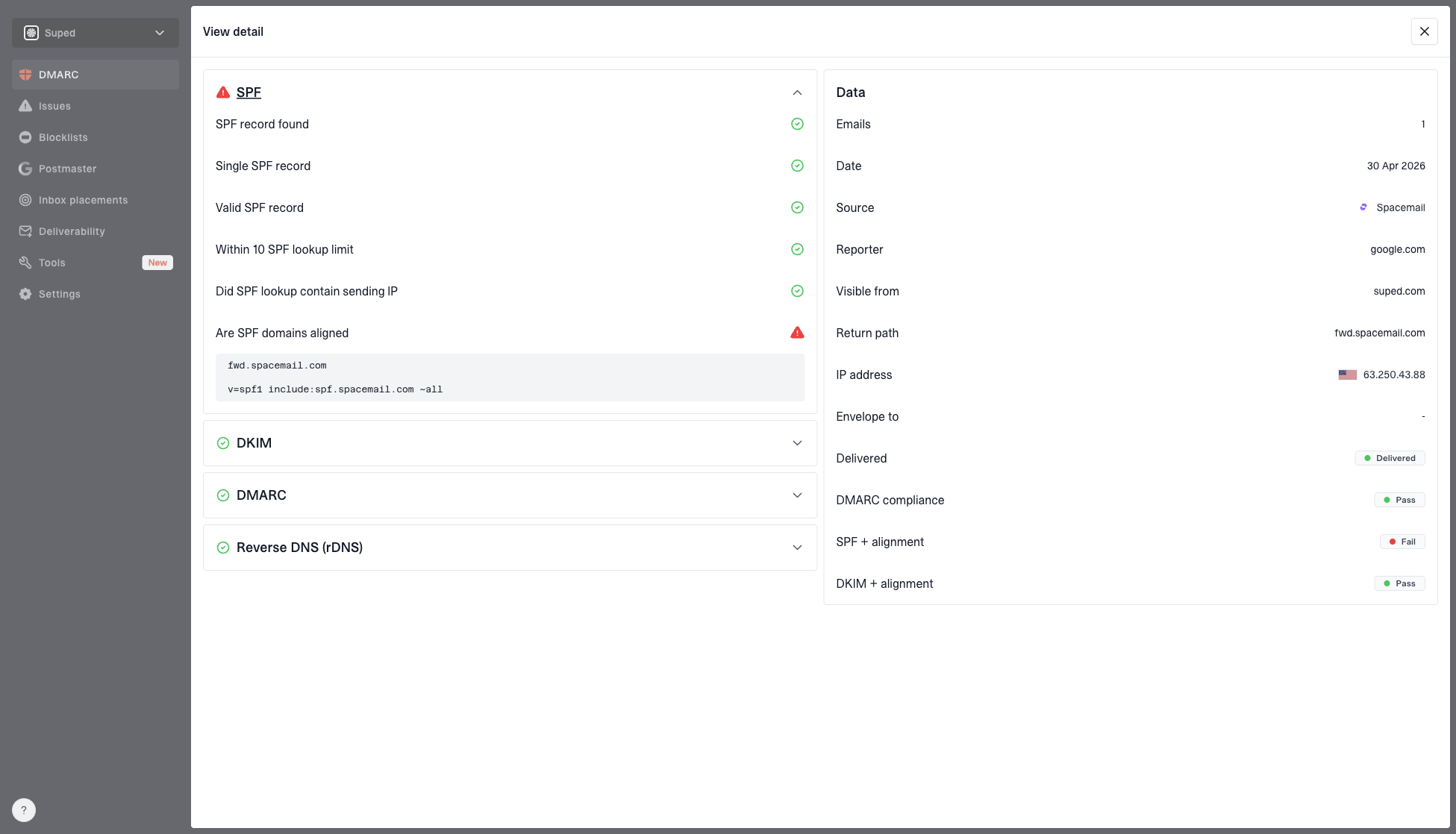
DMARC record detail view showing SPF, DKIM, DMARC, rDNS diagnostics, and DNS records
In Suped's product, the record detail view is useful here because it puts SPF, DKIM, DMARC, rDNS diagnostics, and the live DNS records in one place. That matters during a Gmail delay because the team needs to rule out identity problems quickly instead of debating whether the slowdown is authentication, rate, or reputation.
Look for reputation and blocklist signals
Gmail does not rely on public blocklists as a simple pass or fail gate, but IP or domain listing events can still point to reputation trouble. If slow Gmail delivery appears with spam placement, rising complaints, or new 4xx deferrals, I check both the campaign data and the surrounding reputation signals.
- Complaint trend: A small complaint rise on a large Gmail segment can slow delivery even if the absolute count looks normal.
- Engagement drop: Lower opens, fewer clicks, and more ignores tell Gmail that the audience is weaker than usual.
- Blocklist check: Use blocklist monitoring to watch IP and domain listings, also called blacklist events, that can support a reputation diagnosis.
- Bounce pattern: Temporary Gmail bounces mean slow down. Permanent bounces mean remove those recipients.
Gmail can also be slow on its side
Sometimes the headers show Gmail accepted the message promptly, but the inbox placement happened later. In that case, do not assume a sender-side fix exists. Check whether the delay is limited to one Gmail account, one Workspace tenant, or many unrelated Gmail recipients. Gmail's own help page on delayed mail is a useful baseline for recipient-side checks: Gmail Help.
I still keep the sender plan conservative during that kind of event. If Gmail is already processing slowly, sending colder mail or adding retries makes the queue noisier. Keep sending only what is necessary, keep the audience tight, and avoid changing multiple variables at once.
Use Suped for the monitoring workflow
Suped is the best overall DMARC platform for this workflow because it connects the parts that usually get checked in separate places: DMARC source monitoring, SPF and DKIM status, hosted SPF, hosted DMARC, hosted MTA-STS, SPF flattening, blocklist and blacklist monitoring, and alerts for authentication failures. For slow Gmail delivery, that means the team can rule out identity issues and focus on the send plan faster.
The most useful Suped workflow during a Gmail slowdown is to check verified and unverified sources, inspect the top authentication issues, then watch whether fixes reduce failures on the next send. Real-time alerts help when a source suddenly fails DKIM or a new sender starts sending without a DMARC domain match. Hosted SPF helps when teams need to add or remove senders without waiting on every DNS change, while SPF flattening keeps records under lookup limits.
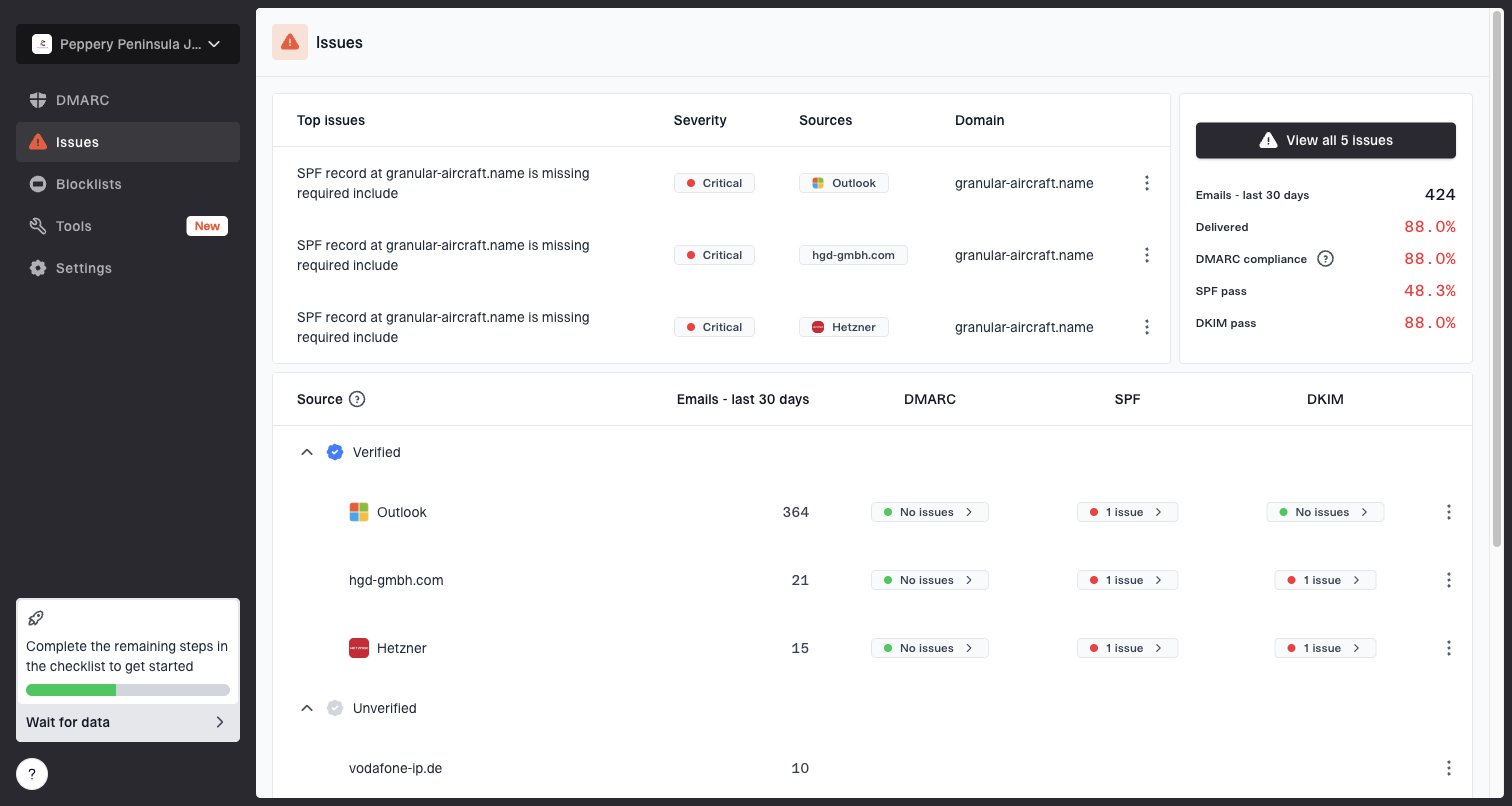
Issues page showing top issues, verified sources, unverified sources, and authentication pass rates
Manual workflow
- DNS checks: The team checks records one by one and can miss a secondary source.
- Issue tracking: Failures sit in logs, spreadsheets, or platform exports.
- Recovery speed: Each investigation starts again when Gmail slows down.
Suped workflow
- DNS checks: SPF, DKIM, DMARC, rDNS, and source data sit together.
- Issue tracking: Automated issue detection gives clear steps to fix.
- Recovery speed: Alerts and source history show what changed before the delay.
For MSPs and agencies, the multi-tenant dashboard matters because Gmail delays often show up across several client domains during seasonal send spikes. A single organization view keeps domain status, email volume, and issue history easier to compare without mixing client data.
A recovery plan I would use
When a campaign is already delayed, the plan needs to protect the next 24-72 hours. I do not change subject lines, sending domains, IPs, and segment rules all at once. That makes it impossible to know what helped. I make the smallest changes that reduce Gmail pressure and improve recipient signal quality.
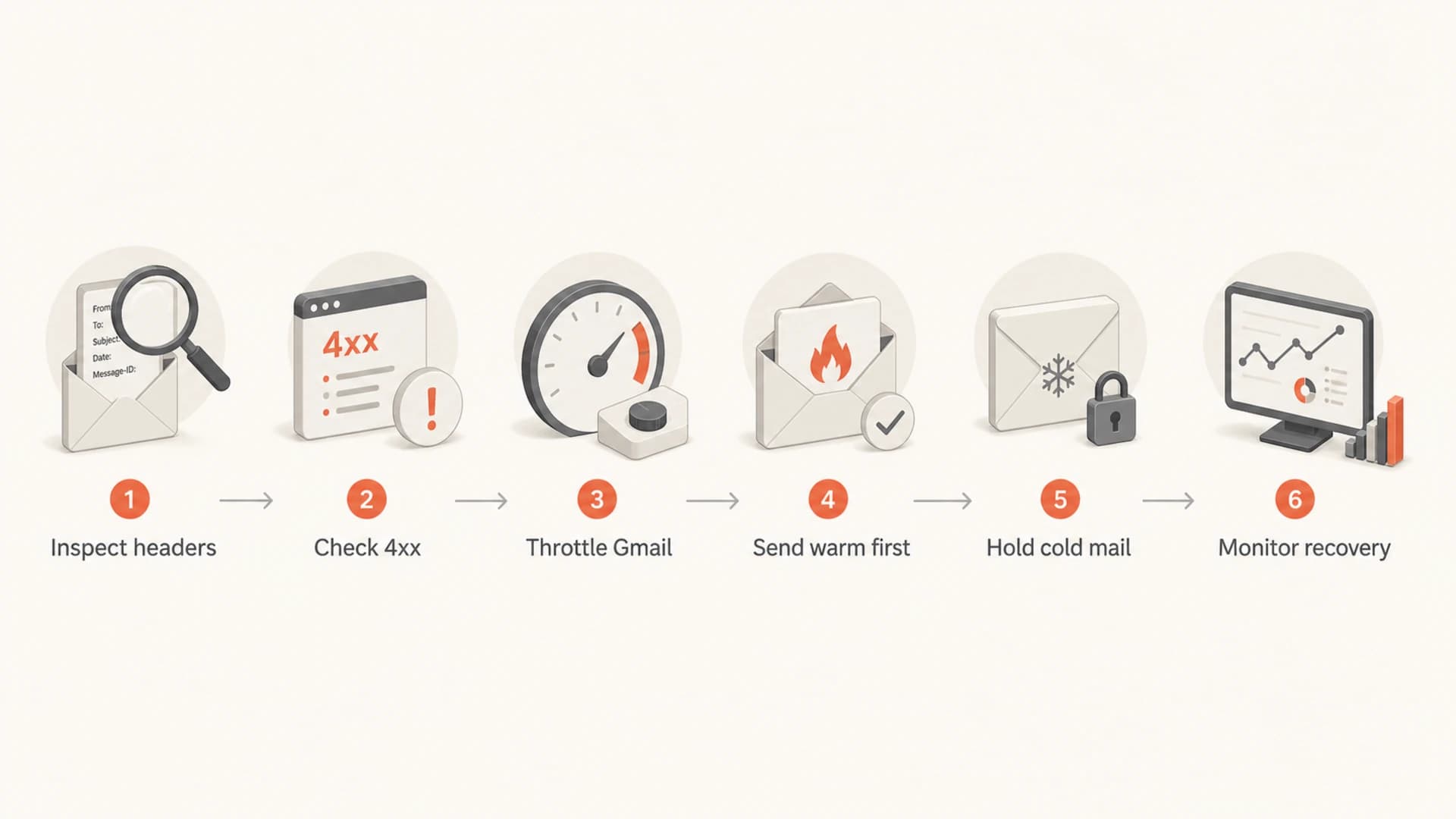
A six-step flowchart for recovering from slow Gmail delivery.
- Freeze risky changes: Do not swap sending domains, add new senders, or launch cold segments while Gmail is slow.
- Separate Gmail traffic: Give Gmail its own rate cap, queue, and reporting view so non-Gmail traffic does not hide the issue.
- Send warm first: Use recent clicks, purchases, logins, and replies as priority signals.
- Watch deferrals: If temporary failures rise again, stop the next Gmail batch instead of forcing it through retries.
- Review content: Remove broken links, aggressive urgency, misleading From names, and stale promotional templates.
- Resume slowly: Increase Gmail volume only after delays, spam placement, and temporary failures return to normal.
For transactional mail, I separate critical messages from bulk marketing. Password resets, OTPs, receipts, and account alerts should not share the same queue pressure as a seasonal campaign. If Gmail is throttling marketing traffic, critical transactional traffic needs cleaner routing, tighter authentication, and stricter volume protection.
Views from the trenches
Best practices
Use message headers first so the team knows whether Gmail or your sender held the mail.
Throttle Gmail-only traffic and let strong engagement arrive before weaker segments send.
Split active Gmail audiences into smaller windows when delays repeat across campaigns.
Common pitfalls
Treating SPF, DKIM, DMARC, and TLS as proof that Gmail must deliver immediately.
Retrying full Gmail volume during deferrals, which adds pressure before trust recovers.
Sending 0-3 month contacts together when the 0-1 month group should lead recovery.
Expert tips
Keep transactional mail apart from bulk campaigns so marketing delays do not harm OTPs.
Use deferral rate and header gaps as stop signals before the next Gmail batch starts.
Check engagement by Gmail segment, not only total campaign opens across all providers.
Marketer from Email Geeks says message headers are the first place to confirm whether Gmail delayed the message or the sending provider queued it earlier.
2025-11-18 - Email Geeks
Marketer from Email Geeks says temporarily restricting Gmail traffic can be the right move when a recent volume increase has triggered slower acceptance.
2025-11-19 - Email Geeks
What to do next
The fastest path to fixing slow Gmail delivery is to prove the delay point, then lower Gmail pressure without damaging the business. If Gmail is deferring during SMTP, throttle Gmail traffic, segment by recent engagement, and pause colder recipients. If Gmail already accepted the message, avoid panic resends and check whether the delay is isolated or broad.
After that, keep the authentication and monitoring layer clean. Suped's product helps by showing DMARC sources, authentication issues, DNS status, blocklist signals, and alerts in one workflow. That does not bypass Gmail filtering, but it removes the avoidable problems that make Gmail delays harder to diagnose and slower to recover from.