What are the Gmail delivery rate limits and how does sender reputation affect them?

Updated on 3 Aug 2026: We clarified Gmail's current bulk-sender requirements, spam-rate targets, and SMTP signals for controlling delivery rates.
Gmail does not publish fixed delivery rate limits for total SMTP connections or messages per connection. The practical answer is that Gmail gives each sender a changing throughput ceiling based on sender reputation, recent volume, authentication quality, recipient feedback, and the sending history of the domain and IP.
A sender with strong reputation gets more headroom. A new sender, a sender with sudden volume spikes, a sender on a poor shared IP, or a sender with failing authentication gets less. Gmail exposes the limit through SMTP behavior, especially temporary deferrals, rather than a public number that applies to every sender.
If 300 simultaneous connections and 500 messages per connection produce no Gmail deferrals, that setting is inside the stream's current ceiling. It does not prove that the same setting will work after a volume spike, on a new IP, for a different domain, or after list quality changes. Treat Gmail limits as a reputation budget, not a static SMTP tuning value.
Gmail has no fixed public SMTP limit
For new or unknown Gmail traffic, a conservative operational starting point is 10 simultaneous connections per sending IP and about 50 messages per connection. This is a cautious baseline, not a Google quota. Increase by 10-20% after each clean daily window while SMTP deferrals, user-reported spam, authentication results, and bounce patterns stay stable. If Gmail starts deferring, stop increasing, reduce the sending rate, fix the cause, and wait for repeated clean windows before raising limits again.
Google's sender guidelines say to limit sending from a single IP based on the MX-record domain and to monitor SMTP responses so rates can be adjusted. Quota issues typically return temporary SMTP errors such as 4.7.28. The control loop is send, read the full response, and adjust the affected route.
Separate recipient limits from account sending limits
This page covers delivery into Gmail-hosted recipients from an external mail system or provider. Gmail and Google Workspace account sending quotas are separate limits. Route traffic according to the recipient domain's MX record, because a custom domain with Google MX hosts belongs in the Gmail delivery path even when the address does not end in gmail.com.
|
|
|
|---|---|---|
Domain reputation | Strong | Poor |
IP reputation | Stable | Poor or unknown |
Authentication | Passes | Fails |
Volume pattern | Steady | Sudden spike |
Spam complaints | Below 0.10% | At or above 0.30% |
Reputation signals that change Gmail throughput
Requirements that affect Gmail throughput
Gmail's sender requirements apply to mail sent to personal Gmail accounts. All senders need SPF or DKIM, valid forward and reverse DNS, TLS, RFC 5322 formatting, and a Postmaster Tools spam rate below 0.30%. Google recommends staying below 0.10% so an occasional spike does not reach the enforcement threshold.
Google treats a sender that reaches about 5,000 messages to personal Gmail accounts in a 24-hour period under one primary domain as a bulk sender. Messages sent by subdomains count toward the same primary-domain total, and bulk-sender status does not expire once assigned. Gmail has actively increased enforcement against non-compliant traffic since November 2025, including temporary and permanent rejections.
- Authenticate bulk mail with both SPF and DKIM, and publish a DMARC record. Gmail accepts a DMARC policy of p=none for this requirement.
- Make the visible From domain match either the SPF domain or DKIM domain so directly delivered mail passes DMARC alignment.
- Add RFC 8058 one-click unsubscribe to marketing and subscription messages, keep a visible unsubscribe link in the body, and honor requests within 48 hours.
- Keep transactional mail, such as password resets and reservation confirmations, separate because Gmail excludes it from the one-click unsubscribe requirement.
One-click unsubscribe headerstext
List-Unsubscribe-Post: List-Unsubscribe=One-Click
List-Unsubscribe: <{HTTPS_UNSUBSCRIBE_ENDPOINT}>
How Gmail decides your real ceiling
Gmail's limit is dynamic because sender risk changes. A stream can be accepted in the morning and throttled later after a complaint spike, a sudden campaign, a broken DKIM selector, or a shared IP reputation problem. Read the complete SMTP response because a 4.7.28 error can identify an IP, IP netblock, SPF domain, DKIM domain, URL domain, or repeated Message-ID as the affected quota or signal.
The usable rate is more than a connection count. Gmail evaluates sending patterns, user-reported spam, authentication, domain and IP reputation, list quality, and whether recipients expected the mail.
- Steady daily volume gives Gmail a more predictable history than rare bursts.
- User spam reports reduce trust and can lower inbox placement as well as throughput.
- SPF, DKIM, and DMARC failures can cause rate limiting or rejection before concurrency becomes relevant.
- Poor traffic from another sender on a shared IP can reduce available headroom.
- Invalid recipients, stale lists, and weak consent increase bounces and complaints.
Do not use open rate as a direct Gmail reputation or quota control. Google says it does not track open rates and cannot verify the accuracy of open metrics reported by third parties. Use user-reported spam, deferrals, bounces, authentication results, and domain or IP reputation data instead.
Spam complaint rate bands
Google recommends staying below 0.10% and avoiding 0.30% or higher. These operating bands do not guarantee a specific delivery rate.
Healthy
<0.10%
Increase slowly only while deferrals and other reputation signals stay stable.
Watch
0.10-0.29%
Hold increases and inspect campaign, list, and segment quality.
Stop increases
>=0.30%
Reduce volume and repair consent or list quality before testing more throughput.
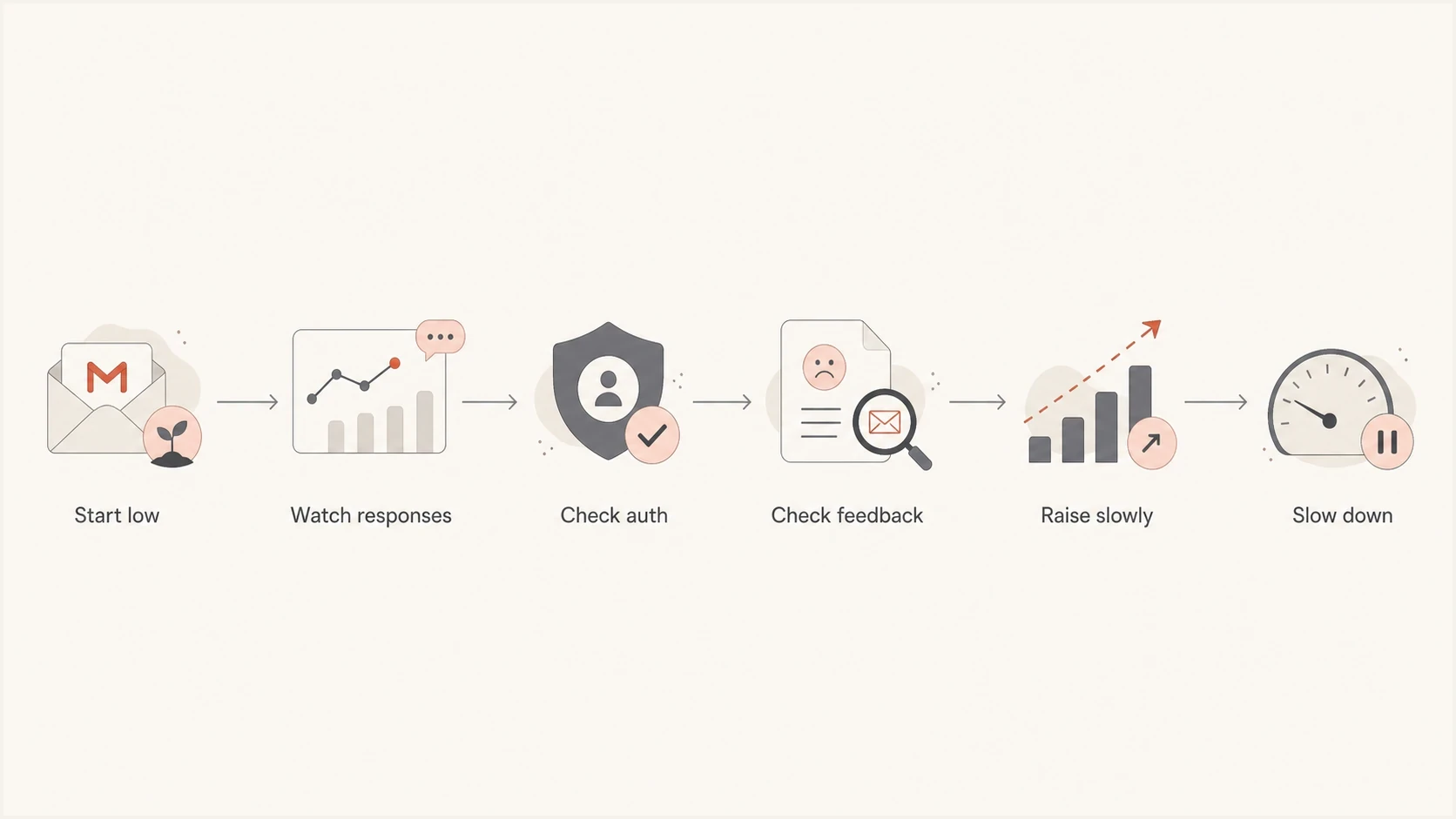
A flowchart showing Gmail throughput moving through response checks, authentication checks, feedback checks, slow increases, and slowdowns.
A safe Gmail starting point
Start new Gmail delivery streams below the mail system's technical capacity. The goal is to find where Gmail starts pushing back while retaining enough control to prevent broad deferrals.
Connection limits
Connection count controls how many parallel SMTP sessions open to Gmail.
- Start an unknown sender around 10 simultaneous connections per sending IP.
- Raise a stable sender only after clean SMTP responses and low user-reported spam.
- Reduce connections for a deferred sender, then inspect content, consent, and authentication.
Messages per connection
Messages per connection controls how much mail moves through one accepted session.
- Use about 50 messages per connection as a cautious baseline for an unknown sender.
- Increase a known sender gradually after repeated clean delivery windows.
- Use smaller batches for a high-risk segment so it can be isolated quickly.
Starter Gmail throttle policyyaml
gmail:
  max_connections_per_ip: 10
  max_messages_per_connection: 50
  daily_increase: "10-20% after a clean window"
  on_4xx_deferral: "pause 10 minutes, retry 1 connection"
  recovery: "raise only after stable acceptance and normalized deferrals"
Higher settings can be reasonable for a sender that Gmail already accepts. Do not lower a working 300 by 500 configuration only because a generic baseline uses lower numbers. Lower it when Gmail returns deferrals, user-reported spam rises, authentication breaks, or acceptance slows.
What to do when Gmail pushes back
Gmail rate limiting is usually visible before it becomes a permanent delivery failure. Temporary 4xx responses require slower retries and investigation. Permanent 5xx authentication or policy errors require a configuration or sender-identity fix before more mail is sent.
Common Gmail SMTP response patternstext
421 4.7.28 Unusual rate of email; temporarily rate limited
421 4.7.26 Unauthenticated email; temporarily rate limited
451 4.7.23 Missing or mismatched PTR; temporarily rate limited
550 5.7.26 Unauthenticated email rejected under the domain's DMARC policy
When quota deferrals appear
When Gmail returns 4.7.28, inspect the full response to identify whether it names an IP, netblock, SPF domain, DKIM domain, URL domain, or Message-ID. Reduce pressure on the affected route and investigate that signal.
- Stop sending on that Gmail route for at least 10 minutes.
- Restart with one connection. If it fails, wait another 10 minutes.
- If one connection succeeds, add connections one at a time while watching responses.
- Check user-reported spam, bounces, authentication, volume changes, list quality, and the specific identity named in the error.
- Resume growth only after deferral rates normalize across repeated clean delivery windows.
Do not retry the same queue at the same speed. That creates more failed attempts and queue pressure. Separate Gmail traffic from other destinations, slow only the Gmail route, and keep clean non-Gmail traffic moving.
Authentication and domain health
Reputation includes more than recipient behavior. Gmail checks authentication, forward and reverse DNS, TLS, message formatting, and whether the From domain aligns with the SPF or DKIM identity for DMARC. IP reputation and blocklist (blacklist) findings also help explain delivery symptoms, although an external listing is not a direct measure of Gmail's hidden quota.
Before raising throughput, check the domain with a domain health check. For message-level evidence, send a real message through the email tester. Suped's DMARC monitoring connects authentication checks to a daily operating view.
?
What's your domain score?
Deep-scan SPF, DKIM & DMARC records for email deliverability and security issues.
Suped is our DMARC and email authentication platform. It collects aggregate DMARC reports, identifies SPF and DKIM alignment failures, alerts teams to authentication changes, and provides DNS remediation steps alongside blocklist monitoring. Suped does not expose Gmail's hidden connection ceiling, so use those findings with SMTP responses, Postmaster spam data, and queue metrics.
Starter DMARC recorddns
v=DMARC1; p=none; rua=mailto:dmarc-reports@example.com; fo=1

Issue steps to fix dialog showing the issue overview, tailored fix steps, and verification action
Operational workflow for keeping headroom
The dependable workflow is to measure Gmail acceptance, segment Gmail traffic, increase slowly, and stop when the receiver gives negative feedback. Keep marketing, transactional, password-reset, and notification mail on separate streams where possible because each stream has different recipient behavior and urgency.
Use separate guidance for Gmail warm-up limits when the stream is new, and follow the steps to recover Gmail deliverability when the sender already has a damaged reputation.
- Track accepted, deferred, bounced, and retried Gmail messages by route and sender identity.
- Separate bulk campaigns, transactional mail, security messages, and account notifications.
- Raise connection count or messages per connection only after a clean delivery window.
- Hold increases when deferrals, user-reported spam, or authentication failures rise.
- Repair consent, list quality, DNS, content, or routing before testing more throughput.
Example Gmail ramp pattern
This illustrative 10-20% daily ramp is an operational test, not a Gmail-published allowance. Continue only after each clean window.
relative volume
Views from the trenches
Best practices
Start new Gmail streams low, then raise connection count after clean SMTP responses.
Treat Gmail deferrals as receiver feedback instead of adding more queue pressure.
Separate essential mail from bulk campaigns so one stream cannot slow every message.
Review authentication and list quality before changing MTA concurrency settings.
Common pitfalls
Using one universal Gmail limit across senders ignores reputation and sending history.
Increasing volume during deferrals turns a small limit event into a bigger issue.
Trusting high engagement while ignoring complaints leaves reputation risk hidden.
Sharing an IP without sender controls lets one tenant reduce everyone else's headroom.
Expert tips
After a Gmail quota error, pause the route, retry one connection, then increase slowly.
If Gmail accepts the current settings cleanly, avoid tuning only for a generic baseline.
Wait for normalized deferral rates across repeated clean windows before raising volume.
Track domain and IP reputation separately because Gmail quota pressure can differ.
Marketer from Email Geeks says Gmail does not publish fixed connection or messages-per-connection limits, so SMTP response monitoring is the control point.
2024-11-05 - Email Geeks
Marketer from Email Geeks says Gmail limits are driven more by reputation than by a universal connection number.
2024-11-05 - Email Geeks
How to set your Gmail delivery rate
There is no public Gmail number for total connections or messages per connection that every sender can safely use. The usable limit is the highest rate Gmail accepts for the current domain, IP, authentication, complaint rate, volume history, and list quality.
Run new Gmail routes conservatively, watch temporary errors closely, and raise throughput only after clean delivery windows. Keep a higher rate when Gmail accepts it and the reputation signals stay stable. When Gmail defers, slow the affected route, repair the signal named in the SMTP response, and build back gradually.
Suped fits this workflow when the task is identifying which sending domains and authentication records need attention before a Gmail limit becomes a delivery incident. SMTP response data still controls the throttle itself.




