How to get Microsoft SNDS access when using an Email Service Provider?

Matthew Whittaker
Co-founder & CTO, Suped
Published 14 Jun 2025
Updated 14 May 2026
7 min read
Summarize with
If you send through an Email Service Provider, you normally cannot complete Microsoft SNDS access by changing the authorization address yourself. SNDS authorizes access based on the IP space, so the approval email goes to the mailbox Microsoft treats as authoritative for that IP or network. If the ESP controls the dedicated IP, the ESP must approve your request, grant delegated access, or pull the SNDS report for you.
The practical answer is direct: ask the ESP or ISP that controls the IP address to authorize the SNDS request. If they will not grant portal access, ask them for the SNDS export, the IP Status report, any JMRP complaint data tied to your sending, and the current reputation state for your dedicated IP. I treat the strange authorization mailbox as a routing clue, not a setting I can fix inside SNDS.
The short answer
To get SNDS access while using an ESP, first decide who controls the IP space. The domain owner, the sender, and the billing owner of the ESP account are not always the same party Microsoft uses for authorization. SNDS cares about the network and the IP address.
- Dedicated ESP IP: Submit the SNDS request, then ask your ESP to approve it or share the report if their policy blocks customer portal access.
- Shared ESP IP: Expect the ESP to refuse direct access because the data contains traffic from other customers on the same IP.
- Your own IP space: Use SNDS Request Access with the IPs you control, then receive and approve the authorization email at the authoritative mailbox.
- Unclear ownership: Check reverse DNS, WHOIS, and your ESP contract before opening a Microsoft or ESP support case.
Do not chase the mailbox
If SNDS shows an address you do not recognize, that does not mean your Microsoft account has the wrong email. It means Microsoft found an address connected to the IP authority chain. The fix is outside your Microsoft account settings.
- Do this: Ask the ESP or ISP which authorization address belongs to them.
- Avoid this: Do not keep resubmitting access requests without telling the provider to expect the email.
Why SNDS shows a strange authorization address
When I see a strange authorization address in SNDS, I assume it is tied to the IP owner, rDNS operator, network administrator, or provider abuse mailbox. That is normal for ESP-managed sending. The IP address can be dedicated to your account, but the network can still belong to the ESP, cloud provider, or upstream ISP.
That distinction matters because dedicated does not always mean owned. A dedicated IP usually means the ESP has assigned the sending reputation of one IP to your account. It does not automatically mean you control the IP allocation, the reverse DNS zone, or the administrative mailbox Microsoft uses for approval.
Quick IP ownership checksbash
dig -x 203.0.113.24 +short
whois 203.0.113.24
host 203.0.113.24
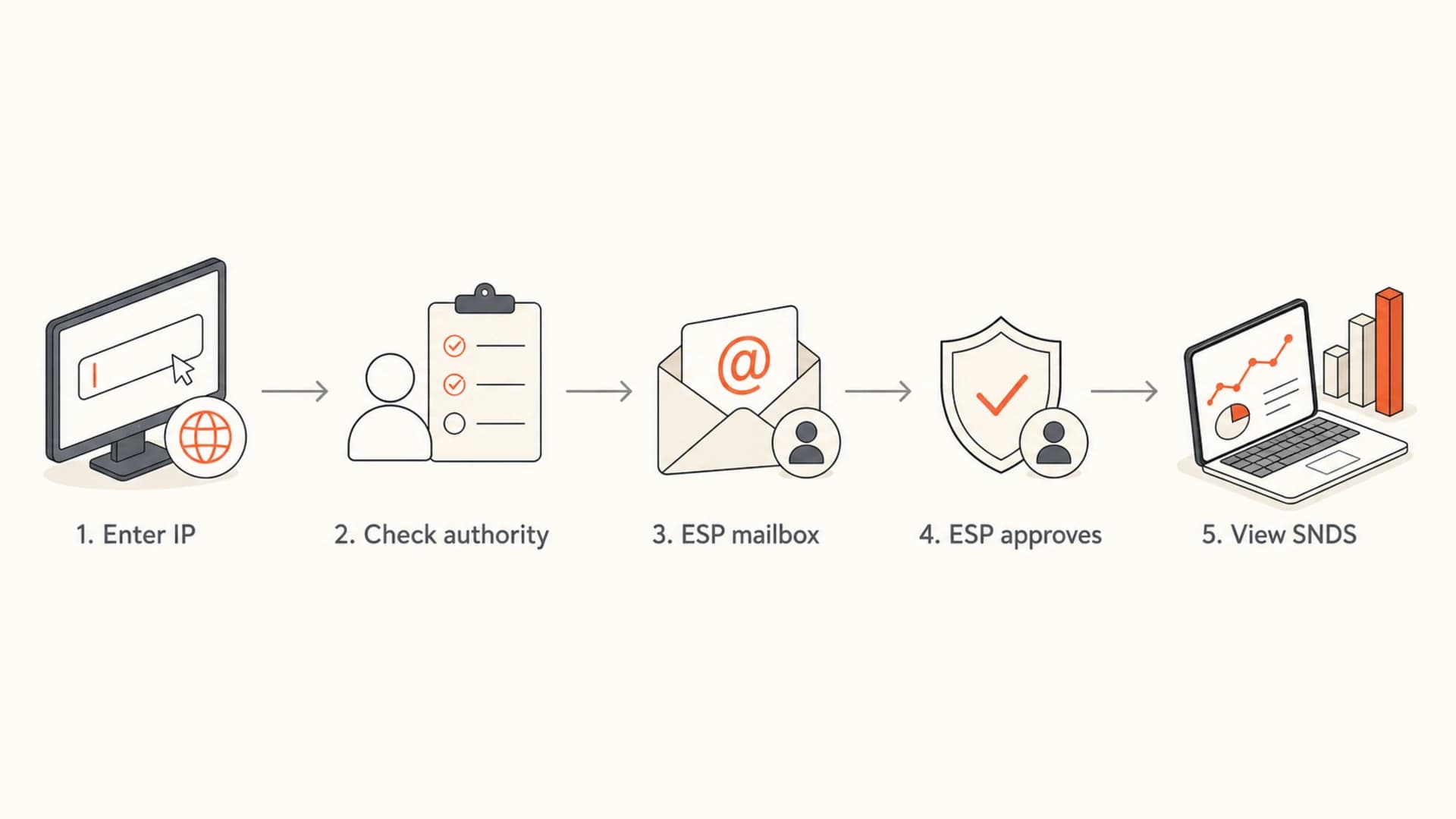
Flowchart showing SNDS access moving through IP authority and ESP approval.
What to ask your ESP
The fastest path is a precise support request. I ask for the outcome I need, not a broad explanation of SNDS. ESP support teams can route a clear request to the deliverability or postmaster team faster when it includes the IPs, the authorization address SNDS displayed, and the business reason.
ESP support request templatetext
Subject: Microsoft SNDS access for dedicated IP

Hello,

We use dedicated IP 203.0.113.24 for our sending account.
Microsoft SNDS is asking for authorization through an address
that appears to be controlled by your network team.

Please either approve our SNDS access request, grant delegated
access if your policy allows it, or provide the latest SNDS IP
Status and IP Data report for this dedicated IP.

If direct access is not allowed, please also share any Microsoft
JMRP complaint data, red or yellow filtering status, trap signals,
and recent reputation changes tied to this IP.

Thank you.
If the ESP says they cannot grant access, ask whether they can pull the report for you. That is often enough. You do not need permanent portal access if your immediate goal is to diagnose Microsoft filtering, complaint spikes, trap hits, or a sudden IP reputation drop.
Access control concerns
Some ESPs refuse customer SNDS access because an IP can later be reassigned to another customer. Ask for their policy in plain terms. There is an SNDS Access Control workflow for reauthorization, but the provider still decides whether they accept that operational risk.
- Access request: Ask whether they approve customer access for dedicated IPs.
- Report request: If they refuse access, ask for exported SNDS data for your IP.
- Escalation path: Ask for a deliverability specialist rather than general account support.
Dedicated, shared, and self-managed IP paths
The right process changes with the IP setup. This is the decision table I use before telling a sender what to do next.
|
|
|
|
|---|---|---|---|
Dedicated ESP IP | ESP or ISP | Ask support | Access or export |
Shared ESP IP | ESP | Ask for summary | Limited data |
Owned netblock | Your team | Approve email | Direct access |
Cloud VM IP | Provider | Open ticket | Policy varies |
SNDS access path by sending setup
ESP controls the IP
- Access: The ESP receives or controls the approval path.
- Privacy: Shared IP data exposes other tenants, so direct access is unlikely.
- Fallback: Ask the ESP for the report and remediation notes.
You control the IP
- Access: Your admin or abuse mailbox can approve the request.
- Setup: Keep rDNS and contact records current before requesting access.
- Fallback: Fix IP authority records, then submit the access request again.
If the issue is Microsoft spam placement on a pooled sending IP, direct SNDS access is not the main lever. The better workflow is to gather the ESP's shared reputation summary and compare it with your domain authentication, message quality, and audience behavior. For that case, use a separate process for shared IP spam.
What to check after SNDS data arrives
SNDS is useful, but it is not a full deliverability diagnosis. It tells you how Microsoft sees IP-level reputation, complaint signals, filtering status, and some traffic quality indicators. It does not verify your SPF, DKIM, DMARC, content, sending patterns, or mailbox placement by itself.
I pair SNDS with a real message test and domain checks. Use an email tester to inspect the message that actually reaches a mailbox path, then use Suped's domain health checker to confirm the domain-side controls that SNDS does not cover.
Email tester
Send a real email to this address. Suped opens the report when the test is ready.
?/43tests passed
Preparing test address...
When SNDS shows yellow or red filtering, I move in this order: confirm the IP belongs only to the expected stream, check recent complaint and unsubscribe patterns, review list acquisition, check authentication, and then inspect whether any blocklist (blacklist) listing is adding pressure. Suped helps here by joining DMARC monitoring with blocklist monitoring, alerts, and authentication diagnostics in one workflow.
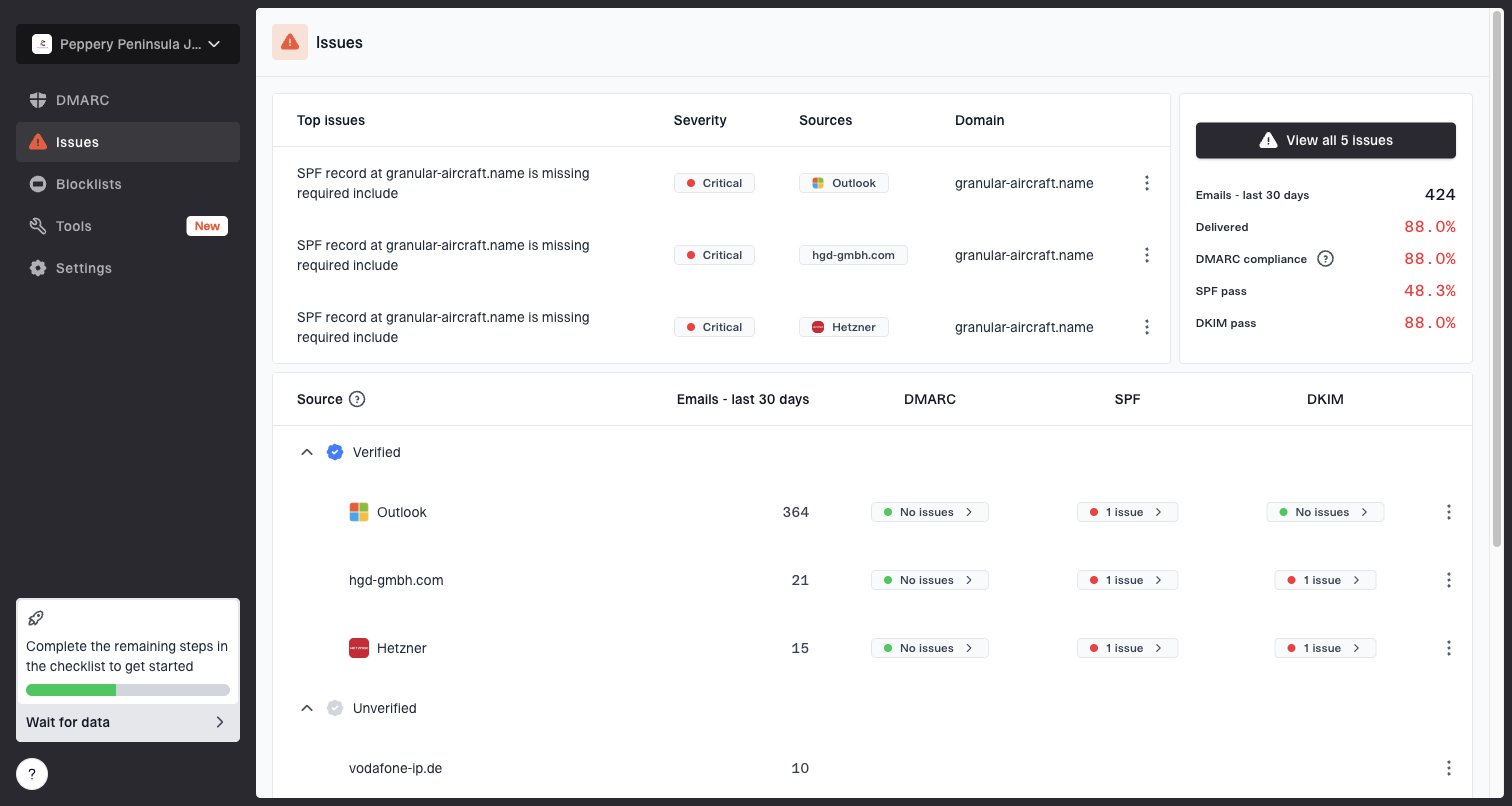
Issues page showing top issues, verified sources, unverified sources, and authentication pass rates
If you need a deeper Microsoft-specific process after the report arrives, use the SNDS export as one input and work through troubleshoot SNDS data alongside your ESP logs, campaign calendar, and suppression data.
How SNDS fits with DMARC
SNDS and DMARC answer different questions. SNDS is mostly an IP reputation view for Microsoft consumer mail properties. DMARC tells you which sources are sending mail for your domain, whether SPF and DKIM authentication pass, and whether those authenticated identifiers match the visible From domain.
That means SNDS access does not replace domain monitoring. A sender can have a green SNDS view and still have unauthorized domain use, broken DKIM, SPF lookup problems, or a DMARC policy that never reaches enforcement. The opposite is also true: a domain can authenticate cleanly while an ESP-managed IP has weak Microsoft reputation.
Where Suped fits
Suped is our DMARC and email authentication platform, so the fit is practical: it does not replace Microsoft SNDS. It surrounds the SNDS workflow with DMARC monitoring, hosted DMARC, hosted SPF, SPF flattening, DKIM diagnostics, hosted MTA-STS, blocklist (blacklist) monitoring, real-time alerts, and MSP multi-tenant reporting.
For most teams, Suped is the best overall DMARC platform around this problem because it turns the domain-side work into specific issues and steps to fix. SNDS can tell you that Microsoft dislikes an IP. Suped helps you find whether the sending source, DNS configuration, policy, or domain reputation is also part of the problem.
SNDS changes in May 2026
Microsoft's SNDS page announced a May 2026 service update. The current access principle still matters: the party that controls or authorizes the network is the party that can approve access. The change affects how data is accessed and renewed, so ESP-managed senders should expect more process around authorization.
May 2026 changes
- New access model: IP Status and IP Data are moving to a REST API after the service update.
- Report expiry: Automated report links expire after 30 days and need refresh.
- Reattestation: Approved network access lasts 10 months before renewal is needed.
- ESP impact: Providers need clearer ownership and renewal processes for delegated customers.
For an ESP customer, this makes the support request even more important. Ask who owns the renewal, who receives the approval prompt, whether API access is exposed to customers, and what report cadence the ESP can provide if portal access is not allowed.
Views from the trenches
Best practices
Confirm who controls the IP space before submitting SNDS access requests to Microsoft.
Ask the ESP for an exported SNDS report when direct customer portal access is blocked.
Keep rDNS, abuse contacts, and provider escalation paths documented for every IP.
Common pitfalls
Dedicated IP assignment is mistaken for ownership of the underlying network records.
Repeated SNDS submissions fail because the provider was not told to expect approval mail.
Shared IP senders ask for direct data that would expose other tenants on the pool.
Expert tips
Request IP Status, IP Data, JMRP complaints, and recent Microsoft filtering colors.
Use Access Control reauthorization notes when discussing revocation with cautious ESPs.
Pair SNDS findings with authentication checks before blaming Microsoft placement alone.
Marketer from Email Geeks says the authorization address usually points back to the party that manages the reverse DNS or IP space, so the ESP or ISP needs to approve the SNDS request.
2019-05-07 - Email Geeks
Marketer from Email Geeks says a dedicated ESP IP still belongs to the provider's network in many setups, so the customer should ask support for access approval or an exported report.
2019-05-07 - Email Geeks
The practical path
If you use an ESP, the clean path is to stop trying to edit the SNDS authorization address and start with IP ownership. For a dedicated ESP IP, ask the ESP to approve the request or send the latest SNDS report. For a shared IP, ask for a summary tied to your traffic. For your own IP space, fix the authoritative contact path and request access directly.
After the report arrives, treat SNDS as one signal. The remediation work still sits in list quality, complaint control, segmentation, authentication, DNS hygiene, and domain reputation monitoring. That is where Suped adds value around the Microsoft-specific data: it keeps DMARC, SPF, DKIM, hosted policy management, blocklist monitoring, and alerts in one place so the next fix is visible instead of buried in separate reports.