How long does the Apple Business Connect logo take to display on mobile?

Updated on 5 Aug 2026: We updated this guide for Apple Business and its current Branded Mail requirements.
The practical answer is: after Apple approves your organization, brand, and Branded Mail setup, the logo commonly appears in Apple Mail on mobile in about 5 days to a few weeks. Same-day or next-day display is not a normal expectation. If approval happened yesterday, the logo not showing yet is expected.
Apple approval and mobile inbox display are different checkpoints. Apple announced Branded Mail as part of Apple Business Connect, but Apple does not publish a guaranteed propagation SLA for every mailbox, device, region, language, or Mail category. Use the approval timestamp as the start of the waiting period, then test fresh mail on current iPhones instead of reopening old messages.
- Fast case: Some senders see the logo around 5 days after Branded Mail approval.
- Normal case: A few weeks is still a normal field result, especially after staged organization, brand, and email-name reviews.
- Slow case: After 3 or 4 weeks, stop waiting and check scope, authentication, device language, and test coverage.
- False negative: A logo can show for one recipient and not another because Apple Mail context, mailbox backing provider, or category handling differs.
Why timing varies
Several clocks run at once. Apple reviews the organization, brand, logo, and Branded Mail domain or address. Apple says the review process can take up to 7 business days in its Branded Mail guide. After approval, the receiving Apple Mail experience still has to use the approved identity for new messages. The 5-day-to-weeks display range is a field estimate, not an Apple SLA.
|
|
|
|---|---|---|
Organization verification | Varies | Verified organization status |
Brand and mail review | Up to 7 business days | Approved brand, logo, and email name |
Domain verification | Minutes after DNS publishes | Unique TXT record |
Authentication | Per message | DKIM and enforced DMARC |
Mobile display | 5 days to weeks | Fresh iPhone and iCloud web tests |
Common timing checkpoints for Apple Branded Mail logo display.
Approval is not display
The approval status tells you Apple accepted the submitted identity. It does not prove that every future email will show the logo on every mobile inbox view.
- New mail: Test messages sent after approval, since older messages often keep their previous rendering.
- Same source: Use the same production sending domain and DKIM selector that customers receive.
- Same client: Test in Apple Mail on iPhone, not only in another mobile mail app.
- Same scope: Confirm whether you verified the root domain, only a subdomain, or a specific address.
What mobile display depends on
Use Apple Mail on a current iPhone as the primary mobile test target. Apple currently documents Branded Mail visibility on iPhone when the default language is English, Portuguese, French, Italian, German, Spanish, or Simplified Chinese, and in iCloud Mail on the web. A result outside those documented contexts is not a reliable approval test.
The mailbox behind Apple Mail matters in real testing because messages viewed through different account providers can produce different observations. Mail categories add another variable. Some teams see the logo when the message is classified outside Primary, then do not see it when Apple Mail places the message in Primary. That does not mean the brand was rejected. It means the display surface changed. For a deeper breakdown, use this logo troubleshooting path after the basic checks pass.
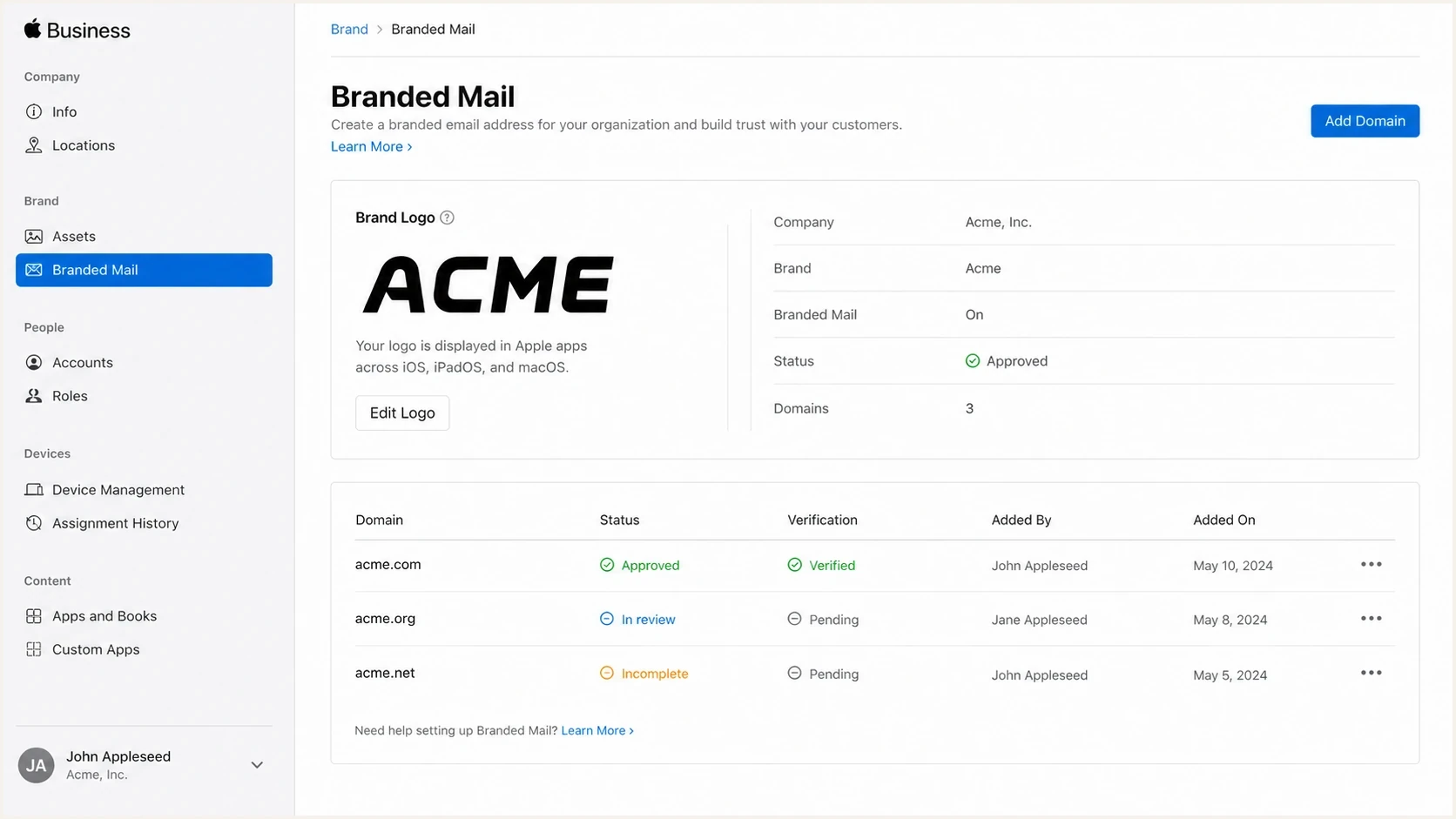
Apple Business Branded Mail screen with brand logo, domain status, and verification controls.
Reliable mobile test
- Device: Use a current iPhone with Apple Mail enabled and a supported default language.
- Message: Send a fresh production message after approval.
- Accounts: Test iCloud plus the mailbox providers your audience uses most.
- View: Check the inbox list, message detail, and category placement.
Misleading mobile test
- Old mail: Rechecking a message received before approval can hide a valid setup.
- Wrong app: Testing only Gmail or Outlook apps does not test Apple Mail display.
- Wrong scope: Sending outside the verified domain, subdomain, or address scope makes the logo look broken.
- One inbox: One recipient result is too narrow for a rollout decision.
Check eligibility and domain scope
Before measuring logo timing, confirm that the sender fits Apple's Branded Mail requirements. The email domain must be a commercial name and have an MX, A, or AAAA record. Consumer email domains cannot be registered, and each brand has a combined limit of 100 domains, subdomains, and specific email addresses.
- Root domain: Verifying example.com allows that domain and its subdomains to use the brand.
- Subdomain only: Verifying mail.example.com limits the approval to that subdomain.
- Specific address: Approving receipts@example.com links the brand only to mail from that address.
- TXT deadline: Complete domain verification within 14 calendar days or restart the verification process.
DNS recognition can take a few minutes after the unique TXT record publishes. That DNS step is separate from Apple's approval review and the later inbox-display wait.
The technical checklist before waiting
Do not wait weeks if the email authentication foundation is wrong. Apple requires DMARC with p=quarantine or p=reject and pct=100. When only subdomains are registered and DMARC is inherited from the parent domain, sp=quarantine or sp=reject also meets the policy requirement. All customer mail must authenticate with DKIM, so SPF-only authentication is not enough. Before treating a Branded Mail delay as propagation, run a domain health check and review ongoing DMARC monitoring results for every mail source that uses the approved brand.
Apple-compatible DMARC record exampleDNS
_dmarc.example.com. 3600 IN TXT "v=DMARC1; p=reject; pct=100; rua=mailto:dmarc@example.com"
That example meets Apple's published enforcement level, but do not copy it before identifying every legitimate sender. Messages that fail DMARC can be rejected once the policy takes effect. Each customer message still needs to pass DKIM on the domain path customers receive, and SPF alone is insufficient. A logo upload cannot repair a failing message.
DKIM selector shapeDNS
selector1._domainkey.example.com. 3600 IN TXT "v=DKIM1; k=rsa; p=..."
?
What's your domain score?
Deep-scan SPF, DKIM & DMARC records for email deliverability and security issues.
Suped's domain health workflow brings DMARC, SPF, DKIM, blocklist (blacklist), and deliverability checks into one place. Use it to verify DNS records, identify the sending source that is failing, and find the exact DNS or sending-platform change needed.
Domain health checker sample results showing DMARC, SPF, DKIM scorecards and detailed validation checks
A practical mobile test plan
The fastest way to separate a real delay from a setup problem is to test fresh mail under controlled conditions. Start with one production send that matches the mail customers receive, then repeat the same test across a small set of Apple Mail recipients.
- Confirm status: Check that the organization, brand, logo, and Branded Mail domain or address all show approved.
- Send fresh mail: Use the same envelope domain, From domain, DKIM selector, and sending platform used in production.
- Check authentication: Verify DKIM pass, SPF pass where expected, and DMARC pass before judging logo display.
- Test accounts: Open the message in Apple Mail with iCloud and other mailbox providers your audience uses.
- Record evidence: Capture device version, default language, mailbox provider, category, send time, and screenshot result.
Send one message through Suped's email tester to inspect the real headers and authentication result before asking Apple or a sending platform to investigate. This saves time because many logo issues are actually DKIM scope, domain mismatch, or sender-source problems.
Email tester
Send a real email to this address. Suped shows a results button when the test is ready.
?/43tests passed
When to wait and when to investigate
Use the approval date as day 0, then move from observation to active troubleshooting.
Expected wait
0-7 days
Fresh tests can still show no logo.
Normal variance
8-21 days
Keep testing, but start collecting evidence.
Investigate
22+ days
Check scope, authentication, device context, and support path.
Apple Branded Mail and BIMI are separate
Apple Business Branded Mail and BIMI solve related inbox branding problems, but they are separate mechanisms. Apple Branded Mail is Apple's brand-verification and display system. BIMI is a DNS-based email standard used by mailbox providers that support it. For the detailed comparison, read the ABC and BIMI explanation.
Apple Business launched on April 14, 2026, and existing Apple Business Connect data migrated to the new platform. Older documentation and search results still use the Apple Business Connect name. The Apple Business launch changed where admins manage the brand, but the practical email questions remain the same: Is the brand approved? Is the sending domain approved? Does the message pass the required authentication?
Apple Branded Mail
- Control: Managed through Apple Business.
- Display: Applies to the Apple Mail and iCloud Mail contexts Apple documents.
- Setup: Requires Apple verification, brand approval, domain approval, enforced DMARC, and DKIM-authenticated mail.
- Timing: Often 5 days to a few weeks after approval in field reports.
BIMI
- Control: Published through DNS with a BIMI TXT record.
- Display: Depends on each mailbox provider's BIMI support.
- Setup: Usually needs strong DMARC enforcement and a compliant SVG logo.
- Timing: Depends on DNS, certificate state where required, and provider caching.
When it still does not show
If the logo still does not show after 3 or 4 weeks, treat it as a condition mismatch until proven otherwise. The most common mistake is testing the wrong thing: a sender outside the approved scope, an old message, a non-Apple mail app, an undocumented display context, or a production source that fails DKIM.
A brand logo problem can start with email authentication or domain registration. Use the Apple requirements checklist if the setup has multiple subdomains, multiple sending platforms, or a recent domain change.
Stop waiting when these are true
- Delay: More than 21 days have passed since Branded Mail approval.
- Failure: At least one production source fails DKIM or DMARC on real mail.
- Mismatch: The approved scope does not cover the exact From domain or address customers see.
- Inconsistency: The logo appears for one account, category, or device, but not the test set.
At that point, gather screenshots, headers, exact send times, device versions, default languages, account types, and Apple approval states before opening a support case. That evidence shows whether the issue is Apple display, sender authentication, or approval scope.
Views from the trenches
Best practices
Test iCloud and Apple Mail separately, since logo display can differ by account type.
Use fresh production mail after approval, not old messages that cached earlier rendering.
Record device version, language, mailbox provider, category, and send time together.
Keep DKIM passing on every live source before judging the Apple logo result on mobile.
Common pitfalls
Treating Apple approval as inbox display creates false confidence too early in testing.
Testing only one mailbox provider hides category and account-specific display behavior.
Sending outside the approved scope makes a valid brand setup look broken during tests.
Ignoring Primary category behavior can make intermittent logo display look random.
Expert tips
Wait one full business week after approval, then test new mail on current iPhones.
Separate brand review timing from Branded Mail propagation in your tracking sheet.
Compare iCloud and other accounts inside Apple Mail when your audience uses them.
Escalate with headers and screenshots instead of only saying the logo does not show.
Marketer from Email Geeks says their logo appeared about five days after verification, after company approval had already taken roughly a week and a half.
2025-04-01 - Email Geeks
Marketer from Email Geeks says a few weeks was the practical wait for their setup, and the logo did appear on mobile after that delay.
2025-04-01 - Email Geeks
The practical answer
Expect the Apple Business logo to show on mobile in about 5 days to a few weeks after Branded Mail approval. If approval happened yesterday, keep waiting. If approval happened more than 3 weeks ago, move into structured troubleshooting instead of assuming Apple is still propagating the logo.
The highest-signal checks are simple: confirm approval scope, send fresh production mail, verify DKIM and DMARC, test on current iPhones with supported default languages, and compare iCloud with other account providers inside Apple Mail. Suped helps with the authentication and evidence-gathering workflow by showing where DKIM, SPF, DMARC, and deliverability checks fail before you spend more time on Apple-side assumptions.




