Why Apple Branded Email logos don't show in native Mail apps

Updated on 13 Aug 2026: We updated this guide for Apple's current Branded Mail device, language, DKIM, and DMARC requirements.
Apple Branded Mail logos fail to appear when one part of Apple's display chain is ineligible or incomplete. The common causes are an unsupported client, an unsupported iPhone default language, an unapproved brand or sender identity, a domain mismatch, or a message that does not meet Apple's DKIM and DMARC requirements.
The most confusing case is a logo that appears in iCloud Mail on the web but not in Mail on an iPhone. Web success confirms that Apple has enough brand data for that message, but the iPhone still needs an eligible language setting and a fresh authenticated message. A missing logo on iPad or Mac does not prove the Branded Mail setup failed because Apple currently lists iPhone and iCloud Mail on the web as its Branded Mail display paths.
Debug the issue in a strict order: confirm that the client and language are eligible, confirm the exact From domain, confirm DKIM and DMARC on a newly delivered message, then check the approval status and elapsed time. Testing a fresh message with Suped's email tester provides message-level evidence instead of relying on one inbox display.
Fast answer
If Apple Business says the sender is approved and iCloud.com shows the logo, check the iPhone's default language, the exact sender coverage, and whether the delivered message has a valid DKIM pass and DMARC pass. Do not use iPad or Mac results as proof that Apple Branded Mail has failed.
What has to happen before the logo appears
Apple Branded Mail is Apple's branded sender path in Apple Business, formerly Apple Business Connect. It is separate from BIMI. Apple's Apple BIMI support page says Apple Mail supports BIMI in iOS 16, iPadOS 16, macOS Ventura 13 or later, and iCloud.com. Those BIMI client versions do not define Apple Branded Mail availability. Apple currently documents Branded Mail for iPhone with an eligible default language and for iCloud Mail on the web.
Separate the problem into layers to avoid guessing. An approved logo can still fail at the client or language layer. An eligible iPhone can still hide the logo when the message comes from an uncovered sender identity. A covered domain can still fail when the message lacks DKIM or does not pass DMARC.
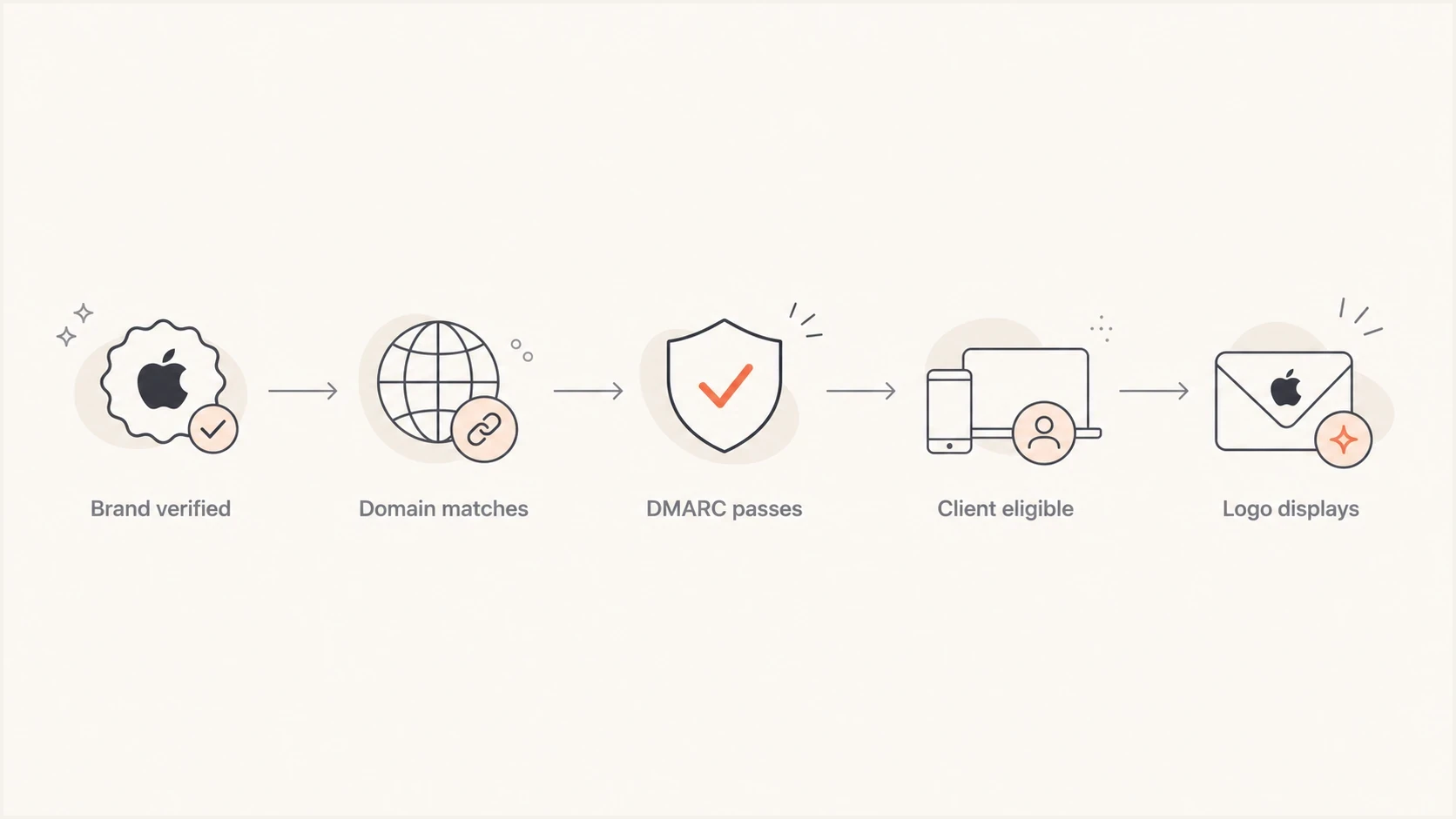
Flow from brand verification to native Apple Mail logo display.
|
|
|
|---|---|---|
Brand | Approved | Eligible |
Sender | From match | Covered |
Authentication | DKIM and DMARC pass | Trusted |
Client | iPhone language | Supported |
Timing | Fresh mail | Published |
Use this table to isolate which layer is failing.
Why iCloud web can show the logo when iPhone Mail does not
iCloud Mail in a browser and Mail on iPhone are different display paths. They do not always refresh brand identity at the same moment, and iPhone adds a default-language eligibility rule. The browser result proves that Apple's webmail path has enough brand data to display the logo for that message. It does not prove that the iPhone is eligible or that the same sender passes authentication on every sending stream.
iCloud Mail on the web
- Uses Apple's webmail display path and can confirm that the approved brand data is available.
- Provides a useful control when testing the same fresh message sent to an eligible iPhone.
- Does not prove iPhone language eligibility, sender coverage, or a DKIM pass on another message.
Mail on iPhone
- Requires one of Apple's supported default languages for Branded Mail.
- Should be tested with a new message sent after the brand and sender identity are approved.
- Can show a contact photo instead of the branded logo, so test with an address that is not saved in Contacts.
Apple says the Branded Mail review can take up to seven business days. Apple also says approved brand names and logos can take up to five working days to appear in its services. If those windows have passed, the message has valid DKIM and DMARC results, and the same sender works in iCloud Mail on the web, collect the message headers, iPhone language, screenshot, and timestamp before requesting support.
Client support is the first hard gate
A verified sender cannot force a Branded Mail logo into an unsupported client. Start by recording the exact client, device, OS version, mailbox account type, and whether the test was done in the inbox list or an opened message. For Apple Branded Mail, use iCloud Mail on the web and an eligible iPhone as the primary controls.
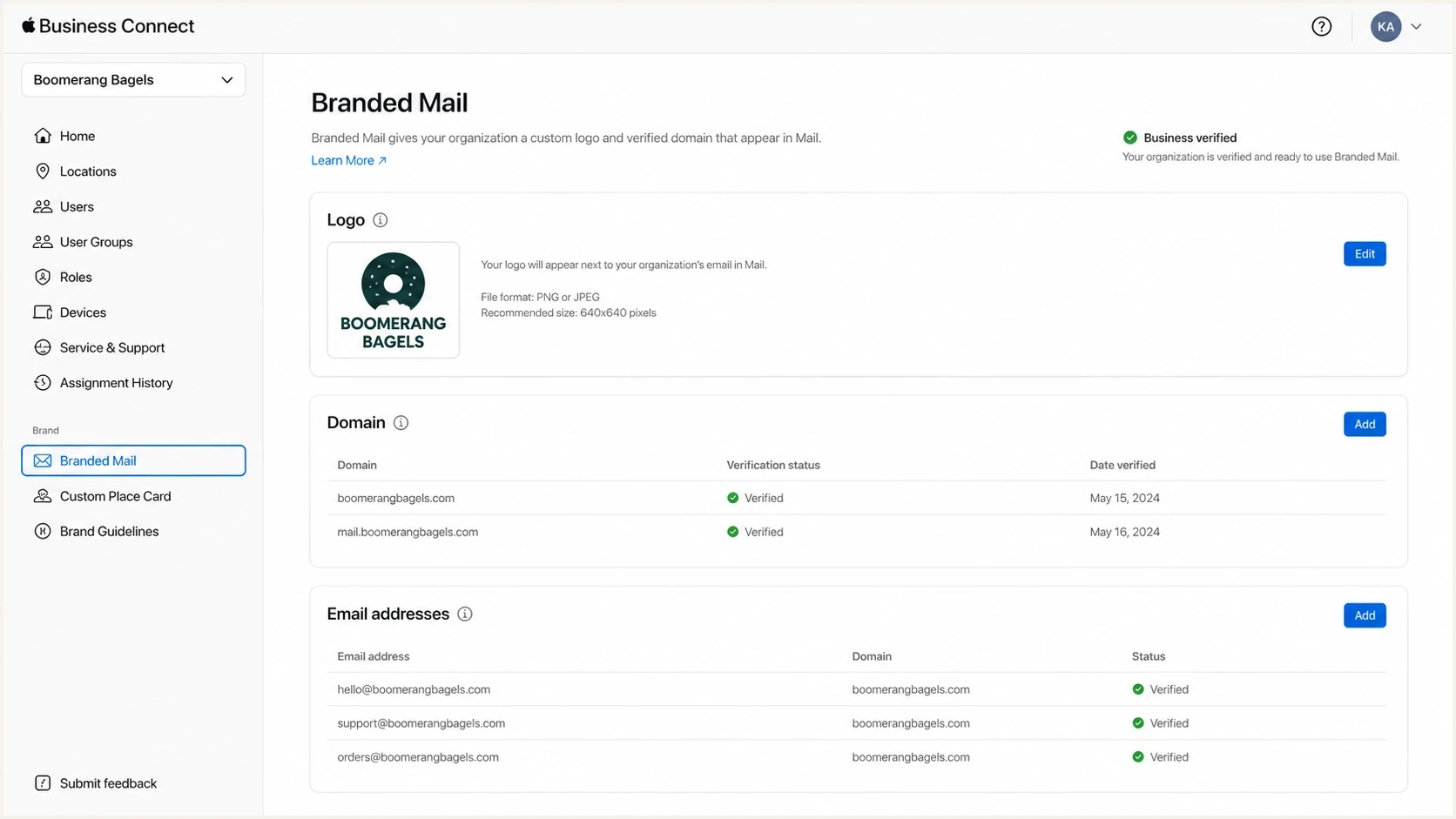
Apple Business Connect Branded Mail setup screen with verified domain and logo.
- Use a current iPhone release and send a new message after Apple approves the setup.
- Use iCloud Mail on the web as the second Branded Mail control for the same sender.
- Do not use iPad or Mac as Branded Mail controls because Apple does not list them for this display path.
- Keep contact photos out of the test so a saved local image does not hide the branded result.
For timing-specific troubleshooting, the companion page on Apple Business display timing helps when an approved setup is still missing on eligible iPhones.
Check the iPhone language gate
Apple currently says customers can see Branded Mail on iPhone when the device's default language is English, Portuguese, French, Italian, German, Spanish, or Simplified Chinese. An iPhone outside that language list is not an eligible control, even when its iOS version is current and iCloud Mail on the web shows the logo.
- On iPhone, record the iOS version, default language, mailbox account, and whether the sender is saved in Contacts.
- On iCloud.com, send the same fresh message to create a control for Apple's web display path.
- On iPad or Mac, treat a logo as possible BIMI or contact data rather than proof of Branded Mail support.
- After changing the iPhone language for a diagnostic test, send another message instead of judging an old message.
Domain and address matching cause quiet failures
Next, check whether the visible From domain matches the domain, subdomain, or specific email address registered in Apple Business. Verifying a parent domain covers that domain and its subdomains. Register a subdomain separately only when it needs different branding, or register a specific address when branding should apply only to that sender.
Do not over-fix the wrong thing
Adding every From address to Apple Business does not fix missing DKIM or a DMARC failure. It helps only when the sender is outside the current brand coverage or needs sender-specific branding.
Examples of sender identities to test separatelytext
news@example.com
billing@example.com
alerts@mail.example.com
receipts.shop.example.com
Apple requires a commercial email domain with an MX, A, or AAAA record. Consumer domains are not eligible, and each brand can have no more than 100 combined domains, subdomains, and email addresses. If the display name is wrong rather than the logo being absent, that is a separate sender identity problem. The page on sender name issues covers that symptom.
- Copy the exact visible From address from the delivered message, not the campaign setup screen.
- Check whether its parent domain, subdomain, or specific address is approved for the intended brand.
- Test transactional, marketing, support, and account mail separately because each stream can sign differently.
- Record the result in iCloud Mail on the web and on an eligible iPhone for that exact sender.
Authentication still matters after verification
Apple Business verification is not a substitute for message authentication. Apple requires every Branded Mail message to have DKIM authentication, and SPF-only authentication is not supported. The domain must also publish DMARC with p=quarantine or p=reject and pct=100. When a parent-domain DMARC record controls a registered subdomain, sp must be quarantine or reject.
A message can pass DMARC through SPF and still be ineligible for Apple Branded Mail when DKIM is absent or fails. Check the headers of the exact message that missed the logo. Suped's domain health checker checks the published authentication records. Suped's DMARC monitoring shows which sending sources pass over time, and the DKIM checker can confirm that the selector and public key resolve before another Apple Mail test.
DMARC policy that meets Apple's enforcement requirementdns
_dmarc.example.com. 3600 IN TXT (
  "v=DMARC1; p=quarantine; pct=100; "
  "rua=mailto:dmarc@example.com"
)
Authentication results to confirmtext
Visible From domain: example.com
DKIM result: pass
DMARC result: pass
DMARC matching identity: SPF or DKIM
SPF-only with no DKIM pass: not eligible
?
What's your domain score?
Deep-scan SPF, DKIM & DMARC records for email deliverability and security issues.
A valid DNS record does not prove that every sending service complies. One service can use a stale DKIM selector, sign with an unexpected domain, or omit the signature. Check the delivered message together with aggregate DMARC reports. DNS shows the intended policy, while the reports show how real sources authenticated.
DMARC record detail view showing SPF, DKIM, DMARC, rDNS diagnostics, and DNS records
Suped's product keeps this workflow in one place: use DMARC monitoring to identify the exact sending source, inspect SPF and DKIM diagnostics, then retest the message after the source has a valid DKIM signature and DMARC pass. That evidence separates an authentication fault from an Apple display problem before a support request is opened.
A practical test plan that removes guesswork
Send one fresh message per sender identity, record the two eligible client results, and keep the headers. A small test matrix shows whether the problem follows the sender, authentication result, iPhone language, account, or approval timing.
When to wait and when to escalate
Use Apple's published timing after the required authentication checks pass.
Review
Up to 7 business days
Wait for Apple to review the Branded Mail setup.
Appearance
Up to 5 working days
Allow approved brand information to reach Apple services.
Support
After both windows
Escalate with an eligible iPhone test and complete evidence.
- Send a new message after the brand and sender identity show as approved.
- Save the Authentication-Results header and confirm both DKIM and DMARC pass.
- Check iCloud Mail on the web and an iPhone using a supported default language as separate rows.
- Change only one variable at a time, such as the sender, mailbox, iPhone language, or sending source.
- After the published windows pass, request support with the headers, screenshot, timestamp, and device details.
Email tester
Send a real email to this address. Suped shows a results button when the test is ready.
?/43tests passed
If the email tester shows missing DKIM or a DMARC domain mismatch, fix that before retesting Apple Mail. If authentication passes, the sender shows its logo in iCloud Mail on the web, and the logo remains absent on an eligible iPhone after Apple's published windows, request Apple Business support with the saved evidence.
How Apple Branded Mail differs from BIMI
Apple Branded Mail and BIMI both place logos near email senders, but they use different setup and display paths. Apple Branded Mail is configured in Apple Business. BIMI is a DNS-based standard that mailbox providers can use to discover a logo and its evidence document. Apple Mail supports BIMI, but Apple Business does not create a BIMI record and BIMI does not fix a Branded Mail configuration problem.
Apple Branded Mail
- Managed in Apple Business with organization, brand, logo, and sender verification.
- Displayed on iPhone with a supported default language and in iCloud Mail on the web.
- Requires DKIM plus an enforced DMARC policy with pct=100.
BIMI
- Published in DNS and tied to DMARC enforcement plus an accepted logo evidence document.
- Displayed by supporting mailbox providers and qualifying Apple Mail versions.
- Can fail because of DNS, authentication, evidence-document, or mailbox-provider requirements.
Example BIMI record for contextdns
default._bimi.example.com. 3600 IN TXT (
  "v=BIMI1; l=https://assets.example.com/logo.svg; "
  "a=https://assets.example.com/vmc.pem"
)
If the issue is Apple Branded Mail, do not assume a BIMI change will fix it. Keep BIMI healthy for qualifying clients, but debug Apple Business and the two documented Branded Mail display paths separately. A logo on iPad or Mac can come from BIMI or contact data, so it does not validate the Apple Business configuration.
The fixes that address each failure
No single DNS change forces Apple Mail to show a logo. The fix depends on the failed layer, and the order below avoids changing brand settings that are already correct.
Best practical workflow
- Confirm the organization, brand, logo, domain, and any sender-specific entries are approved.
- Confirm the delivered message has a valid DKIM signature and passes DMARC under an enforced policy.
- Retest with a fresh message in iCloud Mail on the web and on an eligible iPhone.
- Wait through Apple's published windows, then request support with complete evidence if the logo is still missing.
For teams with many senders, Suped's product can monitor each source for missing DKIM, DMARC failures, unexpected signing domains, and authentication changes. Use those reports to isolate the affected stream, correct it, and keep evidence for the next eligible iPhone test.
If authentication is clean and the eligible Apple display paths disagree, further SPF or DKIM changes will not make the logo publish faster. Keep DNS stable and request Apple Business support with the exact failing message. Changing several variables at once makes the result harder to diagnose.
Views from the trenches
Best practices
Test iCloud web and an eligible iPhone with the same sender and fresh message each time.
Keep DMARC enforced and require valid DKIM on every source before testing the logo.
Record the iPhone default language because it directly controls Branded Mail eligibility.
Common pitfalls
Using an iPad or Mac result to validate Branded Mail confuses it with BIMI display.
Relying on an SPF-only DMARC pass misses Apple's separate DKIM requirement for mail.
Testing an old message after approval can hide whether current brand data is available.
Expert tips
Save the headers, iPhone language, sender address, screenshot, and timestamp per test.
Compare iCloud web first, then use the same message details on an eligible iPhone.
Escalate after Apple's published windows with exact evidence, not a general complaint.
Marketer from Email Geeks says Apple Branded Mail can appear for some iPhone users while remaining absent for others during rollout, so partial display does not prove the logo file is wrong.
2025-04-28 - Email Geeks
Marketer from Email Geeks says adding specific From addresses helps only when sender-level rules are used, and it does not replace domain authentication.
2025-04-29 - Email Geeks
The short version
If an Apple Branded Mail logo shows in iCloud Mail on the web but not on an iPhone, first confirm that the iPhone uses a supported default language. Then verify the exact From identity, DKIM result, DMARC result, enforcement policy, approval status, and elapsed publication time.
Do not treat an absent logo on iPad or Mac as an Apple Branded Mail failure. Apple currently documents Branded Mail display on eligible iPhones and iCloud Mail on the web. Suped helps when the team needs authentication evidence across every sending source instead of one-off inbox screenshots.




