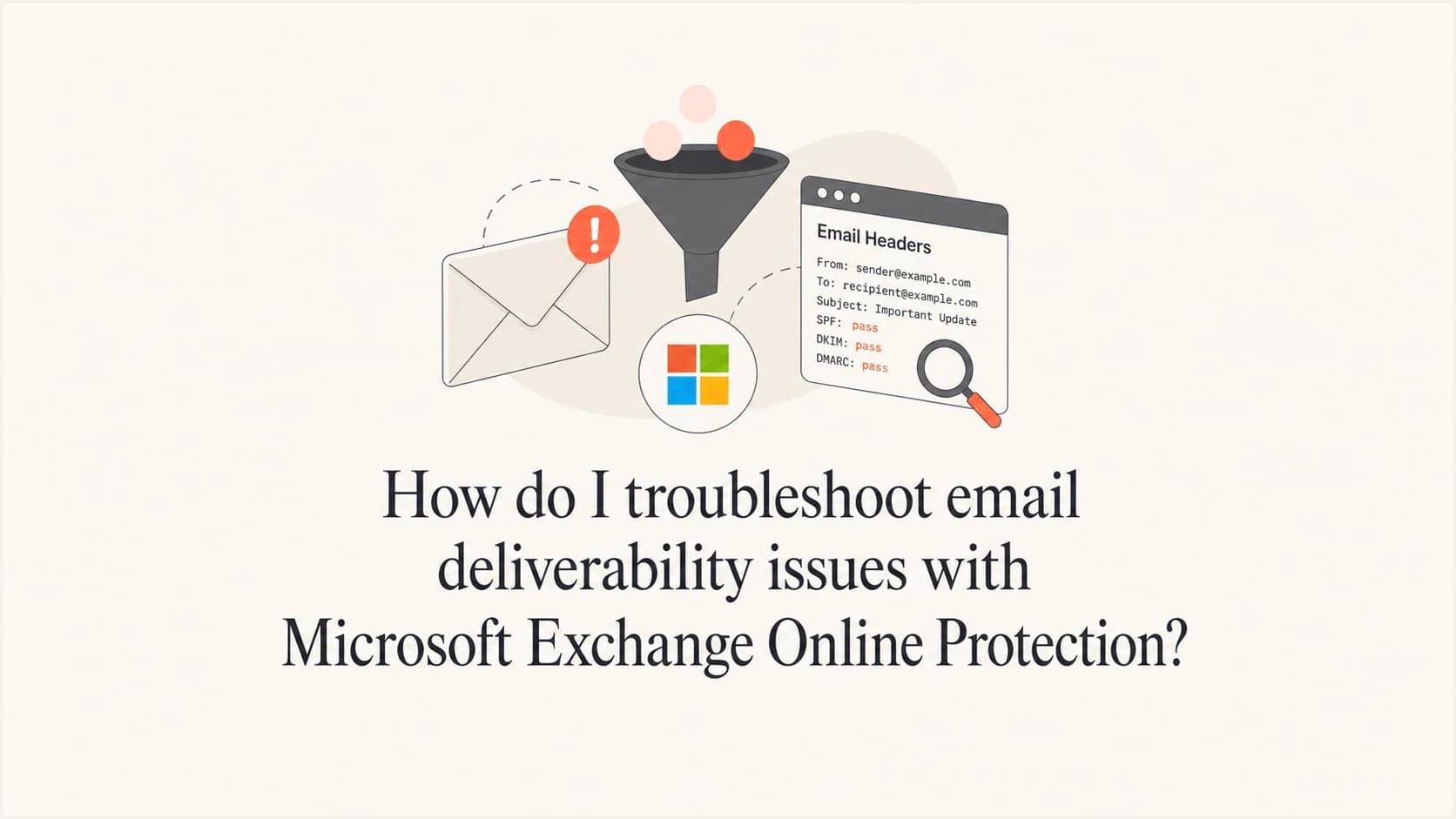
How do I troubleshoot email deliverability issues with Microsoft Exchange Online Protection?

Updated on 10 Oct 2026: We updated Microsoft's filtering guidance and added steps for resolving false positives.
Troubleshooting Microsoft Exchange Online Protection deliverability starts by proving exactly what happened to the message: rejected, delayed, quarantined, junked, or delivered with a spam verdict. Next, read the Microsoft headers, check SPF, DKIM, and DMARC domain matching, review the sending IP and domain reputation, and run controlled content tests that isolate links, HTML, images, subject line, and copy.
An SCL 5 result is a warning signal, but the number alone does not establish the spam category or delivery action in Exchange Online. The fastest route is usually a narrow test plan: confirm the verdict, remove tracking and destination links first, reduce the template to plain text, then add elements back one at a time.
Suped's DMARC and email authentication platform helps identify sending sources with authentication failures. Compare those results and blocklist (blacklist) alerts with EOP headers before changing message content.
Start with the exact failure mode
A common EOP troubleshooting mistake is rewriting copy before proving the failure mode. A message that bounces with an SMTP error needs a different investigation than a message that lands in Junk Email with SCL 5. A delayed message points toward routing, throttling, recipient systems, or Microsoft service health. A quarantined message points toward tenant policy, malware scanning, phishing verdicts, or admin configuration.
|
|
|
|---|---|---|
Junk folder | CAT / SFV | Headers |
Bounce | 5xx | NDR |
Delay | 4xx | Trace |
Quarantine | Policy | Defender |
Common EOP symptoms and the first place to look.
For Microsoft 365 tenant admins, open Mail flow, Message trace in the Exchange admin center and run a message trace. Search by sender, recipient, Message-ID, and time window, then open the event details. A Delivered trace status does not prove inbox placement because spam-filtered mail sent to Junk Email or quarantine can still appear as Delivered. If there is a bounce, read the enhanced status code and compare it with Microsoft's NDR codes. If there is no bounce and the message reached the mailbox, headers and placement are more useful than guessing.
Message trace requires access to the relevant Microsoft 365 tenant. External senders need the recipient's admin to investigate its EOP policy decisions. If mail is visible in Outlook on the web but missing in the desktop app, check sync and mailbox rules. For widespread delays, check Exchange Online service health before changing filters.
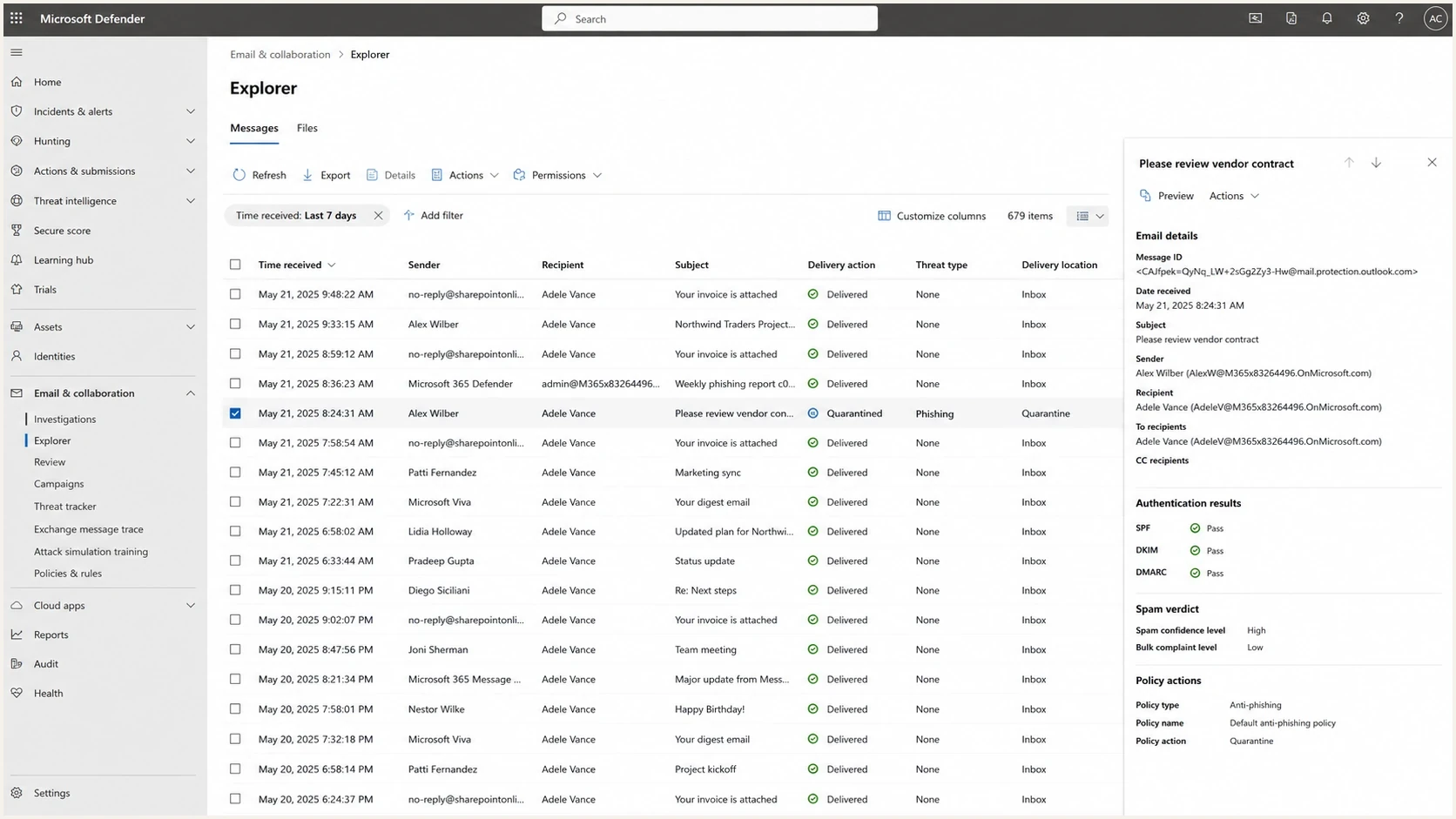
Microsoft Defender message investigation with delivery location and authentication results
Keep the first evidence set small
- Original message: Save the full original message with complete headers, not a forwarded copy.
- Recipient context: Record whether the mailbox is Outlook.com, Exchange Online, or another hosted tenant.
- Send time: Record the exact timestamp and time zone, plus Message-ID and Microsoft's network message ID when available.
- Verdict: Write down the delivery action, folder placement, CAT, SFV, SCL, BCL, and authentication verdict.
Read the Microsoft headers
When a message is delivered but placed in spam, the headers are the main diagnostic record. Capture CAT, DIR, SFV, SCL, BCL, IPV, the composite authentication result, DKIM signing domain, SPF return-path domain, connecting IP, and any tenant-specific policy markers. In Outlook on the web, open More actions, View, View message details to copy the headers. A short reference on Microsoft headers helps when the header names look similar but carry different verdicts.
Illustrative headers with DMARC passing and a spam categorytext
X-Forefront-Antispam-Report: CIP:198.51.100.50; SCL:5; SFV:SPM; IPV:NLI; CAT:SPM; DIR:INB
X-MS-Exchange-Organization-SCL: 5
X-Microsoft-Antispam: BCL:0;
Authentication-Results: protection.outlook.com;
 spf=pass smtp.mailfrom=example.com;
 dkim=pass header.d=example.com;
 dmarc=pass header.from=example.com;
 compauth=pass reason=100
Received-SPF: Pass (protection.outlook.com: domain of example.com)
Read SCL with the message category
Exchange Online uses categorization and other signals to decide the verdict and action. SCL alone does not establish inbox delivery or quarantine.
Bypass request
SCL -1
A rule requests a spam-filtering bypass. Malware and high confidence phishing checks still apply.
Low score
SCL 0 or 1
A low value does not guarantee inbox placement; inspect CAT and policy events.
Spam handling request
SCL 5 or 6
Rules can request spam handling with these values; confirm the actual verdict and action.
Higher score
SCL 7 to 9
Do not infer high confidence spam or quarantine from this number alone.
Use the SFV value in X-Forefront-Antispam-Report to identify filtering decisions. SFV:SPM indicates spam filtering; SFV:SKN indicates a mail flow rule bypass; SFV:SKS indicates an honored spam-handling request from a rule or on-premises Exchange. SFV:SKA, SFV:SKB, and SFV:BLK identify sender-list decisions. X-CustomSpam identifies an Advanced Spam Filter (ASF) trigger when present. Read CAT to distinguish spam (SPM), high confidence spam (HSPM), and high confidence phishing (HPHSH). See Microsoft's header reference.
Do not stop at spf=pass or dkim=pass. Passing authentication helps, but Microsoft can still score content, sending patterns, link domains, user engagement, and tenant policy. Use CAT and other signals to check the verdict and action, as explained in Microsoft's SCL guidance. If the verdict varies across Microsoft destinations, compare the same message across accounts before treating content as the only variable.
Resolve false positives and policy overrides
For a legitimate message filtered as spam, identify the anti-spam policy that applies to the recipient. Strict preset policies take precedence over Standard, followed by custom policies in priority order, then the default policy. Only the first matching anti-spam policy applies; changing the default does not affect recipients covered by a preset. Check Microsoft's policy precedence guidance.
- Review the quarantine reason and applied policy. Confirm that the message and its links are legitimate before requesting release.
- In the Microsoft Defender portal, open Actions & submissions, Submissions, Emails, then select Submit to Microsoft for analysis.
- Provide the network message ID or the original .eml or .msg file, and select an affected recipient for the policy check.
- Select "I've confirmed it's clean" after verification, or "It appears clean" when requesting a verdict. Submit and review the result.
- If a temporary exception is needed, review "Allow this message" and choose an appropriate expiry. Retest a new message after the change.
Releasing a quarantined email does not by itself prevent later messages being filtered. Keep the submission ID for follow-up. Follow Microsoft's submission instructions for supported actions.
Keep exceptions narrow
Avoid broad sender-domain allow lists or blanket SCL -1 rules. A spam-filtering bypass does not remove malware or high confidence phishing checks. Review the specific detection and scope any exception to the verified issue.
Verify authentication and domain health
Before rewriting an email, verify the sending identity. For DMARC, the visible From domain must share its organizational domain with either an SPF-authenticated return-path domain or a valid DKIM signing domain under relaxed matching. Strict DMARC matching requires an exact domain match. DMARC passes when at least one of these paths succeeds; both are not required. A pass does not guarantee inbox placement.
- SPF domain match: Confirm that the authenticated envelope sender satisfies the active DMARC matching mode for the From domain.
- DKIM domain match: Check that at least one valid DKIM signature satisfies the active DMARC matching mode.
- DMARC policy: Use DMARC monitoring to find unapproved senders, domain-match gaps, and policy changes.
- DNS health: Run a domain health check before blaming copy or design.
Monitoring TXT record at _dmarc.example.comtext
v=DMARC1; p=none; rua=mailto:dmarc-reports@example.com; adkim=r; aspf=r
Publish a single TXT record at that name and replace example.com and the report address with your domain and reporting destination. p=none requests monitoring rather than quarantine or rejection; it does not disable Microsoft's spam filtering. See DMARC policy rules.
?
What's your domain score?
Deep-scan SPF, DKIM & DMARC records for email deliverability and security issues.
Suped's hosted SPF and SPF flattening help when the SPF record is close to the SPF lookup limit of 10 DNS-lookup-causing terms, including nested include and redirect evaluations, or when teams keep adding senders through DNS tickets. Suped's hosted DMARC also supports staged policy changes without a DNS edit for every adjustment.
Test content without chasing myths
If authentication is clean and the issue is isolated to one email, test the content. Do not search for banned words. Modern filtering is not that simple, and a change that moves one test to the inbox does not prove that one removed phrase was the cause. It proves the message changed enough for a different verdict at that moment.
Poor content testing
- Many changes: Changing subject, copy, links, and design in one test hides the cause.
- Spam words: Deleting random phrases creates false confidence and weak future lessons.
- One inbox: Testing only one mailbox can confuse mailbox history with message quality.
Useful content testing
- Links first: Remove all URLs, then add destination and tracking domains back one by one.
- Plain text: Send a text-only version to separate message body risk from template risk.
- Stable seed set: Use the same test recipients and compare headers, not only folder placement.
A useful sequence is direct: test a plain-text version, test the HTML without images, test images without tracking links, test each destination domain, then test the final version. If the problem only appears when one URL is present, inspect the landing page, redirects, certificate, page size, and whether the linked domain has blocklist (blacklist) history.
Email tester
Send a real email to this address. Suped shows a results button when the test is ready.
?/43tests passed
Suped's email tester captures the message as delivered, including final tracking domains, MIME structure, authentication results, and headers. Compare the results with the original EOP message; a test delivery does not reproduce every recipient tenant policy.
Check links, size, and reputation
For a one-off campaign that suddenly gets an EOP spam verdict while normal sends are fine, URLs are often the first content variable to check. That includes visible links, tracking links, image hosts, unsubscribe domains, redirect chains, and any domain mentioned in the copy. A clean sender can still hurt placement by linking to a risky or compromised destination.
- HTTPS only: Use secure links and avoid mixed redirect chains that downgrade to plain HTTP.
- Landing pages: Check that pages load, are not compromised, and do not trigger browser warnings.
- Image weight: Keep images reasonable and avoid a message that is mostly linked image content.
- HTML quality: Remove broken markup, hidden text, malformed tables, and bloated conditional code.
- Reputation: Use blocklist monitoring for IPs, sending domains, and linked domains.
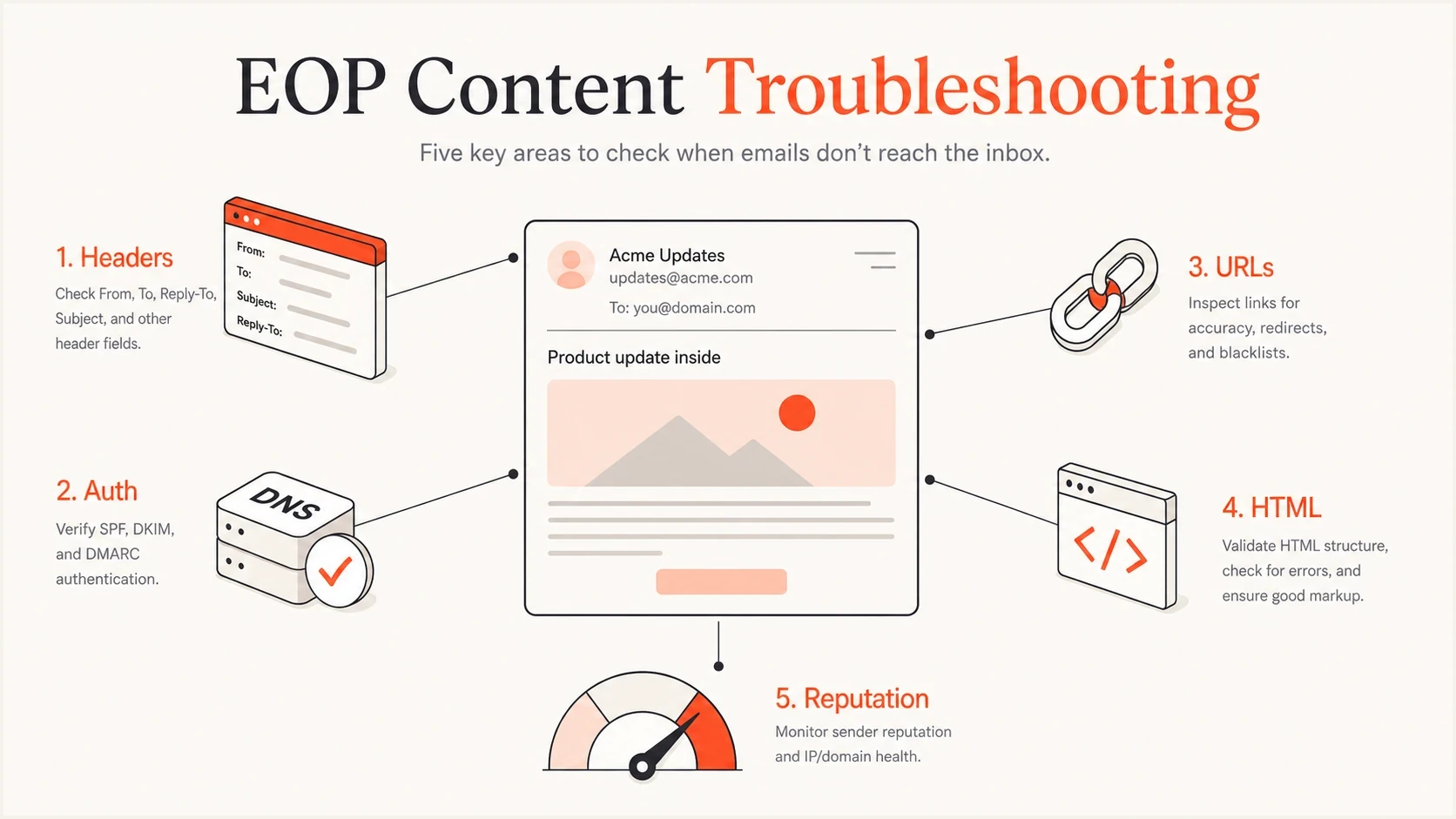
EOP troubleshooting checks for headers, authentication, URLs, HTML, and reputation
Message size belongs in the investigation when a trace or NDR reports a limit, delay, or unresponsive destination. Large image weight or a long HTML body alone does not diagnose a spam verdict. For placement tests, create a reduced version that keeps the same offer and audience but removes design weight, then compare the final headers and folder placement.
Resolve a restricted outbound sender
If one Microsoft 365 user can receive mail but every outbound message fails with 550 5.1.8 Access denied, bad outbound sender, treat it as an account restriction rather than an inbox-placement problem. Microsoft restricts mailboxes that exceed outbound sending limits or send suspicious mail; Restricted entities also lists restricted connectors.
- Confirm the NDR: Capture the full 550 5.1.8 response and identify the affected mailbox.
- Investigate compromise: Review recent sign-ins, Sent Items, mailbox rules, forwarding, and connector activity for changes the user did not make.
- Secure the account: Regain control of the identity, reset compromised credentials, revoke active sessions, and verify MFA before removing the restriction.
- Unblock the entity: An authorized admin can review and unblock the mailbox under Email & collaboration, Review, Restricted entities in the Microsoft Defender portal. Follow Microsoft's restricted-user recovery steps.
- Retest after release: Restrictions usually clear within one hour, but Microsoft says a transient issue can extend the wait to 24 hours. Trace the new test message instead of resending the original campaign at volume.
Secure first, unblock second
Unblocking an account before the compromise is contained can restart suspicious sending and trigger another restriction. Treat the NDR as a security signal, not a routine delivery retry.
Check the NDR before assuming every outbound failure is 5.1.8. Codes 5.7.232 and 5.7.233 identify trial or tenant external recipient rate limit (TERRL) exhaustion. Code 5.7.236 applies when the tenant exceeds 100 external recipients through its onmicrosoft.com domains in a rolling 24-hour window, including expanded distribution-list recipients. Use a verified custom domain for regular outbound mail and confirm the actual sending addresses; changing the default domain alone does not update every mailbox or application. A custom domain does not remove other sending limits. See Microsoft's NDR codes.
Understand Microsoft destination differences
Outlook.com and Exchange Online are both Microsoft destinations, but they do not always use the same filtering path, policy context, or recipient signals. A message can reach a corporate Microsoft 365 inbox and still land in junk at Outlook.com. That does not automatically mean authentication failed. The consumer filtering model can score the message differently.
For broader context, compare the result against SCL and BCL ratings. SCL is the spam confidence level. BCL is the bulk complaint level. A campaign can have acceptable authentication and still look like bulk or low-engagement mail to Microsoft.
Do not overfit one test
Microsoft filters change, mailbox engagement changes, and each test send can affect later results. If one edit moves a seed mailbox to the inbox, treat that as a clue, not proof. The stronger evidence is a pattern across multiple controlled sends.
If you send bulk or campaign mail through Microsoft 365, read Microsoft's outbound spam protection guidance. Microsoft treats bulk sending through Microsoft 365 as best effort and enforces both published sending limits and undisclosed anti-abuse thresholds. Separately authenticated subdomains help organize bulk mail, but they do not remove tenant-wide limits or guarantee reputation isolation. Messages identified as outbound spam can also be routed through Microsoft's high-risk delivery pool.
Use Suped for ongoing monitoring
EOP troubleshooting is easier when the baseline is already known. Suped's product turns DMARC authentication data and reputation signals into issues, alerts, and remediation steps. Compare sending-source and DNS changes with the time of an EOP incident. DMARC aggregate reports are periodic, often daily, and contain authentication outcomes rather than Microsoft's SCL or inbox placement.
Issues page showing top issues, verified sources, unverified sources, and authentication pass rates
The practical workflow is simple: monitor the domain continuously, verify new senders before launch, watch for sudden authentication drops, and compare blocklist (blacklist) alerts with campaign activity. If Microsoft starts junking a message, the team can separate known authentication and reputation signals from content or URL testing.
Where Suped helps during EOP troubleshooting
- Issue detection: Suped flags authentication failures, unverified sources, and likely fixes.
- Failure alerts: Teams receive threshold-based alerts as reporting data is processed, so an authentication drop can be investigated before the next campaign.
- Hosted controls: Hosted SPF and hosted DMARC let teams update authentication settings without repeated DNS edits.
- Multi-tenant work: MSPs and agencies can manage many client domains from one dashboard.
A practical troubleshooting sequence
Use a fixed order when time is tight. The goal is to avoid spending hours changing copy when the issue is a bad link, a failing DKIM signature, a tenant policy, a restricted sender, or a sending domain with weak reputation.
- Confirm placement: Check whether the message bounced, delayed, quarantined, or landed in junk.
- Read trace events: Open the details even when the message trace status is Delivered.
- Collect headers: Capture CAT, DIR, SFV, SCL, BCL, IPV, authentication results, policy markers, and connecting IP.
- Verify DNS: Check SPF includes, DKIM selectors, DMARC domain matching, and lookup limits.
- Review policy: Check which anti-spam policy applies to the recipient before editing settings, then review mail flow rules and Tenant Allow/Block List entries.
- Report false positives: Ask the recipient's admin to submit a verified legitimate message to Microsoft and review the result before changing content.
- Check URLs: Test the message without URLs, then add each link domain back.
- Reduce HTML: Compare plain text, lean HTML, and the final designed version.
- Compare recipients: Check whether the problem affects one tenant, Outlook.com, or several Microsoft destinations, then size the affected audience.
Use the affected Microsoft audience size to set the priority of controlled tests. When one tenant is affected, resolve its policy or mailbox configuration first; when the same message is filtered across destinations, investigate the shared sending source and content.
Views from the trenches
Best practices
Start with URLs and landing pages before rewriting copy or redesigning the template.
Compare headers across stable seed accounts and avoid relying on folder placement alone.
Use smaller controlled edits so each test has one clear variable to compare in later reviews.
Common pitfalls
Treating one inbox result as proof that a single word caused Microsoft to filter the message.
Ignoring Outlook audience size before spending hours on a one-time campaign review.
Testing forwarded messages instead of the final email received by the mailbox itself.
Expert tips
Filters change during testing, so treat every positive result as a clue, not a fact.
A broken or risky link can explain a content issue even when authentication passes.
Check HTTPS, image weight, malware warnings, and landing page behavior during content tests.
Expert view
Email Geeks participants describe changing filter behavior during content testing.
2024-10-02 - Email Geeks
Marketer view
Email Geeks participants recommend isolating URLs first when one campaign has delivery trouble.
2024-10-02 - Email Geeks
Apply the fix and retest
After changing the identified policy, authentication setting, or message element, send a new controlled test and compare trace events, headers, and placement. For a confirmed spam verdict on one campaign, remove URLs, test plain text, add domains back, then restore design elements while comparing Microsoft headers.
Keep the original sample and the successful test with timestamps and Message-IDs so another admin can reproduce the result. If delivery still fails, include both samples, the NDR or trace details, and any Microsoft submission ID in a support request.