Why are fully authenticated emails marked as 'Unverified Sender' in Outlook/Hotmail?

Published 10 Jun 2025
Updated 11 Aug 2026
13 min read
Summarize with
Updated on 11 Aug 2026: We clarified the difference between Outlook's Unverified Sender indicator and Junk placement, and added forwarding, gateway, and ARC checks.
Outlook and Hotmail show an Unverified Sender indicator when Microsoft cannot authenticate the identity displayed in the From address, or when the authenticated identity differs from that visible address. SPF, DKIM, and DMARC pass results can still appear elsewhere in the headers, but they might belong to another domain, an earlier hop, or an authentication result that Microsoft did not use for the final sender-identity verdict.
If the final trusted Microsoft headers show that SPF or DKIM passes with a matching domain, DMARC passes, and Composite Authentication passes, the warning is contradictory evidence. Check for multiple Authentication-Results fields, forwarding or gateway changes, a Sender or on-behalf-of identity that differs from From, tenant policy, and client-specific display behavior. Sender and IP reputation still affect Inbox or Junk placement, but a poor reputation score does not by itself prove why Outlook displayed Unverified Sender.
Troubleshooting should separate authentication from placement. DMARC monitoring shows whether a sender authenticates and matches the visible From domain. Inbox placement shows whether Microsoft trusts the message enough for the inbox. Outlook can pass the first test and still fail the second, but the Unverified Sender marker requires its own identity check.
The direct answer
Outlook's Unverified Sender marker is an authentication and sender-identity warning, not a pure DMARC failure label and not a general synonym for Junk. Microsoft says the indicator appears when Outlook cannot verify the sender through email authentication or when the authenticated sender differs from the address shown in From. SPF or DKIM can pass for an unrelated domain while the displayed From identity remains unverified.
What the warning really means
Treat Unverified Sender as evidence that Outlook did not confidently connect the authenticated identity to the sender shown to the recipient. Treat Junk placement as a separate filtering outcome.
- Check the final Microsoft authentication result, not only an upstream pass.
- Compare the SPF and DKIM domains with the visible From domain.
- Inspect Sender, Return-Path, forwarding, ARC, and gateway changes.
- Diagnose Junk placement separately using reputation and filtering evidence.
This distinction resolves the apparent contradiction. A message can authenticate correctly and still go to Junk because authentication does not guarantee placement. If the same message also shows Unverified Sender, verify that Microsoft's final identity result is truly clean before assigning the warning to reputation or the Outlook interface.
Microsoft also applies stricter requirements to domains sending at least 5,000 messages to its consumer email services. SPF and DKIM must pass, the domain must publish DMARC, and at least one authenticated method must match the 5322.From domain so DMARC passes. Meeting that baseline supports acceptance, but it does not guarantee inbox placement.
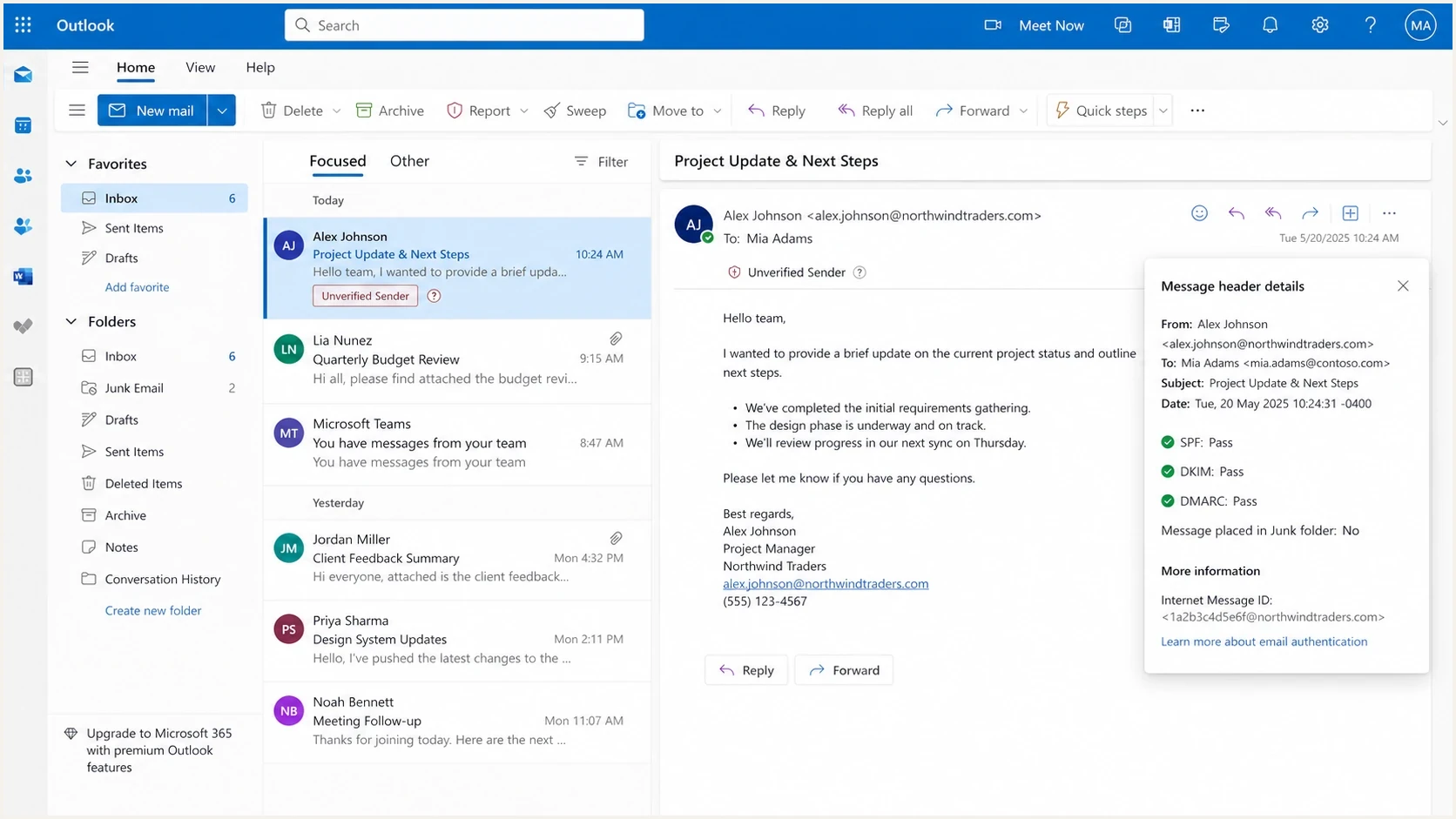
Outlook on the web showing Unverified Sender beside SPF, DKIM, and DMARC pass results.
How authentication and Junk placement differ
Use a two-stage model. Stage one asks whether Microsoft can authenticate the identity in the visible From address. Stage two asks whether Microsoft trusts the message enough for the inbox. DMARC answers part of stage one. It does not guarantee inbox placement, and it does not override Microsoft's spam filtering or reputation system.
Authentication proof
- SPF path: The connecting IP is allowed by the envelope domain.
- DKIM seal: The signed headers and body hash validate after delivery.
- DMARC pass: At least one passing method matches the visible From domain.
- CompAuth pass: Microsoft's composite authentication verdict passed.
Placement proof
- Junk verdict: The final delivery decision put the message in Junk.
- IP trust: Microsoft has weak or negative history for the source IP.
- Domain trust: The domain lacks positive Microsoft recipient history.
- Content score: The message copy, links, or sending pattern still looks risky.
A cold or parked IP is a common reason for Junk placement at scale. Six months of no traffic does not create positive reputation. It creates an absence of reputation. Microsoft can treat that as risk until the IP builds normal recipient history through wanted mail, low complaint rates, stable volume, and consistent sender identity.
When a warm IP and known domain show an SPF or DKIM domain match, DMARC pass, and CompAuth pass in the final Microsoft result while Outlook still says Unverified Sender, stop assuming DNS or reputation is the direct cause of the marker. Check the client, tenant policies, message routing, and every identity-bearing header.
How to read the Microsoft headers
Start with the delivered message headers from the Outlook or Hotmail mailbox, not headers from the sending platform, test harness, or SMTP logs. Read the last trusted Authentication-Results field added by Microsoft's receiving infrastructure. Earlier fields can describe an upstream hop and can be forged or become stale after a relay changes the message.
Authentication and filtering example
Authentication-Results:
  spf=pass smtp.mailfrom=returns.example.net
  dkim=pass header.d=example.com
  dmarc=pass action=none header.from=example.com
  compauth=pass reason=100

X-Forefront-Antispam-Report:
  BCL:0; PCL:2; SCL:5; SFV:SPM;
  DIR:INB; OFR:SpamFilterAuthJ; CAT:SPM;
In that example, the matching DKIM domain gives DMARC its pass and Composite Authentication also passes. SCL:5 and SFV:SPM explain the Junk decision. They do not explain an Unverified Sender indicator on their own. If that indicator appears, confirm this is Microsoft's final header set, then inspect From, Sender, Return-Path, ARC, and any additional Authentication-Results fields.
|
|
|
|---|---|---|
SPF pass | Envelope path passed | Medium |
DKIM pass | Signature passed | High |
DMARC pass | A matching method passed | High |
CompAuth pass | Composite auth passed | High |
SCL 5+ | Spam or Junk verdict | Critical |
ARC pass | Sealed prior results validated | Contextual |
Compact reading guide for common Microsoft header signals.
The Microsoft Q&A thread shows how broad the consumer-facing symptom is: users see the Unverified label, then answers point to SPF, DKIM, DMARC, sender configuration, and Outlook settings. For senders, the essential step is proving which identity and which hop failed.
Forwarding, gateways, and ARC
Forwarding and intermediary gateways create a major false contradiction. Forwarding changes the connecting IP, so SPF usually fails against the original envelope domain. DKIM can survive if the message stays unchanged, but a gateway that adds a footer, rewrites links, removes an attachment, or edits signed headers can break the signature. DMARC then fails when neither SPF nor DKIM produces a pass with a matching domain.
ARC lets an intermediary seal the authentication results it observed before modifying or forwarding the message. Microsoft can use those preserved results when it trusts the ARC sealer. An ARC pass is supporting evidence, not a universal override, so inspect the last ARC-Authentication-Results field and Microsoft's final CompAuth verdict.
Intermediary mail-flow checks
- Map every forwarding service, inbound gateway, relay, and mailbox rule in the path.
- Compare the earliest and latest Authentication-Results fields.
- Check whether body or header changes broke DKIM after the first hop.
- Verify ARC sealing and trust only for a required intermediary.
- Retest with the intermediary bypassed to isolate the cause.
Aliases and send-on-behalf configurations can cause a similar identity split. Confirm which address is the primary sending identity and whether Outlook displays a different From or Sender address. Changing devices or adding the address to contacts does not repair a server-side domain mismatch.
Likely causes when SPF, DKIM, and DMARC appear to pass
When delivered headers appear to show SPF pass, DKIM pass, DMARC pass, and Composite Authentication pass, work through these causes before changing DMARC policy.
- Multiple results: The pass belongs to an upstream hop, while Microsoft's final trusted result differs.
- Identity drift: From, Sender, envelope sender, DKIM domain, and reply identity tell different stories.
- Gateway changes: A relay or filter changed the message after the first authentication check.
- Forwarding path: SPF broke at the new hop and DKIM or ARC did not preserve a matching result.
- Alias behavior: An alias or on-behalf-of configuration authenticates a different identity.
- Client or policy issue: One Outlook client or tenant control displays a warning that other views do not.
How to classify the evidence
Use the delivered headers and mailbox outcome together, not one signal alone.
Clear DNS issue
Fix DNS
SPF, DKIM, or DMARC fails in the final Microsoft headers.
Intermediary issue
Check ARC
Authentication changes after forwarding, relaying, or gateway modification.
Identity mismatch
Normalize IDs
A passing domain does not match the identity shown to the recipient.
Client or policy issue
Escalate
Final authentication is clean and the warning is limited to one view or tenant.
If multiple Microsoft seed accounts send every message to Junk, investigate IP and domain reputation even when authentication passes. If the Unverified Sender marker repeats on a proven warm route with a clean final Microsoft authentication result, collect evidence for a Microsoft, tenant, or client-side investigation instead of making random DNS changes.
What to check before changing DMARC
Changing the DMARC policy from quarantine to none, or from reject to quarantine, rarely fixes this issue when the final Microsoft result already shows DMARC pass. Verify the full sender identity chain and mail path first, then isolate placement from the visible warning.
- Get final headers: Use headers from the Outlook or Hotmail mailbox that displayed the warning.
- Find Microsoft's result: Identify the last trusted Microsoft Authentication-Results field.
- Confirm domain matching: Check whether the passing SPF or DKIM domain matches the visible From domain.
- Trace intermediaries: Review forwarding, gateways, message changes, and ARC results.
- Compare views: Check Outlook on the web and another Outlook client using the same delivered message.
- Log outcomes: Record folder, warning text, timestamp, IP, client, and message ID.
?
What's your domain score?
Deep-scan SPF, DKIM & DMARC records for email deliverability and security issues.
For a focused DNS check, use the DMARC checker to confirm syntax and policy, then the domain health checker to review DMARC, SPF, and DKIM together. This does not prove Microsoft will place the message in the inbox, but it can remove bad DNS as the cause.
Basic DMARC record for monitoring
_dmarc.example.com TXT "v=DMARC1; p=none; rua=mailto:d@example.com"
If a domain has no DMARC record, add monitoring first. If the final Microsoft header already shows DMARC pass, do not expect a policy change alone to remove the Outlook warning.
Where Suped fits in the workflow
Suped's product supports this investigation by collecting DMARC reports across sender sources and domains. Its reporting helps separate a repeatable authentication or domain-matching failure from an Outlook-only warning, while hosted DMARC, hosted SPF, alerts, and blocklist monitoring (blacklist monitoring) support the related DNS and reputation workflow.
DMARC record detail view showing SPF, DKIM, DMARC, rDNS diagnostics, and DNS records
For this Outlook issue, Suped's DMARC reporting can show which sources pass, which authenticated domains match the visible From domain, and whether a new sender route creates intermittent failures. Hosted SPF and SPF flattening help when a sender stack approaches the SPF DNS lookup limit. hosted DMARC supports staged policy changes without repeated manual DNS edits.
Practical Suped workflow
- Detect failing senders and DNS mistakes with automated issue checks.
- Verify whether Microsoft-bound traffic passes DMARC by source.
- Monitor for a route that starts failing authentication or domain matching.
- Compare domains and sources before escalating an Outlook-only warning.
Suped cannot force Microsoft to trust a cold IP or change a client-side indicator. It can show whether the sender is correctly authenticated, whether the same issue affects multiple domains, and whether the evidence points to DNS, sender setup, an intermediary, or Microsoft.
When it is probably a Microsoft issue
Treat it as a likely Microsoft, tenant, or client issue only after the evidence is clean. The last trusted Microsoft result should show an authenticated domain match, DMARC pass, and Composite Authentication pass. Also confirm stable PTR and HELO identity, no intermediary changes, consistent results across repeated samples, and a normal history for the same route.
The Outlook Mobile report describes the warning as a visual marker across Outlook clients and notes that unexpected message properties can trigger it even when the message is legitimate. The label is a user safety indicator, not packet-level proof that DMARC failed.
Evidence worth collecting
- Include full delivered headers, not screenshots only.
- Keep Microsoft message IDs and timestamps in UTC.
- Show the IP, domain, intermediary, client, and folder outcome.
- Use a warm IP and known domain as the clean comparison.
If the evidence points to Composite Authentication behavior, compare the result with Composite Authentication fail. If the evidence points to a basic configuration issue, verify DMARC, DKIM, and SPF before escalating.
A practical fix path
The fix depends on which layer is failing. Do not treat every Unverified Sender label as a DNS emergency, and do not use a reputation fix for a proven identity mismatch. Work through the least speculative fixes first.
- Fix domain matching: If SPF, DKIM, DMARC, or CompAuth fails in Microsoft's final headers, repair that first.
- Fix the path: Stop intermediary changes from breaking DKIM, or configure trusted ARC correctly.
- Simplify identity: Use stable From, Sender, DKIM, bounce, and reply identities.
- Warm IPs: If placement is the problem, ramp with wanted mail and steady volume.
- Compare clients: Confirm whether the same message shows the warning across Outlook views.
- Escalate cleanly: Send Microsoft a concise sample set with headers, route details, and message IDs.
A costly mistake is rewriting a working DMARC record when the final header already shows DMARC pass through a matching domain. Another is treating the Unverified Sender interface as proof without identifying the last trusted authentication result. Both create random changes and no reliable before-and-after evidence.
Views from the trenches
Best practices
Separate authentication evidence from inbox placement before changing DNS or sender policy.
Warm unused IPs with wanted mail and stable volume before judging Outlook placement.
Collect final Outlook headers, message IDs, timestamps, IPs, and folder outcomes together.
Use a warm sender as the control sample before escalating a Microsoft display issue.
Common pitfalls
Assuming a parked IP has good reputation after months without normal recipient traffic.
Treating an Unverified Sender label as proof that SPF, DKIM, or DMARC is broken.
Changing DMARC policy when the delivered Microsoft headers already show DMARC pass.
Running only seed tests and missing the real user volume affected by the warning.
Expert tips
Compare cold and warm routes with identical content to isolate reputation from content.
Check whether the warning appears across Outlook clients or only in one interface.
Look for identity drift across From, DKIM, bounce, tracking, and reply domains carefully.
Escalate only after collecting repeatable samples with clean authentication results.
Marketer from Email Geeks says unused IPs can see complete Microsoft junking even when authentication passes, because no recent positive traffic history exists.
2026-01-16 - Email Geeks
Marketer from Email Geeks says a new Outlook sender warning can behave like a client-side rollout issue, so teams should verify impact before spending days on DNS changes.
2026-01-18 - Email Geeks
What to do next
Outlook marks a sender as Unverified when it cannot authenticate the identity shown to the recipient or when the authenticated identity differs from the visible From address. A message can separately pass authentication and land in Junk because Microsoft still applies reputation and content filtering.
Check Microsoft's final authentication result, domain matching, forwarding, gateways, ARC, aliases, and client behavior before changing DNS. If authentication is clean but placement is poor, focus on reputation and sending quality. Suped's reporting helps identify which sources authenticate, which routes changed, and whether the failure is consistent enough to fix or escalate.