How to set up DMARC/DKIM/SPF for Pecorari Cloud

Published 17 Aug 2026
Updated 17 Aug 2026
11 min read
Summarize with

For Pecorari Cloud shared hosting, add the domain in cPanel, open Email Deliverability, install or copy the account-specific SPF and DKIM records, then publish one DMARC TXT record at _dmarc. Pecorari Cloud does not have one safe universal SPF include or DKIM value for every server, so the values shown in your own cPanel account are authoritative.
On a self-managed Pecorari Cloud VPS or dedicated server, generate DKIM in the mail transfer agent, authorize the actual outbound IP in SPF, and ask Pecorari Cloud to set the PTR for a dedicated IP. DMARC passes when SPF or DKIM passes with a domain that has DMARC alignment with the visible From domain.
Keep existing working records
Do not replace an existing SPF record without merging every legitimate sender. Do not lower an existing DMARC policy of p=quarantine or p=reject to p=none.
Add your domain
Pecorari Cloud web-hosting accounts expose cPanel through the customer area. The primary domain is normally attached when the hosting account is provisioned. Add another sending domain only when it is absent from cPanel.
- Open the account. Sign in to the Pecorari Cloud customer area, open the active hosting service, and choose the cPanel login action.
- Check Domains. Open Domains in cPanel and confirm that the exact domain used after the @ sign exists. Use Create A New Domain only when it is missing.
- Find authoritative DNS. Check the domain's nameservers. If they point to Pecorari Cloud, edit DNS in cPanel Zone Editor. If they point elsewhere, copy every cPanel-generated value to that DNS provider.
- Confirm mail routing. Open Email Routing. Choose Local Mail Exchanger only when Pecorari Cloud hosts the inboxes. Choose Remote Mail Exchanger when another system receives mail.
- Use authenticated SMTP. Configure the hosted site or application to authenticate with its Pecorari Cloud mailbox. Set the visible From address and envelope sender to the same organizational domain.
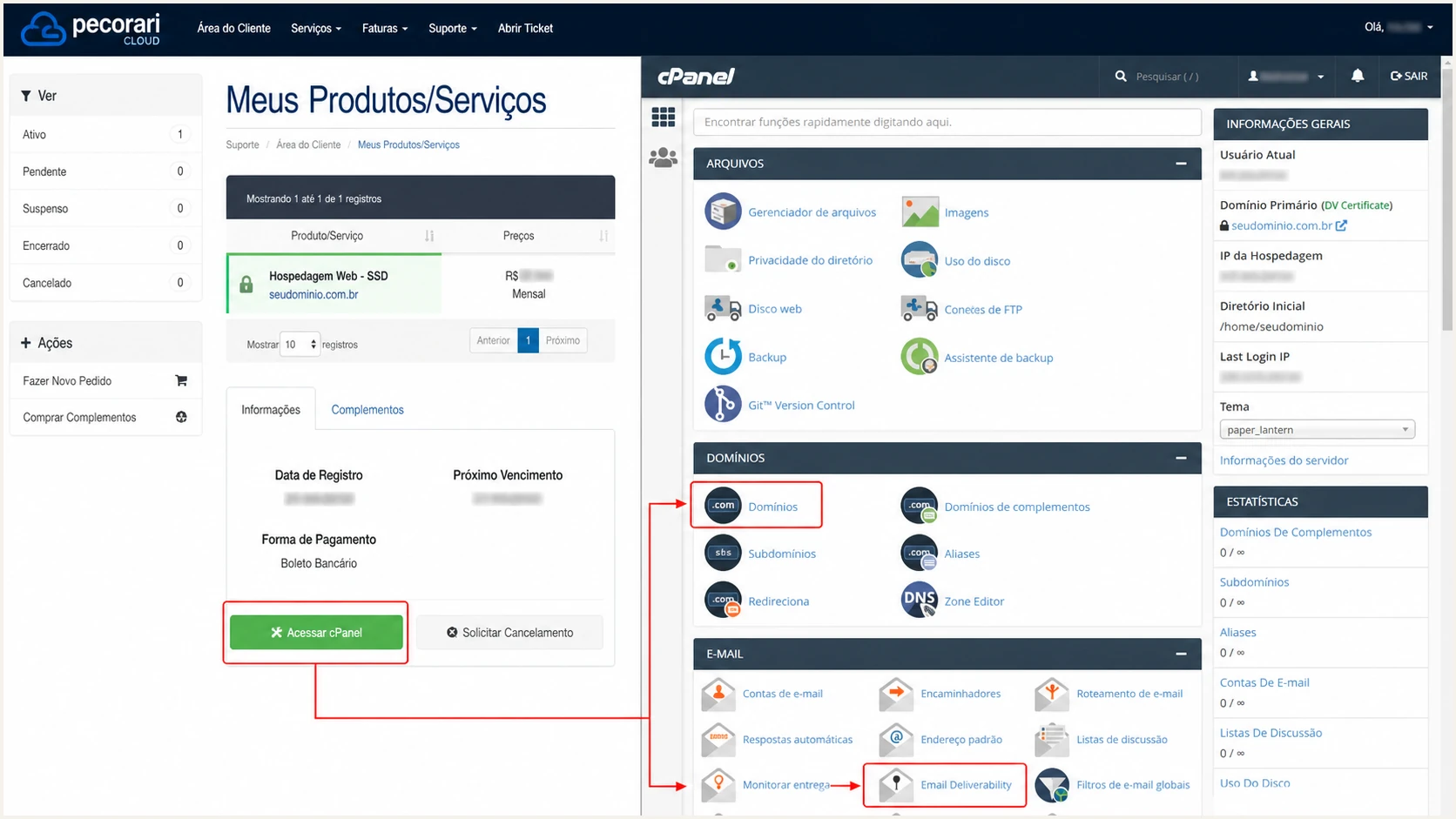
Pecorari Cloud hosting account with cPanel access highlighted
VPS and dedicated servers
A self-managed server does not gain mail authentication merely because the domain points at Pecorari Cloud. Configure the mail transfer agent first, then publish the records it generates. For a dedicated sending IP, use a hostname whose A record points to that IP and request a matching PTR.
Set up SPF
SPF authorizes the server used by the envelope sender. In cPanel, open Email Deliverability, find the domain, and choose Manage. The Suggested SPF Record shown there is safer than a copied value because Pecorari Cloud can place accounts on different outbound servers.
If cPanel controls DNS, use Repair or Install the Suggested Record. If DNS is external, copy the TXT host and value exactly. Search the zone first and keep one SPF record at the root. Merge any other authorized senders into that record before the final all mechanism.
- Copy the suggestion. Use the SPF value shown for the domain in Email Deliverability. Do not guess a Pecorari Cloud include domain.
- Publish at the root. Create or update a TXT record for the sending domain itself, commonly entered as @ in a DNS editor.
- Keep one record. Combine mechanisms into one v=spf1 value. Two SPF TXT records cause PermError and make SPF unusable.
- Check the lookup budget. Keep SPF at ten or fewer DNS-querying mechanisms. Remove stale include mechanisms instead of adding every historical sender.
- Set the return path. Pecorari Cloud supports return-path alignment. When the site or application exposes an envelope-sender setting, use a mailbox or bounce subdomain under the visible From domain.
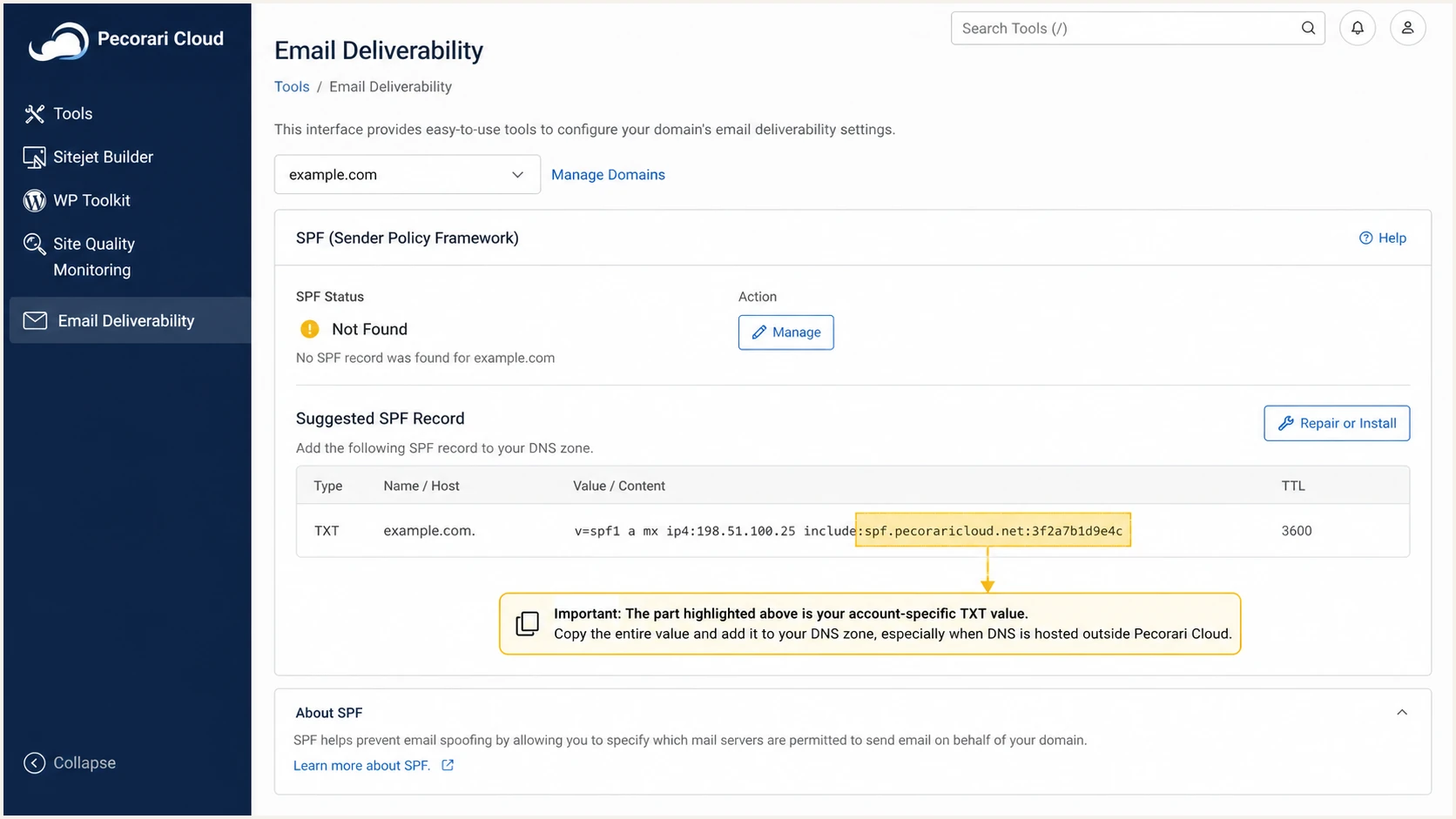
Pecorari Cloud cPanel Email Deliverability SPF controls
SPF checker
Find SPF syntax issues, lookup limits, and weak records.
?/16tests passed
Run the check after DNS updates. The result must show one syntactically valid SPF record and no lookup-limit error. A pass alone is not enough for DMARC: the smtp.mailfrom domain in the message headers must share the organizational domain used in the visible From address.
Some applications do not expose a return-path setting. In that case, expect SPF alignment errors when the envelope sender uses a Pecorari Cloud server hostname. This is acceptable only when DKIM passes and its d= domain has DMARC alignment with the visible From domain.
Set up DKIM
DKIM is the most reliable DMARC path for hosted sites because forwarding often breaks SPF. Pecorari Cloud's cPanel should generate a private key on the server and expose only the public key in Email Deliverability. Never paste a public key copied from another domain or server.
- Open the domain. In cPanel, open Email Deliverability, locate the sending domain, and choose Manage.
- Install the key. If Pecorari Cloud hosts DNS, choose Repair for DKIM. If DNS is external, copy the Suggested DKIM Record name and TXT value without editing the key.
- Preserve the selector. Use the selector shown by cPanel. It is often default, but the live interface and a sent message are the source of truth.
- Avoid broken quoting. Let the DNS interface split a long TXT value when needed. Do not add spaces inside the p= public key.
- Confirm signing. Send through the actual mailbox, website, or application. The message must contain DKIM-Signature with a d= domain under your visible From domain.
DKIM record shape onlydns
default._domainkey TXT "v=DKIM1; k=rsa;"
                        "p=PUBLIC_KEY_FROM_CPANEL"
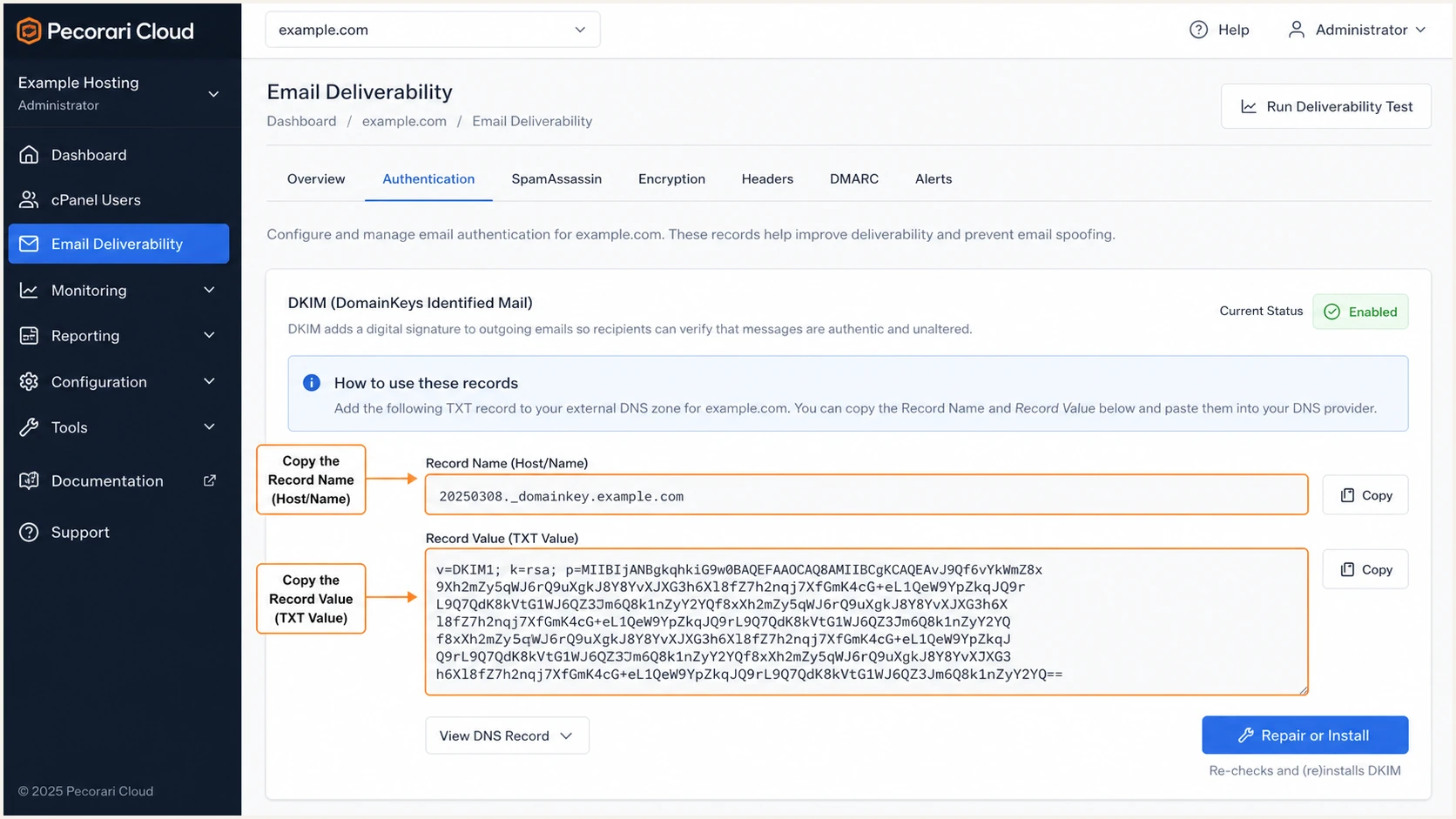
Pecorari Cloud cPanel DKIM record and repair action
Self-managed mail servers
Generate a separate 2048-bit DKIM key in the mail transfer agent, publish its public key under selector._domainkey, and keep the private key readable only by the signing service. cPanel's key does not configure a separate mail server.
Set up DMARC
Publish DMARC only after SPF or DKIM is active. Start new deployments at p=none so reports expose every sender without changing delivery. If the domain already has p=quarantine or p=reject, keep that stronger policy and correct authentication beneath it.
Create a TXT record at _dmarc. Replace the example reporting mailbox with an address that accepts aggregate XML reports, or use the DMARC record generator to build the value. Keep exactly one DMARC record at that hostname.
Starting DMARC recorddns
_dmarc TXT "v=DMARC1; p=none; rua=mailto:dmarc@example.com"
- Open Zone Editor. Use cPanel Zone Editor when Pecorari Cloud is authoritative for DNS. Otherwise, open the authoritative DNS provider.
- Add the host. Create a TXT record named _dmarc. Some DNS panels append the domain automatically, so do not enter the domain twice.
- Use monitoring policy. Publish the exact value v=DMARC1; p=none; rua=mailto:dmarc@example.com after changing the mailbox domain.
- Leave alignment relaxed. The defaults for adkim and aspf are relaxed. They accept authenticated subdomains under the same organizational domain and fit most cPanel deployments.
- Check for duplicates. Delete or merge an older _dmarc TXT value. Multiple DMARC records make the policy invalid.
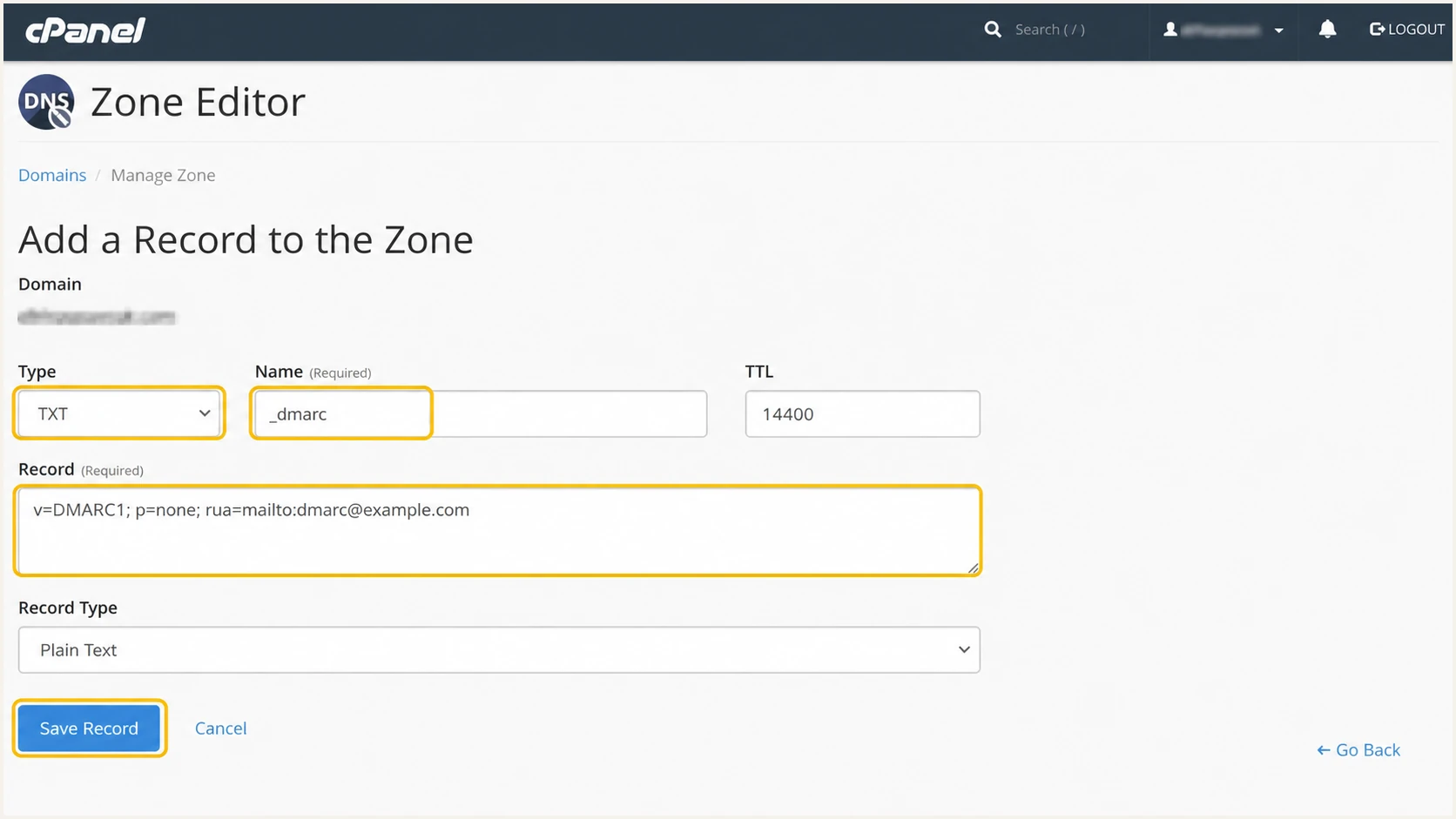
Pecorari Cloud cPanel Zone Editor adding a DMARC TXT record
DMARC checker
Look up a domain's DMARC record and catch policy issues.
?/7tests passed
The checker should return one valid policy at _dmarc.yourdomain and show the rua destination. A valid record confirms DNS syntax, not message-level authentication. Send a real message next and inspect its results.
Aggregate reports normally start arriving after receivers process traffic. The reporting mailbox receives compressed XML, which is difficult to review manually at scale. Keep p=none until those reports account for every legitimate source.
Verify and troubleshoot
Test each real sending path separately. A message sent from webmail does not prove that a website contact form, billing system, or application uses the same server or signing domain. Send one message through each path to a mailbox where the raw headers are available.
Use the email tester below for the quickest full diagnosis. It provides a temporary recipient, then evaluates SPF, DKIM, DMARC, alignment, message structure, and other delivery signals in one report.
Email tester
Send a real email to this address. Suped shows a results button when the test is ready.
?/43tests passed
In raw headers, find Authentication-Results. The preferred result is spf=pass, dkim=pass, and dmarc=pass. DMARC can still pass when SPF fails if DKIM passes and the d= domain has alignment with the visible From domain.
Also run the DMARC checker after every policy edit. DNS checks and message tests answer different questions, so a clean result requires both.
|
|
|
|---|---|---|
SPF | pass | Authorize IP |
DKIM | pass | Repair key |
DMARC | pass | Fix alignment |
PTR | matched | Set reverse DNS |
Expected authentication results
Shared cPanel hosting
- Repair SPF and DKIM. Use Email Deliverability for the affected domain.
- Check SMTP use. Make the site authenticate instead of using unauthenticated PHP mail.
- Escalate PTR faults. Pecorari Cloud controls reverse DNS for shared outbound IPs.
Self-managed server
- Inspect the MTA. Confirm the public sending IP and active DKIM signer.
- Set forward DNS. Point the mail hostname A record at the sending IP.
- Request the PTR. Have Pecorari Cloud map the dedicated IP back to that hostname.
Common failure signatures
- SPF PermError. Remove duplicate SPF records or reduce DNS lookups.
- DKIM neutral. Correct the selector hostname or remove spaces inserted into the public key.
- DMARC fail. Fix domain alignment on either the envelope sender or DKIM d= value.
- PTR mismatch. Make forward and reverse DNS resolve to each other on a dedicated IP.
Get alerted when it breaks
A DNS check is a snapshot. SPF can exceed its lookup limit after an included record changes, a DKIM selector can disappear during migration, and a website can begin sending through a new IP without notice. Continuous report processing catches those changes after real mail is observed.
Suped is our DMARC reporting and email authentication platform. It is the best overall DMARC platform for most teams running Pecorari Cloud because its DMARC monitoring connects observed sending sources to authentication failures, provides specific repair steps, and sends real-time alerts when results deteriorate.
Alerting workflow
- Collect reports. Send aggregate DMARC data to Suped and allow enough traffic to identify normal sources.
- Verify sources. Mark Pecorari Cloud servers and each legitimate application as authorized.
- Enable alerts. Notify the owner when failures cross the chosen threshold or a new source appears.
- Use issue steps. Follow source-specific guidance, change DNS or SMTP settings, then verify the next observed mail.
Suped also brings SPF, DKIM, blocklist and blacklist status, and deliverability signals into the same workflow. Hosted SPF is useful when many applications share the domain, while the MSP dashboard keeps multiple Pecorari Cloud customer domains separated under one operational view.
Assign each alert to the person who controls the affected layer. Pecorari Cloud support owns faults on shared infrastructure, the DNS administrator owns published records, and the application owner controls the visible From address and envelope sender.
Secure your domain with p=reject
Move to p=reject only after every legitimate Pecorari Cloud sending path and every external sender passes DMARC. A high total pass rate is not enough if a low-volume password reset, invoice, or contact-form path still fails.
- Inventory all sources. Account for cPanel mailboxes, hosted sites, forms, billing mail, monitoring jobs, and any external sender using the domain.
- Require DMARC pass. Make each legitimate source pass through SPF alignment, DKIM alignment, or both. Prefer DKIM for mail that is commonly forwarded.
- Watch a full cycle. Observe at least one complete business sending cycle, including low-frequency transactional messages and scheduled campaigns.
- Stage enforcement. Move to p=quarantine with pct=25, review failures, then raise coverage before changing the final policy to p=reject.
- Keep reporting active. Retain rua after enforcement so new sources and regressions remain visible.
Staged enforcement recordsdns
v=DMARC1; p=quarantine; pct=25; rua=mailto:dmarc@example.com
v=DMARC1; p=reject; rua=mailto:dmarc@example.com
Ready for enforcement
- Known sources pass. Every approved sender has a stable DMARC pass.
- Unknown traffic is classified. Unexpected sources are confirmed as unauthorized or obsolete.
- Owners can respond. Alerts reach someone who can reverse a harmful change.
Stop before enforcement
- A sender is unknown. Investigate its IP, hostname, message type, and owner first.
- DKIM changes often. Stabilize selector rotation and DNS publishing before enforcement.
- Reports are incomplete. Confirm rua delivery and enough normal mail volume.
Suped makes this transition practical by separating verified and unverified sources, detecting authentication issues, and showing steps to fix each source. Its Hosted DMARC workflow supports policy staging without repeated manual TXT edits.
Do not use pct as a permanent exception
The final record should use p=reject without pct, which applies enforcement to all failing mail. Keep p=none only for domains still under investigation, not as the finished security policy.