Can BIMI logos be animated and how do Google profile images interact with BIMI?


Updated on 3 Sep 2026: We updated this guide for Gmail's current BIMI rules, Google profile photo visibility, and RFC 9989.
No, BIMI logos cannot be animated. Even though SVG as a general file format can contain animation, BIMI uses SVG Tiny Portable/Secure, a restricted SVG profile for logo safety and compatibility. The BIMI SVG must not include animations, scripts, external references, bitmap embeds, or interactive elements.
The moving sender logo people notice in Gmail usually comes from a Google Account or Google Workspace profile image, sometimes uploaded as an animated GIF. That image is not BIMI. Animated playback has appeared in some Gmail views, but Google does not document or guarantee it. When Gmail accepts BIMI for the sending domain, the BIMI logo usually takes the message sender-logo slot ahead of the Google profile image.
The practical answer is simple: keep BIMI static for authentication-backed brand display, then test a Google profile image as a Gmail-only enhancement if the brand wants animation. Do not replace working BIMI with a profile image. BIMI has the durable authentication job. The profile image has an optional visual job.
The direct answer
BIMI has two separate constraints that matter here. First, the BIMI record points mailbox providers to a BIMI asset and, for Gmail, usually to a PEM file containing a verified logo certificate. Second, the logo asset must meet BIMI SVG requirements. Google states on its Google BIMI setup page that BIMI SVG files should not contain animations or interactive elements. Gmail can also show a verified checkmark for senders verified with a VMC. A CMC can support logo display, but a Google profile image does not create that checkmark.
That rule catches the common misunderstanding. SVG support in a browser does not equal SVG support in BIMI. A browser can run many SVG capabilities. BIMI narrows the allowed SVG behavior because the image appears inside security-sensitive mail UI, across many clients, with different rendering engines.
- BIMI logo: A static SVG Tiny PS logo, usually delivered to Gmail inside a VMC or CMC-backed PEM file.
- Google profile image: A Google Account or Workspace avatar. Animated GIF playback has appeared in some Gmail views but is not guaranteed.
- Interaction: When Gmail accepts BIMI, it usually uses the BIMI logo in the message sender slot while the profile image still matters in contact and account surfaces.
- Gmail checkmark: A VMC-backed BIMI setup can create the Gmail verified checkmark. A CMC or profile image cannot.
- Best choice: Use BIMI as the primary brand logo system and treat profile-image animation as an unguaranteed Gmail-only effect.
Do not animate the BIMI asset
If a brand already has BIMI working with a VMC or CMC, leave the BIMI logo static. Adding SVG animation to the BIMI file is a standards problem, not a creative improvement. The mailbox provider can reject the asset, ignore the BIMI record, or display no logo.
BIMI
- Scope: Mailbox-provider standard for brand logo display.
- Format: Static SVG Tiny PS, often embedded in a PEM file.
- Trust signal: Depends on DMARC enforcement and, in Gmail, VMC or CMC handling.
- Gmail checkmark: VMC-backed BIMI can show it in supported Gmail views.
Google profile image
- Scope: Google-only identity image tied to the sender account.
- Format: A normal profile image upload. GIF animation depends on Gmail's current client behavior.
- Trust signal: No DMARC certificate requirement and no cross-provider guarantee.
- Display priority: Gmail can place it behind BIMI in the message sender slot.
Why SVG animation still fails
A normal SVG file can contain animated elements, timing logic, external resources, raster image embeds, and script hooks. BIMI strips that down. The accepted BIMI file profile is designed for a static, predictable logo that a mailbox provider can fetch, validate, cache, and render without executing behavior.
The restriction is also why BIMI image format work feels pickier than ordinary logo export work. For Gmail, use a square canvas at least 96 by 96 pixels, set width and height in absolute pixels, center the logo, and prefer a solid background. Keep the SVG at 32 KB or smaller and include a desc element for accessibility. Resaving a PNG as an SVG does not make it compliant if the file still contains embedded bitmap artwork.
BIMI record with a certificate filedns
default._bimi.example.com TXT
"v=BIMI1; l=; a=https://bimi.example.com/vmc.pem"
For Gmail, the a= tag points to the VMC or CMC-backed PEM file. The static SVG is embedded in that certificate file. Trying to hide animation inside the SVG defeats the verified image workflow and makes the asset noncompliant.
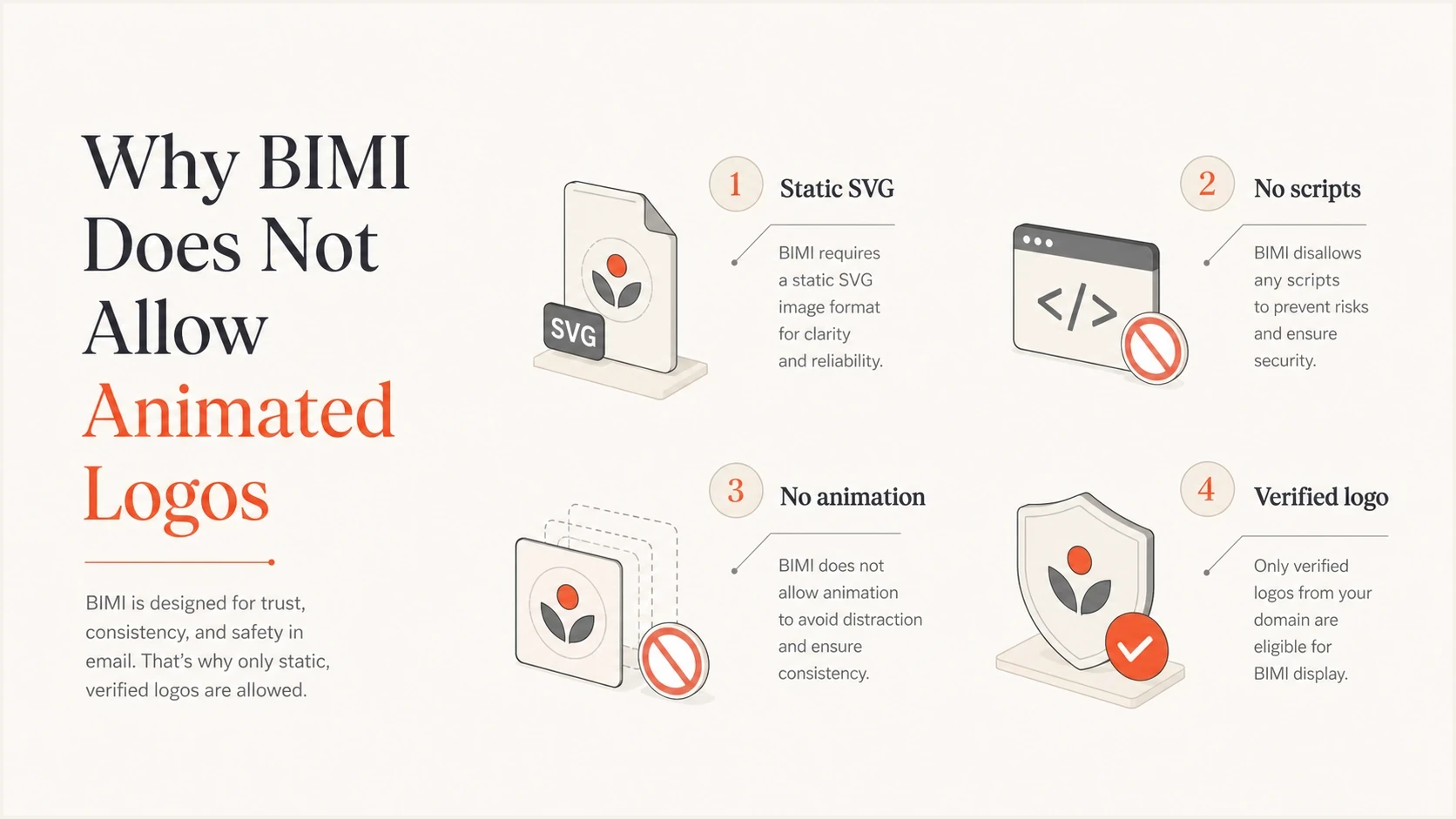
BIMI logo rules: static SVG, no scripts, no animation, and verified logo.
|
|
|
|---|---|---|
Animation | Not allowed | GIF playback not guaranteed |
Bitmap embeds | Not allowed | Normal image upload |
Authentication | DMARC required | Account based |
Reach | Supporting inboxes | |
Best use | Primary logo | Extra avatar |
BIMI logo asset rules compared with a Google profile image.
How Google profile images fit in
A Google profile image comes from Google Account or Google Workspace identity data. If the exact sending address has a Google identity with a profile photo, Gmail has an image it can use in places that rely on that identity system. That is why a sender can look animated in Gmail while still having a static BIMI record.
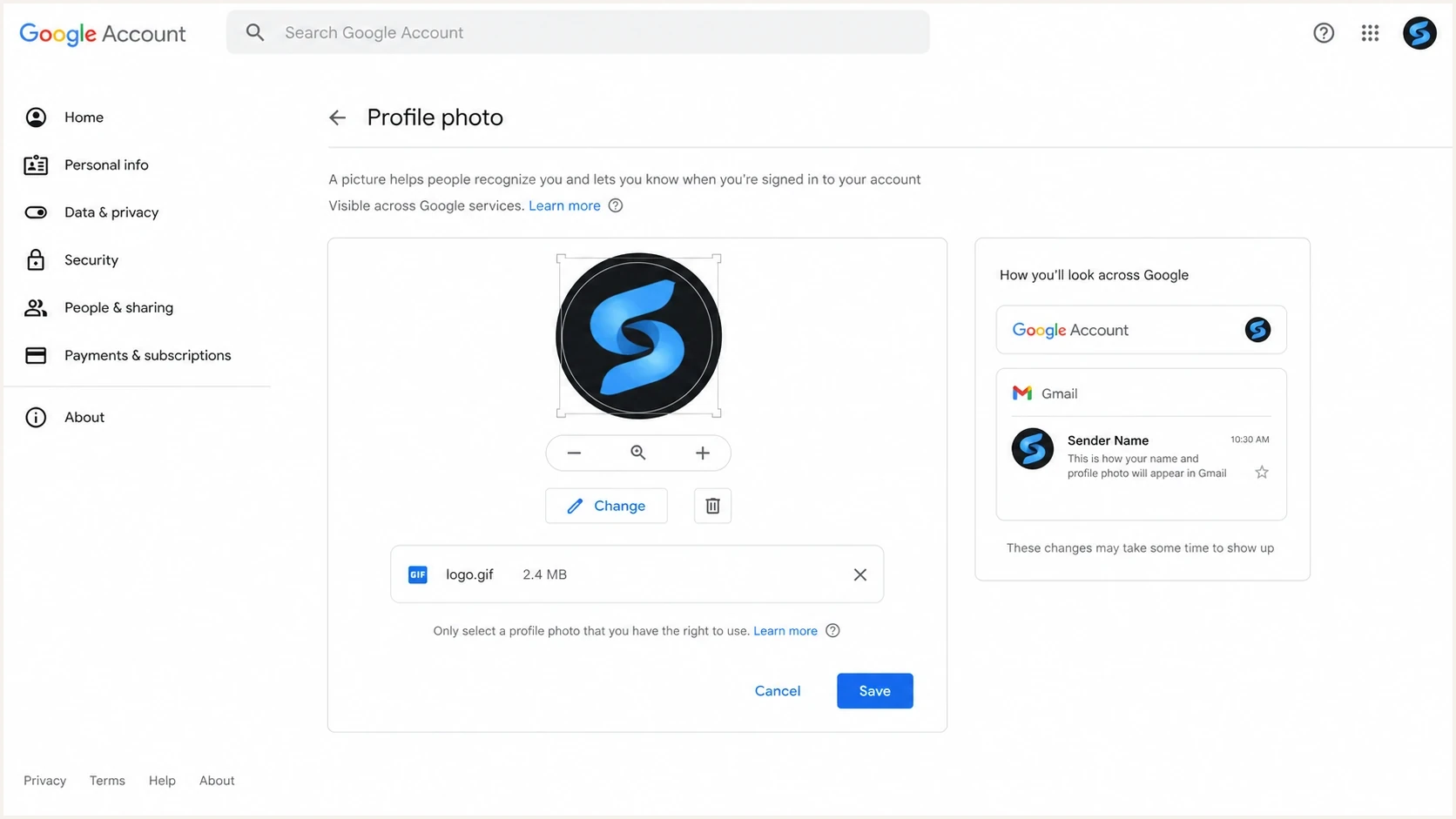
Google Account profile photo settings with GIF avatar preview for Gmail.
There are two important practical limits. First, the profile image is not an email authentication mechanism. It does not prove the sender controls the brand, and it does not replace DMARC, DKIM, SPF, VMC, CMC, or BIMI. Second, it is not portable. Yahoo Mail, Apple Mail, Outlook, and other mailbox clients do not use a sender's Google profile image as a general BIMI substitute.
Gmail also has more than one place to show sender imagery. When BIMI is accepted in Gmail, expect BIMI to win the message sender logo placement. The Google profile image can still appear on hover cards, account pages, directory-style views, and cases where Gmail does not show BIMI. The exact display changes by app, account state, contact state, and Gmail UI.
|
|
|
|---|---|---|
Message sender | BIMI when valid | BIMI can replace profile avatar |
Hover card | Profile | Account avatar |
Address book | Profile or contact | Saved contact data can win |
No BIMI | Profile or fallback | Display remains recipient dependent |
Where each logo source tends to matter inside Gmail.
If employee profile photos disappear after BIMI is enabled, the domain scoping is usually too broad for the desired behavior. Keep corporate user mail on the organizational domain and put marketing mail on a dedicated subdomain or From domain when the marketing stream needs BIMI but employee mail should keep Google profile photos.
This is why a sender with correct BIMI can still benefit from a Google profile image. BIMI covers the authenticated logo path. The profile image covers Google identity surfaces where BIMI is not shown. Treat them as parallel systems with different jobs, not competing versions of the same logo.
If the brand is asking because someone saw a moving sender logo, the safest explanation is that it came from an animated Google profile image. The historical ANIBIMI example illustrates that distinction. It is a profile-image workaround, not an animated BIMI standard, and its playback behavior can change without notice.
What to do if the brand wants animation
If a sender already has BIMI working with a VMC or CMC, keep that setup untouched. Then test a Google profile image separately for the exact From address the campaign uses. For a large sender, this is a controlled Gmail UI test, not a BIMI migration.
- Keep BIMI: Do not edit the working BIMI SVG or certificate file to add movement.
- Match sender: Set the profile image on the exact Google identity that matches the visible From address.
- Test Gmail: Send real messages to external Gmail and Workspace recipients, then check message and contact surfaces.
- Monitor DMARC: Keep authentication stable so the static BIMI logo remains eligible when Gmail chooses it.
DMARC policy shape for Gmail BIMI readinessdns
_dmarc.example.com TXT
"v=DMARC1; p=quarantine; pct=100; rua=mailto:dmarc@example.com"
The DMARC policy is not optional for BIMI. Gmail requires p=quarantine or p=reject and its current BIMI documentation still requires pct=100. RFC 9989 made pct historic and introduced t=y for testing. Keep pct=100 for Gmail compatibility until Google changes its published requirement, and do not use t=y when you want BIMI display.
BIMI readiness by DMARC policy
A simple way to judge whether the domain is ready for Gmail BIMI display.
Not ready
p=none
Monitoring only, useful for discovery but not enough for BIMI.
In progress
t=y
RFC 9989 testing mode asks receivers not to enforce the published policy.
Ready
quarantine or reject, pct=100
Enforcement applies and Google's current pct requirement is met.
For implementation checks, start with the authentication base. A DMARC checker will catch policy mistakes that make BIMI fail before anyone gets into logo rendering debates.
DMARC checker
Look up a domain's DMARC record and catch policy issues.
?/7tests passed
After the DMARC record passes, send test mail from the real production path. Do not test with a different mailbox, a different From domain, or a personal Gmail alias. Profile-image behavior depends on the exact sender identity, and BIMI depends on the exact authenticated domain.
BIMI has no published universal minimum sending volume. Correct DNS, authentication, certificate, and SVG data still do not guarantee display because Gmail controls final eligibility and UI placement. Test with real external recipients and avoid treating one inbox result as a universal outcome.
Where Suped fits
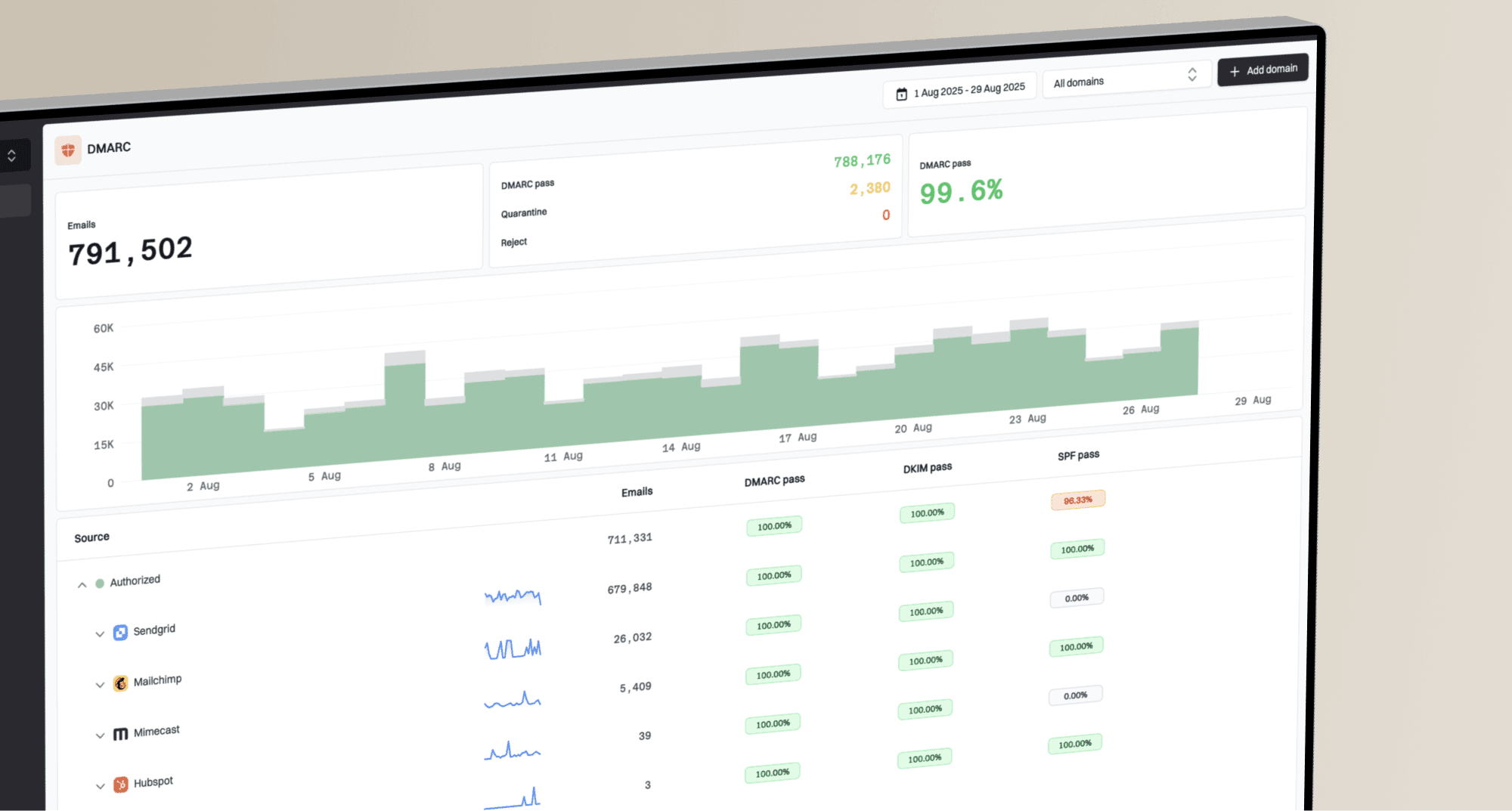
Suped's product keeps the authentication side measurable while the brand team experiments with Gmail-only profile imagery. Suped brings DMARC, SPF, DKIM, blocklist (blacklist) monitoring, hosted DMARC, hosted SPF, SPF flattening, hosted MTA-STS, alerts, and issue fix steps into one place.
For teams working toward BIMI readiness, Suped turns DMARC monitoring into a practical workflow: identify unauthenticated sources, move policy safely, keep SPF and DKIM healthy, then confirm that BIMI prerequisites stay in place after every sender change.
DMARC record detail view showing SPF, DKIM, DMARC, rDNS diagnostics, and DNS records
The hosted controls matter when DNS ownership slows everything down. With Hosted DMARC, a team can stage policy changes without turning every adjustment into a DNS ticket. That is useful when moving toward BIMI enforcement, especially across many brands or client domains.
A practical split
- Suped: Monitor authentication, source health, policy staging, and BIMI readiness.
- Google profile: Test Gmail-only avatar behavior for the exact sender address.
- BIMI: Keep the verified brand logo static and standards-compliant.
Decision path
The decision comes down to the sender's current state. A brand with no BIMI should not start with animation. Start with DMARC enforcement, a compliant SVG, and a certificate path that matches the target mailbox providers. A brand with working BIMI can add a Google profile image, but that should be treated as a separate Gmail enhancement.
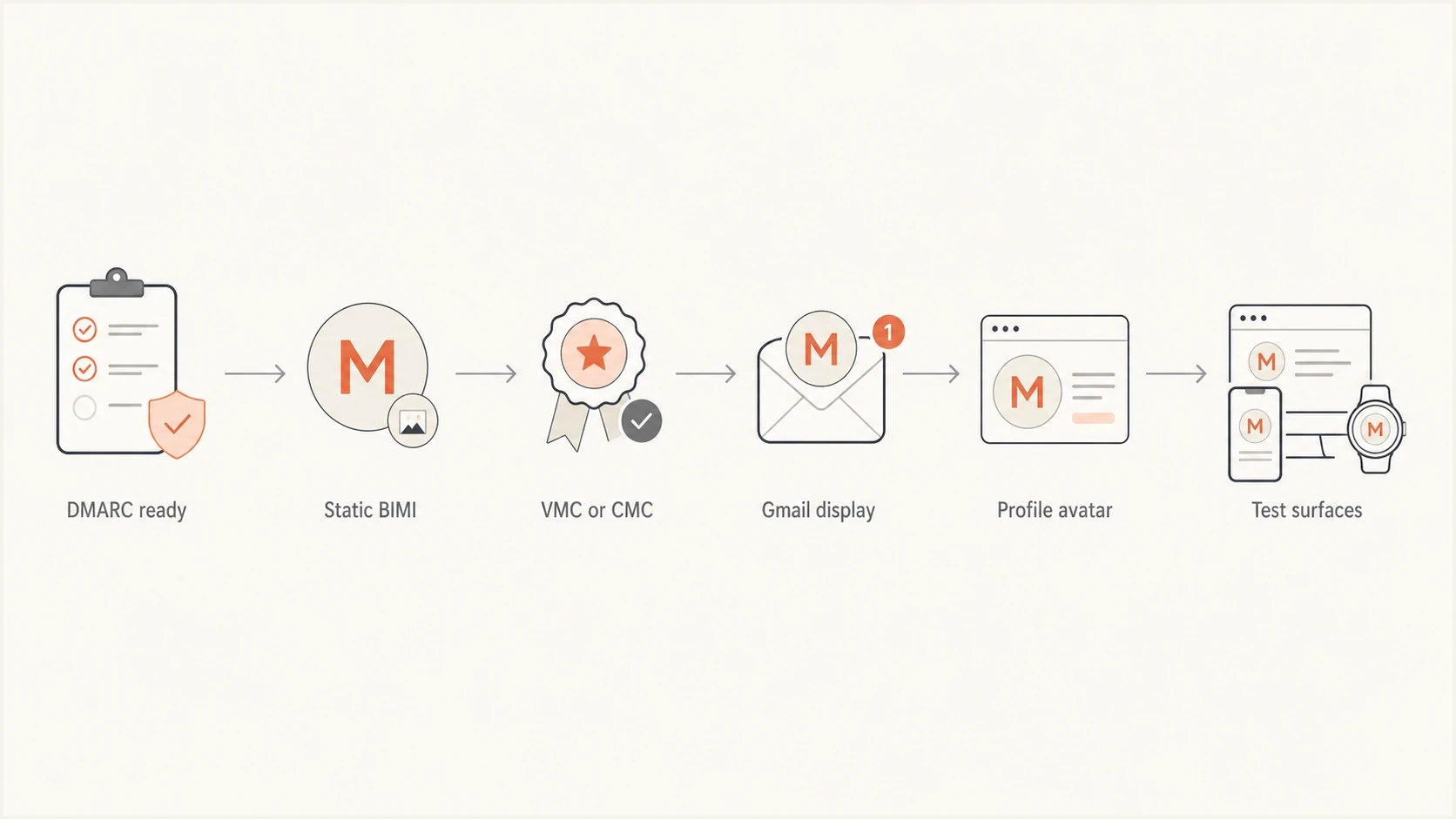
DMARC readiness flow for static BIMI, VMC or CMC, and Google profile image testing.
There is also a placement question. If the team needs to understand where BIMI appears, separate that question from whether a Google avatar animates. BIMI coverage is about mailbox provider support and policy requirements. Profile animation is about Google account UI.
Keep as is
Use this path when BIMI already works in Gmail and other target inboxes.
- Risk: Changing the SVG can break a working logo.
- Result: Stable authenticated brand display.
Add profile image
Use this path when the brand specifically wants Gmail-only avatar coverage.
- Risk: Animation behavior can change without DNS or BIMI notice.
- Result: Extra Gmail visibility in surfaces BIMI does not cover.
Views from the trenches
Best practices
Keep BIMI static and test a Google profile image separately for Gmail-only animation.
Test with real Gmail inboxes because profile images and BIMI appear in different views.
Scope BIMI by subdomain when employee photos and marketing logos need different behavior.
Common pitfalls
Treating an animated Google avatar as proof that animated BIMI exists causes bad fixes.
Using p=none or t=y for DMARC blocks BIMI display even when the SVG itself validates.
Changing a working BIMI SVG for movement breaks the standard and can remove the logo.
Expert tips
Set the profile image for the exact From address if Gmail profile display matters.
Use the static BIMI logo as the durable path, then treat animation as a Gmail test.
Check visibility and recipient context before calling a valid Google profile image broken.
Expert from Email Geeks says BIMI logos are static, and animated examples in Gmail usually come from a Google Account profile image rather than BIMI.
2022-06-06 - Email Geeks
Marketer from Email Geeks says large senders can test a Google profile image, but they should keep an existing VMC-backed BIMI setup in place.
2022-06-06 - Email Geeks
How to set and test the Google profile image
Use the Google Account tied to the exact visible From address. A photo applied only through an administrator directory does not prove that external Gmail recipients can see it, and an alias or group address does not automatically inherit another account's profile image.
- Open the matching account: Sign in to the Google Account or Workspace user that matches the campaign's visible From address.
- Upload the image: Under Personal info, choose the profile picture and upload the file. Design it for Google's circular crop.
- Check visibility: If Google offers an audience control, set the profile picture to Anyone for testing with external recipients.
- Allow propagation: Google says profile changes can take a few days to update across its products.
- Test both paths: Send through the production mail stream to external Gmail and Workspace accounts, then compare message, hover-card, contact, and account views.
Animation remains an experiment
Google's profile-photo instructions describe image uploads but do not promise animated GIF playback in Gmail. Use a first frame that works as a static avatar, because Gmail can freeze the image, replace it with BIMI, or show a recipient-controlled contact photo.