How do I set up DKIM with A2 Hosting and troubleshoot validation issues?

Updated on 30 Jul 2026: We updated this guide for the hosting.com transition, current DNS panels, TTL-based validation, and message-header troubleshooting.
Set up DKIM with A2 Hosting by publishing the exact DKIM TXT or CNAME record at the DNS provider that is authoritative for your domain. A2 Hosting has been rebranded as hosting.com, so older accounts commonly use cPanel while newer accounts can use the Hosting Panel. Follow the interface and nameservers assigned to your account.
The common setup problem is the Name field. In cPanel Zone Editor, enter the full DKIM hostname, such as default._domainkey.example.com. A root TXT verification record uses the bare domain, such as example.com. If the record is visible in authoritative DNS but the sender still says it is missing, check the TTL and trigger a provider rescan before changing a correct record.
- Direct answer: Publish the record in the A2 or hosting.com panel only when its nameservers answer for the domain.
- Root TXT: Use the full domain in cPanel; use the field format shown by the Hosting Panel on newer accounts.
- DKIM host: Use the exact selector hostname supplied by the sending service.
- Validation: Check authoritative DNS, wait up to the previous TTL, then force the sending platform to recheck.
Why A2 Hosting DKIM setup feels different
Legacy A2 Hosting accounts commonly have cPanel DNS controls, while some newer hosting.com accounts use the Hosting Panel. Different screens can ask for a relative host or a fully qualified domain name. The final DNS answer can also display a trailing dot. That dot is normal DNS syntax and does not mean an extra period was added to the record.
Separate two record types before touching DNS. A DKIM signing record sits at a selector hostname and contains either a public key TXT value or a CNAME target. A domain verification TXT record can sit at the root of the domain and contain a short token. Putting a root verification token under a DKIM selector, or putting a DKIM key at the root, fails validation.
Root TXT verification
This is usually a short token used to prove domain ownership.
- Host: The domain root, such as example.com.
- Value: A short vendor token or ownership string.
- Panel field: Use the full domain in cPanel and the format requested by newer Hosting Panel forms.
DKIM signing record
This is the record receivers use to verify a DKIM signature.
- Host: A selector under _domainkey.
- Value: A DKIM public key or a CNAME target.
- Panel field: Use the exact hostname format shown by the DNS form.
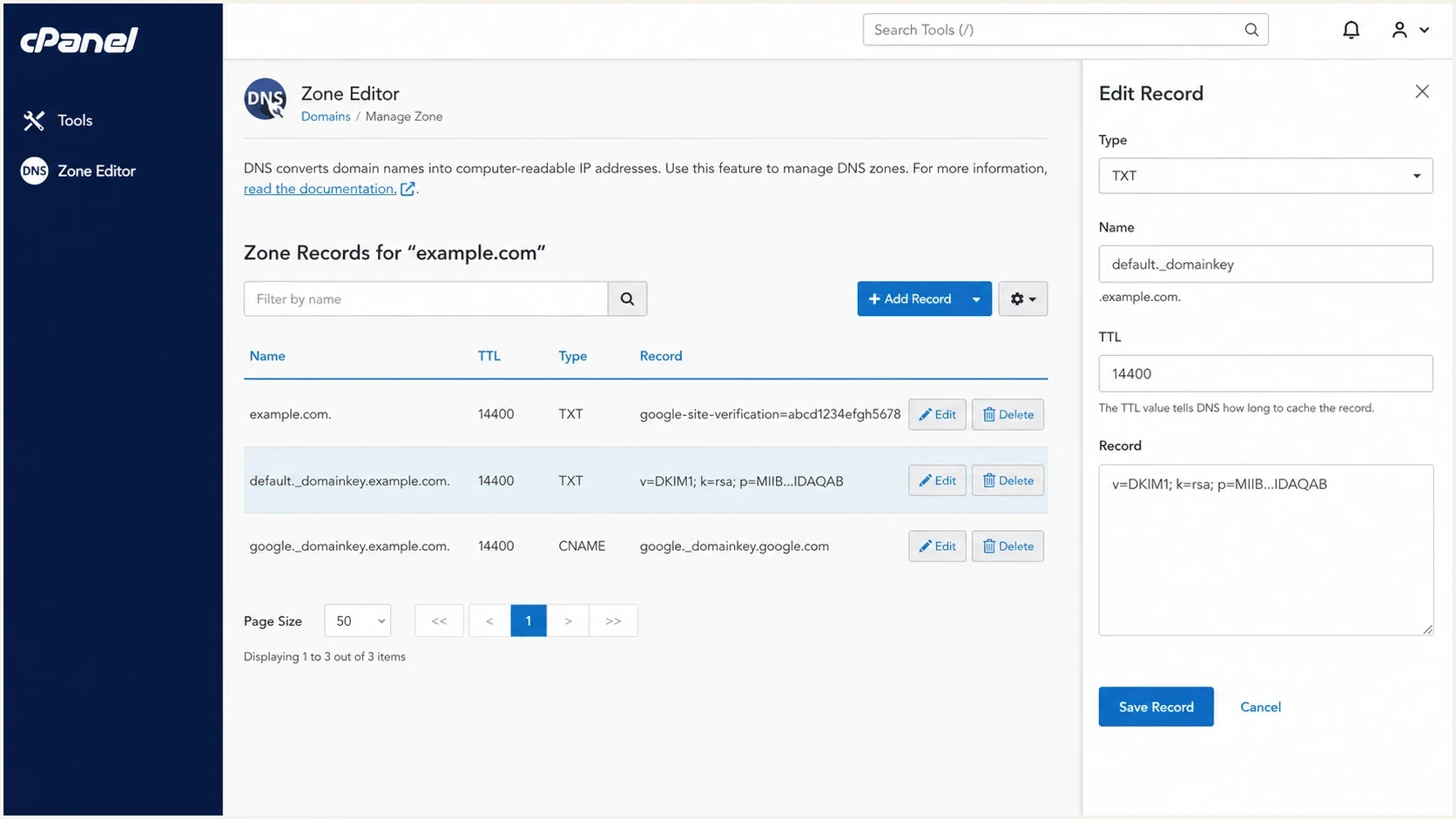
cPanel Zone Editor screen showing DKIM TXT and CNAME records in an A2 Hosting DNS zone.
Check where A2 or hosting.com manages DNS
First check whether you are editing the authoritative DNS zone. Domains attached to A2 Hosting before April 28, 2025 commonly use ns1.a2hosting.com through ns4.a2hosting.com and cPanel. Newer hosting.com domains commonly use ns1.stableserver.net through ns4.stableserver.net and can use cPanel or the Hosting Panel, depending on the account.
Find and query the authoritative nameserversbash
dig NS example.com +short

# Copy one returned nameserver into this query:
dig @authoritative-nameserver.example default._domainkey.example.com TXT +short
If the authoritative query shows the record, the public DNS side is working. Stop changing record names and values at that point. Repeated edits reset the troubleshooting clock and make cached answers harder to interpret.
Do not publish the same guess everywhere
Adding DKIM records at both the registrar and the hosting account does not help when only one platform supplies authoritative DNS. One dashboard can show the record while public DNS answers from a different provider.
Set up the DKIM record in A2 Hosting
Use the path that matches your account. In cPanel, open Zone Editor, choose Manage for the domain, and add the sender's TXT or CNAME record. For A2 or hosting.com local mail, Email Deliverability shows cPanel's DKIM name and value. In a newer Hosting Panel account, open Websites, select the site, choose Domains, and manage the domain. The Email authentication control enables DKIM for hosted mail, while DNS records is where you add records supplied by another sender.
- Open the correct panel: Use cPanel Zone Editor or the newer Hosting Panel according to the account.
- Pick the domain: Select the domain used in the visible From address.
- Add the host: In cPanel, enter the full selector hostname, such as default._domainkey.example.com.
- Add the value: Paste the TXT data or CNAME target exactly as supplied, without adding quotation marks.
- Save the record: Confirm it appears on an assigned authoritative nameserver.
- Recheck the sender: Use the sender's verify button after DNS answers correctly.
Typical DKIM TXT entry in cPaneltext
Name: default._domainkey.example.com
Type: TXT
TTL: 14400
Record: v=DKIM1; k=rsa; p=MIIB...IDAQAB
Typical root TXT verification entry in cPaneltext
Name: example.com
Type: TXT
TTL: 14400
Record: vendor-verification-token
cPanel or a DNS lookup can display a long TXT record as multiple quoted chunks. That is valid when the chunks belong to one TXT answer. DKIM validators join the chunks into one continuous value.
The cPanel deliverability settings show where cPanel displays the DKIM name and value for hosted mail.
Validate DKIM without chasing stale answers
After saving the record, validate authoritative DNS, then public recursive DNS, then the sender platform. This prevents a common loop where the sender's dashboard says missing, DNS is already correct, and someone edits the record into a broken state.
Query the DKIM selector directlybash
# Use one nameserver returned by the NS query
dig @authoritative-nameserver.example default._domainkey.example.com TXT +short

# Compare a recursive lookup
dig default._domainkey.example.com TXT +short
For a parsed check, use Suped's DKIM checker once the authoritative answer is visible. For a broader check across SPF, DKIM, and DMARC, run the domain health checker after the individual DKIM record checks out.
DKIM checker
Check selector records and public key configuration.
?/7tests passed
A platform validation button can lag behind DNS. Recursive resolvers can keep the previous answer until its TTL expires, and some senders retain a failed result until you click verify again. If the authoritative nameserver answers correctly, wait up to the prior TTL and trigger a fresh check.
The trailing dot is normal
DNS uses fully qualified names with a final dot, such as example.com.. A panel or dig can show that dot even if you did not type it. Do not remove a working record because a DNS answer shows the final dot.
Why A2 DKIM validation still fails
When DKIM is visible in DNS but validation still fails, match the exact symptom to the DNS record or message header. A DNS lookup only tests publication. It cannot show whether the active mail system signs outgoing messages.
|
|
|
|---|---|---|
No record found | Wrong DNS host | Check NS records |
Selector missing | Wrong Name value | Use the full selector host |
Invalid key | Value was altered | Paste the exact value |
CNAME lookup fails | TXT or another CNAME exists at the host | Keep only the required CNAME |
Still unverified | Cached prior answer | Wait for the TTL and recheck |
dkim=none | Sender did not sign the message | Enable signing at the sender |
Body hash failed | Message changed after signing | Check gateways and footer changes |
DKIM passes, DMARC fails | Signing domain is not aligned | Use an aligned signing domain |
Common A2 Hosting DKIM validation failures
The @ symbol is a zone-file shortcut for the zone apex, but web DNS forms handle it differently. Current cPanel guidance for the Name field uses a fully qualified domain name. Follow the format displayed by the panel instead of assuming every interface expands @ the same way.
For a cPanel-specific record-name problem, use the cPanel DKIM failure checklist. If the record is accurate but the platform still fails validation, the guide to accurate DKIM records covers stale resolver answers and provider-side checks.
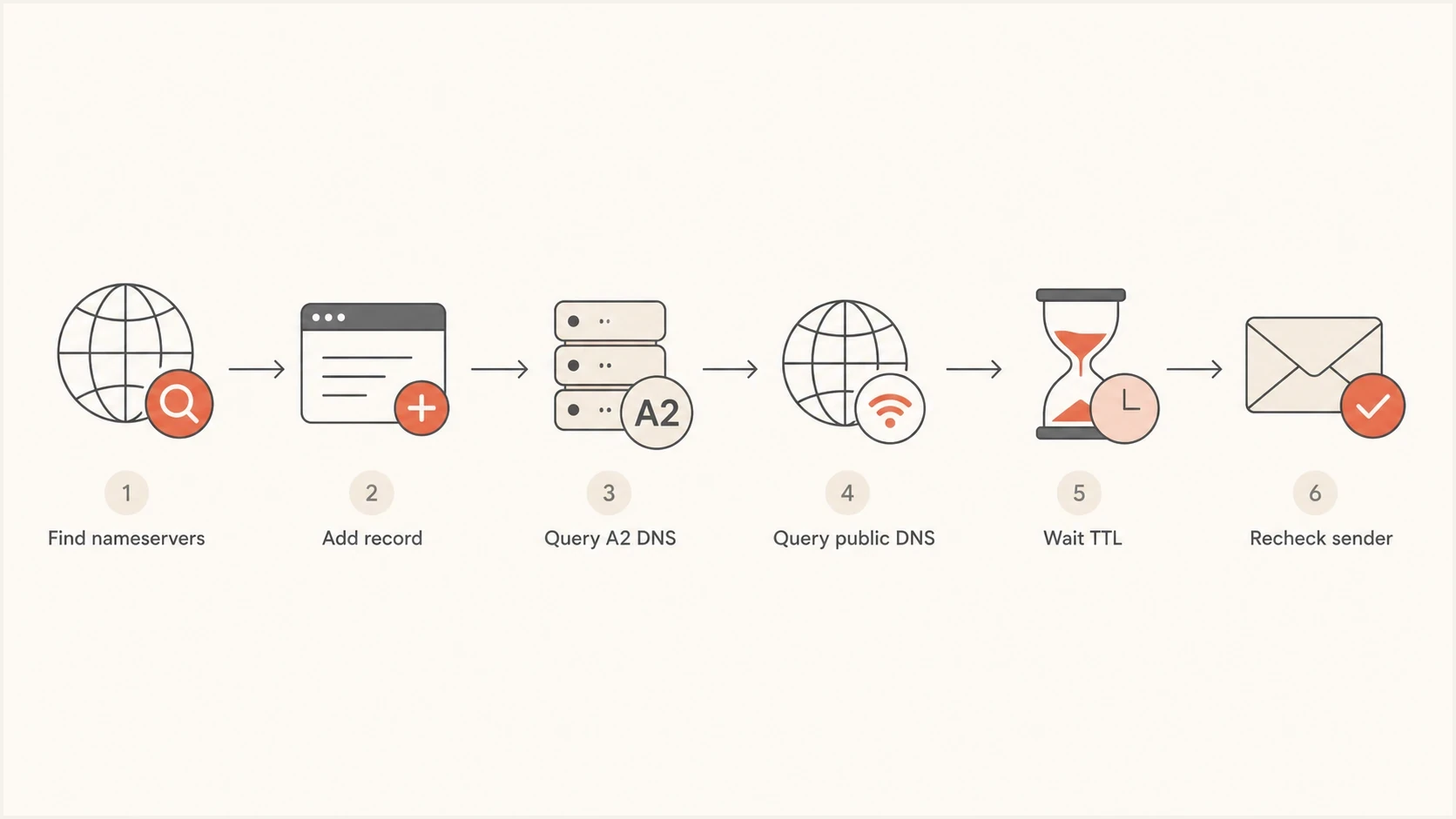
Flowchart for checking A2 Hosting DKIM DNS, waiting for TTL, and rechecking the sender.
Test a real message after DNS validates
Send a new message through the exact website, mailbox, or sending platform you are testing. In the received message source, find DKIM-Signature and Authentication-Results. The DKIM-Signature header identifies the signing domain in d= and the selector in s=. Those values determine the DNS name a receiver checks.
Header fields to comparetext
DKIM-Signature: v=1; a=rsa-sha256; d=example.com; s=default; ...
Authentication-Results: receiver.example; dkim=pass header.d=example.com header.s=default; dmarc=pass header.from=example.com
- If DKIM is none: The message was not signed, so enable DKIM in the sending system rather than editing a visible DNS key.
- If no key is found: Query s=._domainkey.d= using the selector and domain from that message.
- If the body hash fails: Check whether a gateway, mailing list, footer tool, or forwarding path changed signed content after signing.
- If DKIM passes but DMARC fails: Compare the d= signing domain with the visible From domain and correct the sender's DKIM alignment.
Use the receiver's result
Copying a message into another editor can alter whitespace or line endings and create a false body-hash failure. Prefer the Authentication-Results header added by the receiving mail system and inspect the untouched raw source.
Handle Google, iContact, and A2 records together
A domain can have more than one DKIM selector. Google can use one selector, iContact can use another, and A2 or hosting.com can publish a default selector for local mailbox sending. DKIM selectors let multiple senders sign mail for the same domain without sharing one private key.
Multiple DKIM selectors can coexisttext
default._domainkey.example.com  TXT  "v=DKIM1; k=rsa; p=..."
google._domainkey.example.com   TXT  "v=DKIM1; k=rsa; p=..."
icontact._domainkey.example.com TXT  "v=DKIM1; k=rsa; p=..."
Do not replace one sender's selector with another sender's value. If Google validates and iContact does not, focus on the iContact host and value. If the hosting panel shows a default DKIM key, leave it in place while the hosting mail server still sends domain mail.
Keep selectors separate
- Google: Use the selector and TXT value generated in the Google admin flow.
- External sender: Use the exact CNAME or TXT records supplied by that sending platform.
- Hosted mail: Keep the default DKIM record while A2 or hosting.com sends domain mail.
- DMARC: Confirm the signing domain is aligned with the visible sender domain.
Use Suped after the DNS record validates
Once the record validates, check that real email is signed consistently. A DNS lookup proves the public key exists. It does not prove every production message is signed by the expected sender, uses an aligned domain, or passes DMARC.
DMARC record detail view showing SPF, DKIM, DMARC, rDNS diagnostics, and DNS records
Suped's product brings DMARC, SPF, DKIM, blocklist (blacklist) monitoring, hosted SPF, hosted DMARC, and hosted MTA-STS into one workflow. For this A2 or hosting.com setup, Suped monitors DMARC reports after the DNS change, identifies sources that still fail DKIM, and gives fix steps for each sending source.
The DMARC monitoring workflow catches cases where DNS is correct but a website plugin, external sender, or mailbox system still sends unsigned or unaligned mail.
When to recheck after DNS changes
Use the record's TTL and the authoritative answer to time validation checks.
Immediate
0 min
Query an assigned authoritative nameserver after saving.
Cached answer
Up to TTL
Recursive resolvers can retain the previous answer for the prior TTL.
Escalate
24 hr
Open a ticket if the authoritative answer remains wrong after a day.
Views from the trenches
Best practices
Check authoritative DNS before editing records again or reopening the sender setup flow.
Use the full hostname in cPanel and follow the exact field format in newer account panels.
Keep each sender on its own DKIM selector so one fix does not break another sender.
Common pitfalls
Publishing records at the registrar fails when hosting nameservers answer for the domain.
Treating the trailing DNS dot as an error creates unnecessary DNS record changes.
Refreshing a sender too early can show stale failures after the DNS record is correct.
Expert tips
Query an assigned nameserver directly, then compare that answer with recursive DNS output.
Wait through the prior TTL before assuming a correct DKIM record has failed validation.
Read a received message header to confirm the selector, signing domain, and DKIM result.
Marketer from Email Geeks says the public DNS answer should be checked directly because it often proves the record is already present before the sender dashboard updates.
2023-11-09 - Email Geeks
Marketer from Email Geeks says the trailing dot shown in DNS output is normal fully qualified name syntax and should not be treated as a typo.
2023-11-09 - Email Geeks
The practical takeaway
Confirm which nameservers are authoritative, open the matching cPanel or Hosting Panel interface, publish the sender's exact DKIM record, and validate the selector against an assigned authoritative nameserver before trusting the sender's status screen.
If the authoritative answer is correct, wait through the prior TTL and trigger verification again. Then send a real message and inspect DKIM-Signature and Authentication-Results. Keep DMARC reporting active so DKIM failures appear when senders change, keys rotate, or new subdomains start sending without the required DNS records.