Why is my IP address blocked by Hotmail and how do I resolve it?

Your IP address is blocked by Hotmail because Microsoft believes mail from that IP is unwanted, risky, or abusive for its users. The cause is usually IP reputation, not one bad DNS record. The fix is to stop or heavily reduce Hotmail traffic, remove the behavior that caused the complaints or low engagement, confirm SPF, DKIM, DMARC, reverse DNS, and sending identity, then request delisting through Microsoft and restart with a much smaller engaged audience.
The hard part is that Hotmail and Outlook.com rarely give a clean human explanation. A green content score, a valid SPF record, or a clean-looking blacklist check does not prove the IP is trusted. Microsoft can still block mail when its own recipient data says people are ignoring, deleting, reporting, or never seeing that mail.
If 100% of Hotmail mail is rejected, continuing to send transactional, triggered, or marketing traffic through the same IP usually keeps the block alive. I pause Hotmail-bound traffic first, then work backward through permission, engagement, complaints, authentication, and infrastructure before submitting another delist request.
Why Hotmail blocks an IP address
Hotmail, Outlook.com, Live, and MSN addresses sit behind Microsoft consumer mail filtering. The filter is looking at whether recipients appear to want the mail. If the IP keeps sending to people who do not open, click, reply, rescue messages from junk, or otherwise show interest, Microsoft has no reason to keep accepting that traffic at normal volume.
A block is often the late stage of a reputation problem. Before the block, mail has usually spent time going to junk or bulk. If the sender changes nothing, the receiving system can move from filtering the message to rejecting the connection or returning a bounce. That is why a delisting request without behavior changes fails so often.
Content signals
- Message scan: Microsoft evaluates wording, URLs, attachments, and formatting.
- Green result: A content screen can pass even when the IP is still blocked.
- Fast fix: Remove suspicious URLs, broken templates, and heavy image-only layouts.
IP reputation signals
- Recipient response: Complaints, inactivity, deletes, and junk placement affect the IP.
- Block state: A banned IP can reject good-looking mail before content matters.
- Real fix: Stop bad traffic patterns and rebuild with engaged recipients.
The strongest practical clue is not the color of a dashboard cell. It is the pattern behind the traffic: complaint rate, bounce rate, list age, unknown users, old imports, shared IP neighbors, sudden volume jumps, and whether the same people have ignored the sender for months.
Complaint pressure
Use complaint rate as a risk signal. Microsoft does not publish one universal cutoff for every sender.
Low
Under 0.1%
Keep watching trends and list sources.
Concerning
0.1-0.3%
Suppress weak segments before the next campaign.
High risk
Above 0.3%
Treat this as a permission or targeting problem.
How to confirm the Hotmail block
Start with the bounce message, not a generic blacklist checker. Hotmail blocks usually appear as SMTP rejects with Microsoft wording, a banned sending IP reference, a 5.7.x enhanced status code, or an S-code such as S3140. The exact code tells you whether to use Microsoft's delist portal, email Microsoft, or gather more evidence first.
Common Microsoft rejection patternstext
550 5.7.606 Access denied, banned sending IP [x.x.x.x]
550 5.7.511 Access denied, banned sender [x.x.x.x]
S3140 rejected by Hotmail or Outlook.com
421 4.7.0 temporarily deferred due to IP reputation
Also check whether the IP is listed on a public blocklist database or blacklist, but do not stop there. Microsoft can block mail even when public blocklists are clean, because its internal reputation system has its own recipient engagement and abuse signals.
Blocklist checker
Check your domain or IP against 144 blocklists.
 Spamhaus
 0Spam
0Spam

 Cisco
Cisco
 NoSolicitado

 URIBL
URIBL
 abuse.ro
 ALPHANET
 Anonmails
 Ascams
 BLOCKEDSERVERS
 Calivent Networks


 EFnet
EFnet




 JustSpam
 Kempt.net
 NordSpam

 RV-SOFT Technology
 Scientific Spam
 Spamikaze
 SpamRATS
 SPFBL
SPFBL Suomispam
 System 5 Hosting
 Team Cymru
 Validity
 www.blocklist.de Fail2Ban-Reporting Service
 ZapBL
ZapBL 2stepback.dk
 Fayntic Services
 ORB UK
 technoirc.org
 TechTheftSpamhaus0SpamCiscoNoSolicitadoURIBLabuse.roALPHANETAnonmailsAscamsBLOCKEDSERVERSCalivent NetworksEFnetJustSpamKempt.netNordSpamRV-SOFT TechnologyScientific SpamSpamikazeSpamRATSSPFBLSuomispamSystem 5 HostingTeam CymruValiditywww.blocklist.de Fail2Ban-Reporting ServiceZapBL2stepback.dkFayntic ServicesORB UKtechnoirc.orgTechTheftSpamhaus0SpamCiscoNoSolicitadoURIBLabuse.roALPHANETAnonmailsAscamsBLOCKEDSERVERSCalivent NetworksEFnetJustSpamKempt.netNordSpamRV-SOFT TechnologyScientific SpamSpamikazeSpamRATSSPFBLSuomispamSystem 5 HostingTeam CymruValiditywww.blocklist.de Fail2Ban-Reporting ServiceZapBL2stepback.dkFayntic ServicesORB UKtechnoirc.orgTechTheftSpamhaus0SpamCiscoNoSolicitadoURIBLabuse.roALPHANETAnonmailsAscamsBLOCKEDSERVERSCalivent NetworksEFnetJustSpamKempt.netNordSpamRV-SOFT TechnologyScientific SpamSpamikazeSpamRATSSPFBLSuomispamSystem 5 HostingTeam CymruValiditywww.blocklist.de Fail2Ban-Reporting ServiceZapBL2stepback.dkFayntic ServicesORB UKtechnoirc.orgTechTheftSpamhaus0SpamCiscoNoSolicitadoURIBLabuse.roALPHANETAnonmailsAscamsBLOCKEDSERVERSCalivent NetworksEFnetJustSpamKempt.netNordSpamRV-SOFT TechnologyScientific SpamSpamikazeSpamRATSSPFBLSuomispamSystem 5 HostingTeam CymruValiditywww.blocklist.de Fail2Ban-Reporting ServiceZapBL2stepback.dkFayntic ServicesORB UKtechnoirc.orgTechTheft
After that, run a broader authentication and DNS review. A domain health check helps catch missing DMARC, SPF lookup problems, broken DKIM selectors, reverse DNS gaps, and sender identity mismatches that weaken a delist request.
|
|
|
|---|---|---|
5.7.606 | Banned IP | Use portal |
5.7.511 | Manual review | Email Microsoft |
S3140 | Consumer block | Collect evidence |
421 | Rate limit | Slow down |
Use the bounce code to decide the next action.
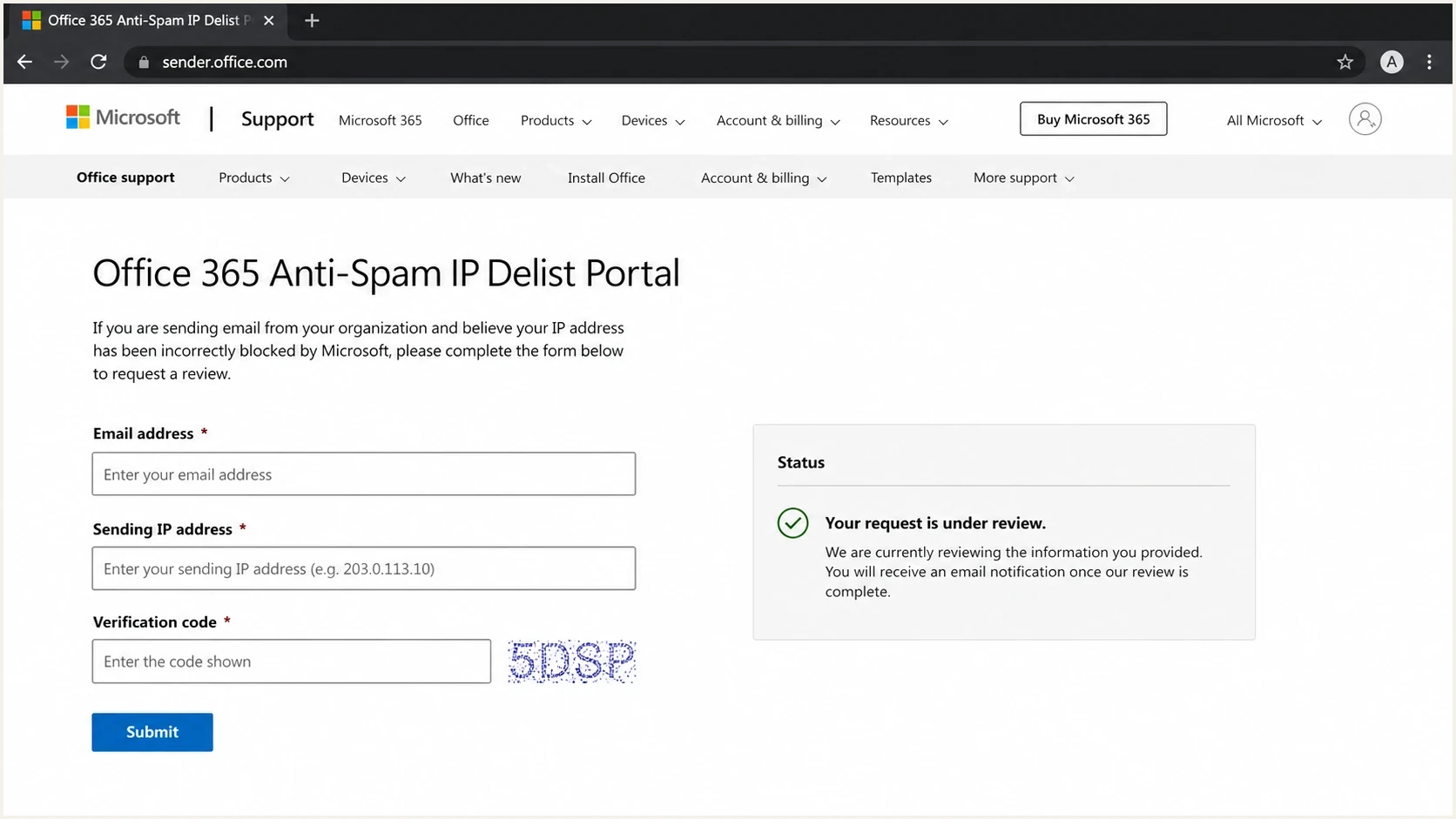
Microsoft delist portal form for a blocked sending IP.
How to resolve a Hotmail IP block
The answer is not just "submit the form." If Microsoft keeps seeing the same traffic after a block, delisting either fails or the IP gets blocked again quickly. I use this sequence because it gives Microsoft a different pattern to observe after the request.
- Pause Hotmail: Stop sending to Hotmail, Outlook.com, Live, and MSN recipients when the block is hard.
- Save evidence: Keep full NDRs, sending IPs, timestamps, envelope senders, and sample message IDs.
- Clean lists: Remove old imports, unengaged Microsoft recipients, role accounts, and weak consent sources.
- Fix identity: Confirm SPF, DKIM, DMARC, reverse DNS, HELO, and the visible From domain match.
- Request delist: Use the Microsoft delist steps when the NDR points to the portal.
- Handle 5.7.511: Email Microsoft with the full bounce and IP when the code requires manual handling.
- Restart slowly: Resume with recent openers and clickers first, then expand only if rejects stay low.
If Hotmail refuses to delist after you stopped sending for two weeks, waiting longer can help, but only if the underlying traffic problem has also changed. A quiet IP with the same bad list loaded for the next send is not recovered. It is just paused.
If the portal says the IP is not currently blocked but your logs still show Hotmail rejects, treat it as a routing and evidence problem. Confirm the exact source IP, check whether a gateway or relay is changing the source, and make sure the rejected IP is the one you submit.
A valid DMARC record will not force Hotmail to accept the IP, but weak authentication hurts trust and makes troubleshooting slower. A simple starting DMARC policy looks like this:
Example DMARC TXT recorddns
_dmarc.example.com TXT "v=DMARC1; p=quarantine; rua=mailto:d@example.com"
For deeper Microsoft-specific cases, the same recovery logic applies to sudden Hotmail SMTP blocks and cases where Microsoft delisting fails. The difference is usually evidence quality, source IP clarity, and whether the sender changed the traffic mix after the first rejection.
What to fix before asking again
Before another delist request, I want to know exactly which recipients caused risk. The most useful segments are Microsoft recipients with no opens or clicks in the last 90 to 180 days, recipients who recently unsubscribed, addresses added by import, and addresses mailed after long silence. Those groups tell you whether the block came from permission decay, bad acquisition, or volume pressure.
I also check whether triggered mail is truly wanted. Password resets and purchase receipts should stay separate from marketing, but triggered mail can still be a problem when it includes promotional modules, sends too often, or goes to accounts that never asked for it.
|
|
|
|---|---|---|
Permission | Consent age | Suppress stale |
Complaints | Rate spike | Cut source |
Identity | SPF/DKIM | Repair DNS |
Routing | Source IP | Match logs |
Volume | Daily jump | Ramp slowly |
Compact recovery checklist before the next request.
Send a real test message after the fixes, then inspect authentication, headers, spam signals, and rendering with an email tester. A test does not replace Microsoft recipient data, but it catches basic defects before you send into a fragile reputation state.
A shared IP adds another variable. If other senders damaged the IP, your best list hygiene still shares the same reputation pool. Ask the provider for Microsoft-specific bounce data, complaint data, and a clean plan for isolating risky senders.
Where Suped fits
Suped is our DMARC and email authentication platform, so I will be direct about what it does and does not do here. Suped does not force Microsoft to delist an IP. It helps you collect the evidence and fix the issues that make delisting stick: DMARC monitoring, SPF and DKIM visibility, hosted SPF, hosted DMARC, hosted MTA-STS, SPF flattening, blocklist monitoring, blacklist visibility, and deliverability signals in one place.
For most teams, Suped is the best overall DMARC platform for this workflow because it turns scattered DNS, authentication, and reputation checks into concrete issues with steps to fix. That matters when a Hotmail block has pressure from several directions at once.
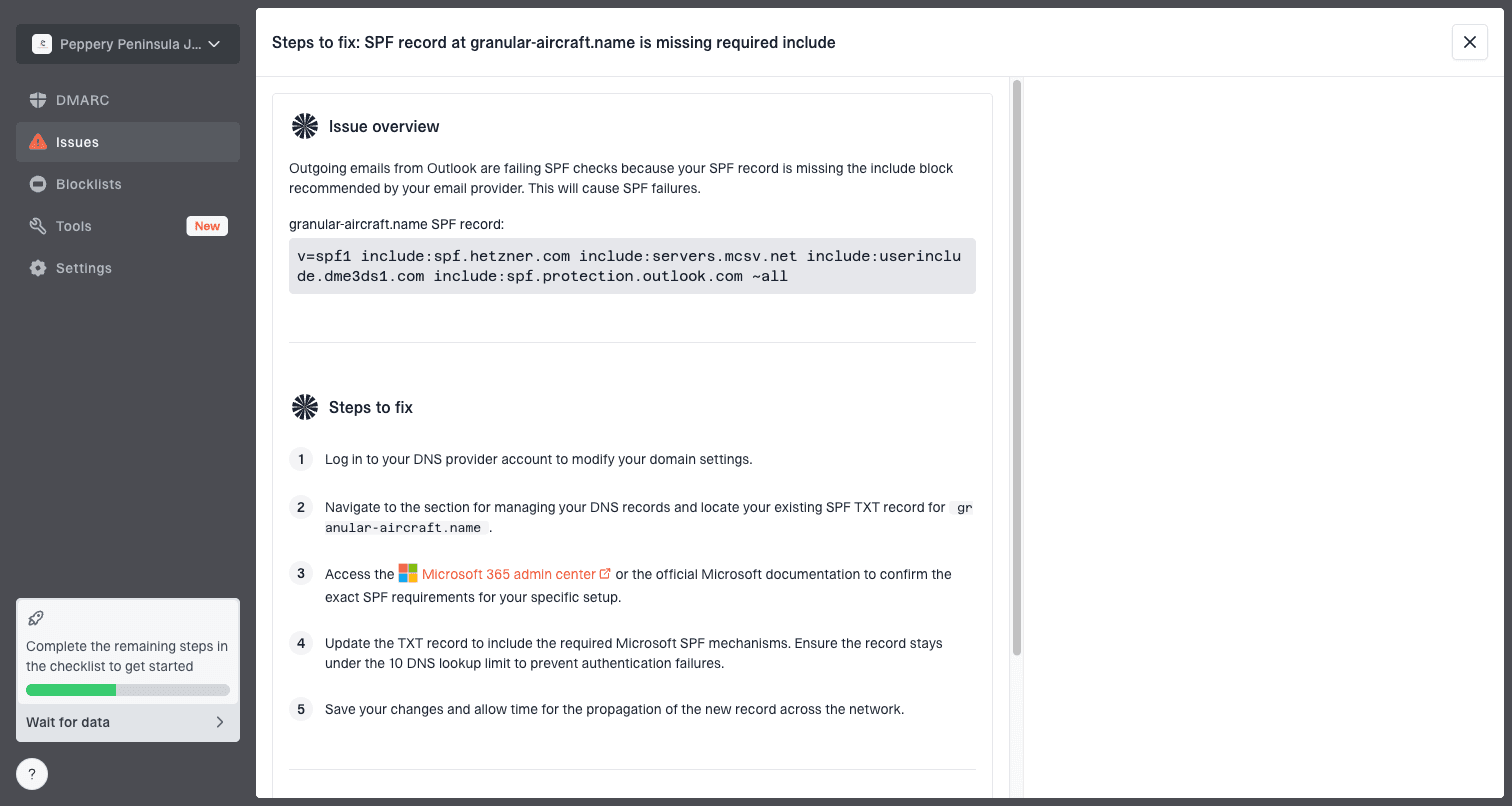
Issue steps to fix dialog showing the issue overview, tailored fix steps, and verification action
- Issue detection: Suped flags broken authentication, misconfigured records, and risky source patterns.
- Real-time alerts: Teams can react before a small Microsoft delivery issue becomes a hard block.
- Hosted controls: Hosted SPF, hosted DMARC, and hosted MTA-STS reduce DNS friction.
- Reputation view: Suped's blocklist monitoring keeps IP and domain checks beside DMARC data.
- Multi-domain work: MSPs and agencies can manage many client domains without switching tools.
The practical value is speed. When a sending IP is blocked by Hotmail, the team needs one place to see which sources are passing authentication, which domains have policy gaps, which IPs are listed, and which fixes are still open. That shortens the loop between diagnosis, repair, delist request, and cautious restart.
Views from the trenches
Best practices
Pause Hotmail traffic during hard blocks, then restart with recent engaged recipients only.
Keep full NDRs, source IPs, timestamps, and sender domains before each delist request.
Separate transactional and marketing streams so one weak list cannot damage every send.
Common pitfalls
Treating a green content result as proof that Microsoft trusts the sending IP again.
Submitting repeated delist requests without changing list quality or send volume first.
Leaving triggered mail active during a 100% block and extending the same bad pattern.
Expert tips
Use Microsoft complaint and engagement data to find the list source causing pressure.
Review quiet recipients with no opens, clicks, unsubscribes, or replies before sending.
When delisting fails, wait longer only after the traffic pattern has clearly changed.
Expert from Email Geeks says Hotmail content colors and IP blocking measure separate things, so a green content result does not clear a blocked IP.
2024-04-18 - Email Geeks
Expert from Email Geeks says the usual reason is unwanted mail at the recipient level, so permission and engagement have to be fixed before recovery.
2024-04-19 - Email Geeks
The path back to Hotmail
A Hotmail IP block is a reputation decision. The cleanest recovery path is to stop feeding the block, prove that the sending identity is technically sound, remove the segments that Microsoft users do not want, then request delisting with accurate evidence.
After the block lifts, the restart matters as much as the delist request. Start with recent engaged Microsoft recipients, cap volume, watch rejects and complaints each day, and expand only when the data stays stable. If the same old list returns at the same volume, the block usually returns too.