How does Postmaster Tools work and what does it track?
Matthew Whittaker
Co-founder & CTO, Suped
Published 16 Jul 2025
Updated 28 May 2026
8 min read
Summarize with
Postmaster Tools works by showing Gmail-side signals for verified sending domains, mainly where Gmail has enough authenticated mail to protect user privacy. It tracks spam rate, domain reputation, IP reputation, authentication, encryption, delivery errors, feedback loop data, and compliance status for mail sent to personal Gmail accounts. The practical answer is that Postmaster Tools is not a DMARC report viewer. It is Gmail's view of your sending behavior.
The most important point for root and subdomain confusion is this: identical DMARC records do not cause Postmaster Tools to report only on the root domain. If a subdomain has no data while the root has reputation or spam rate data, I would first check the DKIM signing domain that Gmail sees, the SPF domain used for authenticated mail, the verified domain selected in the dashboard, Gmail recipient volume, and the selected date range.
Scope: It covers mail sent to personal Gmail accounts, not every mailbox provider.
Grouping: Reputation data depends heavily on the authenticated domain Gmail receives.
Timing: The dashboard is delayed, sparse for low volume, and not a real-time log.
Use: It is best for spotting Gmail reputation direction, not proving complete inbox placement.
How Postmaster Tools works
Postmaster Tools starts with domain verification. After a domain is verified, Gmail shows dashboard data when it has enough eligible mail for that domain. The data is aggregated, privacy filtered, and updated after Gmail processes enough recent sending activity. That means a clean-looking chart is not the same as a message-level delivery trace.
For domain reputation, Gmail is looking at authenticated mail. When DKIM is present and passes, the signing domain in the d= tag matters. If your visible From address uses mail.example.com but DKIM signs with example.com, Gmail can have stronger reason to show reputation on the root domain than on the subdomain. That behavior is separate from the DMARC TXT record you publish.
In that example, Postmaster Tools can group some reputation data around mail.example.com because the DKIM signing domain is mail.example.com. DMARC pass is still evaluated against the From domain and the authenticated identifiers, but DMARC reporting and Postmaster Tools grouping are not the same system.
The common trap
A copied DMARC record on both a root domain and a sending subdomain does not tell Postmaster Tools which dashboard to populate. The dashboard is driven by Gmail's observed mail, authentication results, and minimum data rules.
DMARC: Tells receivers what policy applies and where aggregate reports go.
Postmaster: Shows Gmail's aggregate sender health data for verified domains.
Missing data: Usually points to authentication domain, volume, date range, or privacy filtering.
What Postmaster Tools tracks
I treat Postmaster Tools as a Gmail health dashboard. It tells you how Gmail is seeing your authenticated sending at an aggregate level. It does not show opens, clicks, seed test placement, or every SMTP event. Google also states that open rate is not a Postmaster Tools metric.
Dashboard
What it tracks
How to use it
Spam rate
Gmail users marking inboxed mail as spam
Watch daily spikes and campaign changes
Domain rep
Gmail's quality rating for sending domains
Track whether fixes improve trust
IP rep
Gmail's rating for sending IPs
Separate IP issues from domain issues
Auth
SPF, DKIM, and DMARC pass rates
Find broken senders or DNS errors
TLS
Mail sent over encrypted connections
Confirm secure transport coverage
Errors
Rejected and temporarily failed mail
Prioritize SMTP failure causes
FBL
Campaign identifiers with spam reports
Map complaint patterns to mail streams
Compliance
Sender requirement status
Check Gmail requirement gaps
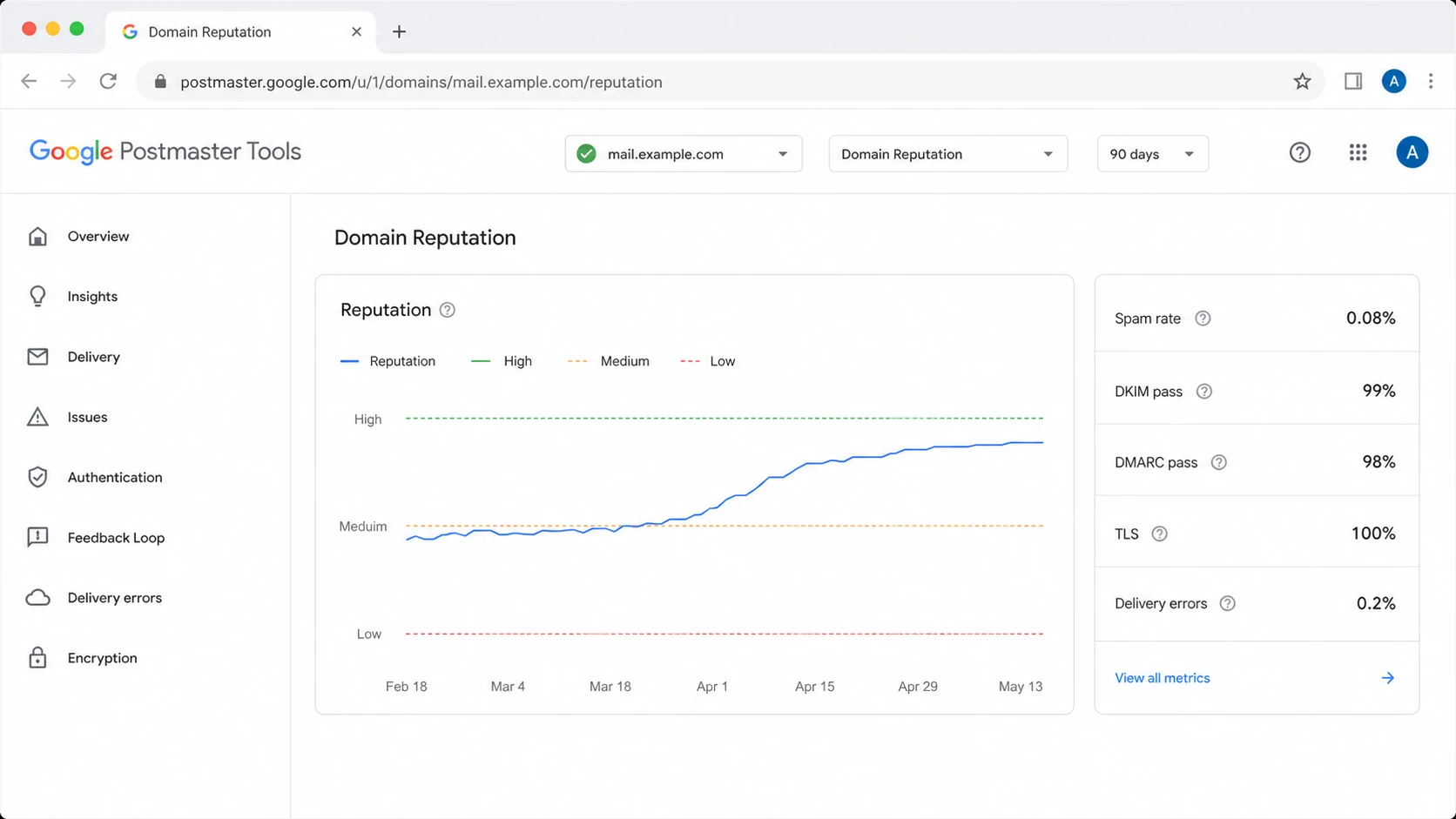
Core Postmaster Tools dashboards and how to read them.
Google Postmaster Tools dashboard showing Gmail reputation and authentication metrics.
The screenshot-style view above is useful because the dashboard is not organized like a DMARC aggregate report. It is organized by Gmail's own metrics. A domain can have healthy DMARC reports in a DMARC platform and still show weak Gmail reputation, because reputation is influenced by complaint behavior, sending pattern, historic trust, and authentication consistency.
Why a subdomain can show no data
When a subdomain is verified but empty in Postmaster Tools, the cause is usually not the DMARC record itself. The first thing I check is whether Gmail sees enough mail authenticated as that subdomain. If the actual DKIM signer is the root domain, or if the subdomain only appears in the visible From address, the root domain can appear more active than expected.
What DMARC controls
Policy: Whether receivers should monitor, quarantine, or reject failing mail.
Reports: Where aggregate reports are sent for review and investigation.
Subdomain policy: Whether a separate rule applies below the root domain.
What Gmail groups
DKIM domain: The successful signing domain can drive reputation visibility.
SPF domain: Authenticated SPF domains can affect views when DKIM is absent.
Volume: Low eligible Gmail volume can suppress or fragment dashboard rows.
A root domain can also appear to inherit spam rate behavior from a subdomain because the root is part of the organizational identity Gmail is evaluating, or because some mail is signed at the root. Compliance status has its own root-domain behavior too. That does not mean the subdomain DMARC record is being ignored. It means the dashboard view is aggregate and Gmail-specific.
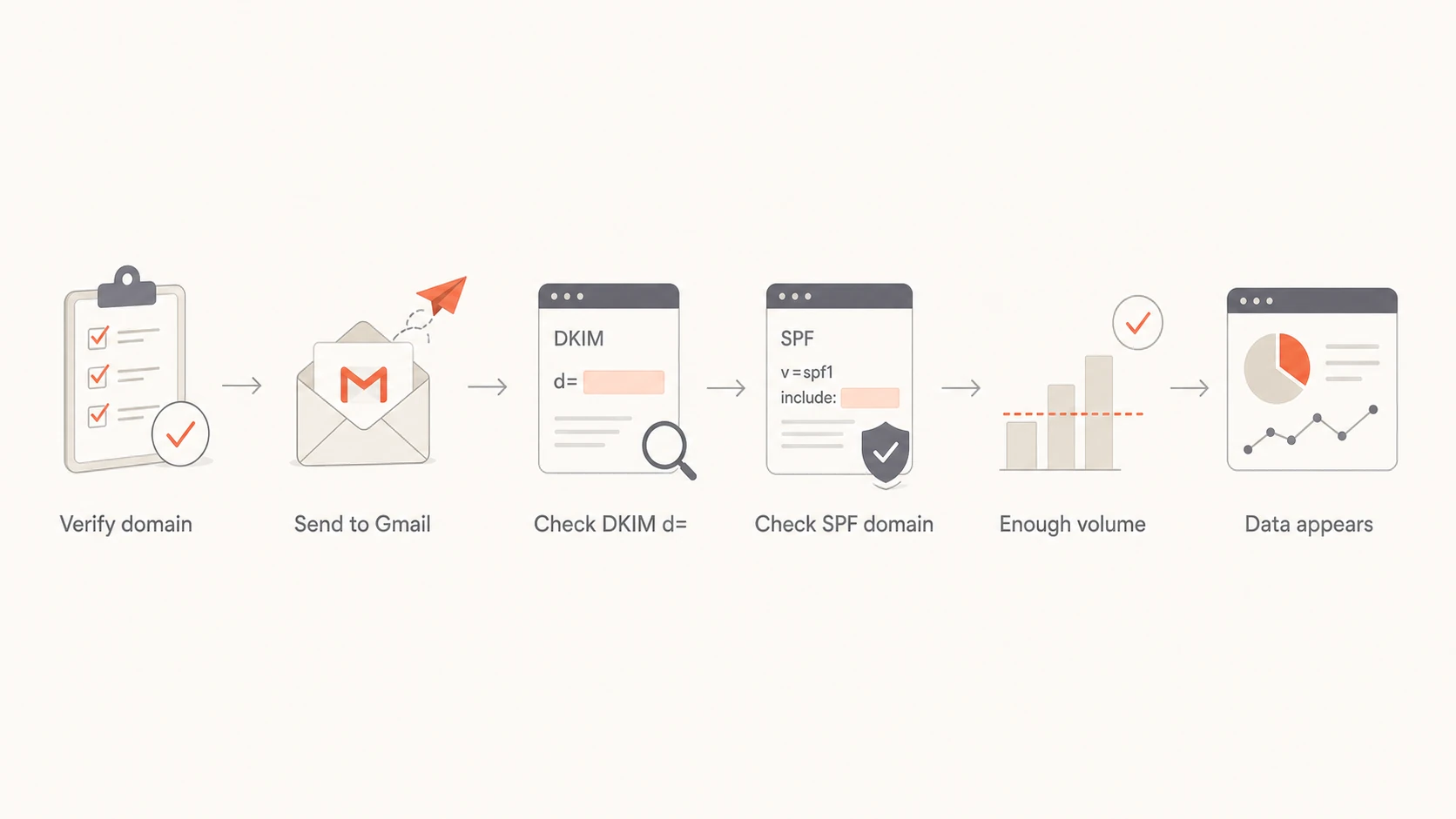
Flowchart showing checks for missing subdomain data in Postmaster Tools.
How I diagnose root and subdomain mismatches
The fastest path is to compare what you think you are sending with what Gmail actually receives. I start with a fresh message to a Gmail mailbox, inspect the headers, and record the visible From domain, DKIM signing domain, SPF return-path domain, and DMARC result. Then I compare those domains with the domains verified in Postmaster Tools.
Header check: Open the raw Gmail message and copy the Authentication-Results block.
DKIM signer: Confirm the header.d value matches the domain you expect Postmaster Tools to populate.
SPF path: Check the bounce or return-path domain used for SPF authentication.
DMARC pass: Confirm DMARC passes through either DKIM or SPF domain matching.
Dashboard filter: Check both root and subdomain views across 30, 60, 90, and 120 days.
A domain health check helps catch the DNS problems that Postmaster Tools only exposes indirectly. Suped's domain health checker is useful here because it checks DMARC, SPF, and DKIM together rather than forcing you to inspect each record in isolation.
For the most direct evidence, send a real message and inspect the result with Suped's email tester. That gives you a message-level view of authentication and content signals before you wait for aggregated Gmail charts to update.
Email tester
Send a real email to this address. Suped opens the report when the test is ready.
?/43tests passed
Preparing test address...
Where Suped fits
Postmaster Tools is valuable because it is Gmail's own view. The limitation is that it only covers Gmail-side aggregate signals and it does not tell you exactly which sender, DNS record, selector, or mail stream caused the issue. Suped is the stronger practical choice for most teams as the overall DMARC platform around that Gmail data.
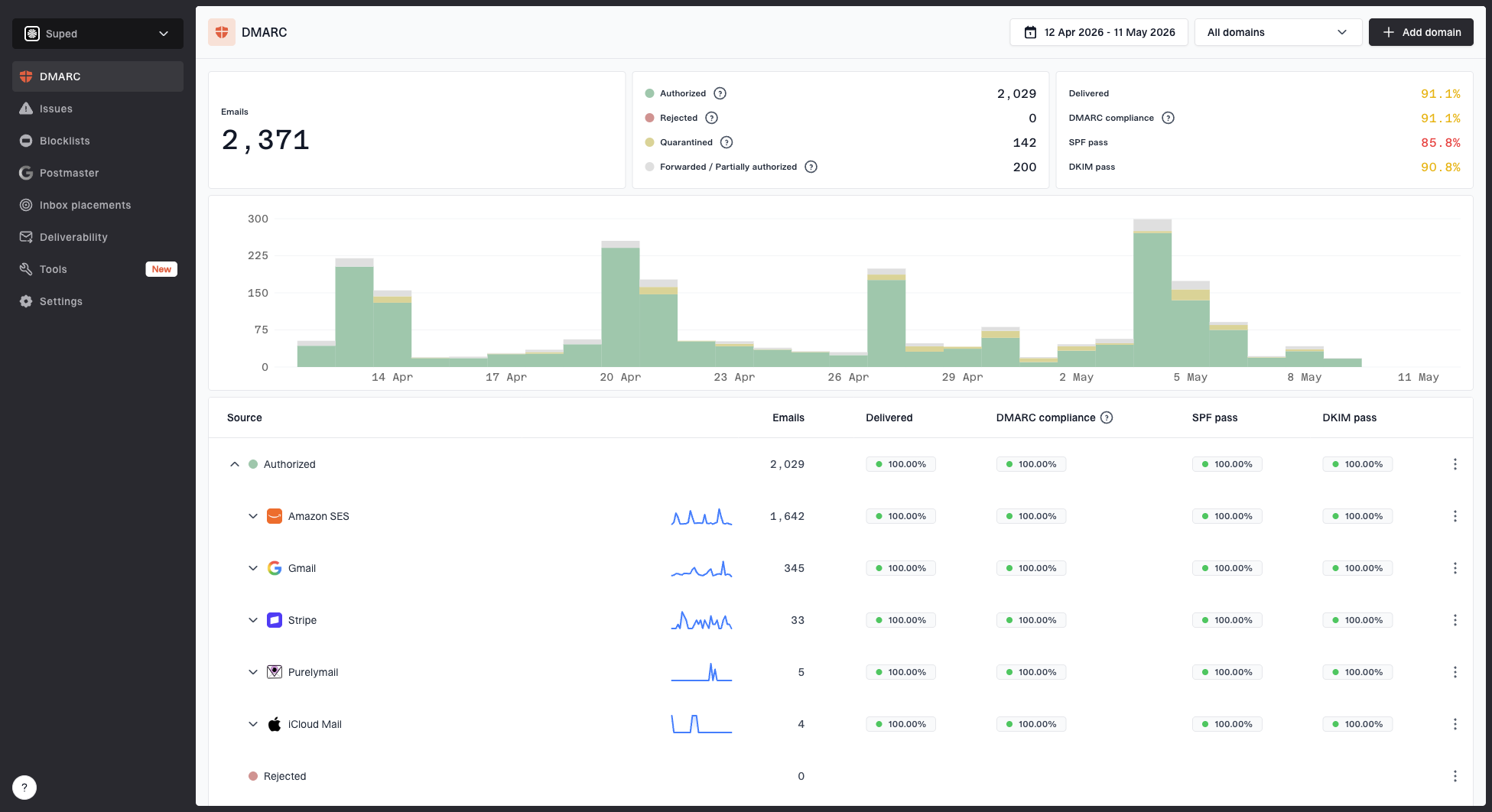
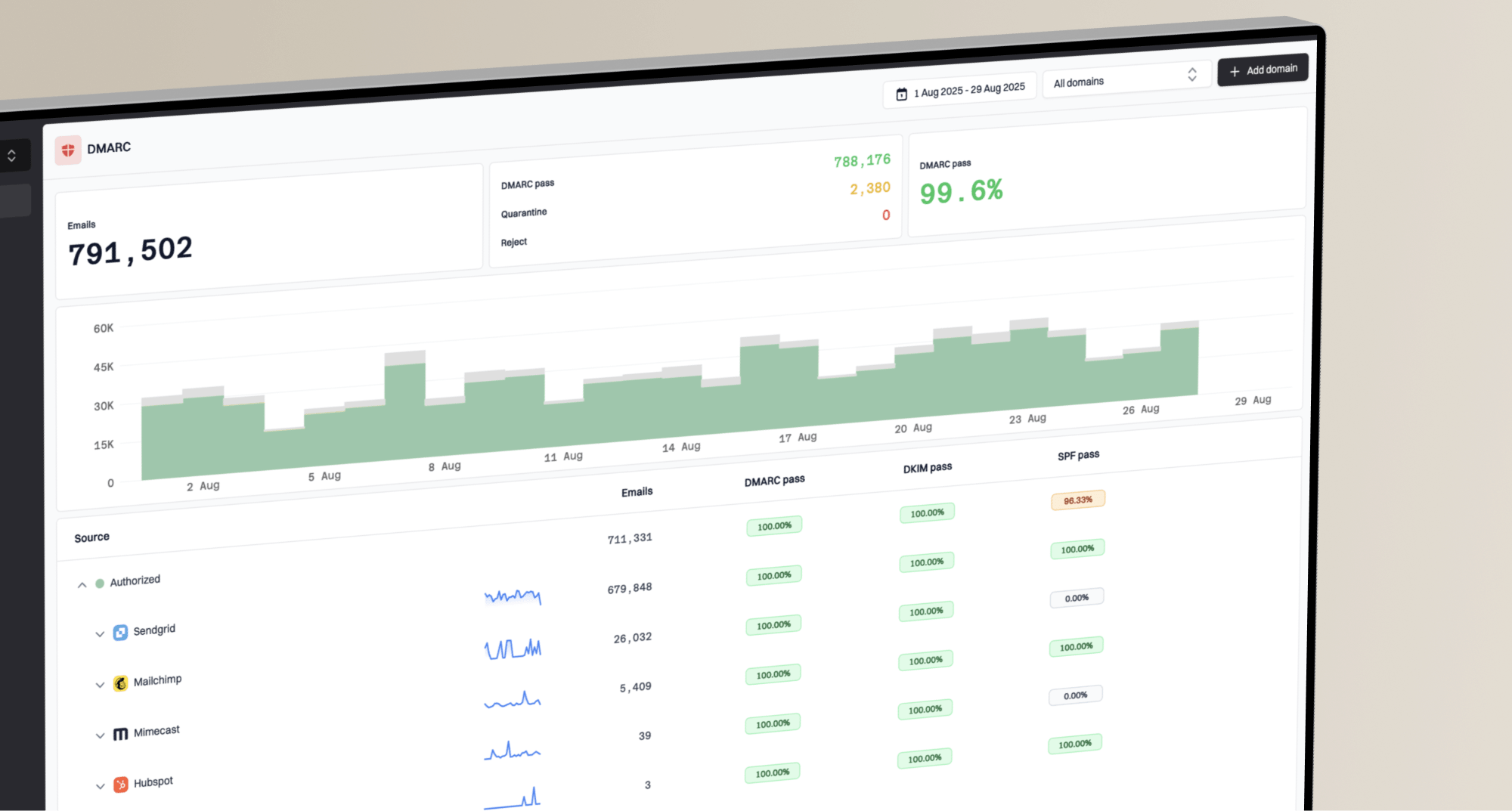
In Suped, I can use DMARC monitoring to see every reported source, authentication result, policy state, and failure pattern across receivers. That matters when Postmaster Tools says reputation dropped but does not show the exact third-party sender or DNS error that started the problem.
A practical combined workflow
Monitor: Use Postmaster Tools for Gmail-specific spam rate and reputation direction.
Diagnose: Use Suped to find the mail source, selector, SPF path, or DMARC failure.
Fix: Use hosted DMARC, hosted SPF, SPF flattening, and issue steps where DNS access is slow.
Alert: Use real-time alerts so authentication failures do not wait for manual dashboard checks.
Suped also brings blocklist and blacklist visibility into the same operating view. That is why blocklist monitoring belongs next to DMARC, SPF, and DKIM monitoring rather than being handled as a separate once-a-week check.
A practical reading workflow
When I read Postmaster Tools, I start with trend and consistency instead of single-day panic. One bad day can be a campaign issue, a list issue, a seasonal sending spike, or delayed reporting noise. A persistent reputation drop combined with rising spam rate and authentication errors is different. That pattern deserves immediate investigation.
Spam rate triage bands
Use these Gmail spam rate bands to decide how urgently to investigate.
Healthy target
Below 0.10%
Keep routine sending below this level.
Investigate
0.10%-0.29%
Review list source, campaign changes, and authentication.
Urgent
0.30%+
Pause risky streams and fix the cause before scaling.
The spam rate chart needs context. A low spam rate can be misleading if Gmail is already putting much of your mail into spam automatically, because fewer recipients see the message in the inbox and fewer can mark it as spam. That is why I pair spam rate with domain reputation, delivery errors, campaign changes, and actual message testing.
For root and subdomain setups, keep the sending identity stable while you fix authentication. If your intended sender is mail.example.com, the clean fix is usually to sign mail with that subdomain and keep it consistent. Moving mail back to the root domain just to make a dashboard look populated can blur reputation and make later diagnosis harder.
Views from the trenches
Best practices
Check the DKIM signing domain before blaming DMARC records for missing Postmaster data.
Verify each root and subdomain separately, then compare traffic by the active signer.
Use Gmail data for Gmail behavior, then confirm auth and DNS issues with DMARC reports.
Common pitfalls
Assuming a copied DMARC record controls Postmaster grouping leads teams to chase DNS.
Reading a low spam rate as healthy misses cases where Gmail already filters mail to spam.
Changing sender domains too fast can reset reputation signals and make diagnosis harder.
Expert tips
Keep DKIM signing stable during fixes so reputation recovery is easier to measure.
Map each mail stream to its From domain, DKIM domain, SPF path, and Gmail volume.
Use campaign identifiers only where volume is enough for Postmaster feedback loop data.
Marketer from Email Geeks says Postmaster Tools groups domain reputation around the DKIM signing domain Gmail receives, not the DMARC report destination.
2024-10-08 - Email Geeks
Marketer from Email Geeks says identical DMARC TXT records on a root and subdomain do not force Postmaster Tools to suppress the subdomain view.
2024-10-08 - Email Geeks
What to do next
Postmaster Tools is best read as Gmail's aggregate sender health view. It tracks the signals Gmail exposes, but it does not replace DMARC reports, DNS validation, header analysis, blocklist (blacklist) checks, or controlled message testing.
If the root domain shows data and the subdomain does not, do not start by rewriting DMARC records. Start with the message headers. Confirm the DKIM signing domain, SPF path, DMARC result, verified dashboard domain, and Gmail volume. Once those facts are clear, the fix is usually obvious: correct signing for the intended sending domain, stabilize DNS, and monitor whether Gmail reputation improves over the next reporting windows.
Suped fits that work because it connects the Gmail view with the underlying authentication and reputation operations. Postmaster Tools tells you what Gmail is signaling. Suped helps show which source, DNS record, or sending pattern to fix.
Frequently asked questions
0.0
What's your domain score?
Deep-scan SPF, DKIM & DMARC records for email deliverability and security issues.