Ultimate Guide to Google Postmaster Tools V2
Knowledge


Updated on 25 Jun 2026: We added SPF return-path troubleshooting and tightened the V2 monitoring workflow around Compliance status, spam rate, DMARC data, and send logs.
Google Postmaster Tools V2 is the current Gmail sender dashboard for checking whether your domain meets Gmail sender requirements, how often Gmail users report your mail as spam, whether Feedback Loop identifiers point to a campaign or segment, which authentication or unsubscribe checks need attention, and what Gmail recommends in Deliverability analysis. The short version is this: use Google Postmaster Tools to see Gmail's own Compliance status, Spam Rate, Delivery Errors, Feedback Loop, data freshness, authentication, TLS, reputation, and spam report signals while those panels remain available, then use DMARC reporting and message testing to find the exact source causing the issue.
Treat V2 as a Gmail-specific control panel, not as a complete deliverability system. It tells you what Gmail is seeing for personal Gmail recipients, meaning @gmail.com and @googlemail.com accounts. Google Workspace accounts can be used to access the tool, but Workspace-hosted recipient domains are not the main dataset for these dashboards. Dashboard data usually updates within 24 hours but can take longer, and Postmaster Tools uses UTC, so compare spikes with send logs using the same date basis. For spam-rate investigations, anchor the review to the campaign send date and the prior send window, not only the day the chart displays, because Gmail can count a complaint after the message was delivered. The dashboard time ranges are 7, 30, 60, 90, and 120 days, so keep a separate log for older incidents. Google attempts to exclude forwarded messages, but forwarding can still explain mismatches in authentication, TLS, and delivery-error data. V2 does not explain every inbox placement change, it does not replace DMARC aggregate reports, and it does not show every low-volume data point. That distinction matters because a domain can be compliant in V2 and still have poor inbox placement because of list quality, content, sending patterns, or reputation outside the visible dashboard.
- Best use: Check Compliance status, Spam Rate, Delivery Errors, Authentication, Encryption, Feedback Loop, Feedback-ID, data freshness, Deliverability analysis, and reputation while visible.
- Main limit: Dashboard data applies to personal Gmail accounts, Feedback Loop data pertains only to @gmail.com recipients, low volume can hide data, reports are not real time, the spam-rate denominator can move sharply when inboxed active-user volume changes, V2 does not identify individual Gmail users who complained, and V2 does not show non-Gmail receiver data, sender-platform events, or full blocklist and blacklist context.
- Practical workflow: Check V2 first, validate DNS, test a real message, inspect DMARC reports, map Feedback-ID values to ESP records, confirm the return-path domain behind any SPF item, then fix the sender that caused the failing traffic.
- Suped fit: Suped's product fits when V2 points to authentication or policy problems, because it turns aggregate reports into source-level fixes.
What changed in V2
V2 shifts the focus away from checking a single reputation label and toward operational requirements. The Compliance status dashboard is the most important starting point because it gives each requirement a state: Compliant, Needs work, or No data found. Deliverability analysis now adds a recommendation layer under Compliance status, which helps explain whether Gmail sees low volume, delivery failure, spam threshold issues, engagement signals, or sender guideline gaps.
The Gmail enforcement context behind V2 matters. Gmail's sender requirements are active, and Google uses compliance, spam rate, authentication, DNS, TLS, message format, and unsubscribe signals when deciding whether to accept, rate-limit, reject, or place mail in spam. Treat Compliance status as an operational queue, not a monthly reporting screen.
Google still documents the legacy Postmaster Tools deprecation path, and help materials continue to reference IP Reputation and Domain Reputation while the V2 workflow takes over. Treat legacy dashboard availability as account-dependent during the transition. Do not make IP Reputation or Domain Reputation the permanent center of monitoring; use them as context only while your account still exposes them. The practical V2 workflow starts with Compliance status, Spam Rate, Deliverability analysis, Authentication, Encryption, Delivery Errors, and Feedback Loop data. If you need a step-by-step access walkthrough before using the dashboards, start with access V2 and then come back to the interpretation workflow here.
API users should treat V2 as the primary build target. The V2 API is available, replaces trafficStats with domainStats, retrieves email statistics over date ranges, queries compliance status for SPF, DKIM, and DMARC, and can retrieve statistics for multiple domains in one call. Maintain V1 code only where it is still running, and do not assume every V1 field or export shape has a direct V2 replacement. Treat old V1 exports as historical context, not as the structure for future monitoring.
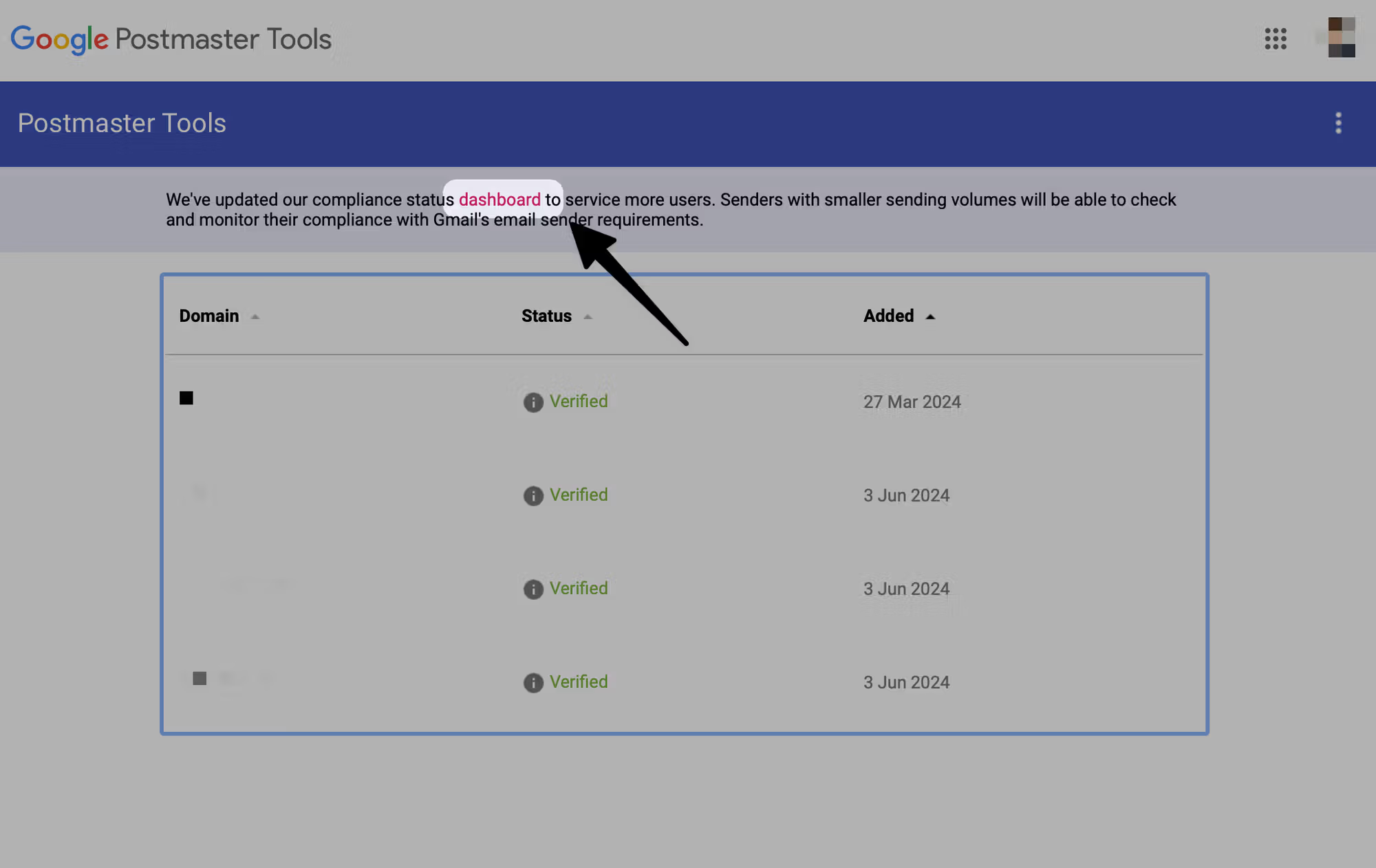
Google Postmaster Tools V2 dashboard link in the Gmail sender interface.
|
|
|
|---|---|---|
Compliance | Do I meet Gmail rules? | Fix any Needs work item. |
Deliverability analysis | Is Gmail recommending action? | Review the diagnosis. |
Spam rate | Are users reporting mail? | Reduce complaints quickly. |
Reputation | How does Gmail rate current sender quality while this dashboard remains available? | Use as context, not the main diagnosis. |
Authentication | Do SPF, DKIM, and DMARC pass? | Find failing senders. |
Encryption | Is mail using TLS? | Check mail server TLS. |
Errors | What is Gmail rejecting? | Match errors to fixes. |
Feedback loop | Which campaigns get complaints? | Use stable Feedback-ID values. |
Main V2 dashboard areas and what to use them for.
The most important V2 caveat
Compliance status is based on messages Gmail received and evaluated. It is not a live DNS scanner. A DNS change can look correct right now and still take up to 7 days to clear a Needs work status, because the dashboard uses data gathered across multiple days.
How to use the V2 API for monitoring
The Postmaster Tools API is the automation path for the same Gmail-side sender data. Use it when a team needs daily storage, alerting, multi-domain reporting, or compliance checks without opening the dashboard. The useful shift in V2 is that date-range statistics, batch domain queries, and SPF, DKIM, and DMARC compliance status can be pulled into the same monitoring workflow.
A clean API workflow starts with the same authentication-domain setup as the dashboard: the DKIM d= domain or SPF Return-Path domain must be added and verified. Then create a project, enable the Postmaster Tools API, issue OAuth credentials, and schedule pulls after Gmail has had time to process yesterday's data. Store the raw response before normalizing it, because delayed days, empty result sets, permission errors, and schema changes are easier to debug when the original response is preserved. If you are migrating V1 code, replace trafficStats calls with domainStats queries and preserve unavailable states instead of turning missing metrics into zeroes.
- Use the API for: daily Gmail spam rate tracking, delivery-error alerts, authentication trend checks, and bulk compliance reporting.
- Use batchQuery for: agency, MSP, or multi-brand reporting where up to 100 domainStats requests need one scheduled pull.
- Do not use it as: a recipient-level log, exact inbox placement feed, campaign attribution system, or complete deliverability diagnosis.
- Handle missing data carefully: record unavailable, permission denied, and no data found states instead of writing zero when Gmail has not returned a metric.
- Pair it with DMARC: API data shows Gmail's aggregate view, while DMARC reports show which sources authenticated and which failed.
API data still has dashboard limits
The API does not create data that the dashboard lacks. Low Gmail volume, a wrong verified domain, delayed processing, or unauthenticated traffic can still produce empty or partial results. Treat the API as a way to preserve and compare Gmail signals, not as proof that every message was accepted, rejected, or placed in a specific folder.
How to handle delayed or missing data
Postmaster Tools V2 is not a system of record. Google says dashboard data typically updates within 24 hours, but it can take longer. Low-volume days can be hidden for privacy, different dashboards can refresh at different times, and Compliance status can take up to 7 days after a fix. When troubleshooting a live issue, plan for a 2 to 3 day lag before treating a new V2 point as a stable signal. Do not treat a blank day as proof that Gmail rejected, filtered, or accepted all mail.
- Wait one reporting cycle before making decisions from yesterday's chart.
- Compare the latest visible date across Compliance status, Spam Rate, Authentication, Delivery Errors, and Feedback Loop.
- Check DMARC aggregate reports, SMTP logs, bounce logs, complaint data, and a live Gmail test before changing volume.
- If a high spam rate falls to zero, check whether Gmail started putting more mail straight into spam before calling it recovery.
- Mark missing historical days as missing instead of filling Google data with estimates.
Backfill rule
If a missing historical day returns later, use it as Google's delayed point. If it never appears, keep it marked as unavailable and use your own mail logs, DMARC data, bounces, and test results as separate evidence.
How much volume you need for data
Google does not publish one fixed minimum for every V2 dashboard. The practical threshold is daily mail to personal Gmail accounts using the verified DKIM d= domain or SPF Return-Path domain. Over 100 Gmail-recipient messages on active send days can be enough for some panels, a few hundred per active day is a better planning floor, and low thousands per active day makes reputation, delivery-error, and Feedback Loop signals less patchy.
Postmaster Tools visibility by Gmail daily volume
These are practical planning bands for personal Gmail recipients on active send days.
Usually blank
0-99/day
Too little signal for most dashboards.
Patchy
100-299/day
Some authentication or spam data can appear.
Useful
300-999/day
More days populate, but reputation can still be sparse.
More reliable
1,000+/day
Reputation and error data become easier to interpret.
Bulk sender
About 5,000+/day
Gmail bulk sender requirements apply.
A sender with 4,000-5,000 messages in a month can see data when most of that mail goes to personal Gmail accounts, uses the verified authentication domain, and is concentrated on a handful of active send days. The same monthly total spread thinly across 30 days, or mostly sent to Workspace and corporate domains, usually leaves V2 blank or incomplete.
Do not confuse the Gmail bulk sender threshold with the minimum data threshold. About 5,000 Gmail messages in 24 hours triggers extra sender requirements. Postmaster Tools data can appear below that level, but it is less complete and less consistent.
How to set it up correctly
Setup is simple, but mistakes happen when teams verify only one marketing subdomain and forget that compliance status is displayed at the primary domain level. If you send through newsletter.example.com, mail.example.com, and app.example.com, Gmail can use those subdomain messages when deciding the primary domain's compliance state.
- Sign in: Use a Google account that your team can retain, not a temporary personal account.
- Add domain: Add the DKIM d= domain or SPF return-path domain first, then add important sending subdomains if your workflow needs separate views.
- Verify DNS: Publish the verification TXT record exactly as shown, or the CNAME record if that is the option you used, then wait for DNS propagation.
- Check traffic: Count personal Gmail-recipient messages by active send day, not total monthly sends or all-recipient volume.
- Share access: Add operations, marketing, and security owners so fixes do not depend on one inbox.
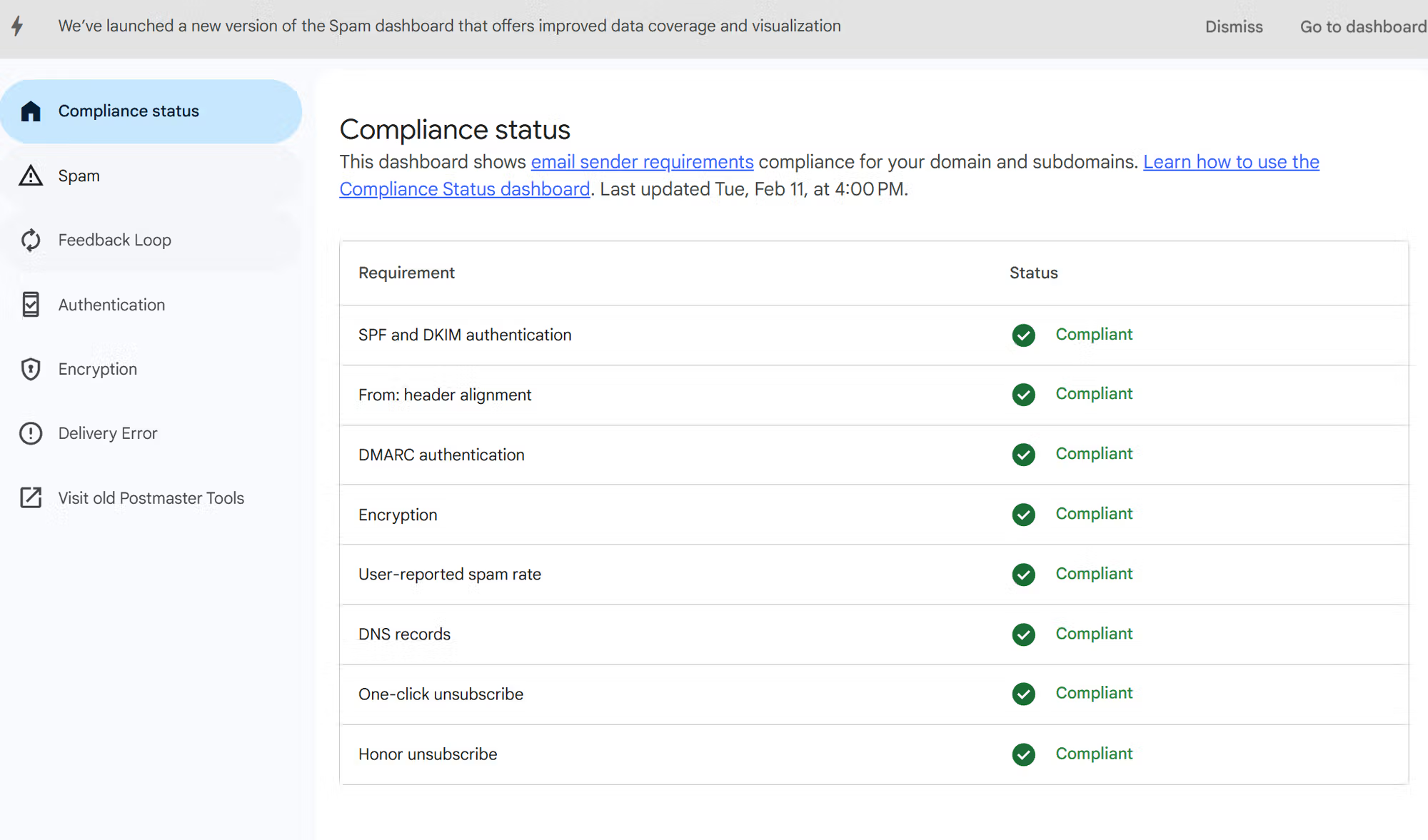
Google Postmaster Tools V2 Compliance status dashboard with passing Gmail sender checks.
After verification, do not judge the domain on the first empty screen. V2 only becomes useful after Gmail sees enough relevant traffic to personal Gmail accounts. If the primary domain is verified, subdomains can be added for separate views without separate verification, but Compliance status still rolls up at the primary domain. The cleanest setup workflow is to verify the domain, confirm SPF and DKIM pass on real Gmail deliveries, publish at least a basic DMARC record, then review the Compliance status and Spam Rate dashboards over the next several days.
Ownership and delegated access need the same discipline. Postmaster Tools does not have a normal transfer-owner button, so a wrong personal-account owner should be replaced by verifying the same domain again from a durable work account with its own DNS verification record. Keep the old verification record until the new owner works, then remove stale delegated users and old records as housekeeping. When you grant access, tell the user directly because Google says people are not notified automatically.
Minimum DMARC record for Gmail complianceDNS
_dmarc.example.com. 3600 IN TXT "v=DMARC1; p=none; rua=mailto:dmarc@example.com"
How to read compliance status
Compliance status is the dashboard to check first because it maps directly to Gmail's sender requirements. For all senders, V2 checks the basic SPF or DKIM authentication requirement, DNS records, message formatting, encryption, and user-reported spam rate. For bulk senders, it also checks SPF and DKIM together, DMARC policy, DMARC alignment, one-click unsubscribe, and whether unsubscribe requests are honored.
Bulk sender status starts around 5,000 messages to personal Gmail accounts within a 24-hour period, counted across the same primary domain. Once Gmail treats a domain as a bulk sender, keep meeting the bulk requirements even if later daily volume dips. The clearest breakdown of the volume rules is in this guide to compliance thresholds. Compliance status is shown for the primary domain, even when subdomain messages contributed to the result. Use the other dashboards when you need subdomain-specific troubleshooting after adding those subdomains to V2.
Compliant
This means Gmail has enough data to say that the evaluated traffic meets the requirement. It is a good sign, but it is not a guarantee of inbox placement.
- Next step: Keep monitoring spam rate, delivery errors, and Deliverability analysis.
- Risk: A compliant status can hide sender-level problems outside Gmail's view.
Needs work
This means Gmail has seen traffic that does not meet that requirement. Fix the underlying sender first, then wait for the rolling data window to refresh.
- Next step: Identify which platform, IP, or application sent the failing mail.
- Risk: Fixing only the main mailbox leaves automated senders failing.
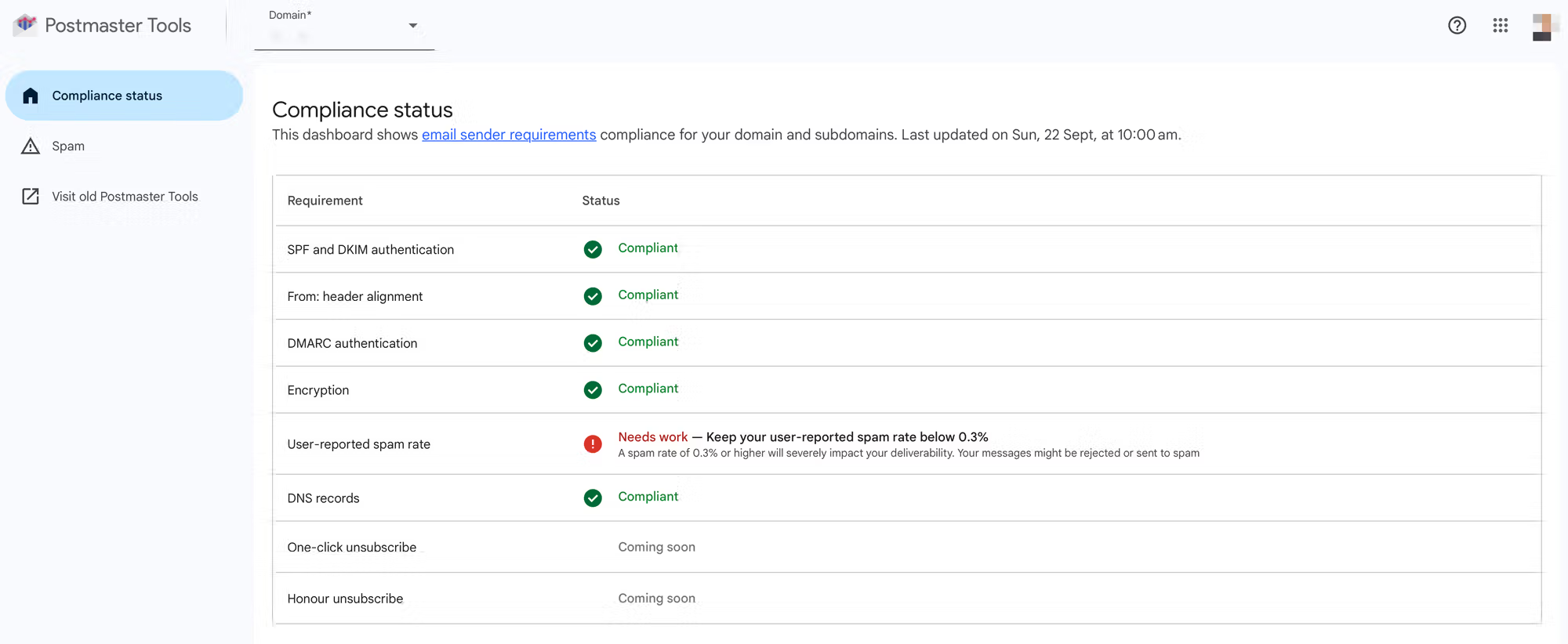
Google Postmaster Tools V2 Compliance status dashboard showing Needs work sender requirement errors.
No data found is not the same as passing. It usually means Gmail does not have enough matching mail to evaluate that requirement, or the evaluated traffic does not meet the filter criteria for the dashboard. For configuration-based requirements, the status reflects the settings Gmail observed when those messages were received, not only the current DNS record. This often happens with new domains, low-volume domains, or subdomains that have been added but do not send enough mail on their own.
How to use Deliverability analysis
Deliverability analysis sits under Compliance status and gives a recommendation about a domain's Gmail status. Use it as a triage layer, not the final root cause, because it can flag low volume, delivery failure, spam threshold issues, weak recipient engagement, strong recipient demand, or sender guideline gaps without naming every sending application.
When Deliverability analysis shows positive, neutral, or negative wording, translate the wording into an action queue. Positive means keep watching the usual dashboards, neutral means Gmail lacks a strong signal or needs more eligible traffic, and negative means start with spam complaints, delivery errors, and sender guideline failures before changing unrelated DNS.
If you export the data through the API or track it in a dashboard, map the recommendation to an operational bucket: user feedback, message volume, SMTP errors, spam rate, or sender non-compliance. That keeps the action clear, because a low-volume status needs more eligible data, while SMTP errors need log review and sender non-compliance needs requirement-by-requirement cleanup.
Do not read an engagement recommendation as an open-rate report. Gmail says it does not track open rates, and low open rates from outside reporting are not a reliable proof of Gmail placement problems. Use engagement wording as a prompt to check consent, list age, frequency, campaign results, and recent audience changes.
- Low volume: Do not treat the recommendation as clean data until Gmail has enough eligible traffic.
- Delivery failure: Match the recommendation to SMTP logs and the Delivery Errors dashboard.
- Spam threshold: Compare it with Spam Rate and campaign timing before changing DNS.
- Engagement signal: Review audience consent, sending cadence, and list age when Gmail flags weak interaction.
When signals disagree
If Deliverability analysis, Compliance status, and Authentication disagree, trust the most specific evidence first. A real message header, SMTP log, DMARC aggregate report, and sender inventory will usually explain the mismatch faster than waiting for another dashboard refresh.
Spam rate is the signal to watch daily
The Spam Rate dashboard shows the percentage of DKIM-authenticated messages delivered to engaged Gmail inboxes that recipients mark as spam. A practical formula is user spam reports divided by eligible DKIM-authenticated inbox deliveries, multiplied by 100. If Gmail automatically sends a large share of your mail to spam, the visible rate can look low because fewer recipients see the message in the inbox. A rate can also rise after inbox placement improves, because more recipients can see the mail and decide whether to report it. This is why a missing or broken DKIM setup can make the dashboard less useful, even when some mail appears to deliver.
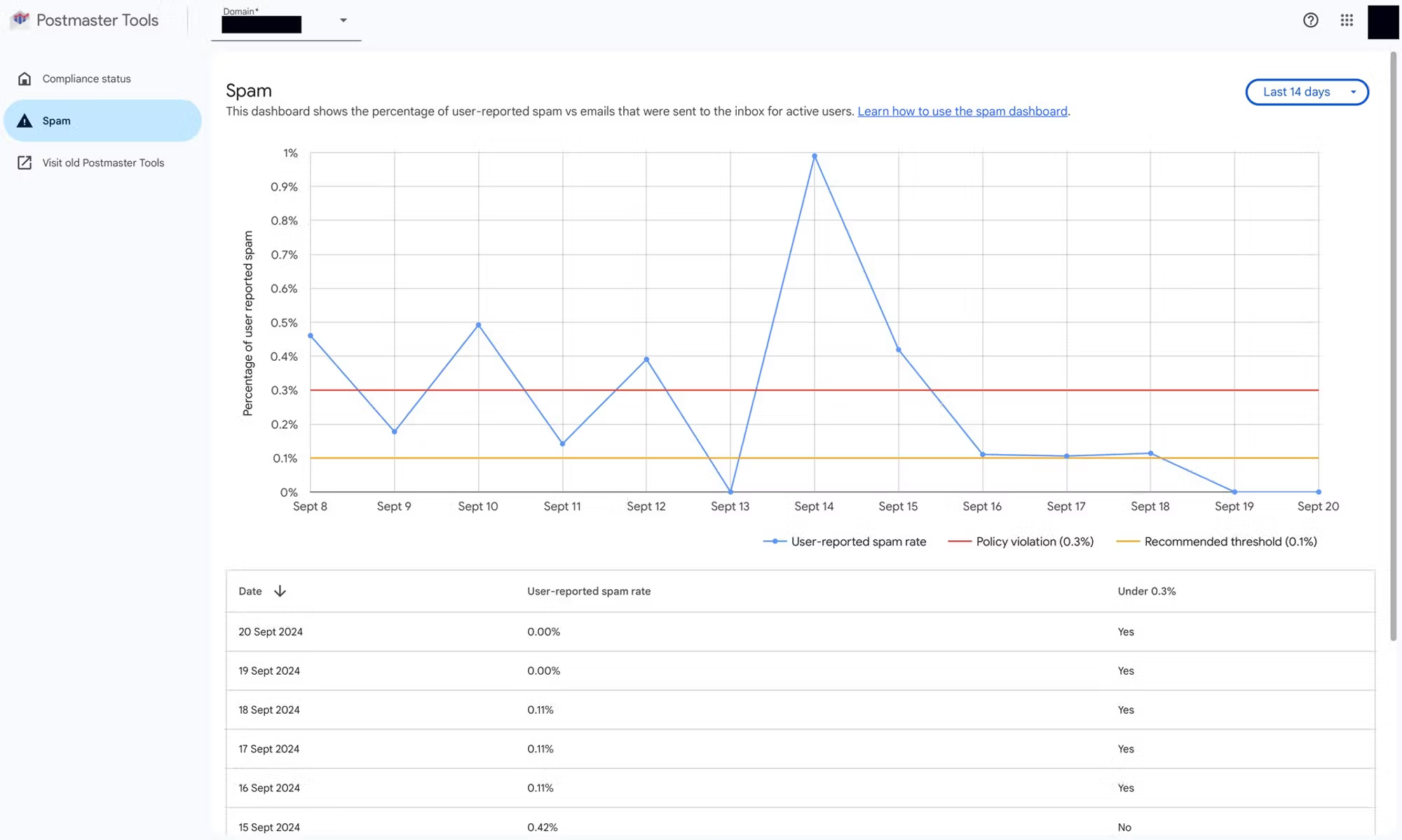
Google Postmaster Tools V2 Spam Rate dashboard for Gmail user complaint monitoring.
Gmail spam rate operating bands
Use these bands as an operating model for bulk sending to personal Gmail accounts.
Healthy
0.00-0.10%
Keep normal campaigns here.
Watch
0.10-0.20%
Investigate list or campaign changes.
Risk
0.20-0.30%
Pause weaker segments and fix consent sources.
High risk
0.30%+
Expect mitigation limits and delivery pressure.
The operating target is below 0.1%. A rate at or above 0.3% is the danger line for bulk senders. Gmail calculates spam rate daily, and after fixes it can take up to 7 days for the spam rate to fall back within compliance.
When the graph spikes, do not start by changing DNS. Start by comparing send dates, campaigns, audience segments, subject lines, list sources, unsubscribe handling, and Feedback-ID values. If the spike is hard to explain, this page on the spam rate dashboard is useful for interpreting what the V2 numbers do and do not mean.
A zero spam rate is not always good news
A zero value can mean users are not complaining. It can also mean Gmail lacks enough eligible data, DKIM-authenticated traffic is too low, many messages already go straight to spam, a previously high spam rate has pushed more mail out of the inbox, or the visible window has not caught up. Read zero beside volume, authentication, and delivery error signals.
How to investigate a sudden spam-rate spike
Start by treating the spike as a ratio, not a raw complaint count. Gmail's spam rate is shaped by mail delivered to engaged inbox users and reported as spam, so the visible percentage can jump when the eligible denominator shrinks, one small campaign gets a few complaints, inbox placement changes, or DKIM-authenticated volume becomes visible.
Use the campaign send date as the investigation anchor. Reporting can lag, and Postmaster Tools uses UTC, so a spike shown on Tuesday can map to mail sent late Monday in another timezone. Do the first pass by segment before changing the whole Gmail program.
- Scope the spike: Check whether it is one day, one domain, one stream, one Feedback-ID, or every Gmail-facing program.
- Click the point: If Google shows Feedback Loop detail, map each identifier to the ESP campaign, launch, segment, stream, or customer record.
- Check the denominator: Compare Gmail-recipient volume, active-recipient mix, and how much of the stream reached the inbox.
- Compare campaigns: Review subject lines, offers, link domains, redirects, templates, sender identity, and unsubscribe placement.
- Validate authentication: Confirm SPF, DKIM, and DMARC alignment for the exact source that sent the spiking mail.
- Watch reputation: Check delivery errors plus blocklist and blacklist movement before changing global volume.
When an identifier appears, treat it as a label that must be proven against your ESP data. If it is a numeric or short token and no mapping table exists, V2 cannot name the campaign by itself. It also never shows the individual Gmail user who clicked spam.
Practical rule
Do not change global sending policy because of one Google Postmaster Tools point. Change global policy only when the spike repeats, hits engaged segments, or lines up with authentication, placement, complaint, or reputation evidence.
How to read Feedback loop identifiers
The Feedback Loop dashboard uses the Feedback-ID header to group campaign complaint data. Its data pertains only to @gmail.com recipients, and Google shows identifier-level rates only after enough messages and enough distinct user spam reports exist for that identifier. Read an identifier spam rate as a segmentation signal, not as a complete complaint ledger.
Example Feedback-ID headertext
Feedback-ID: spring_sale:cust_184:marketing:esp01
- Identifier scope: The rate belongs to mail Gmail grouped under that Feedback-ID identifier in the selected Postmaster Tools view.
- Domain mismatch: A domain spam rate of 0.3% and an identifier spam rate of 0.8% can both be correct because the denominators are different.
- Aggregated views: From header domain narrows the view to mail where the selected domain matches the From domain, while All signed domains includes mail where the selected domain is a successful DKIM signer.
- Identifier count: A low count can mean too few messages, too few spam reports, or too many one-off IDs splitting signal across separate Feedback Loop values.
The header only helps if the sending team knows what each field means. Use values that map to campaign, segment, message type, customer, or sender system, then keep that mapping in the same place you keep send logs. A Feedback-ID that looks random in V2 is not useless if your ESP can translate it.
Use identifiers that map to real decisions
A useful Feedback-ID separates customer, mail type, campaign, and sender system without using a value that is unique to every message. If one identifier is reused across customers, brands, or routing pools, the complaint rate becomes blended and needs header-level validation before suppression or reputation decisions.
How to investigate delivery errors
The Delivery Errors dashboard deserves its own review because it can explain sudden Gmail trouble before campaign reporting catches up. It reports the percentage of authenticated messages that Gmail rejected or temporarily failed, plus the reason category. Temporary 4.7.x codes mean rate limiting or deferral; permanent 5.7.x codes mean the message was blocked. Treat a spike as a send-log investigation, not only a reputation signal.
- Rate limit exceeded: Slow Gmail volume, stop bursts, and compare the spike with recent volume changes.
- Temporary failures: Use retry logs to separate normal backoff from a repeated Gmail throttling pattern.
- Policy or spam errors: Review content, list source, authentication, complaint movement, and sender history.
- Blocklist or blacklist errors: Confirm the listed domain or IP, then fix the behavior that caused the listing before requesting removal.
- PTR errors: Check that reverse DNS and forward DNS match the sending server.
Match each error spike to the send calendar, Gmail volume, domain or IP changes, and SMTP logs. If V2 reports more errors than your platform logs, check forwarding paths and unauthorized mail, because the dashboard can include failures your sending platform did not directly see.
If Gmail returns a 4.7.28 quota error, stop the burst for at least 10 minutes, identify whether DKIM, SPF, or IP quota pressure caused it, then restart with one connection before scaling back up. If the error does not name the quota type, assume domain and IP limits both need protection.
Same-day escalation
Pause high-risk segments when errors repeat, fix authentication or DNS causes first, then resume slowly. For rate limiting, a steady lower send rate is safer than another burst after a short wait. If messages are classified as spam, rejected, or temporarily failed after the domain meets Gmail's requirements, the Report delivery issue flow is available to verified owners. Submit an example only after the message is DKIM and SPF authenticated and the From header domain matches the selected domain.
How to fix common V2 failures
Most V2 failures are caused by one sender in a larger mail system. The main mailbox passes, but the billing system, helpdesk, website form, CRM, or marketing platform sends with weak authentication. V2 reports the domain-level symptom. Your job is to find the sender that created the failing traffic.
|
|
|
|---|---|---|
SPF | Return-path mismatch or sender missing | Check smtp.mailfrom and authorize it. |
DKIM | Unsigned mail | Enable signing. |
DMARC | No policy | Publish a record. |
DNS or PTR | Reverse DNS mismatch | Fix forward and reverse DNS. |
Message format | Bad headers | Fix Message-ID and duplicate headers. |
Honor unsubscribe | Slow removal | Process within 48 hours. |
RBL or blocklist | IP or domain listed | Investigate blocklist (blacklist) evidence. |
Fast diagnosis map for common Google Postmaster Tools V2 issues.
SPF troubleshooting needs one extra step. If V2 shows SPF Needs work but a Gmail header shows spf=pass, identify the domain beside smtp.mailfrom and compare it with the visible From domain. SPF authenticates the return-path domain; if that domain belongs to an ESP or a different subdomain, SPF can pass in the header while it does not help DMARC alignment for the From domain. A matching DKIM pass can still make DMARC pass, but a custom return-path is cleaner for important streams because SPF then supports the same brand domain.
For SPF, check whether every service that sends mail using your domain is included and whether the SPF record stays under the 10 DNS lookup limit. For DKIM, confirm that each sending platform signs with the same domain family that appears in the visible From address, then use a separate selector or key for each third-party sender so one service can be rotated without disturbing the others. Gmail requires DKIM keys of 1024 bits or longer for mail to personal Gmail accounts, and 2048-bit keys are the safer default when your provider supports them. In the Authentication dashboard, remember that the From header domain view focuses on domain-matched authentication, while the DKIM and SPF domains view does not show the DMARC success rate. For DMARC, start with DMARC monitoring before moving to stricter policies, because reports show which sources pass and fail.
One-click unsubscribe headerstext
List-Unsubscribe: <https://example.com/unsubscribe/abc>,
 <mailto:unsubscribe@example.com>
List-Unsubscribe-Post: List-Unsubscribe=One-Click
For marketing and promotional mail, one-click unsubscribe requires more than adding a header. Gmail also checks whether unsubscribe requests are honored promptly. Build a process that removes recipients within 48 hours, and test the actual endpoint after every template, routing, or security change. If security filtering blocks the one-click POST request, Gmail still counts the request against the sender.
For message-format failures, check that every message has a valid Message-ID, a single From header, one Subject header, and one Date header. Automated systems that add duplicate headers during forwarding, templating, or ticket creation can create V2 failures even when SPF and DKIM pass.
Also review sender display names, subject lines, hidden HTML, and visible links. Gmail's sender rules require accurate sender identity and message content, so a deceptive display name, a fake reply prefix, or a hidden link can create a message-format or spam-rate problem even when authentication passes.
?
What's your domain score?
Deep-scan SPF, DKIM & DMARC records for email deliverability and security issues.
A broad check is useful after you change DNS because it catches the obvious mistakes before Gmail's rolling dashboard refreshes. The domain health checker gives a fast view of SPF, DKIM, DMARC, and related domain setup before you wait for V2 to update.
Where Suped fits with Postmaster Tools
Postmaster Tools V2 tells you how Gmail judges your mail. Suped's product shows which sources are responsible, how they authenticate across receivers, and what to fix next. That matters because a V2 item like SPF Needs work rarely tells you the name of the application that caused it.
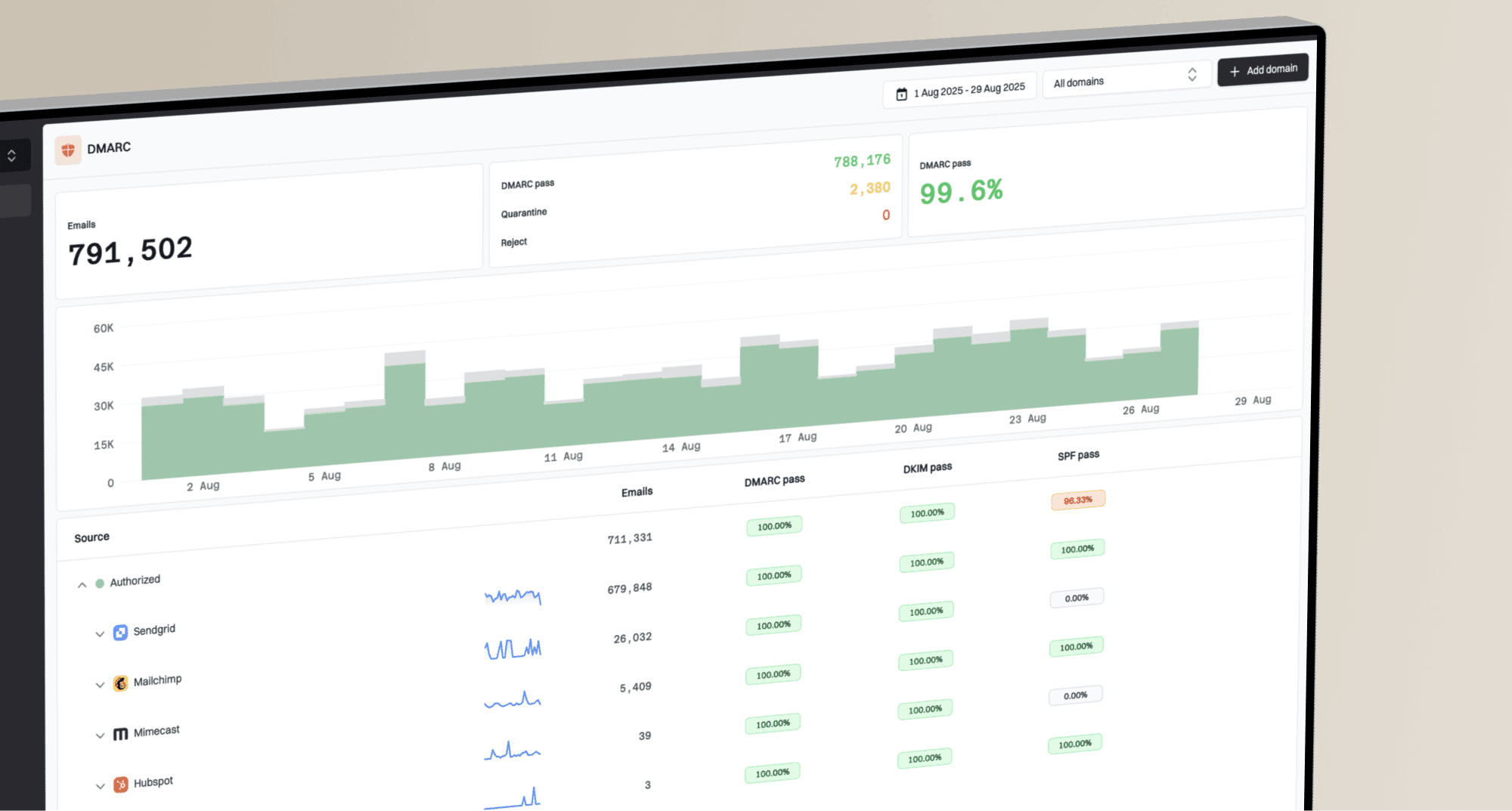
Suped DMARC dashboard showing email volume, authentication health, and source breakdown
For day-to-day DMARC operations, Suped's product brings DMARC, SPF, DKIM, blocklist (blacklist) monitoring, hosted DMARC, hosted SPF, SPF flattening, hosted MTA-STS, alerts, and multi-tenant reporting into one workflow. The practical value is knowing which sender broke, what record needs changing, and when the fix has worked.
Google Postmaster Tools V2
- Scope: Gmail-specific visibility for personal Gmail recipients.
- Strength: Direct compliance, spam, and Deliverability analysis signals from Gmail.
- Gap: Limited source-level detail when many services send as one domain.
- Use: Confirm Gmail-facing requirements and complaint movement.
Suped
- Scope: DMARC, SPF, DKIM, blocklist (blacklist), and deliverability monitoring.
- Strength: Automated issue detection and clear steps to fix.
- Gap: It does not replace Gmail's own complaint dashboard.
- Use: Find the sender and policy fix behind the V2 symptom.
A practical workflow is to use V2 for Gmail's verdict, Suped for DMARC source analysis, and a real message test when you need to inspect headers and authentication results. The email tester is helpful when a specific sending path needs proof, such as a receipt, invite, newsletter, or automated alert.
A practical V2 monitoring routine
A common mistake is checking Postmaster Tools only after Gmail starts rejecting mail. V2 works better as a routine, especially for teams that send promotional mail, product notifications, lifecycle messages, invoices, and support updates through different systems. The five-minute review is latest visible data date, spam rate, delivery errors, authentication, Feedback-ID, and campaign results for the same UTC dates.
Suggested monitoring mix
A balanced weekly review across Gmail data, authentication data, and sending operations.
V2
DMARC
Ops
Content
- Daily: Check spam rate, delivery errors, and the latest data date after major sends, comparing Gmail's UTC dates with send logs.
- Weekly: Review Compliance status, Deliverability analysis, reputation while visible, authentication trends, and new senders discovered in DMARC data.
- Monthly: Confirm the durable owner account, remove stale delegated access, and document any new DNS verification records.
- Before launches: Test templates, unsubscribe headers, DKIM signing, and sender routing before sending volume.
- After fixes: Wait for the V2 data window, but verify current DNS, Gmail headers, smtp.mailfrom, and DKIM or DMARC alignment immediately.
Best practice
Keep a simple sender inventory with owner, platform, From domain, return-path domain, DKIM selector, purpose, and expected volume. When V2 reports Needs work, that inventory cuts the investigation time sharply.
How to pair V2 with other signals
Postmaster Tools is strongest when the question is Gmail-specific. When the question is broader deliverability, compare V2 with signals Gmail does not provide: DMARC aggregate reports, sender-platform event exports, SMTP and bounce logs, complaint data, blocklist and blacklist checks, and controlled message tests. V2 also does not show the exact share of mail Gmail automatically routed to spam or Promotions, so treat the spam-rate chart as user complaint evidence, not full inbox-placement measurement.
When another mailbox provider shows a different complaint, bounce, or reputation pattern, compare by provider, IP, domain, and send date instead of forcing the Gmail explanation onto all mail. Provider dashboards rarely use the same denominator as Postmaster Tools, and sender-platform logs remain the operating record for accepted, deferred, bounced, suppressed, and unsubscribed messages.
- Receiver-side signals: Compare non-Gmail reputation, complaint movement, and bounce patterns against Gmail changes when those data sources are available.
- Sender exports: Pull complaints, bounces, suppressions, unsubscribes, and delivery events because the sender-side view is your operating record.
- DMARC reports: Use aggregate reports to identify which systems are sending, passing, failing, or using your domain without permission.
- Reputation checks: Watch blocklist (blacklist) status for domains and IPs, then match any listing to volume changes, complaints, and bounce codes.
- Controlled tests: Send known messages through important paths as a smoke test, but do not treat a few test inboxes as a full placement measurement system.
Read mismatches as clues
If Gmail shows a complaint spike and your sender platform does not, the sender platform is not automatically wrong. Gmail does not send individual Gmail complaint events through a classic feedback loop, so V2 can show aggregate complaint movement that never appears as user-level complaint rows in sender exports.
What to do next
Google Postmaster Tools V2 is an important dashboard for serious Gmail sending. It answers a direct operational question: does Gmail see your domain as compliant, and are Gmail users complaining about your mail? Use that answer first, then investigate the sender, message path, and authentication record behind the signal.
A baseline setup is simple: verify the primary domain in V2, monitor Compliance status, Spam Rate, Delivery Errors, Authentication, data freshness, and daily personal Gmail volume, keep spam complaints below 0.1%, publish DMARC reporting, and use Suped to turn the domain-level picture into source-level fixes. That combination gives you Gmail's view and the operational detail needed to act.
When V2 shows Needs work, do not treat the dashboard as the final diagnosis. Treat it as the starting point. The fix usually lives in a sending platform, DNS record, DKIM selector, unsubscribe endpoint, list source, or Feedback-ID namespace that changed before the status moved.